


Screenshot tools have also finally started to introduce… AI There! On GitHub, there is this Snippai.ScreenshotThis tool comes with AI features, meaning that in addition to taking screenshots, it can also use AI to extract text, analyze images, solve equations, and even translate. It’s completely free to use and supports both Windows and Mac. I highly recommend giving it a try.
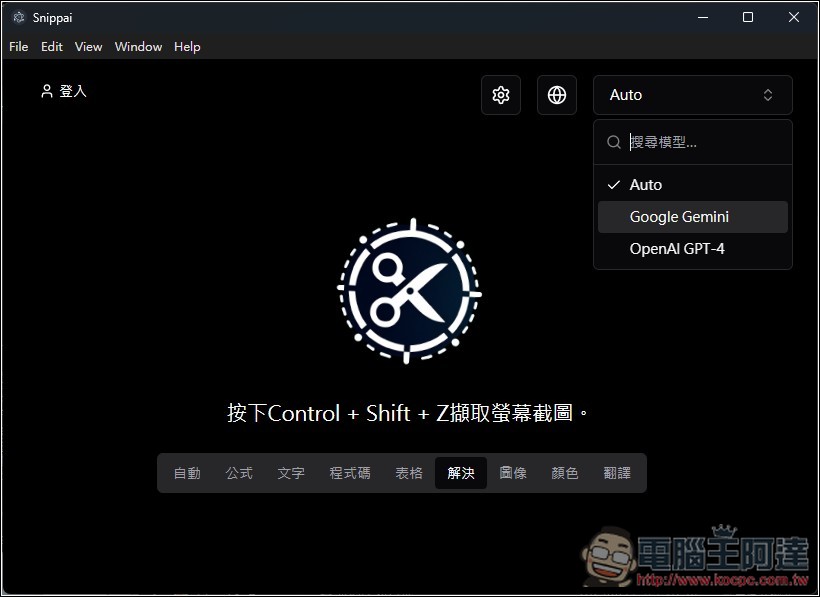
Snippai is a free open-source screenshot tool with AI capabilities! Supports text extraction, table recognition, image analysis, question answering, and more.
Snippai is an AI-powered screenshot tool based on Google Gemini and OpenAI GPT-4 models, featuring the following capabilities:
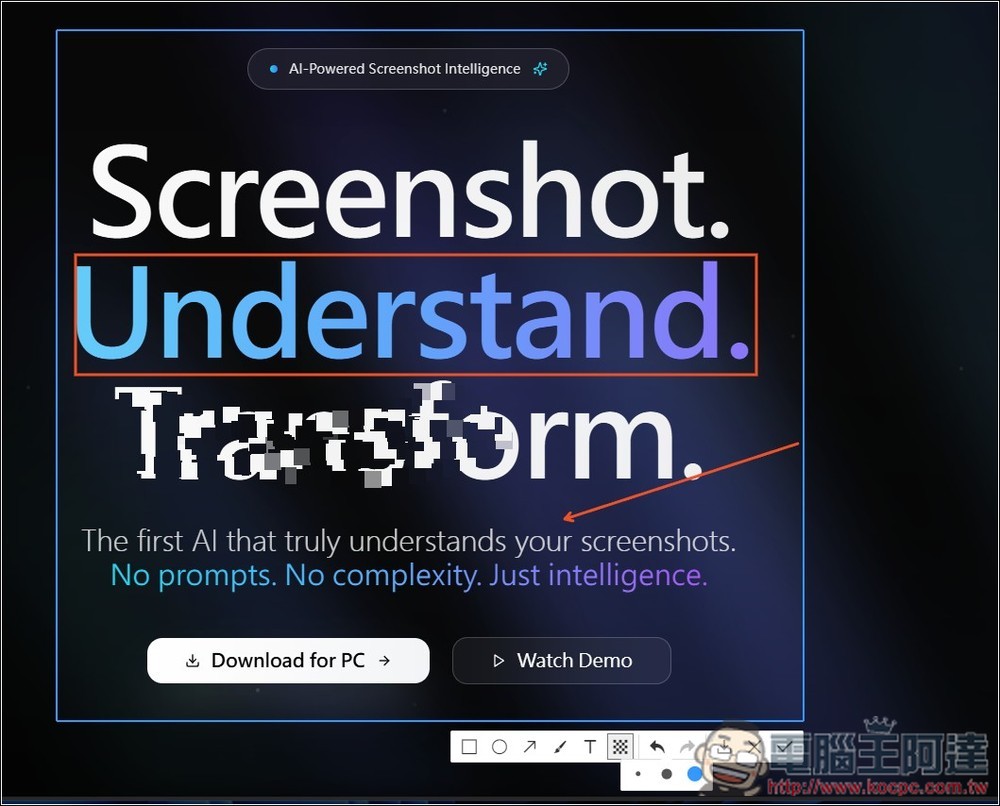
- Screenshot + Edit: After taking a screenshot, you can directly edit it, such as adding arrows, text, boxes, mosaics, etc.
- Mathematical Formula Recognition: Automatically identify and convert mathematical formulas in images to LaTeX format.
- OCR text extraction: Extracts text from images with high accuracy, allowing you to use it quickly.
- Convert table to Markdown/Excel/CSV: structurally output table content
- Image content analysis: AI will analyze and describe the content of images.
- Code Understanding: Identifying and Interpreting Code Snippets in Screenshots
- Color recognition: extract main hues or color schemes
- Screenshot Translation: Translate the text in the screenshot into your specified language.
Both Windows and Mac are supported. I’ll use Windows as an example below.
When you first open Snippai on Windows, this screen will appear. Click “More Information” above:
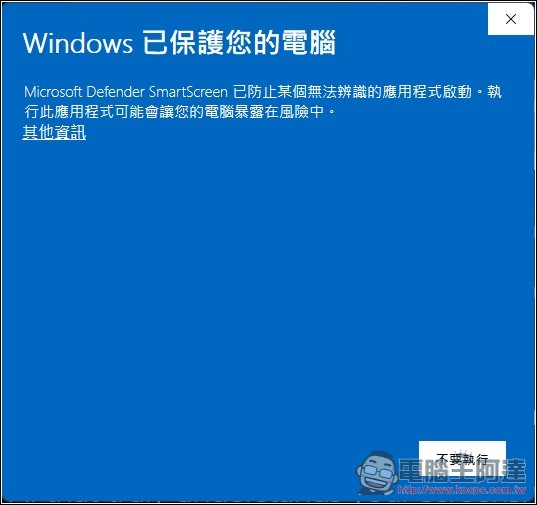
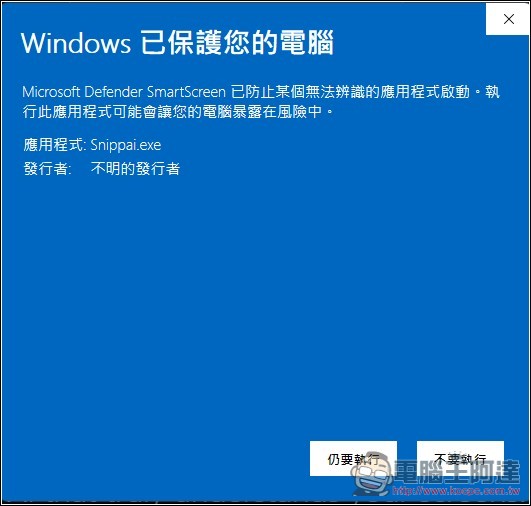
Then click “Run anyway” to open it:
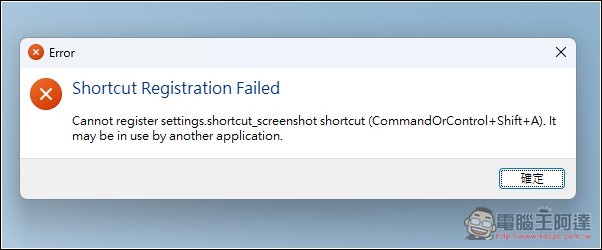
If you want to dismiss this warning, it means the default screenshot shortcut has already been registered by other software. You’ll need to go into Settings and change it to a different shortcut key:
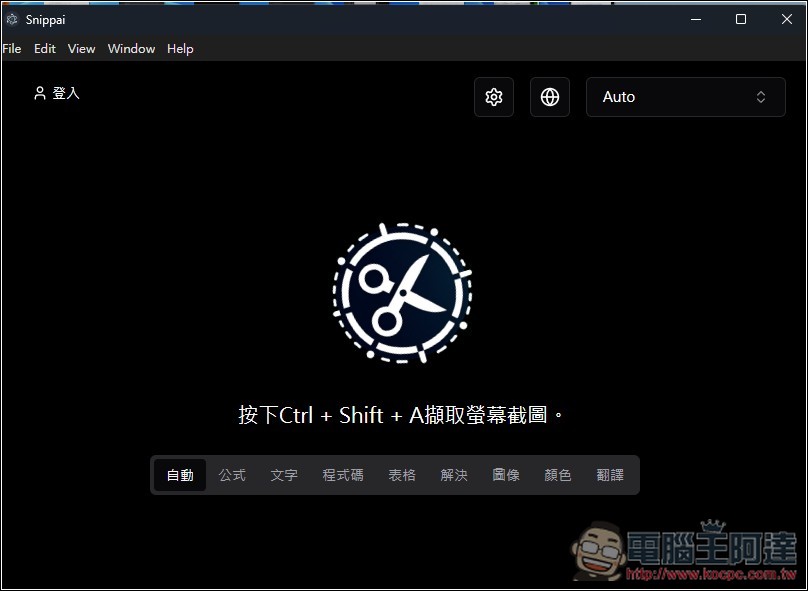
The default screenshot shortcut is Ctrl+Shift+A. If it isn’t already assigned to other software, you can start using it right away. Below are nine functions: Auto, Formula, Text, Code, Table, Solve, Image, Color, and Translate. These functions are all AI-driven; after taking a screenshot, choose the function you want to use:
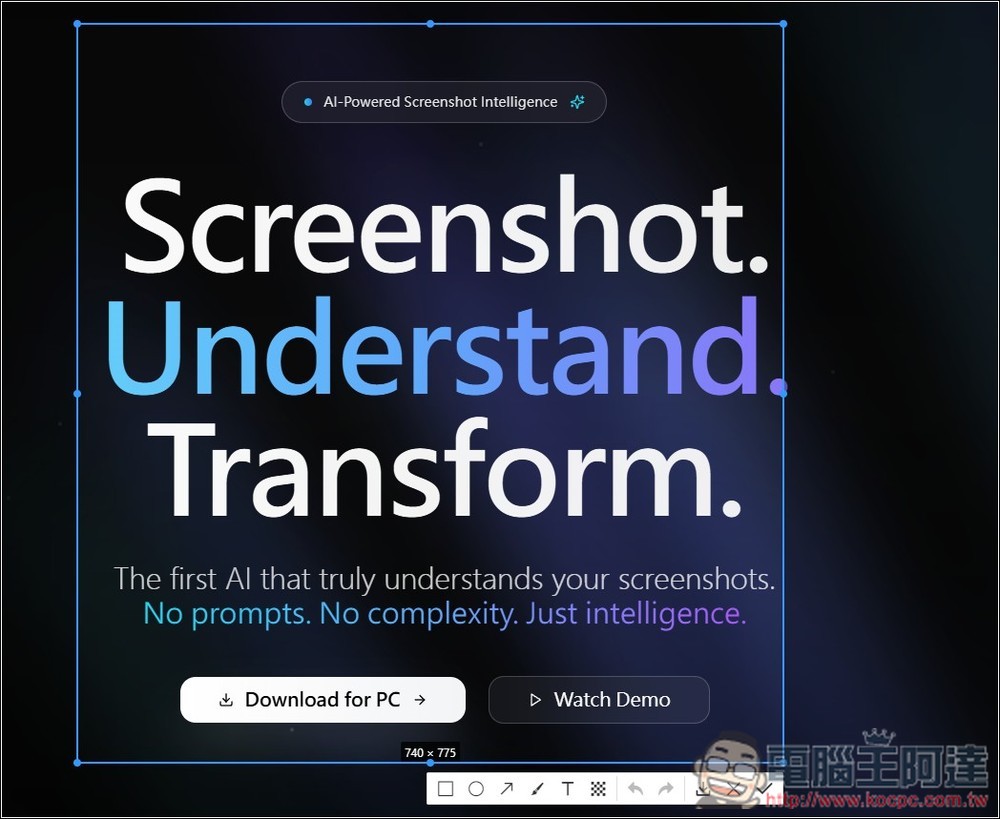
After pressing the shortcut key, select the area to capture. A row of editing tools will then appear below, allowing you to edit the image directly. Once you’re done editing, press the download icon to save it to your computer. If you want to use the AI features, press the checkmark icon on the right.
Arrows, boxes, mosaics, text, and other editing tools are all available:
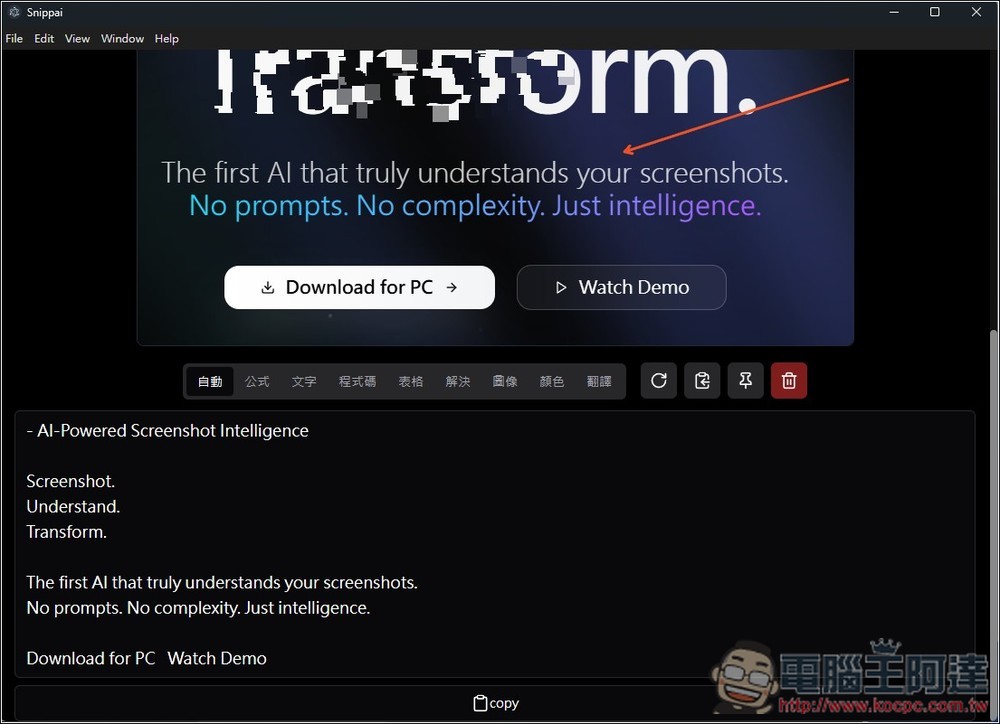
If you click the checkmark, it will return to Snippai’s tool interface, and then the “Auto” section will have AI determine the answer you might need. In my screenshot here, it guessed that I needed to extract text, so it displayed plain text, and you can directly press the Copy button below to copy it with one click.
I switched to “Solve,” and the AI will answer based on the content of this image for me. The reply content can be changed to Traditional Chinese. When I took this screenshot, I hadn’t changed it yet, so it’s in English. Below will tell you how to modify:
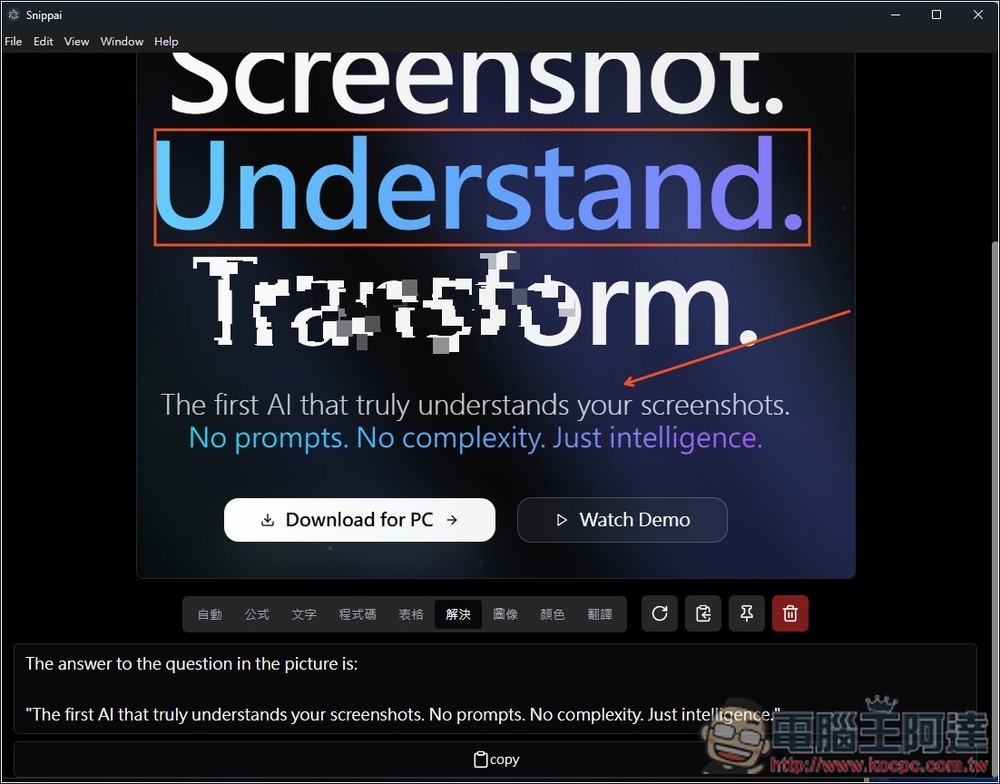
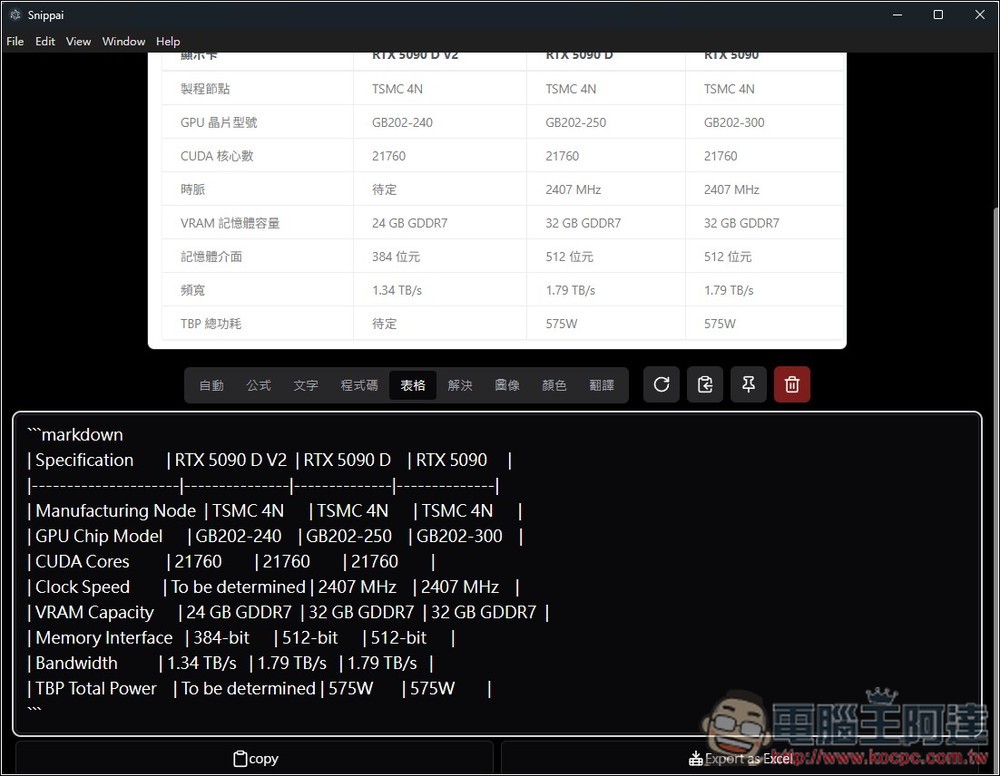
Next, I also tested tables. I captured the specification table from an article on our website, and AI directly converted it into markdown format for me to use right away, which is very convenient:
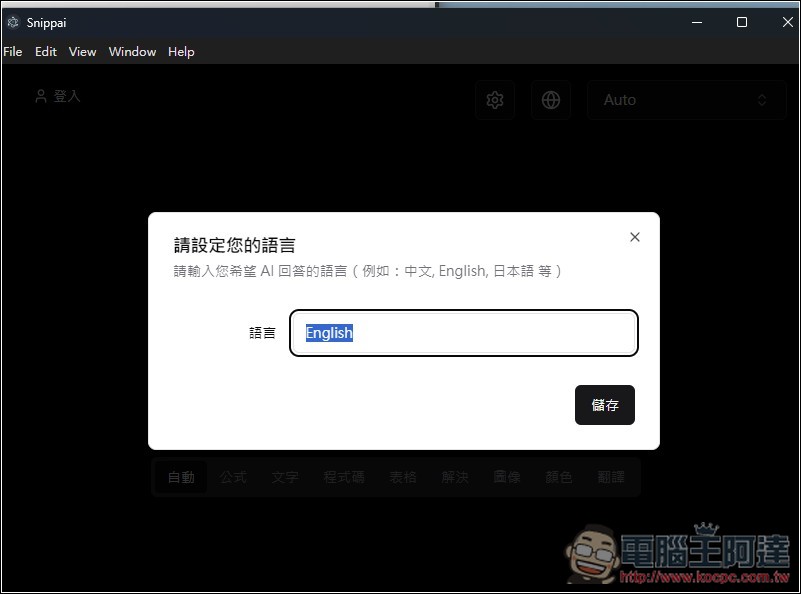
As for changing the AI reply language, it’s done via the globe icon at the top of the main screen; the default is English:
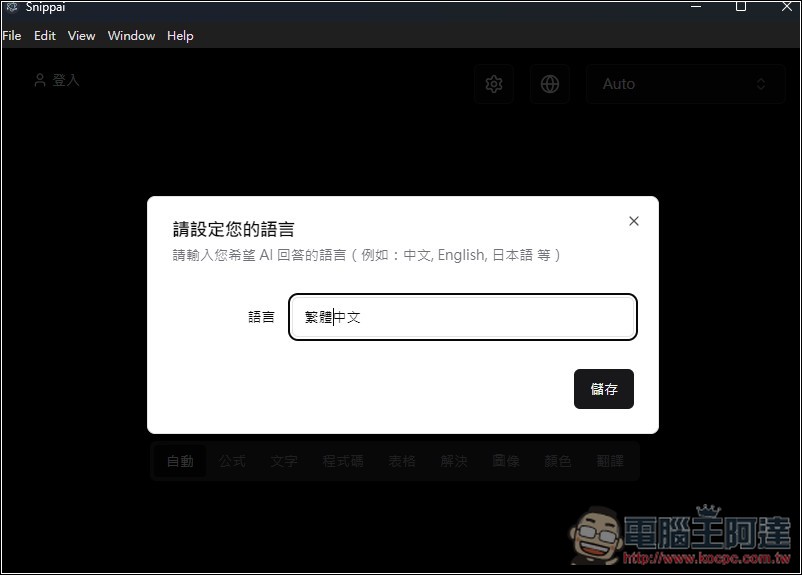
After switching to Traditional Chinese, the AI will respond in Traditional Chinese.
Like this, I screenshot a math problem from the internet, select “Solve,” and the AI will analyze the solution steps for me:
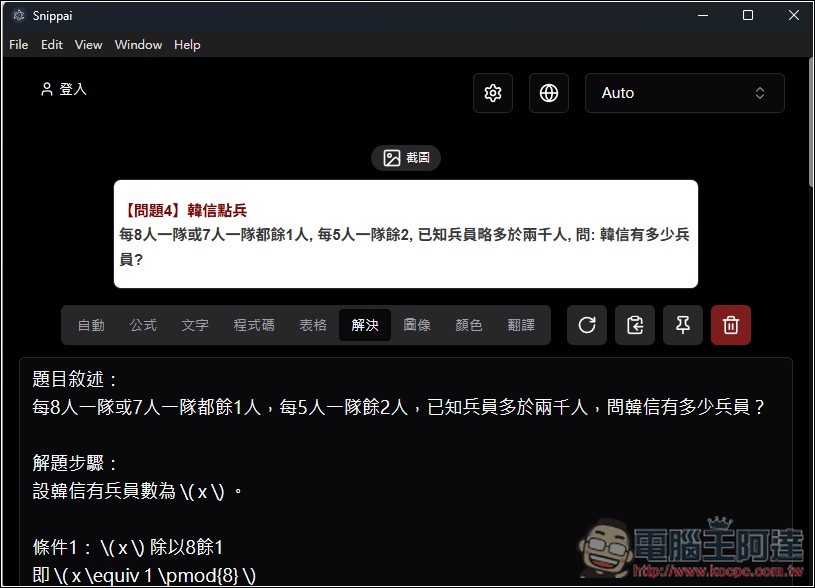
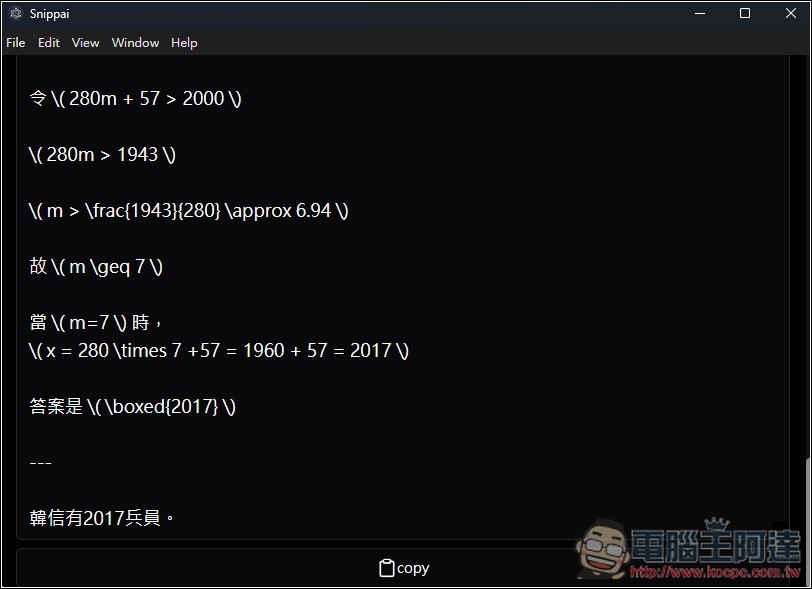
The answer is indeed correct:
Source: KOCPC Chinese