


In the past, if you wanted to capture high-definition YouTube video screens, you had to use extended functions. Although general screenshot tools can also capture YouTube video screens, they will be affected by the current network quality and the set video quality, and may not always be able to obtain high-quality screenshots. Good news, in the latest versions of Chrome and Microsoft Edge, the function of copying video frames has been officially added. You can capture the frames of YouTube videos directly through the built-in function. Let’s teach you how to use it.
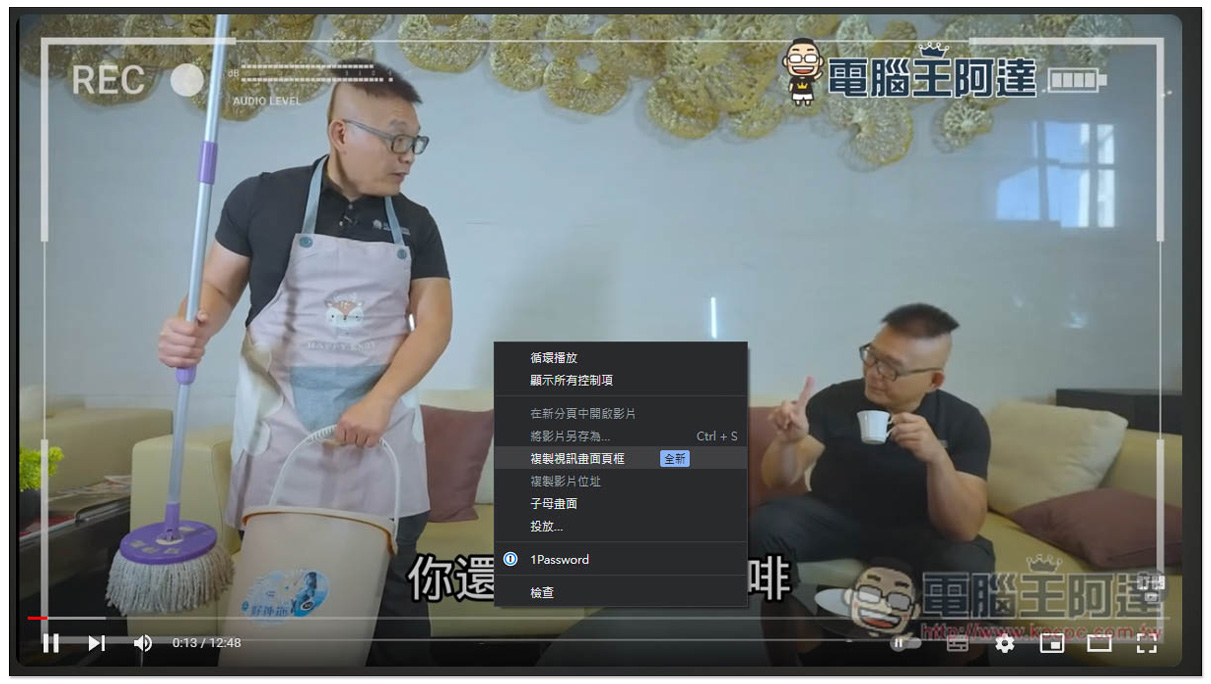
Chrome and Edge have the latest function to capture YouTube video screens. This article teaches you how to use it.
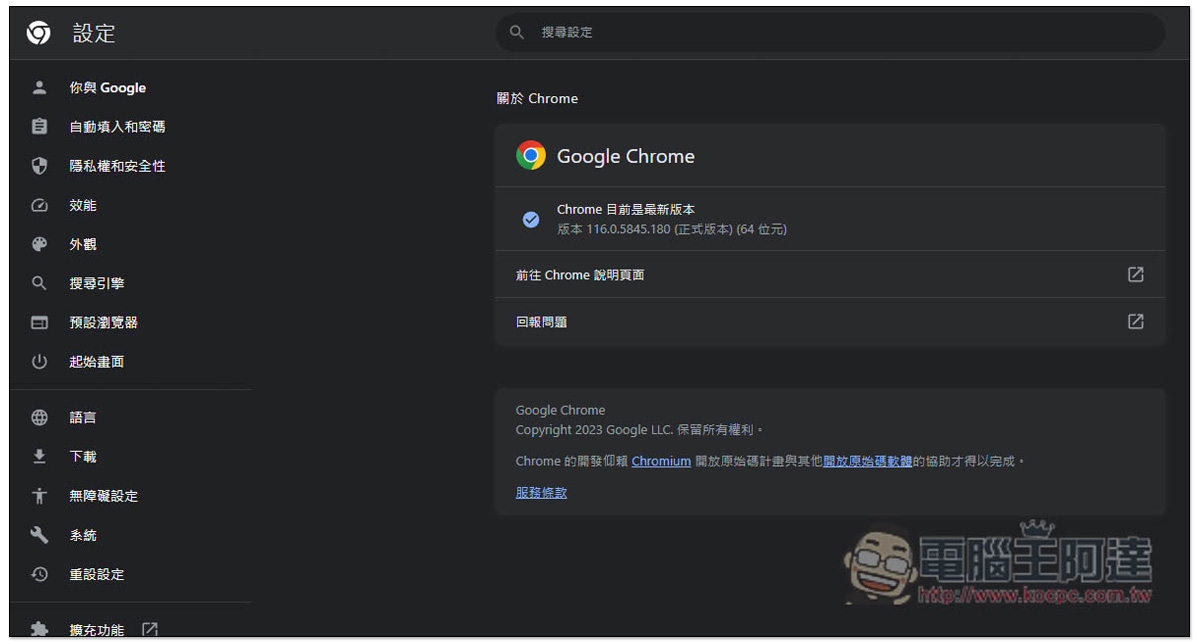
To use the Copy Video frame function, please first confirm whether your browser version is 116 or above. Open the… menu in the upper right corner of the Google Chrome section, enter the help menu, and click About Google Chrome to check your Chrome version:
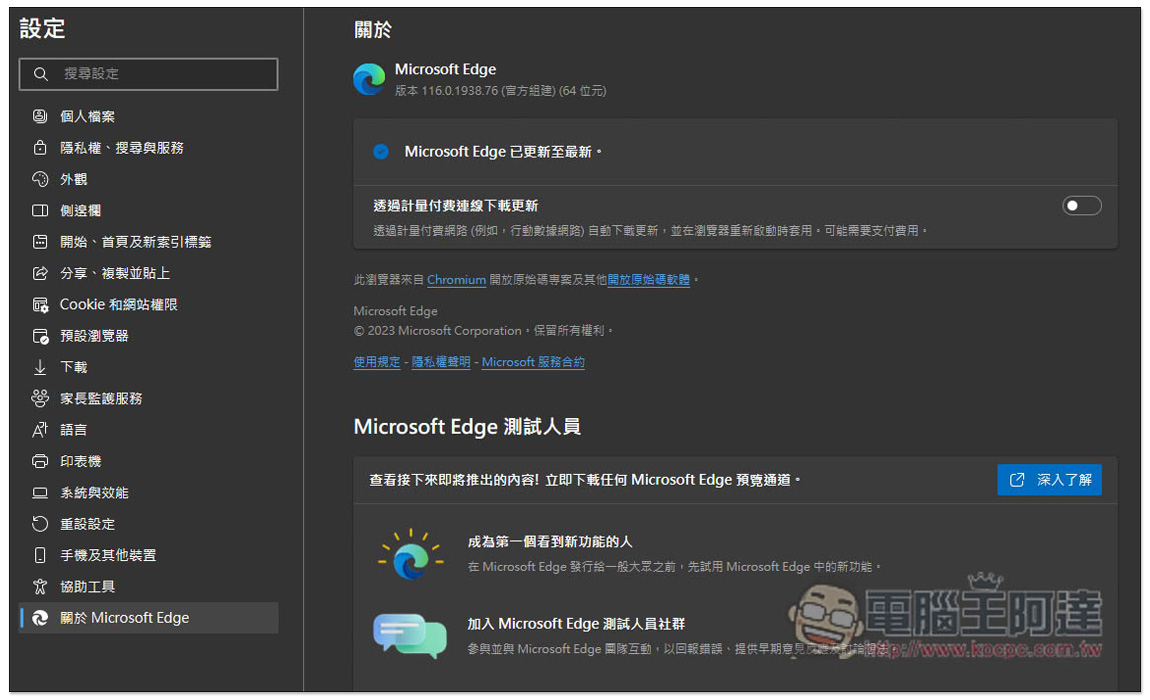
Microsoft Edge also opens the… menu in the upper right corner, enters the description and feedback, click About Microsoft Edge, if there is a new version, it will be automatically updated, and restarting Edge will apply:
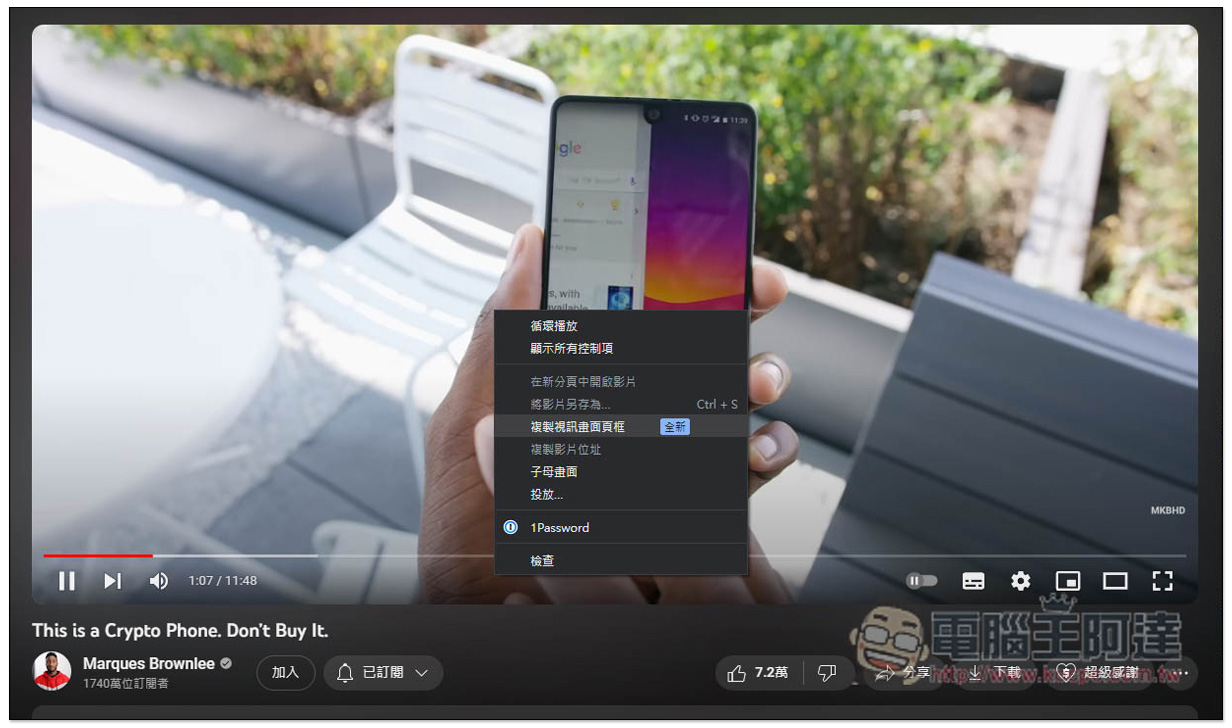
Next, let’s take a look at the Chrome operation steps. Open the right-click menu on the YouTube video screen you want to screenshot. This control menu will appear for the first time. You need to click it a second time:
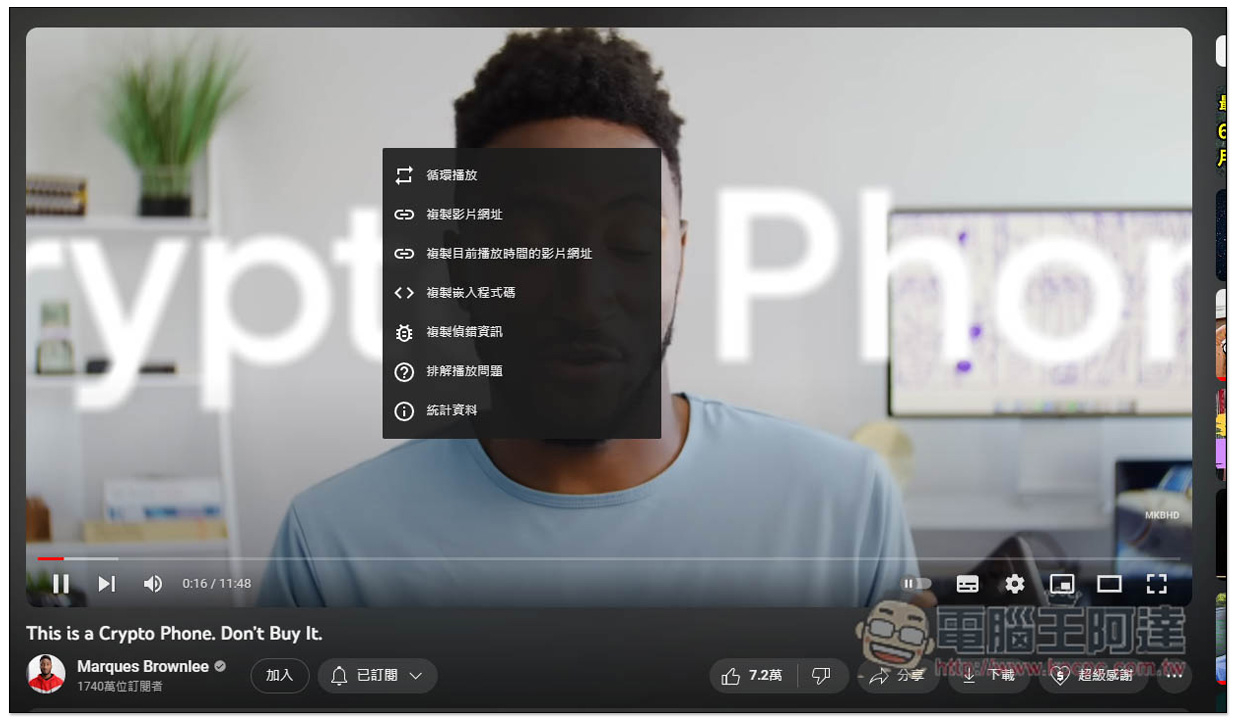
The second time you right-click the menu, you will see the newly added “Copy Video Frame” function. Please click it and the video frame will be copied to your clipboard:
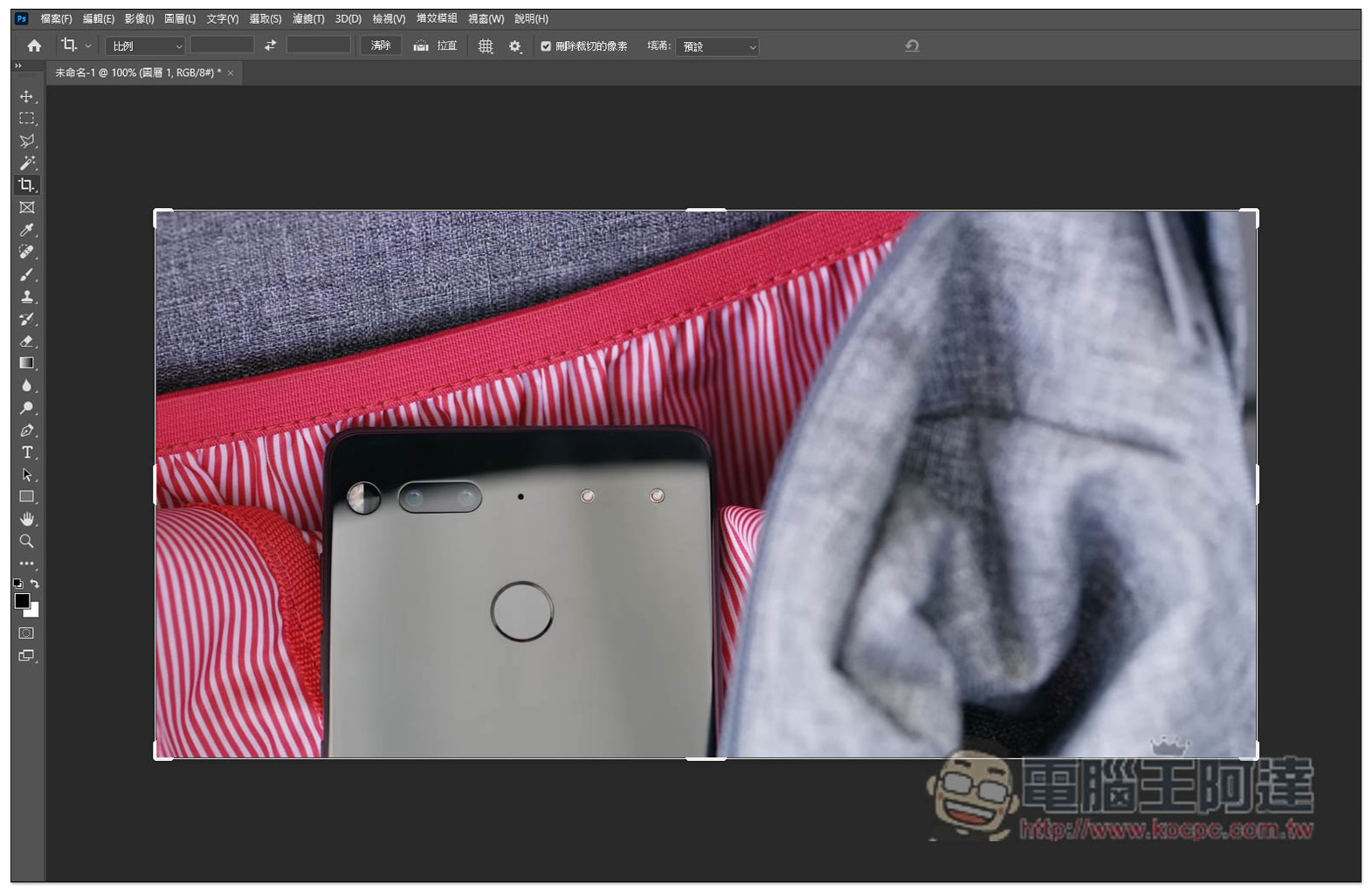
Open any image editing software, such as Painter or Photoshop, then press Control+V to paste, and you will see the video screen you just screenshot:
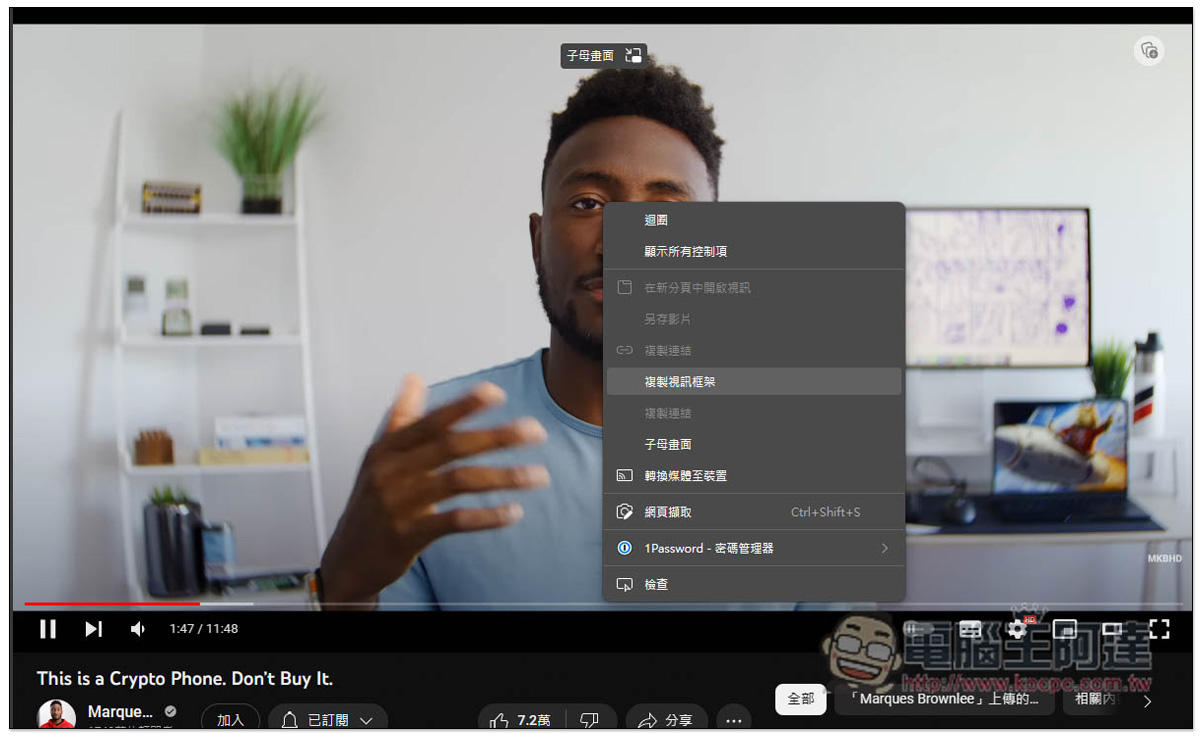
Microsoft Edge also requires right-clicking twice, and the name becomes “Copy Video Frame”:
In addition, according to the description on the Google blog, this video screenshot function does not seem to be limited to YouTube, but can also be used on other audio and video websites, but I couldn’t test Netflix and VIMEO.
Although the function of importing video screenshots in Google Chrome and Microsoft Edge is really good, it still feels a bit incomplete at present. After taking the screenshot, you need to use image editing software to save it as an image, which is quite troublesome, especially since this video has many scenes that need to be screenshotted. I hope that the function of automatically saving as an image file can be added in the future.
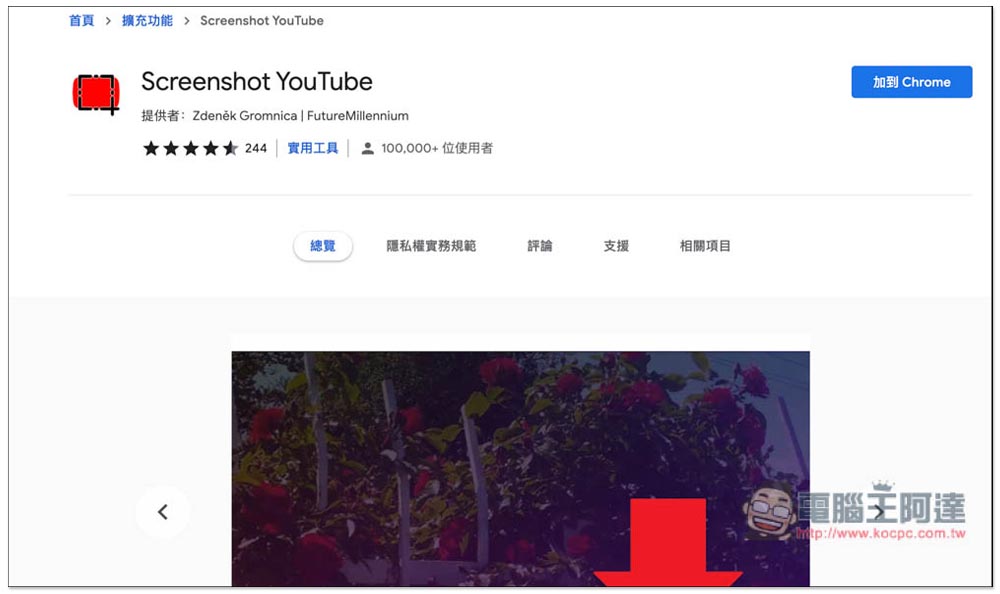
If you want to be able to take a screenshot of YouTube and automatically save it as an image file, and don’t mind expanding the functionality, you can use the “Screenshot YouTube“After this is installed, a screenshot function will appear below the YouTube video. You can capture the current picture with one click. It is still in high quality. It also provides shortcut key settings. Google Chrome and Microsoft Edge versions have:
Source: KOCPC Chinese