


Linux has never been very good in the desktop market, but after all, it is a system with many distributions, and many major manufacturers will make Linux more usable according to demand. Valve is one of them. They use Linux as the system of Steam Deck and even try their best to plan a translation path so that Windows games have good support under Linux system. Although not 100% every game can be supported, it at least broadens the thinking of many Linux users. Even if the native games are not very popular, you can still play some masterpiece-level games through Steam, which is still very friendly to players.
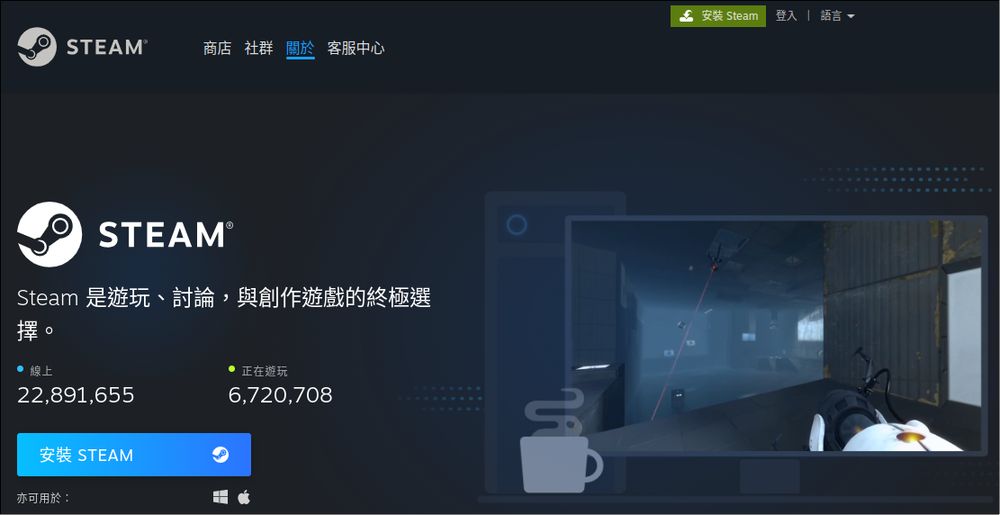
Linux has had a big problem since its inception, and that is that it has become astonishingly fragmented. There are tens of thousands of distributions alone. Although they are all Linux, each set has some features, or developers’ quirks in it. Just installing software has different logic, which is simple to say but very complicated to do. Below, I will select a few relatively mainstream distribution families to introduce how to install Steam in these systems. For players who have just come into contact with Linux, they may be regarded as some places that may not be useful, but you can check a little when using them.
Direct download from Steam website, suitable for Ubuntu, Debian and other systems
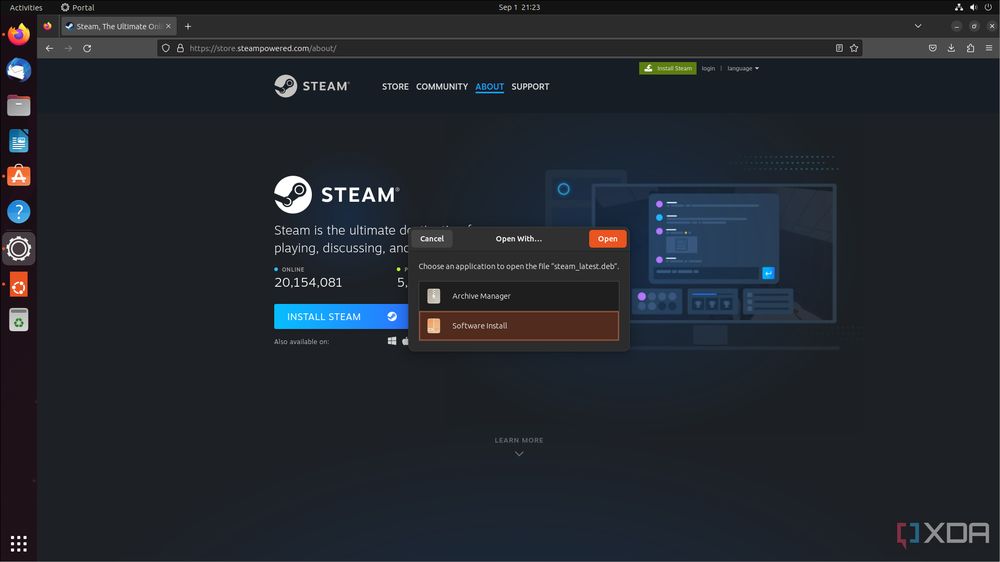
This is the official installation file itself. However, the Linux version only provides deb files. This archive is mainly suitable for Debian, Ubuntu or derivatives based on these systems, such as Linux Mint, pop!_OS, Kali Linux, Elementary OS, MX Linux, Zorin OS, Raspbian and other less well-known Linux distributions that still use Debian or Ubuntu as their base.
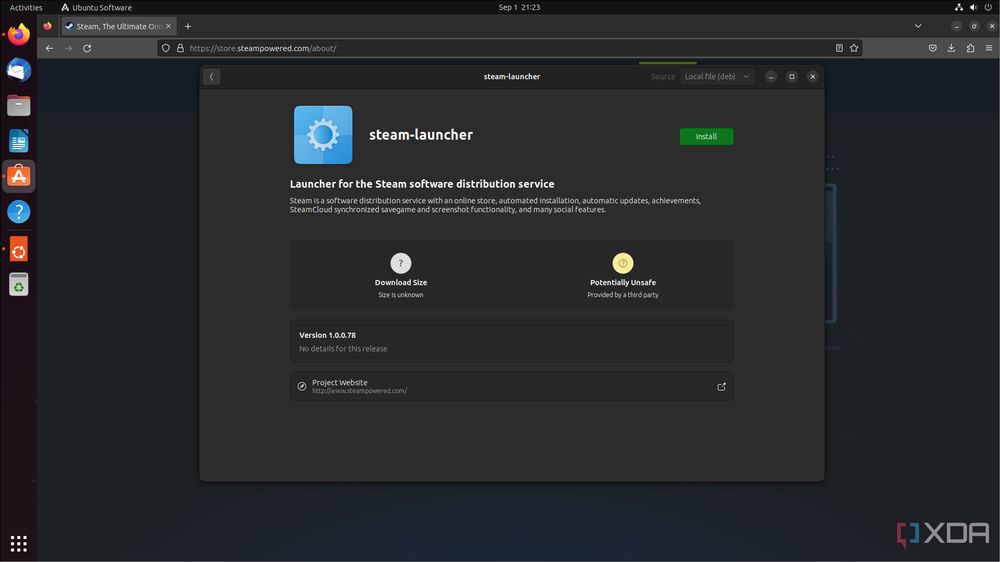
The installation method is similar to that of the Windows system. Double-right-click on the downloaded steam.deb to enter the installation program interface. The next step is to continue to the next step or agree to certain consumer terms and so on. The installation was completed naturally. The method is simple and brainless, with no learning cost. It is the most recommended solution for beginners. In other words, Valve has actually silently agreed that Ubuntu/Debian is the best distribution for Steam for Linux. However, the official did not mention the system requirements of the client software. Perhaps this is an open secret that cannot be said.
But if you are not using Debian or Ubuntu family distributions, then you have to keep reading.
Fedora or other distributions that also use DNF
In order to facilitate users to update packages, or add and remove new ones, many Linux distributions will have a package manager to assist in installing or removing software. For the Ubuntu or Debian family, it is probably dpkg and apt. Distributions such as Red Hat, Fedora, and openSUSE are also members of the Fedora distribution family, so the package managers they use are yum and the recent dnf.
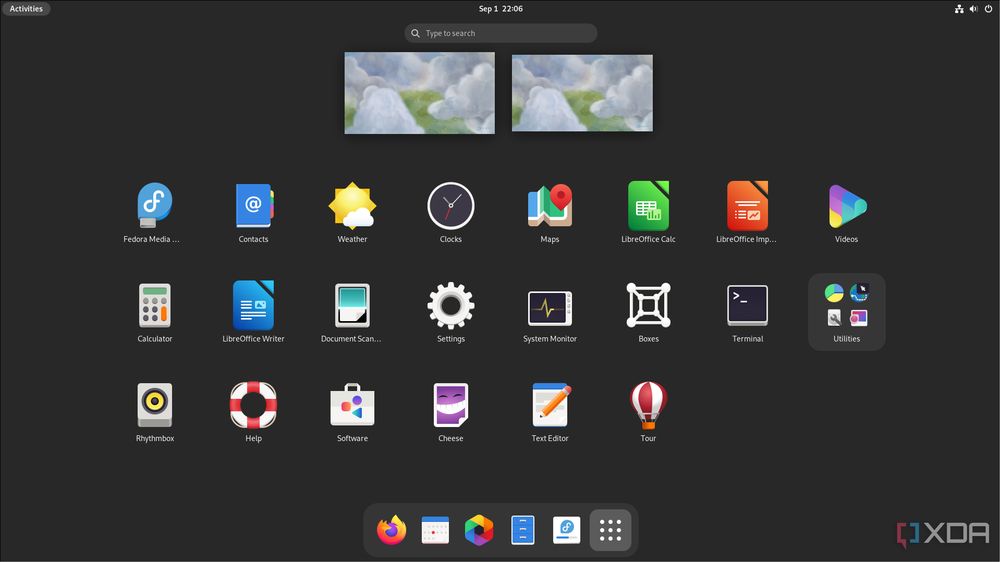
For these distributions, the method of installing Steam is slightly different. He needs to enter this command in the terminal.
sudo dnf install https://mirrors.rpmfusion.org/nonfree/fedora/rpmfusion-nonfree-release-$(rpm -E %fedora).noarch.rpm
After completing the input, press ENTER, and the program will start to add a new package source according to the instructions. During the process, it will ask the user for permission, and it will continue to operate after permission. If the program ends successfully, you can proceed to the next command for formal installation.
sudo dnf install steam
Likewise, the installation process will ask for permission, and if you agree, the installation will continue. After finishing, the Steam interface will pop up directly.
It is worth mentioning that the package library added in the above command is an unofficial package library called RPM Fusion. According to the description on the website, this package library mainly collects some software that is not officially included in Fedora or Red Hat and provides it to developers who are willing to try software that is not recognized by the organization to which these developers belong. Yes, Fedora does not officially support Steam, so even if it can be installed, both Valve behind Steam and Red Hat behind Fedora have a laissez-faire attitude towards the software in this package library.
This is actually very common in the Linux software circle. Many companies are not necessarily willing to launch software for Linux systems. Therefore, more conservative distributions or companies will be stricter about the software in the package library. It does not matter if the version is older or lacks some popular software. What is important is that the software in their own package library must be endorsed by the original manufacturer and can operate stably.
Arch Linux or other Linux based on this system
Arch Linux may have the most unique ecosystem among the recently popular Linux distributions. This is a system with a very high initial learning cost. Many users who are not familiar with Linux will shy away just seeing the installation interface. However, once they get started, Arch Linux has a very fascinating rolling update feature. There is no system version barrier. Almost all packages follow the latest version number. Coupled with the powerful customization, you can customize an extremely streamlined and efficient system after you are familiar with the operation.
For Arch Linux, it is usually recommended to install Steam through the third-party Flatpak package library. This package library is different from the general package library. It focuses on the same level of support in different distributions, because the software is packaged and installed in a sandbox environment. The sandbox contains dependent libraries that meet the needs of the software, while the outside of the sandbox is separated from the system and does not affect each other. But there is no way to install it directly in Arch Linux. Before installation, you need to open a terminal, use the command to call the editor and open the specified file.
sudo nano /etc/pacman.conf
Then find this text and delete the 3 # signs in it
#[multilib]#SigLevel = PackageRequired#Include = /etc/pacman.d/mirrorlist
Finally, save the file. If you use the nano editor, you need to use Ctrl + O to write the changes. Then the file name will appear. No changes are needed. Just press Enter to complete the archive. Then to exit the editor and return to the original terminal screen, use Ctrl + X to exit.
If you observe carefully, you may find the meaning of this operation. In fact, just like Fedora, Arch Linux requires a closed package library to install Steam. So the next instruction is to have Arch Linux install Steam.
sudo pacman -S steam
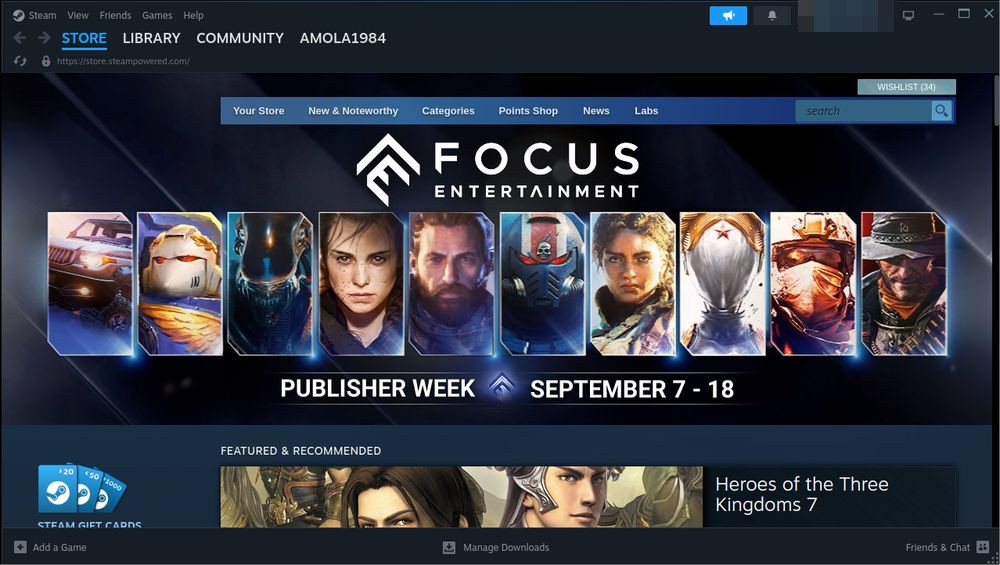
No matter which platform it is, Steam will take a while to update when it is launched for the first time. During this process, the network must be maintained smoothly. As far as my computer is concerned, regardless of whether the system language is Chinese or not, Steam will always have an English interface as soon as it is installed.
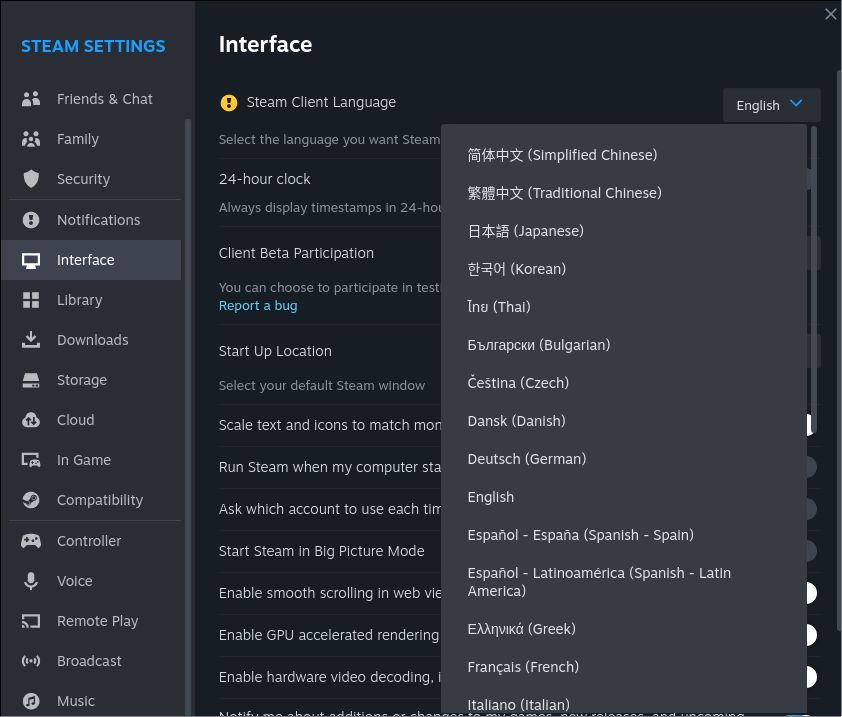
It’s easy to change. Click on Steam in the upper left corner of the interface to open the menu and click on Settings. The settings window will open. Then click on Interface and you will see the Steam Client Language option. You can click on English at the back. After finding Chinese in the menu, wait for Steam to restart and you will see the Chinese interface.
in conclusion
Under Windows systems, there seems to be only one installation method for all software. Click on the installation package, keep pressing Next and agree to the authorization, and then use it. However, on Linux, many different package managers have been derived due to different distributions. The installation, update, and removal of all packages are concentrated in the manager, which saves a lot of time in finding packages for software packages that meet their needs. However, there are two problems you have to face before you can start playing games on Steam: the graphics card driver for Linux systems, and the compatibility of the game with Linux, or even the Proton translation tool launched by Valve, which requires testing and troubleshooting. Although there are still many indie games available for Linux users, and the gameplay is good. But for users who want to start playing AAA masterpieces, this may be another challenge.

Considering ease of use, the easiest systems to get started with playing games on the Steam platform should be Ubuntu and Linux Mint. Both have excellent interfaces that make people feel friendly. In particular, the interface of Linux Mint is largely based on Windows XP or Windows 7. Many functions are also handled by graphical programs, making it very easy to use. It should be a good choice for players who want to directly access the Linux version of Steam.
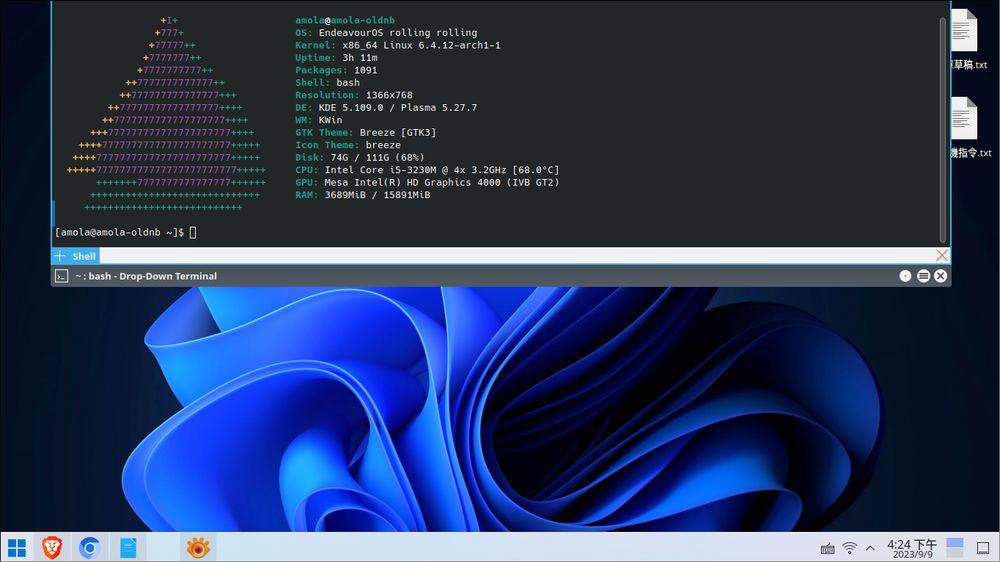
It’s not that other distributions don’t work, but the installation process is a little complicated. However, there are also a few distributions that will build Steam into the default package library and install it directly with one line of instructions. For example, I currently use EndeavorOS. Although it is also based on Arch Linux, I can directly install Steam using the pacman command without modifying the system files. The author may not be able to count these distributions one by one, so it is somewhat regrettable.
Source: KOCPC Chinese