


Although AirPods can be paired with Windows PC Bluetooth, it is still far behind Mac. First of all, it does not automatically connect and requires manual operation every time. This article will recommend a super easy-to-use free open source gadget “AirPods Desktop”. After installation, not only can it automatically connect, but you can also directly check the remaining power of the current headphones and charging boxes on both sides in Windows. For those who want a lower-latency listening experience, this tool also supports it. In addition, it also has in-ear sensors, which can almost be said to combine iPhone and Mac. All the unique experiences are brought here.
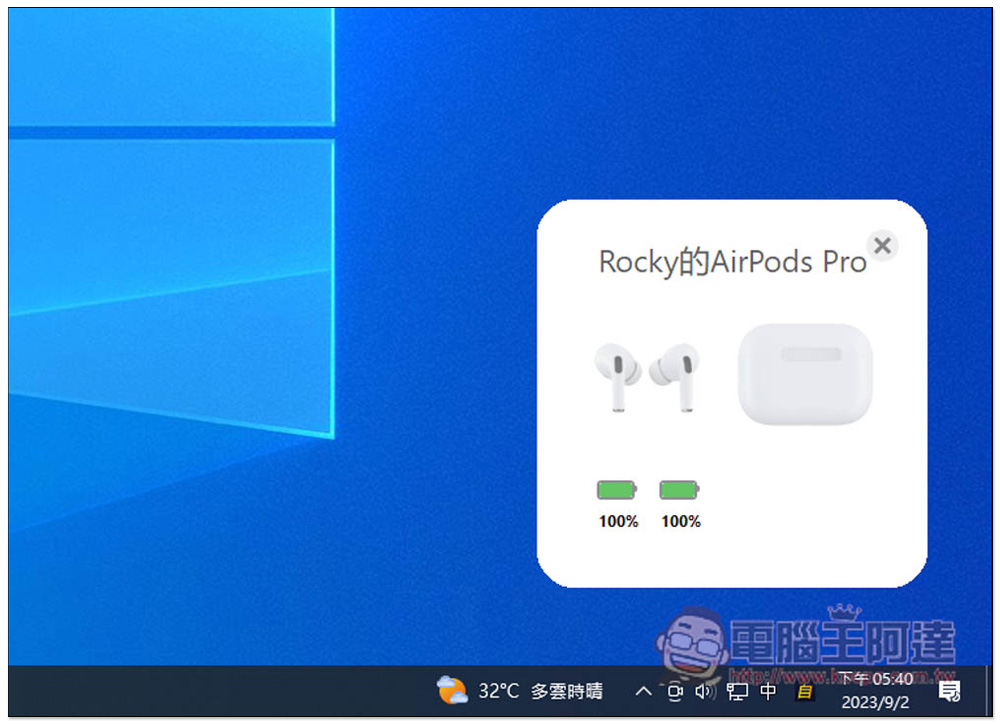
AirPodsDesktop enhances the experience of using AirPods on Windows, displays battery information, supports in-ear sensing and automatic connection, and low-latency audio technology
After entering the download page of GitHub, download the latest installation version. At the time of writing this article, it is 0.4.0. The download ends with .exe:

When downloading, the browser may pop up a message saying “Cannot verify whether this file is safe”. After opening the down arrow, you can find the option you want to keep. Of course, if you are worried that the file is not safe, it is recommended not to use:
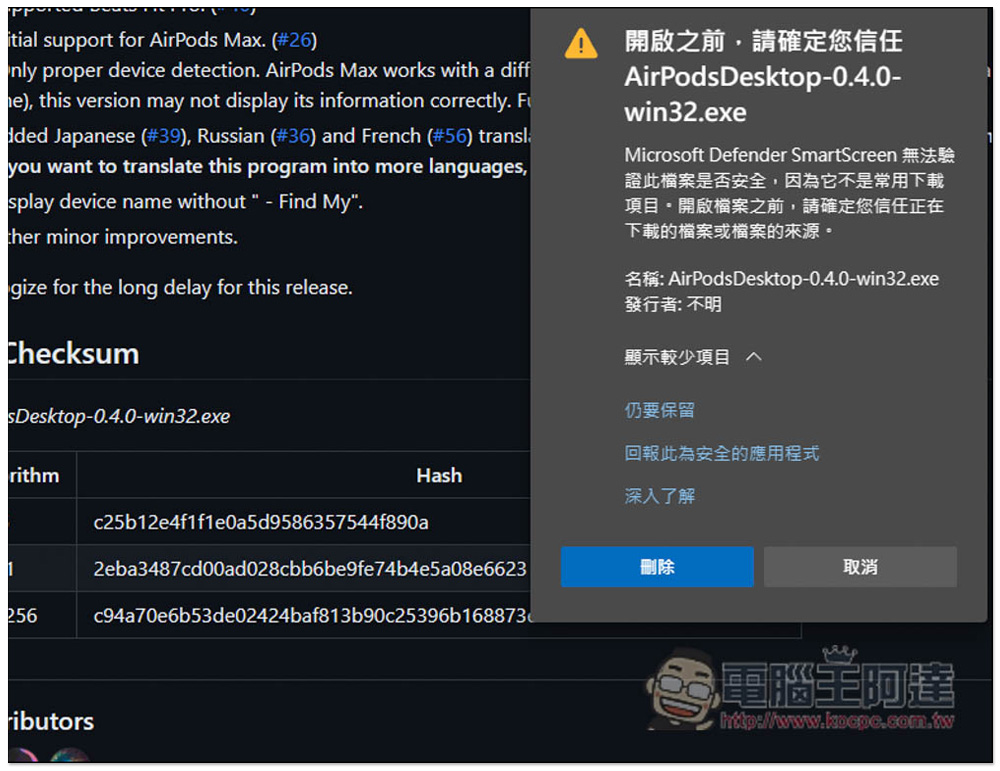
After downloading, double-click to launch the installation file. If this screen pops up, please click “Other Information”:

Then press again to still execute:

In this way, the installation will be normal. If there are no special requirements, just keep pressing next step:

After installation, you will need to make some settings first:

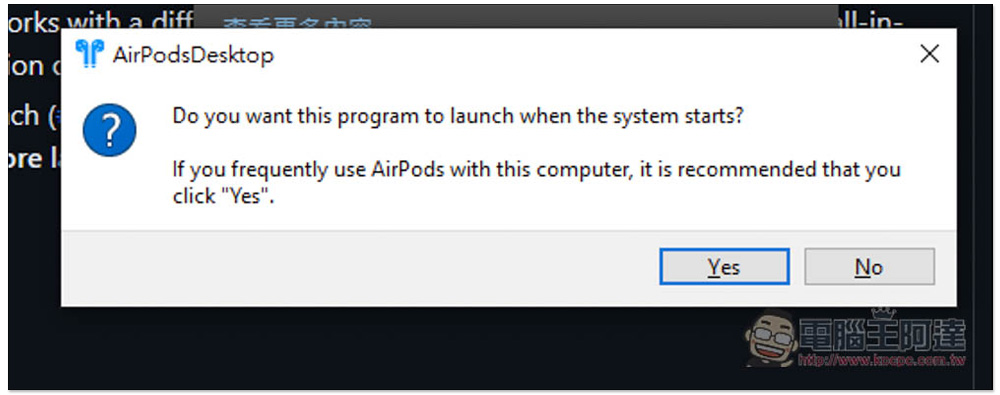
This is asking you whether you want to enable this gadget automatically after booting the computer. If so, click Yes. You can also change it manually later:
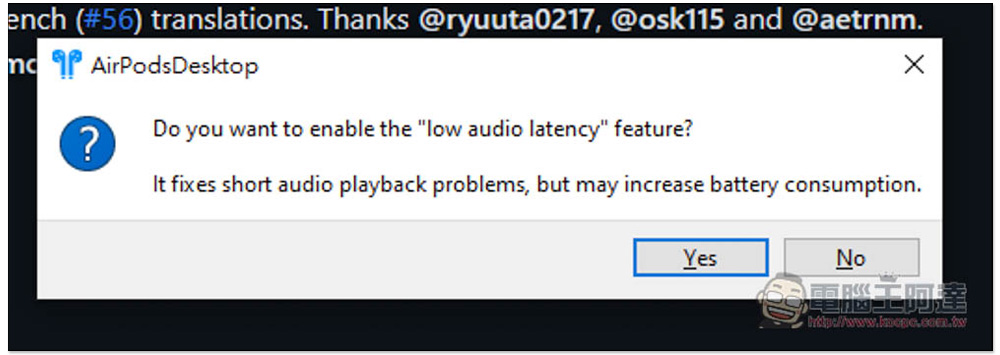
This low audio latency is low-latency audio. When enabled, audio will be transmitted more immediately, but it may increase the power consumption of AirPods. If you need it, press Yest:
After setting it up, you will see a blue AirPods icon in the lower right corner, which is this gadget:
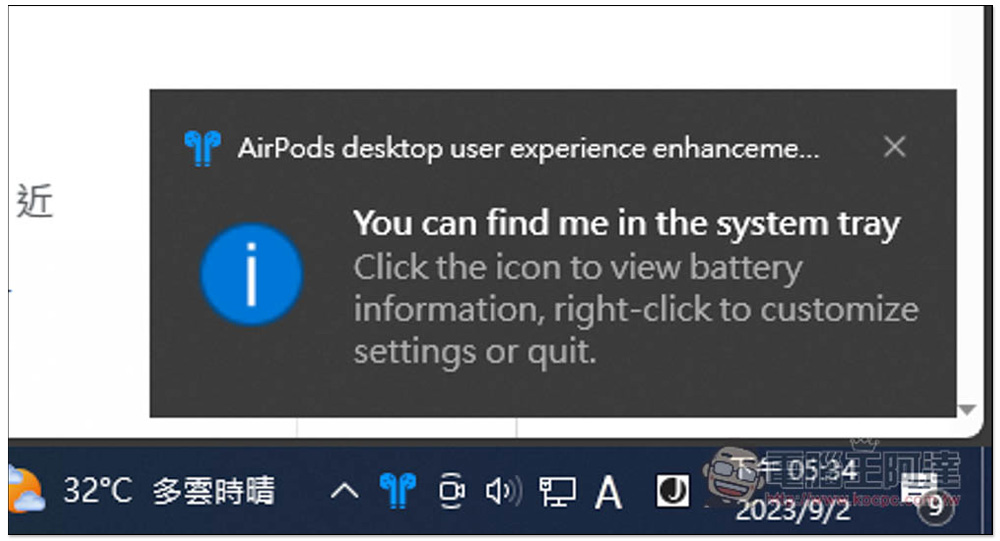
It will be waiting for binding at first. At this time, please open your AirPods and Windows Bluetooth settings:

Click to connect:
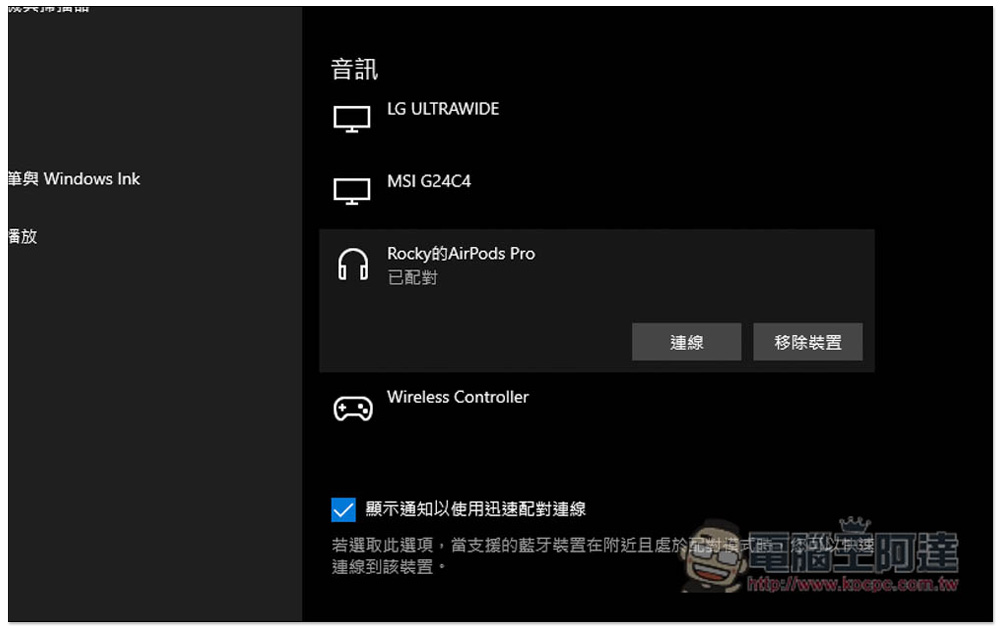
Then open the gadget icon again and you will see that the binding is completed. In the future, when you put the earphones into the charging box or take them out, it will automatically disconnect or automatically connect. There is power on both earphones and under the charging box, which is really convenient. It makes it easier to know how much power is left, unlike the previous situation where you would suddenly run out of power every time you use Windows:

I also tested to see if its in-ear sensor works normally, and the result is that it works just like using it on iPhone and Mac. Taking the headphones off from both ears will automatically pause playback, and putting them on will automatically enable playback:

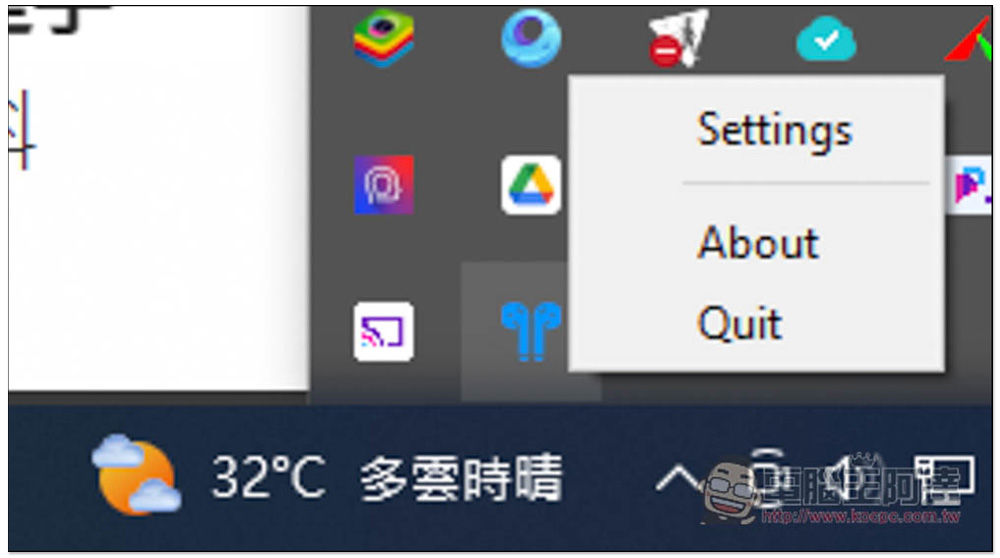
Open the right-click menu to find the Settings function:
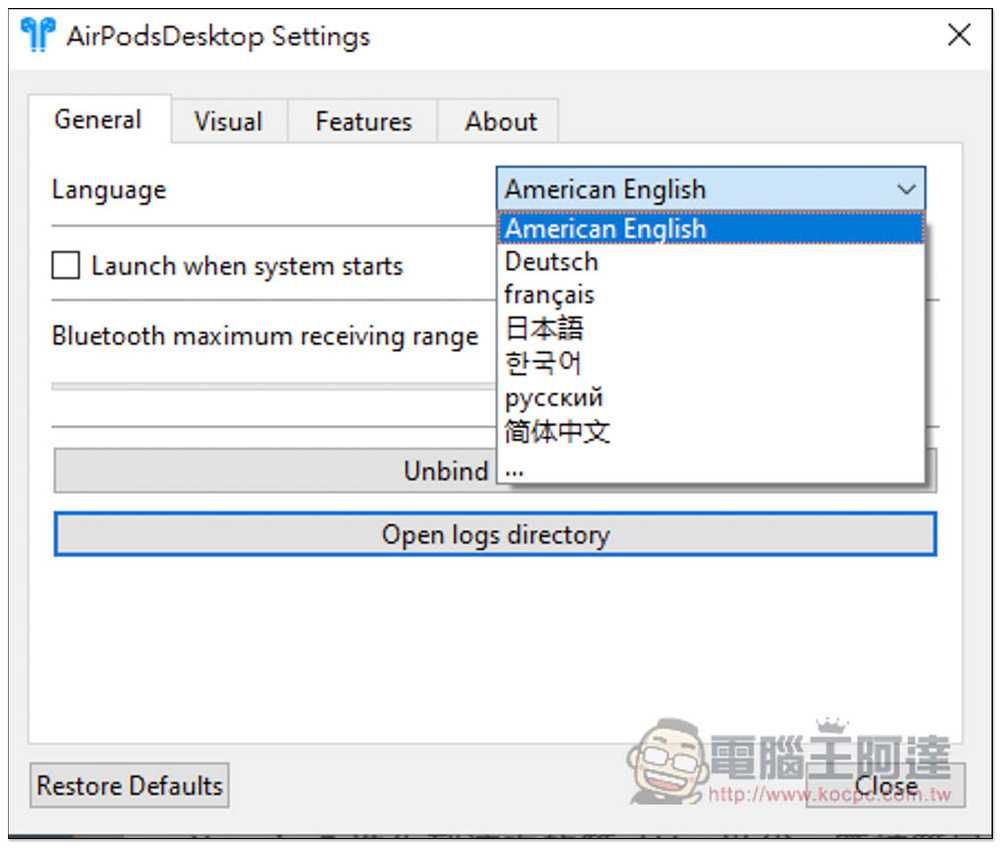
The interface language can be modified here to support Simplified Chinese:
There are also two functions that can be set in the visual menu, namely “Show battery on tray icon” and “Show battery on taskbar”. They are disabled by default and can be turned on if necessary:

In the function menu, you can adjust whether to turn on “Low Latency Audio” and “Automatic In-Ear Detection”:

Source: KOCPC Chinese