


To discover the full potential of any device, you need a keen eye to find the gems hidden beneath the surface, and there’s plenty to discover in every part of your iPhone. From iMessage for messaging to taking full advantage of any given iPhone hardware, there’s more you didn’t know was waiting for you to discover. What all iPhones have in common is a set of volume buttons. Unlike some Android phones that use a single volume button, iPhones have had two independent volume buttons since the original launch.

Take a look at all the functions of the iPhone volume keys, some of which you may have never known!
The volume keys on the left side of your iPhone are not just for adjusting the volume. As with many other parts of the phone, in addition to some useful functions accessed with the help of buttons, you can also use them to perform actions that have nothing to do with volume. Whether you’re a photography enthusiast looking for tactile tips, needing quick access to emergency services for personal safety purposes, or someone who longs to have a physical snooze button again, iPhone’s volume buttons offer a range of interactions that go far beyond their seemingly simple purpose.
emergency services
When every second counts, iPhone’s SOS feature enables users to quickly receive assistance in an emergency. Just press and hold the side power button and any volume button, and the device will pop up a menu that can be used to view the owner’s medical information or make an SOS emergency call. This discreet and practical feature ensures that even in emergency situations, the most immediate emergency assistance is available. The SOS feature can also be accessed by pressing the power button 5 times in quick succession, as long as the setting is enabled. The SOS function of the iPhone 14 Pro series also adds a satellite SOS function, so you can call for help in an emergency when your phone has no signal.
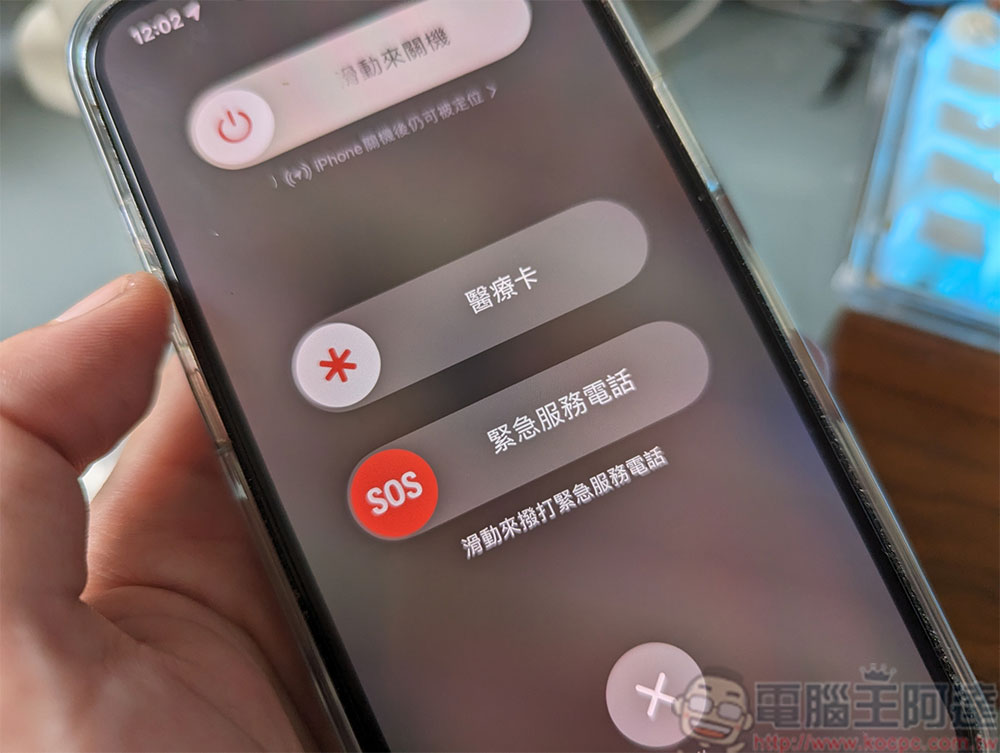
After making the SOS call, your phone will prompt your designated emergency contact and notify them of your current condition and location using information from the Medical Card section of the Health app. On the medical card, this function can accommodate the user’s key medical information, emergency contacts, drug allergies, etc. In the event of an emergency, anyone can access this information, even if the phone is locked, and the medical emergency card can still be accessed for first responders.
Shut down and temporarily turn off the search function
In addition to emergency services, you can access another important part of your iPhone’s functionality by holding down the Volume Down button and the Power button for a few seconds. The menu with sliders for accessing medical cards and emergency services is also home to a shutdown slider, a fitting slider that can be used to simply shut down the iPhone. In addition, users can use this screen to disable the phone’s Find function when the phone is turned off. The prompt to disable “Search” is located just below the power off slider, displayed in light gray, and is very inconspicuous. By turning off the setting in the power menu, you can no longer use Find to track the device’s location until you restart your phone and enter your passcode to unlock it. This layer of control adds a valuable dimension to device security, allowing users to maintain control of their location data even when their phone is turned off.
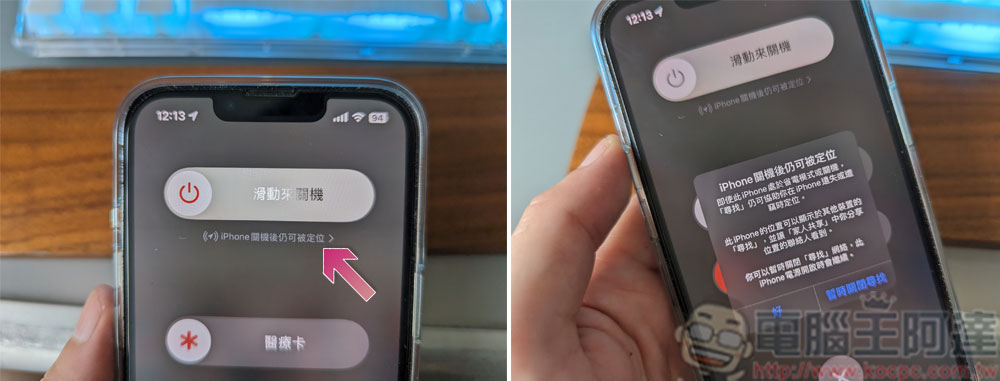
However, this feature goes beyond that, and accessing the power off menu via the volume buttons provides additional security. Face ID or Touch ID functionality is temporarily disabled when the power off slider page is displayed. This ensures that the device cannot be powered off, preventing others from forcing entry into the device while it is locked.
camera control
Capturing moments quickly and easily is the hallmark of modern smartphones, and iPhone’s camera capabilities are among the best among flagship devices. One of the more well-known features of smartphone camera apps is their use of volume keys. While some Android devices use the volume buttons for zooming in, the iPhone’s volume buttons are primarily used for photography. Instead of touching the on-screen shutter button, users can simply press the volume up or down key to take a photo instantly. This intuitive feature mimics the feel of a traditional camera, providing a familiar tactile experience that some users may find more enjoyable.

Furthermore, this feature is not limited to just taking photos, in the camera app, the volume buttons can also be used to start recording a video. This feature is especially convenient when recording video content, as it provides stability and control to the process, allowing users to maintain a steady hold while capturing dynamic footage. For video recording, the volume buttons can be used for more than just starting a recording. If the iPhone’s camera app is still set to take photos, pressing and holding either volume button will initiate quick recording; when the user has finished recording, simply release the buttons. You can also set it to a photo burst while holding down the Volume Up button in the Settings app.
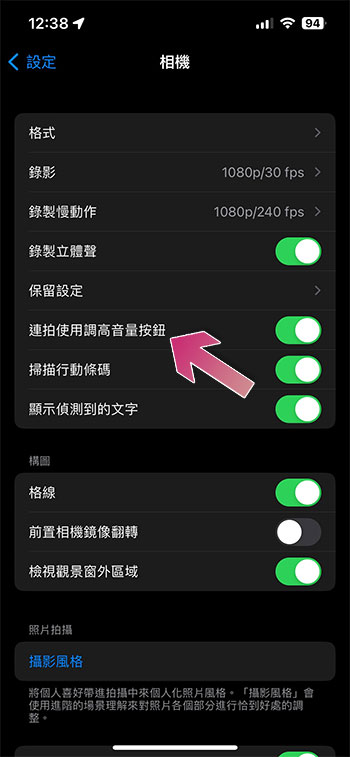
The volume button’s photo functionality also extends beyond the Camera app and into the Notes app’s file scanning. When scanning files into iPhone, users don’t have to wait for iPhone to frame the document perfectly. Instead, press either volume button to capture whatever’s in the scanning viewfinder. With some patience and precision, these scanned images can be cropped and edited to look as precise as if done automatically by your iPhone.
Alarm clock control
The morning ritual of pressing your alarm clock can lead to an unhappy start to the day. However, Apple is giving users the option to return to a simpler time when trying to snooze their alarm in the morning. When the alarm goes off, you don’t have to fumble for on-screen buttons; just quickly press the Volume Up or Volume Down button to instantly stop the alarm, giving you a precious moment of peace and quiet at the start of your day. This way of using the volume buttons also applies to mute and vibration alerts.

Using the volume buttons to enter snooze is sometimes easier than pressing the snooze or smaller off button first thing in the morning. While it doesn’t feel the same as pressing an alarm clock with a giant button, the volume button will create a similar feeling to the snooze button, while being easier to achieve in the morning drowsiness. A little trick when using the volume buttons to pause alarms is to first make sure the snooze function is turned on. If the snooze setting of any alarm clock is not turned on, the volume buttons will directly turn off the alarm and it will not sound again before the next alarm time. You run the risk of oversleeping.
Silence and search for incoming calls
Imagine the embarrassment of having your phone ring during an important meeting, it’s not uncommon. Sometimes it’s easy to forget to mute your phone or even accidentally unmute it. In this common scenario, your iPhone’s volume buttons act as a quick barrier between anyone around you and whatever ringtone you’re using. Simply press either volume button to silence the ringer, in slightly more dire situations the power button can be used to end or hang up the call, and the volume buttons make it easy to silence unwanted calls.

In addition, the iPhone’s volume buttons play a crucial role in managing “find” notifications. In today’s world, where protecting your belongings and connections is crucial, the integration of these buttons in iPhone takes center stage. When something nearby sends a Find notification (alerting you to the location of other Apple devices), a quick press of either volume button instantly silences the otherwise blaring alert, ensuring a more controlled notification experience.
Application features
The volume buttons on iPhone aren’t limited to their native functionality; they can also be interactive tools in other apps. Clever use of volume buttons in non-Apple apps, a feature that, while useful, is usually an exception due to Apple’s strict policies. Some app developers use it to design quick and convenient ways or operations for users, providing a seamless and tactile alternative to traditional screen touch. One particularly simple example is using a counter app that allows the user to count up or down based on pressing the volume up or down button.
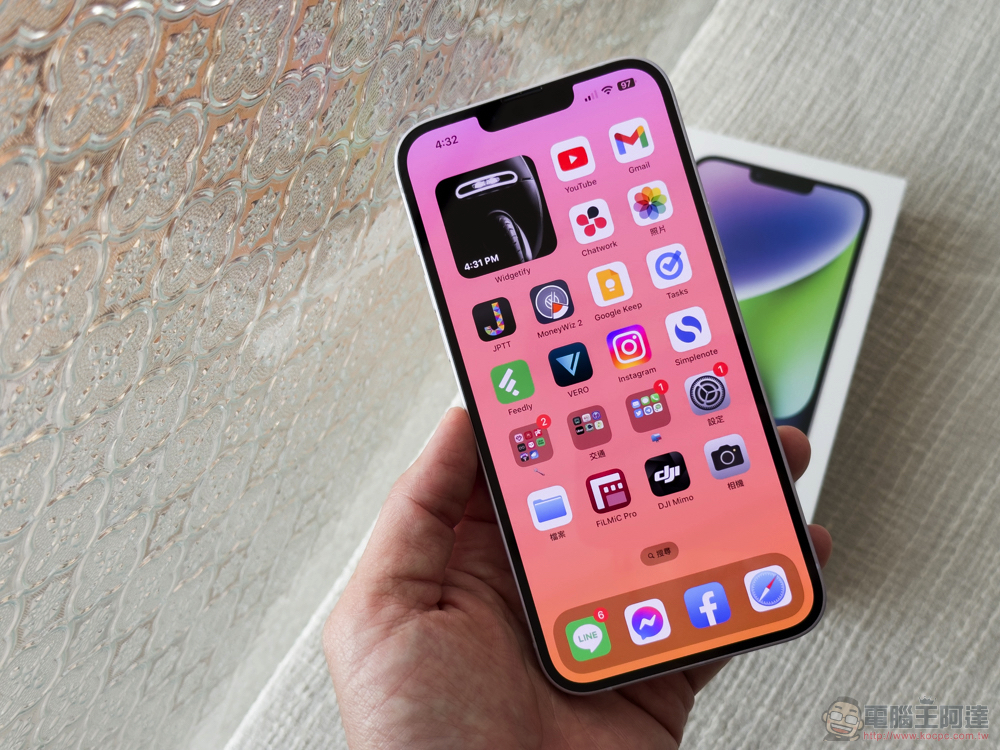
However, due to Apple’s App Development Guidelines, there are strict guidelines for using volume buttons in third-party apps. These guidelines prioritize maintaining a consistent user experience and preventing misuse of hardware controls that could confuse users or violate standard interactions. As a result, Apple generally does not allow developers to change the functionality of their apps using hardware buttons. While some apps manage to effectively integrate volume rocker functionality within Apple’s guidelines, the challenges posed by these limitations make it still relatively uncommon.
Since developers cannot modify the operation of the volume buttons, users cannot use the volume buttons to perform commands issued in the Shortcuts app. However, that doesn’t stop everyone, shortcuts utilizing the volume buttons are technically possible, but the process involves using complex workarounds to tie the action to the phone’s volume value.
Force restart
At some point, everyone has tried or heard of the trick of simply turning off and turning your device back on, and in many cases, using your iPhone’s volume buttons to force a restart is a quick and easy solution. In situations where a device becomes unresponsive, slow, or suffers from software glitches, this can act as a reboot to help restore the device to a better state. Users can initiate a force restart by holding down the volume up and down buttons and the power button simultaneously. Using the volume buttons here will take you to the shutdown page, but by holding down the power button, the iPhone will eventually shut down without using the slider, which is especially useful when the screen freezes. After the phone is turned off, users must still hold down the power button until the Apple logo appears on the screen.
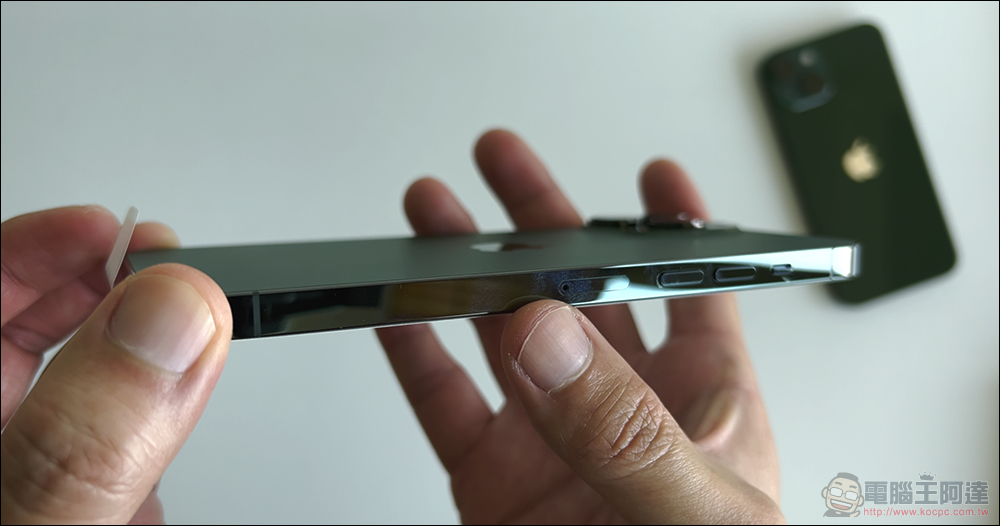
The importance of an occasional forced reboot cannot be overstated. Just as the brain needs sleep to rejuvenate, smartphones need a reset to clear memory caches, resolve minor software conflicts, and ensure optimal performance. Additionally, a force restart can prevent apps from not closing or any unresponsive behavior on your iPhone.
Source: KOCPC Chinese