


Short videos are ubiquitous on all major social platforms, from TikTok to Instagram Reels, and YouTube is no exception. With YouTube Shorts, creators can build short, vertical videos to quickly upload content that the most users will enjoy. However, not everyone enjoys endlessly scrolling through short YouTube videos and may want to get rid of them. Google basically doesn’t let you disable the Shorts feature, but you don’t have to worry as there are a few tricks you can use to hide short YouTube videos on your smartphone.
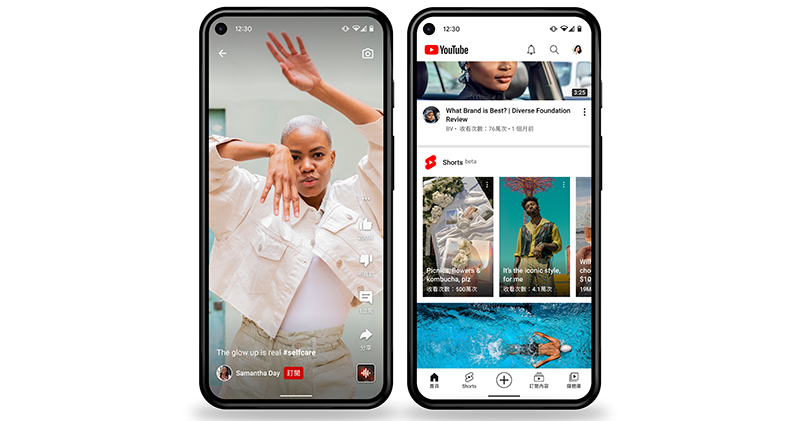
How to hide Shorts on YouTube mobile?
While you can’t completely remove YouTube Shorts from the app, there are a few ways to reduce the portion of Shorts videos you see on your phone. In this tutorial, we provide 2 solutions, you can try more.
View the desktop version of the website from a mobile browser to hide short videos
On the desktop version of YouTube, you can remove the YouTube Shorts field from the homepage. Using this method, you won’t see any clips on the main YouTube homepage.
- Open your browser on your smartphone. It is recommended to use Google’s own Chrome for the best compatibility.
- Open the YouTube website in your browser. (www.youtube.c0m)
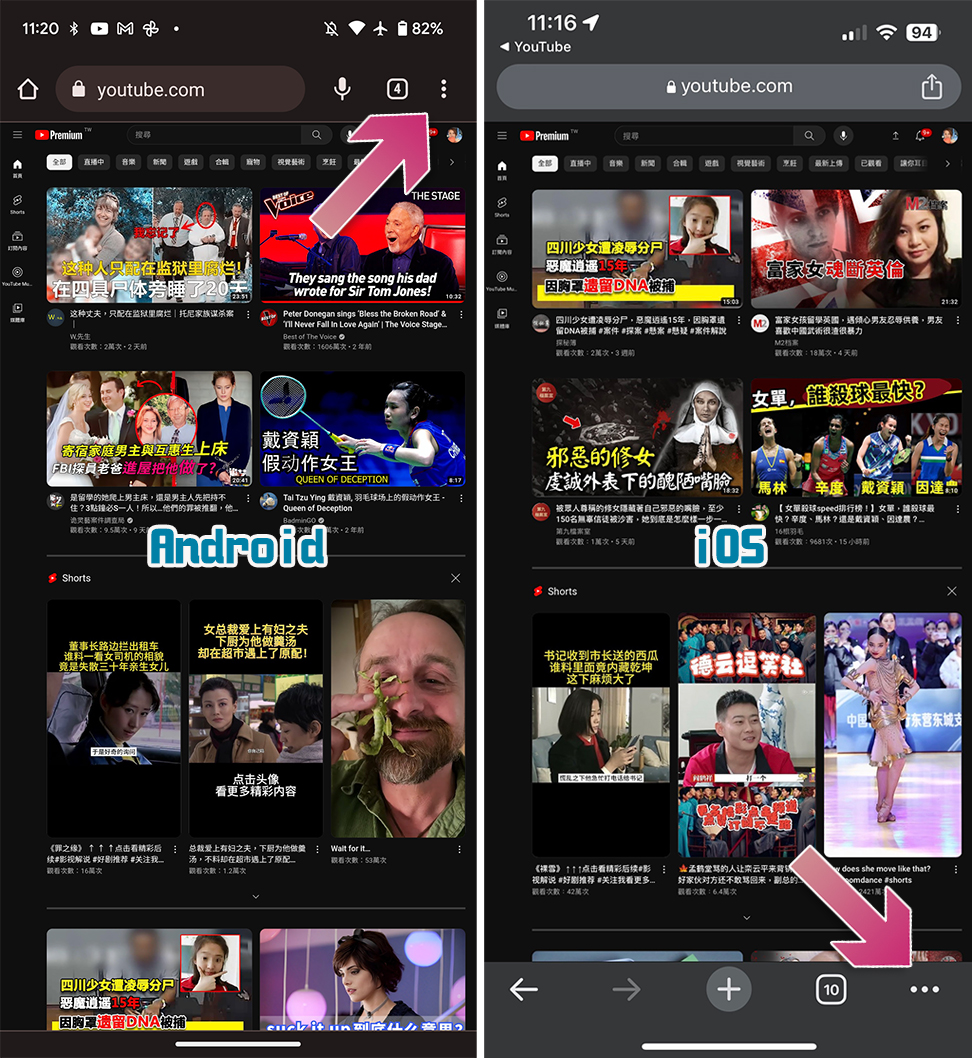
- By default, YouTube loads the mobile version of the page (m.youtube.com). Now click on the three-dot menu (lower right corner for iOS, upper right corner for Android).
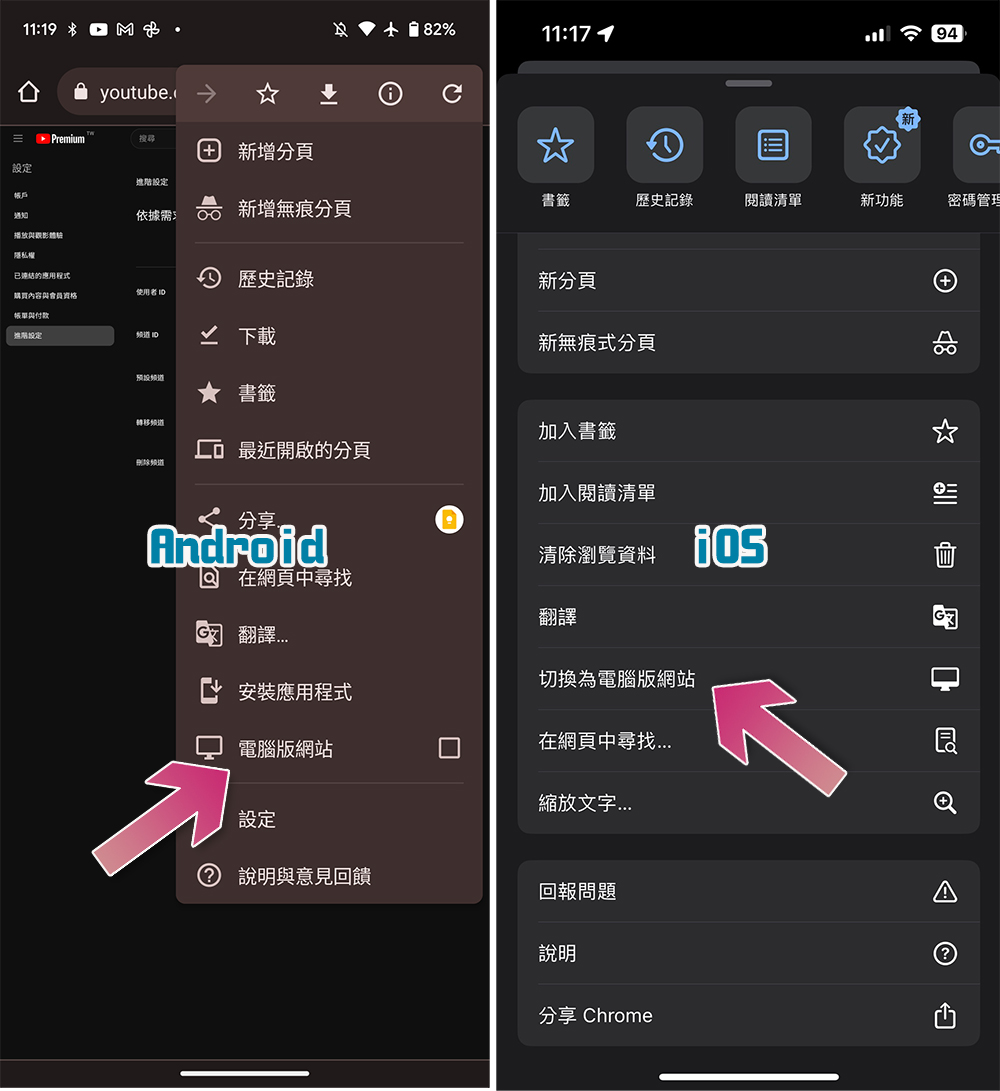
- Select “Switch to desktop site” from the menu.
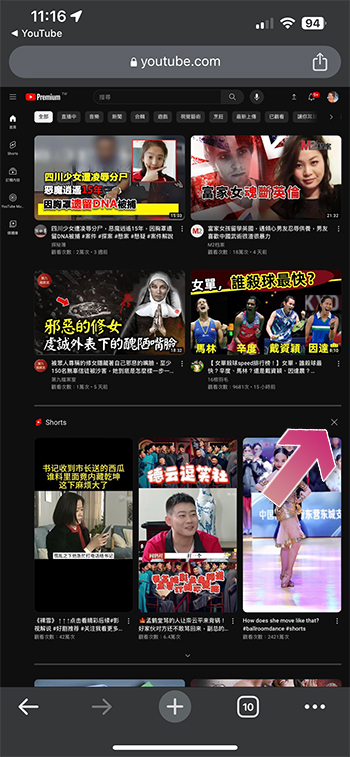
- Scroll down to the Shorts field on the homepage and click the “X” symbol or the “Not Interested” button in the upper right corner of the field. Once completed, you can use it for 30 days without being interrupted by Shorts.
Mark Shorts videos as “not interested”
Let’s say you want to continue using the current YouTube app, but don’t want short video recommendations to appear under every video you watch. In this case, you can temporarily mark short video recommendations as “not interested” and use algorithm training to prevent Shorts from appearing.
- Open the YouTube app on your phone.
- Play any video you want to watch.
- Without switching to full screen, scroll down through recommendations until you see the YouTube Shorts section.
- Click the three-dot menu in the upper right corner of the Shorts clip, then click “Not interested” in the pop-up menu below.
- Do the same for all the short videos shown here.
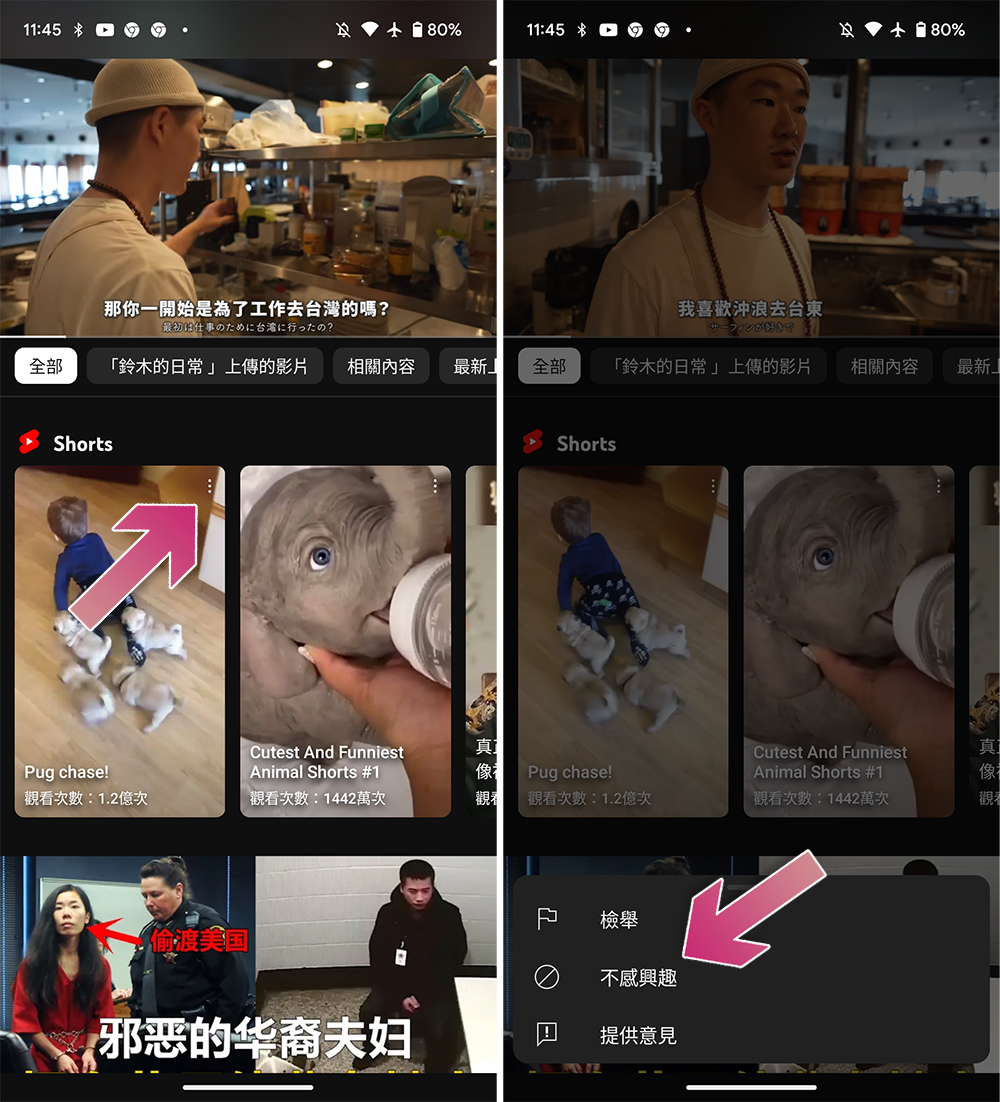
Using this method you won’t see any Shorts recommendations in the video for a certain period of time. But this is not a permanent solution and you can never avoid what Google wants to throw at you.
Source: KOCPC Chinese