


Page numbering has been around in Google Docs and Microsoft Word for a long time, but most of the time you won’t use it. Have you ever read a long document and then had trouble finding a specific location when you compared it to the reference document? Or have you printed an extra-long research paper but are having trouble sorting it after accidentally cluttering the pages? At this time, the originally inconspicuous page number comes in handy.

How to add page numbers to Google Docs and Microsoft Word? (PC version, mobile version)
Using page numbering enhances the overall readability and accessibility of any written document, providing you with a direct reference point for specific information in the document, making it easier to work with both digital and paper documents. This means you no longer have to scroll aimlessly through endless pages or deal with cluttered piles of files. Fortunately, adding page numbers to digital documents, whether from Google Docs or Microsoft Word, is a very simple process, and I will guide you through these operations.
Add page numbers to Google Docs
Web version
- Open a Google Docs file.
- Click “Insert” on the function bar above.
- Select “#page number” from it.
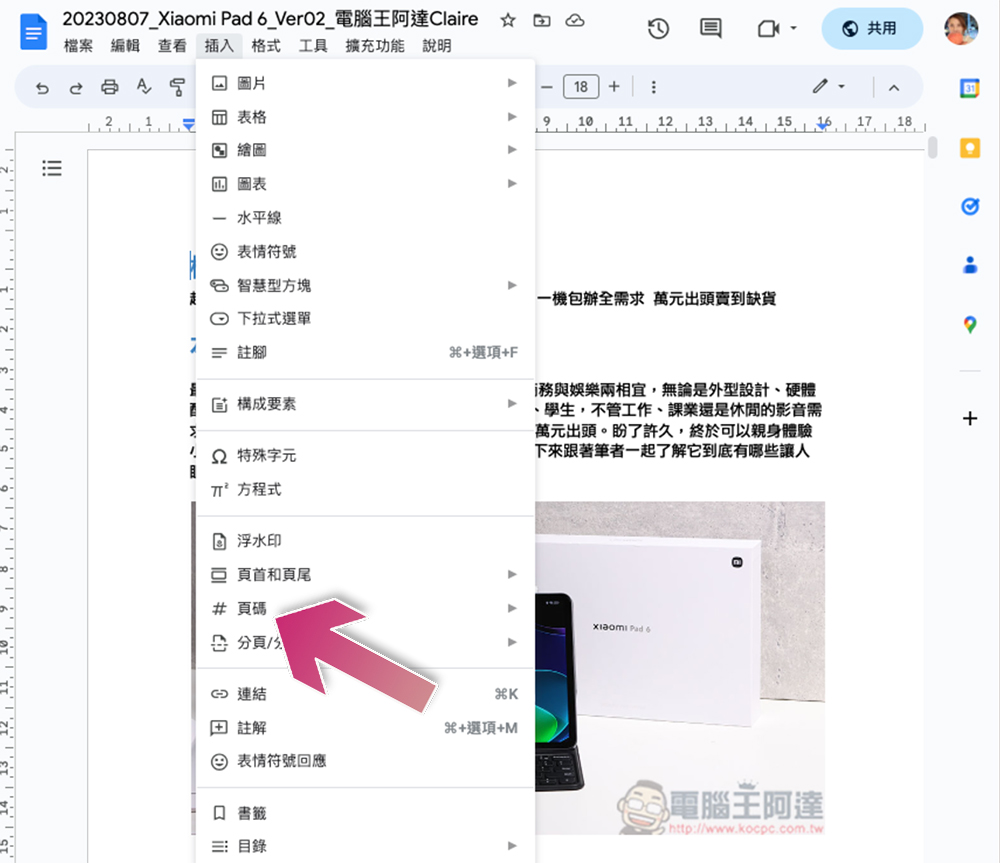
- There are 4 options built into the page number:
- Page numbers in the header, starting from the first page
- Page numbers in the footer, starting from the first page
- Page numbers in the header, starting from the second page
- Page numbers in the footer, starting from the second page

- If you want to further customize the page number, you can click More Options, set the display position and starting page, and then apply it.

Mobile version
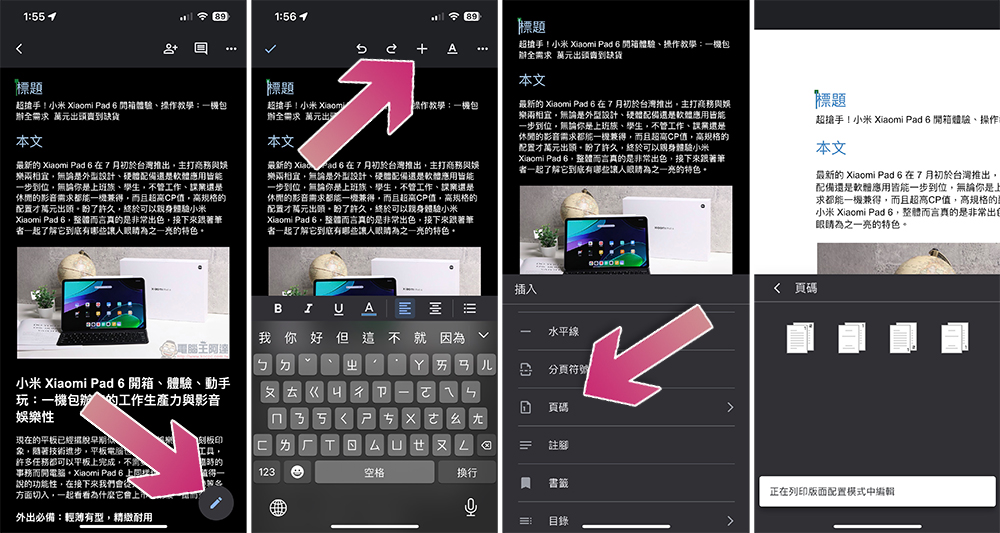
- Open the document in the Google Docs app and click the pencil icon in the lower left corner to enter edit mode.
- Click the “+” sign placed on the screen and select “Page Number” from the list below.
- Select the page numbering format you want to use from the four available options.
Add page numbers in Microsoft Word
PC version
- Open the file in Microsoft Word.
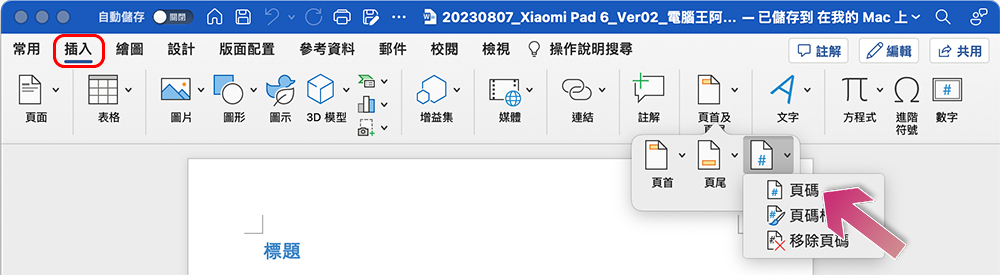
- Switch to the “Insert” tab on the upper toolbar and click “Header and Footer”.
- Click on “Page Number” and then click on “Page Number”.
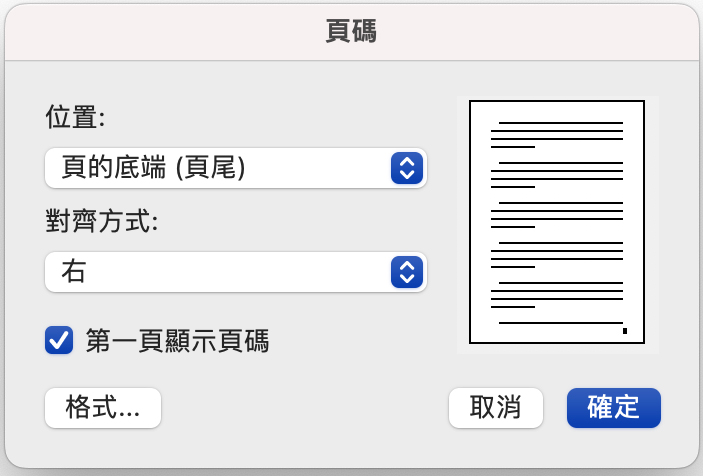
- Choose how page numbers are displayed. You can customize whether the page number should be at the top or bottom of the page, centered, left or right.
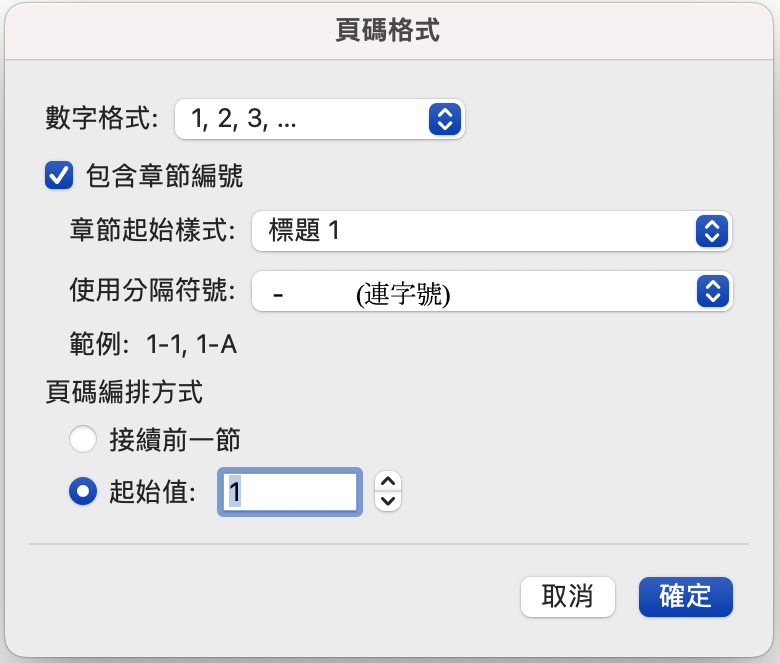
- You can also click “Page Number Format” to change the format and appearance of page numbers, including number format, chapter numbers, separators, layout, etc.
Mobile version
- Open the target document in the Microsoft Word application and click the pencil icon at the top to enter editing mode.
- Click the “…” icon above the virtual keyboard.
- Switch to “Insert” from the upper left side of the bottom menu, and then select “Page Number”.
- Then click on the page number format you want to use.

Source: KOCPC Chinese