


The Windows key on your keyboard is not only used to open the Start menu, it is also an important shortcut key for quick access to various operating system functions. If your Windows buttons don’t work no matter how you press them, this time we provide several methods to help you troubleshoot the problem, whether it is software or hardware. Follow us to check.
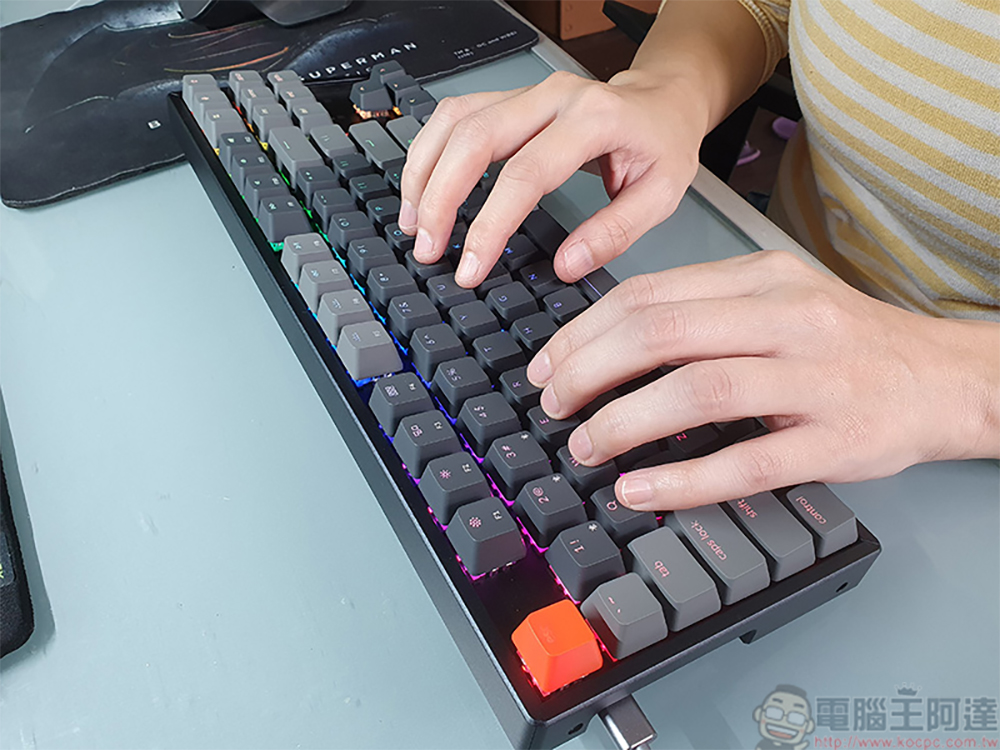
Windows keys (on keyboard) not working? Fixes you can try
Is the start menu working properly?
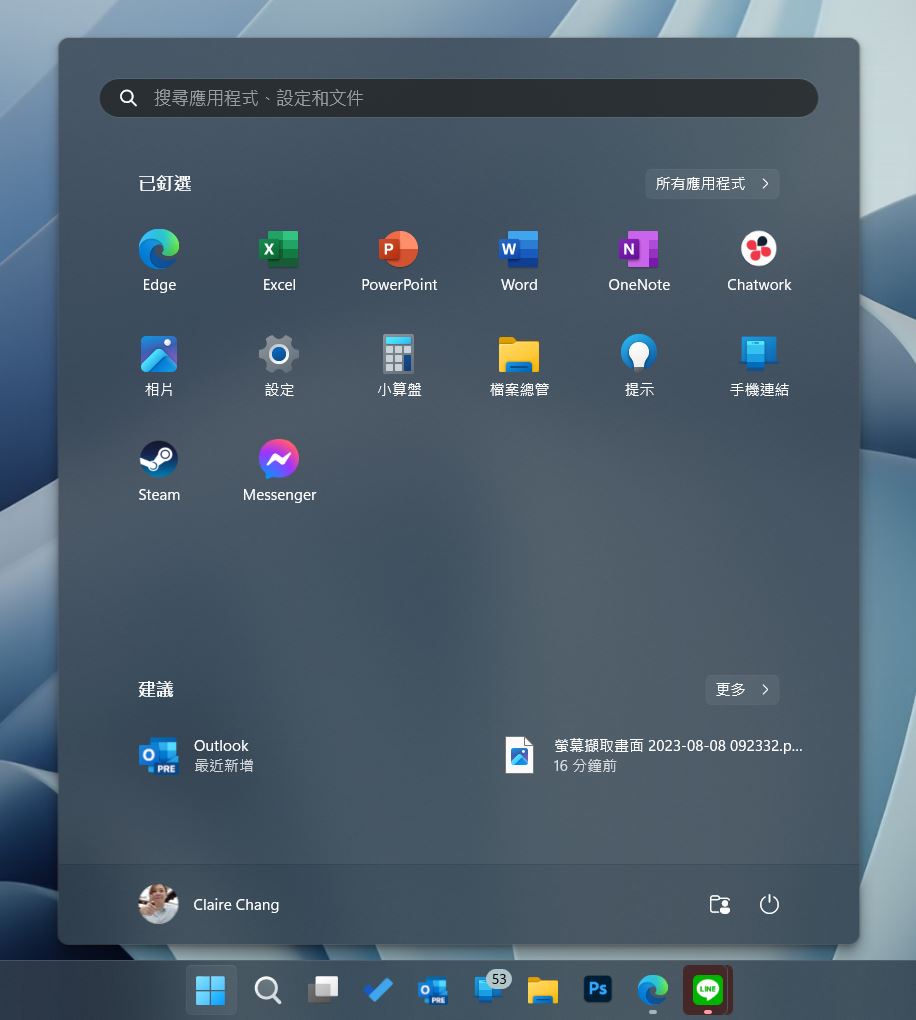
The most basic function of the Windows key is to open the Start Menu. If even that doesn’t work, the problem may be with the Start Menu and not the keyboard. If the core process has stopped functioning, the Start menu may also stop. You can verify this by clicking the Start button on the taskbar at the bottom of the screen to see if the menu can be opened successfully. Another obvious sign is whether other Windows key combinations work properly, such as whether Windows + M, which minimizes all current windows, works properly.
Reboot
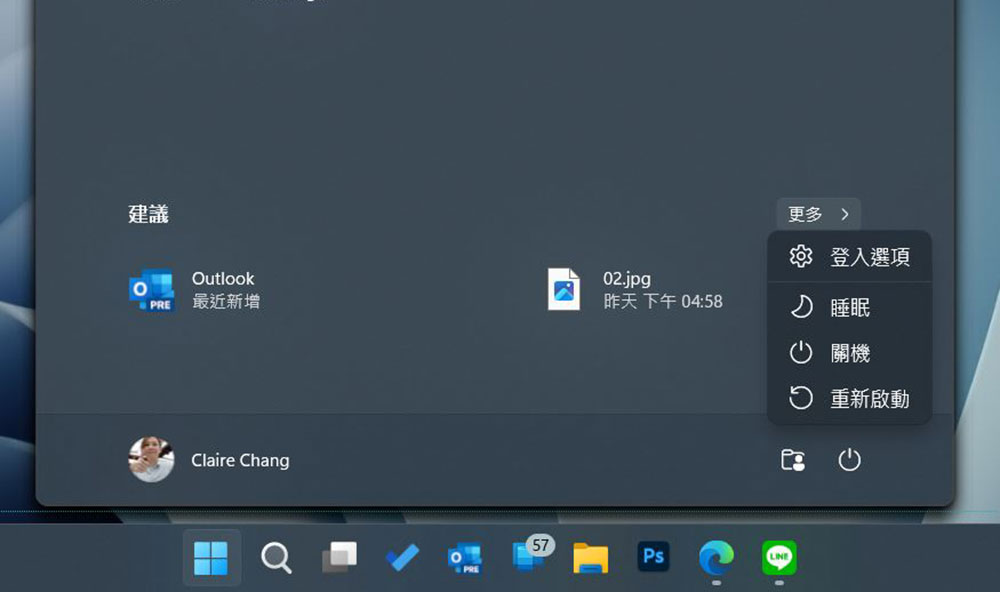
If the problem is caused by a temporary software issue, rebooting should resolve it. This includes the problem mentioned above, even if I click Start, “the menu refuses to open”. When your computer boots up again, Windows will restart all of its core processes, and any third-party software (such as keyboard drivers and utilities) should run normally again.
Disable sticky keys and filter keys
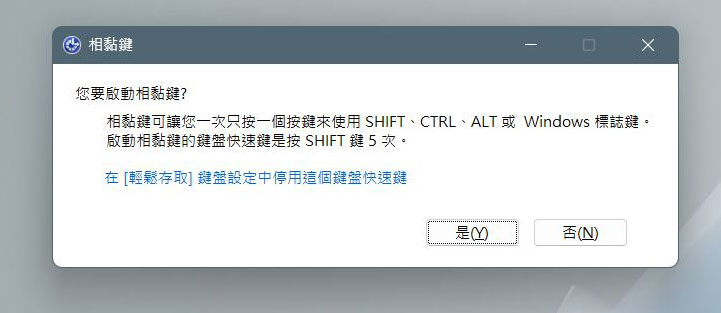
Sticky Keys is an accessibility feature that uses modifier keys, such as the Windows key, to provide the convenience of pressing two buttons at the same time. Sticky keys allow you to customize them in the modifier and then press a single key to trigger them using Shift, Ctrl, Alt or Windows key shortcuts without having to press two or more keys at the same time. Not everyone likes the usefulness of sticky keys, and the feature is a bit too easy to trigger by mistake. Press the Shift key five times to disable sticky keys in Windows.
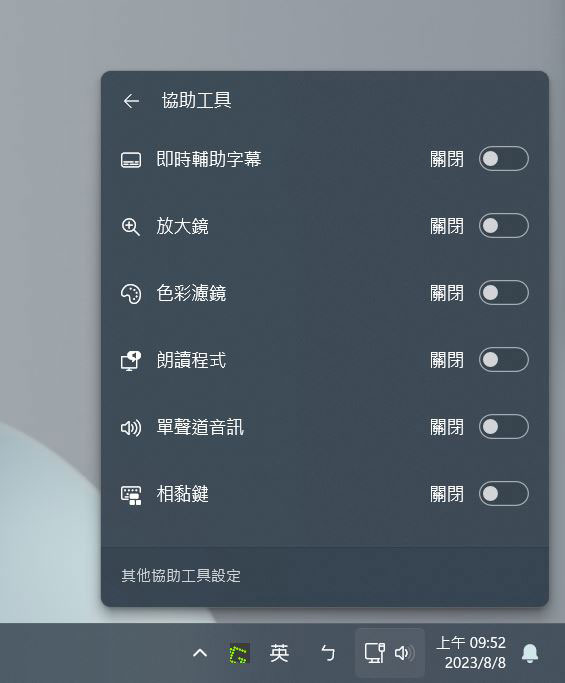
You can also disable sticky keys under the “Quick Settings” menu, click the Wi-Fi or battery icon in the system tray to open the tray, and you can see the switch under Accessibility.
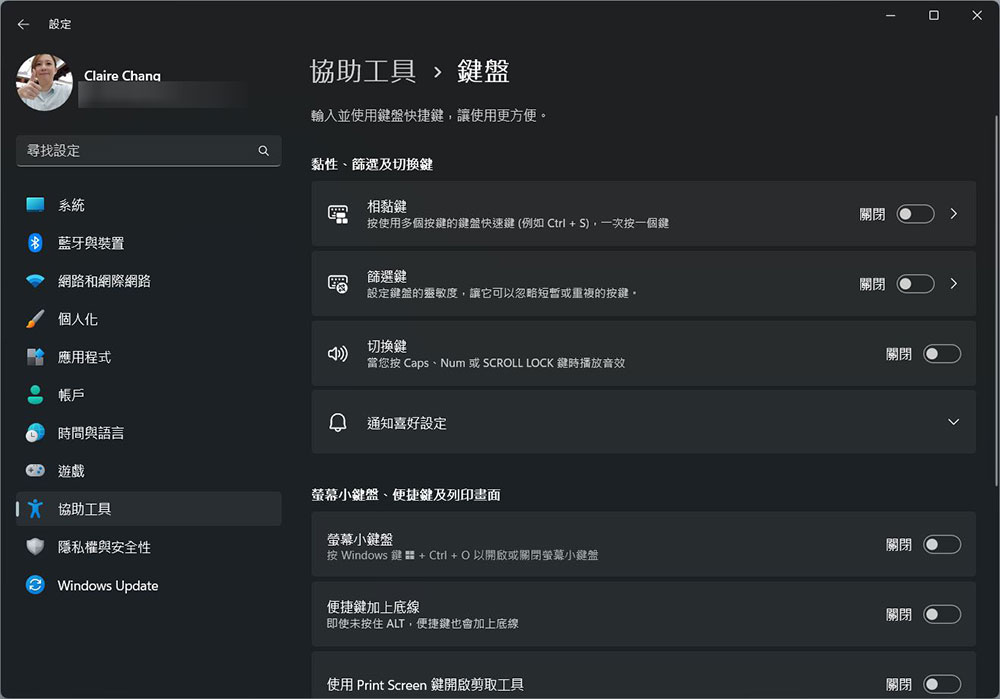
Filter keys are another accessibility feature that can also interfere with Windows keystrokes. The feature has three modes: Slow (ignores fast key presses), Bounce (ignores accidental key presses), and Repeat (ignores repeated key presses). In addition to disabling it by holding down the right Shift key for 8 seconds, you can also turn it off from “Settings >> Accessibility >> Keyboard”.
Charge your wireless keyboard or replace the battery
If you use a wireless keyboard, low battery can cause a variety of problems, including keys not working. It’s worth noting that you may see issues with other keys as well, but charging or replacing any replaceable batteries may help rule it out and is worth a try.
Check for keyboard hardware issues
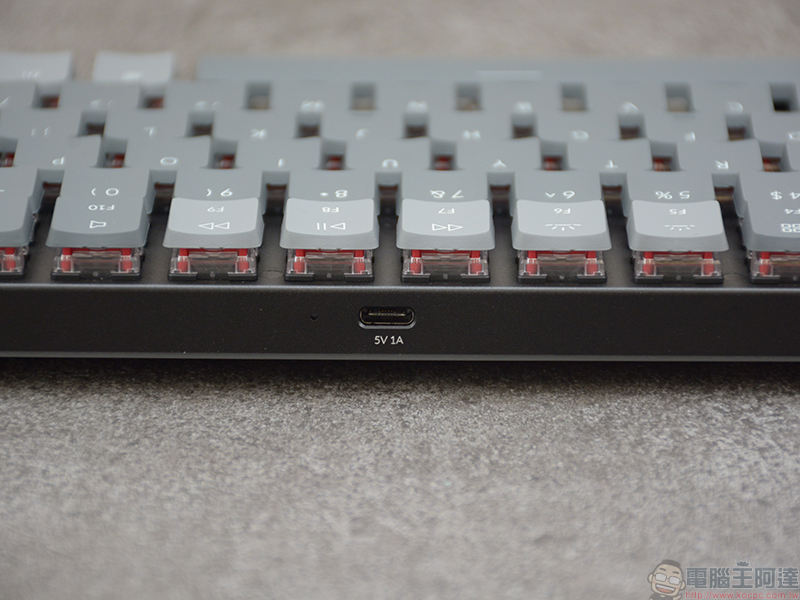
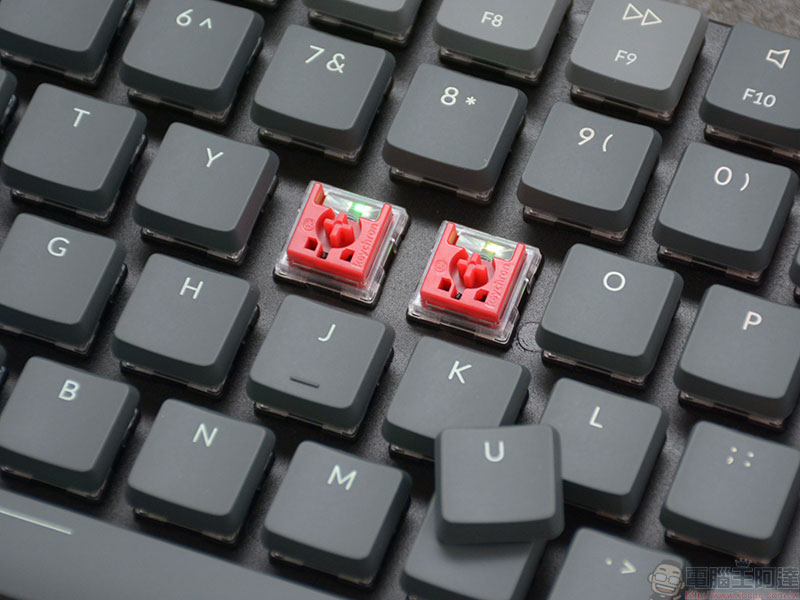
While the Windows key may not be as susceptible to wear and tear as the Enter and Space keys, you should still try to troubleshoot incorrect keystrokes and other hardware issues. The easiest way is to plug the keyboard into another computer and try pressing the Windows key. You can also cross-trouble by connecting another keyboard to the PC in question. Users of mechanical keyboards (if hot-swappable) can try replacing the key shafts, and membrane keyboards can be replaced with new ones.
Some keyboards have a Windows Key Lock feature that allows you to temporarily disable the Windows key. This is convenient for gamers who don’t want to accidentally trigger the start menu while playing a game. This may be a key combination or a setting in any third-party keyboard management application. Check the relevant keyboard manual to see if your keyboard includes this feature.
Disable Windows Game Mode
Game Mode mainly optimizes the gaming experience by changing the way Windows handles background processes, driver updates, etc. It may also interfere with the Windows key, so consider disabling it under “Settings >> Game >> Game Mode” to see if that solves your problem.
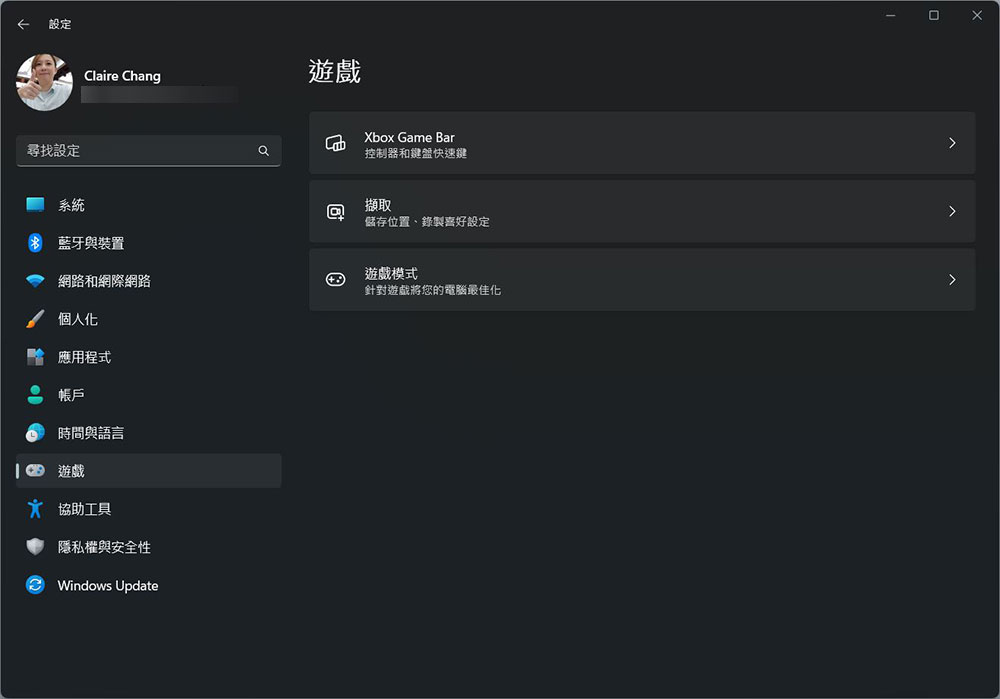
If gaming is your PC’s main use, you should probably enable Game Mode (or at least remember to turn it back on), and also check Auto HDR, GPU Priority, and Power Management settings when you’re using it.
Source: KOCPC Chinese