


In order to allow computers to save power when not in use, Microsoft provides a variety of options in Windows, including sleep, hibernation, and the relatively unknown interactive sleep. Especially for laptop users, proper power conservation can help extend battery life, so what is the difference between sleep and hibernation? This time we will learn about the difference between sleep and hibernation in Windows 10 and Windows 11.
What is the difference between the so-called “sleep” and “hibernation” in Windows?
sleep, hibernation
Sleep mode is essentially similar to hibernation, but there are some important differences. Let’s first understand the uses of these two functions.
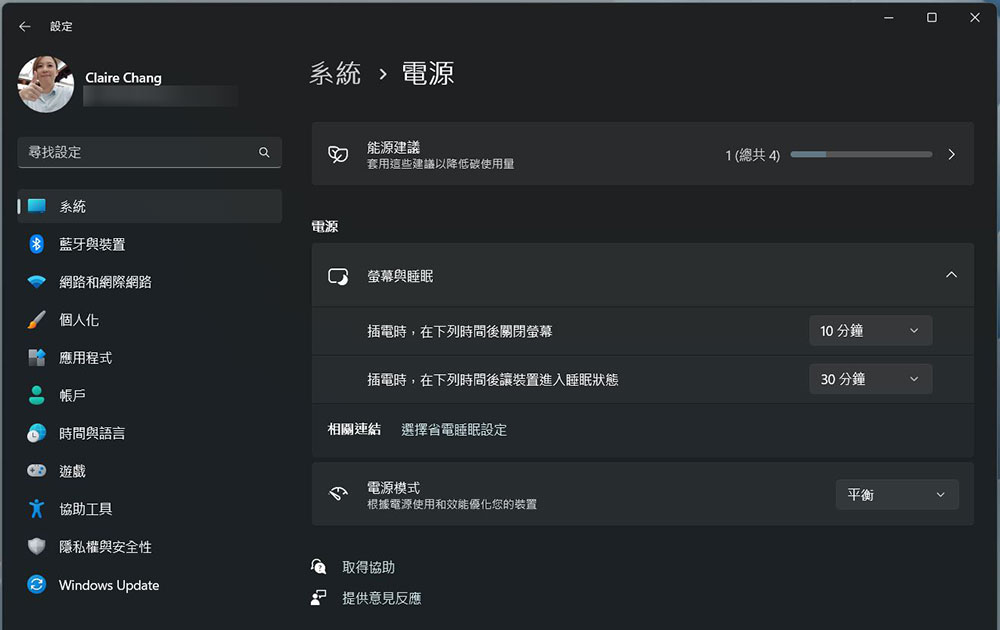
Sleep mode is a power-saving state, similar to DVD seeing half-pressed pause. When you turn on sleep mode, all operations on the computer will stop, any open files and applications will be placed in RAM, and the computer will enter a low-power state. Technically speaking, this means that the computer stays on, but only uses a little bit of power, and you can quickly return to normal full power operation in a few seconds. Sleep mode is basically the same as standby mode. Sleep mode is useful if you want to stop working for a short period of time. The computer does not consume too much power in sleep mode.
Hibernation mode is very similar to sleep mode, but instead of saving open files and running apps to RAM, it saves them to the hard drive. This allows your computer to shut down completely, and once your computer is in hibernation mode, using zero power, when the computer wakes up again, it will resume everything from where you left it. In the past, limited by the speed of mechanical hard drives, the recovery time for a computer to wake up was a little longer than in sleep mode. However, modern solid-state drives, especially PCIe NVMe SSDs, are extremely fast, so the wake-up time is also shortened. If you need to leave the computer for a long time and do not want to close files, selecting hibernation mode can help you effectively save power.
On a side note: Interactive Sleep
Since we are talking about sleep and hibernation, we have to mention interactive sleep in Windows, which is relatively unknown.
Interactive sleep is used on desktop computers (desktops) and is a hybrid of sleep and hibernation modes. It places any open files and applications on RAM and the hard drive, then puts the computer into a low-power state so you can quickly wake it up and get back to work. By default, interactive sleep is enabled on Windows desktops and disabled on laptops. When enabled, it automatically puts your computer into interactive sleep mode when you put it to sleep mode. Interactive sleep mode is especially useful on desktops during a power outage, allowing Windows to resume your work from the hard drive if RAM is inaccessible when power is restored.
How do I put my computer into sleep or hibernate mode?
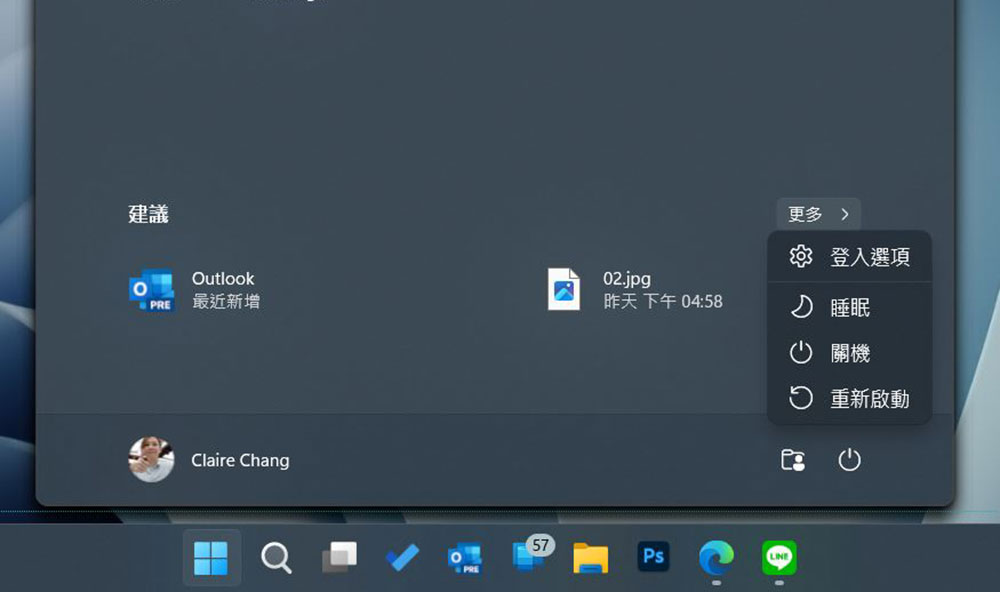
To use the hibernation and sleep options in Windows 10 or Windows 11, open the Start menu. After the “Power” symbol in the lower right corner, you will see the hibernation and sleep options appear in the menu.
If you don’t see the option for sleep mode or hibernation mode, it could be because of the following reasons:
- Your graphics card does not support sleep mode. Please refer to the documentation for your graphics card. You can also update the driver to check.
- If you don’t have administrative rights on your computer, you’ll need to talk to IT to change this option.
- Power saving modes in Windows are turned on or off from the BIOS. To turn these modes on, restart your computer and enter the BIOS setup program. The key to access the BIOS varies from manufacturer to manufacturer. Usually the brand name for accessing the BIOS will appear on the computer startup screen. Please check the manufacturer’s website for relevant details.
- If you don’t see the Hibernation option in Windows 10 or Windows 11, that’s because it’s hidden by default and you just need to click to re-enable Hibernation.
Source: KOCPC Chinese