


When you sit down, have your playlist ready, and are ready to listen to music, your computer speakers suddenly make a crackling sound that is hard to ignore. Not only does the listening experience suffer greatly, but sometimes a sudden loud sound can make you jump. Have you encountered the same problem with your speakers? We have sorted out the 10 most common reasons. Let us troubleshoot the problems first before deciding whether to order a single set of new speakers online.
Computer speakers crackling? Probably these 10 most common reasons
Speaker hardware failure
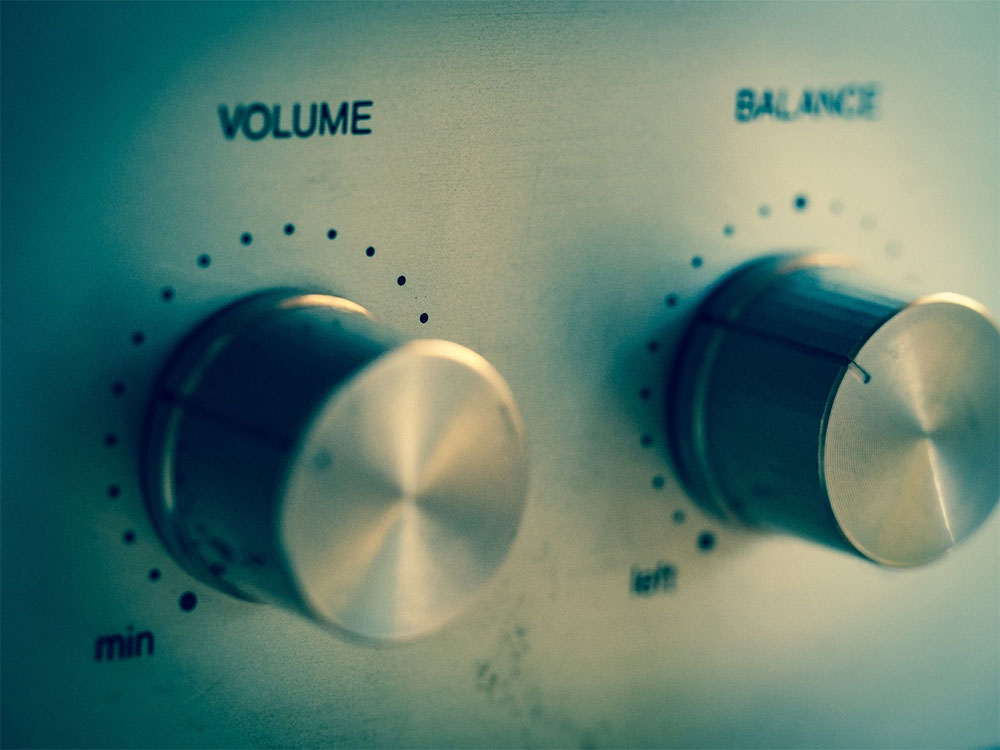
Your speaker may be old, and over time, components such as the speaker’s diaphragm may wear out and age, making it difficult for it to vibrate properly, resulting in damaging static noise. Just like a door hinge that makes a weird squeaking sound over time, a volume knob that has not been cleaned for a long time can make a crackling sound, over time the potentiometer (the technology used in the volume knob) can accumulate dirt, causing it to make a popping sound when you turn up the volume. If you get a crackling sound when you press buttons or turn knobs, then you should check out YouTube on how to clean this model’s speakers.
Loose wiring or poor contact
When you drink a hand-cranked drink but there is a hole in the straw, you either can’t suck it up or the liquid squirts out randomly. That’s pretty much what speakers feel like when the wiring is loose or frayed, and they can’t carry the signal consistently, causing the sound to crackle and distort. The best way to deal with it is to replace the wiring or repair it. It depends on whether the problem is external wiring or poor internal contact. If it is the latter, the processor will be more complicated. If it is still under warranty, send it to a repair center!
Audio driver issues
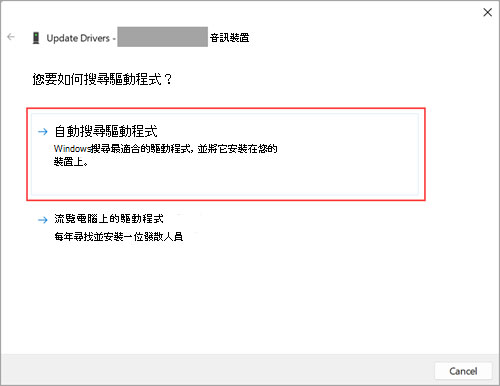
There can also be problems with audio drivers (the software used to drive your audio hardware), and if they are out of date, incompatible, or simply experiencing conflicts, your audio may also crackle. Regularly update the driver for your speaker or sound card to keep it up to date. If you want to test whether it’s a driver issue, enter Windows Safe Mode (How to enter safe mode, click here), this mode will only load the most common hardware drivers. If the abnormal sound problem disappears in this case, then you can conclude that it is a driver or setting problem.
Sound card problem
The sound card is the core of computer audio output. If it fails, it may cause a series of audio problems, and crackles are just one of them. This could be caused by improper installation of the sound card, a faulty sound card itself, or even outdated sound card drivers. If the popping sound disappears when you plug in a USB audio device (such as a headset), it is likely a problem with the sound card or its driver. This is because the USB audio device bypasses the computer sound card, which can help you determine whether the problem is with the sound card itself. Of course, before blaming the problem on the sound card, you should also rule out speaker problems. You can connect 3.5mm headphones to the sound card (the speaker jack on the back of the computer host) or try another set of speakers to see if the crackling sound persists.
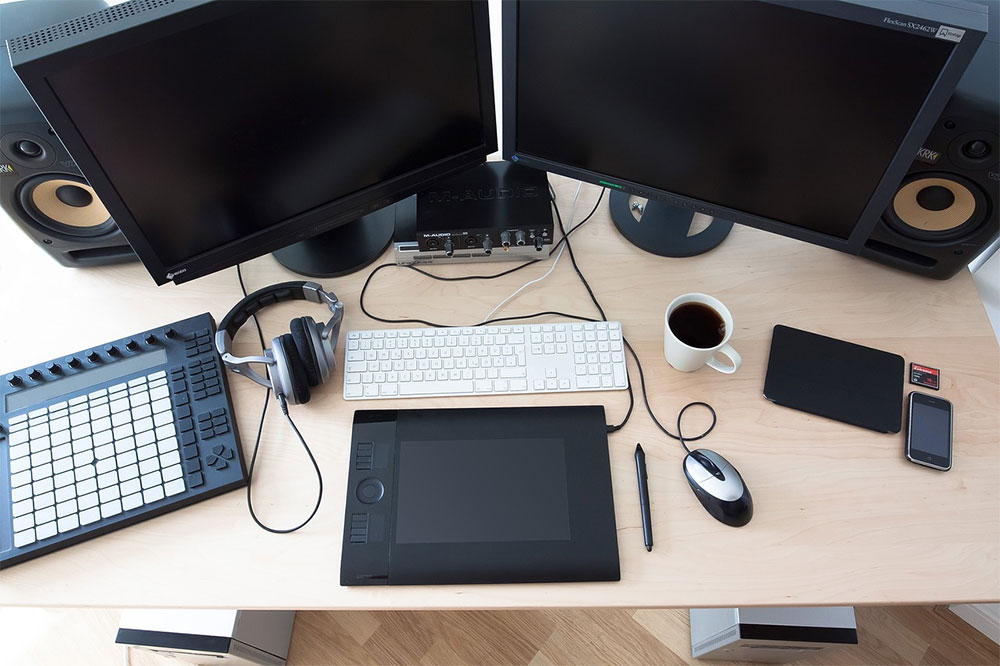
software conflict
The real chaos is backstage at a concert. If there are multiple applications competing to direct the audio output, then there will be jostling and stepping on each other’s toes, causing unnecessary popping noises. Any unnecessary audio enhancement or equalizer application will try to be the leader and can easily cause the above problems. You can do this in “Clean Boot” (initial state) mode (How to boot in the initial state, click here) to see if third-party software is causing the audio problem. If you find that the problem lies in third-party software, then you should eliminate the third-party audio applications on your computer one by one, find the real culprit and disable it, so that you can accurately find the cause behind the abnormal sound.
electromagnetic interference
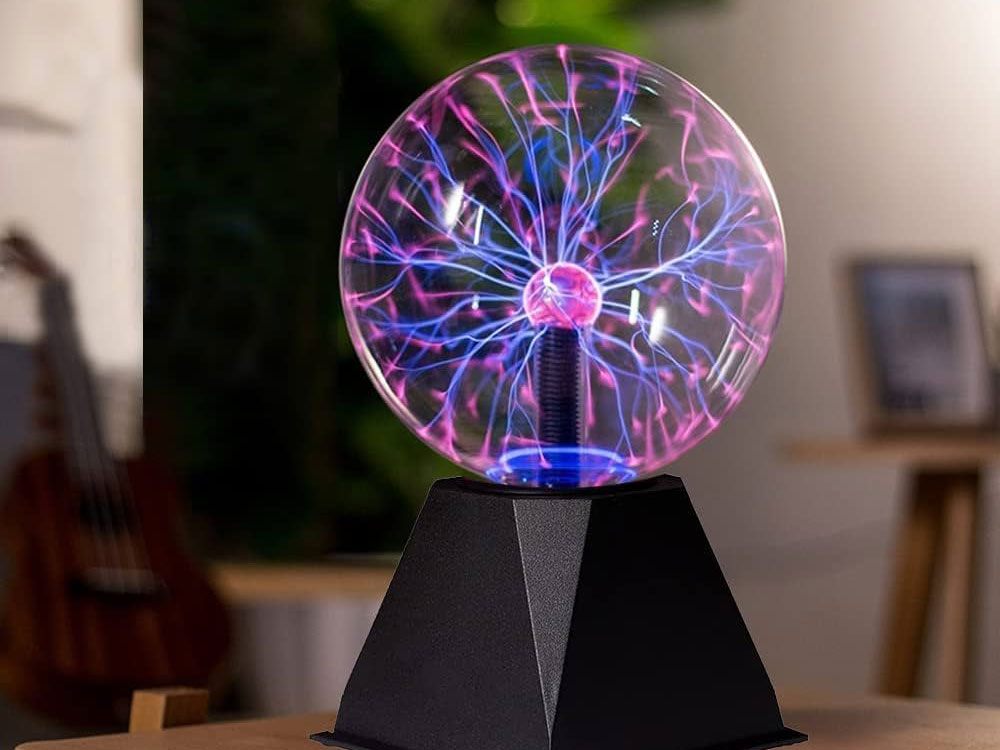
Living in a world full of technological products means that there are always silent electromagnetic radiation, wireless signals and electronic devices around. These are all constantly sending and receiving signals invisibly, and may cause interference to your computer speakers. The most common one is popping sounds. The most common cause is placing your phone too close to the speaker, but there are many potential sources. When evaluating whether electromagnetic interference is the source of your speaker problem, consider nearby devices that use radio waves, such as cell phones, wireless transmitters, and other devices that utilize radio waves, as well as large magnets or devices that discharge electrostatic discharge. You might think you wouldn’t put these things near your computer, but there are many so-called healing desk items, such as toys made with powerful magnets or plasma balls, that can affect your speakers.
CPU and RAM usage too high
When your CPU is busy processing heavy applications, relatively unimportant audio playback may be missed, which may cause audio playback to stutter and produce overlapping sounds. Likewise, if your RMA usage is higher than the RAM itself, especially if you are still using a mechanical hard drive, you may experience issues such as stuttering and popping sounds. This does not mean that the hard drive directly affects your audio quality, but it puts pressure on the system. Especially when relying heavily on mechanical hard drives, it will occupy system resources and cause problems. The best way to deal with it is to reduce the load or upgrade the computer.
Audio file quality is too poor
If the music you download is of poor quality, don’t blame the speakers. Low-quality audio files are like fast food that fills you up but isn’t healthy, or affects your listening experience because they often have poor encoding issues that cause them to sound crackling. When you test your speakers and try to identify audio playback problems, use the highest quality audio files.
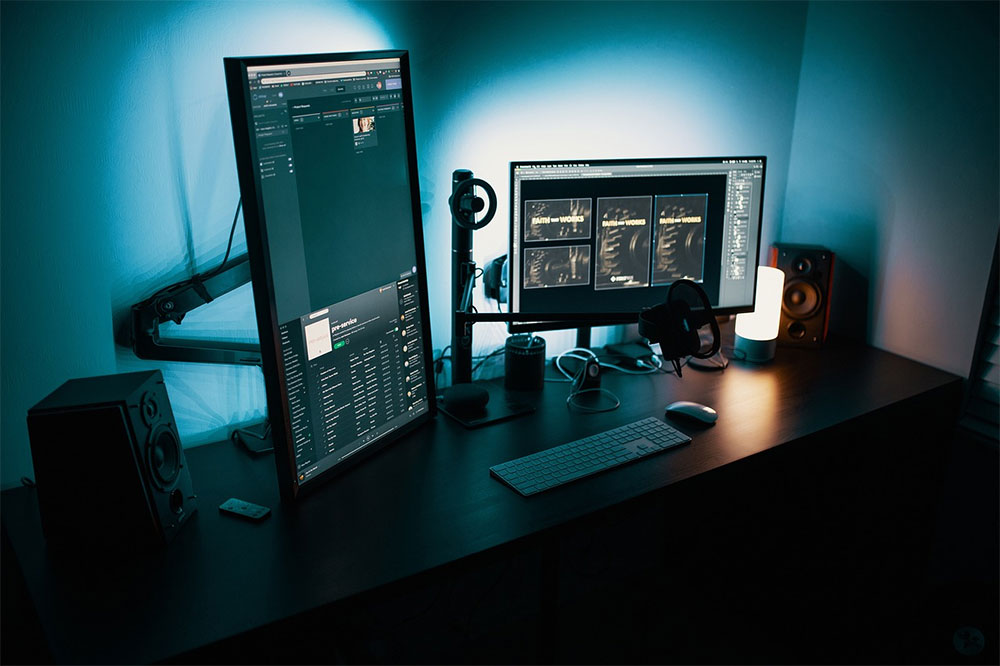
Unstable or faulty power supply
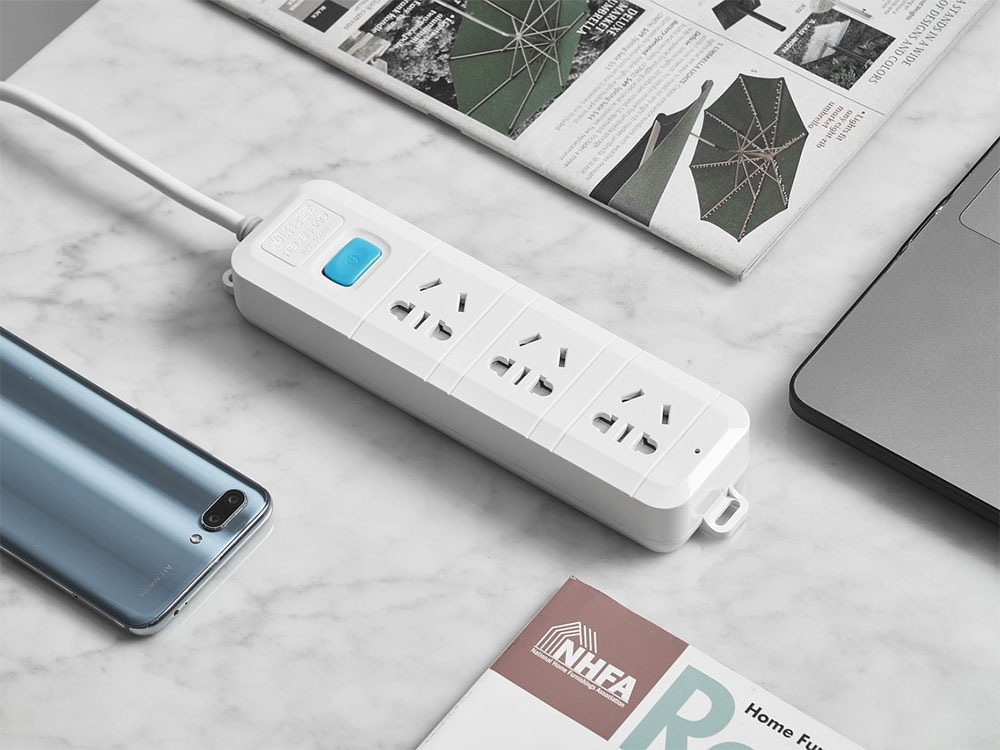
A speaker needs a suitable environment to perform at its best, and if the power supply is unstable or weak, it will not be able to perform at its best. Make sure your speakers are connected to a stable power source and that the outlet or extension cord itself isn’t faulty.
Incorrect audio settings
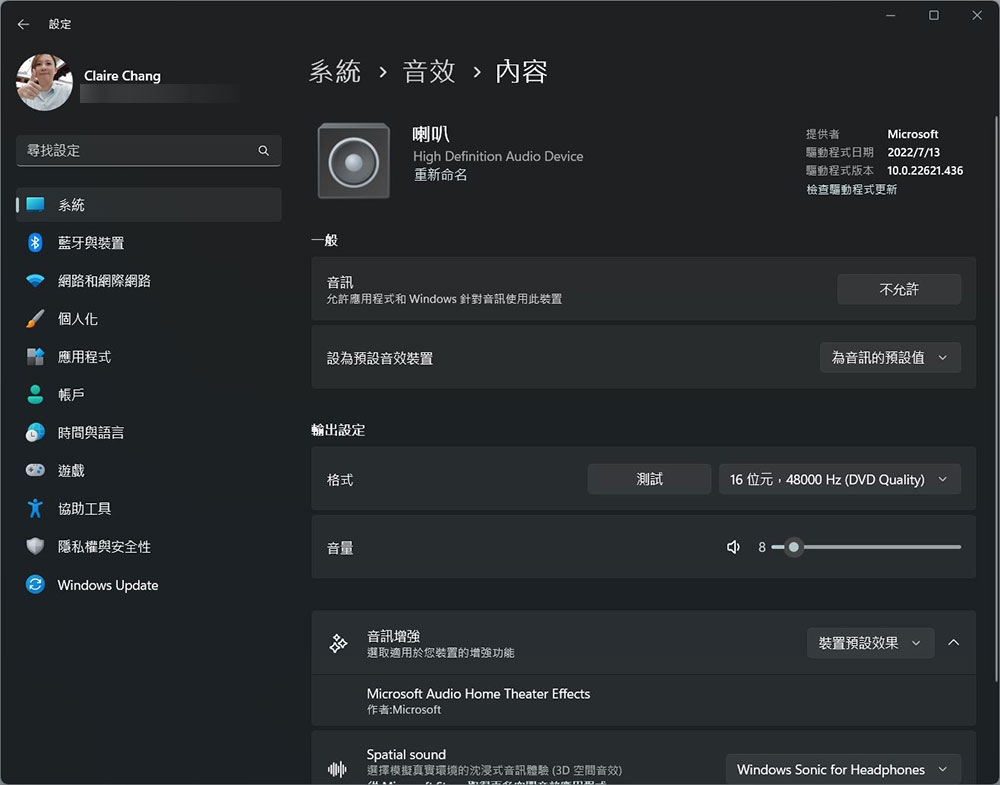
Certain audio settings may cause clicks or pops, and without extensive characterization it may never be possible to figure out the source of the problem. There are two common culprits to check: output format and audio enhancement. Open “Settings >> System Tab >> Sound Effects”. There will be an arrow next to audio output devices such as speakers and headphones. Click to enter the device properties page, where you can change the format and use the audio enhancement function. Try changing the audio output format to a lower format than the current setting to see if that eliminates the crackle issue.
Source: KOCPC Chinese