


No one likes pop-up ads except advertisers, but you’ll often find them everywhere, even on your phone. The problem is, while pop-up ads are common on websites, they aren’t active only on web browsers. To be sure, clicking a link on a web page will result in necessary redirects or adverts to annoy you, but encountering pop-up ads when using non-browser apps or even just navigating your phone’s home screen and folders is not normal and you don’t have to put up with it.
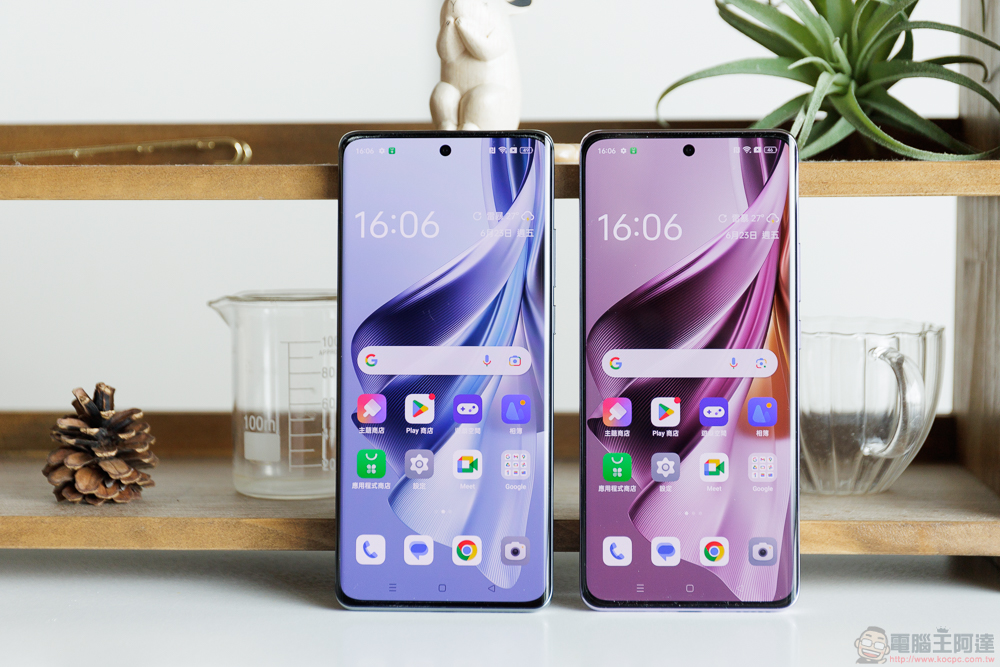
How to block annoying pop-up ads on your Android phone?
Getting rid of unwanted pop-up ads on your Android phone is certainly possible, but it requires some tricks. First you have to figure out where the ad is coming from, and once you identify the source you can act accordingly. Of course, blocking ads in Chrome is another story, and dealing with other potential pop-up ads may require more effort.
Pop-up ads on web browsers
If you’re using Chrome, the easiest way to get rid of unwanted ads is to turn on your browser’s built-in ad blocker. Just make sure Chrome is the latest version and follow the steps below:
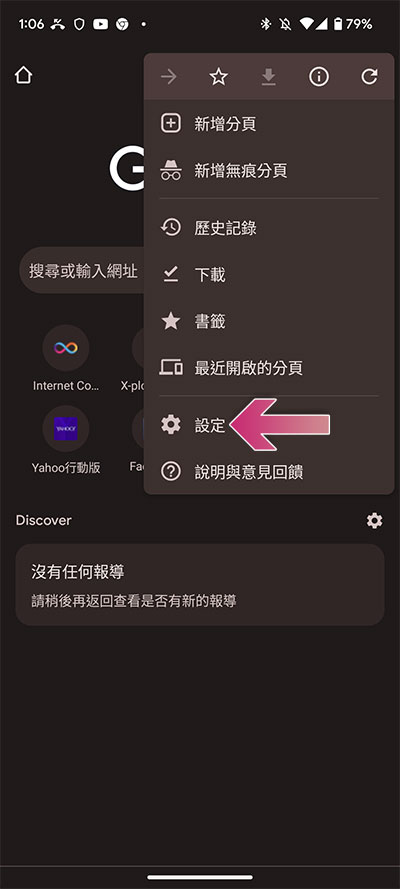
- Open the Chrome browser on your Android phone, click the three-dot menu in the upper right corner, and select “Settings” from it.
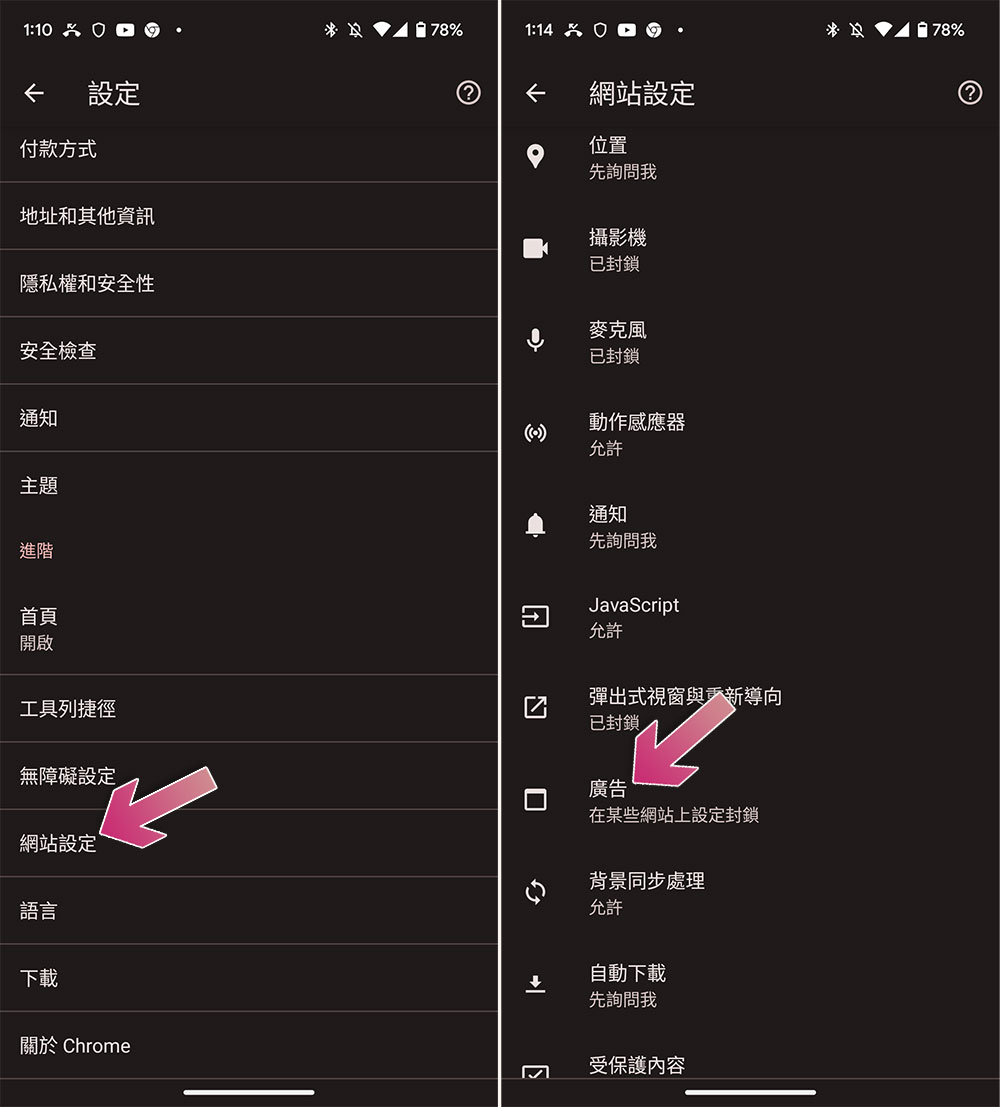
- Click “Site Settings” in the options and select “Ads”.
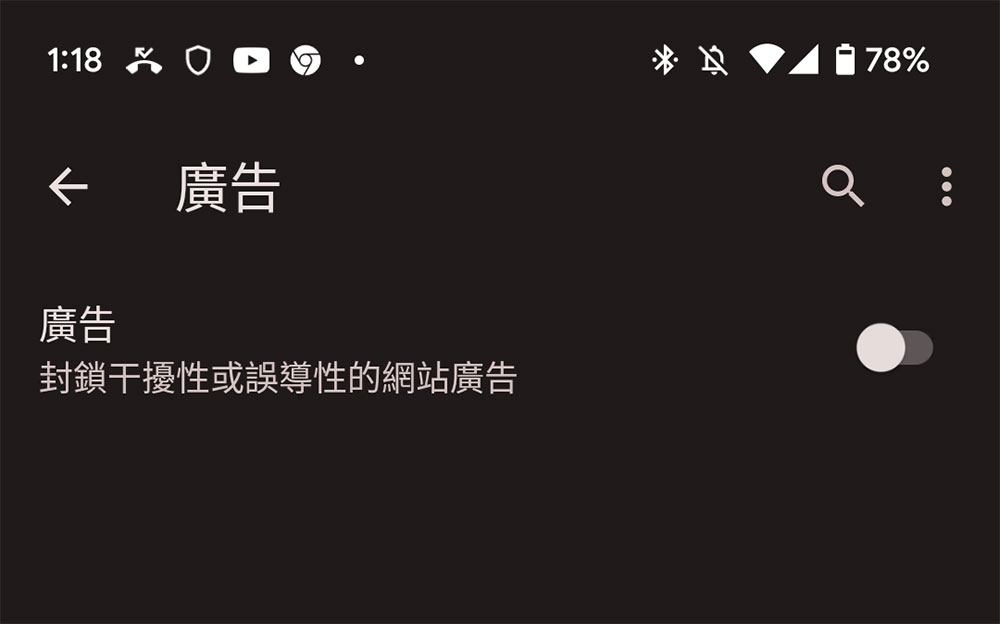
- Turn off the “Ads” switch to block disruptive or misleading ads.
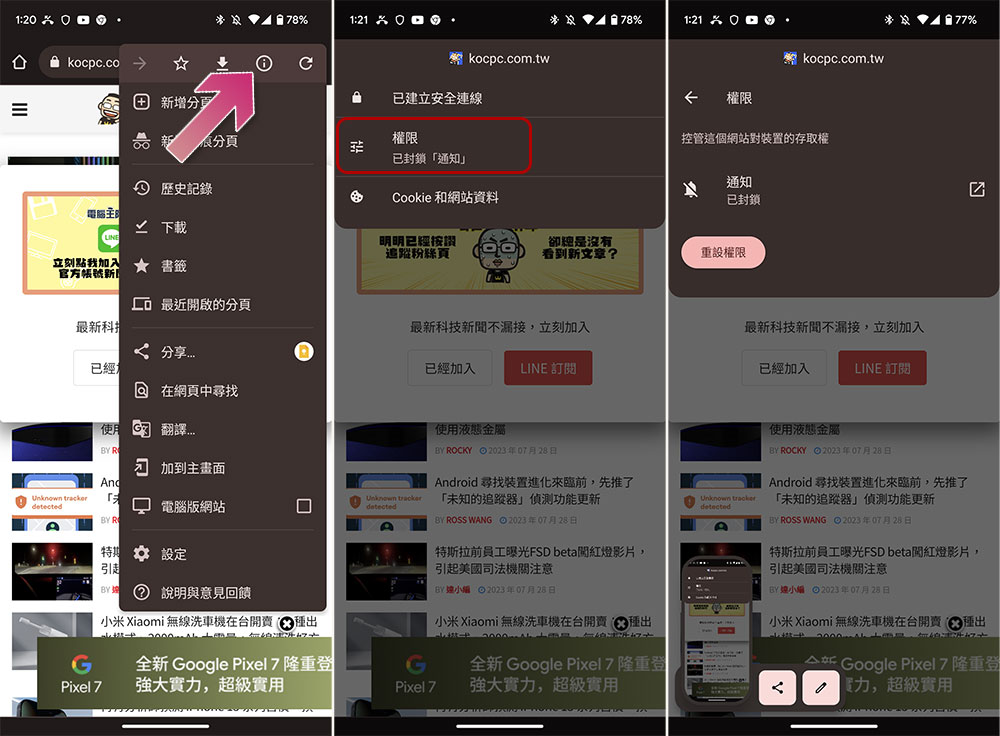
- If your problem is with website notifications rather than ads, please go to the website in question, then click on the three-dot menu on the right side of the Chrome URL, click on the “i” symbol, click on “Permissions”, and turn off “Notifications”. If you don’t see “Notifications” or “Permissions” in the menu, it means that the website does not have permission to send notifications, and the problem you are experiencing may be caused by other reasons.
Pop-up ads in apps
Some smartphone apps use pop-up ads and notifications to promote subscription or paid versions, and often the only way to get rid of these types of in-app ads is to pay to unlock an ad-free version (if one is available) or to uninstall the app entirely. That said, some apps hide more malicious purposes and may place ads on your screen even when they’re not being used. If you think an app you’ve installed may contain malware, follow these steps:
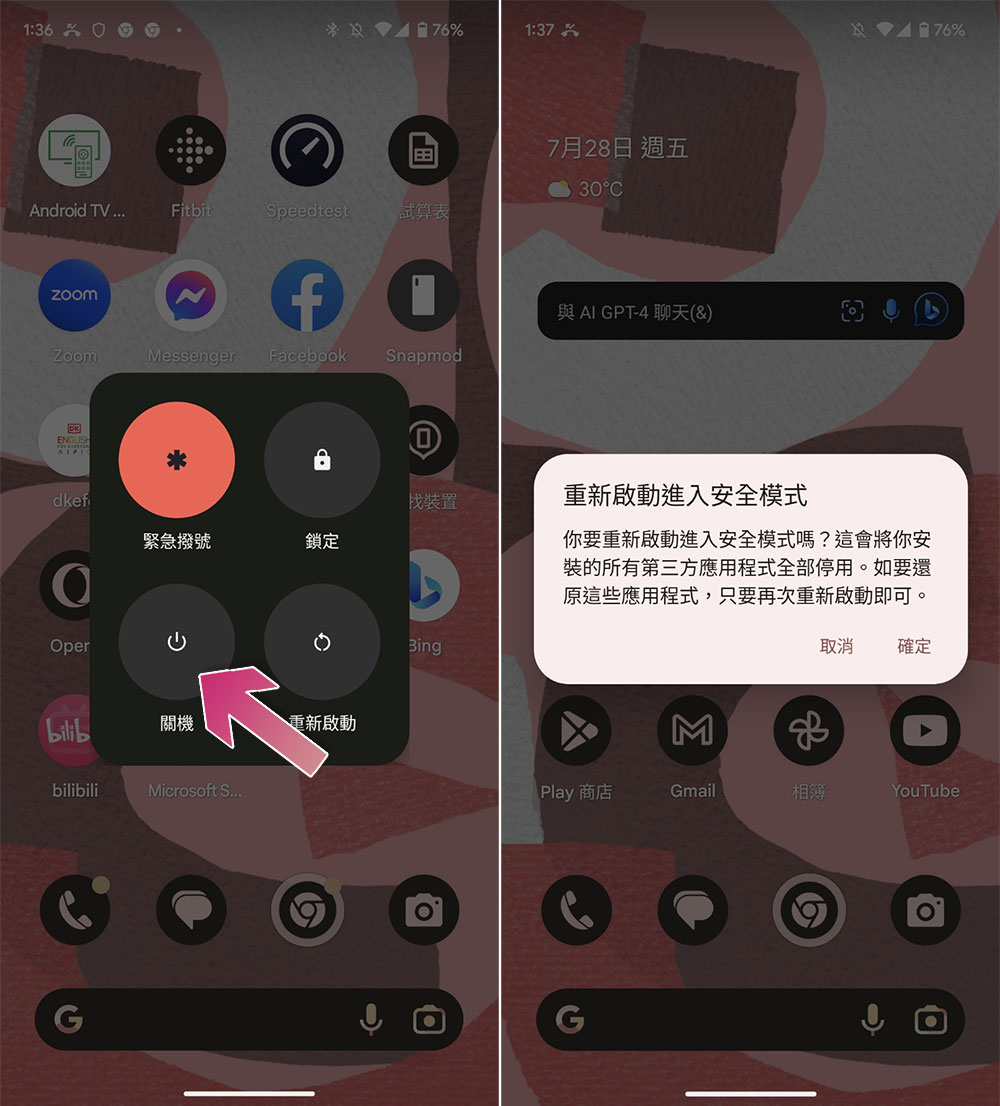
- Press and hold the power control button on your Android phone (power button + volume up button for Pixel), then press and hold the power off icon on the screen. This will trigger a question about restarting the phone in safe mode, click OK.
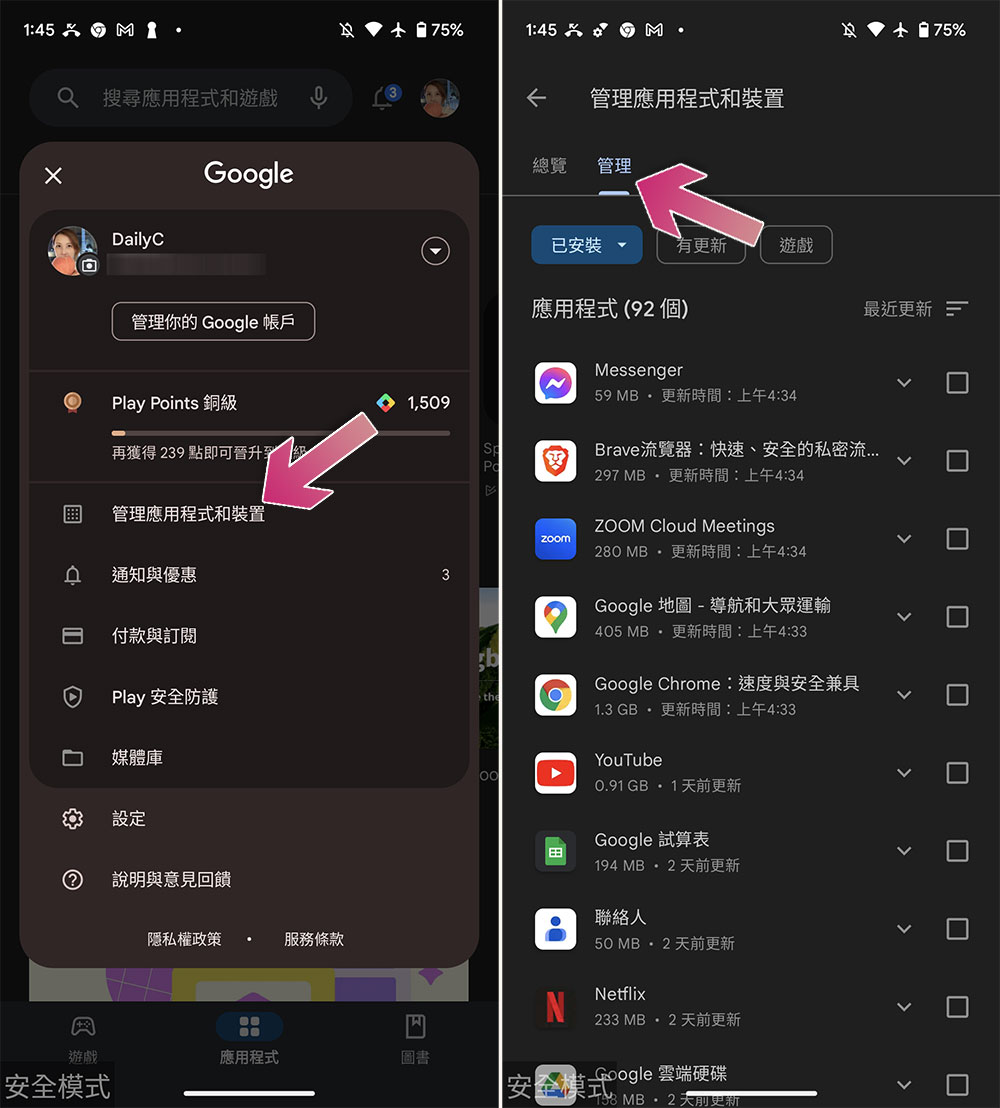
- Open the Google Play Store, click your profile picture in the upper right corner of the screen, select “Manage apps and devices,” then switch to the Manage tab.
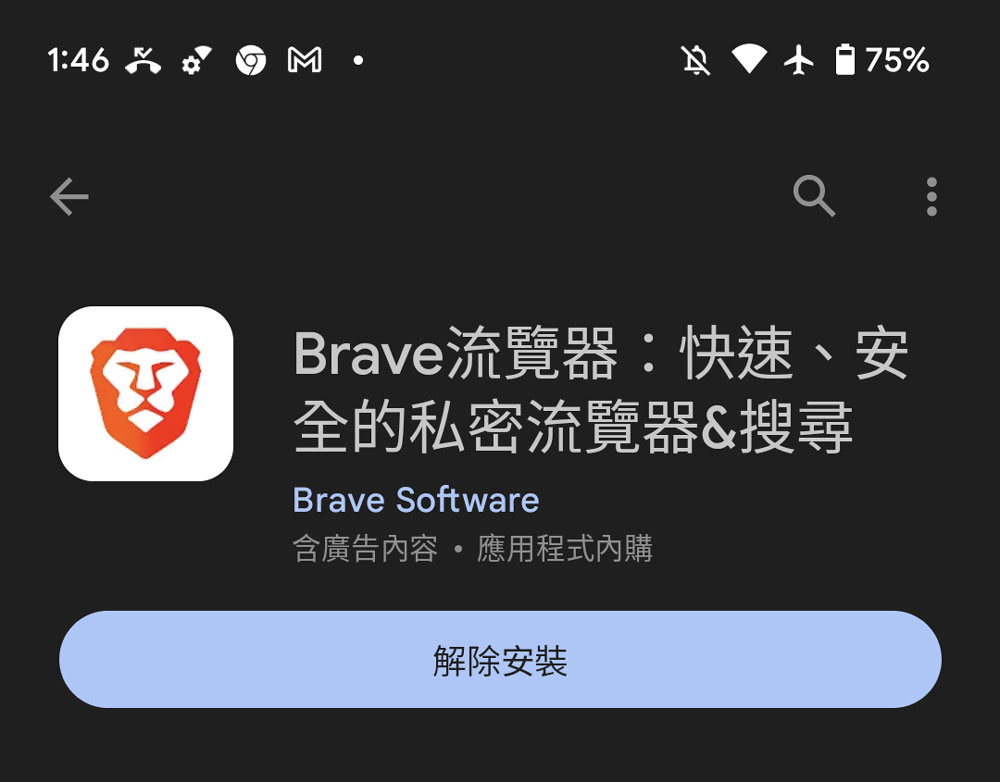
- Scroll down the app list, select an unfamiliar or suspicious app, then tap in and click “Uninstall” to remove it. Repeat this step for other suspicious apps in the list as needed.
Another criterion to consider when removing potentially malicious applications is that you have to pay attention to when pop-ups start to appear. If they only appear after you download a certain app (or group of apps), try deleting them to see if the ads disappear.
Source: KOCPC Chinese