


LCD monitors were a marvel of technology that replaced the clunky old CRTs, but every rose has its thorn, and in the case of LCDs, that thorn came in the form of dead pixels. When you buy an LCD monitor, the brand manufacturer’s warranty may cover dead pixels on the LCD, but each warranty policy varies. If you unfortunately find dead pixels when you turn it on for the first time after purchasing it, it is the best option to immediately return the new product if it fails. So what are bad pixels? How do you deal with it?
There are dead pixels on the LCD screen, what can I do?
What are bad pixels?
First, let’s start by understanding what a pixel is. Each pixel of the screen is composed of three tiny sub-pixels. The three sub-pixels respectively have the “three primary colors” of red, green and blue light. There is a tiny transistor inside each sub-pixel to control the intensity of the color light. By changing the intensity of the three primary colors and mixing them with each other, the display can display rich colors. Sometimes transistors have problems, and the most common ones include the following:
- Dead Pixel
This means that entire pixels are completely useless, and the result is that you can see a tiny black dot artifact on a colorful display. According to the working principle of the polarizing filter in the screen, dark spots may actually appear as white spots instead of black spots, which is the so-called “bright spot” on the screen. No matter what the situation, this pixel has no effect. - Color point (Stuck Pixel, pixel stuck)
It means that one or more sub-pixels are permanently lit and become a fixed color point. The color and intensity of the pixel are constant and cannot be changed like normal pixel operation. Although this type of problem is not as easy to detect, it occurs more frequently than dead pixels. - Highlights (Hot Pixel)
These are relatively rare issues, but what they are is the pixel remaining always on, with all three sub-pixels in on mode, rendering as a constant white point.

Can broken pixels on the screen be covered by the warranty?
Almost all monitor manufacturers offer a limited warranty that covers manufacturing defects and dead pixels. That being said, the specifics can vary significantly between brands and even between models from the same company. Some manufacturers are more tolerant and can replace the monitor even with one dead pixel, while some manufacturers require a certain number of dead pixels before they will consider the monitor defective, so you can first read the instructions on the brand website to determine what measures to take. High-end monitors, especially those for professional use, are more likely to offer a limited, no-spot warranty, but you should confirm the warranty details of the brand and product before purchasing. The picture below shows the monitor warranty content provided by BenQ:

If you find a defective pixel as soon as you open the box and take it out, you should put it back immediately and apply for a return or exchange. If purchased on a general e-commerce platform, the user must keep the original packaging intact, there are no traces of use, and all protective stickers must not be removed. Returns and exchanges can be made within 7 days. If you purchase the product from a physical store, please be sure to light up the screen in front of the delivery and installation personnel to check whether there are any dead pixels, and report it in a timely manner. If it is a computer screen, you can findBad pixel testOnline tools such as this make it relatively easy to check whether the screen has dead pixels or pixels stuck in a certain color by clicking on a series of full-screen colors.

What should I do if the screen is out of warranty or out of warranty and has dead pixels?
If your screen is out of warranty, or the manufacturer’s policy doesn’t solve your predicament, don’t slap the back or sides of the LCD screen like you did with the CRT. Instead, try these DIY remedies below as a last-ditch remedy to try to resurrect the dead pixels. Please remember that these methods are not guaranteed to be absolutely effective, and may cause further damage if performed improperly. All risks must be borne by you, so proceed with caution:
- Pixel repair software
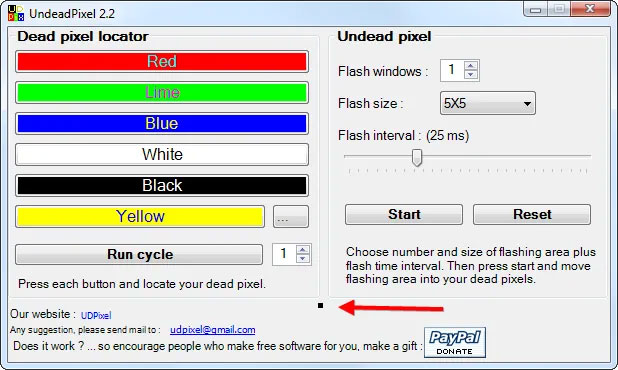
You can eliminate the color point problem by using a tool such as a quick color cycle. This is a bit like waking up sleeping pixels. Although this method is not foolproof, it is definitely worth a try. The more commonly used pixel repair software is UDPixel (Windows), it has a built-in dead pixel locator that cycles the colors on your screen, and the main tool gives you a little blinking dot that you can drag and drop onto a dead pixel anywhere on your screen and let it run for at least a few hours.
- Manual pressure
To do this, you need to use a soft object, such as your fingertips, a microfiber cloth, etc., to gently massage and rub the dead spot for 2 to 3 seconds, then release your finger and repeat a few times to see if it works. Remember not to apply too much pressure or use anything sharp, or you’re likely to injure pixels other than the dead ones. - heating
Some people say applying heat to dead pixels can repair them. For example, put a hot towel in a plastic bag and gently apply it on the bad spot for a few minutes. - Wait patiently
Some sub-pixel stucks will automatically clear up after a period of time, but this so-called “period of time” does not have a fixed value. It may be hours, days, weeks, or even years.
Even if there are dead pixels, you can still use the monitor
Even if the remedies above don’t work, that doesn’t mean you have to throw your dead-pixel monitor in the trash. They can still be useful in a number of ways, depending on how obvious the pixel defect is:
- as a second display
Your main screen may be used for work and photo editing, and you can use the secondary screen with dead pixels to play music/YouTube, check communication software, watch videos, and other tasks that do not require high screen display while working. - Donate
There are many public welfare organizations that are happy to receive screens that work well but have a few dead pixels. - Other uses
Unless the problem of dead pixels is severe or there are functional problems, these monitors can also be used for playing games, watching videos, or even used as monitoring screens for surveillance cameras and other visually busy full-screen content.

Although dead pixels sound uncomfortable, unless you look at it very attentively, or the number of dead pixels is as numerous as stars, it will basically not affect your reading and listening experience. This slight flaw will not affect the overall use.
Source: KOCPC Chinese