


Looking for a free and easy-to-use launcher? I recently discovered that DawnLauncher is quite useful. Not only is it free and open source, it also provides a Traditional Chinese interface. Files, folders, URLs, systems, start menus, and multiple projects can be set into the launcher, allowing you to easily manage and open commonly used tools in one window. I recommend it to everyone.
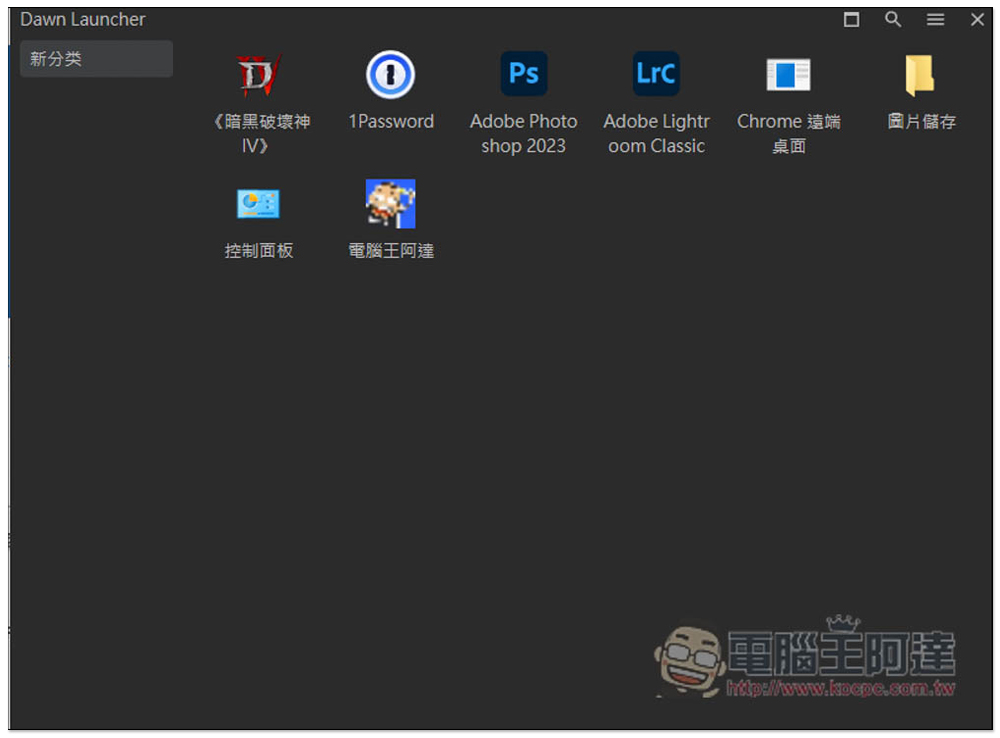
DawnLauncher is a simple and easy-to-use free open source launcher for Windows. It supports applications, websites, files and folders, etc.
DawnLauncher is available in x86 and x64 versions. After entering the GitHub website, click Releases on the right to find the download point. Remember not to select the wrong one when downloading.
This option may pop up when you open it for the first time, click “Other Information”:
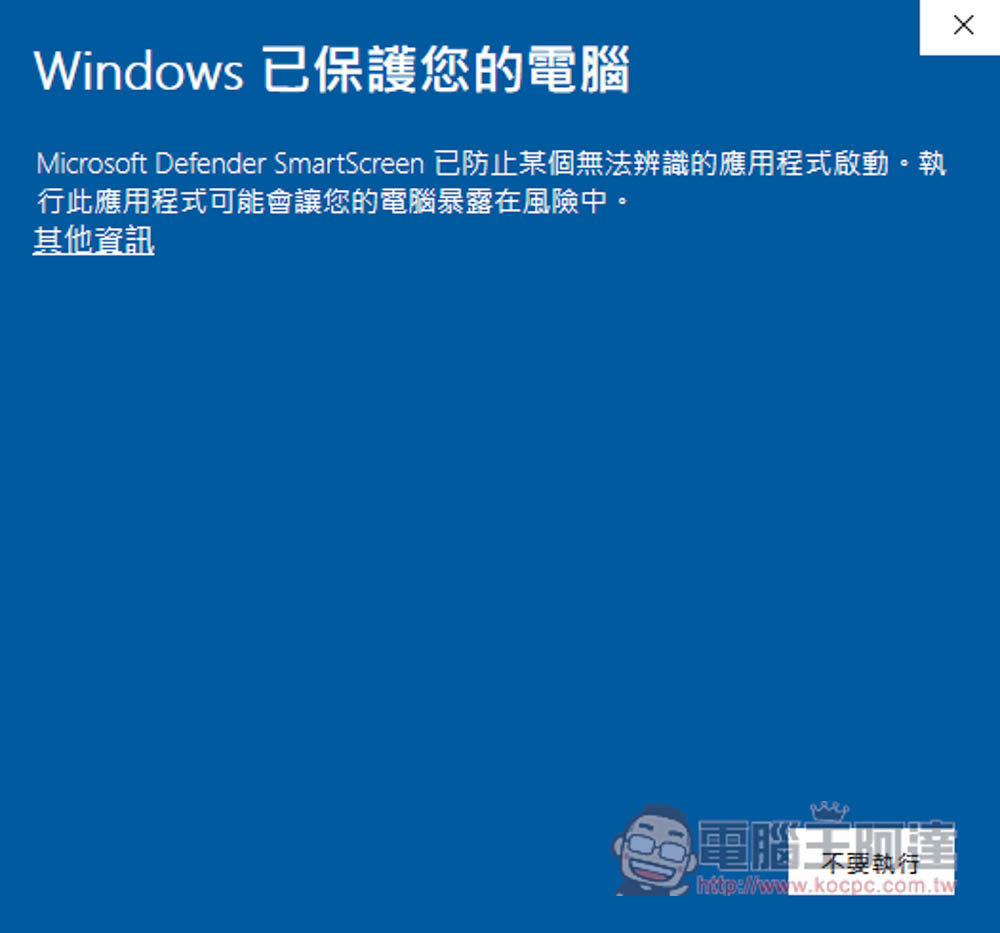
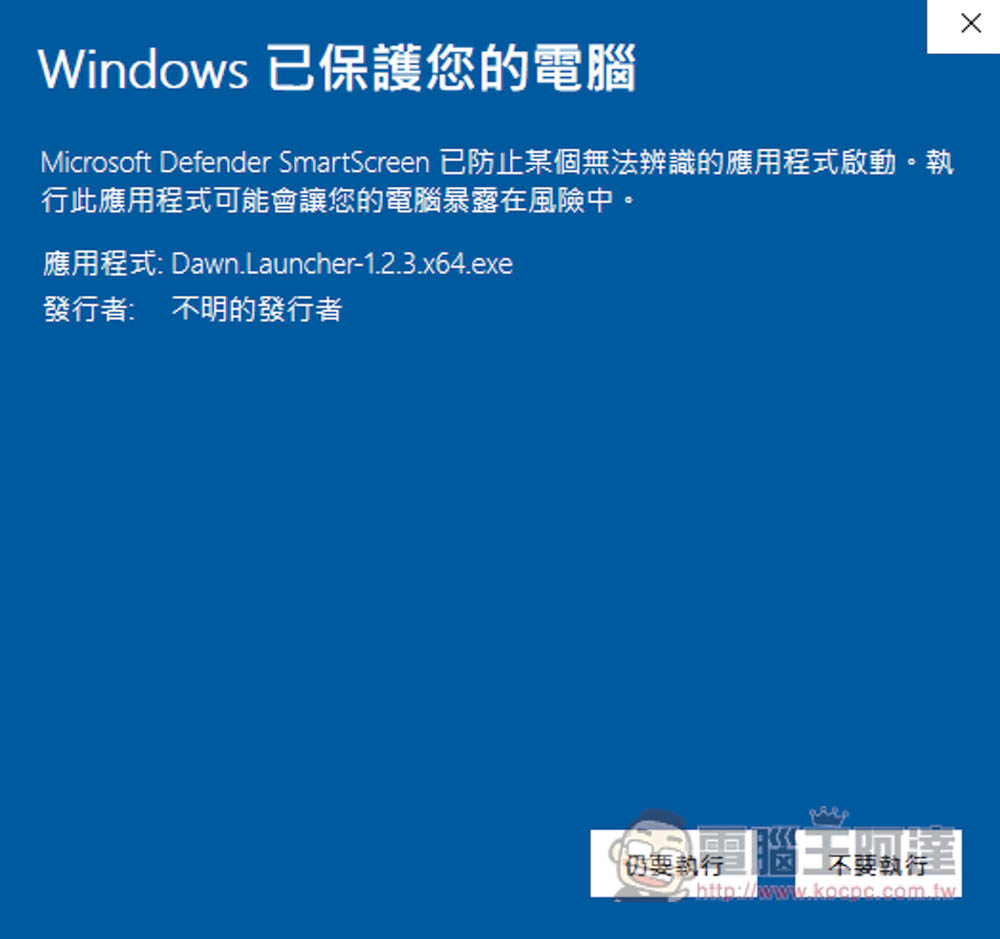
Then you can see the “Do it anyway” function. After clicking it, the installation process will be enabled:
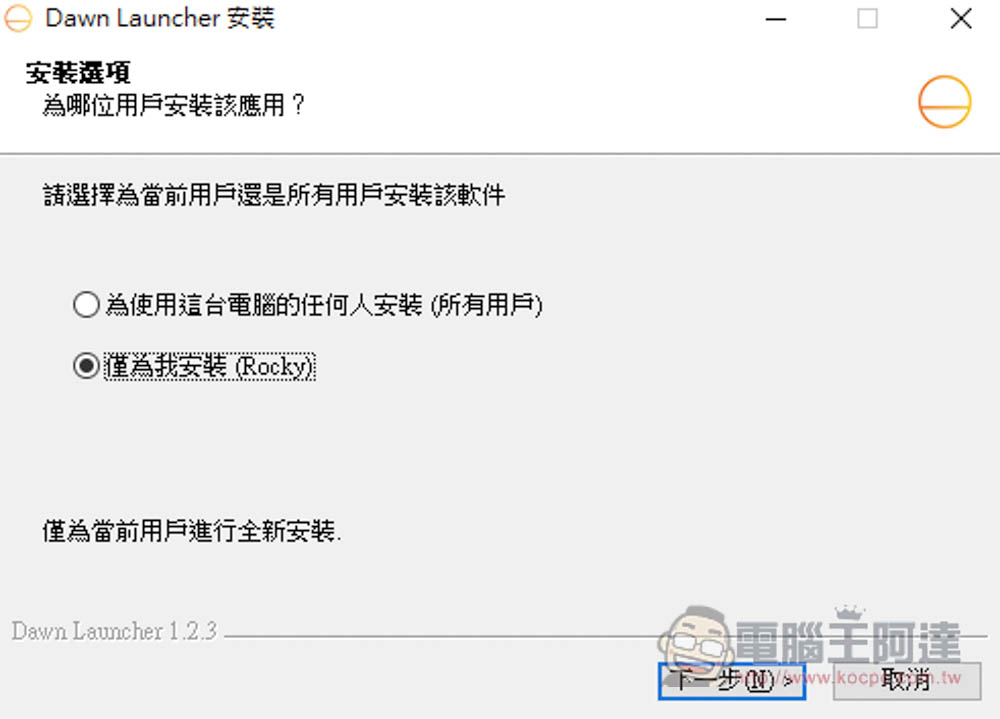
If there are no special requirements during the installation process, just keep pressing Next:
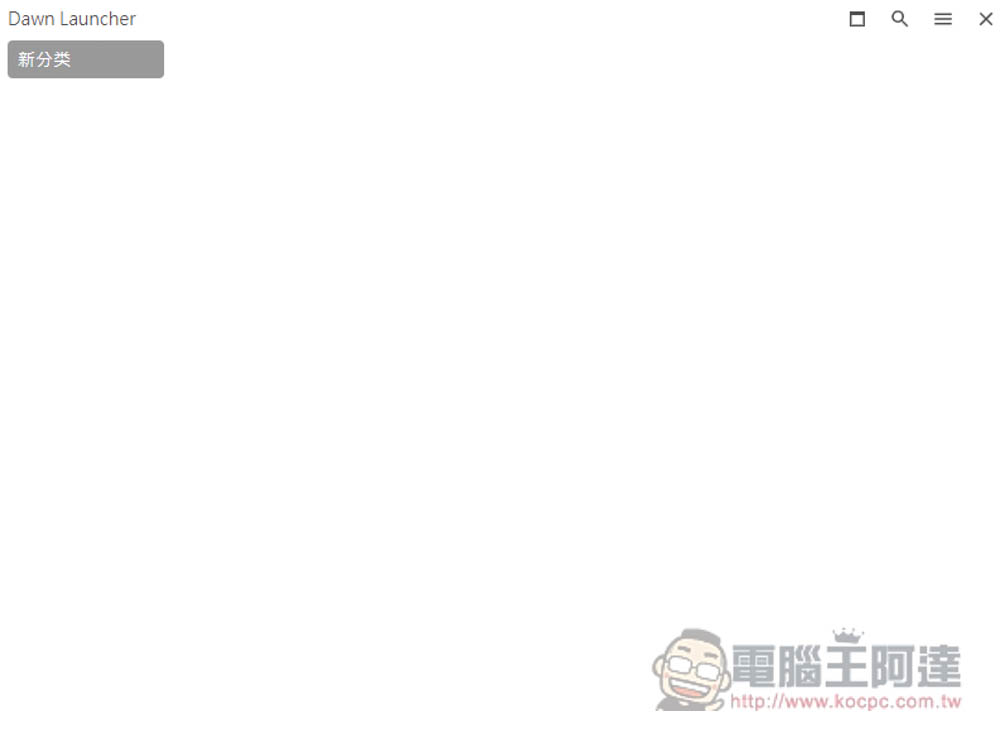
After opening it, the default background color is white, so it looks very strange. You may think that it is not open, but in fact it is, and its functions are all placed in the right-click menu, so there are no function keys on the screen. The background color can be modified later, and there are screenshots below:
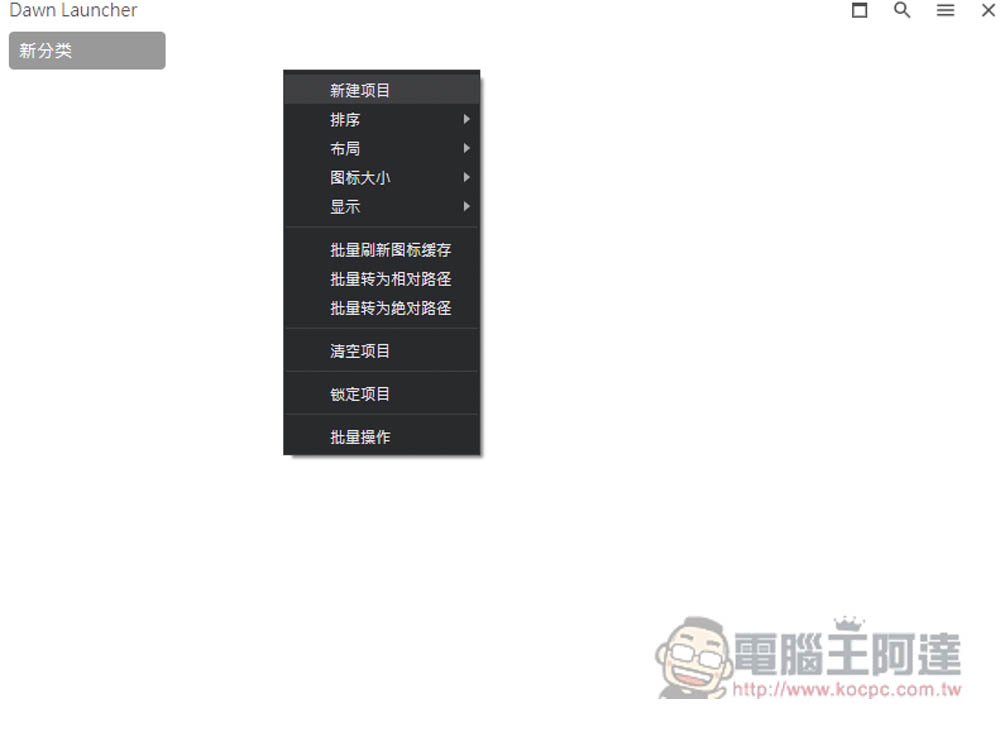
After opening the right-click menu, “New Project” is to set the functions to be added to the launcher:
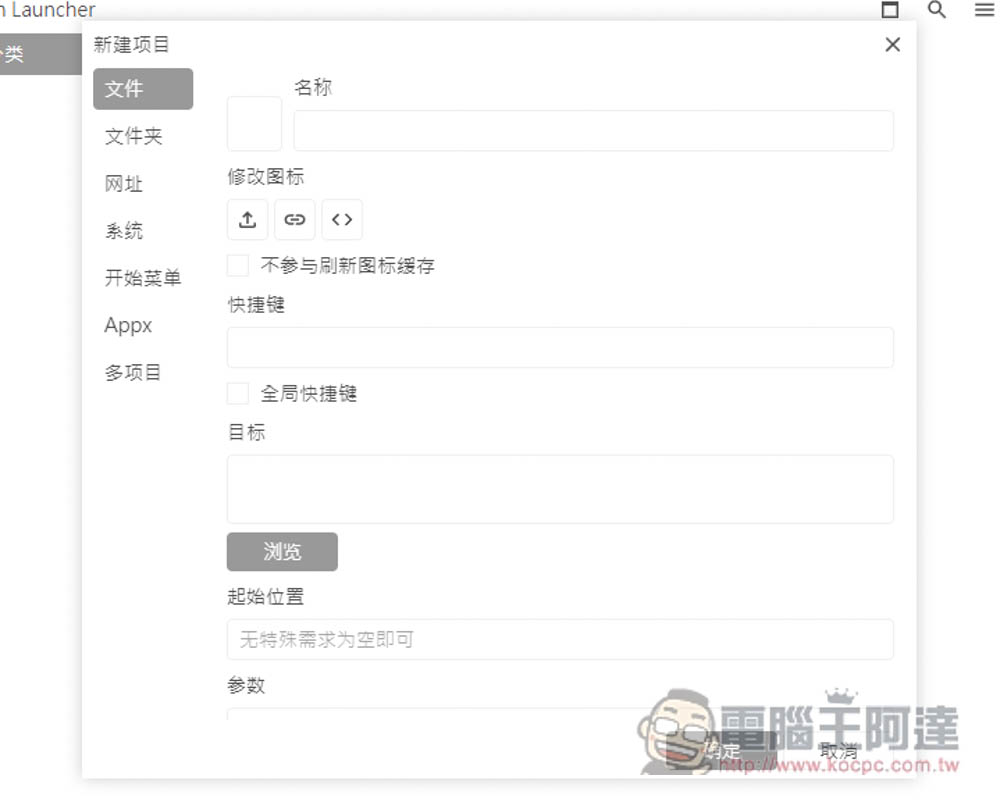
You can add files, folders, URLs, systems, start menus, Appx and multiple projects. This product also provides a Traditional Chinese interface, but it has not been changed when I took the screenshot:
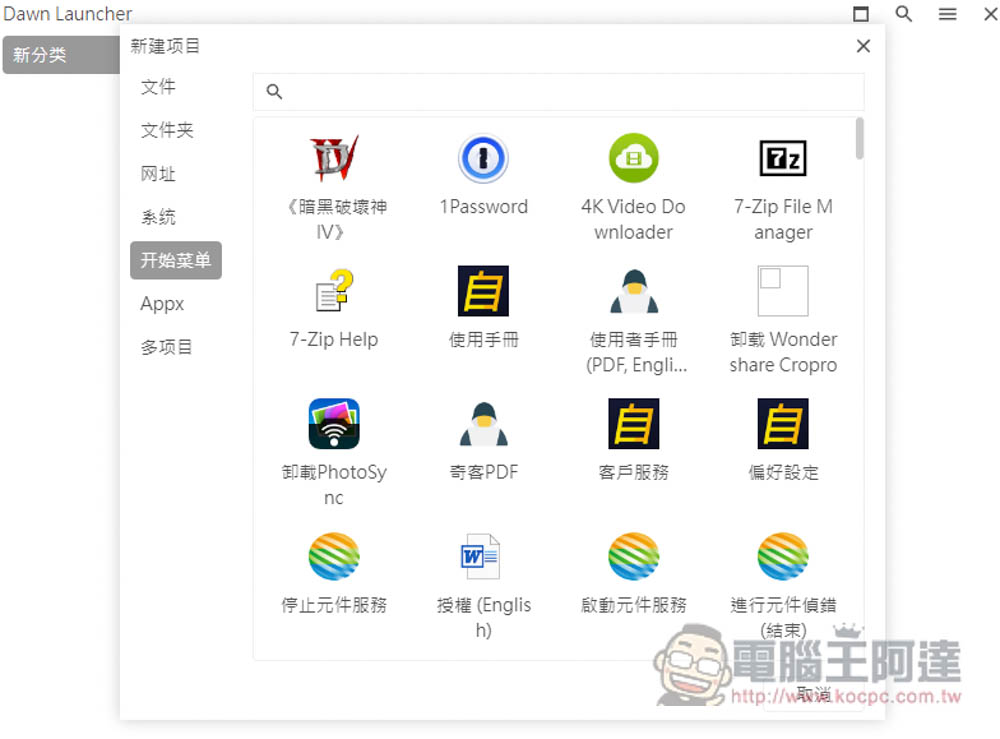
If you want to add software or applications to the launcher, go to the start menu and it will automatically scan the software installed on your computer. “Click” the software you want to add to the launcher. Just remember to click once, because it will not have any reaction. If you click too many times, many icons of the same software will appear on your launcher screen:
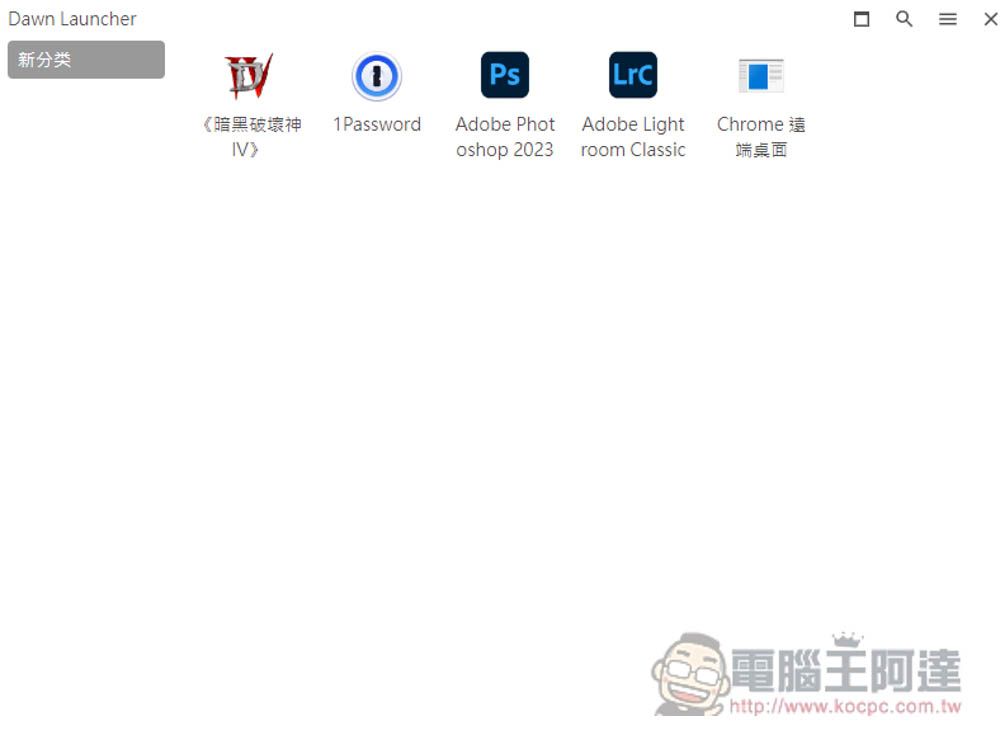
Like this, you can put all your commonly used software here. When you want to open it in the future, you can quickly open it directly through this launcher without having to open the start menu, which is much more convenient:
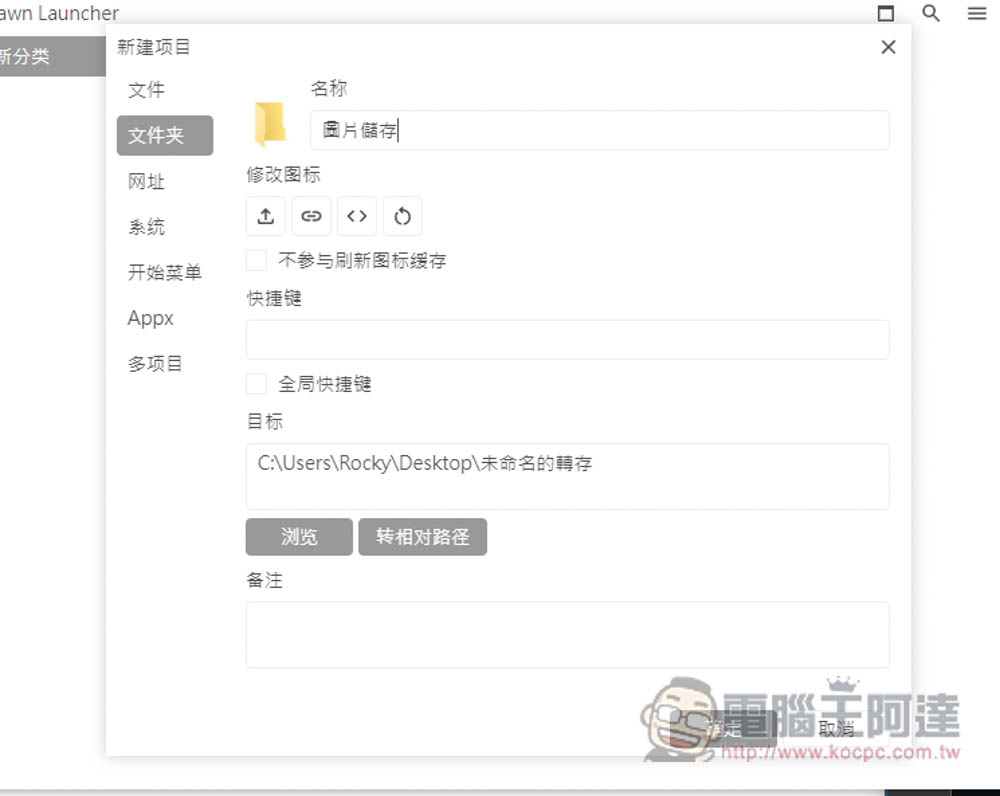
There is no problem with the folder. Set the path of the folder below. The name can be modified at will, whatever you want to call it:
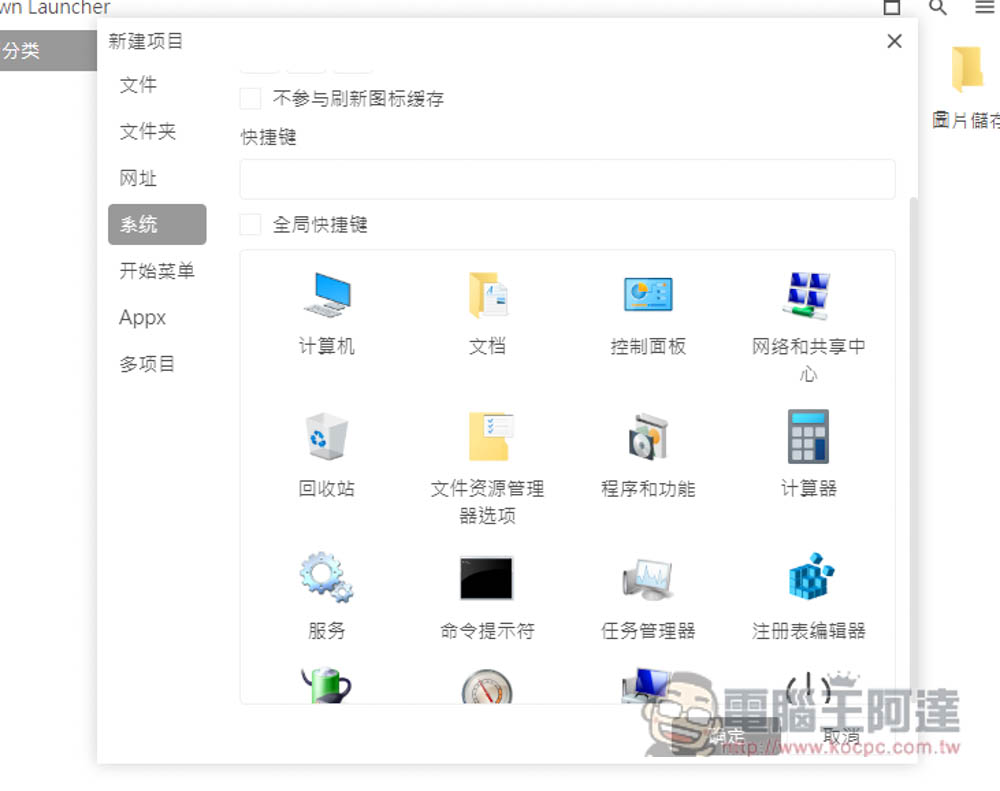
There is no problem with the Windows system settings. I think this is very good. I often use the control panel, so I add it to the launcher so that I can quickly open it in the future:
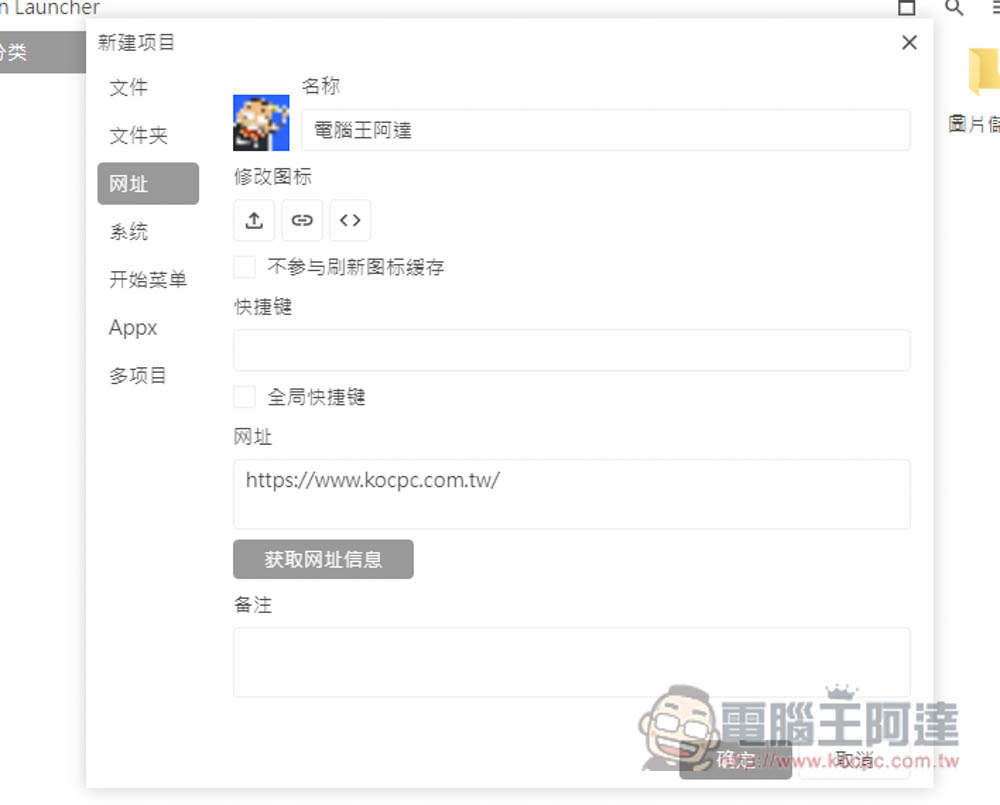
There is no problem with the website. Just fill in the URL in the URL field below and click Get URL Information. It will automatically read the website’s logo. You can also change it to something else:
Adding commonly used software, folders, files, settings, and websites will not only make it easier to open and manage in the future, but also make your menu bar and desktop cleaner:
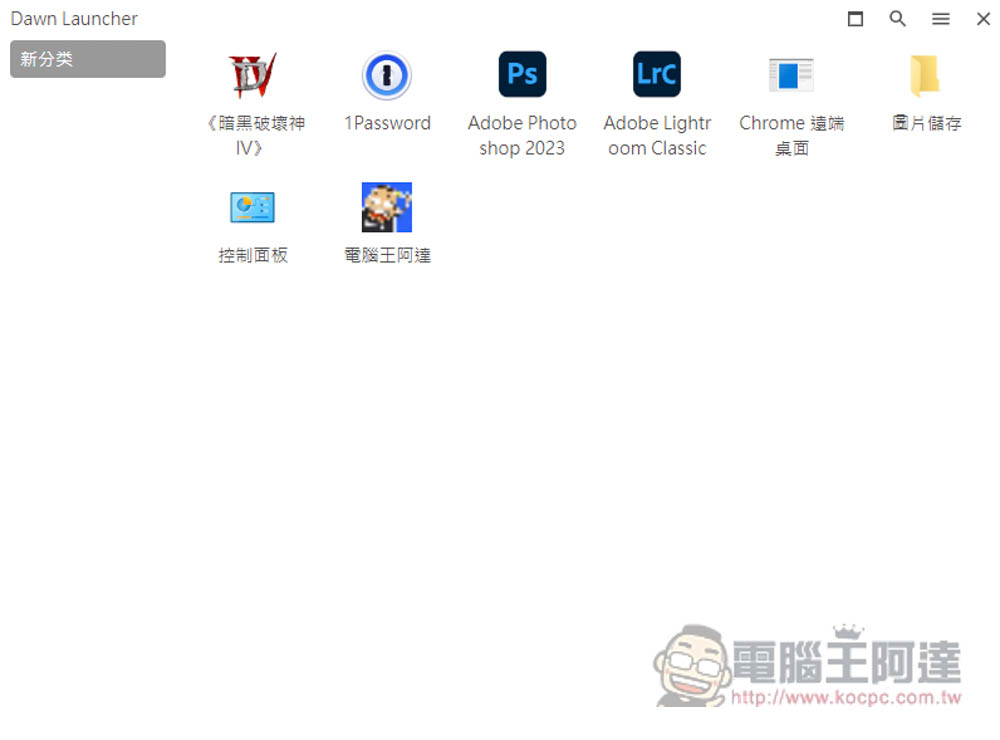
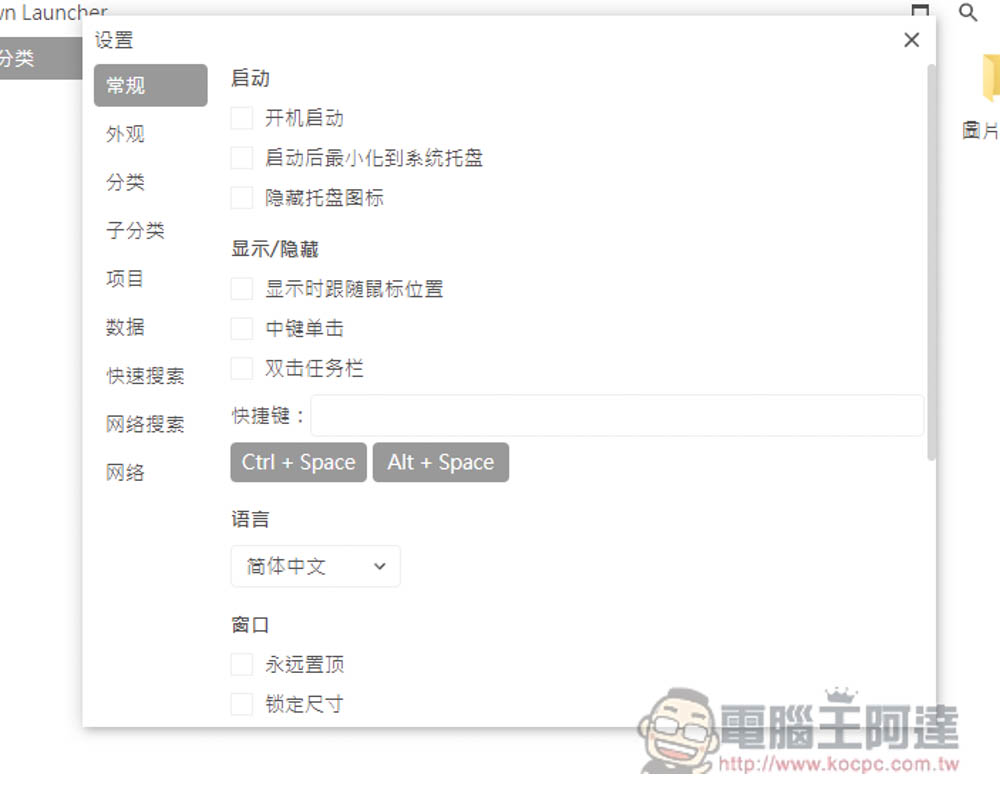
Click the menu in the upper right corner to find the settings function, where you can adjust the language and also support setting shortcut keys:
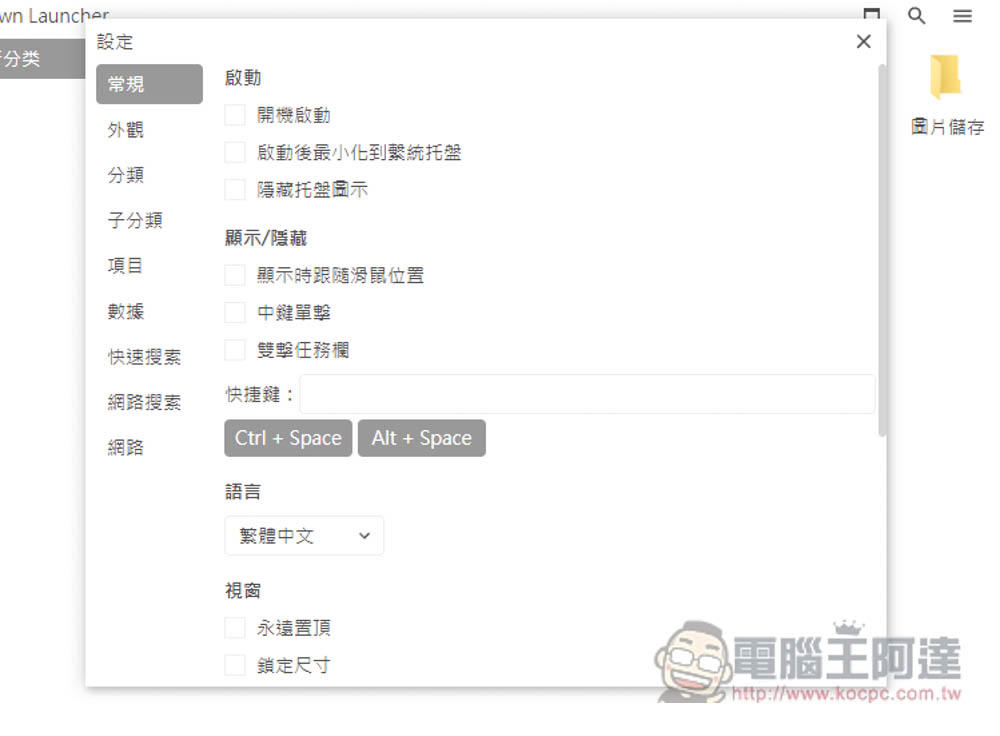
Traditional Chinese seems to be more familiar, but some conversions to Traditional Chinese are a bit strange:
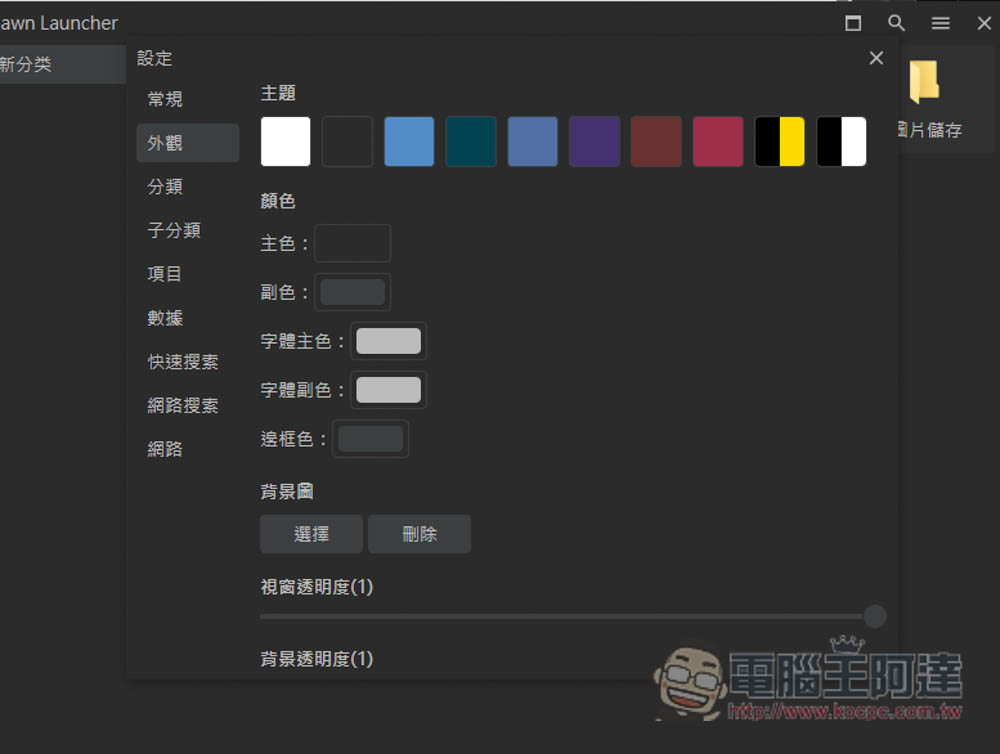
The theme can also be changed to other colors you like, and there are many color options, and dark colors are pretty good:
Source: KOCPC Chinese