


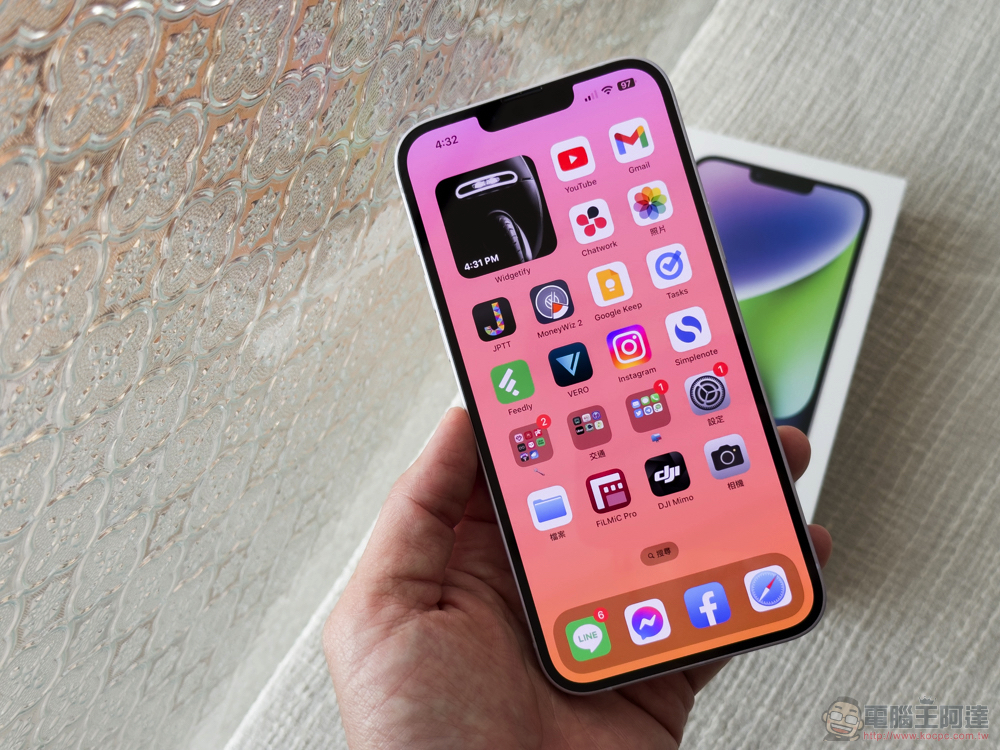
When you excitedly want to download a new app on your iPhone or iPad, suddenly your phone works against you and a “Cannot connect to the App Store” error message appears. This time we have compiled some solutions. Before rushing to jump, drop your phone, and send it for repair, try one of them first to see if one of them can help you solve this small but annoying problem.
How to fix the “Can’t connect to App Store” problem on iPhone and iPad?
Check Apple’s system status
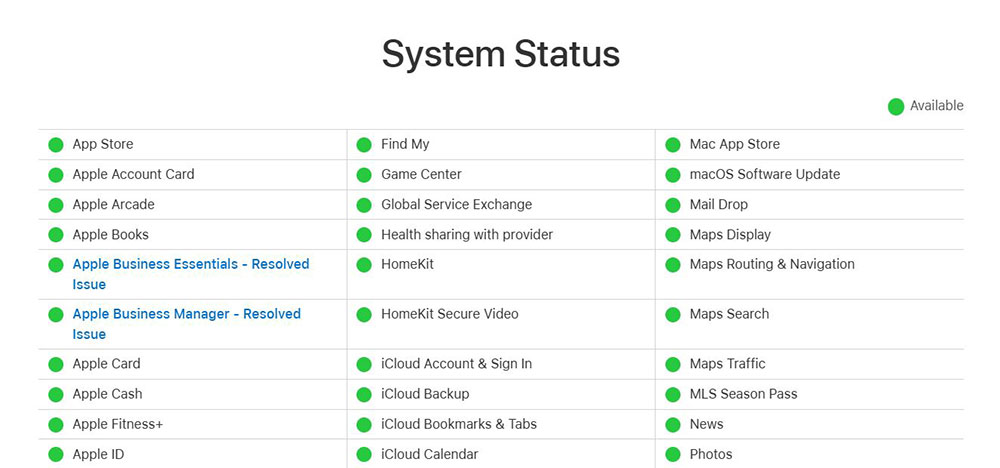
First, you must first confirm whether Apple’s servers are running normally. Doing this first may save you the trouble of following other troubleshooting methods. Go to Apple System Status WebsiteCheck for any errors. If you see that all services are functioning normally, the problem may be on your side. If you see a message stating that certain services are experiencing problems, click the “+” icon to expand the full list of services. If you see “App Store – Available”, you can continue with the steps below. If it says there’s a problem on the App Store, give it some time to fix it and try again when it’s back to normal.
Check your internet connection
Of course, you’ve probably already done this, but most of the time obstacles to connecting to the App Store are caused by network connectivity issues. The first thing you should do is to ensure that the device is connected to the Internet normally, then open a browser window or social platform and update the page to see if the connection is normal. If you think Wi-Fi is the culprit, please turn off Wi-Fi in the Control Center and try using the mobile network to see if you can connect to the App Store normally.
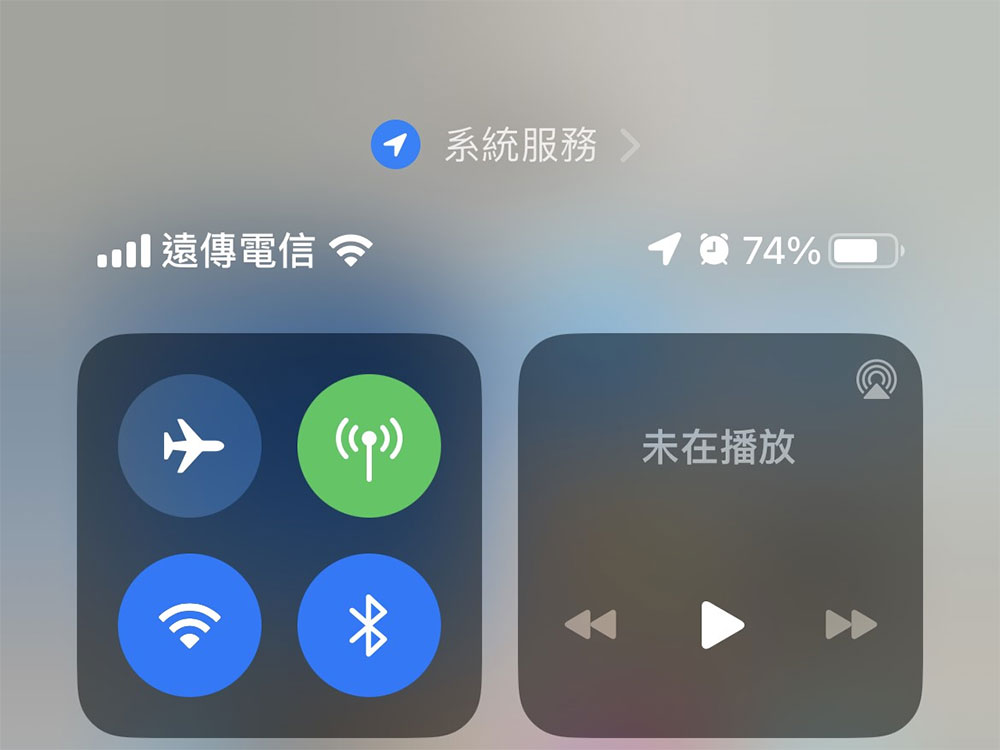
Wi-Fi issues may be caused by a temporary outage in service or a local network hardware failure. You may need to restart your router and modem (wait at least 10 seconds after turning off the devices before turning them back on) to troubleshoot local Wi-Fi issues.
Turn off your VPN
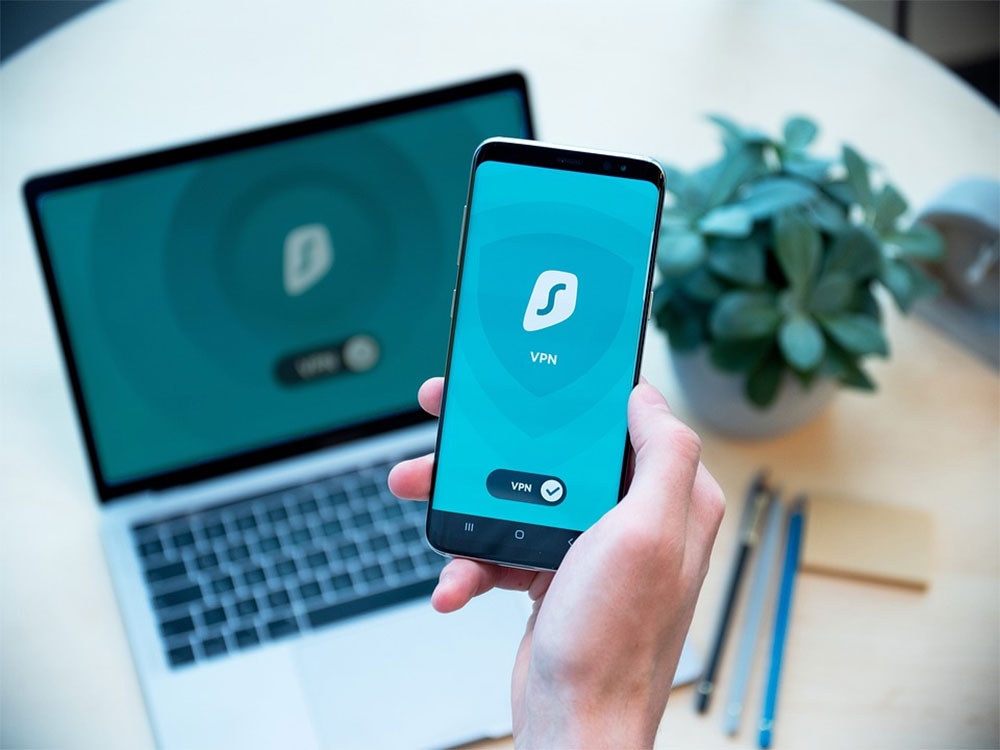
VPNs are useful and worth your subscription, but sometimes they can cause all kinds of problems. This could be a temporary issue with your chosen VPN provider or local server, but it could also be what’s called “suspicious activity” blocked by Apple. Sometimes VPN providers provide a kill switch that disables all network traffic if the connection is lost. The easiest way to rule out a VPN is to turn it off and try opening the App Store again. You can also try changing servers to see if the problem is due to your settings. What if I still need to use a VPN? Then wait until the fault is resolved before re-enabling it.
Make sure your device’s date and time are set correctly
If your device’s time zone is not set to the correct date and time, you may experience App Store issues. One of the simplest solutions is to enable “Automatic settings” in “Settings >> General >> Date and Time” to let the phone automatically adjust the date and time based on your location.
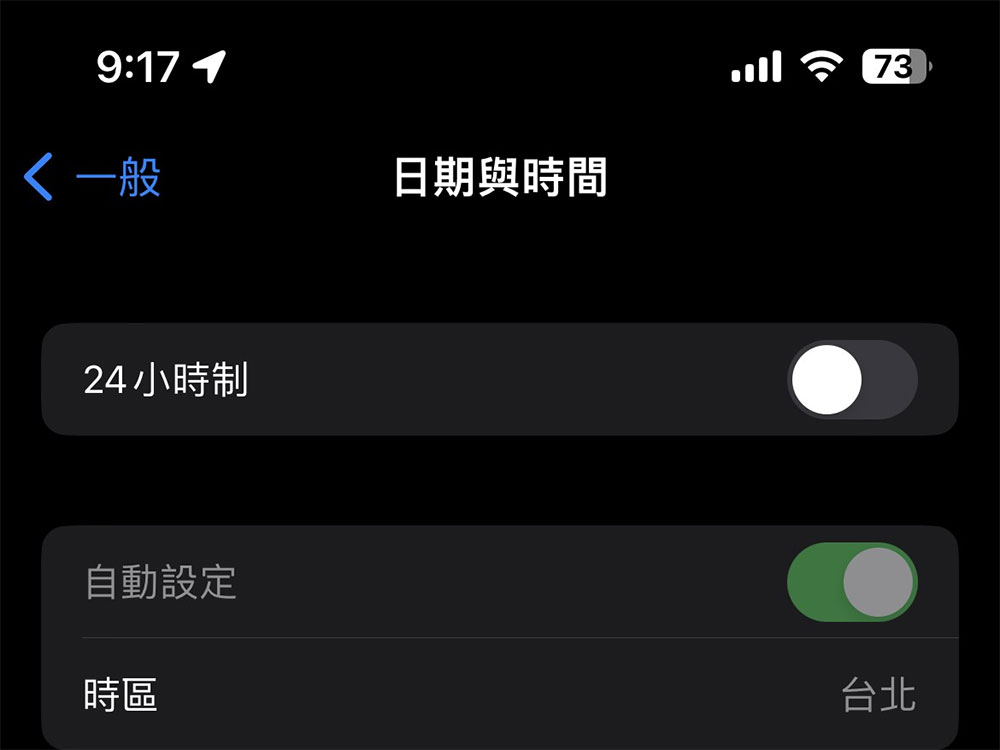
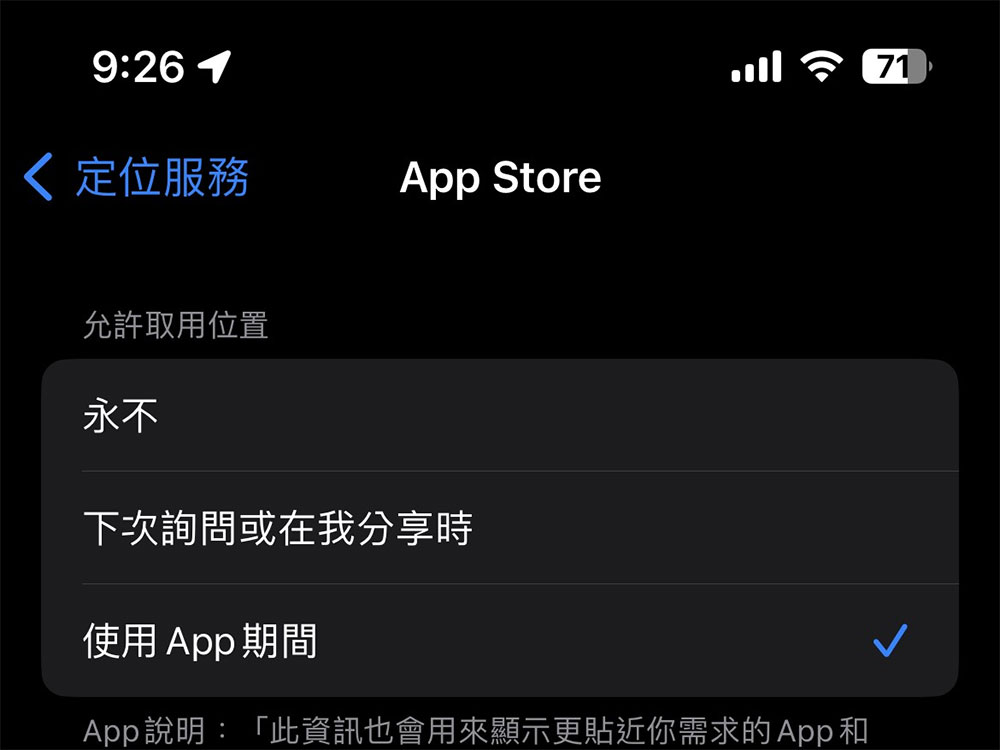
Most importantly, remember to click “Location Services” in “Settings >> Privacy & Security” to allow the App Store to access your location.
Restart your iPhone or iPad
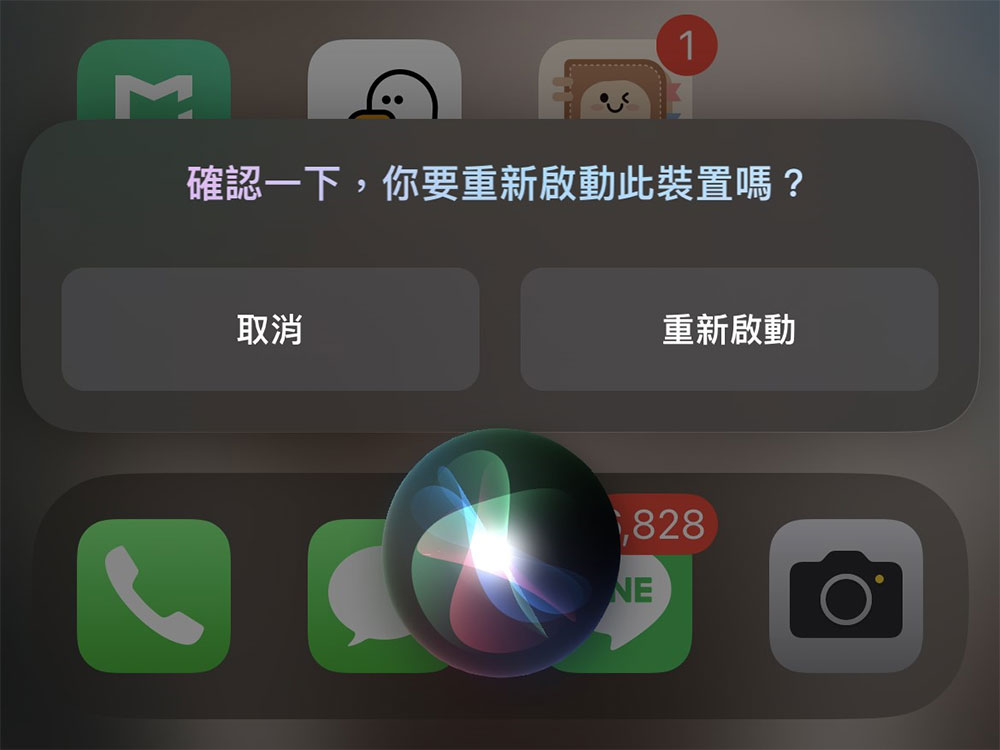
Restarting will resolve any temporary glitches that may be preventing you from connecting to the App Store. You can perform the restart action by asking Siri to “restart my iPhone” or “restart my iPad.” You can also press and hold the power button and the volume down button at the same time, wait a few seconds after shutting down, and then turn it back on.
Try changing DNS servers
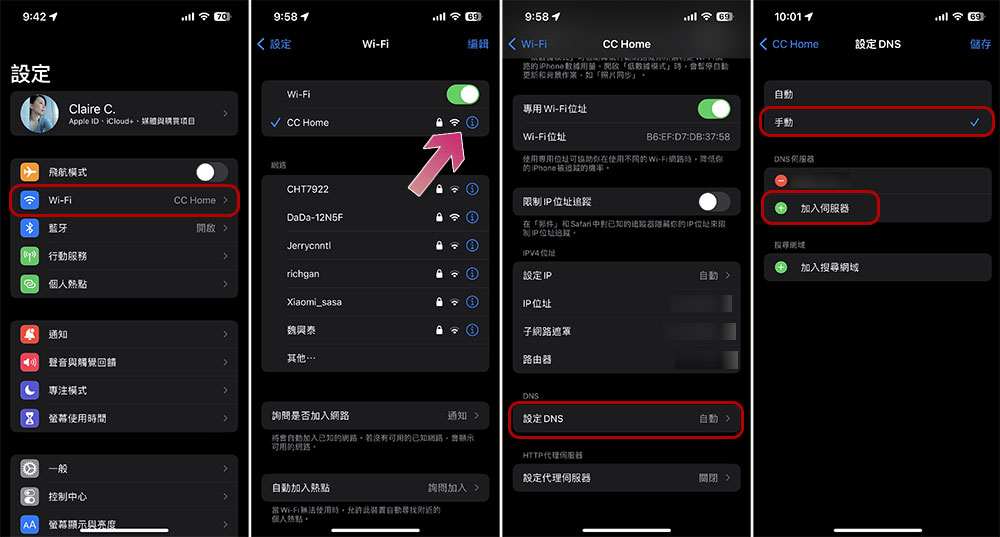
If all else fails, you can try some more adventurous troubleshooting options. DNS stands for Function Name System and is used to bridge function variable names with the IP addresses they refer to. Problems with the DNS servers you select may cause problems connecting to services, including the App Store. If you want to try changing the DNS servers on your iPhone or iPad, go to “Settings >> Wi-Fi” and click the “i” icon next to the network you are connected to. Next, scroll offline to find “Setting DNS”, change it to “Manual”, and add something like this below Quad9、Cloudflare or OpenDNS Such third-party options may be faster and more secure than the DNS servers provided by your ISP (the default DNS servers used).
Update device operating system
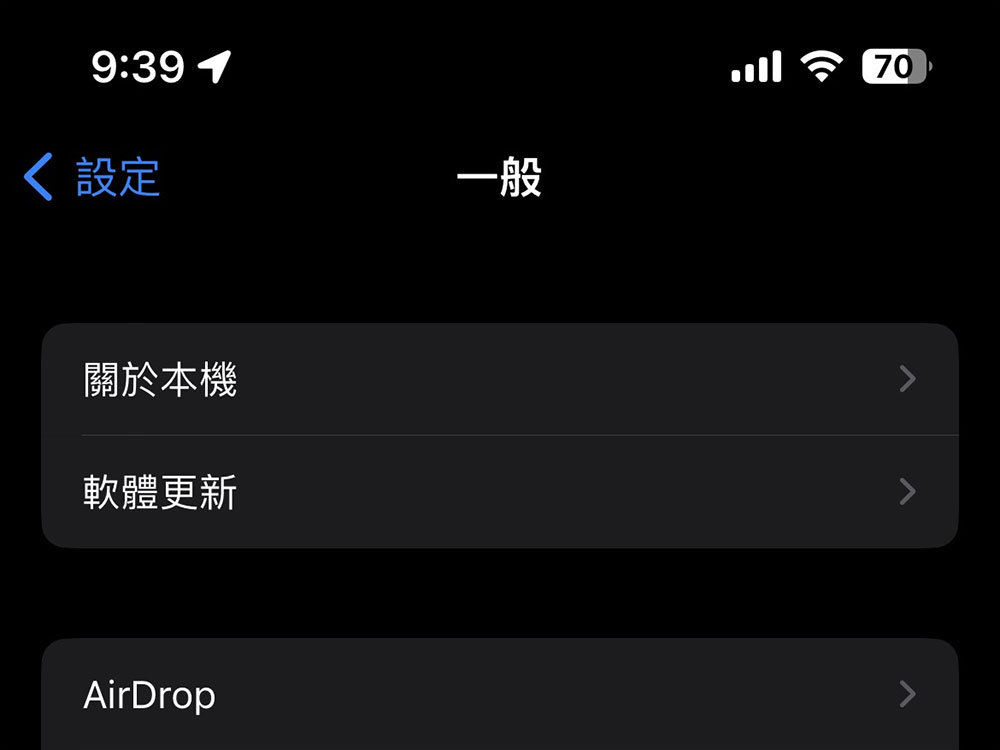
It might be worth updating your iPhone or iPad operating system, especially if your device hasn’t been updated in a while. You can check whether there is an update that has been downloaded and installed through “Settings >> General >> Software Update”. Please install it properly. Older devices should be able to access the App Store even if they are running an older version of iOS or iPadOS. However, the biggest obstacle you may face when running an older system is compatibility with applications that depend on the newer version of the system.
Sign out and back into the App Store
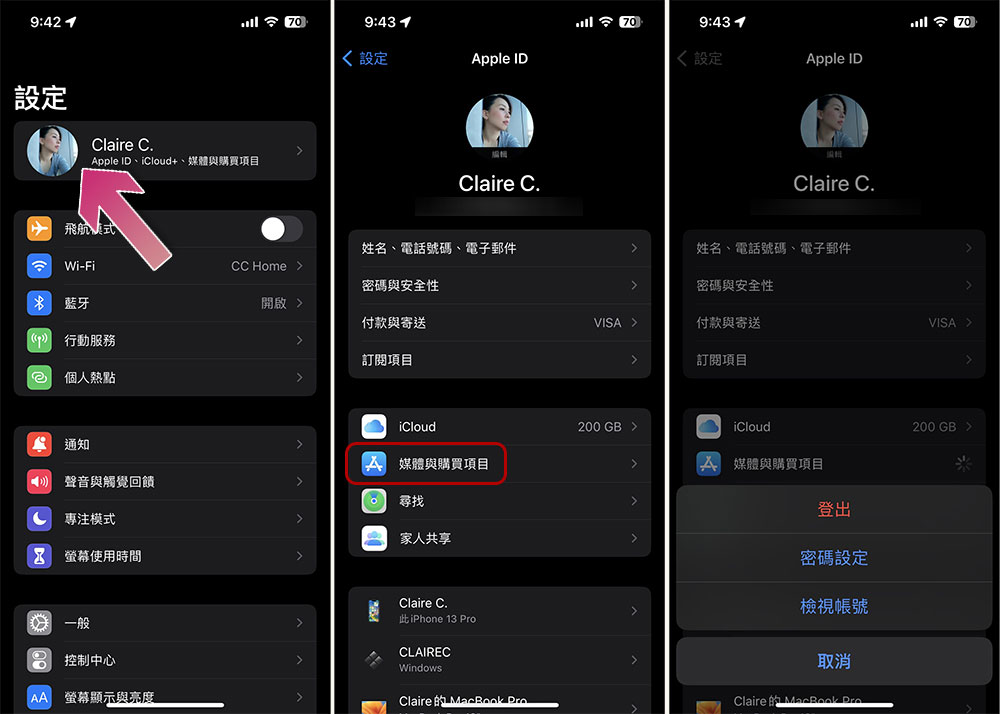
Although most problems connecting to the App Store are due to network connections, logging out of the App Store and logging back in is also a solution. You can log out of the App Store by going to “Settings >> Profile Picture” and then clicking “Media & Purchases” while keeping your primary Apple ID logged in. Then, you can try the same steps to log into the App Store again.
Consider resetting network settings
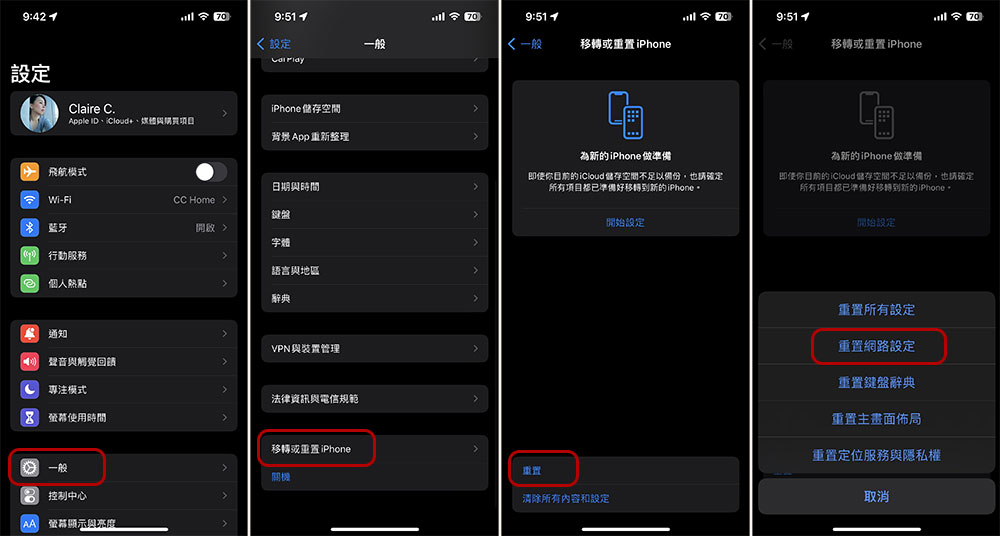
If you’ve tried all of the above and are still getting the “Can’t connect to the App Store” message, consider resetting your network settings. Doing so will restore things like DNS and proxy settings to factory defaults, and you’ll also lose any saved Wi-Fi passwords for any wireless networks you’ve added to the device. If you are sure you want to perform this operation, please go to “Settings >> General >> Transfer or Reset iPhone / iPad”, click “Reset” below, select “Reset Network Settings”, and then wait for the reset to complete. After completing the reset, set up the local Wi-Fi connection again and try to connect to the App Store.
Source: KOCPC Chinese