


There are many new features in Windows 11, one of which is for convenience is “Quick Startup”. As the name suggests, once you completely shut down the computer and press the power button again to turn it on, your computer will start faster. But for some people, this is not practical, or they like to have a fresh start after booting up, so this time we will teach you how to disable this function.
How to disable the “Fast Startup” feature in Windows 11?
The “Quick Startup” function is like combining hibernation and shutdown, because it does not completely shut down the computer, allowing your computer to start immediately after pressing the power button. That is, the computer will physically shut down, but Fast Startup will preserve the state of the computer when it is shut down and restore everything to where it left off the next time you log in to the computer, so that it does not have to restart services required by the file manager, taskbar, and other system areas. While this feature saves a lot of time, it can sometimes cause the operating system to dual-boot, or have issues booting from the ISO.
How to disable fast startup in Windows 11?
To turn off Fast Startup in Windows 11, there is no option in the modern Windows 11 settings and you have to start with the classic console. It can be seen in all versions of Windows 11, including the classic console in the new Moment 3 update.
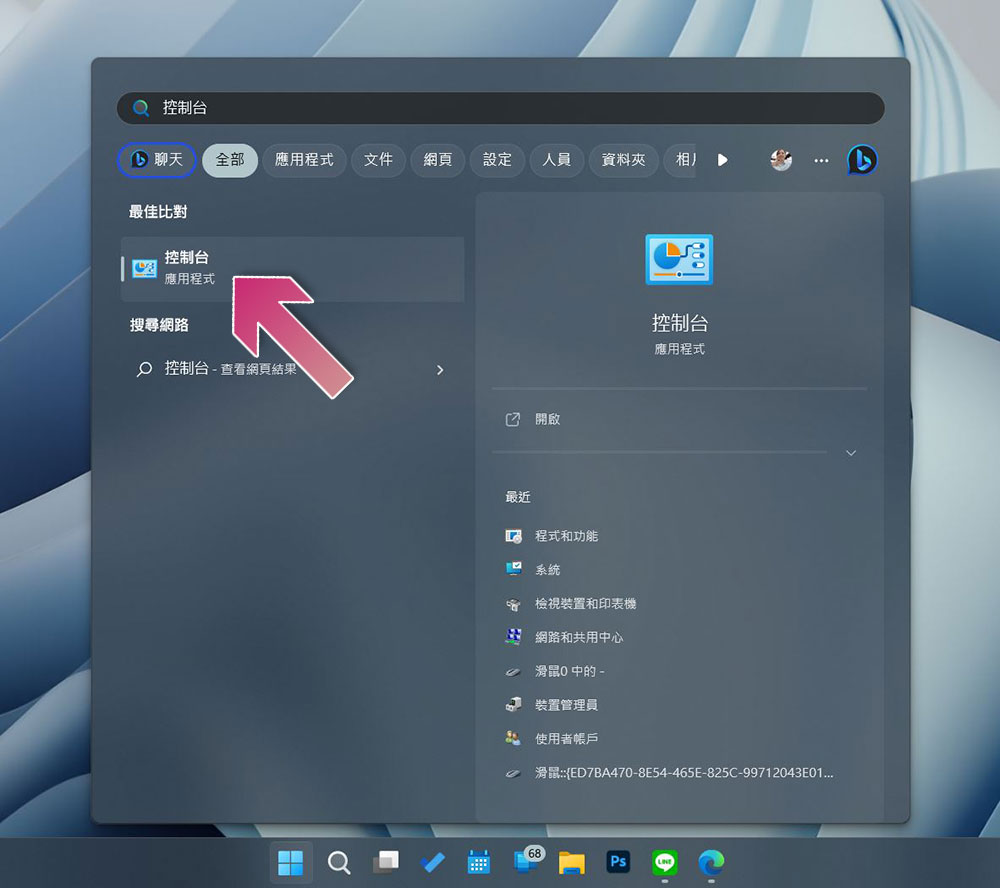
- Open the “Start” menu, search for “Control Panel”, and click to open it after finding it.
- Switch the console view to Categories.
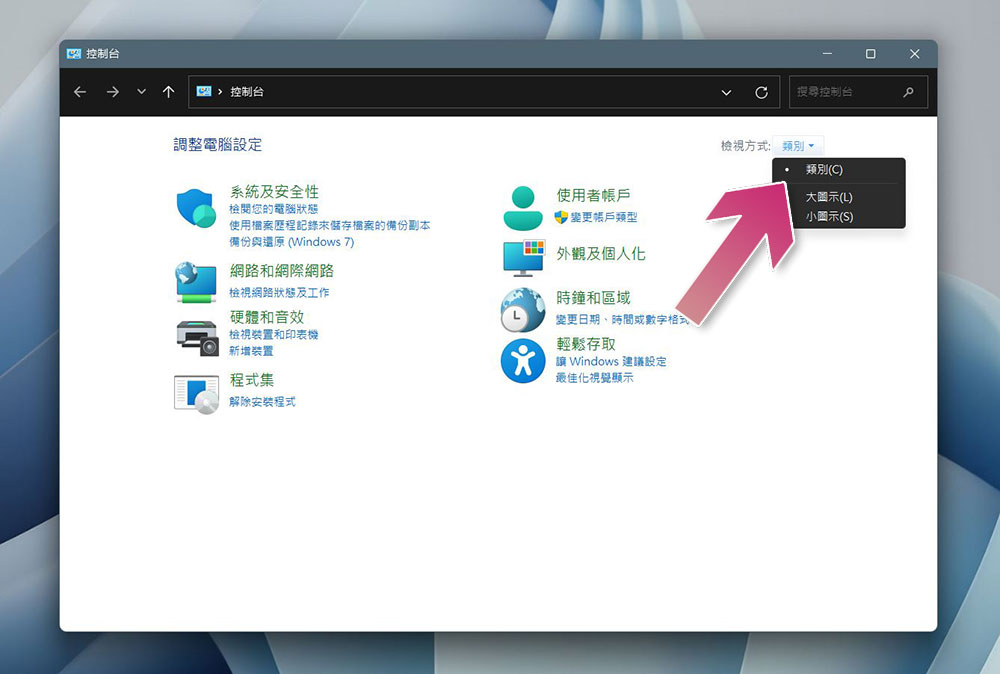
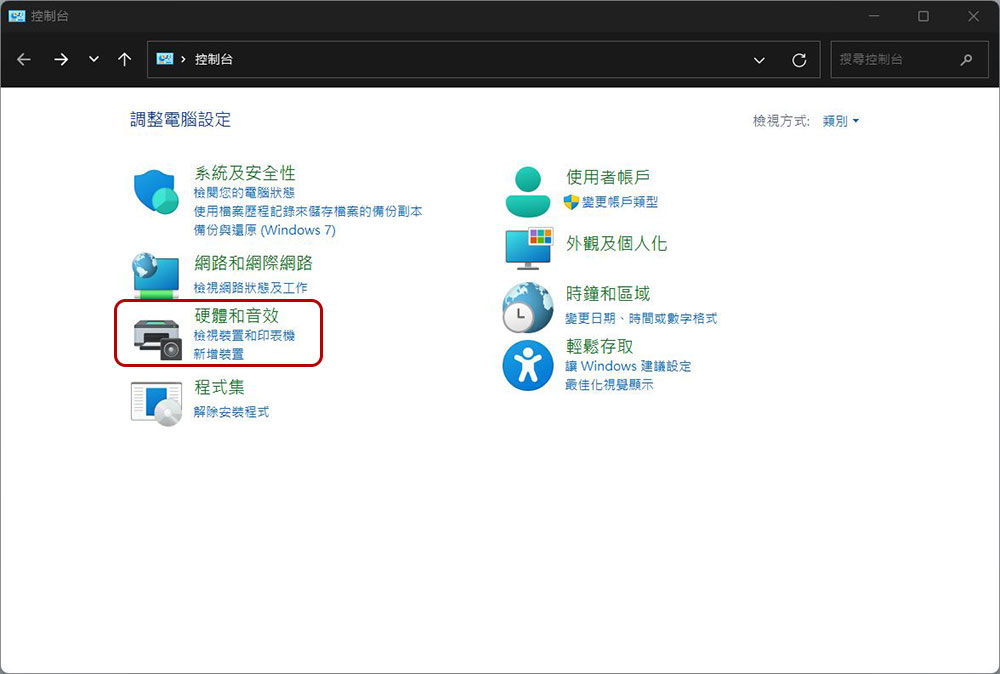
- Select “Hardware and Sound”.
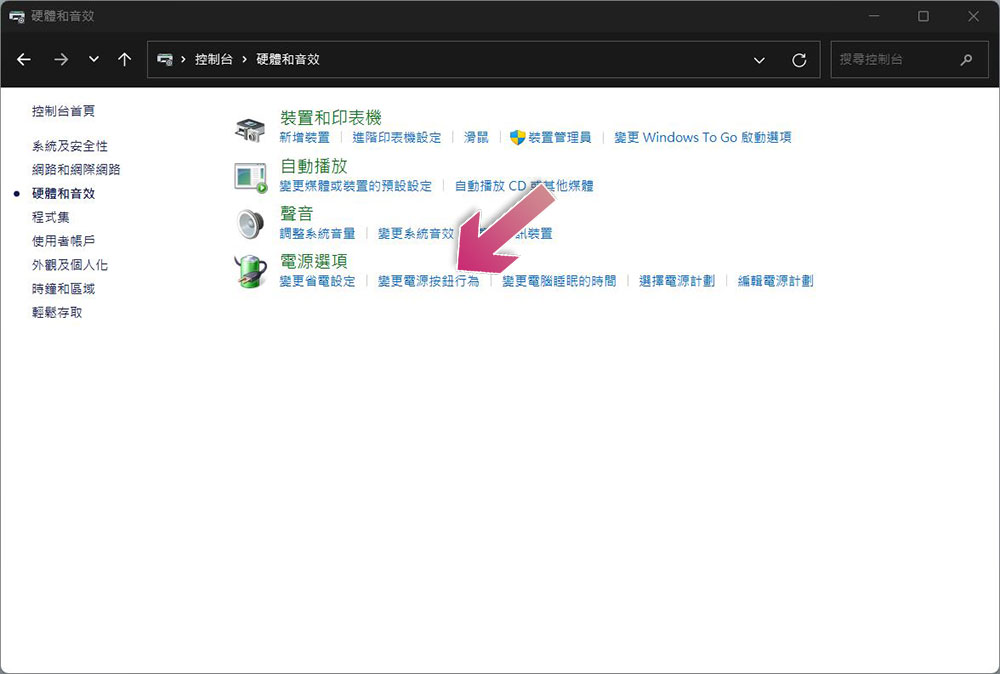
- After entering, you can see “Change Power Button Behavior” under “Power Options”, click it.
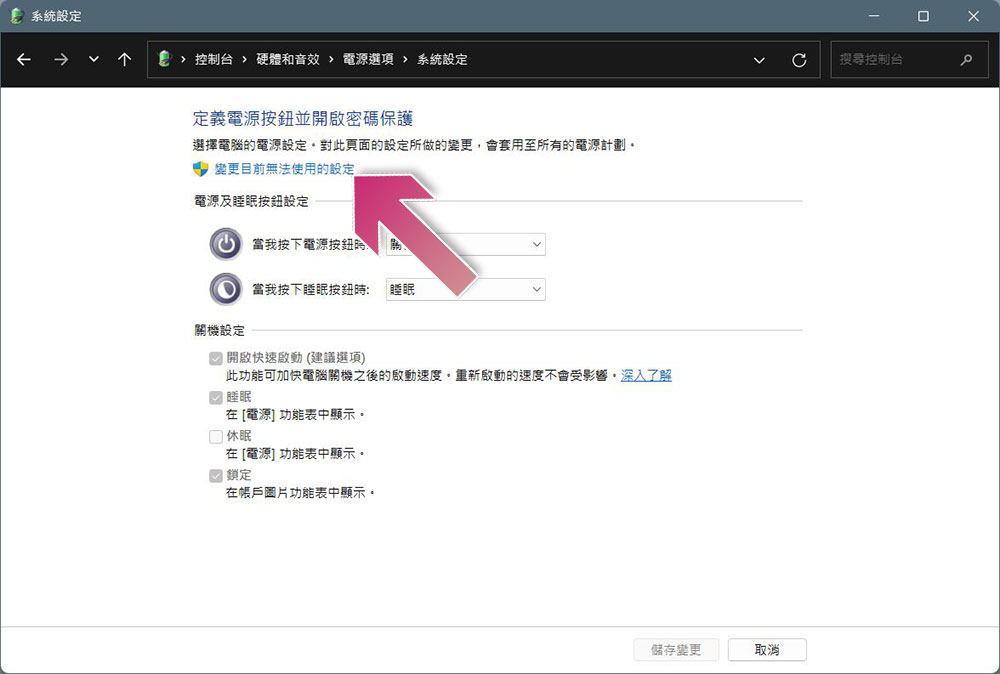
- Although you can see “Turn on fast startup” below, it is currently gray and cannot be changed. Please click “Change settings that are currently unavailable” at the top to unlock the options below.
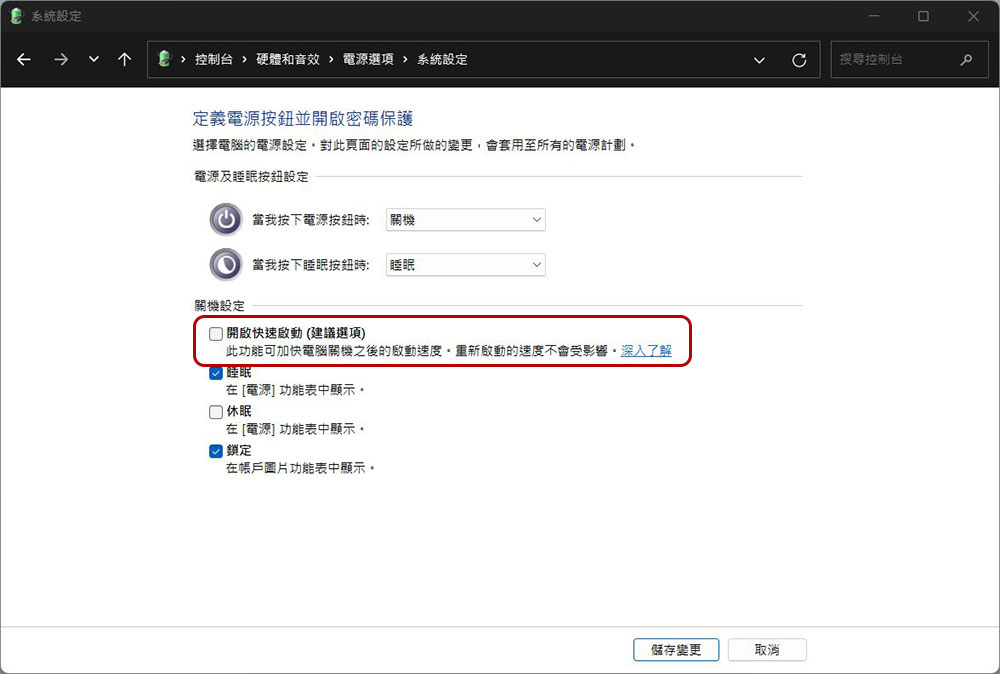
- After the bottom option is unlocked, uncheck the checkbox in front of “Turn on Quick Launch” and then press the “Save Changes” button.
Although turning off the quick startup function means that you have to wait for a longer time every time you turn on the computer, if you want to reset the computer to zero and start over every time you turn it off and on, especially if you have many windows and applications open in the computer every time, turning it off will give you what you want.
Source: KOCPC Chinese