


VideoProc Converter AI has always been a software we highly recommend. It already had very useful built-in features, including…Video download, video and audio transcoding, and now also 3 major AI With the added features, it has become even more formidable, among which AI super-resolution is quite practical, significantly enhancing the quality of old videos and photos, upgrading them from 360p/480p/720p to HD or 4K resolution.
The official is currently running a free “Old Video Restoration” promotion. Everyone can get VideoProc Converter AI for free, and it works on both Windows and Mac. Highly recommend grabbing it. If you got it before, you can also take this chance to upgrade to the new version.
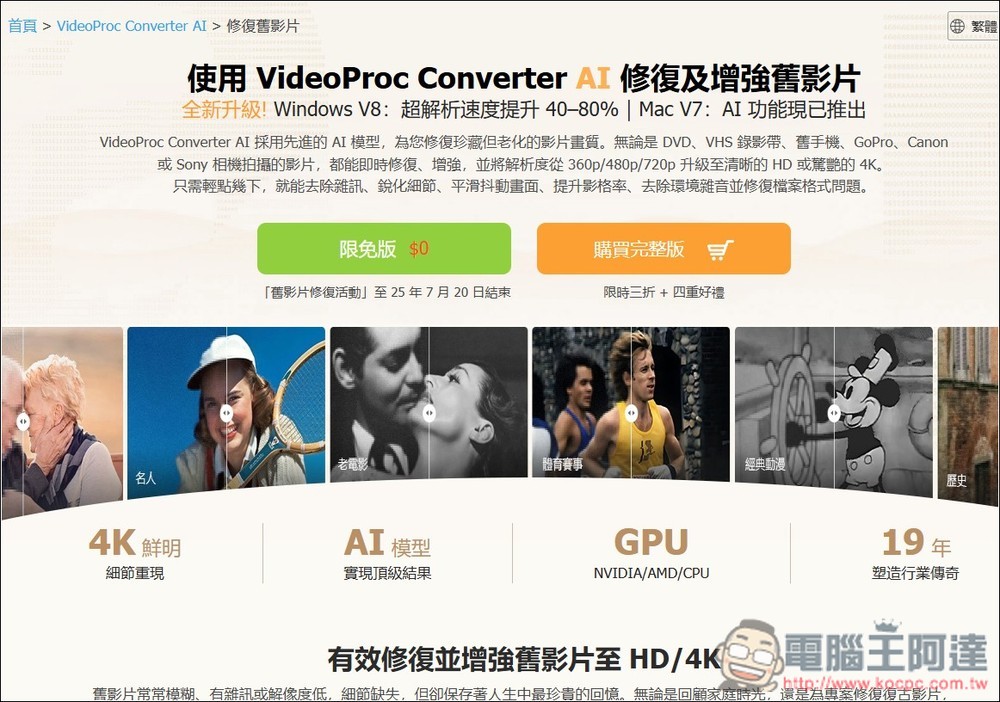
Get VideoProc Converter AI for free — offer ends July 20.
VideoProc Converter AI’s “Old Video Repair” free giveaway ends on July 20, 2025, meaning there are only two days left. Simply fill in your email to get this software for free, but remember to activate the license key quickly, as it will expire after July 30, 2025.
During use, if a new version comes out in the future, remember not to upgrade, because upgrading will cause the original free version to stop working.
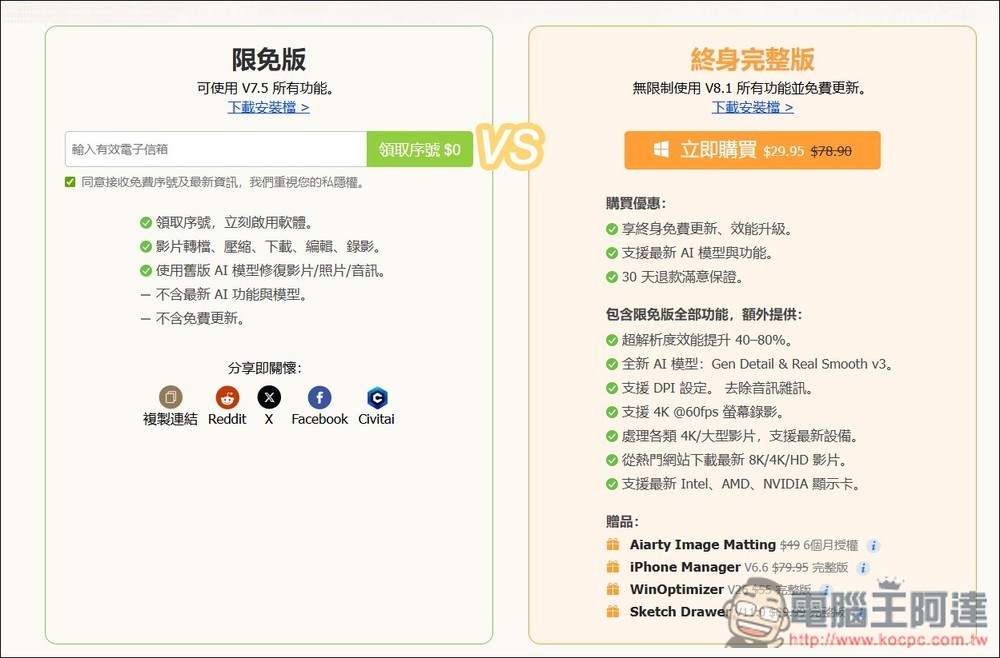
After clicking the link above to go to the event page, scroll down to find the limited-time free version of V.7.5, and fill in your email to receive the code:
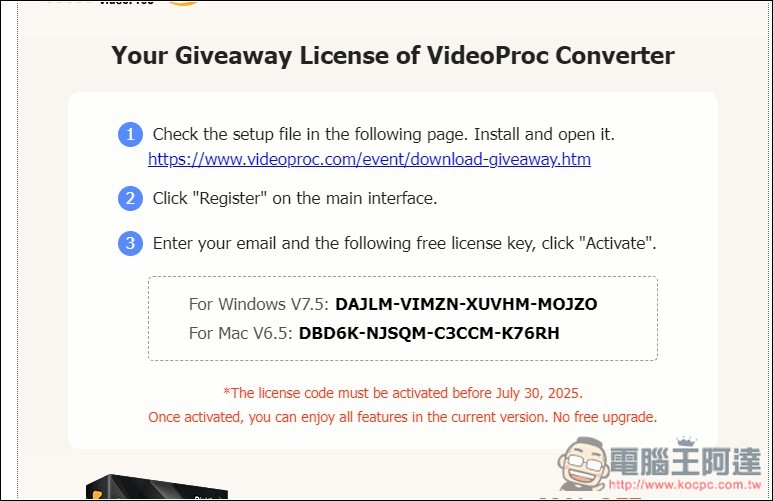
You will receive this email in your mailbox, with serial numbers for both Windows and Mac versions. Click the link above to download the installer:
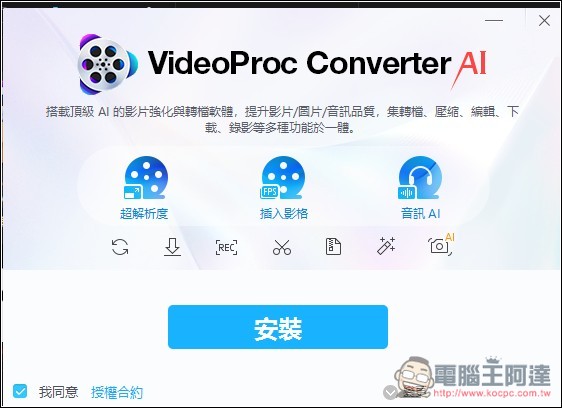
If you have no special requirements, just keep clicking Next throughout the installation:
After installation, open it and a field for entering the serial number will appear. Fill in the free serial number you just obtained and your email address, then click Activate next to it, and you’re done:

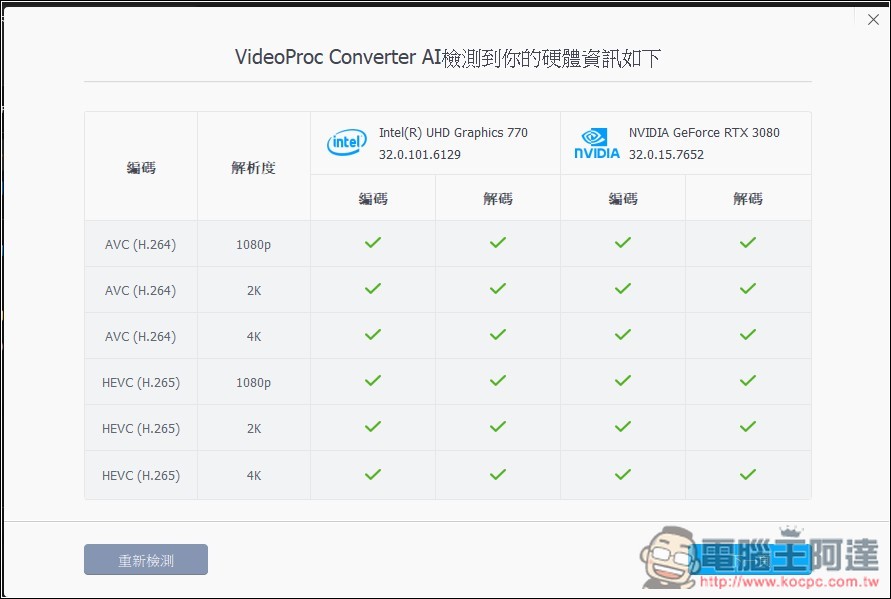
On first use, it will detect the hardware in your computer to optimize the software’s processing:
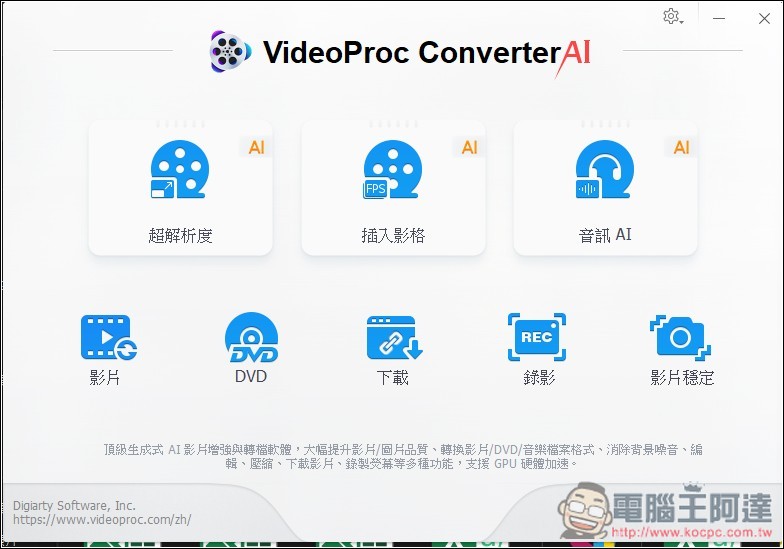
The main interface of VideoProc Converter AI is very simple, with 8 major functions. At the top are the AI functions: AI Super Resolution, AI Frame Interpolation, and Audio AI. Below are video conversion, DVD conversion, download, recording, and video stabilization:
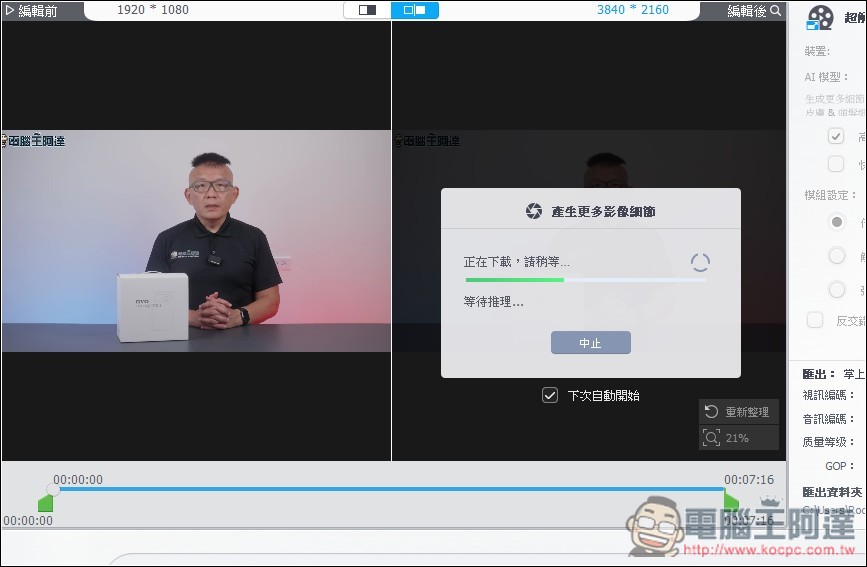
Before using AI super-resolution, you need to download the AI model:
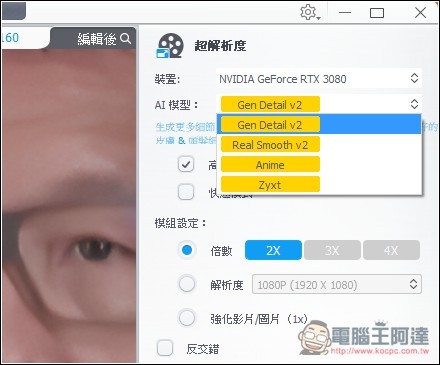
On the right side, you can adjust settings. The AI model defaults to Gen Detail v2, which, while improving resolution, also generates more details, enhances resolution and sharpness, removes blur, and reduces noise. Basically, this one model is enough. There are high-quality mode and fast mode, and below are some output settings:
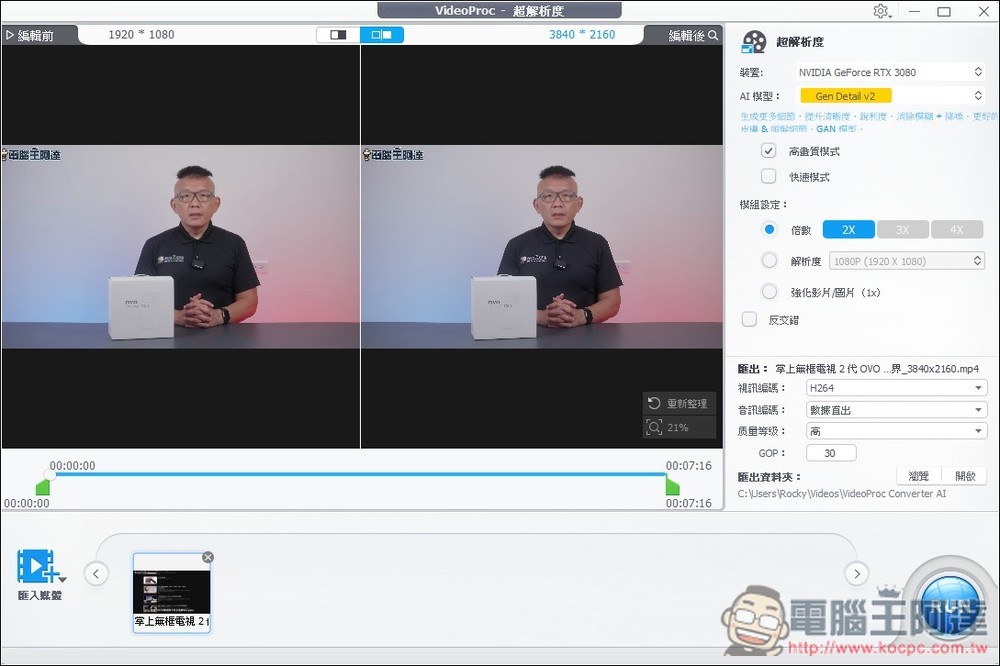
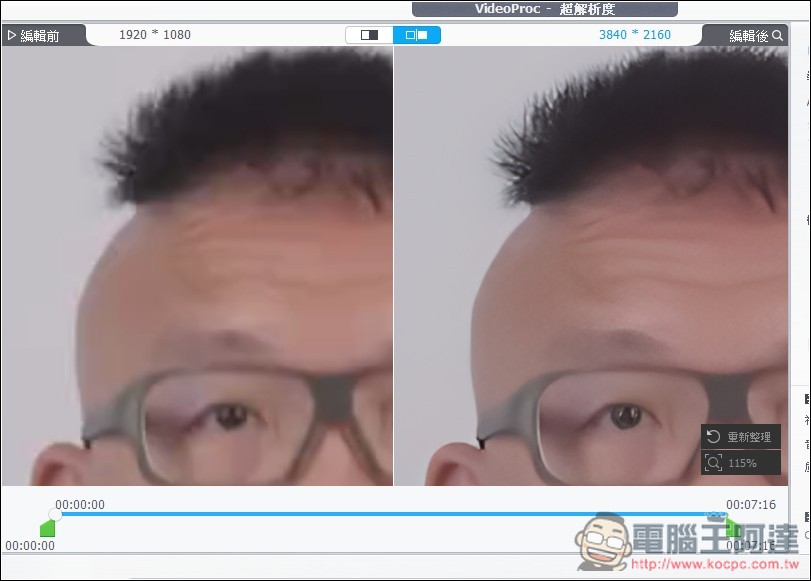
This is the video frame I upscaled from 1080p to 4K, and you can see the details have become clearer:
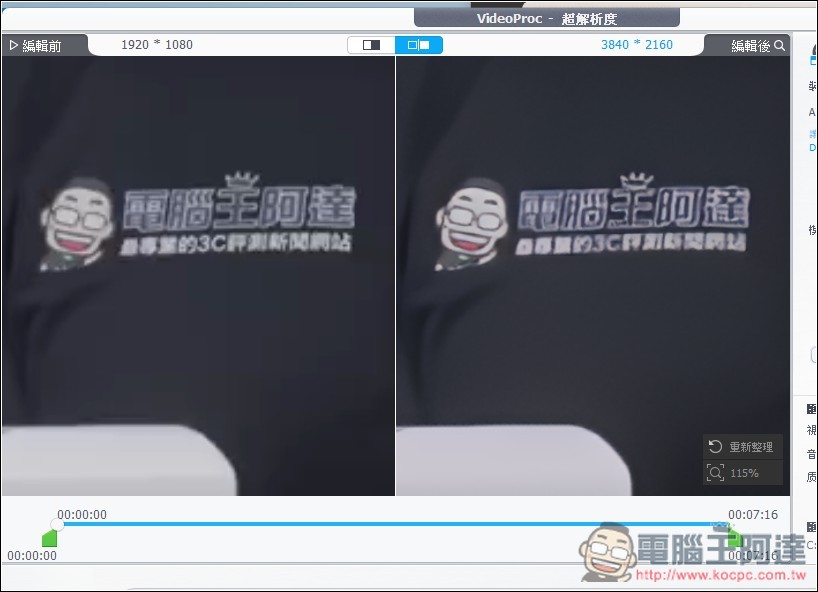
However, Chinese text processing is just so-so. The upper part, 電腦王阿達, is still okay, but the text below becomes blurry:
There are four AI models: Gen Detail v2, Real Smooth v2, Anime, and Zyxt. After switching, the description below shows the model’s features:
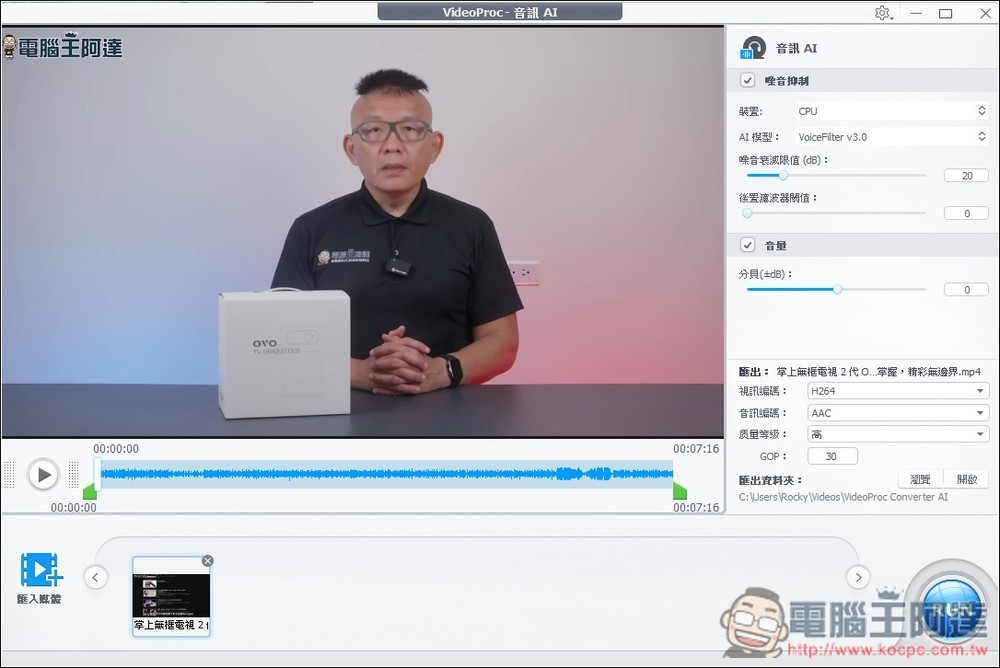
The audio AI is for noise reduction, and there’s only the VoiceFilter model, but with two version options:
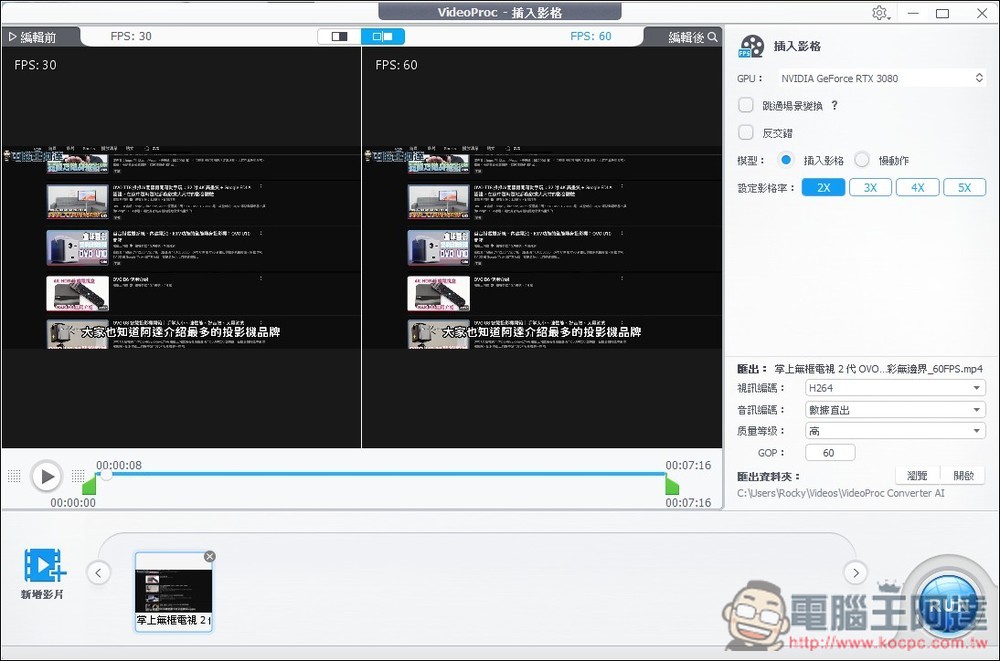
Inserting frames, on the other hand, increases FPS, and can raise a 30FPS video to 60FPS. This is very demanding on computer performance, and you need to be careful when using it:
Source: KOCPC Chinese