


When using a VPN to watch videos that are only available on foreign Netflix or some instructional videos on Udemy, many people may be deterred because there are no Chinese subtitles. Recently, they discovered this very useful SubTrans free extension, which can achieve real-time translation of subtitles and supports many websites, including YouTube. When translation is not needed, it can also be used as an expanded function of dual subtitles to help you learn foreign language skills. It is recommended to everyone.
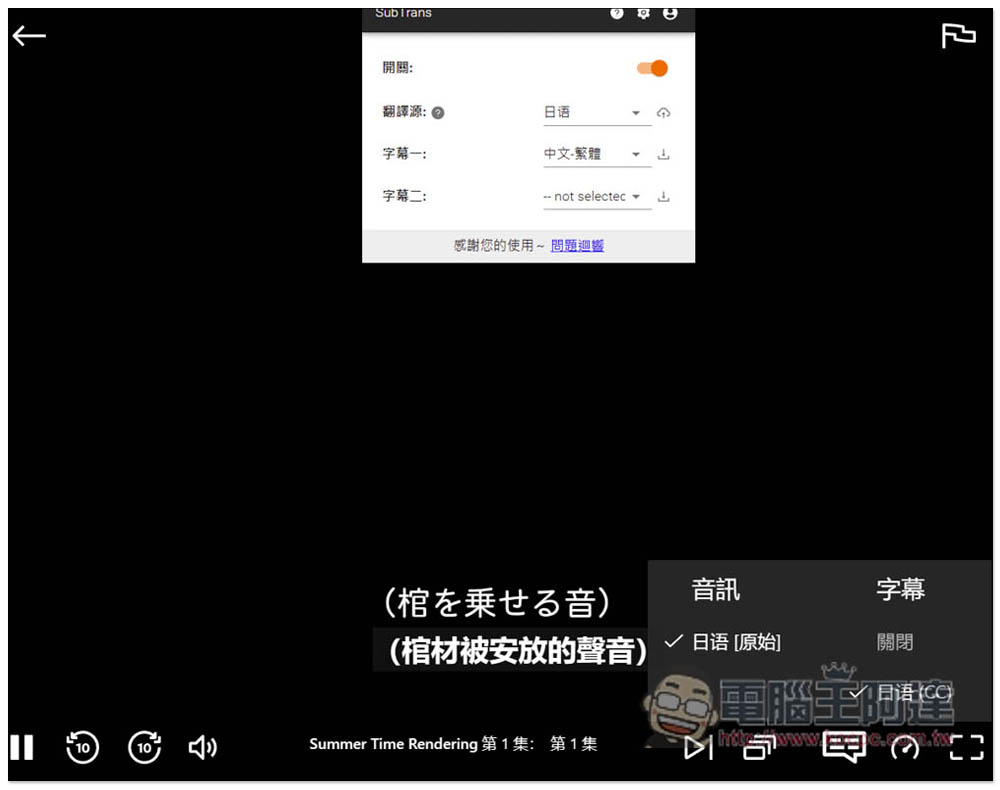
SubTrans can realize real-time subtitle translation for Netflix, Udemy, YouTube and other video websites, and supports dual subtitle display.
This extended function can be used without logging in, but it seems to have a translation limit, and it is not sure how long it will last. If the upper limit is reached,You can consider logging in to your E-Mail account, after entering the “4P0O8pNXP” invitation code, you and I will get 30 minutes of free time. You can also share your invitation code with friends (or other E-mails), or upgrade to the paid version.
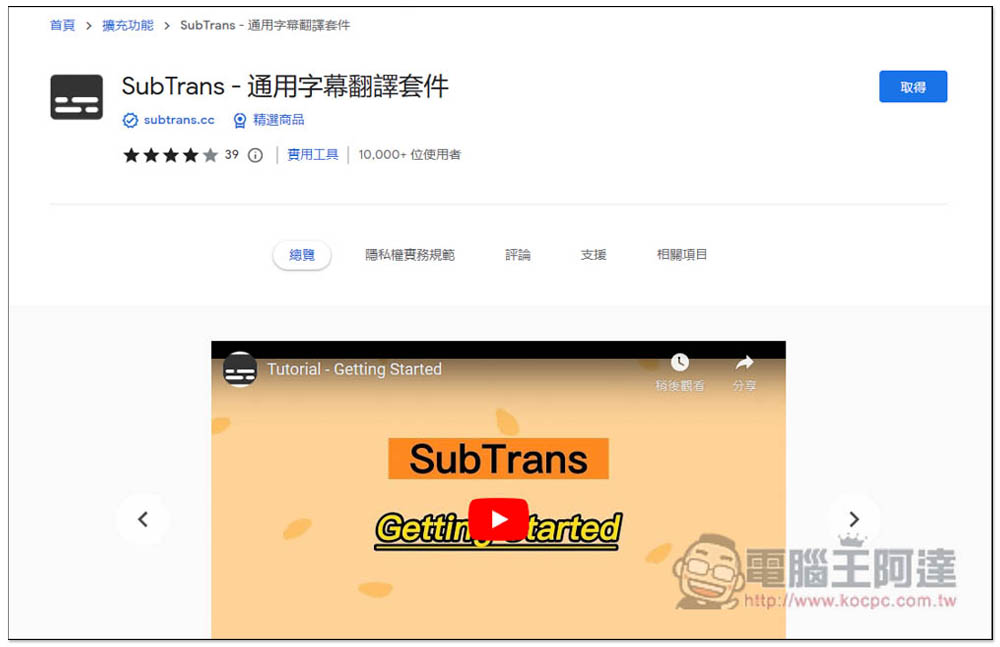
Both Chrome and Edge can be installed. After entering the store page, click on the right to get:
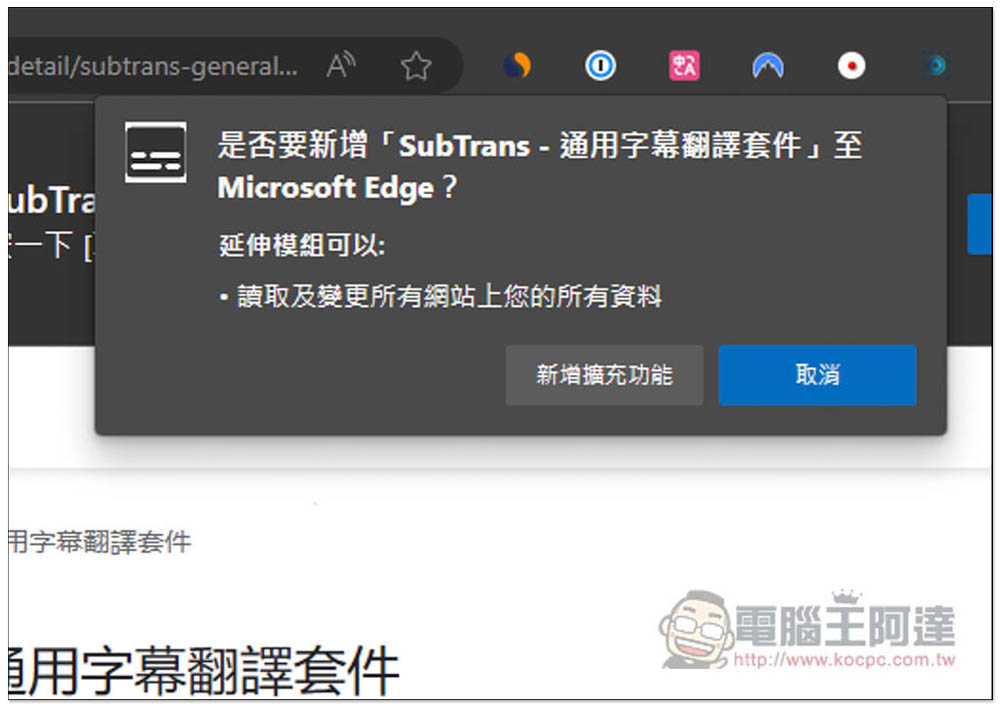
This message window will pop up above, click on Add Extension Function:
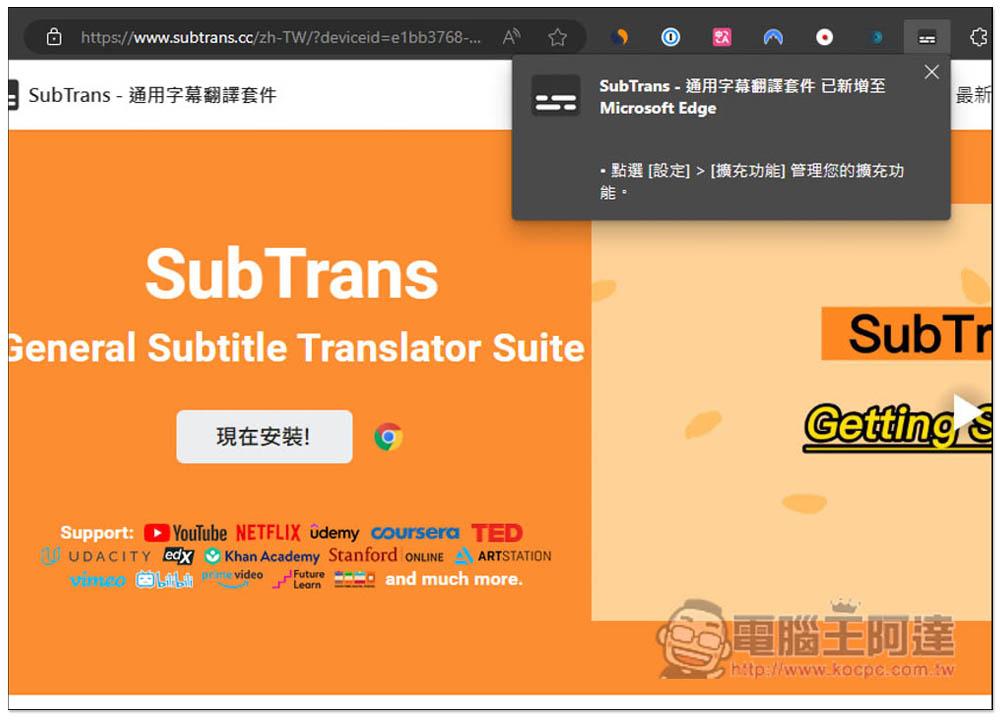
Displaying this message means that the acquisition is completed, but the icon will be hidden by default. Please open the puzzle icon on the right:
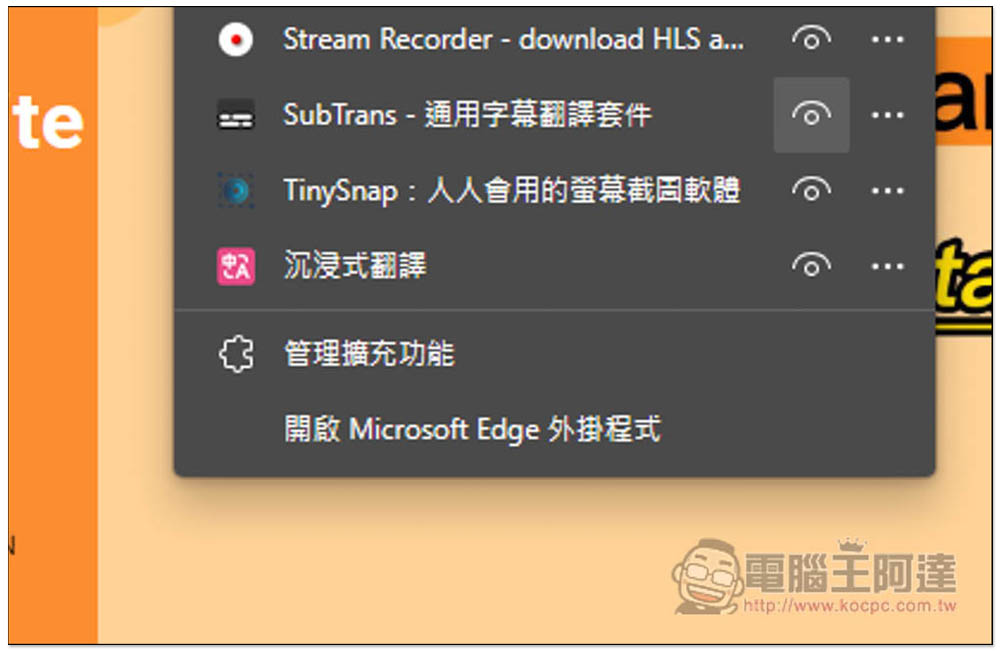
Open the extension’s eyes so that the icon appears in the function bar in the upper right corner:
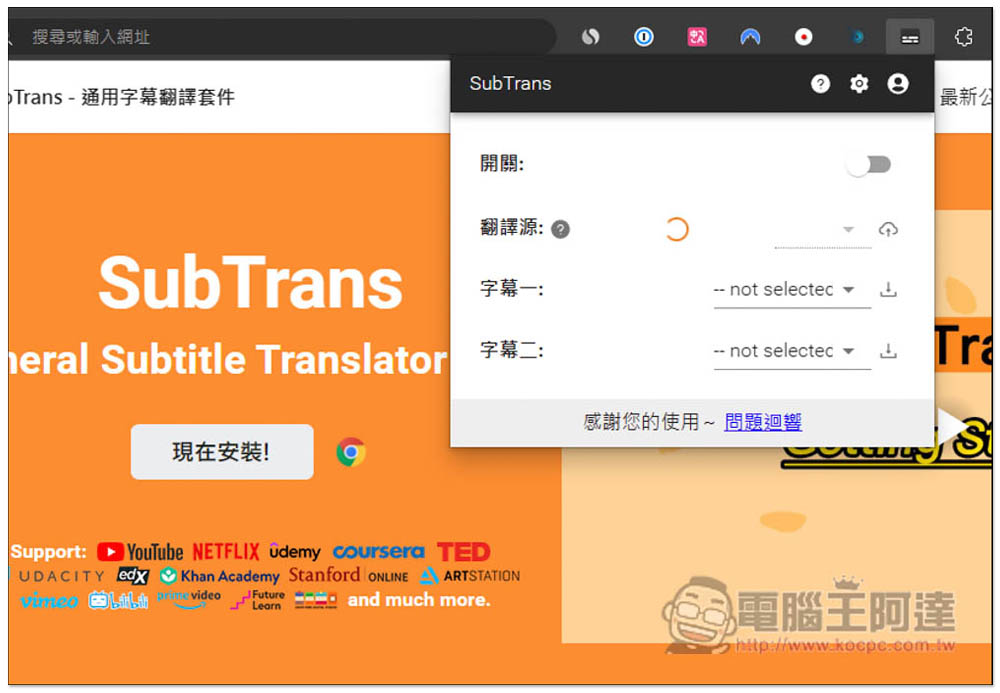
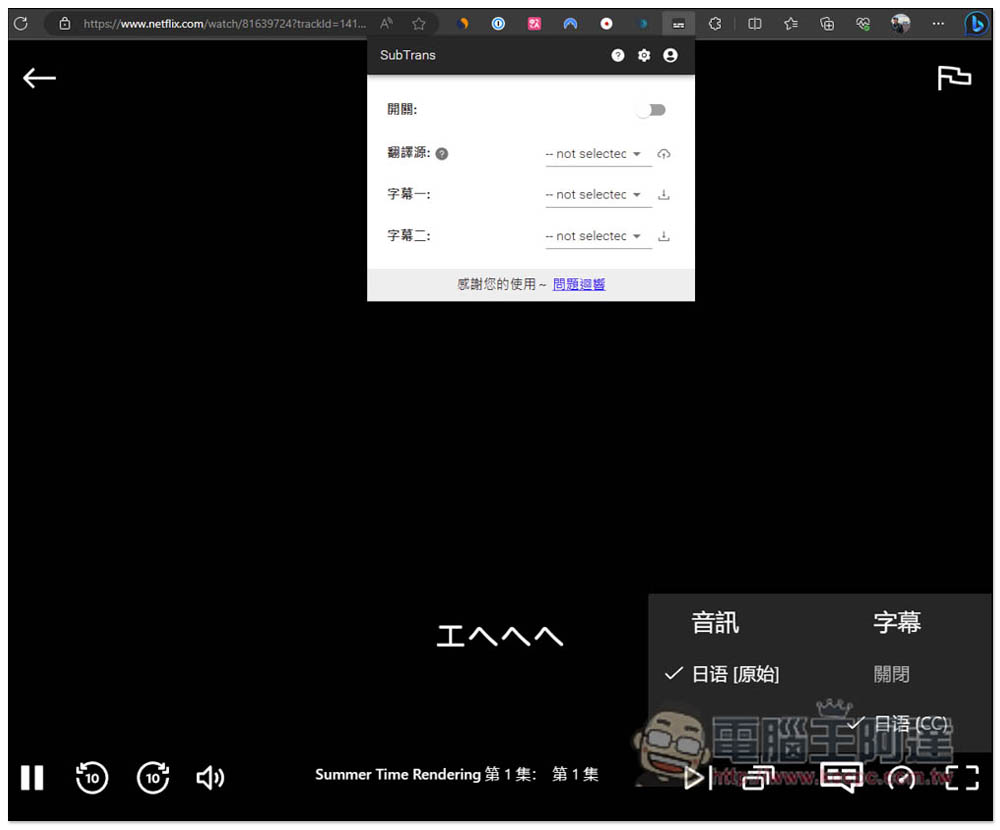
After opening it, you will see four functions, namely switch, translation source, subtitle one and subtitle two:
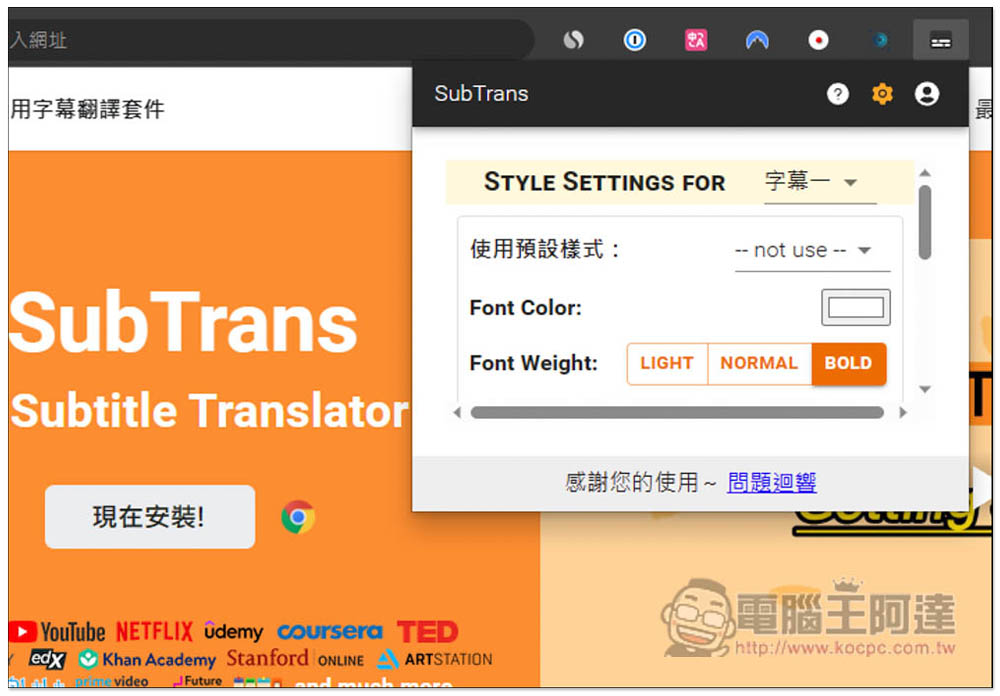
In the settings, you can adjust the display style of subtitles one or two. There are four presets for you to use, and you can also adjust them yourself:
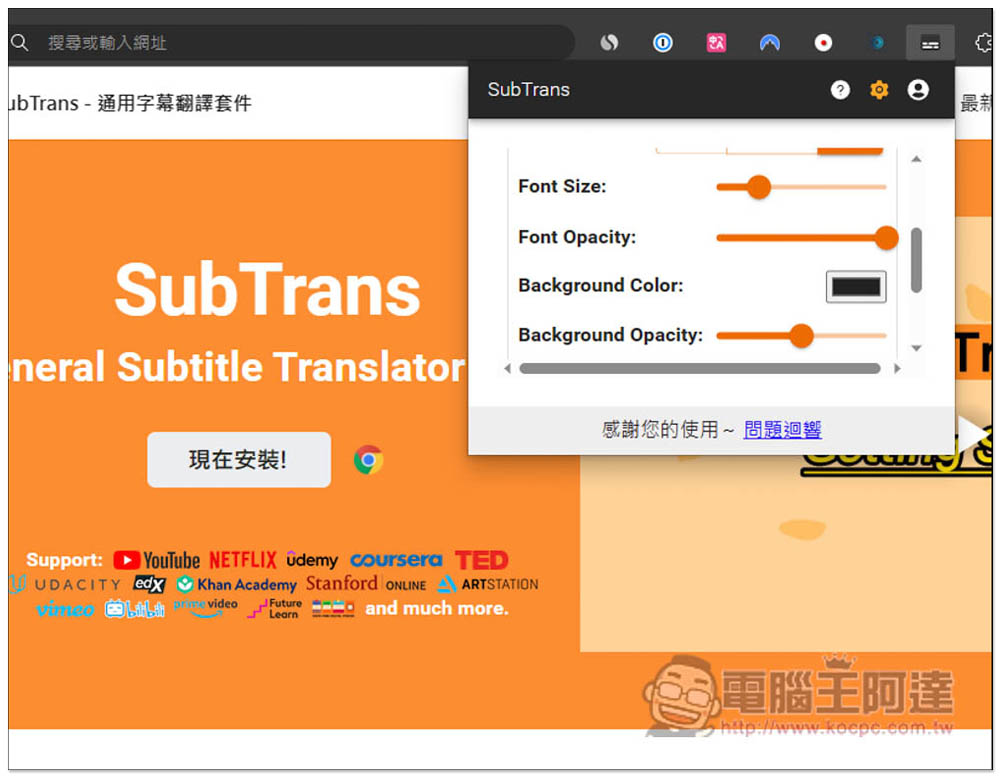
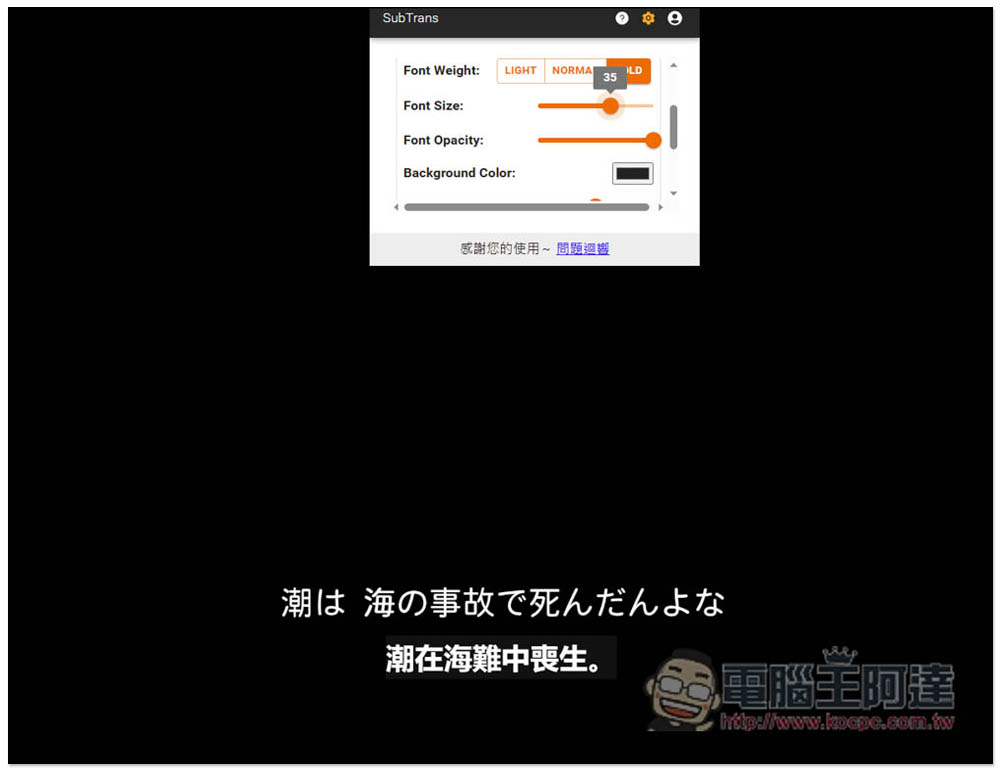
Such as font size, color, transparency, background color, background transparency, etc.:
Let me take Netflix as an example. This Summer Time Rendering only has Japanese subtitles. Then open SubTrans:
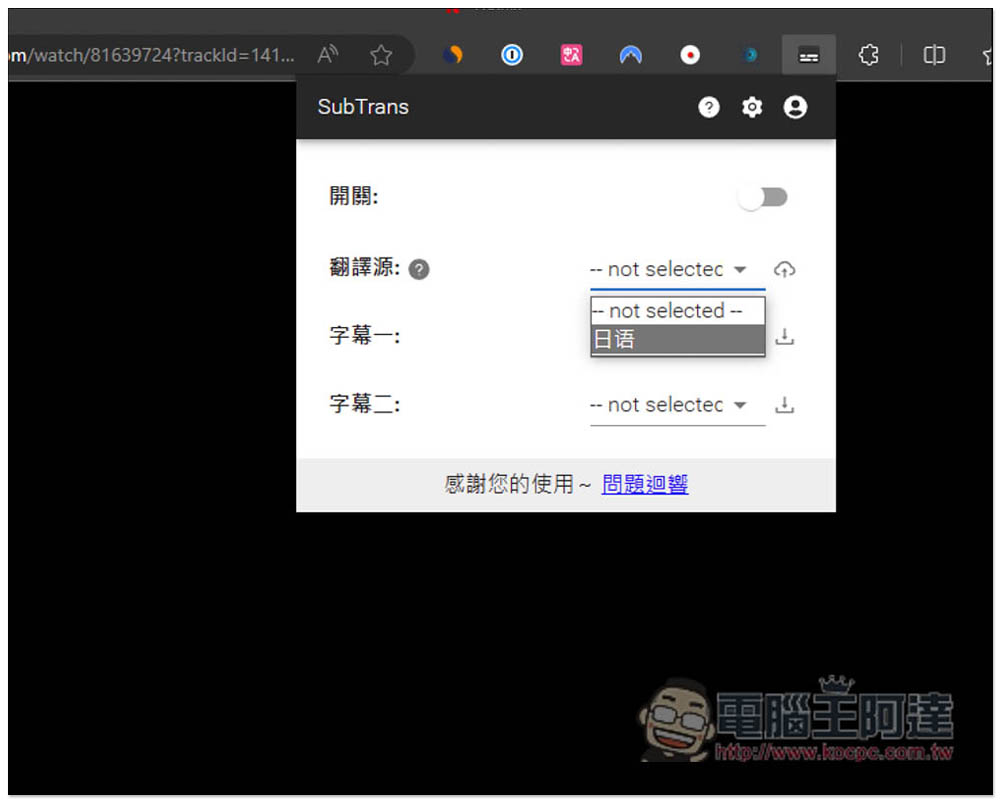
Select Japanese as the translation source:
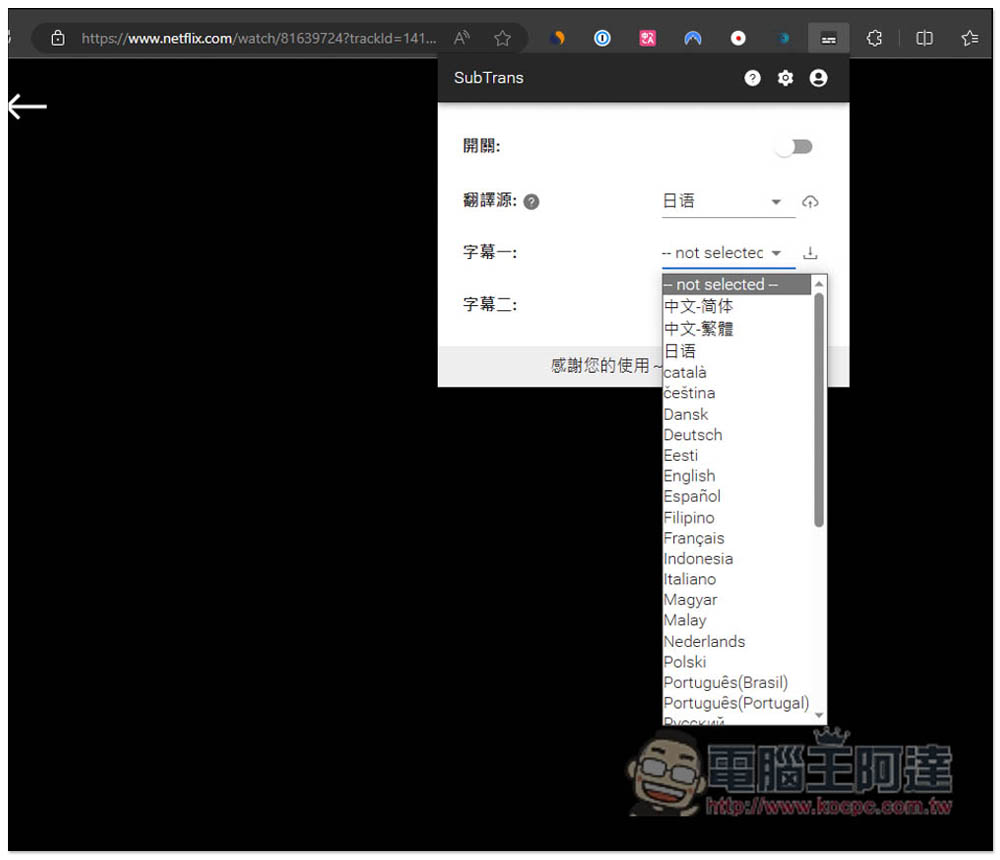
For subtitle one, select Traditional Chinese (or other languages you want to translate). If you only want to translate it into Chinese, then just set subtitle one. Subtitle two can be translated into other second languages you want. If you don’t need it, you don’t need to select:
Like this, then turn the switch on:
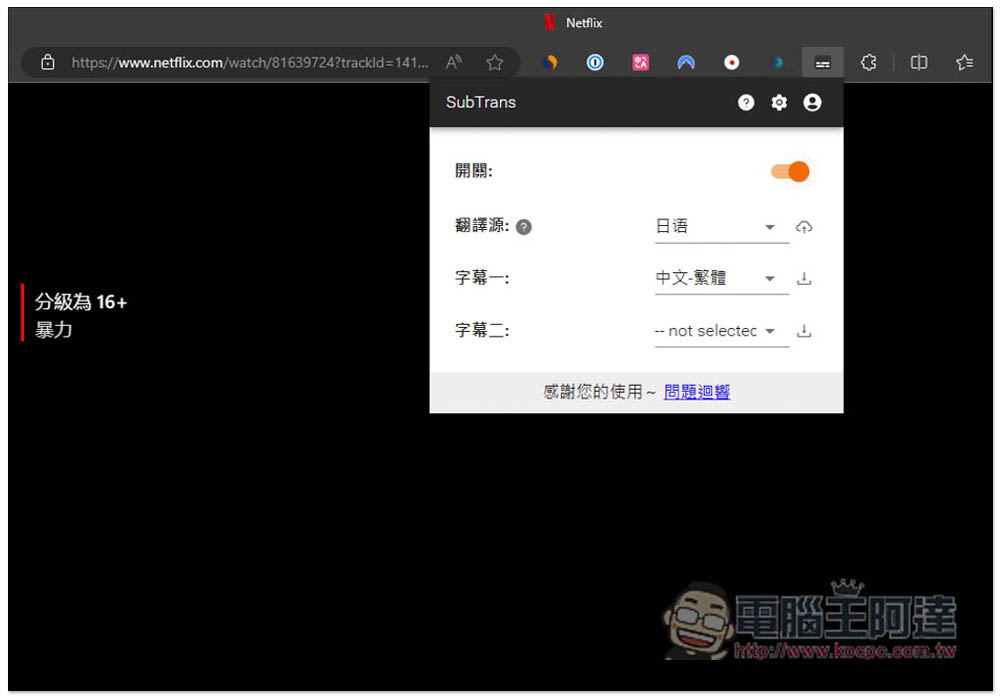
You may need to wait a few seconds, and then you will see the instant Chinese translation appear:
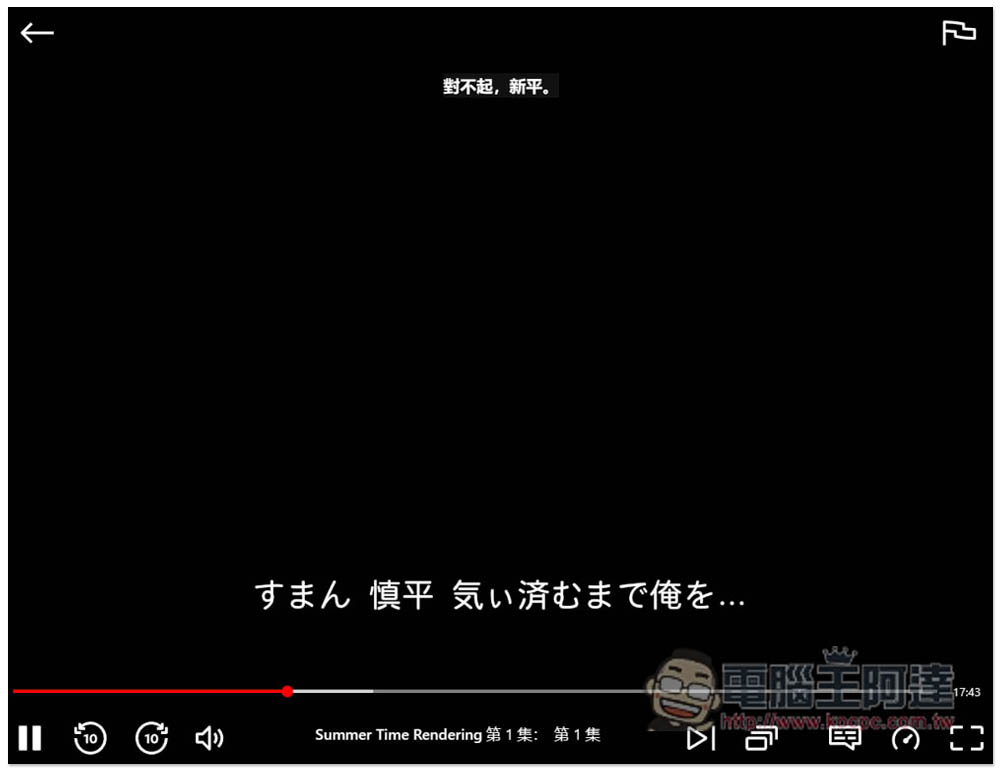
It is at the top by default and can be dragged to any position you want to display with your mouse:
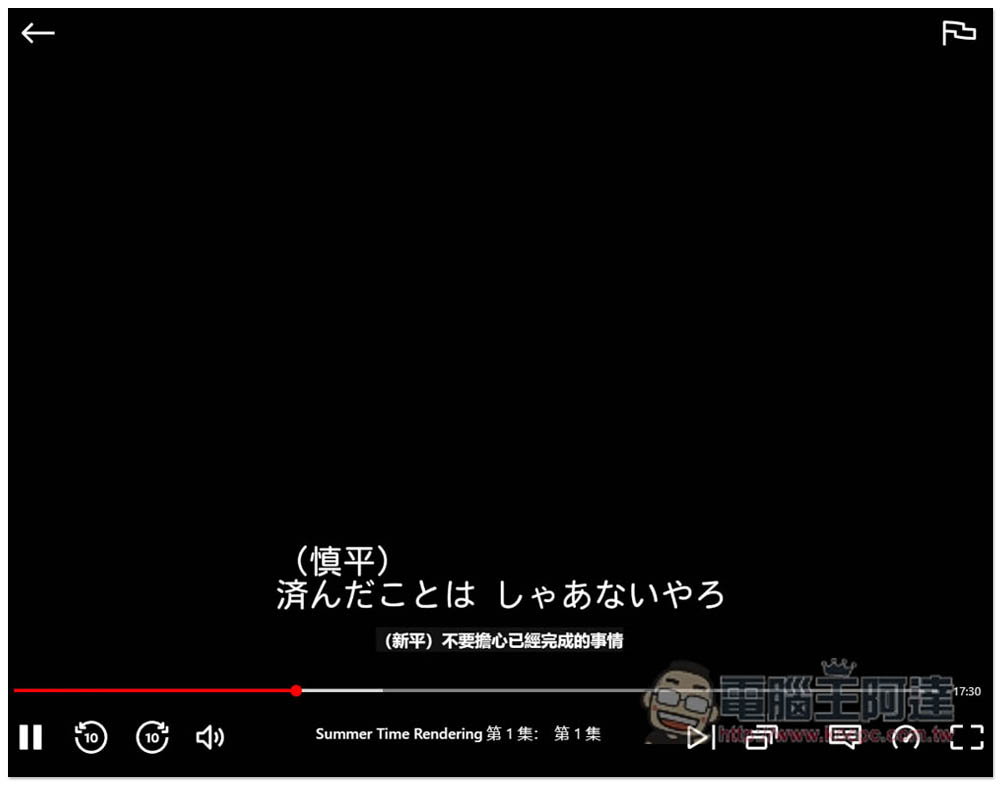
If you feel that the font is too small, go into the settings to adjust it, or change it to another color:
If you don’t want to see the original subtitles, turn off Netflix’s subtitles so that only the translated subtitles will be displayed:
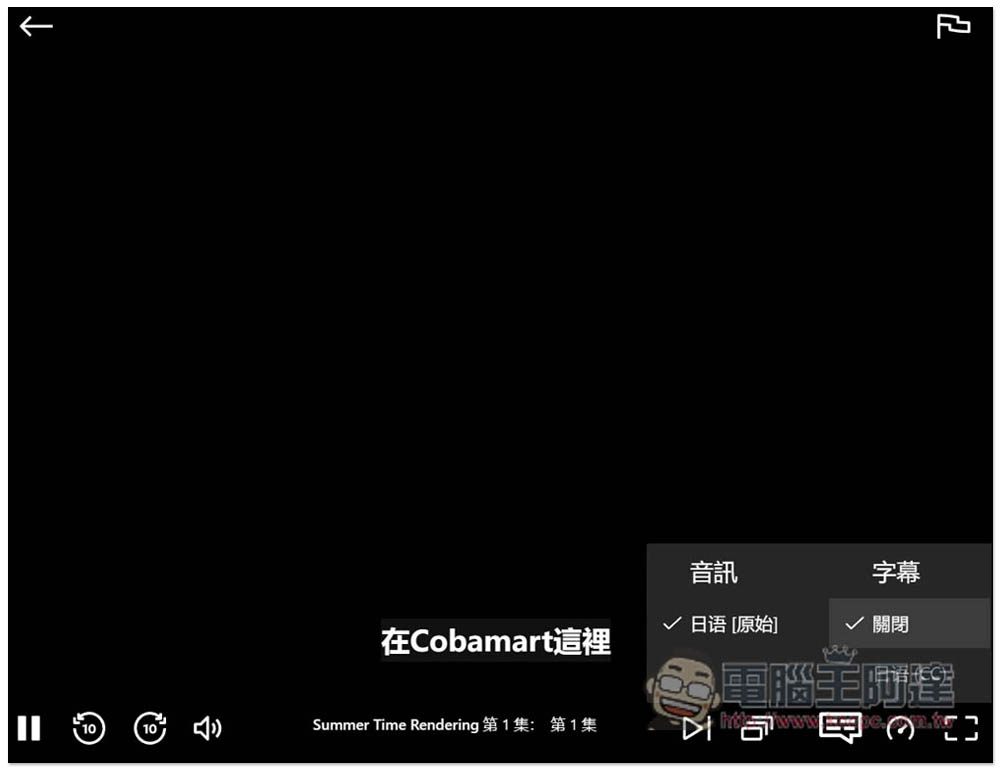
If you don’t need translation and just want to display dual subtitles, first turn off Netflix’s built-in subtitles:
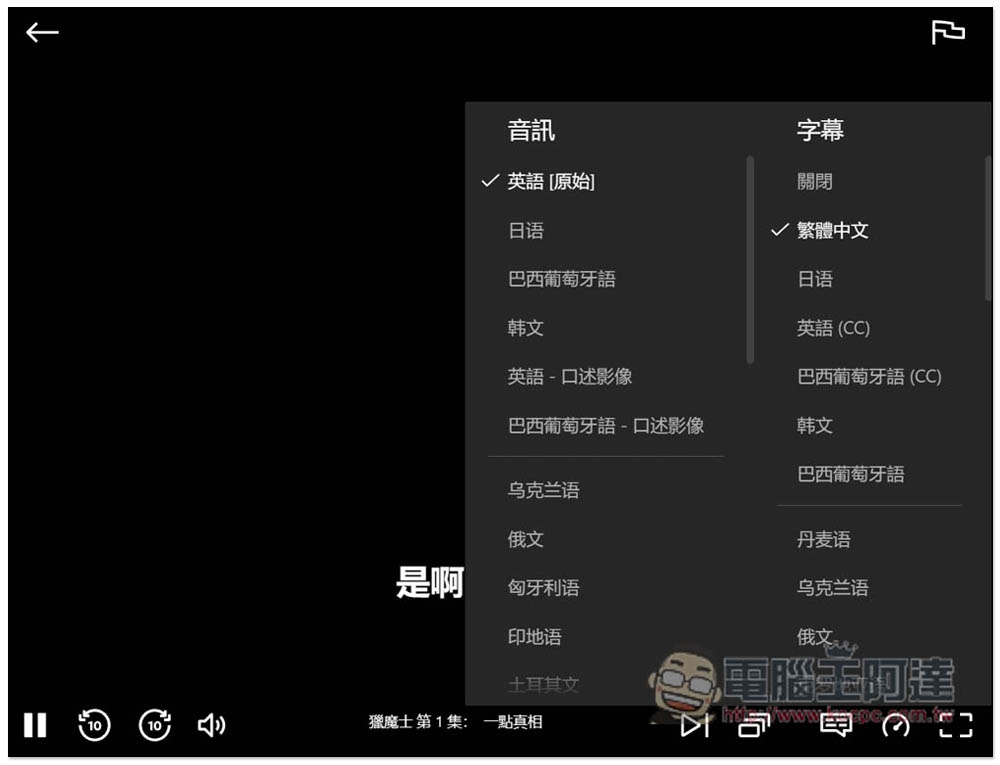
Turn on the extended function, choose to turn off the translation source, and select the subtitle language you want to display for subtitle one and subtitle two, so that it will become dual subtitles:
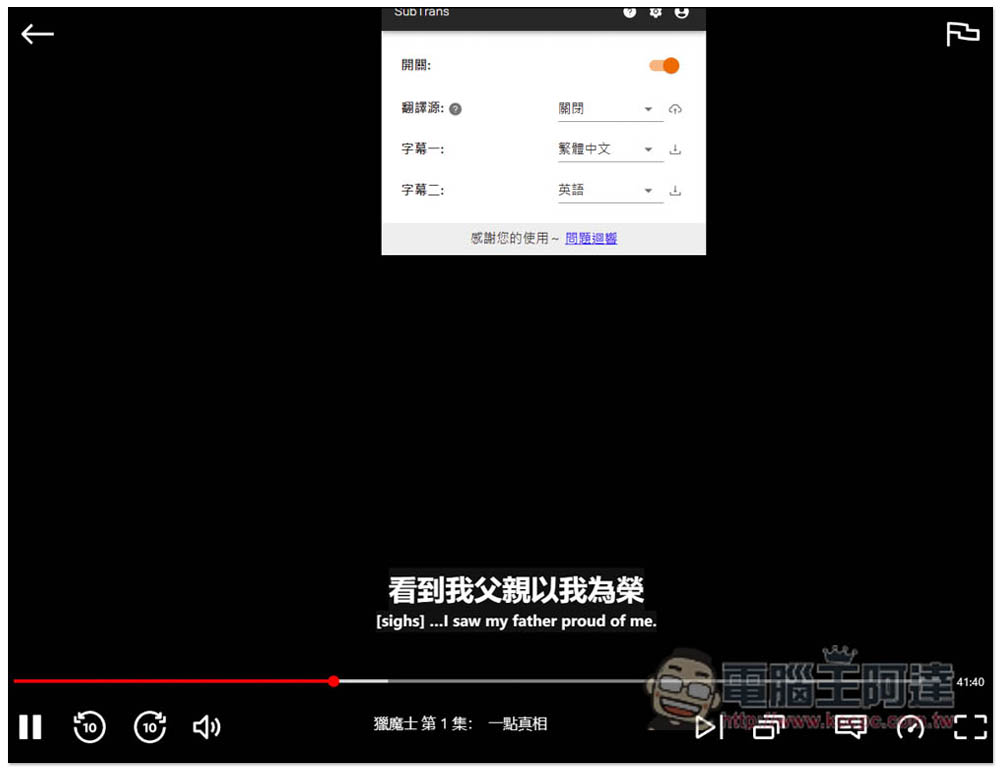
The developer didn’t say what translation engine they used. As far as I tested, the translation quality was pretty good. As long as the sentences weren’t too long, they were basically translated correctly. Of course, there’s no way the entire movie can be 100% correct.
Source: KOCPC Chinese