


I believe users who have been using the LINE community for a long time have discovered that some time ago, the LINE community silently opened the test of the new Live talk function, and this function was officially launched yesterday (4th)! The newly launched Live talk function of the LINE community allows users to have multi-person real-time conversations with members through voice in the community. As the number of community members increases, Live talk will become more and more lively!

LINE community launches new feature “Live talk”! Invite community members to chat in a group
Since the launch of the LINE community, many people have made new friends because of the common topics in the LINE community. People usually chat and interact in various ways on the LINE community. Now, in addition to sending text messages, you can also use Live talk to have real-time conversations with members through voice. Up to 10,000 people can participate!
LINE community function description:
- Permission to start a live talk: Only community administrators and co-administrators have the permission to start a live talk.
- The smallest unit to start Live talk: chat rooms with more than 10 people in the community can use Live talk separately.
※Sub-community chat rooms can also use the Live talk function individually. - Hold permissions:
- Moderator: Holds the relevant authority to operate and manage Live talk
- Speaker: Can speak in Live talk
- Audience: Can listen to Live talk
- Participation rights: Members within the community can participate in the Live talk. In addition, if it is a Live talk that allows non-members to participate, users other than community members can also participate as listeners.
※Only community members can speak or send responses in Live talk. - Maximum number of participants: up to 10,000 people can participate. Up to 100 speakers including the moderator can be set.
- End permission: Only the community administrator, the host and co-host of the live talk have the permission to end the live talk. In addition, the maximum time that Live talk can be used is 48 hours, and it will automatically end after 48 hours.
How to use Live talk
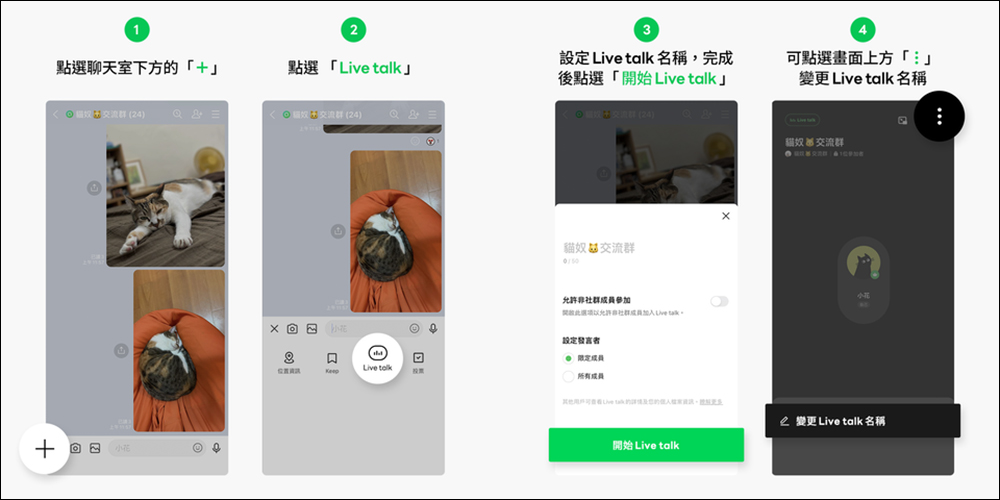
How to start using Live talk? First of all, only the “administrator” and “co-administrator” of the LINE community have the permission to start Live talk. The operation method of starting Live talk is as follows:
- Click “+” at the bottom of the chat room > “Live talk”
- Set the Live talk name, and complete settings such as “Allow non-community members to participate” and “Set speakers” as needed.
– “Allow non-community members to participate”:After turning on the setting, users who are not community members can also participate
– “Set speaker”:When “Limited Members” is selected, only members who have been approved by the moderator have the right to speak. - Click“Start Live talk”
If you want to change the Live talk name after the Live talk starts, please select the「 ⋮ 」>“Change Live Talk Name”
If you want to end this live talk, you can click the “End Live Talk” button in the upper column of the chat room page. Even if the community administrator has not joined the live talk, he still has the authority to end the live talk in the community.
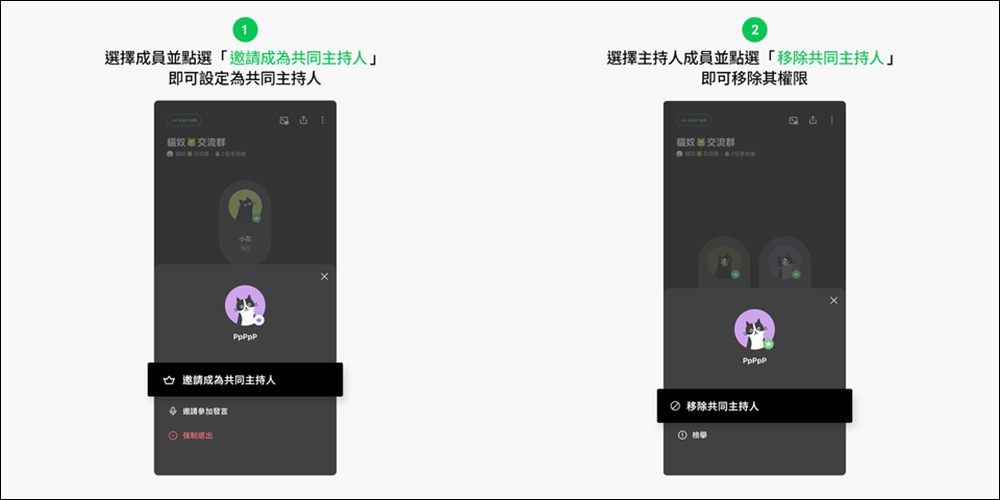
As the host and co-host of Live talk, you have the authority to set other members as co-hosts, but you cannot set users who are not community members as co-hosts of Live talk. Live talk currently supports up to 99 co-hosts. To set up a co-host, select a member and click “Invite to be a co-host” to set that person as a co-host. If you want to remove the co-host’s permissions, select the member and click “Remove Co-Host” to remove their permissions.
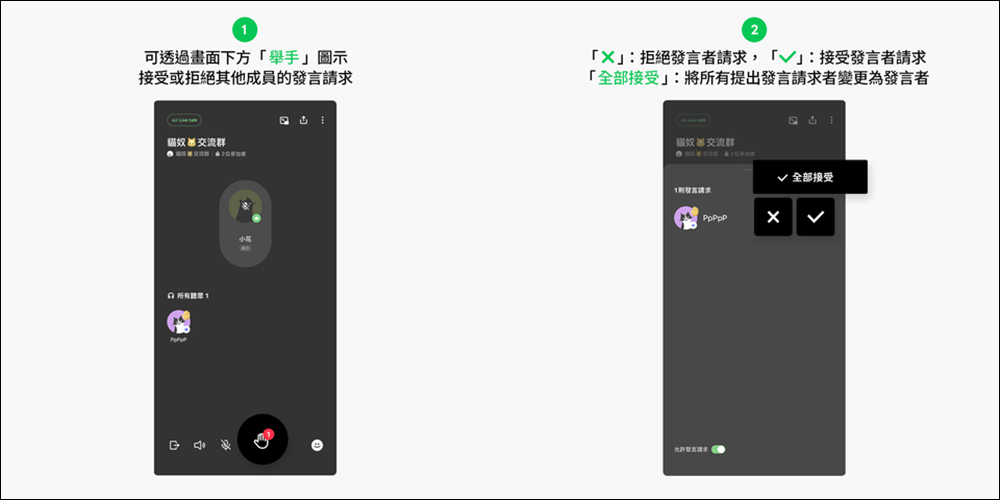
If the speaker’s authority is set to “Member Only”, you need to use the “raise hand” icon at the bottom of the screen to accept or reject other members’ speaking requests.
- “×” icon: Refuse the speaker’s request
- “Check” icon: Accept speaker request
In addition, click “Accept All” to change all members who have requested to speak into speakers.
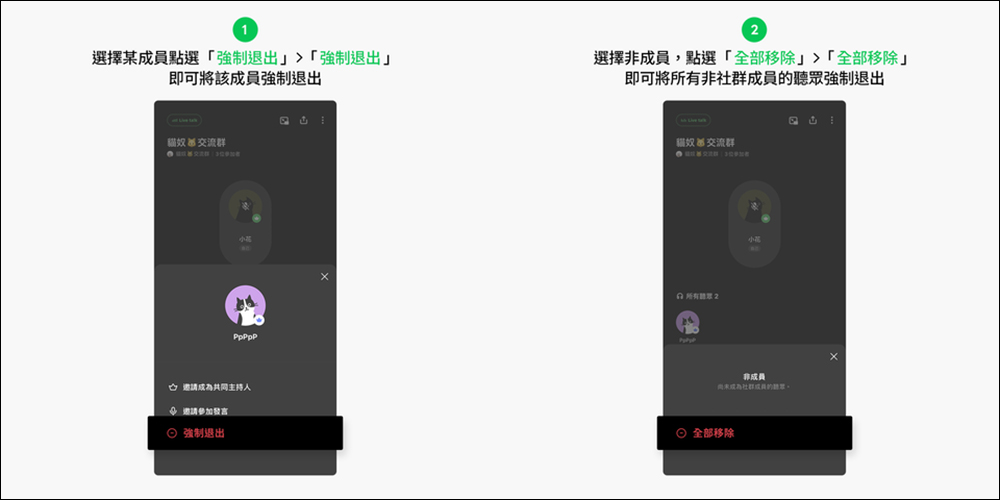
If a member hinders the chat in Live Talk or causes other members to be unhappy, the moderator can also “forcibly exit” the member.
- Community members: After selecting the member, click “Force Exit” > “Force Exit” in sequence.
- Non-community members: Select the non-member title and click “Remove All” > “Remove All” to force out all listeners who are not community members at once.
How to invite to join/end live talk?
Invitation method:
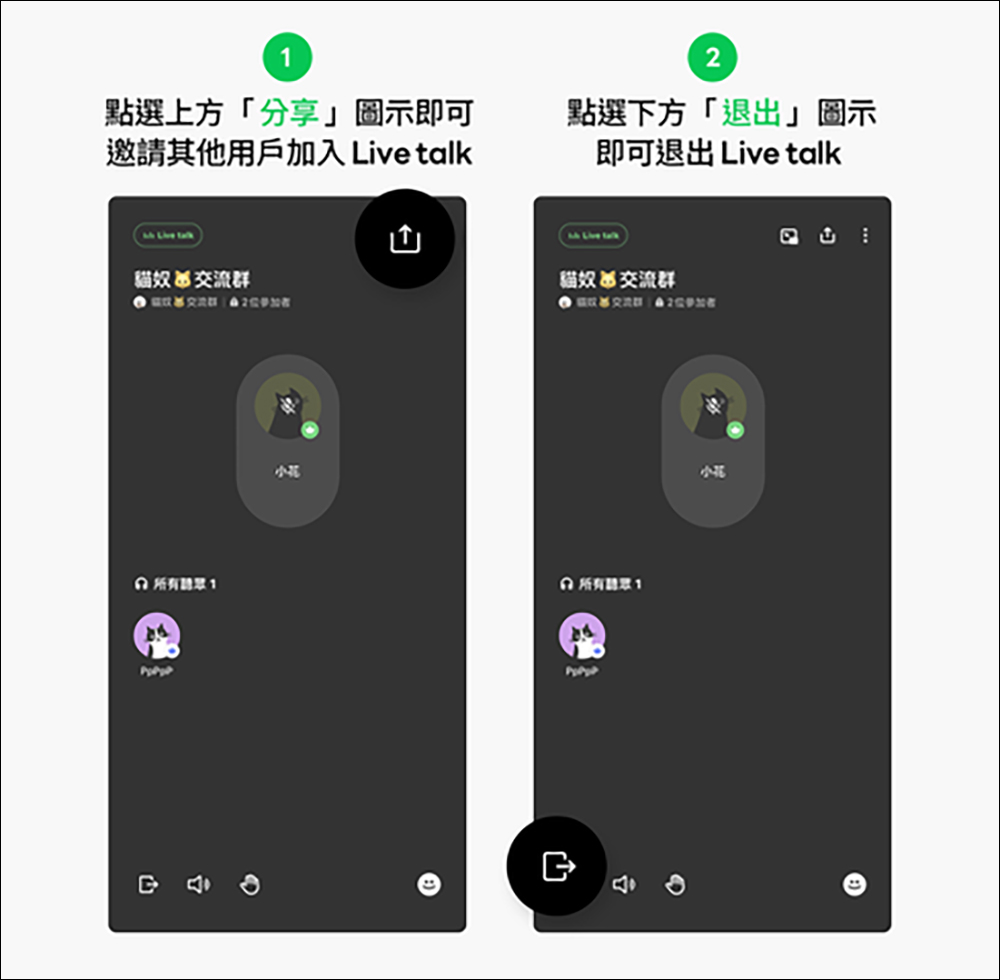
You can invite other users to join Live talk by sharing the link with friends. Please click the “Share” icon displayed above Live talk and select the person you want to share with. Users who receive the shared link will receive relevant information such as Live talk name and social chat room information.
How to end a Live talk:
If you want to end the Live talk, please click the “Exit” button at the bottom of the screen > “End Live talk”. Only community administrators, the host and co-hosts of the live talk have the permission to end the live talk.
Live talk participants (listeners and speakers):
As a listener and speaker of Live talk, click on the message received in the social chat room, the display field in the chat room, or the invitation link received, and then select “Participate as a listener” or “Participate as a speaker.”
※You cannot speak when participating as an audience member.
※Depending on the settings, “Participate as a speaker” may not be displayed.
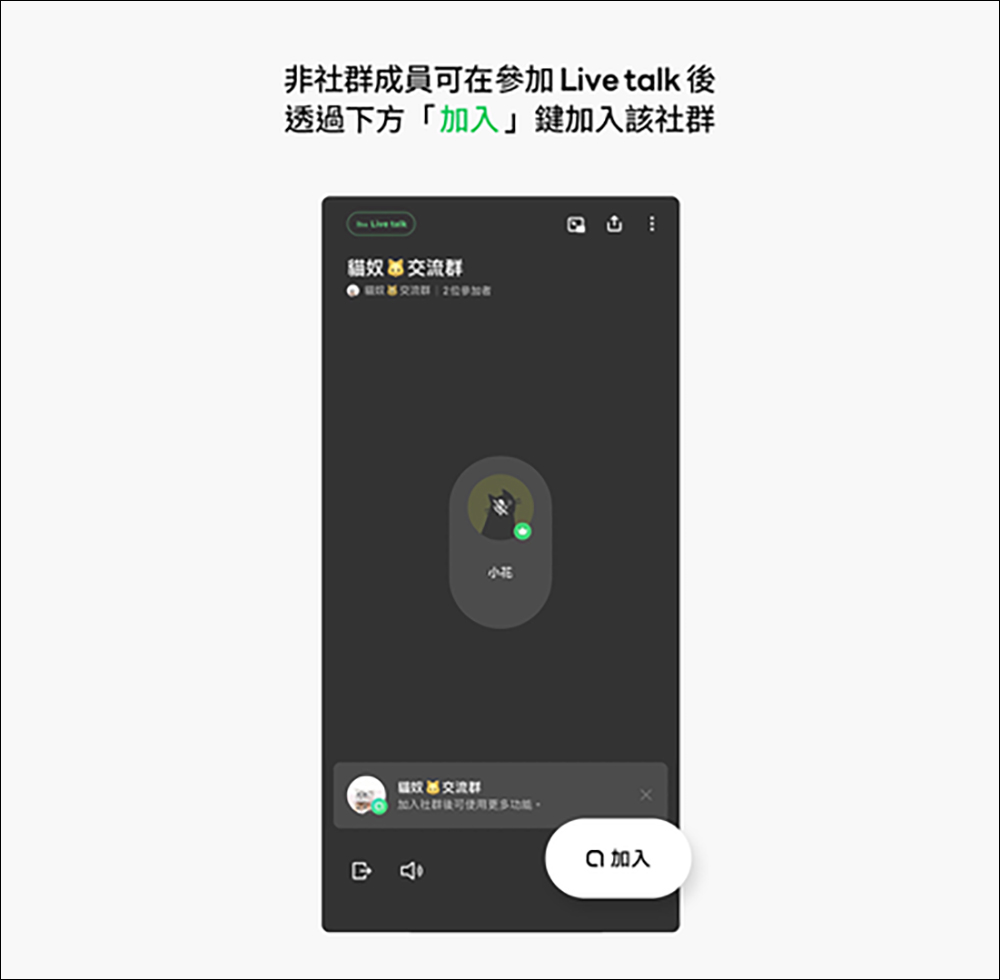
If it is a Live talk that allows non-members to participate, users other than community members can also participate as listeners. At the same time, non-community members can join the community through the “Join” button at the bottom of the screen after participating in the Live talk.
After participating in a Live talk, you can browse the profile pictures and nicknames of all participants, including yourself, in the Live talk. Non-community members can only view members who have participated as speakers.
If you want to respond to other people’s comments, please click the “emoticon” icon at the bottom of the screen. Participants can view responses sent by others.
※Non-community members cannot send responses.
Speaker/listener switching method:
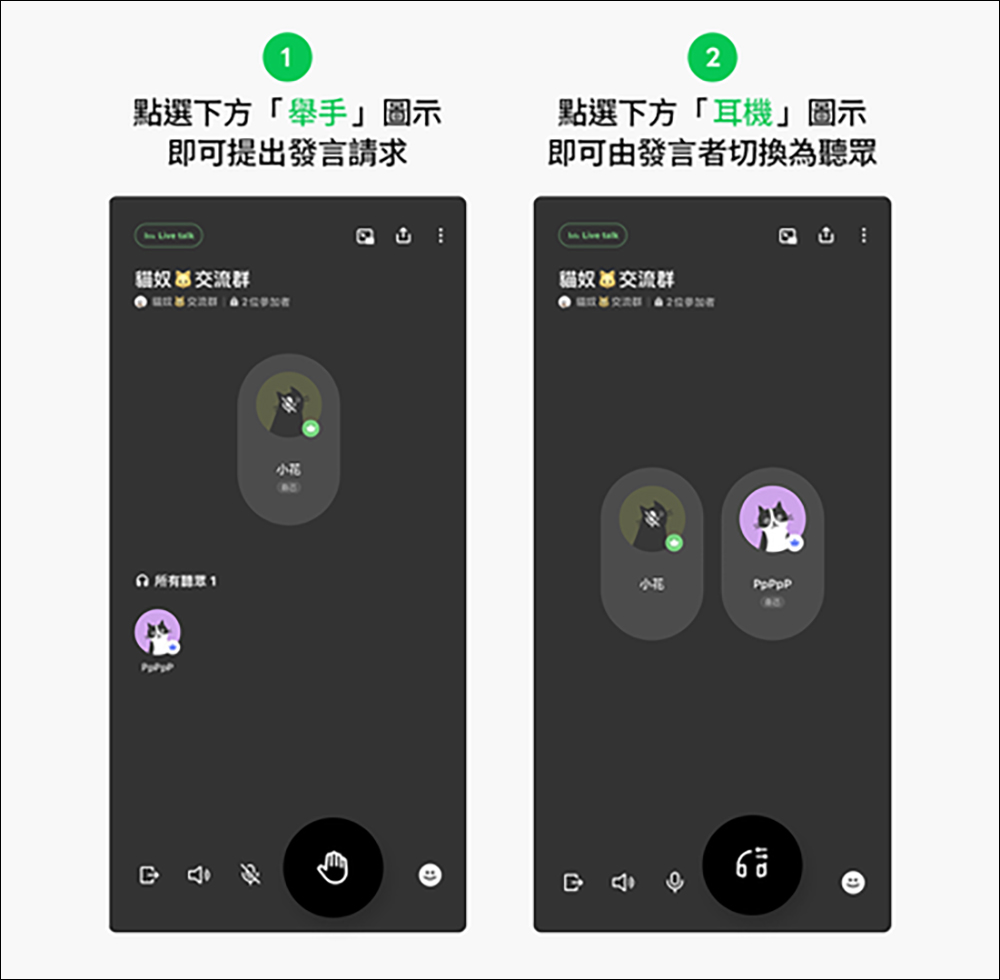
You cannot speak when participating in Live Talk as a listener. If you wish to speak, please click the “raise hand” icon at the bottom of the screen to make a request. ※Non-community members can only participate as listeners, so the “raise hand” icon will not be displayed on the screen. When the speaker of Live talk is set to “restricted members”, the host will receive a request to speak. Once approved by the moderator and granted permission to speak, you can unmute and start speaking. If you want to switch from speaker to listener, please click the “headphones” icon at the bottom of the screen.
※The host also has the right to refuse a request to speak.
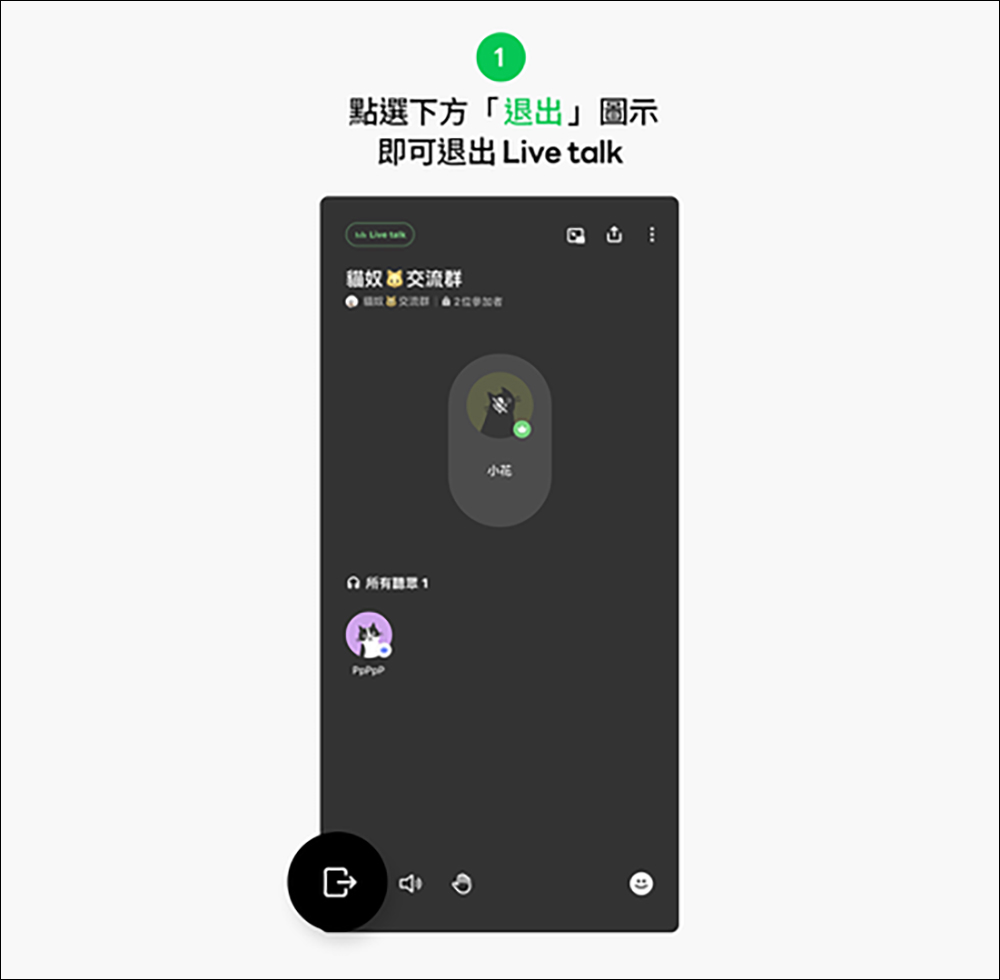
Participants can exit the Live talk at any time through the “Exit” button at the bottom of the screen.
Further reading:
LINE free sticker collection: 21 free LINE stickers available for download for a limited time
Source: KOCPC Chinese