


When browsing the web, you will see a large number of pictures or videos. Sometimes, you will see a very good picture and want to save it for reference. However, the pictures found on the Internet may not meet the standards you want in some aspects. The most common method is to save the picture and then use image editing tools to process it on your local machine. For most users, it is too cumbersome to spend time editing. In addition to taking up some time, you may not have any processing tools installed in your computer. So, this time we will learn how to perform light editing directly in the Microsoft Edge browser.

How to edit pictures directly in Microsoft Edge browser?
Microsoft Edge comes with a built-in image editor feature, which means users can easily edit images in the browser before downloading them and using them elsewhere. This function mainly helps users to lightly edit images before downloading, helping users save work time and increase productivity at the same time. In this tutorial, we will tell you how to make good use of Edge’s image editing tools.
How to use Microsoft Edge’s built-in editor?
- Right-click on the web photo you like and select “Edit Image” from the menu.
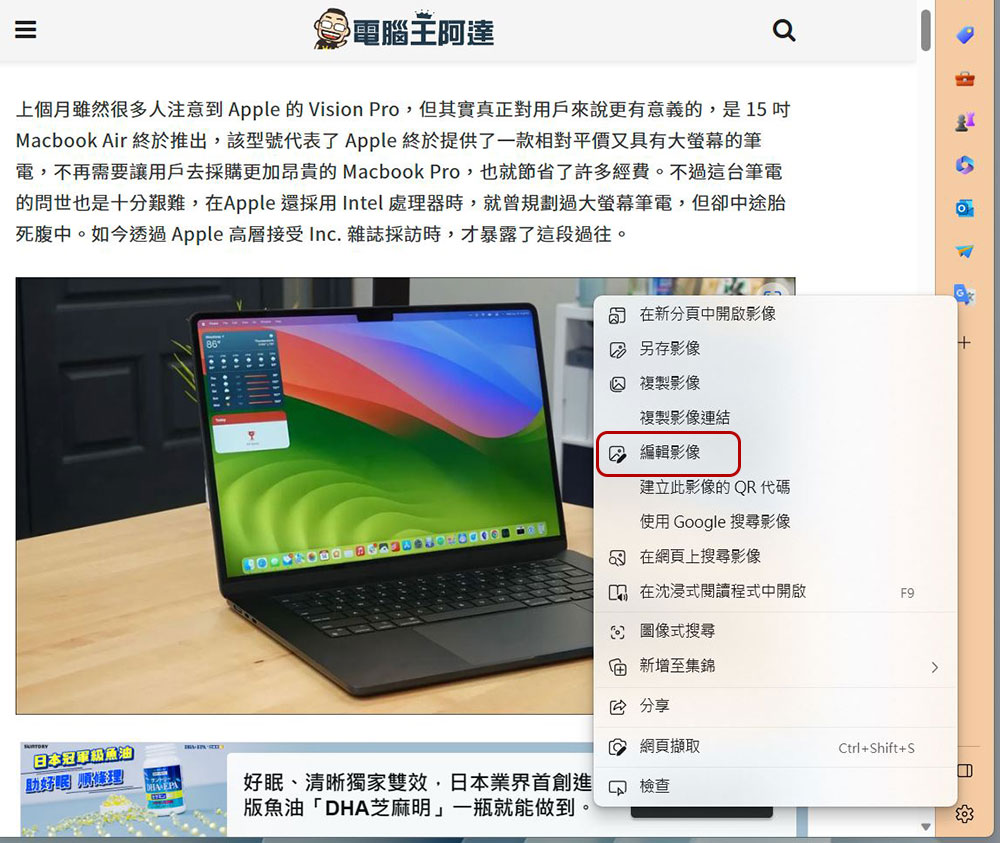
- Next, an editor window will appear in front of you, which contains four main tabs: cropping, adjustment, filter conditions, and marking. Later, I will outline the functions covered by the four tabs.

- When you finish editing, you can click the blue “Save” in the upper left corner. “Save” allows you to choose which folder you want to save; “Copy to Clipboard” allows you to jump directly to the place where you want to paste the image, and just press Ctrl + V to paste it.

If you are used to exploring functions by yourself, or are already very familiar with them, you should be able to see this. But if this is your first time using it, you can check out the overall function description that the author will help you with.
Pagination and functions of Microsoft Edge’s built-in editor
As mentioned above, there are four tabs in the Edge built-in editor. In the next paragraph, the author will briefly talk about the functions of each tab. You can play with the rest by yourself.
Crop
As the name of the page says, its function is to allow you to crop pictures directly. You can freely drag the cropping frame, or crop using a specific ratio. You can also flip horizontally and vertically in this tab, rotate the image left and right, etc. If you have other needs, you can use the pull bar to directly rotate at any angle.

Adjustment
In the adjustment tab, you can make fine adjustments to various image values. Although it is built into the Edge browser and is only lightly edited, I personally feel that the options provided are sufficient for ordinary people’s ordinary needs.

Filter criteria
This filter condition…, well, I don’t know why it is named like this, but it is actually the filter function. You can apply the built-in basic filters directly to the image in the filter conditions tab to directly give the image a different style.

mark
If you want to add some annotations, circle key points, etc. on the image, you can choose different built-in strokes in the mark tab to write, doodle or circle, and then save them directly, so you don’t need to download and process them first.

Compared with other independent image editing applications, Microsoft Edge’s built-in image editor has relatively simple functions and an uncomplicated interface. It is best used when you only want to make minimal edits to images and upload them to other places. This saves you another step and makes it easy to complete the task.
Source: KOCPC Chinese