


iPhone users who often watch YouTube videos must know that they can use CC subtitles to help them understand the content of the video more easily. Especially for some foreign language YouTube channels, you can understand the dialogue of the protagonist of the video regardless of language barriers. However, when watching YouTube videos on an iPhone, the default subtitles may be too small due to the size of the phone. Today I will share with you how to set YouTube subtitles. You can customize the font size and color of the subtitles!

YouTube subtitle setting tutorial: Customize subtitle size and color (iPhone)
Using subtitles to assist you in watching videos will give you a better experience, especially when watching English, Korean, and Japanese videos on YouTube. However, YouTube videos can actually be customized with different font sizes and colors on iPhone! Even the background color of the subtitles can be adjusted. Today I’m going to share with you how to switch between different subtitle settings at any time through the iPhone’s built-in settings. If the elders around you also like to watch YouTube videos, you might as well learn from this tutorial and quickly find time to help them set it up after watching it!
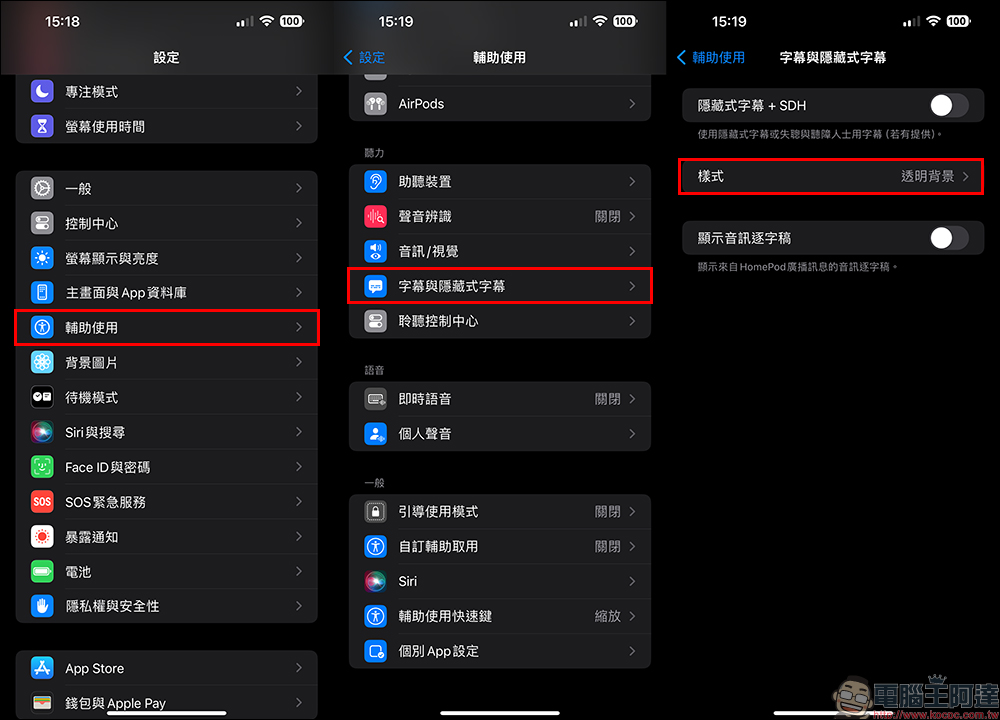
First, click “Accessibility” from Settings, then find “Subtitles and Closed Captions” in Accessibility. When you enter the Subtitles and Closed Captions page, you will see that the style is defaulted to “Transparent Background”. Click on the style to proceed to the next step:
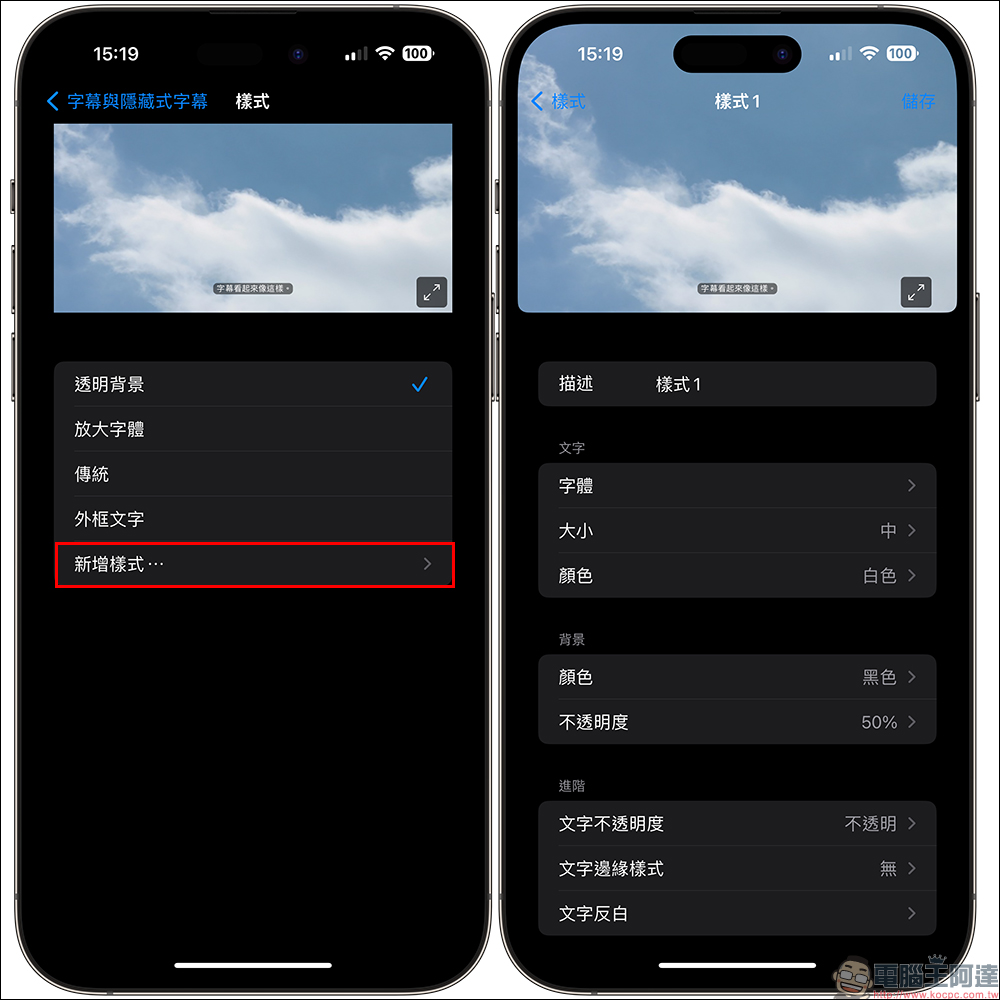
Then click “Add Style” to customize a new set of subtitle settings. You can adjust everything from text, background to advanced settings. When the subsequent YouTube subtitle settings are completed, you can also name the subtitle profile in “Description” to help you choose between multiple different subtitle settings more easily in the future.
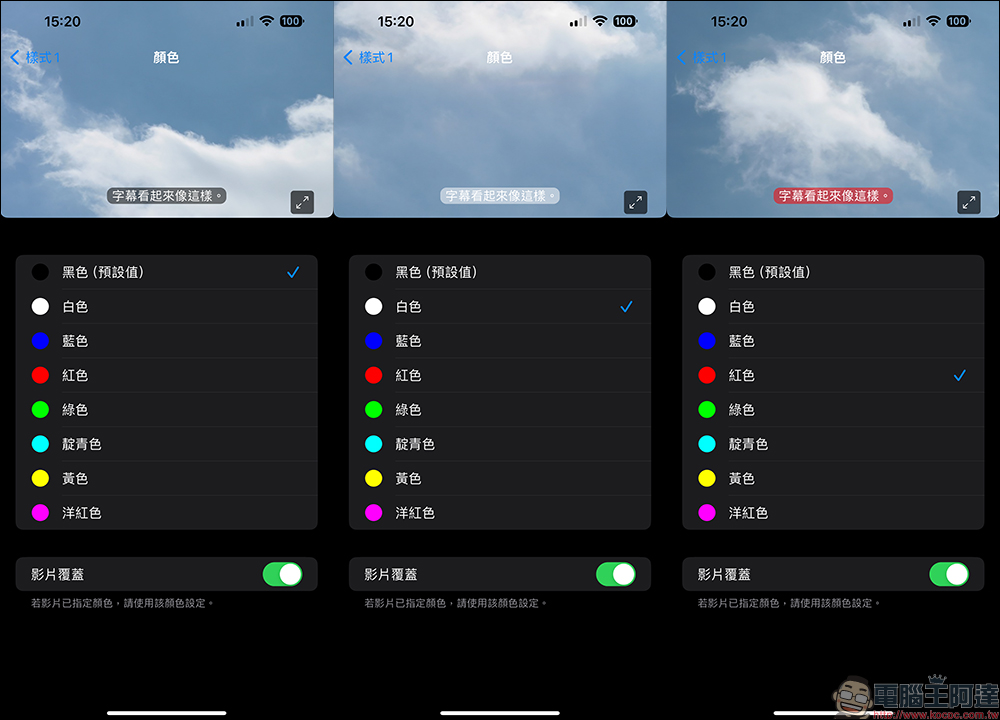
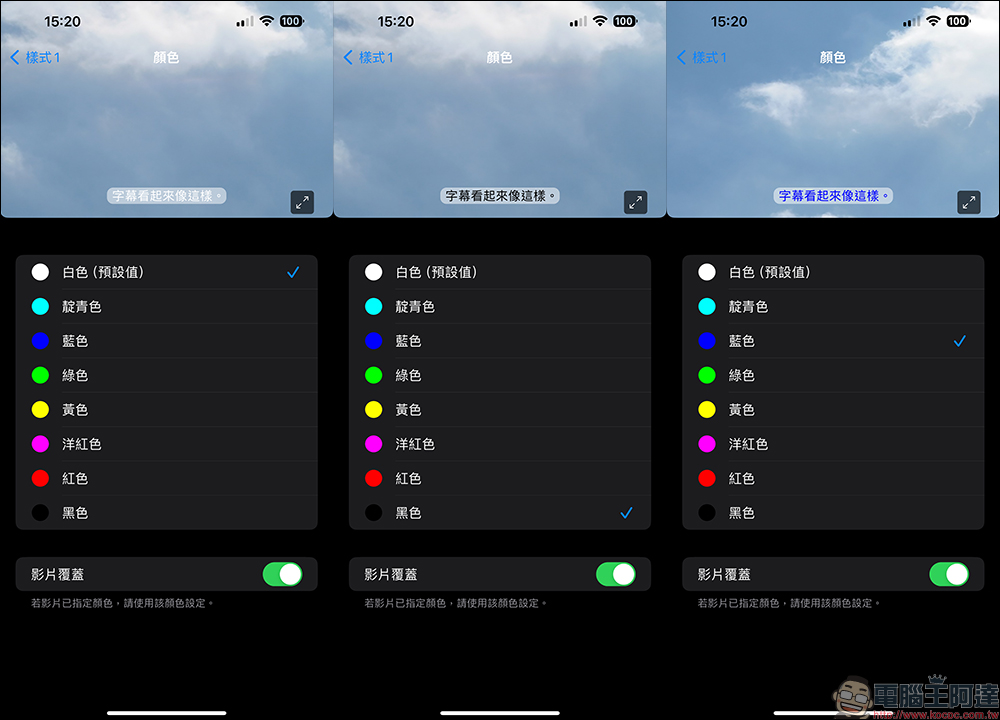
For the text part of the subtitles, you can choose different font styles, sizes and colors. If no other fonts are downloaded, the system’s built-in fonts will be used directly as subtitles. In fact, I highly recommend that you help the elders in your family set up this function so that they can have larger subtitles and see more clearly when watching videos in the future.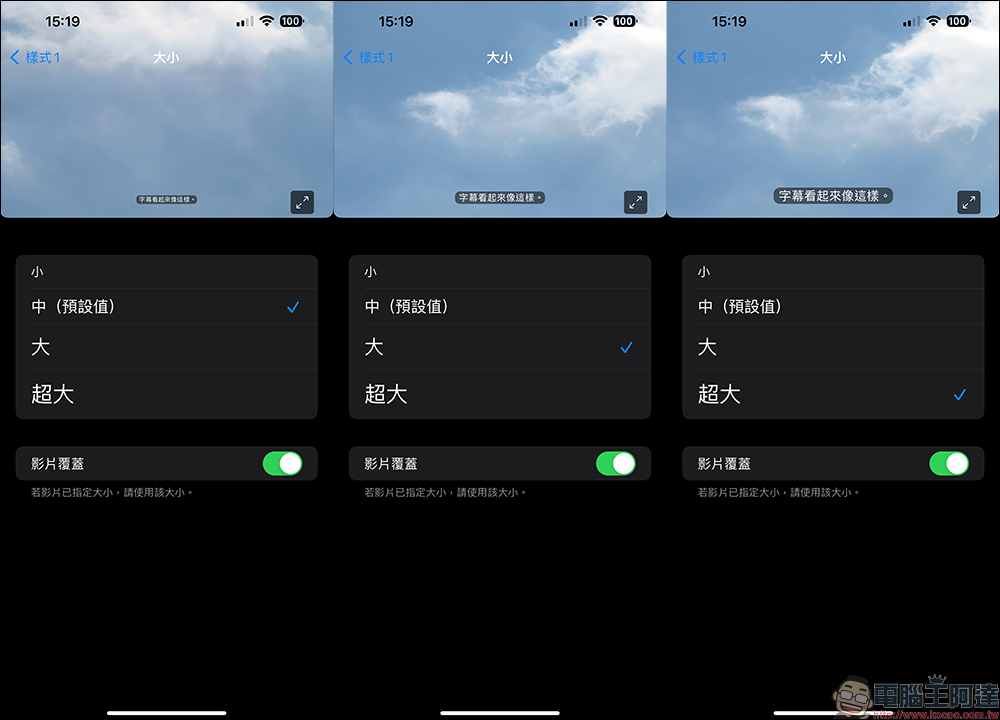
As for the background color of the subtitles, it depends on your preference for watching videos, but it is still recommended to prioritize making the subtitle content more clearly visible.
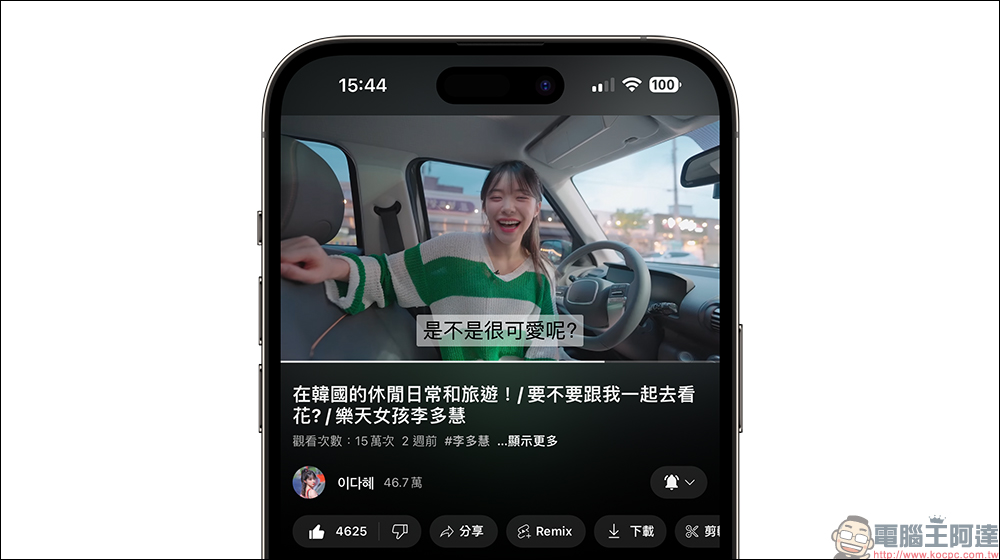
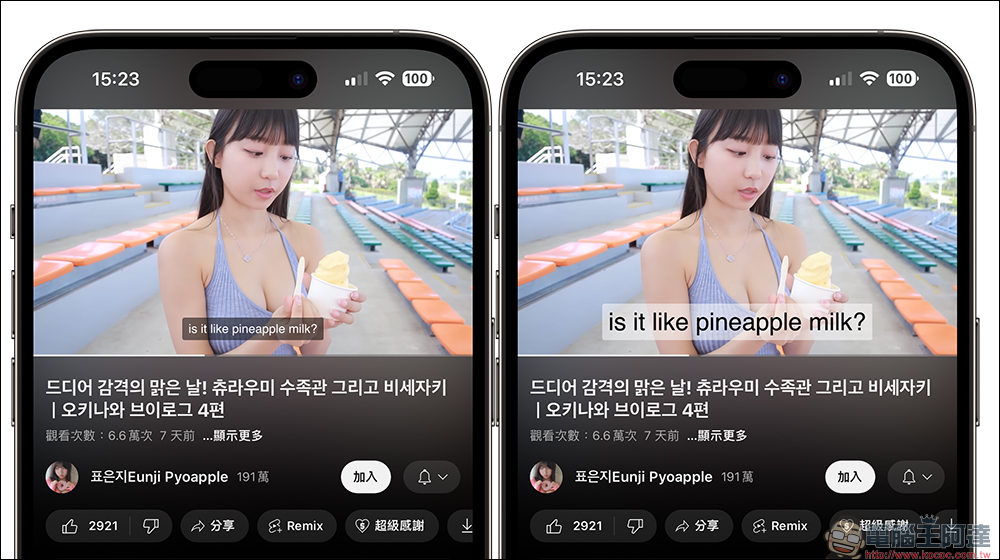
After the settings are completed, let’s compare the difference between the default subtitle size and the customized adjustment for the same YouTube video after turning on CC subtitles! Through this simple setting, users can choose larger or smaller subtitle sizes, and the style can also be adjusted to reduce the impact of the subtitle background on the video itself.
Finally, let me quickly review with you some key settings processes for setting YouTube subtitles this time:
- Go to iPhone’s “Settings” > “Accessibility” > “Subtitles & Closed Captions” > “Styles” > “Add Style”
- Choose comfortable YouTube subtitle size, color, background and other settings according to your own needs and habits
- After the settings are completed, the subtitle settings will be automatically saved on the “Style” page. Users can go to the settings again to select different subtitle settings according to the current video viewing needs.
Further reading:
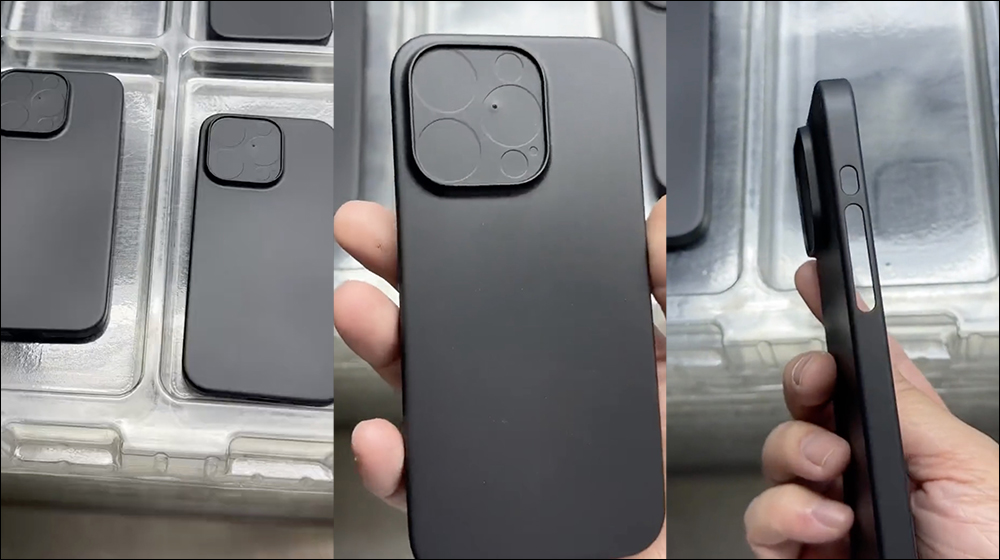
iPhone 15 Pro series protective cases reveal subtle changes in design
Source: KOCPC Chinese