


Gaming laptops are a major achievement of modern technology. They pack more powerful and powerful capabilities into their devices than in the past (and are more expensive than other types of laptops). However, while enjoying the benefits, they inevitably come with some associated side effects. In order to promote every important component in e-sports laptops, battery capacity is increasing and the required voltage is getting higher and higher. In order to avoid the risk of battery expansion and explosion, this time we will take a look at what you can do for laptops.
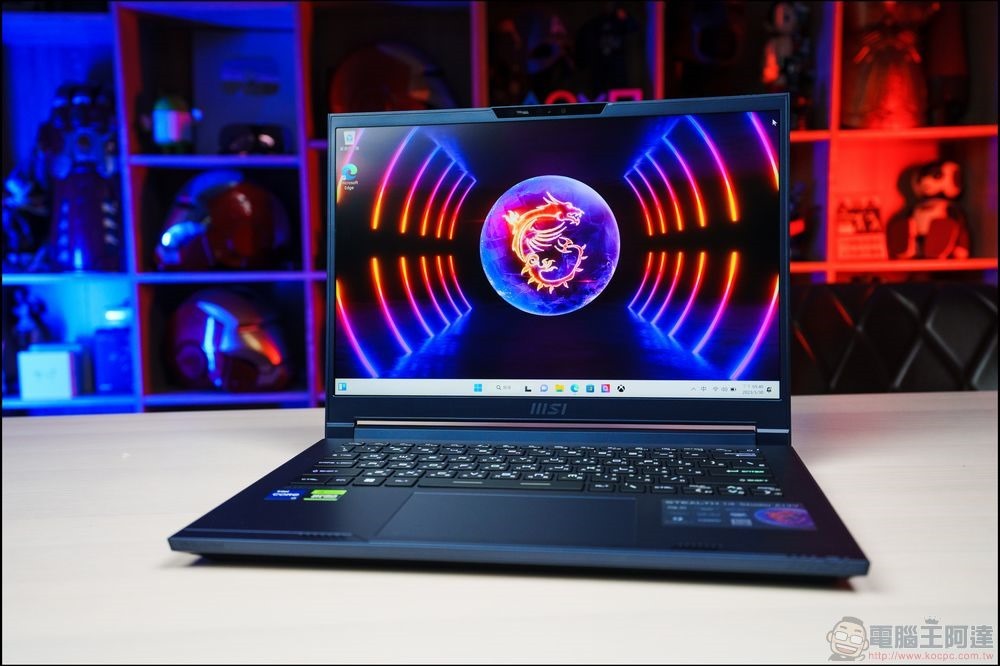
5 ways to prevent gaming laptop battery swelling
Why do batteries swell and burst?
Batteries store a lot of energy in a very compact space, and while you get the benefit of that when everything is working properly, when the battery fails, you may face a temperature runaway situation. Once the battery overheats, catastrophic events can occur, leading to a domino effect, with the end result being that the battery is at risk of bursting. Temperature runaway is also more likely if your battery begins to swell due to degradation and is constricted by the laptop case, increasing internal pressure, leading to various unpleasant results. Or, after the battery swells, the laptop casing is pushed open and exposed. Although it does not burn, it will cause significant damage to the laptop itself anyway.
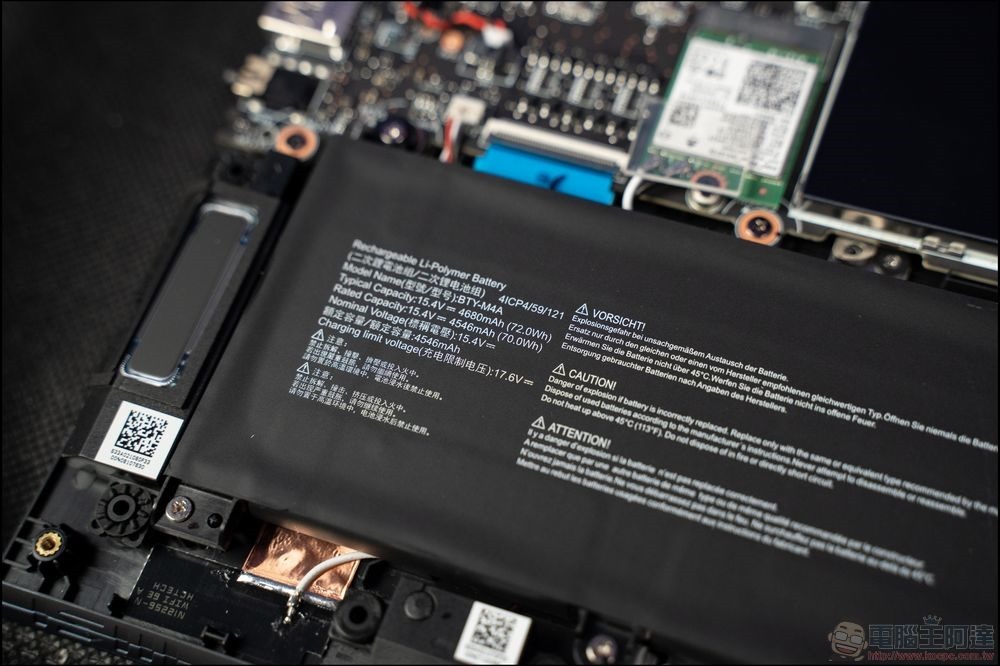
Gaming laptops face greater risks, which must be attributed to the need for high power and the modern thin and light design that sometimes sacrifices optimal cooling capabilities. While there is a low (but not impossible) chance that your gaming laptop’s battery will run out of temperature, there are steps you can take to prevent these costly and costly situations from happening.
Method 1: Set a maximum charging limit
The battery has a limited charging cycle, and charging it to its maximum capacity may cause the battery to degrade prematurely. Many manufacturers allow you to customize the maximum charging limit in their laptops, so that when the battery reaches a certain percentage (e.g. 80%), charging will automatically stop even if you leave the charger plugged in. This little trick can help extend the life of your battery and prevent it from swelling or bursting.
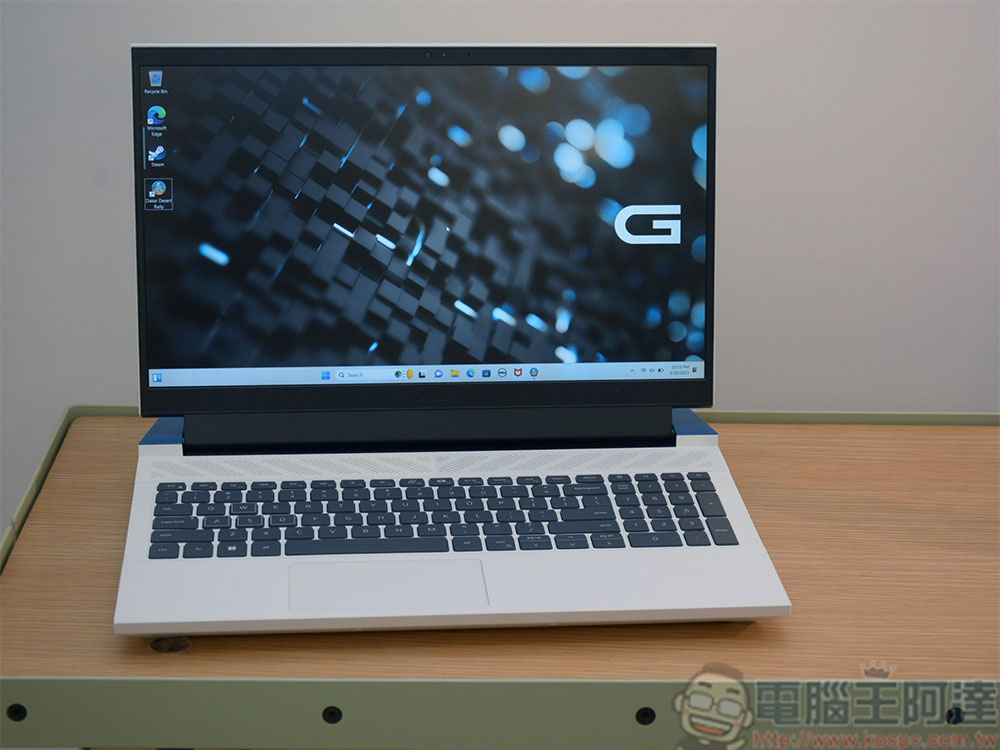
Method 2: Provide additional cooling for your laptop
Thermal management is an important issue in laptops. The high-end CPU and GPU in gaming laptops can reach temperatures that can be used to toast bread after running for several hours at peak (?). A simple solution you can take to supplement external cooling: buy a cooling pad. The cooling pad can be placed under the pen pad to help cool the device with the fan installed on it. This is especially helpful when you are fighting fiercely in the game and do not want to cause problems such as overheating. More importantly, the cooling pad can share the work pressure of some of the laptop’s built-in fans, thereby making the laptop less noisy.
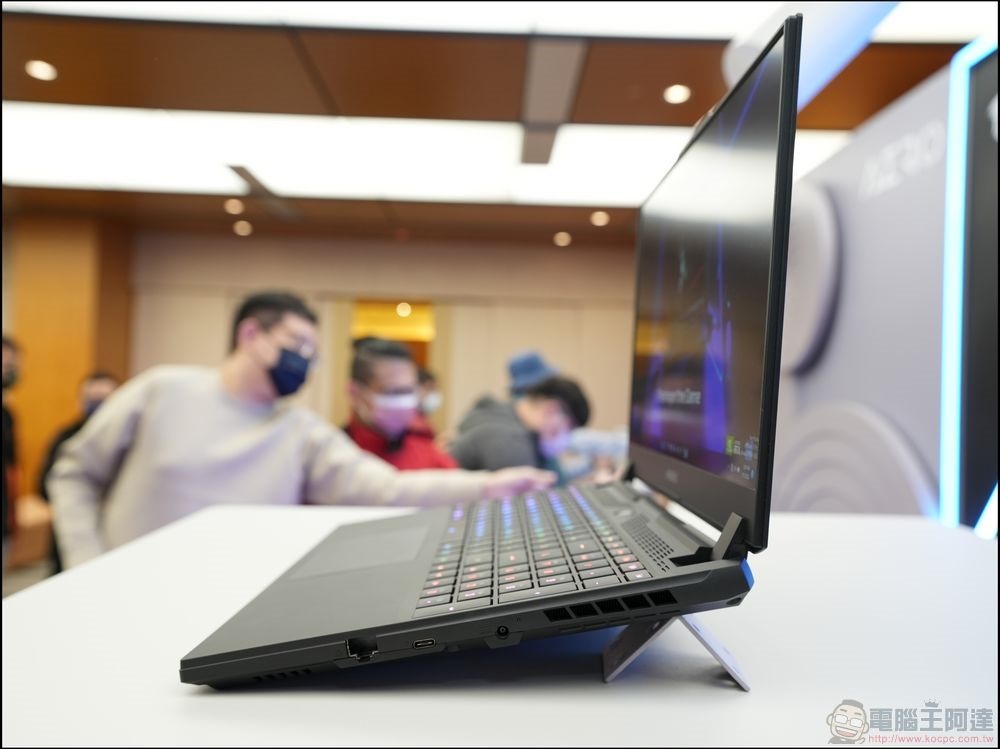
Method 3: Reduce the voltage of your laptop (advanced solution)
What is laptop voltage reduction? Simply put, it means reducing the voltage provided to the laptop processor. Lower voltage means less heat and also reduces pressure on the battery. This must be done with caution though, as depressurizing may cause system instability if done incorrectly. Fortunately, manufacturers provide some tools for you to use, such as Intel’s Extreme Tuning Utility for their own CPUs, or MSI’s Afterburner. Some of these tools even have built-in AI modes to find the optimal voltage without manual adjustments. Generally speaking, devolting won’t permanently hurt anything, and at worst can cause some instability. That said, like overclocking, you must adjust your computer’s voltage at your own risk.
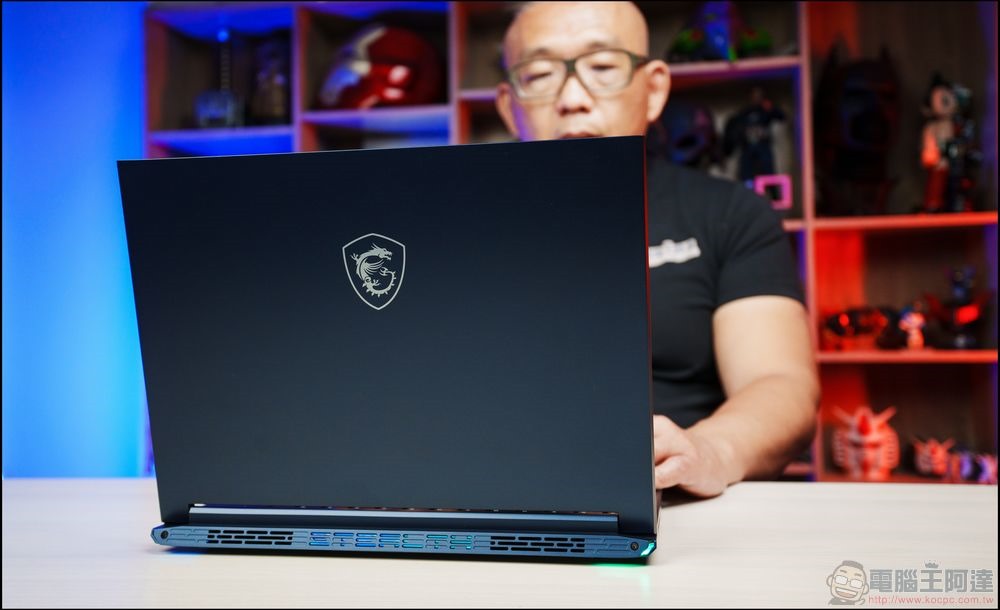
Method 4: Temporarily remove the battery (if it is a laptop with a removable battery)
If you plan on running a gaming marathon while plugged in, consider removing the battery to reduce heat and battery stress, just make sure your laptop can run directly on AC power without the battery. Also, if you store the battery separately, make sure it has about 50% charge at all times to prevent it from completely draining, sounding the death knell for lithium batteries. Please note that many laptops today do not have a mechanism that allows you to easily remove the battery. A few models may have it, but if you have to use tools to remove the battery, please give up this option.
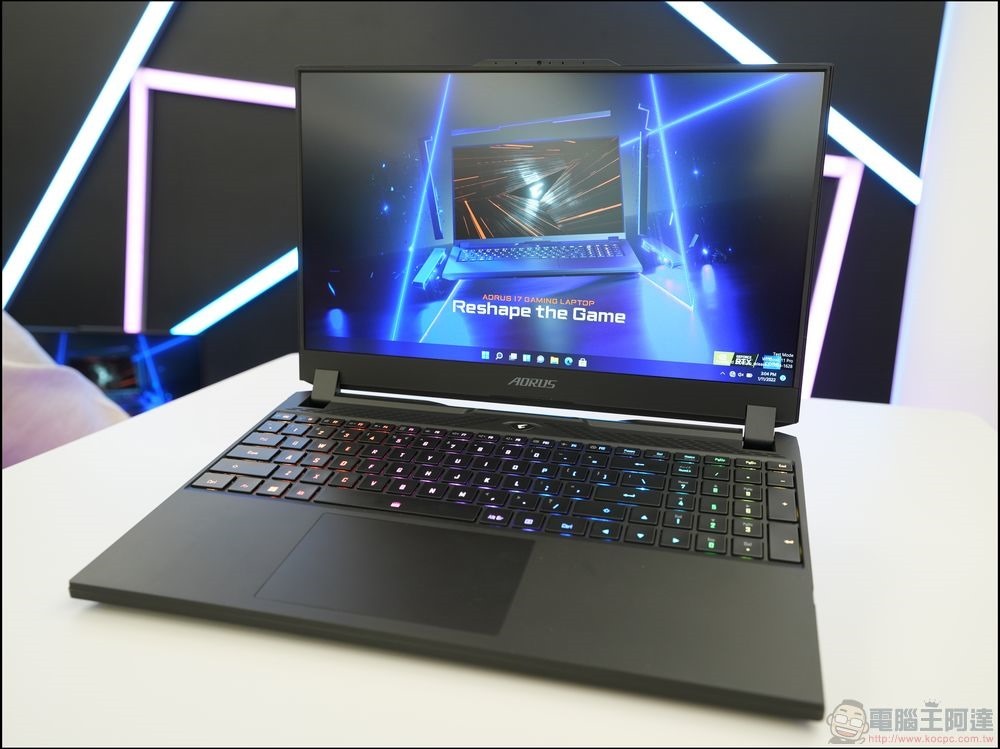
Method 5: Manage your power settings
Last, but not least: don’t forget to manage your power settings. For Windows users, power plan settings can be adjusted, and Linux also has a battery optimization tool. You can instruct the system to reduce processor performance or dim the screen after a period of inactivity. These settings can help reduce power consumption and heat, thereby reducing stress on the battery. Most gaming laptops have their own utility that lets you choose between different power presets, so you can adjust between full performance or more modest performance profiles while reducing heat and noise production.
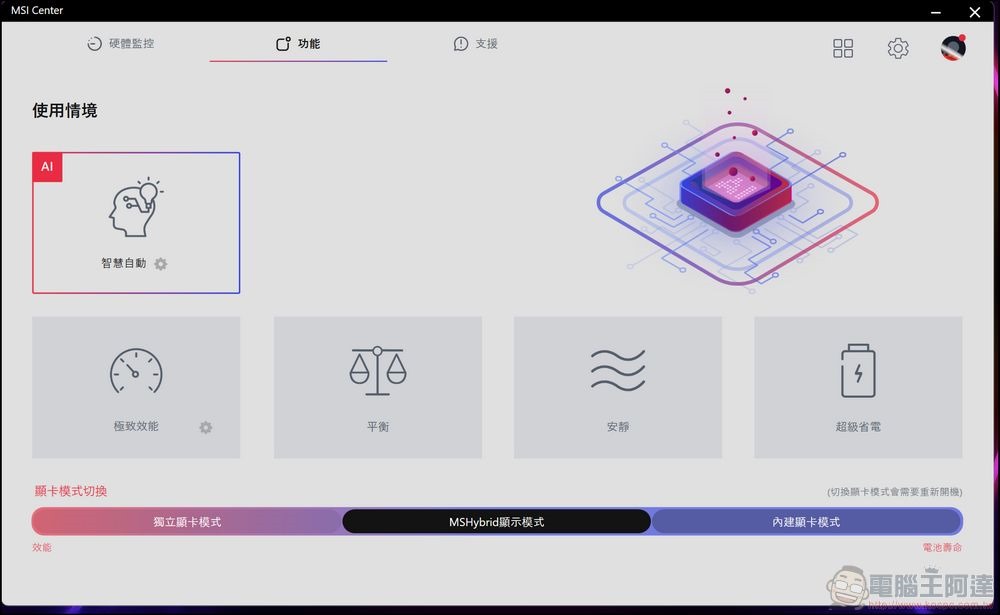
Of course, these methods are not only applicable to gaming laptops, but also to various types of laptops. Although ordinary laptops may not have independent performance settings and other tools, you can still choose some applicable measures to help dissipate heat, extend life, and make the battery healthier.
Source: KOCPC Chinese