


Do you always feel that the vibration of your iPhone is too weak, causing you to often not notice incoming calls? Or is the vibration too strong, making it awkward in some situations? In fact, in addition to the various ringtones and vibration mode options built into the iPhone, those who want to set their own iPhone vibration intensity and frequency can choose a customized method to create their own mode. Next, continue reading this article to learn more about iPhone vibration mode settings!
iPhone vibration mode settings, freely create vibration frequency and intensity for incoming calls! (teaching)
I believe that most iPhone users may not even change the ringtone after using the phone for a long time, let alone choose other different iPhone vibration modes. In fact, in addition to several built-in options for the iPhone’s vibration mode, Apple also provides users with the ability to “Create a custom vibration pattern”, but this function is not usually discovered by people. Next, I will share with you how to set up and use it! Perhaps by adjusting these settings, you can avoid missing important calls because the vibration mode is not obvious after the ringtone is switched to silent mode.
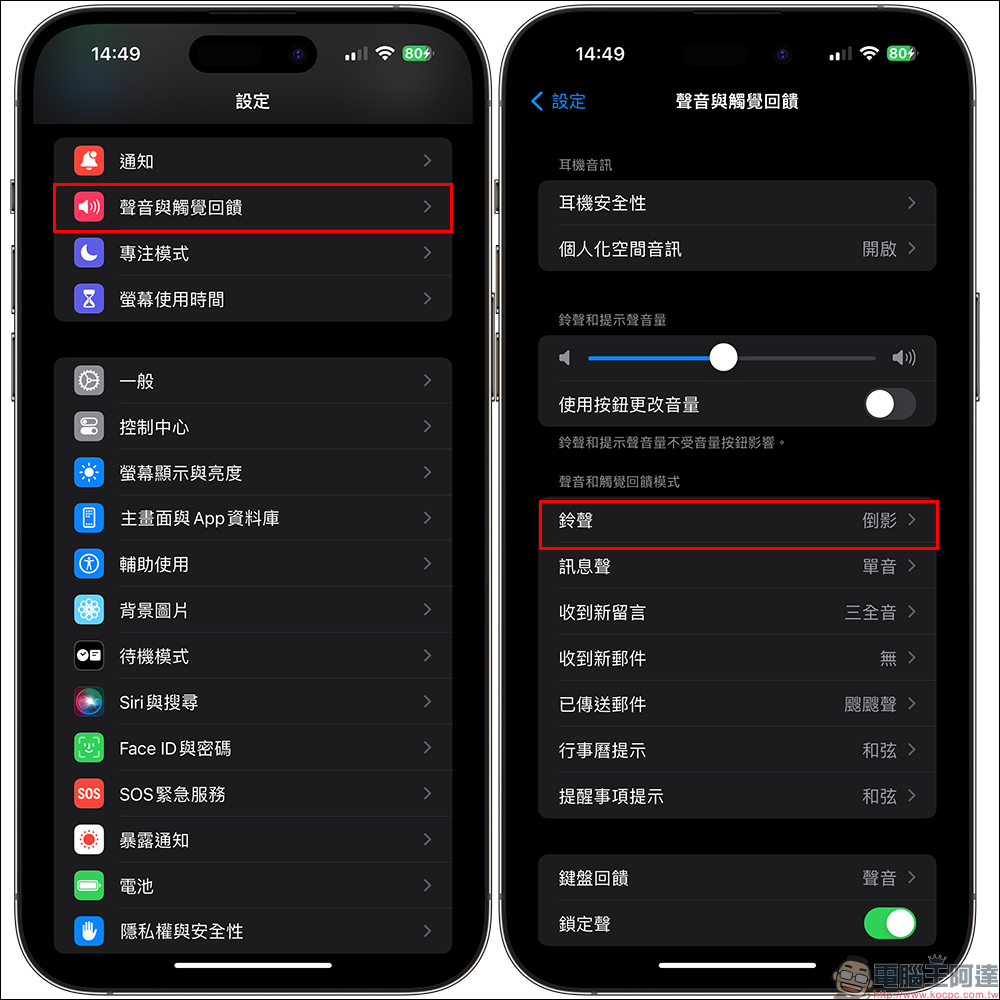
First, go to “Settings” to find the “Sound and Haptic Feedback” option, then select “Ringtone” in the “Sound and Haptic Feedback” setting to proceed to the next step:
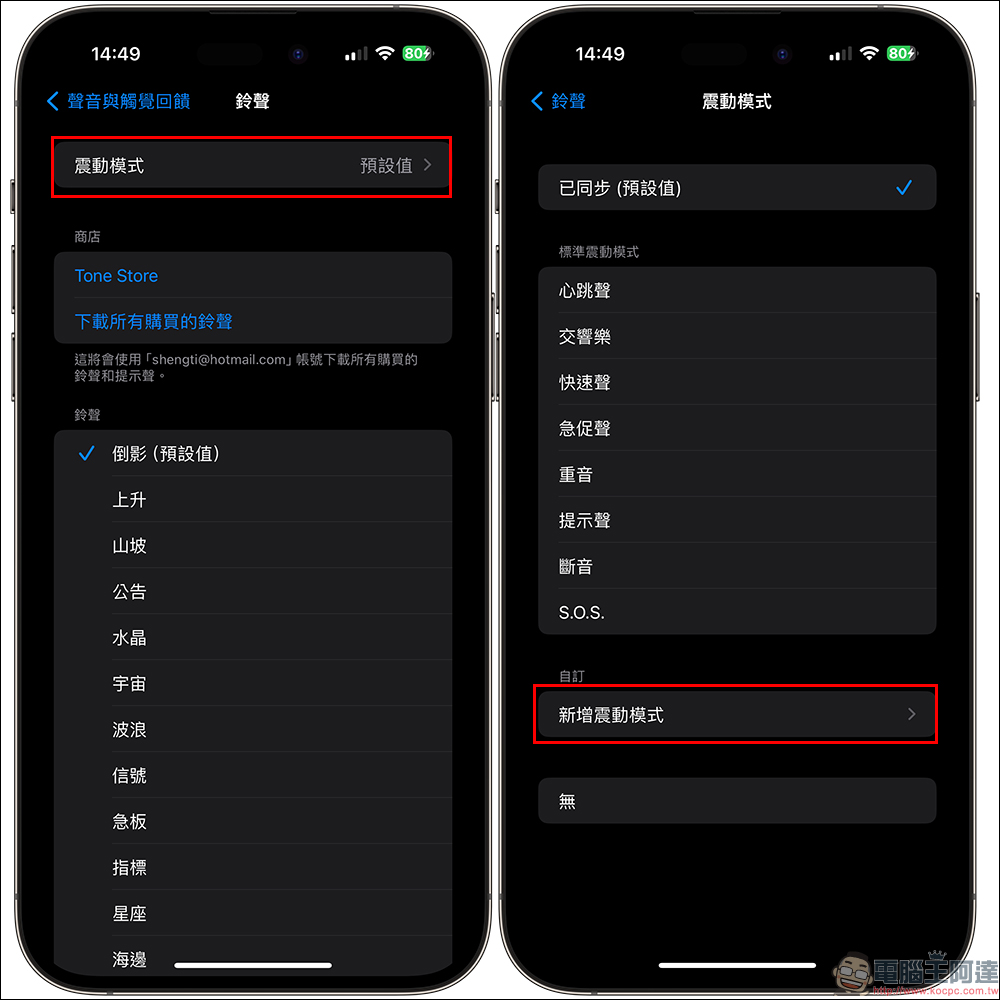
Next, click “Vibration Mode” at the top from the “Ringtone” setting. If you have not changed the vibration mode in the past, it will usually be set to “Default”. After entering the “Vibration Mode” setting page, you can see that in addition to the “Synced (default value)” mode, the standard vibration modes include “Heartbeat Sound”, “Symphony”, “Quick Sound”, “Urgent Sound”, “Accent”, “Alert Sound”, “Steady” and “S.O.S.”. You can also try the intensity and frequency of different vibration modes.
However, this article is mainly here to share with you how to “customize the vibration mode”! We need to select “Add vibration mode” in the custom category at the bottom of the vibration mode page:
After entering the “Add Vibration Mode” page, users only need to click on a blank space on the screen to record vibration frequency:
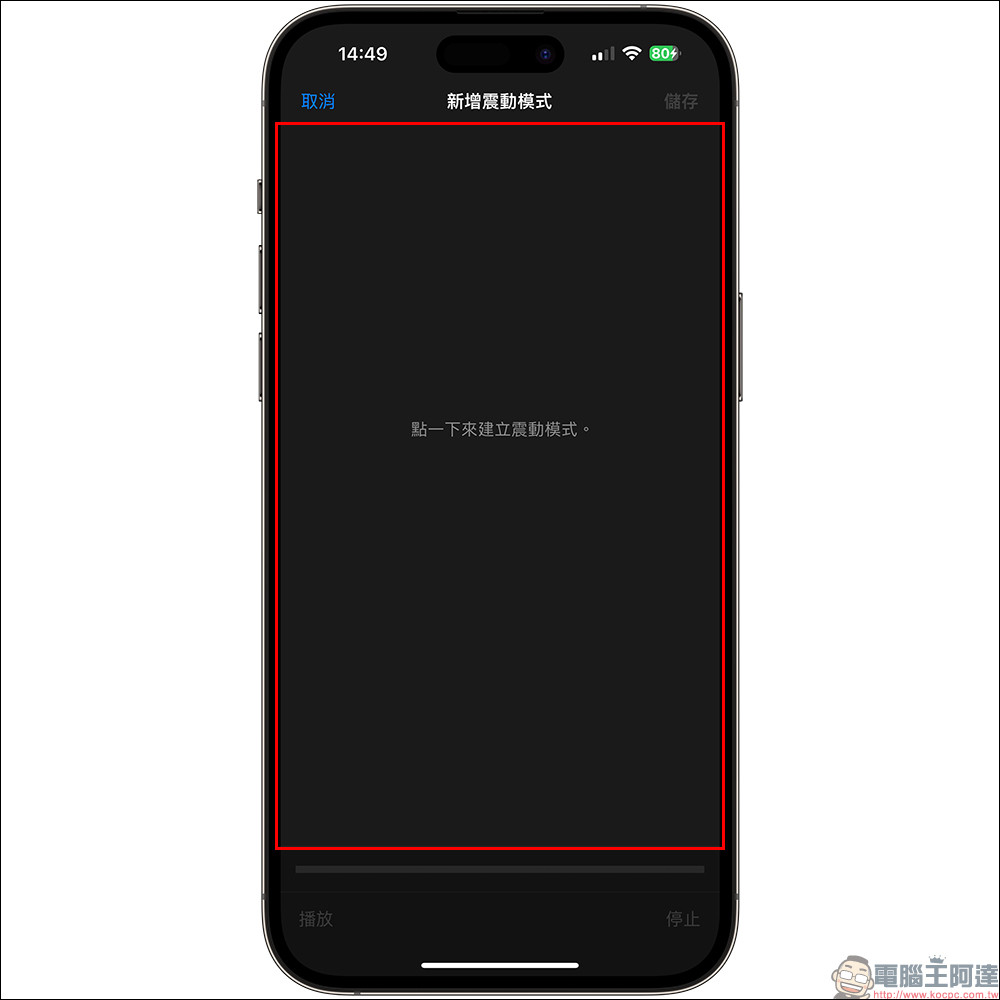
The vibration will only be recorded when your finger touches the screen, and there will be no vibration when you release it. Therefore, if you want to set bursts of vibration, you can use the “click and release” method:
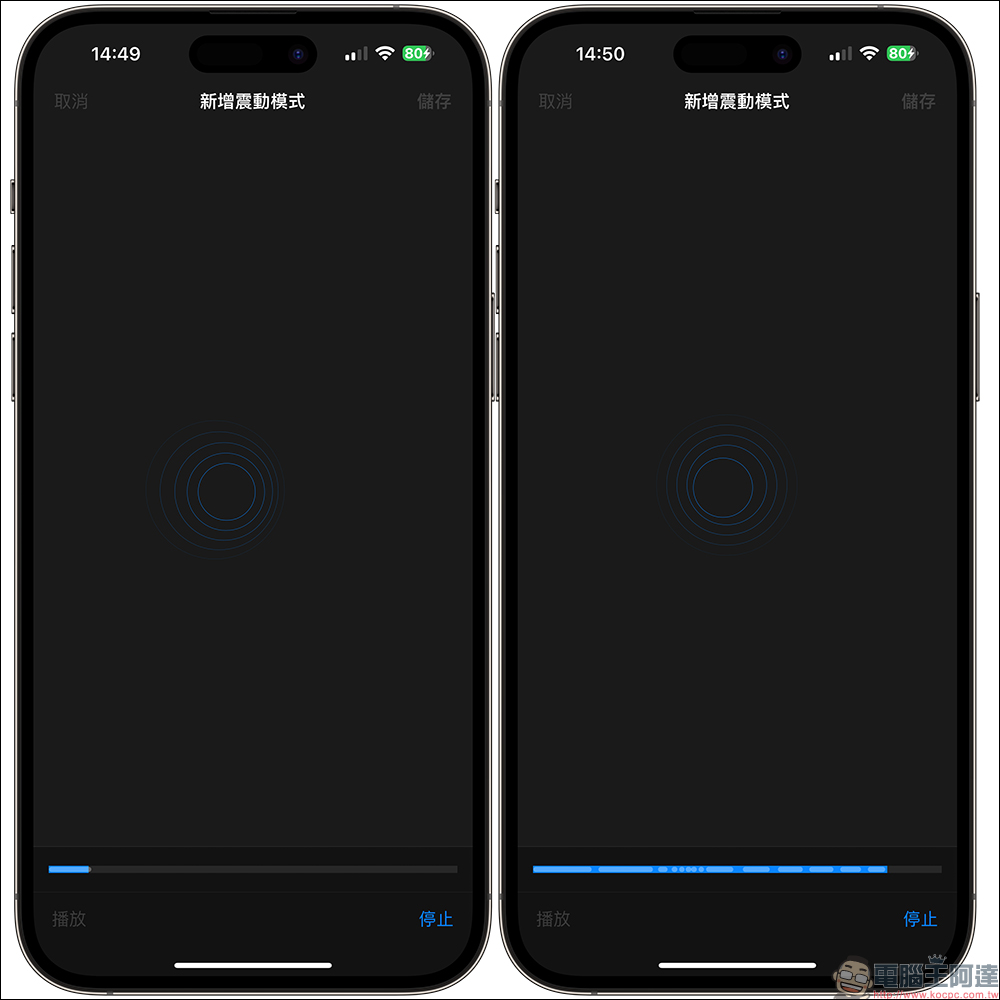
After recording the vibration pattern, you can click “Play” to test whether you are satisfied with the vibration pattern frequency. If you want to re-record, click “Record” to start again. Once the frequency of the vibration pattern is satisfactory, you can select “Save” in the upper right corner of the screen and create a name for this set of vibration patterns to create a custom vibration pattern.
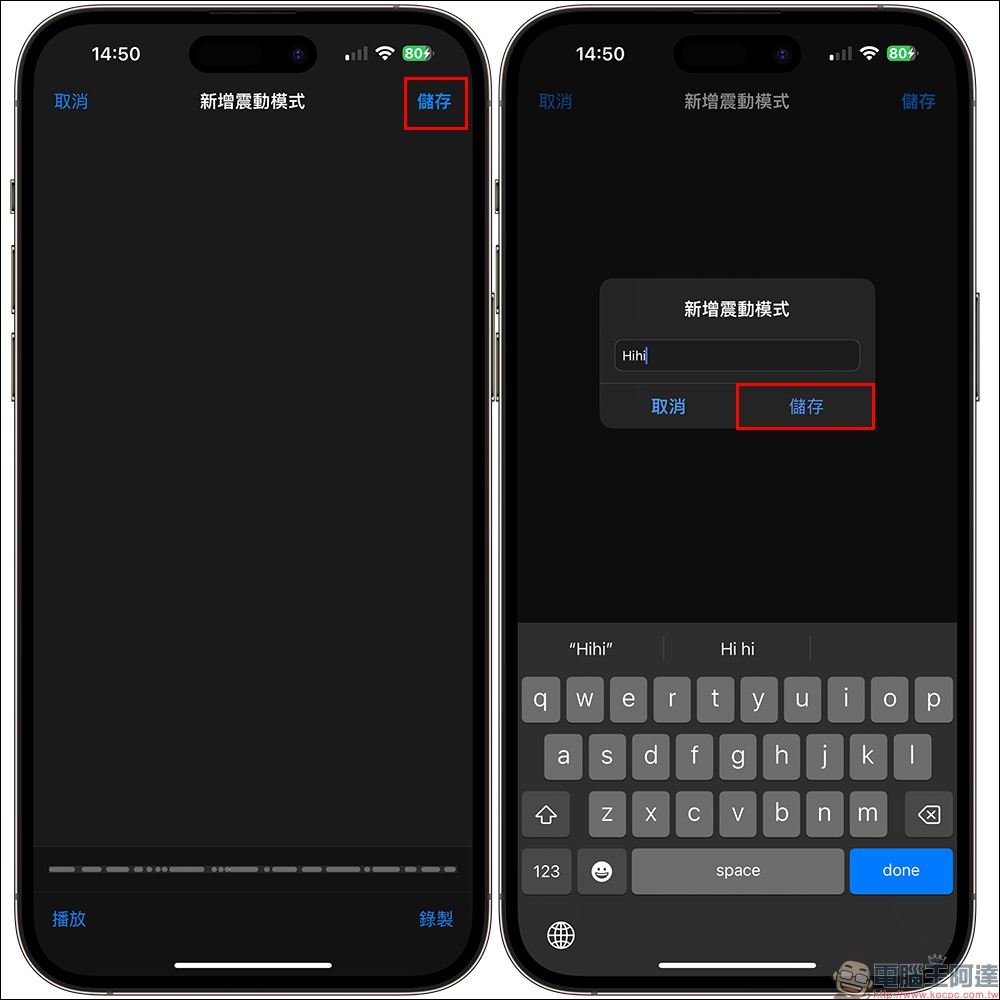
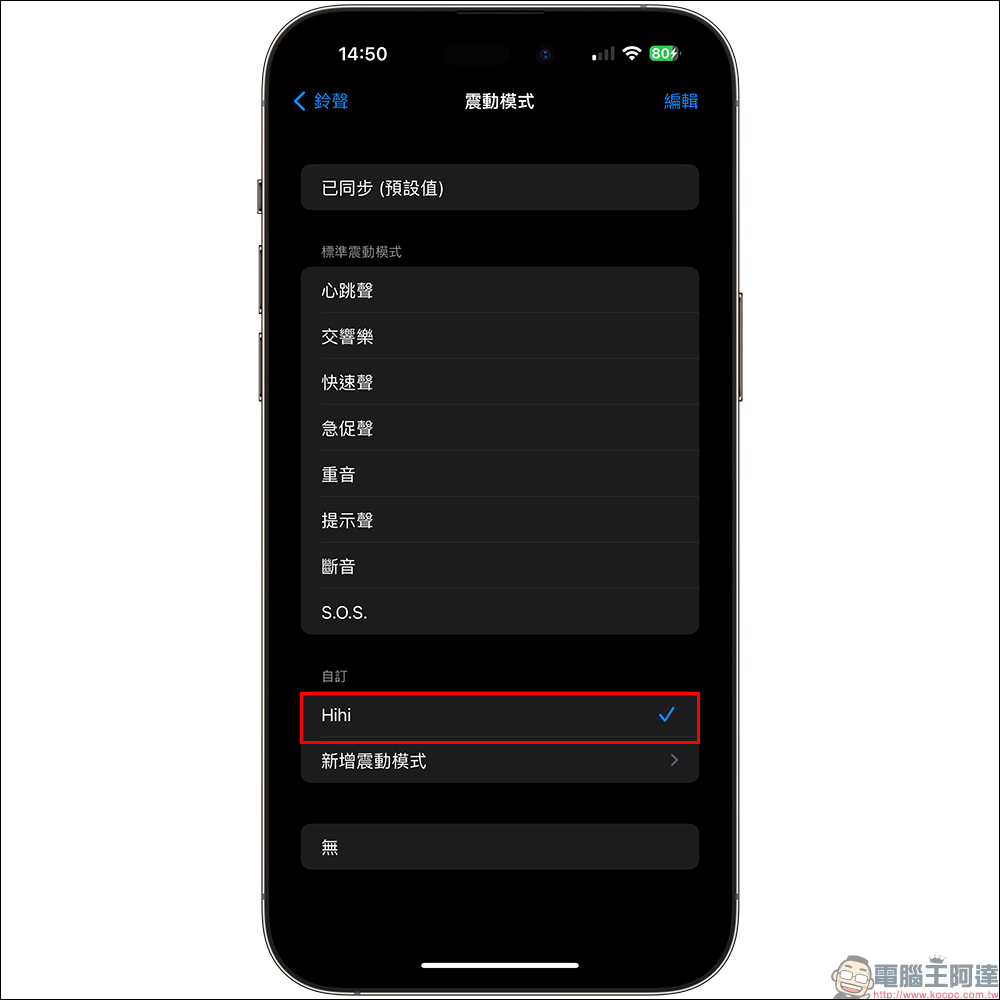
At this time, the user can select the custom vibration mode just now in the vibration mode as the vibration mode for incoming calls! Of course, you can also record other vibration patterns with different frequencies to facilitate your use in different situations.
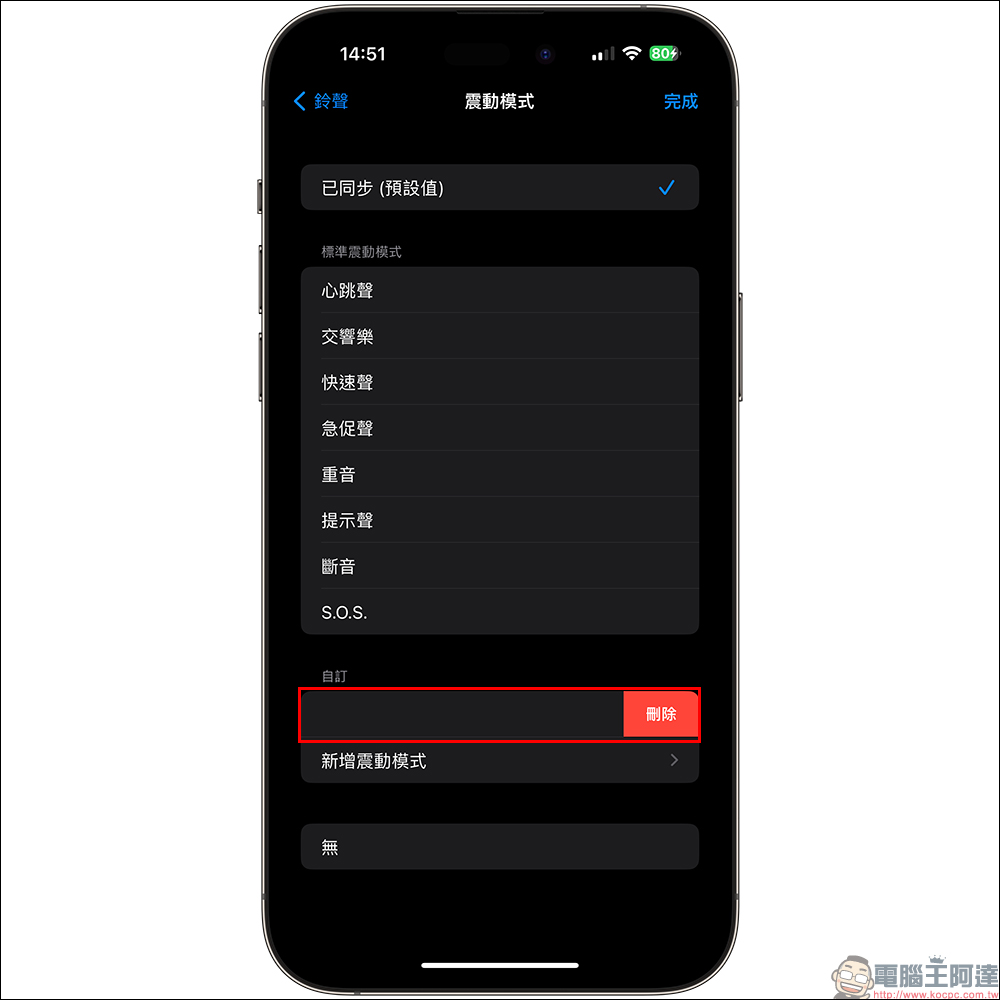
If you no longer want to use this set of custom vibration modes, you can also swipe left to delete it.

Source: KOCPC Chinese