


Although Microsoft will add support for more compression formats in the future, it seems that it is only available in Windows 11. Users below Windows 10 will not be able to enjoy it, and it is not known when it will be officially added. For friends who have reinstalled their computers or have not installed compression software, and suddenly need to decompress or compress files, you can consider using ezyZip, an online tool. All operations are completed locally, so there is no need to upload files. Of course, there is no capacity limit, and all mainstream compression formats are supported.

ezyZip is a free online decompression/compression file tool that supports multiple formats, no need to upload, and all operations are completed locally.
ezyZip has a simplified Chinese interface and is very simple to operate. There are just a lot of ads, but you can rest assured that no ads will pop up when you operate any function. After entering the website, it will be divided into two types: “Online compressed files” and “Online decompressed files”. Both compression sections provide single file and folder upload methods:

Reading files from Dropbox is also supported:

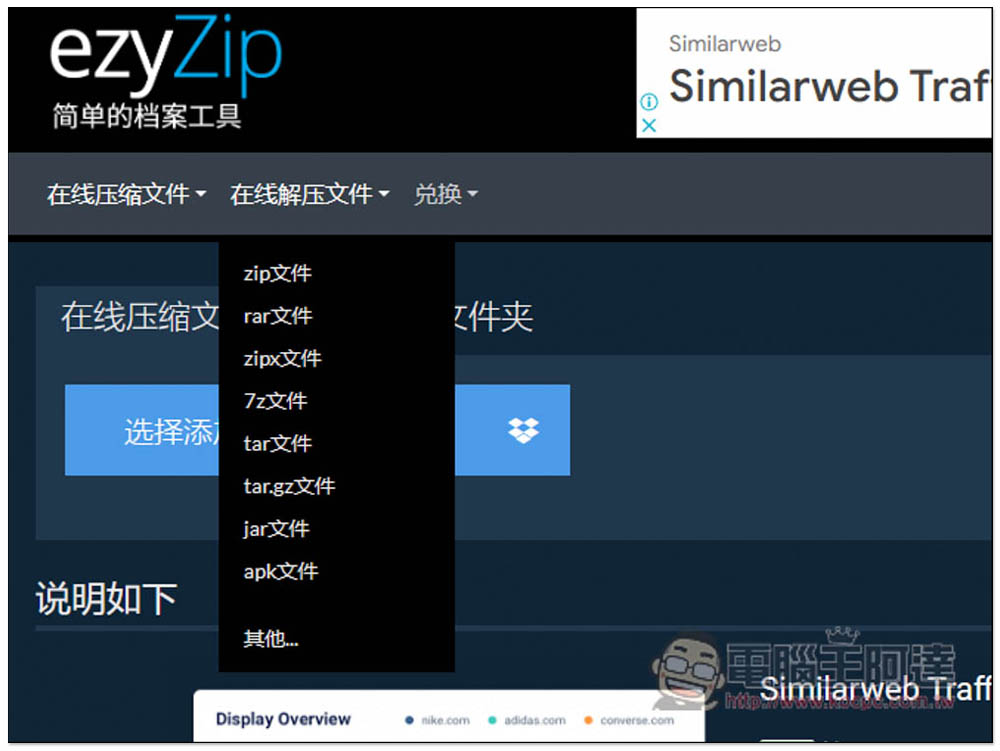
The decompression part supports Zip, Rar, Zipx, 7z, Tar, Tar.gz, Jar, Apk and other formats. Common ones are available, so basically it can satisfy you. If it is really unpopular compression format, you can also try other ones. Also note that when decompressing, you must choose the right format. If you select a Zip file and then want to decompress the Rar format, there is no way:
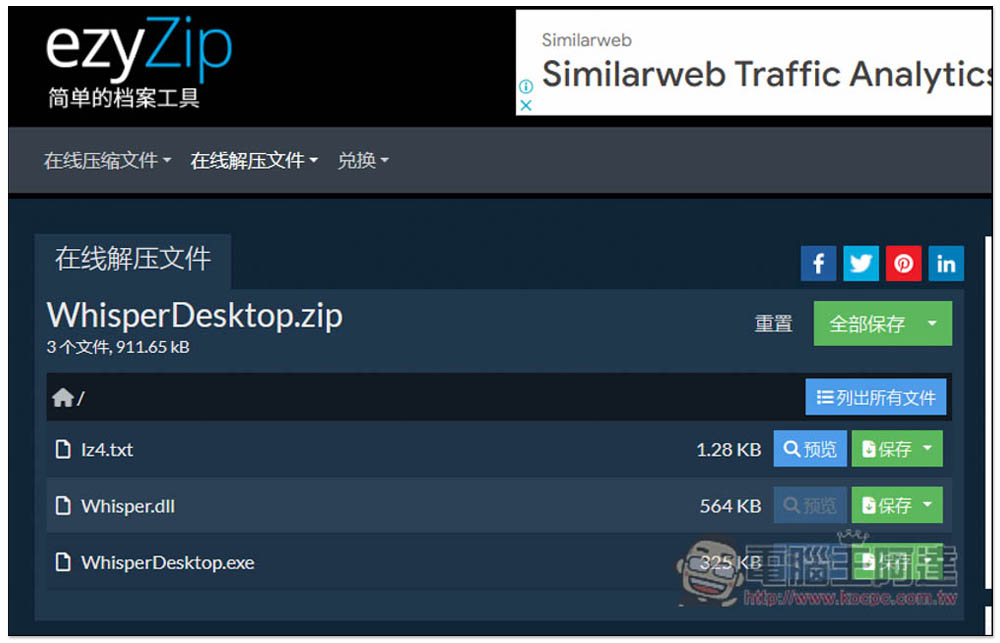
After reading the compressed file, the screen will display which files are inside, just like the compression software. You can save them individually, or click on the above button to save all:
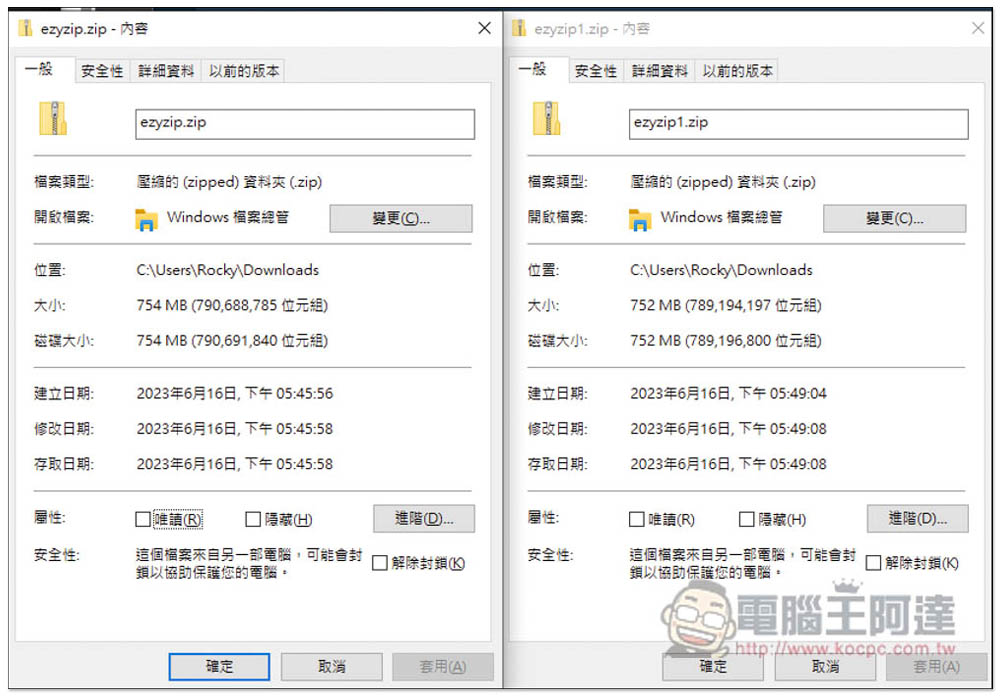
This tool advertises that no upload is required and all actions are completed locally, so I tested a slightly larger file to see if there is really no need to upload it. This is a movie trailer with a file size of 754.06MB. I will test the compressed file first:

There are three compression options, no compression, medium compression and maximum compression. Although maximum compression is the slowest to write, I actually measured that if it is a file of more than 700 MB, it can be completed in an instant:

After pressing it, the compression will start. There is really no need to upload. It will be completed in about three or four seconds:

Then you can save it, and the saving is completed in an instant. As expected, it is all done locally:

I have tested the maximum difference between uncompressed and compressed, and the results are almost the same. The maximum compression is only 2MB less. Therefore, if you really want to compress files, it is recommended to install a compression tool. The browser is limited in what it can do:
Then I also tested decompressing this compressed file of more than 700 MB, and it was also completed in an instant:

In addition, it also supports the function of converting compressed files, which can be found in the exchange options. The English page is Converter, so the translation is wrong. I just haven’t tested whether it works well. Those who need it can test it themselves:

In addition to computers, this online tool can also be used on mobile phones, so there is no need to download a compression app. After all, there are very few cases where you need to decompress files. There is actually no need to install an app to decompress a file.
Source: KOCPC Chinese