


Nowadays, many people use ChatGPT to assist in writing, but each time they use it, they need to switch web pages, which is a bit troublesome. If you don’t mind using the OpenAI API, this article recommends a very convenient extension function “Writely”. After installation, you can directly ask ChatGPT on any web page, even write an article, or translate the content of foreign articles you do not understand, and some commonly used commands are also built-in.
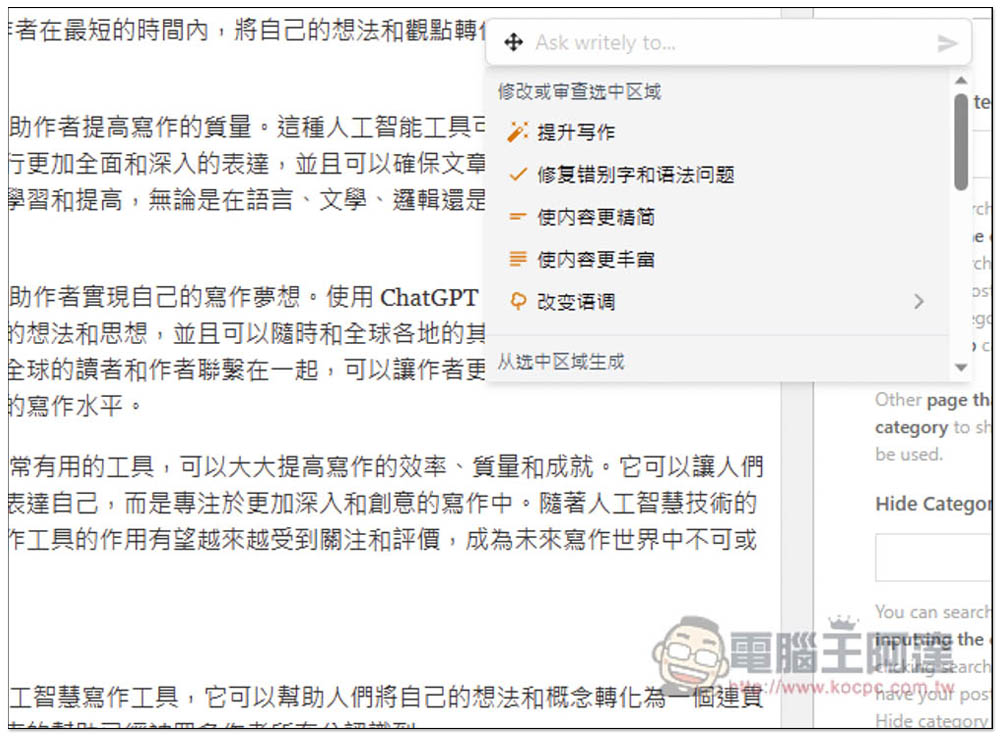
Writely can use AI to help you write articles and translate foreign web pages on any web page. It supports OpenAI API
Go to the Writely installation page
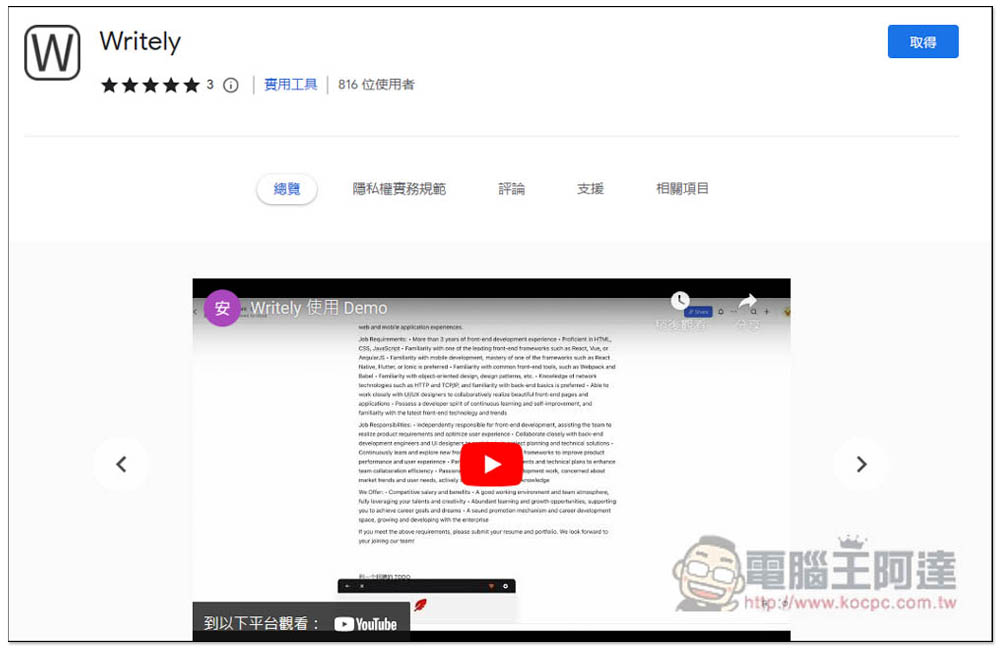
Writely is a free and open source extension available on GitHub.Anyone who is interested can click here to go. I’m taking the Chrome version as an example. The Edge browser can also be installed. After entering the installation page, click Get in the upper right corner:
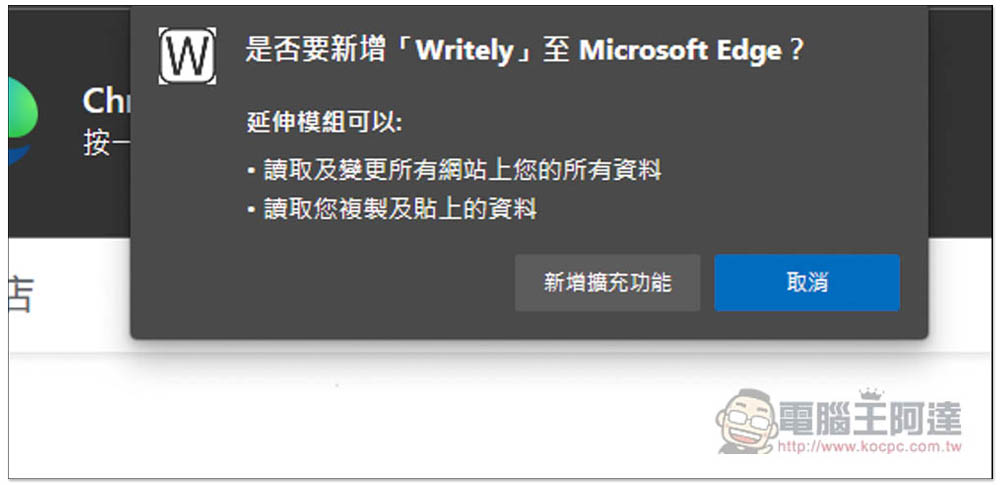
This message will pop up above, click on Add Extension Function:
This completes the installation:
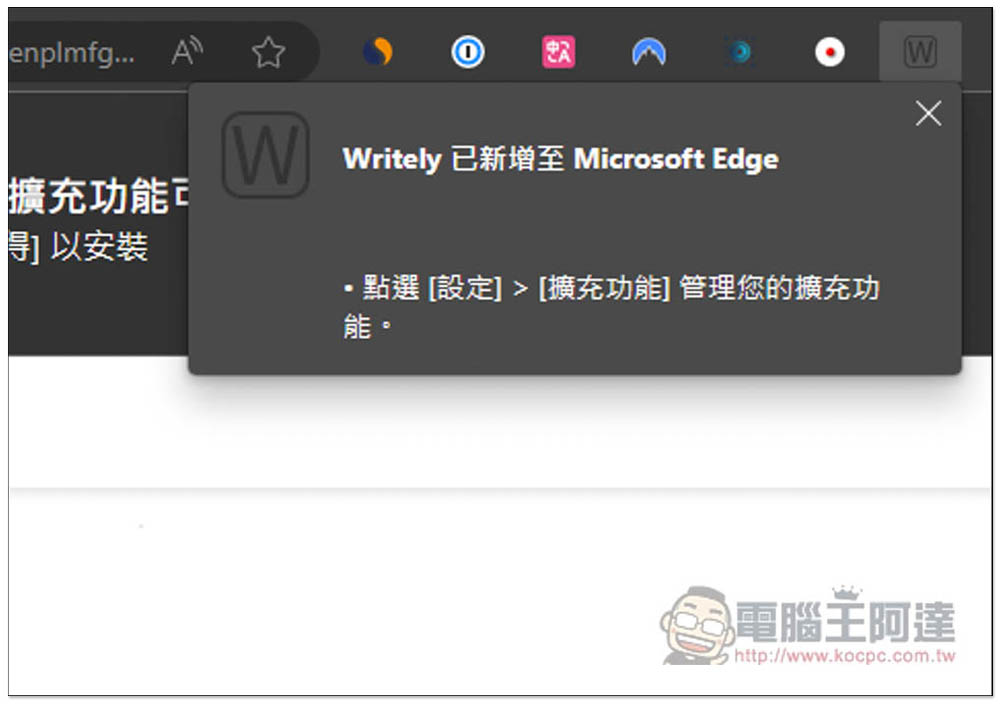
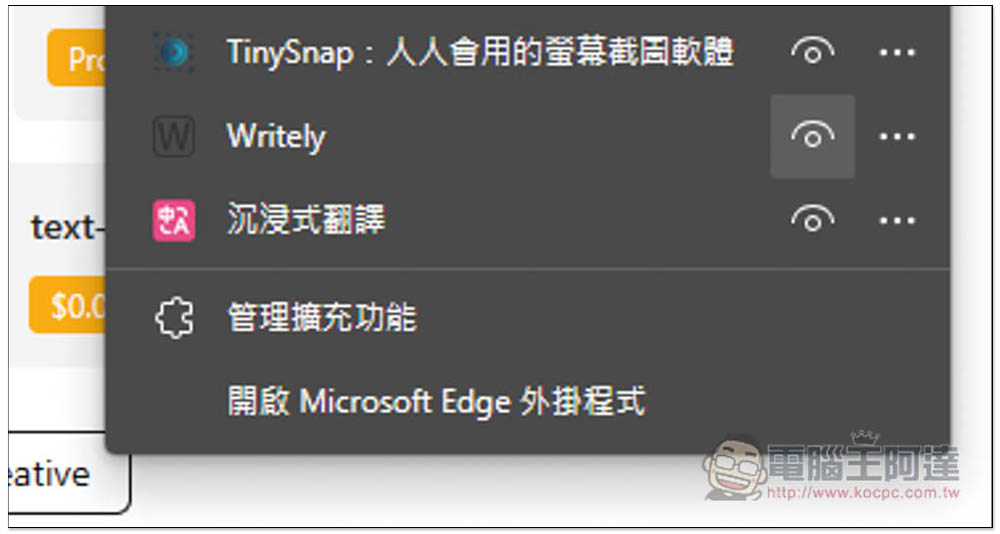
The expansion icon will be hidden by default. Click the eye icon to change it to display:
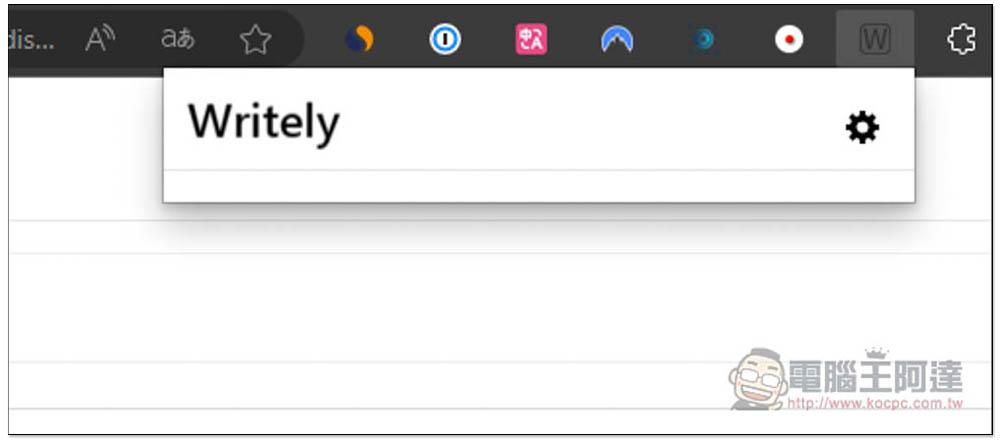
Then please go to the setting page, you need to enter your OpenAI Key to use:
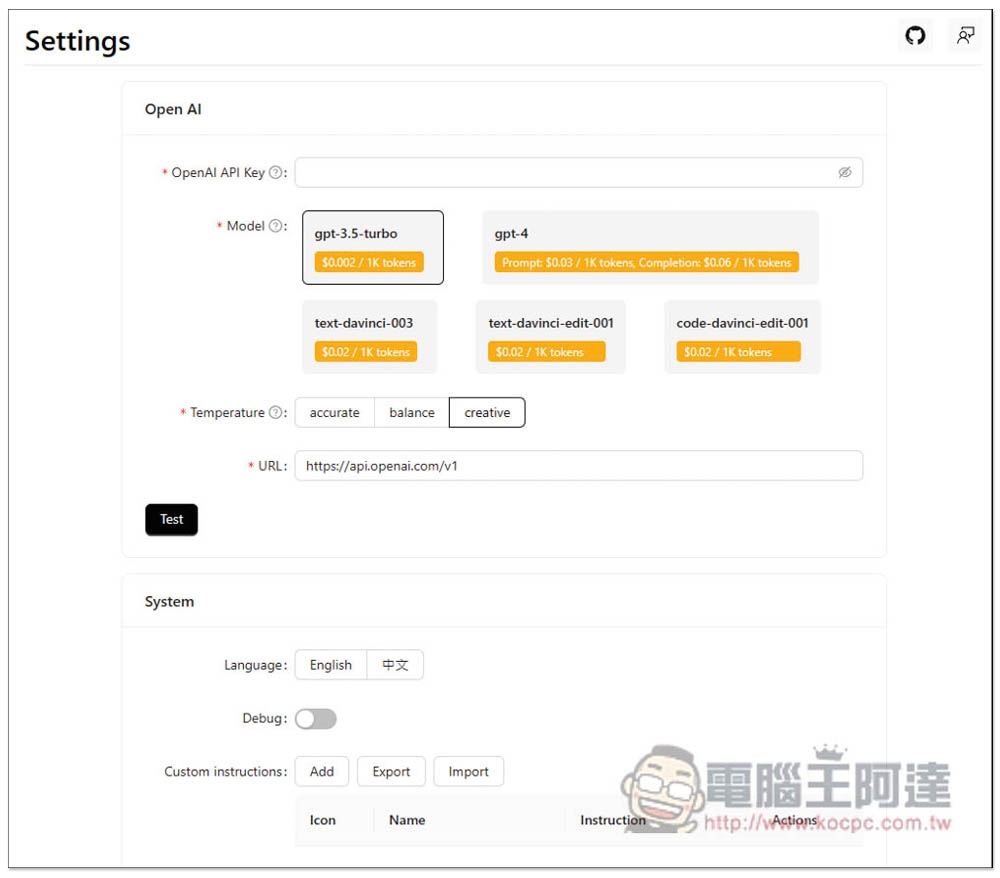
The default language is English, and Chinese is also supported. Just change System below to Chinese:
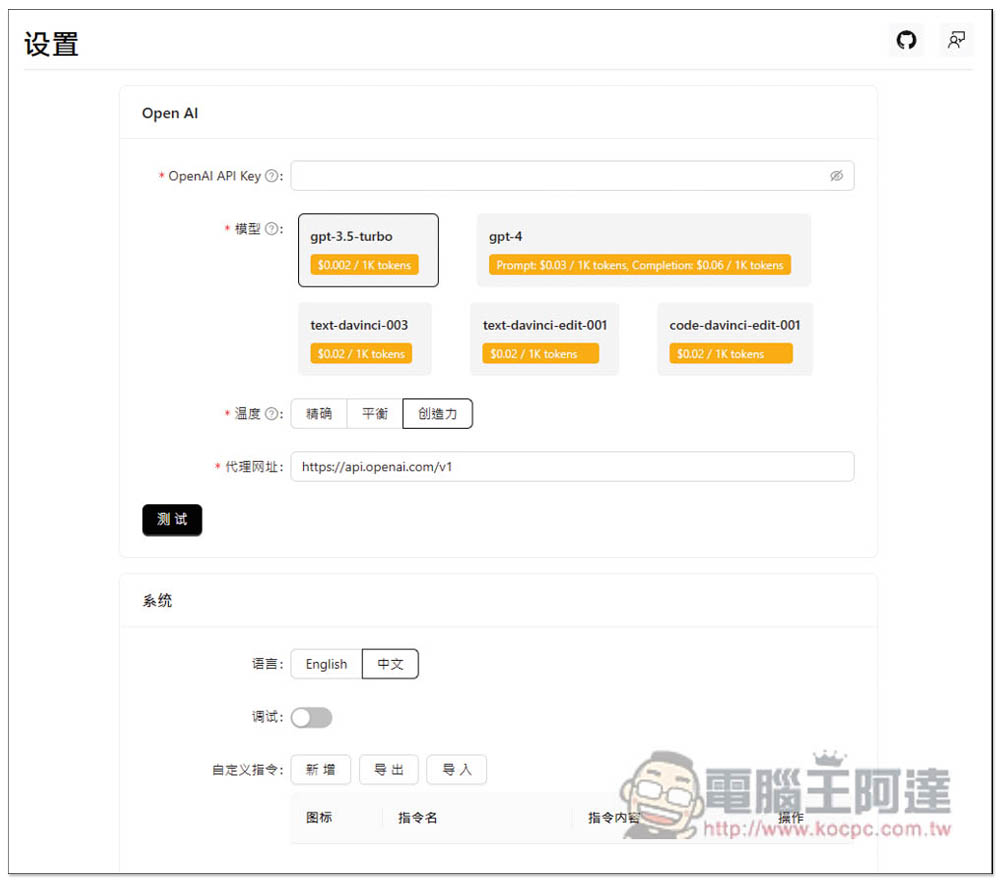
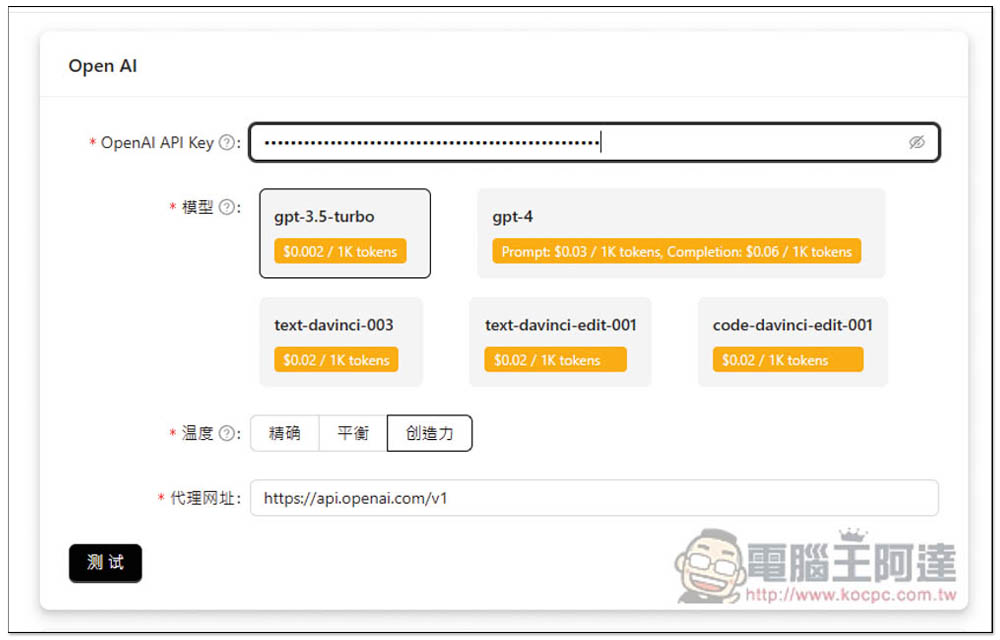
The interface will become Chinese! Enter your OpenAI API Key in the field above. Five types of models are provided, including GPT-4. Each model is marked with the cost of 1K tokens for your reference. GPT-4 is the most expensive, and the others are very cheap:
After entering the API Key, you can press the button below to test to see if it operates normally:
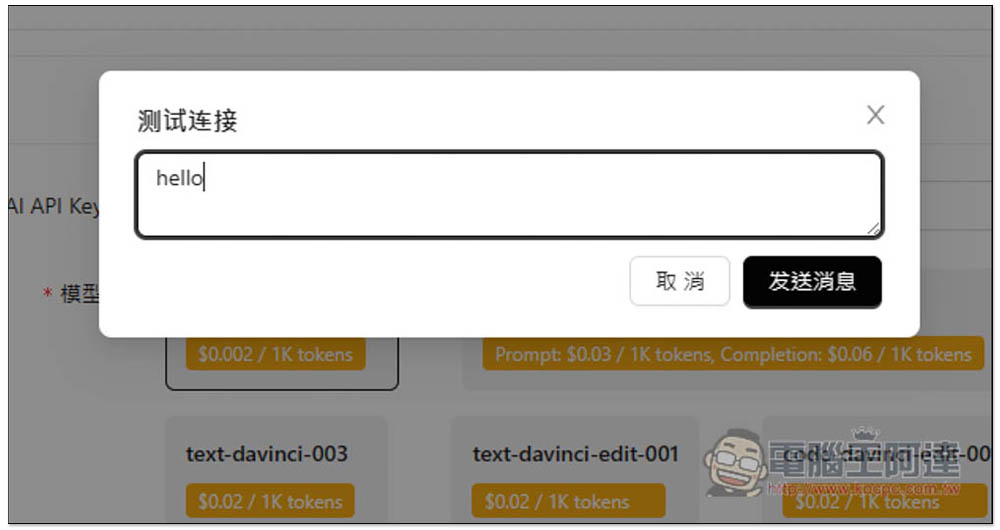
Enter what you want to ask, or just use its default hello:
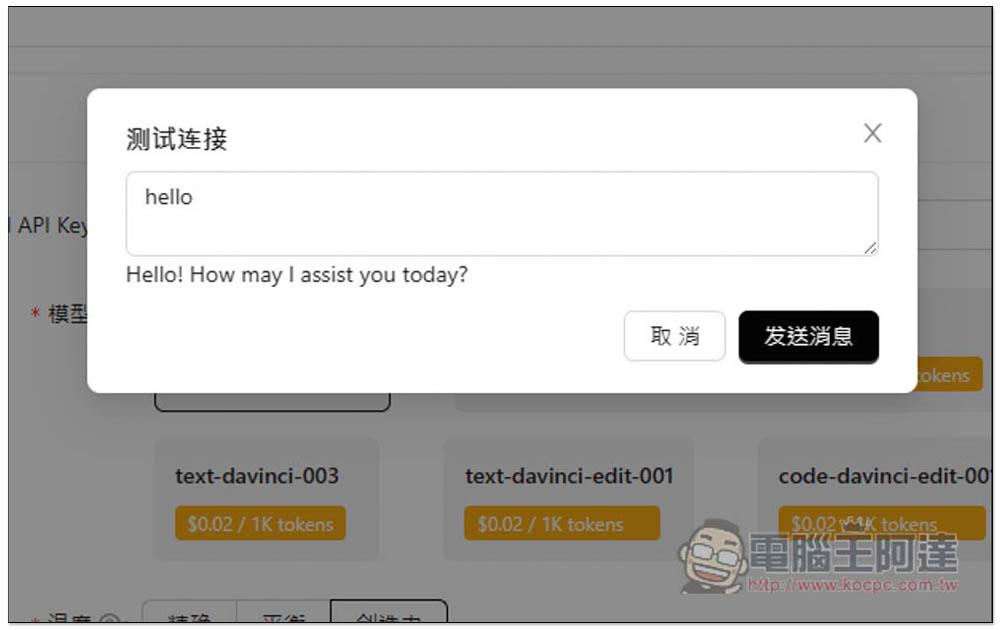
If there is a reply, it means it is normal:
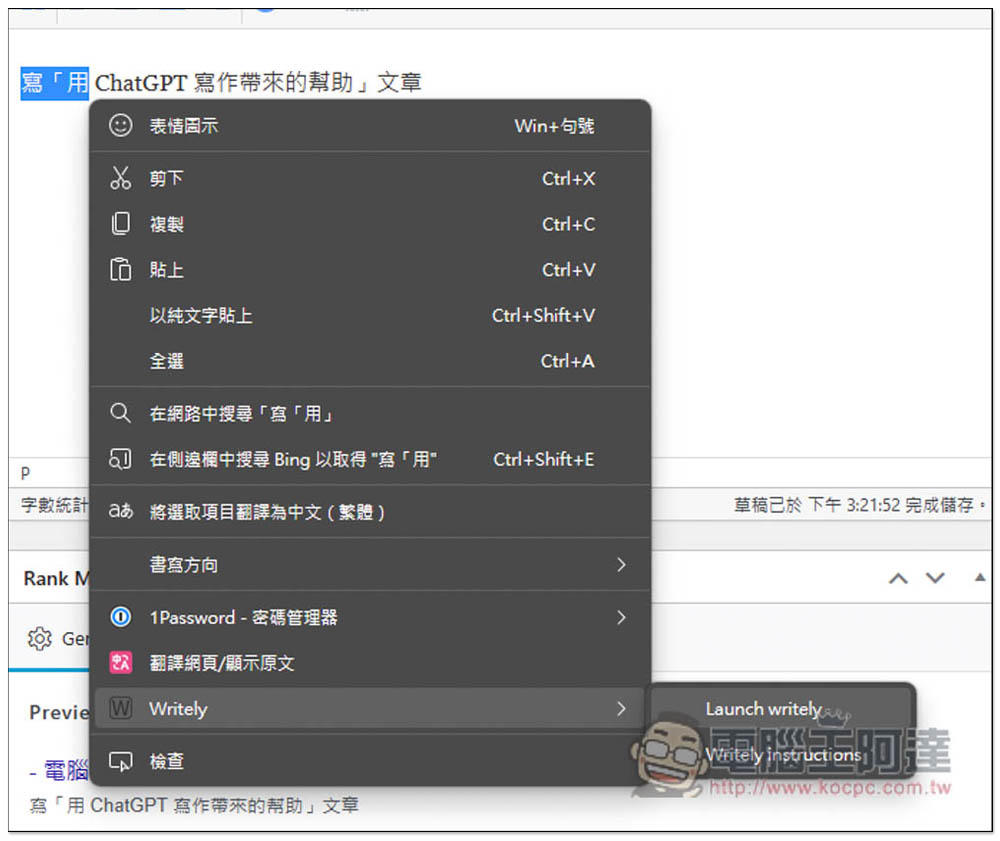
Then go to your commonly used text editing webpage. I use WordPress. Select any text and open the right-click menu. You will see the Writely option below to find the enable function:
This small window will pop up, enter what you want to ask Writely:
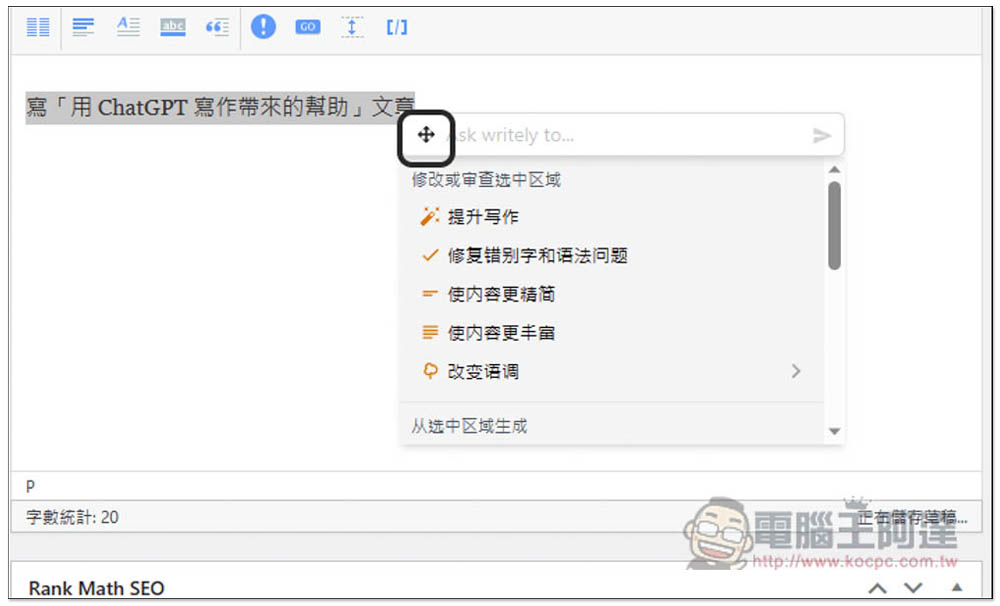
I asked it to write an article on “The help of writing with ChatGPT”:
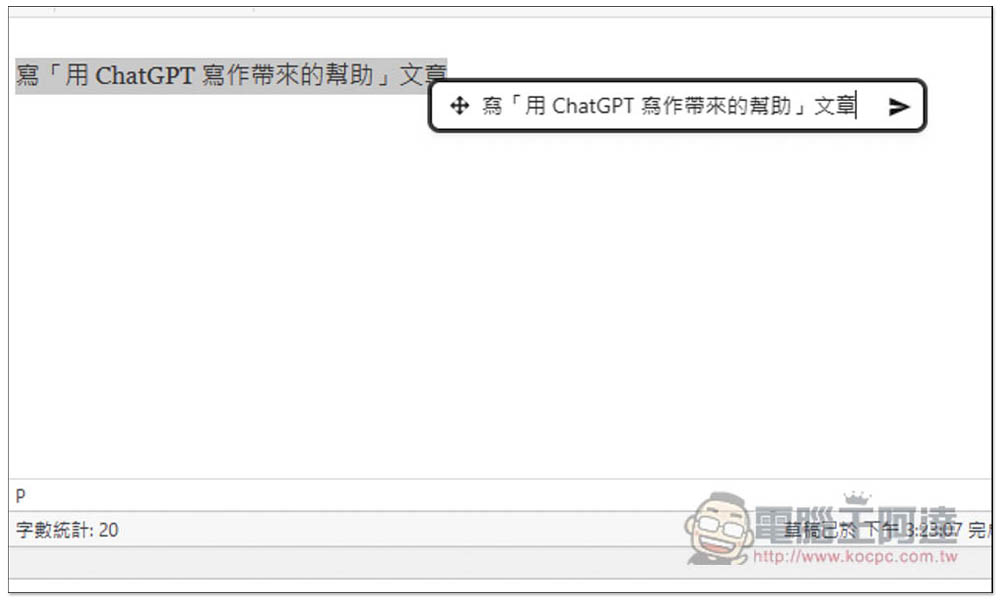
Press Enter and the reply will begin:
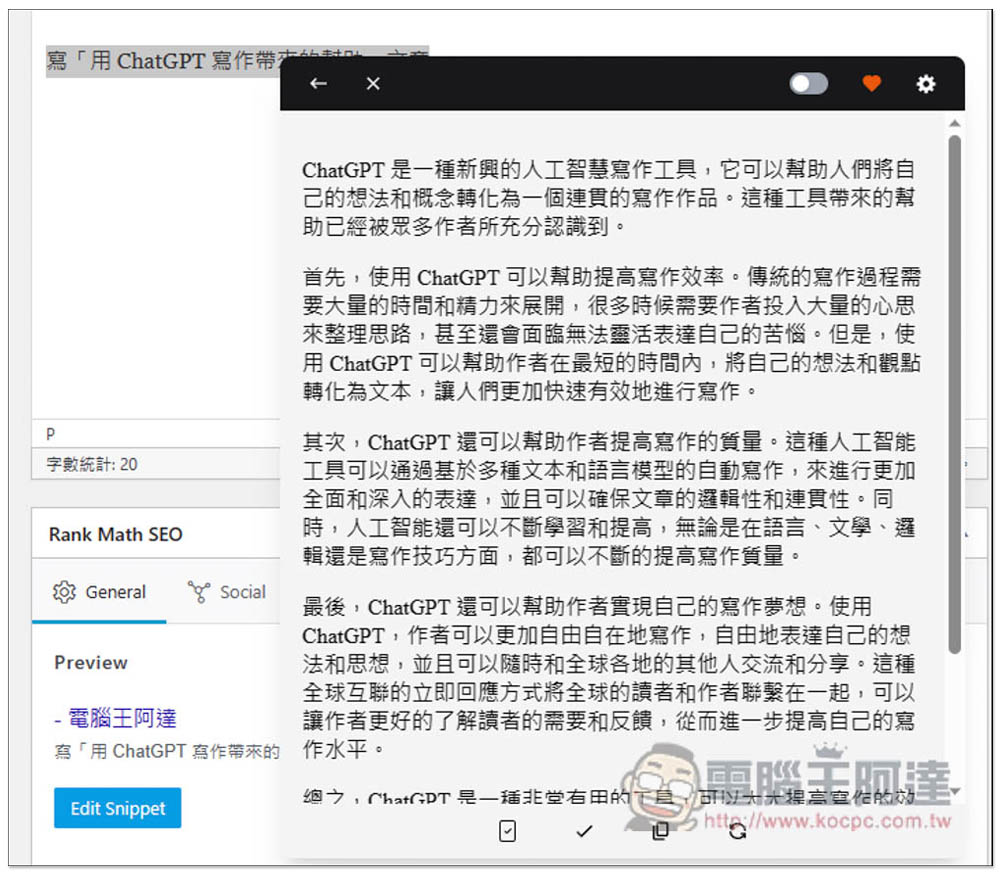
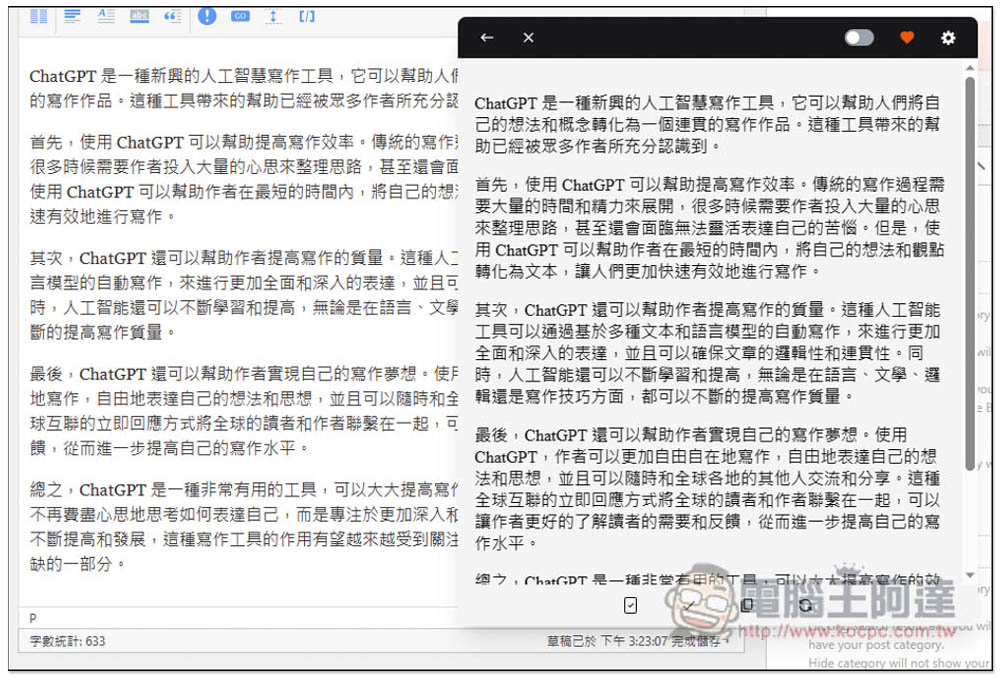
If you are satisfied with the content, four shortcut functions are provided below, including overwriting the selected text, inserting content, copying, and regenerating:
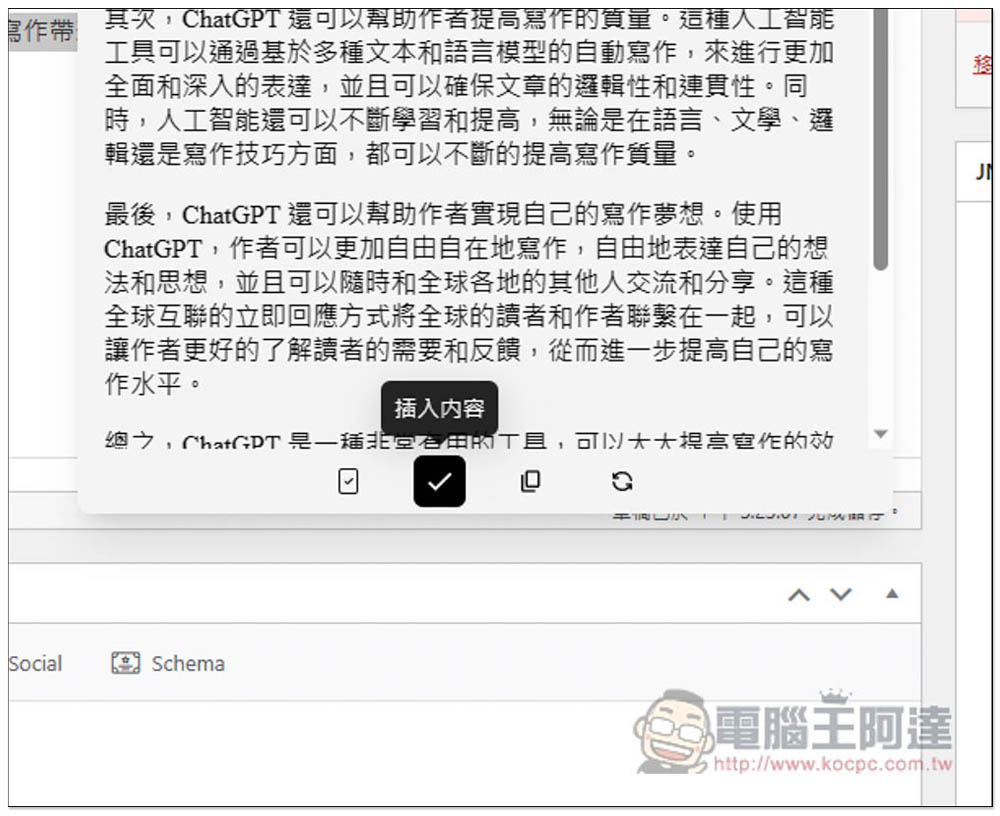
Like this, you can quickly paste the content of the AI reply directly into the text editor:
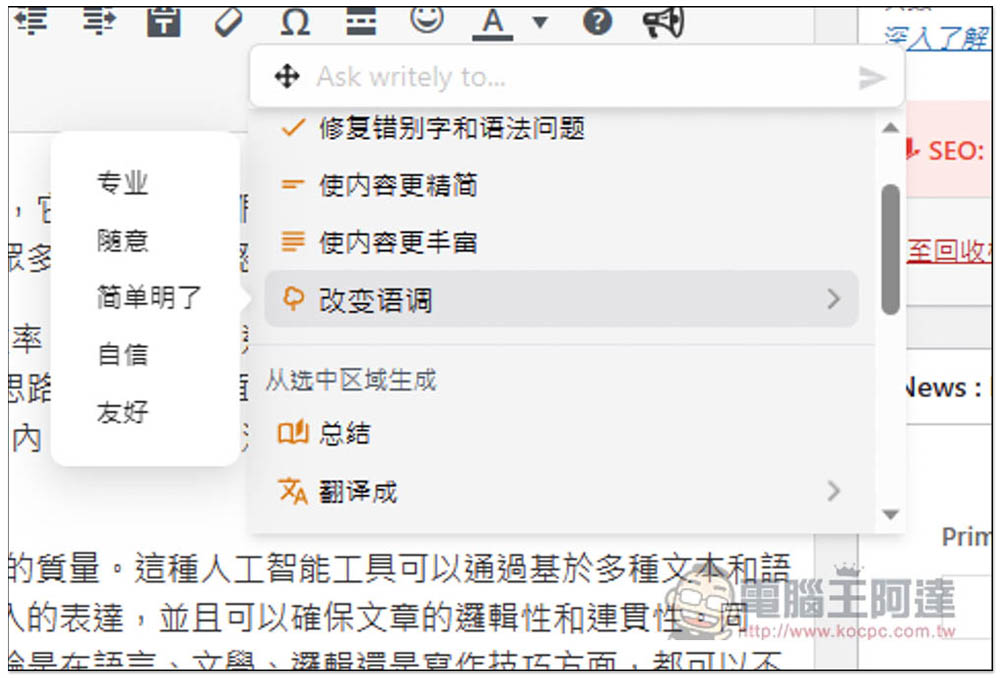
The Writely homepage also provides many commonly used interrogation instructions, such as fixing typos and grammar, making the content more streamlined, making the content richer, and changing the tone:
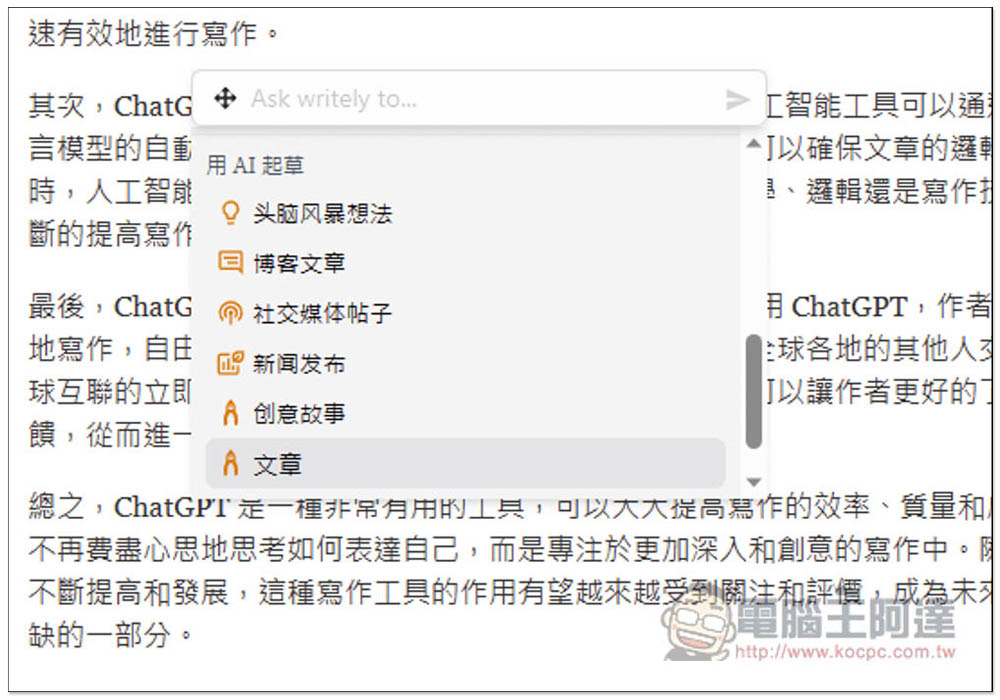
There are also many instructions for AI writing, including social media posts and brainstorming ideas:
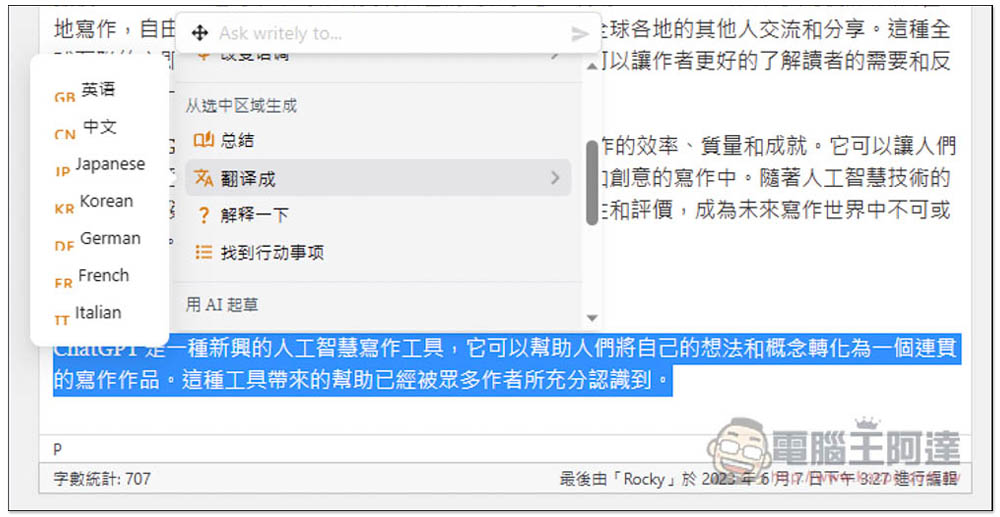
There are also translation instructions available in English, Chinese Japanese, Korean, German, French and Italian:
When you are reading foreign articles, if you don’t understand the words, you can use it to translate them. However, the default command should be in Simplified Chinese, so you will get answers in Simplified Chinese. People who want Traditional Chinese can go into the settings and set up new commands:
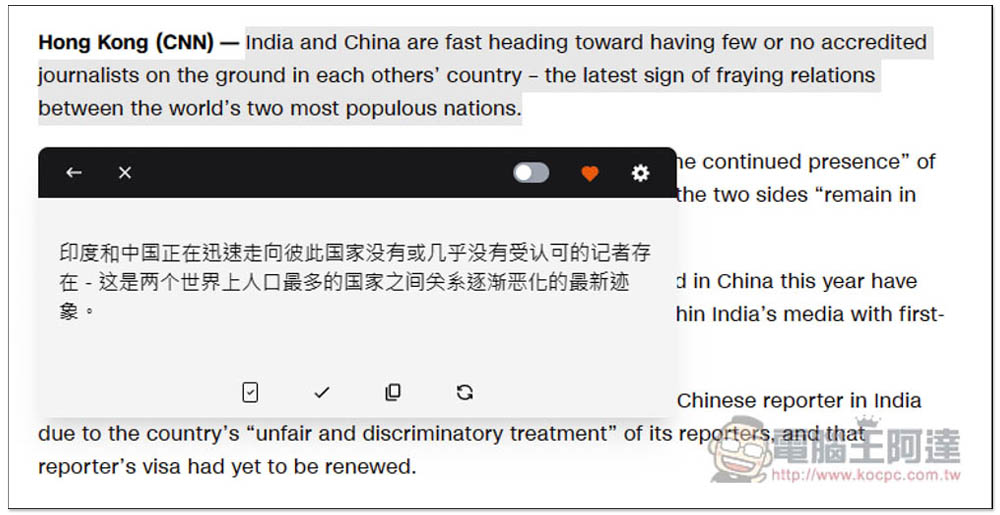
It’s a pity that when I tested Google Docs, I couldn’t use it. I’m not sure if it can be used by all online text editors.
Source: KOCPC Chinese