


Google Latest video generation model Veo 3 The effect can be said to have impressed many people, the quality is very high, and it even auto-dubs, but at this stage the quotas Gemini and Flow provide are really too small, like at Gemini Here, only three can be generated per day, and they’re used up in no time—completely insufficient.
Google often hides easter eggs in its other services, and Veo 3 is no exception. In the generation feature of the Google Vids video creation app, it quietly offers the Veo 3 (Preview) model. Although the generation quality isn’t as good as Veo 3 (Quality) in Flow, it’s only slightly worse, and at this stage there doesn’t seem to be a limit on the number of generations. I tested 20 videos successfully, and no cap notification has appeared yet.
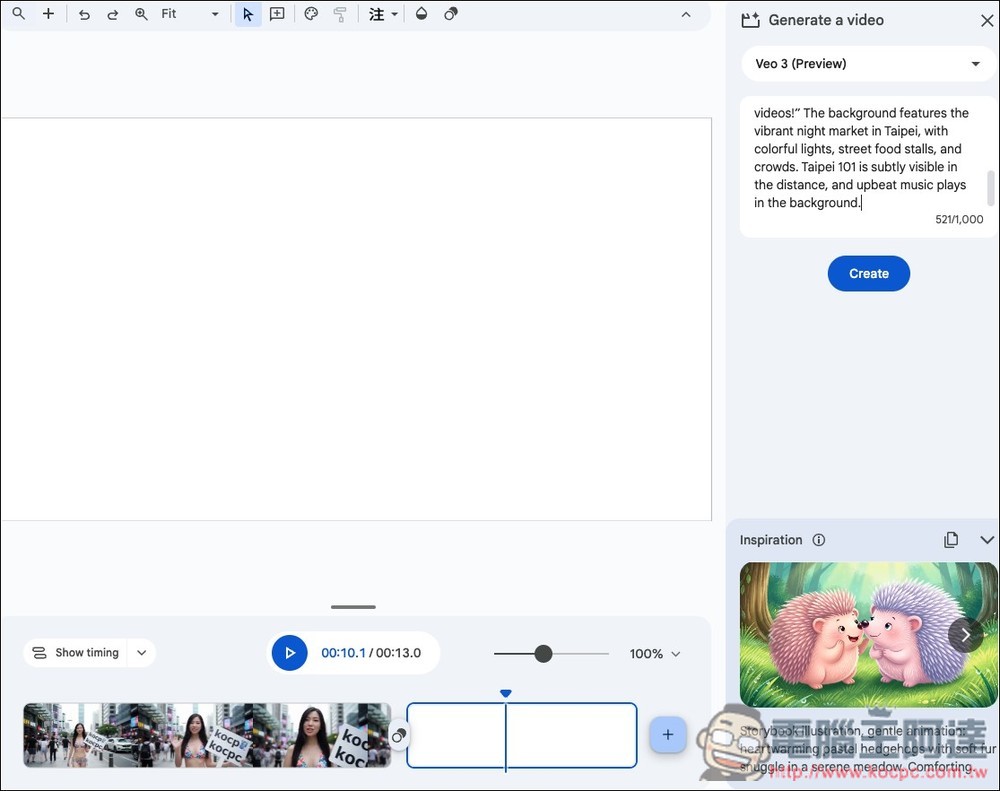
With Google Vids, you’ll be able to generate more videos daily using the Veo 3 model.
First, you should know that Google Vids is only available to paid members, meaning it’s not accessible on the free plan — you need to upgrade to Google AI Pro. Also, if you don’t see the generation feature when using it, you can try using a VPN to connect to the US. However, my account worked without a VPN.
Some netizens reported a daily maximum of 10 Veo 3 (Preview) video generations, but I’m not sure about that number because I tested 20 without any issues.
A key requirement for enabling video generation is that your account must be set to English—the generation feature only appears in English, not in Chinese.
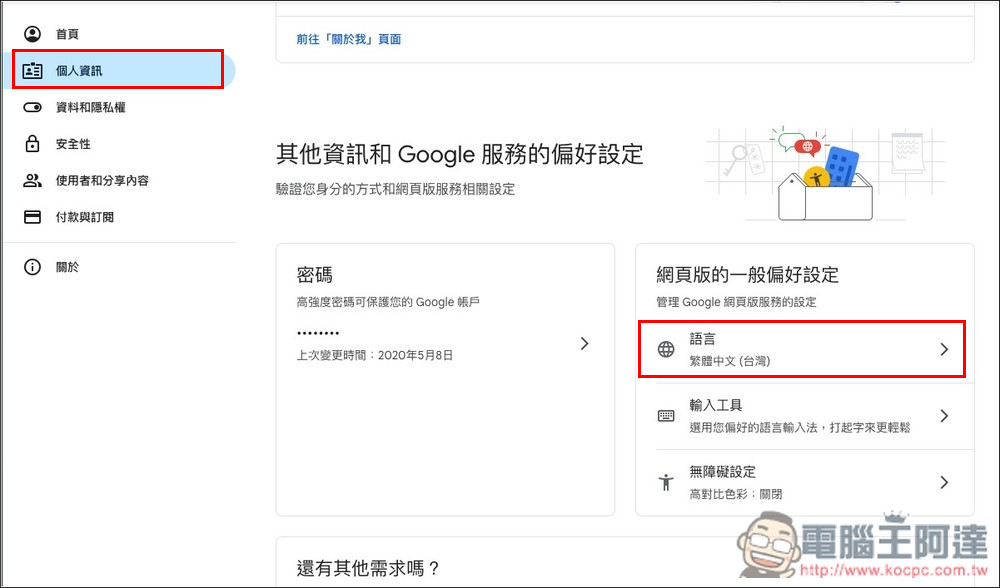
First, go to your Google Account backend, and in Personal info you’ll find the “Language” setting:
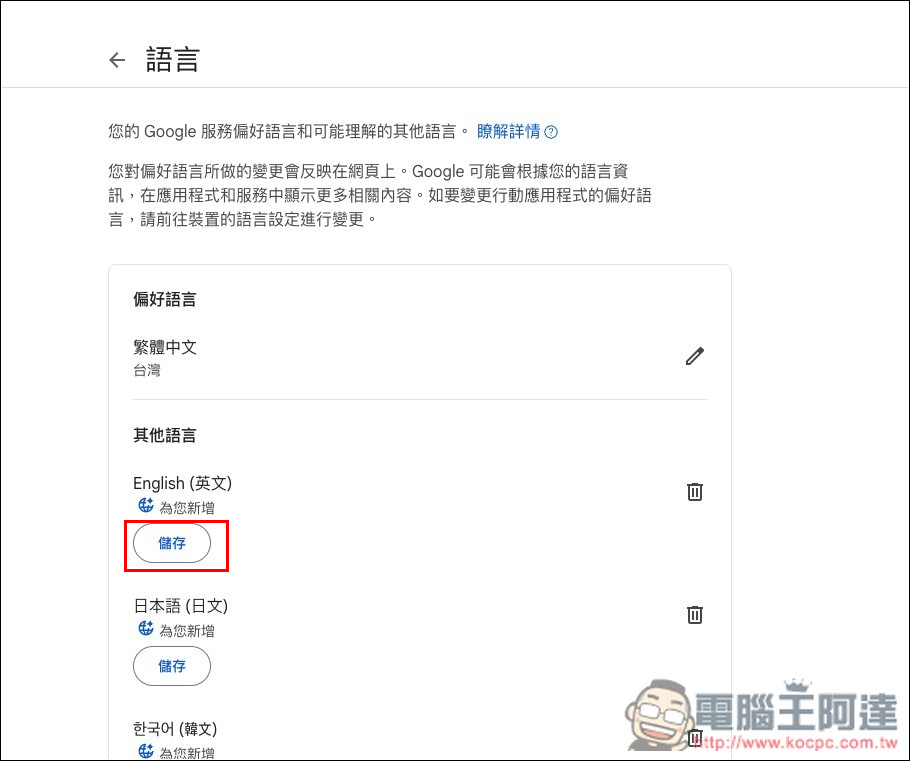
In the other languages section, if English appears, just save it directly:
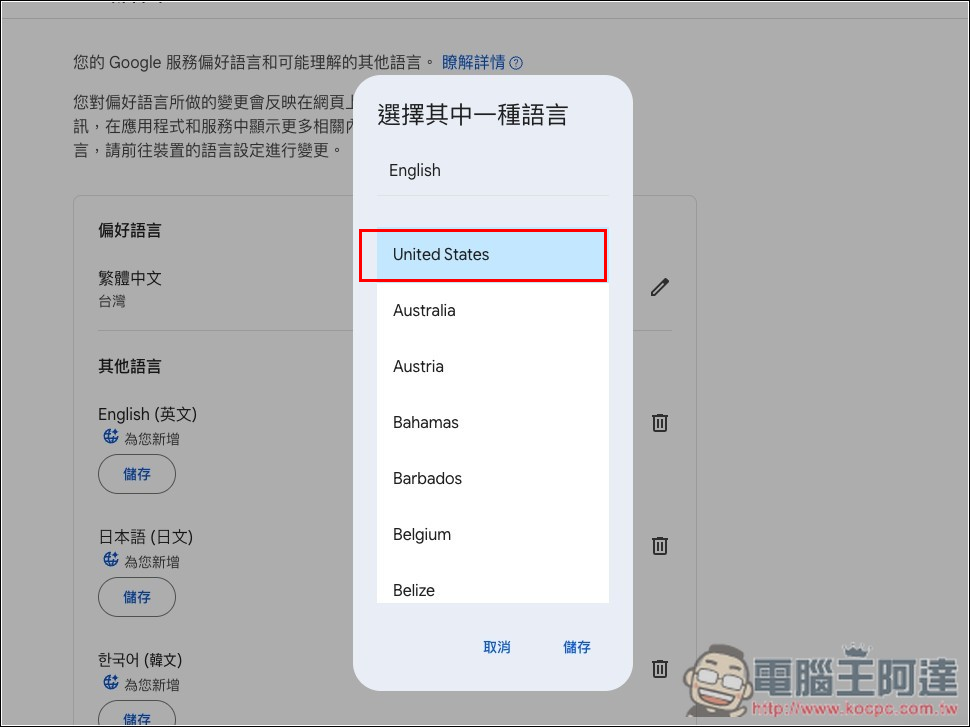
This option will pop up, please select United States:
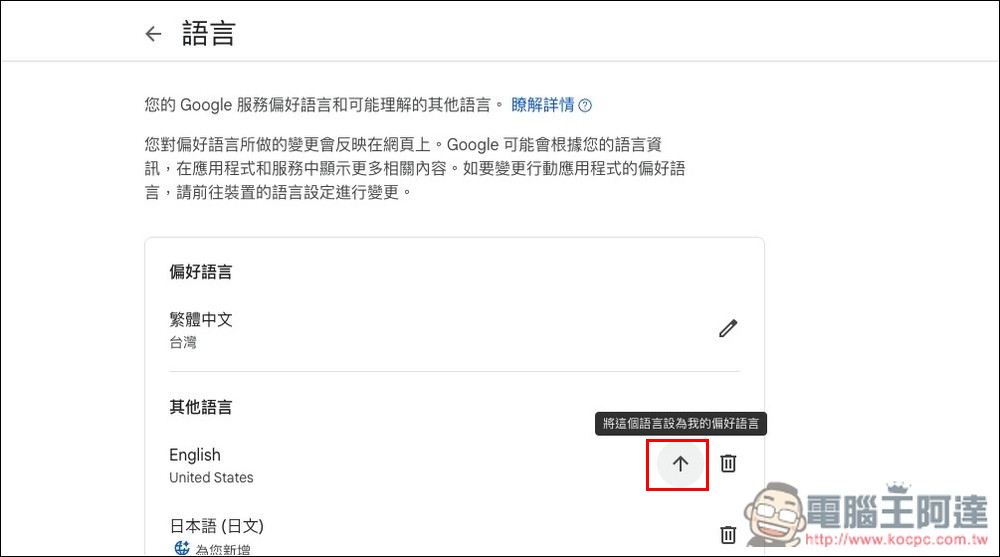
Next, an upward icon will appear to the right of English. Click this icon to change your preferred language to English:
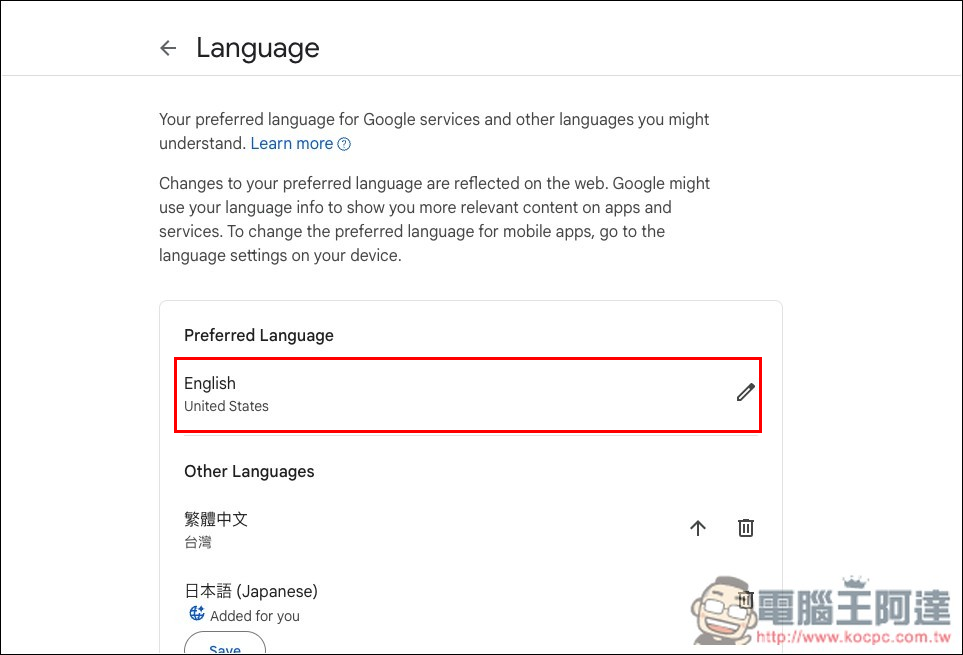
When you see the interface has all turned into English, that means success.
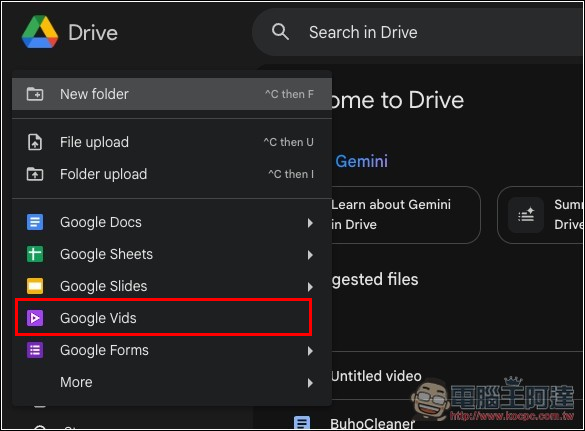
At this point, please go into your Google Drive, click the + in the top-left corner, and you’ll see “Google Vids”:
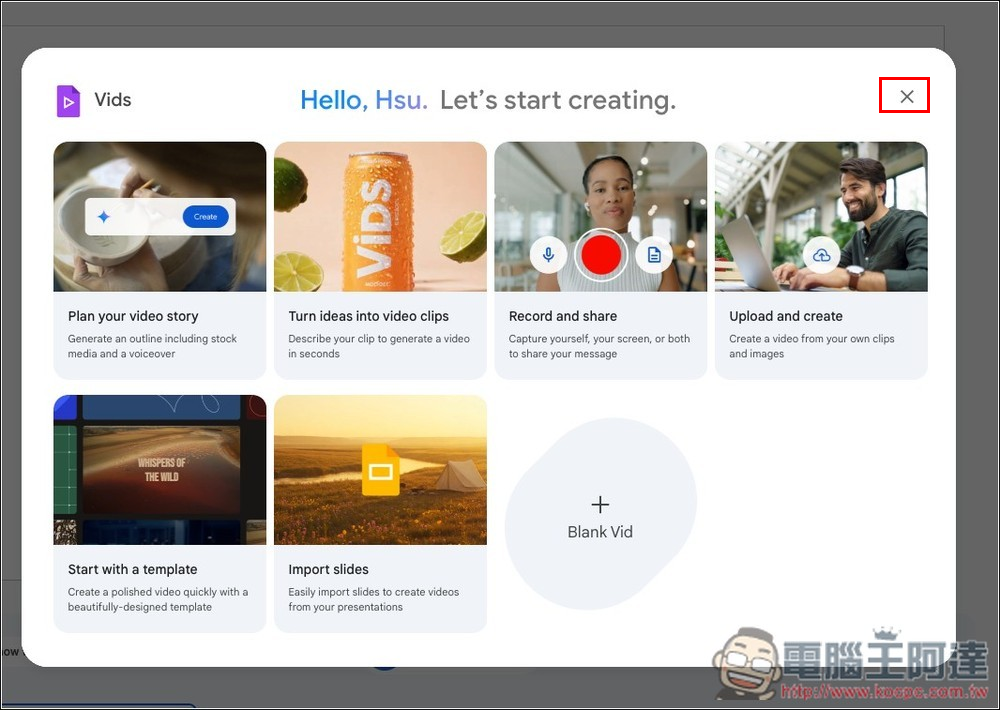
This screen will pop up; just click the X in the top right corner.
After entering the main interface, the third option in the right-side function menu, Generate, is for video generation, with two choices: Veo 2 and Veo 3 (Preview).
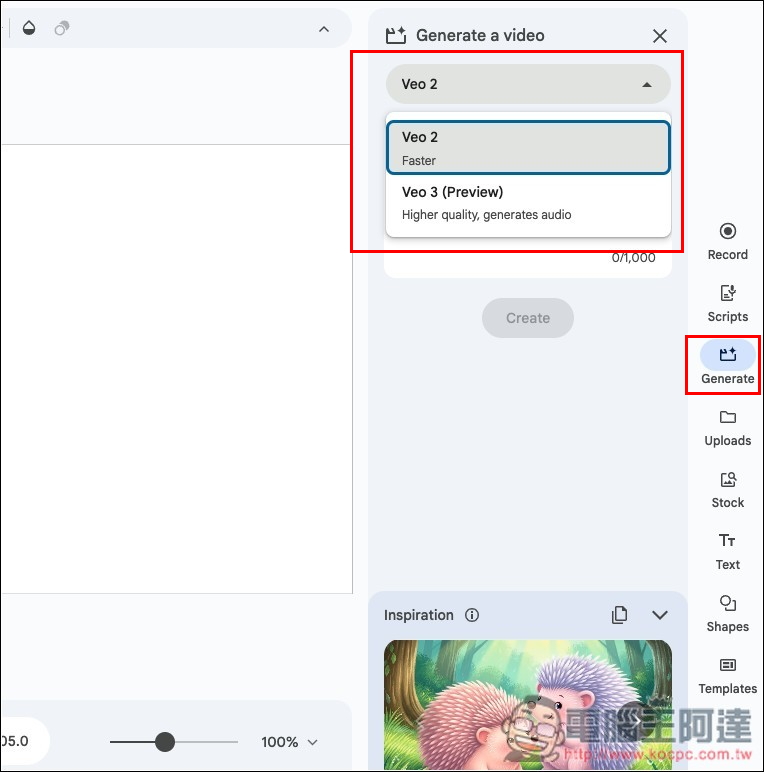
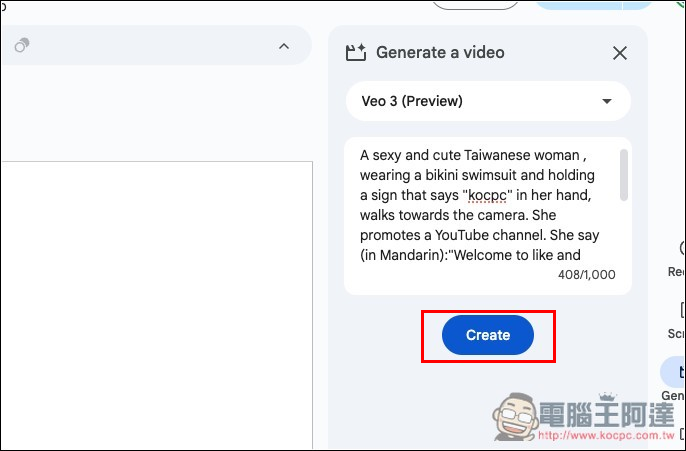
Select Veo 3 (Preview) and enter your prompt below—just make sure it’s under 1,000 characters. Hit Create and it will start generating. Generation is fairly fast, taking about 2–3 minutes to finish.
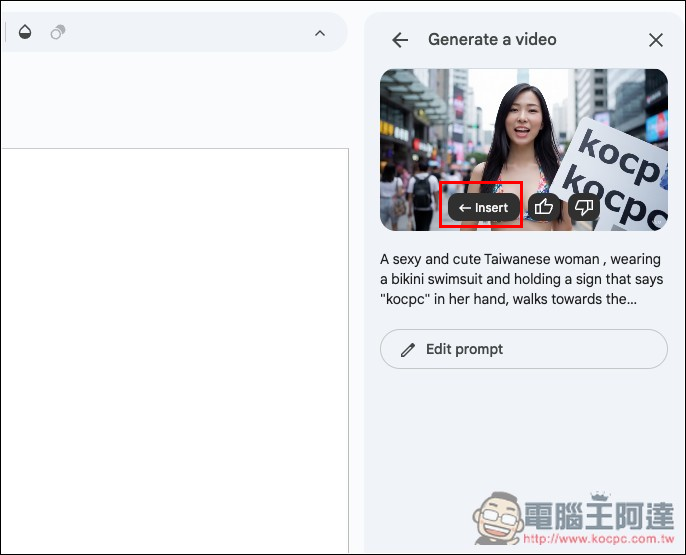
Once the video appears, hovering over it will auto-play. You can preview it first; if you’re satisfied, press Insert, and it will be inserted into the canvas on the left:
Like this:
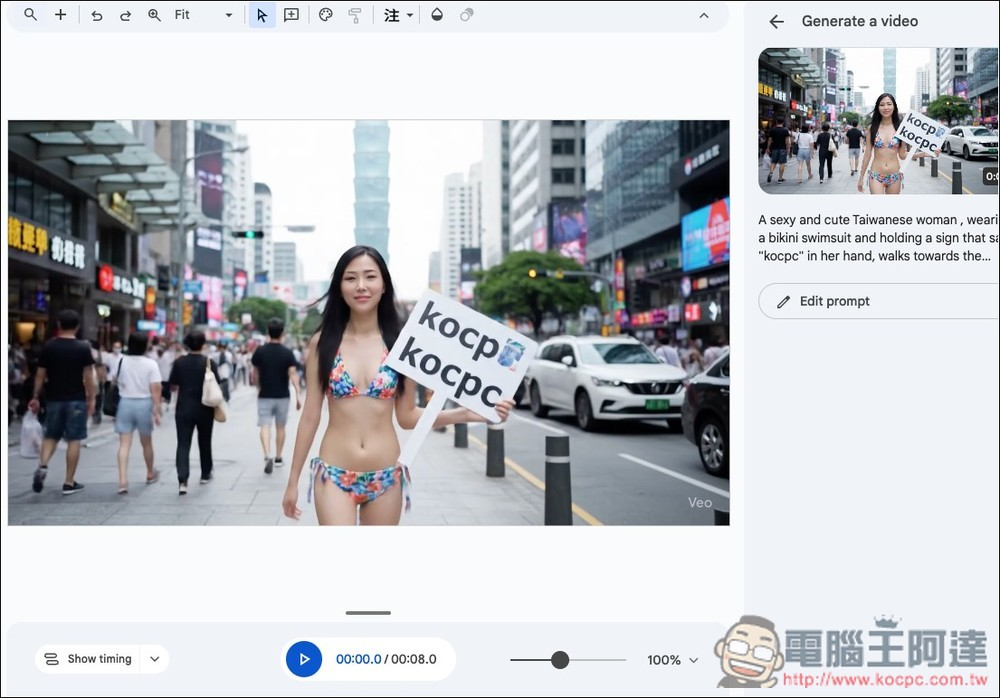
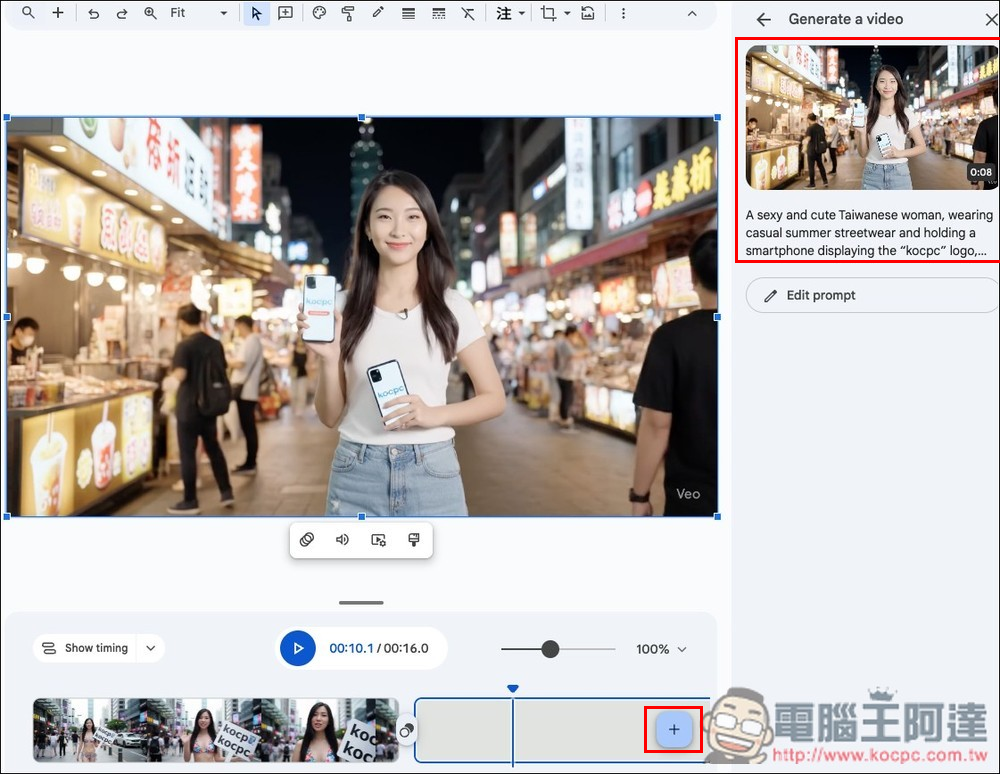
If you want to connect other AI videos after this one ends, tap the + at the bottom to add a blank video segment. You can then generate again through Veo 3 (Preview) and insert it into the canvas on the left, so when the first video finishes, the next one will play. It works the same way if you want to connect more videos later—just do the same thing:
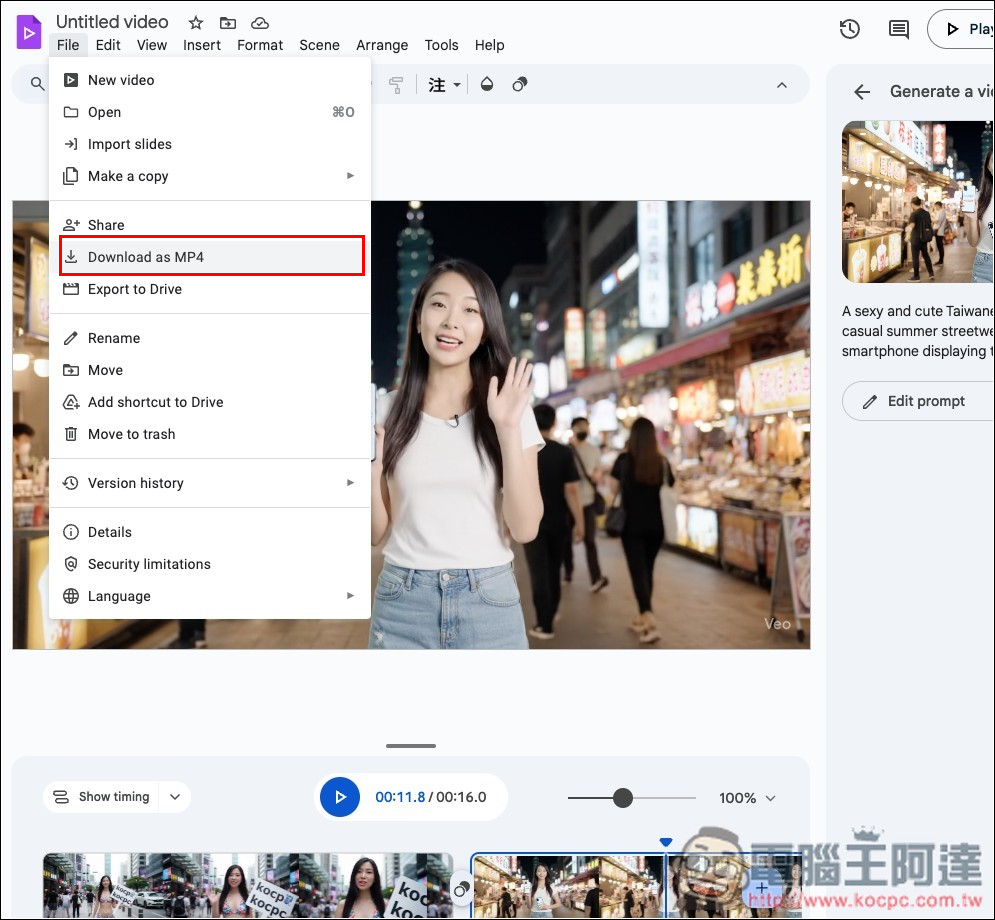
After you finish, open the File menu in the top-left corner, and you’ll find the option to download as video: Download as MP4.
One final reminder: Google frequently adjusts the generation quotas for the Veo 3 model, so just because there are no limits right now doesn’t mean it’ll stay that way. As more people start using it, Google may introduce restrictions.
Source: KOCPC Chinese