


Copilot The AI local file search feature was already rolled out previously, but at the time it was only available to Windows Insider Program users, and regular users couldn’t access it yet. Just recently,MicrosoftIt’s finally officially available to everyone, but this feature is off by default (to ensure privacy). If you want to use it, you’ll need to manually enable it in settings. Here’s how to do it.

Microsoft has officially given Copilot AI the ability to search for files on your computer.
According to a report from foreign media Windows Latest, Microsoft recently officially rolled out the Copilot AI feature for searching computer files to all users, no longer limited to the Windows Insider Program. However, one thing to note is that this rollout seems to be gradual, so some people may not be able to use it yet and need to wait a few more days.
But even if it works, from my testing, the current features don’t seem very stable—they can’t even function properly, at least on my computer. Copilot keeps reporting that it doesn’t have permission to search files on my machine. In any case, we can start by looking at what foreign media have to say in their hands-on reviews.
Windows Latest said they were impressed by the speed and accuracy of Copilot’s local search, since it’s deeply integrated with Windows Search and can significantly improve file-finding efficiency through Windows Search’s cache mechanism. They also found that Copilot could easily locate files that Windows Search itself failed to find due to its own issues.
Basically, as long as it’s a file format supported by Microsoft’s native applications, Copilot can search for it, such as .docx, .xlsx, .ppt, .txt, .pdf, etc. But for proprietary formats from other third-party apps, Copilot may not be able to handle them at this stage. Windows Latest tested using Copilot to search for resumes containing a name, and Copilot quickly found two files: a PDF and a .docx.
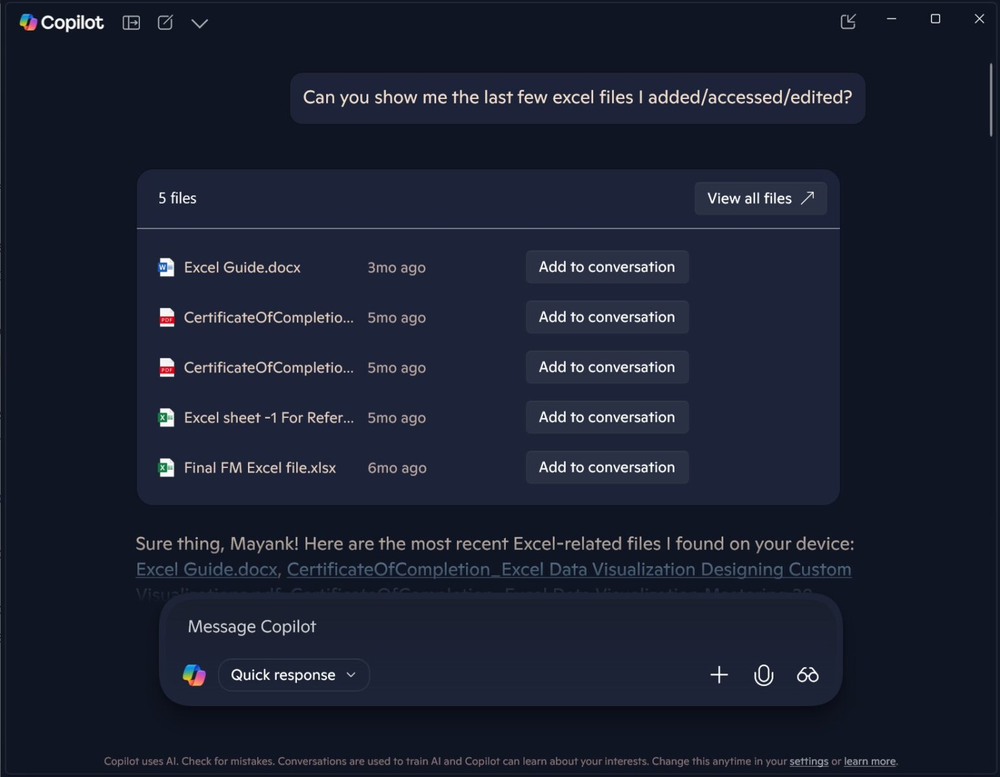
Copilot uses the search index built into Windows to find files, which also means that when you tell Copilot that you need a resume containing the name “Mayank”, Copilot will execute this search command in File Explorer: filename:Mayank OR resume kind:NOT folder:

After finding the file, there is also an option: Add to conversation, making it easy to ask further questions about that file.
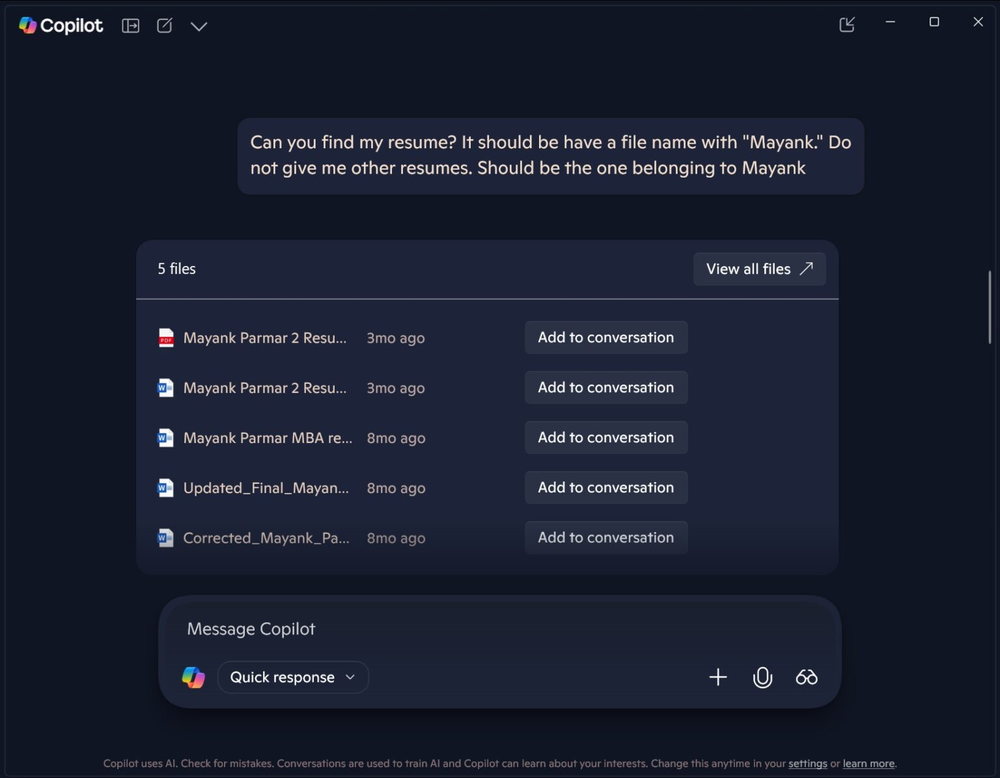
However, there is one caveat: when Copilot searches for files, it can’t read the content, only checking file names, types, and dates, so it can’t find files containing specific content. It’s still not smart enough in practice.
How to enable Copilot AI’s ability to search for files on your computer
After opening the built-in Copilot app in Windows 10 / 11, open Settings from the personal icon in the bottom-left corner:
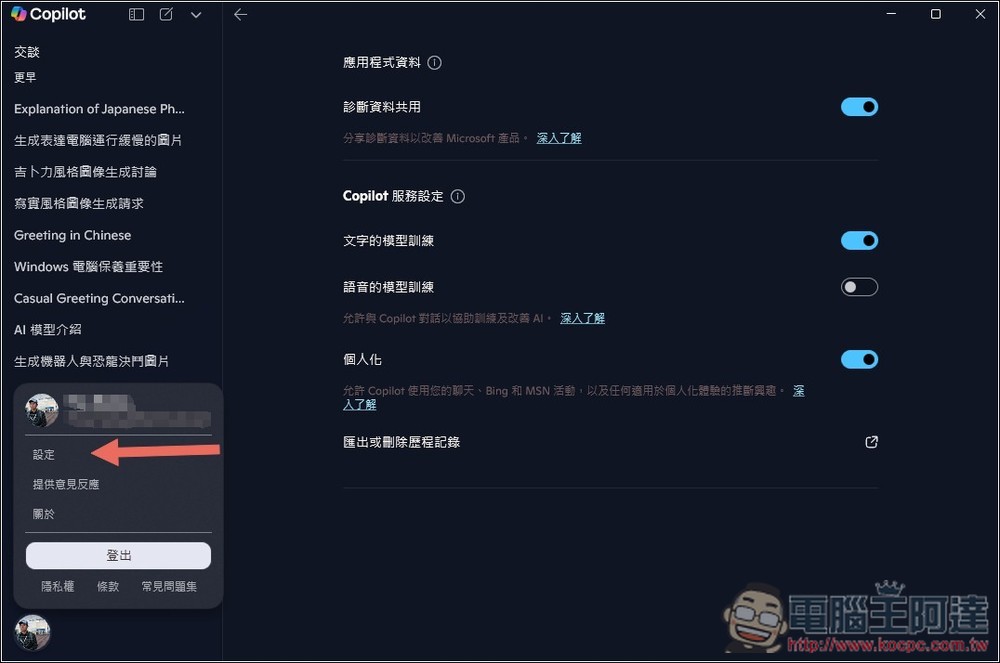
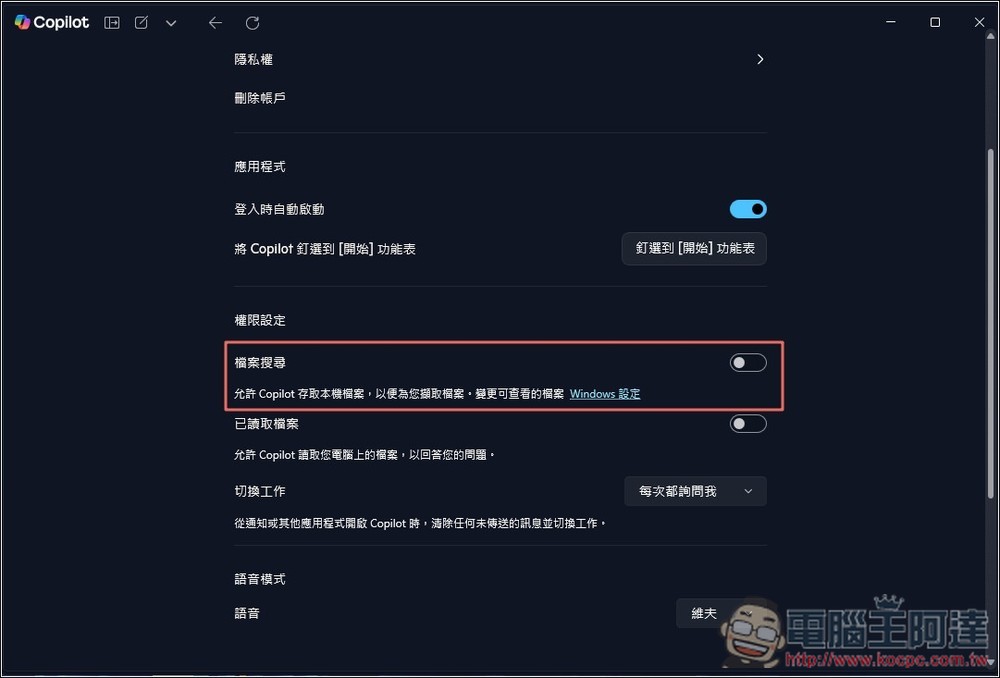
In the menu, you can see the “File Search” feature, which is off by default. Turn the switch on, and you’ll be able to use Copilot’s local file search capability. Additionally, you can go to the Windows settings next to it to adjust which files Copilot can view:
Source: KOCPC Chinese