


Generally speaking, the hard disk capacity of old computers is not very large, so if you can save it, you will definitely hope that the system will not take up too much space. Then you can consider the latest Windows 10 Extreme Lite Edition Tiny10 23H1 version recently launched by NTDEV. It is available in 32-bit and 64-bit versions. The 32-bit version only takes up about 7.7GB of capacity, which is basically 15GB compared to Microsoft’s original version. There are many starting points, and you can add the required languages and functions by yourself. Traditional Chinese is no problem. I will teach you how to install it below.
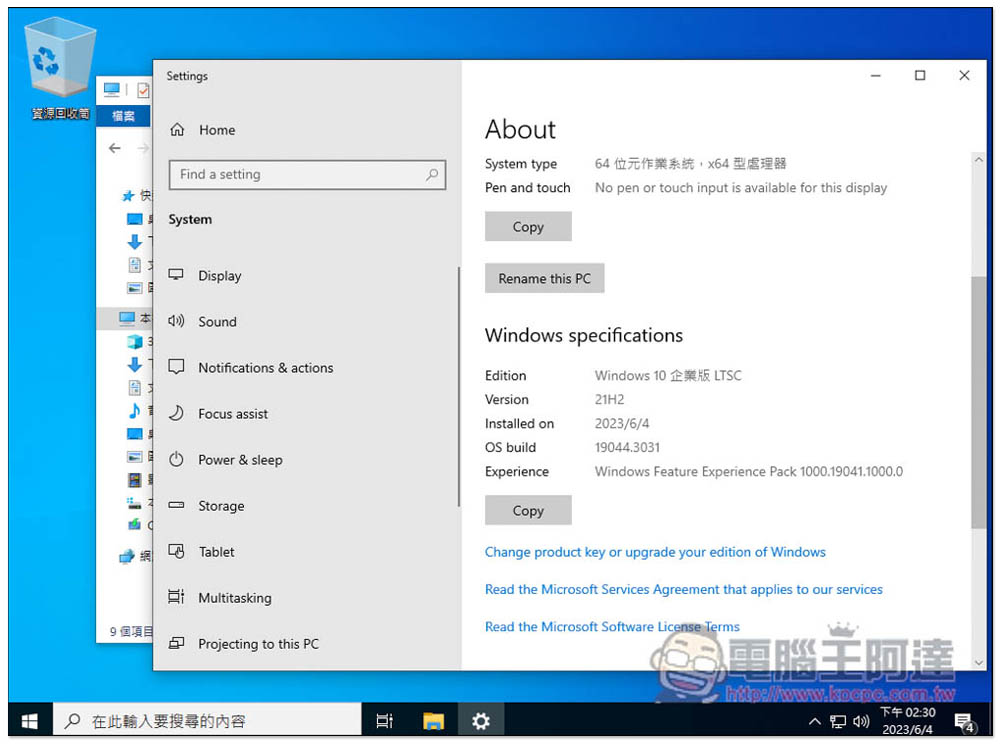
Windows 10 Extreme Lite Edition Tiny10 23H1 is officially launched, occupying at least 7.7GB of capacity (teach you how to install it)
The name Tiny10 23H1 may be misleading. Windows 10 only comes out to 22H2. Tiny10 23H1 only follows the previous naming method and has nothing to do with the Windows 10 version. In addition, Tiny10 23H1, like Tiny 10 2303 x86, is based on Windows 10 LTSC 21H2. The main difference is in the supporting components to ensure that users can download monthly updates, add languages and features:
After months of requests, tiny10 23H1 x64 is finally here, and just like tiny10 x86 and tiny11, it brings back a very important feature: the component store! This means that now you can add new languages and features, while still being a lightweight and dependable image. pic.twitter.com/mRLBPC2udR
— NTDEV (@NTDEV_) May 31, 2023
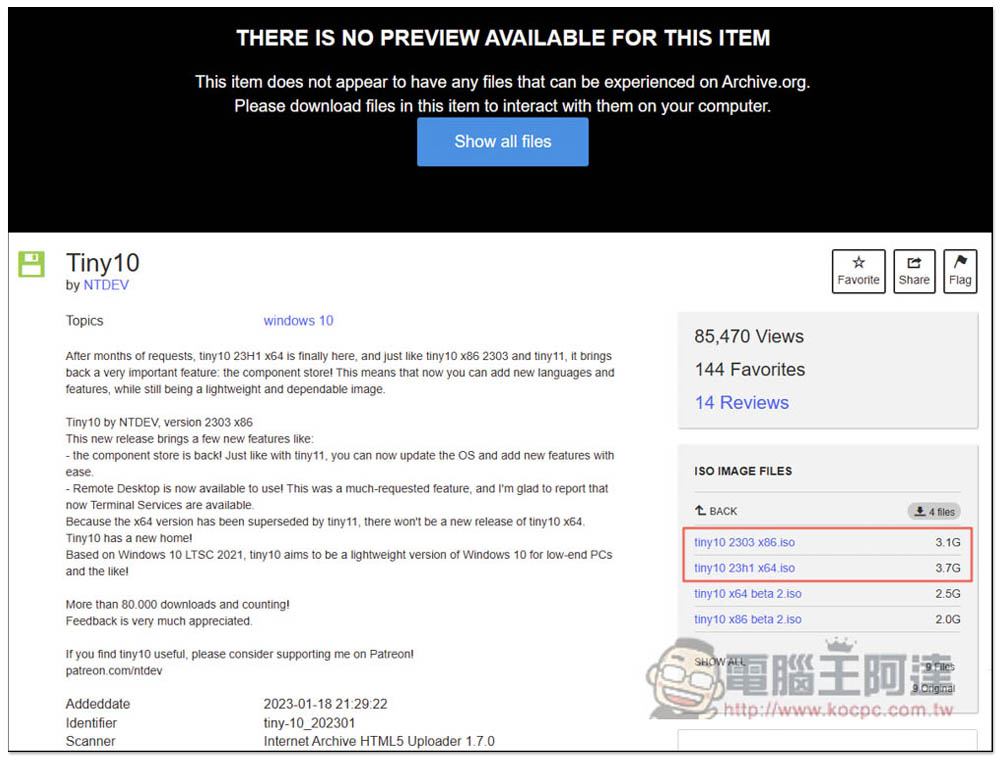
After entering the download page, you will find four ISO file download links on the right. The following two are test versions. It is recommended to download one of the two above, depending on whether you want 32-bit or 64-bit. The 32-bit version only takes up about 7.7GB of capacity. Those who are worried about software support can download the 64-bit version, which will take up a little more capacity:
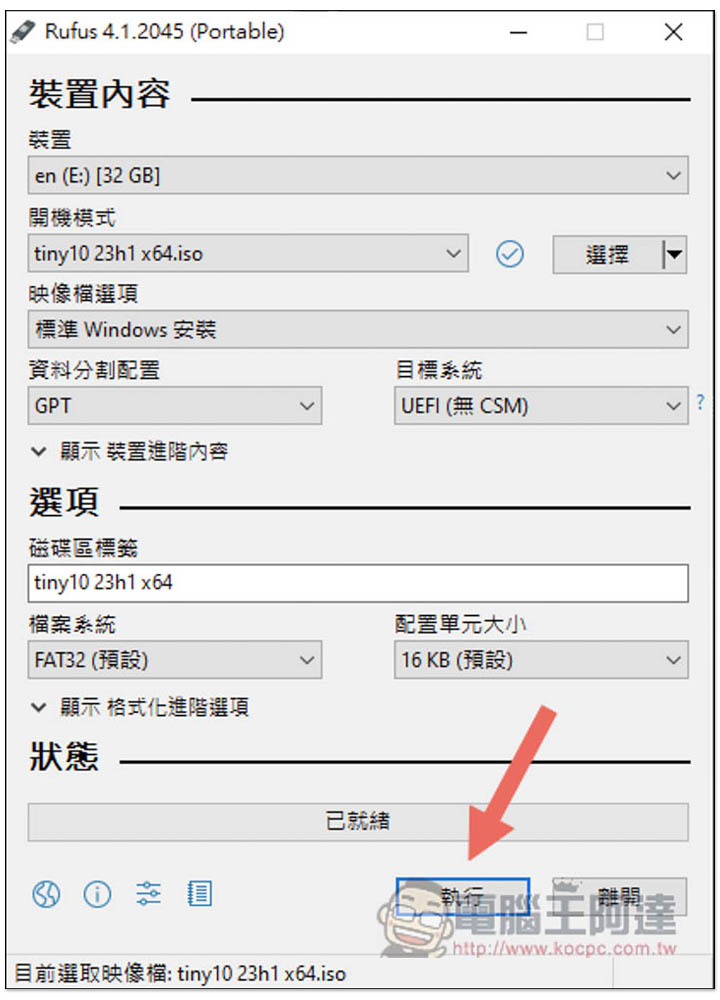
After the ISO file is downloaded, you can use Rufus Free ToolsCreate a USB bootable disk. Plug the USB into the computer, select your USB as the device location, select the Tiny10 23H1.iso file as the boot mode, and then press the bottom to execute:
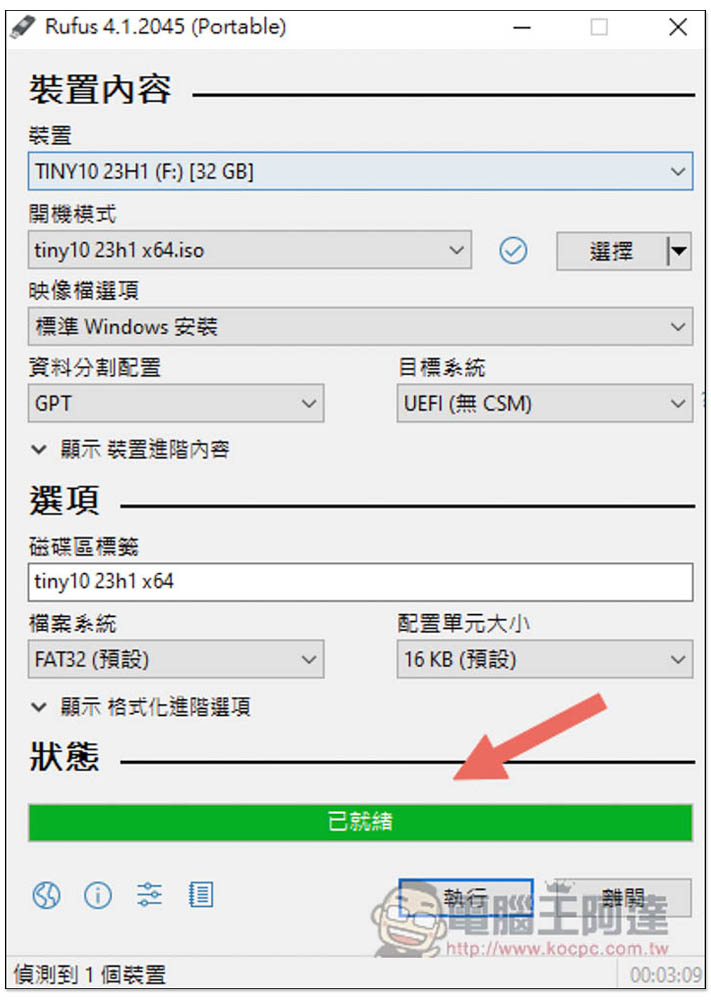
Just wait until the green bar runs out. Then you can plug the USB into the new computer you want to install. Remember to select this USB as the first boot option:
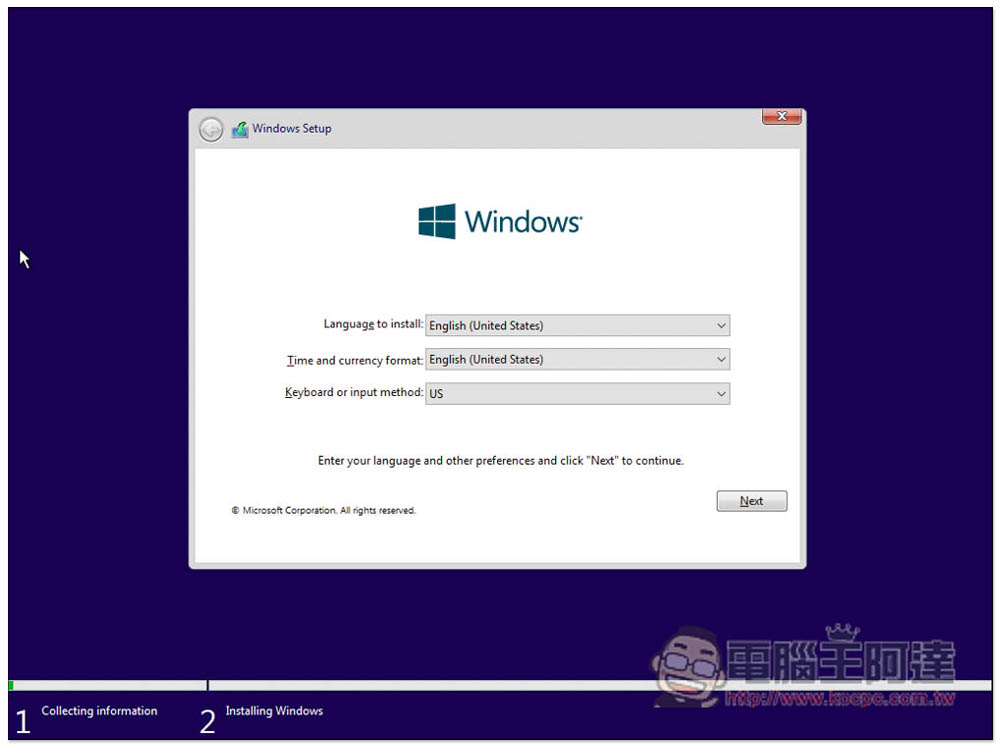
The extremely streamlined version only retains the English language, and you can install the Traditional Chinese language pack later, so don’t worry:
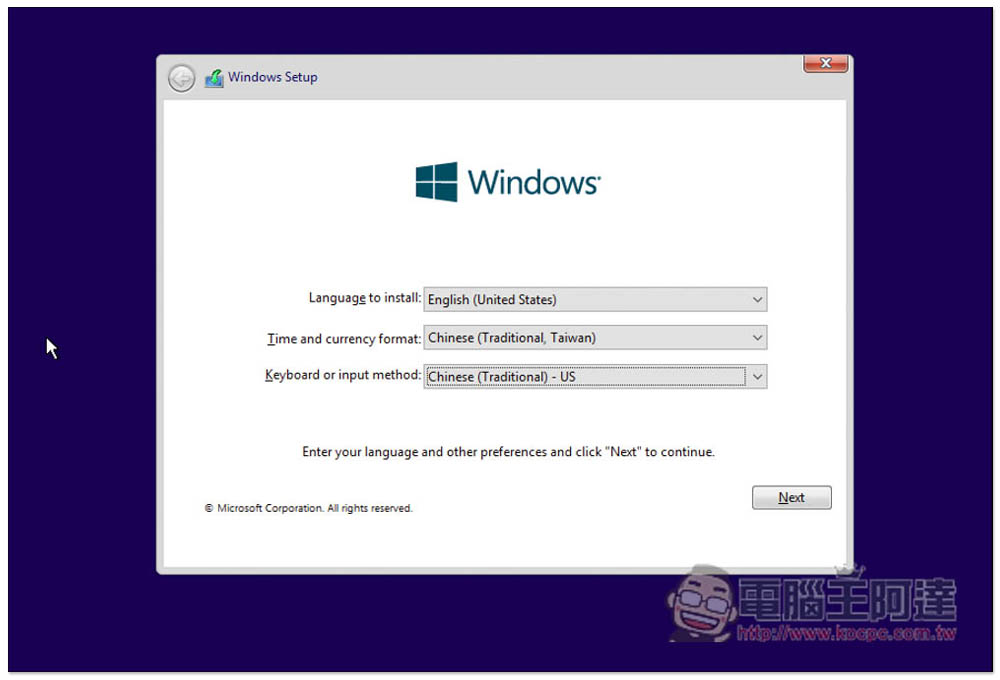
Select Taiwan for date and currency format, then keep pressing Next until it finishes:
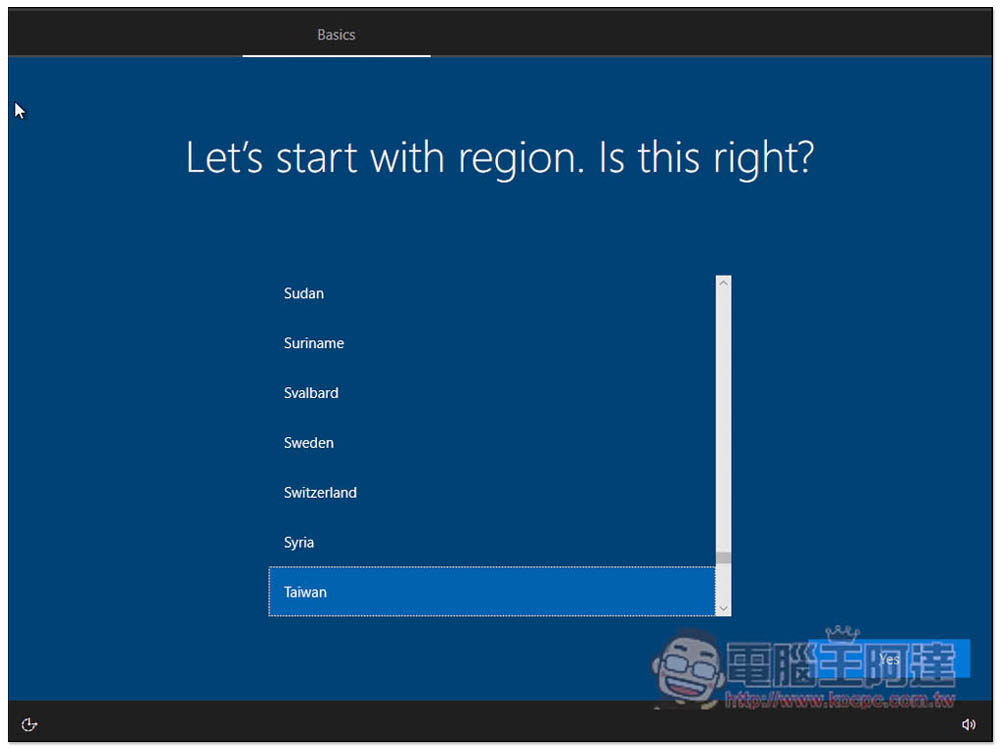
After entering the desktop, this screen will pop up. You should directly select Taiwan as the country region. If there is no problem, press Yes. Then some setting options will pop up. If you don’t want to change, just keep pressing Next:
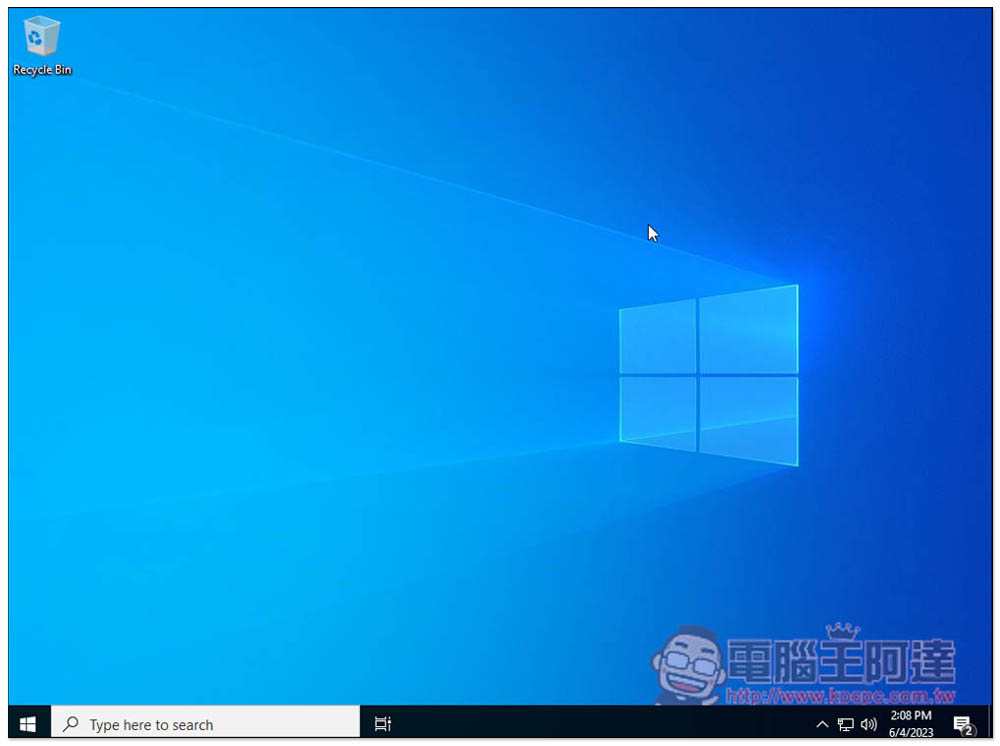
This completes the installation:
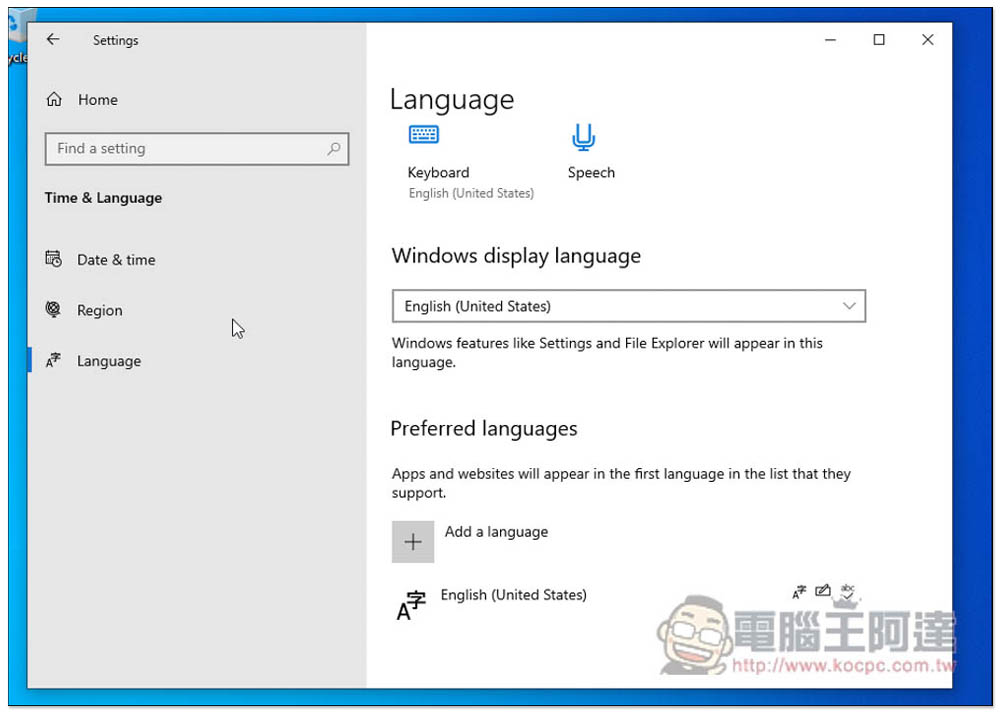
In the language pack section, go to Language in the settings and you will see the Add a language option below:
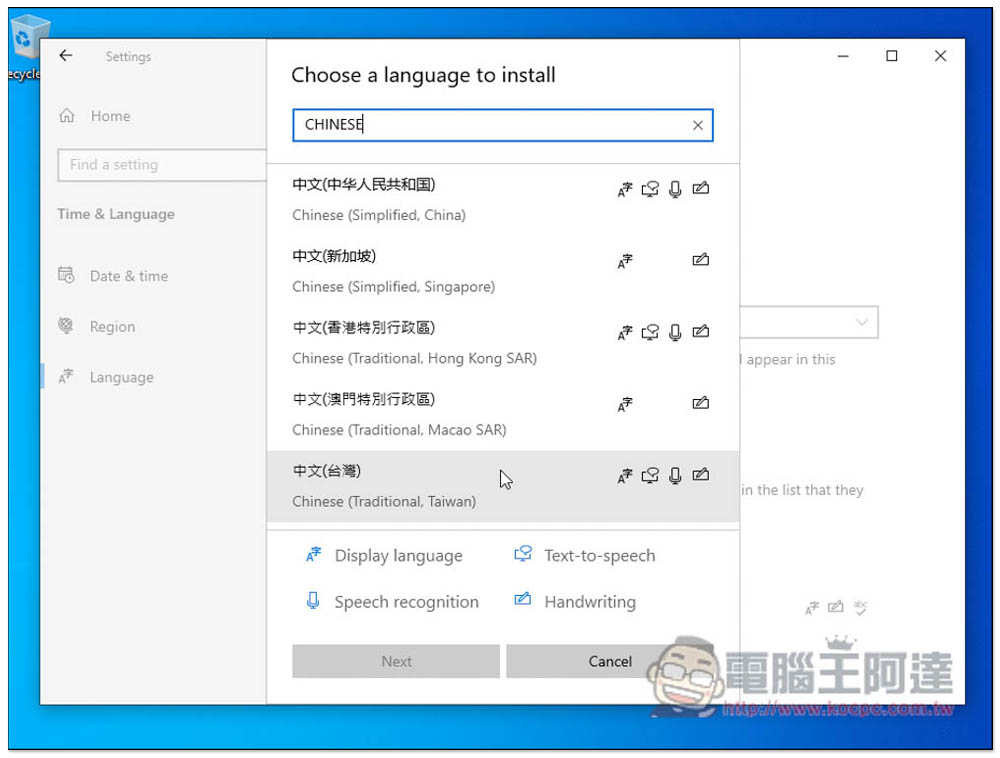
Enter the CHINESE keyword to find the Chinese (Taiwan) language pack and click to install:
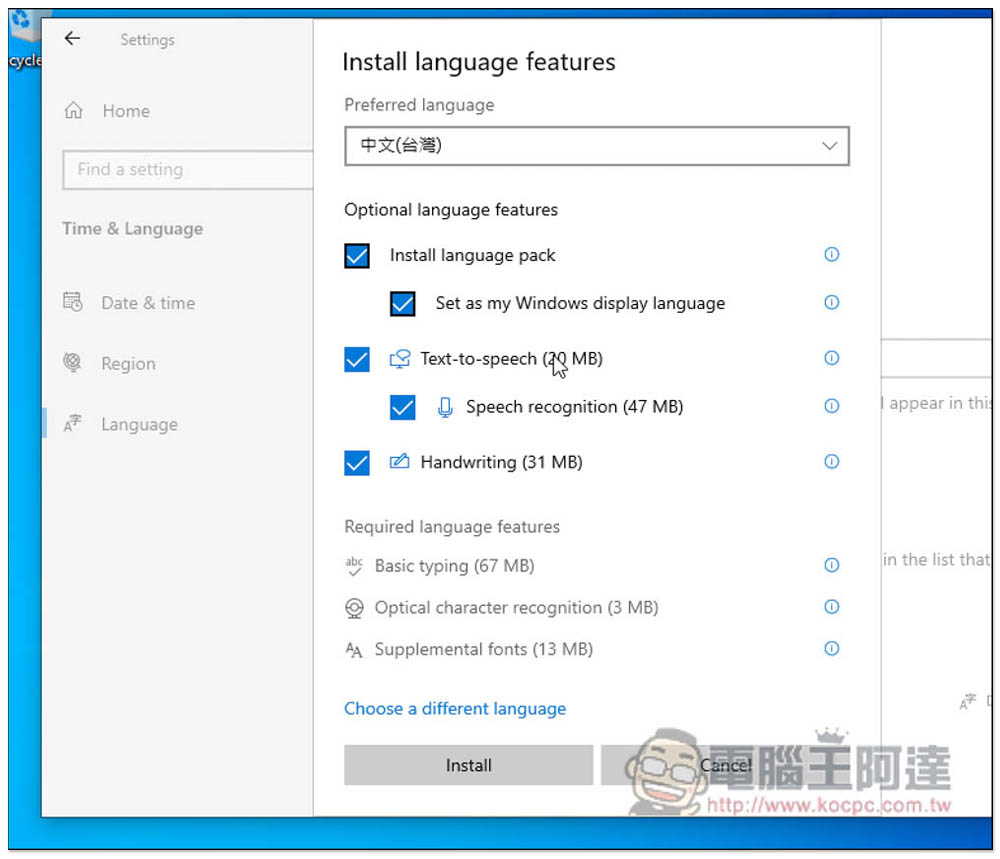
It depends on whether you want to install them all. Text-to-speech is for voice input and Handwriting is for handwriting input. Those who don’t want it can uncheck it:
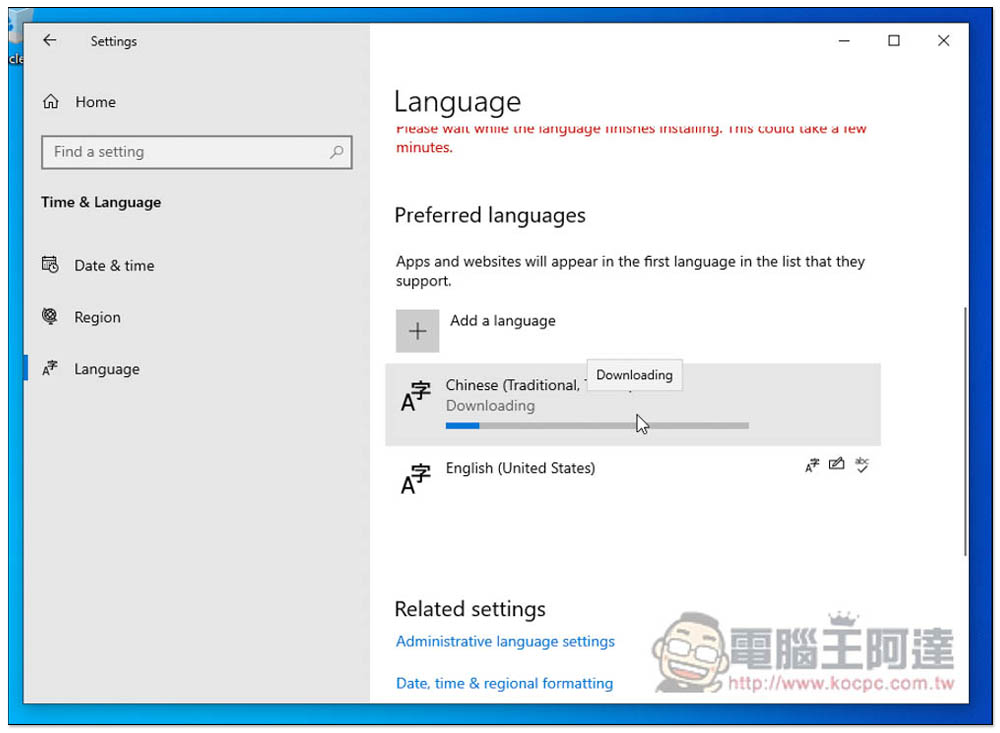
After downloading and installing, you will be asked to log out and log in again:
That’s it! If you still display English, check whether you have set Chinese (Taiwan) as the display language:
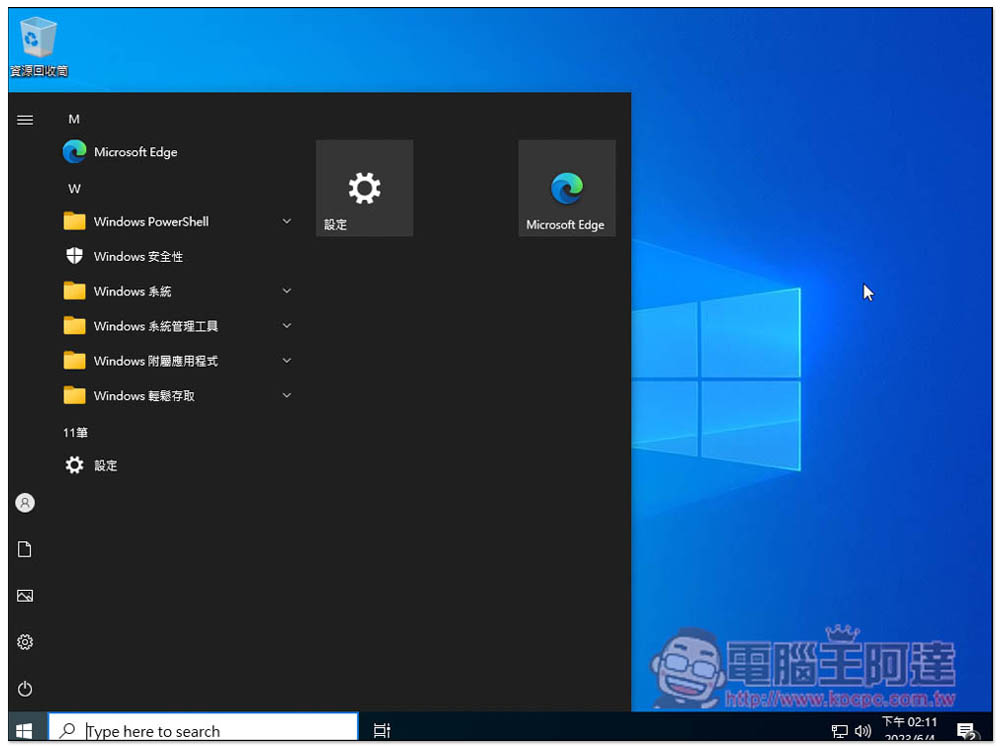
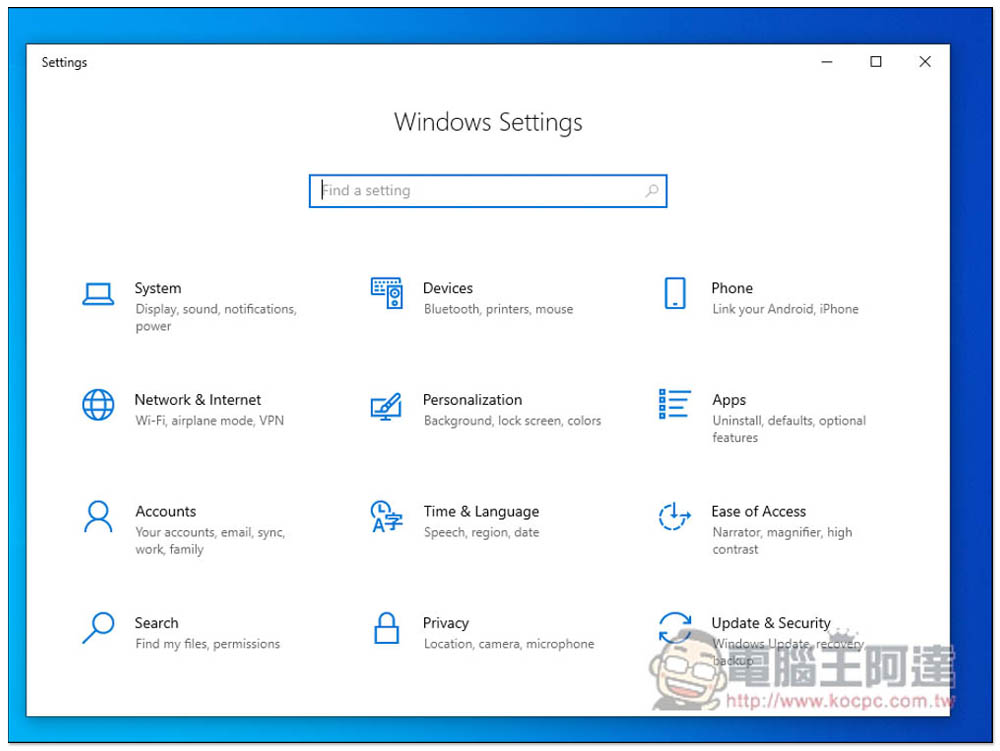
Also note that not all display languages are changed to Chinese, just like the settings, they are still in English:
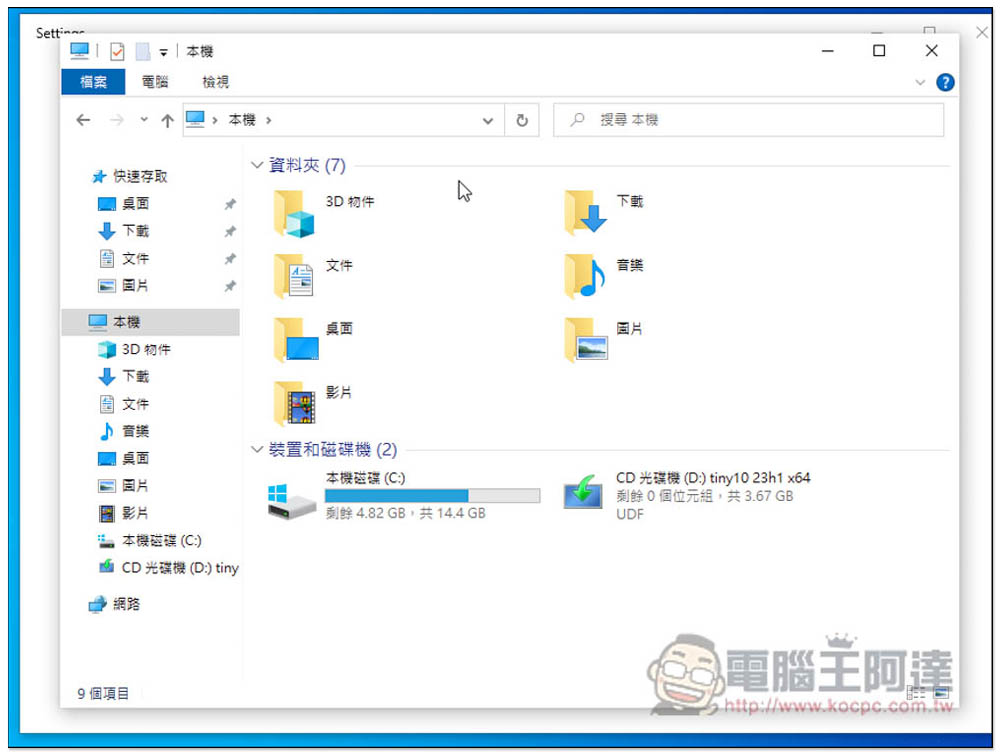
However, software and windows like this will display Chinese:
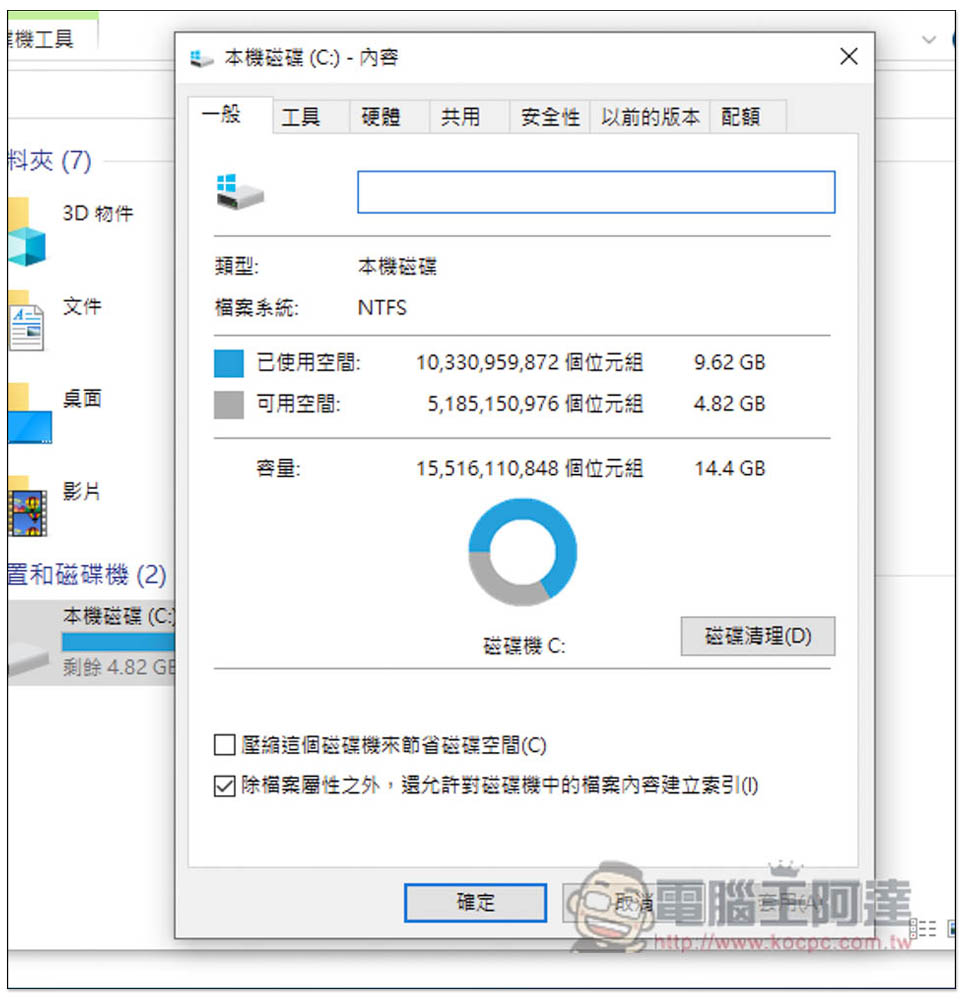
What I installed is the 64-bit version. After adding the Chinese (Taiwan) language pack, it takes up about 9.62GB of capacity, which is more than half less than the official 20GB:
Source: KOCPC Chinese