


Nowadays, it is more and more convenient to shoot videos with mobile phones, and the specifications and formats are becoming more and more diverse. For example, most of the colors we shoot videos are Rec.709. However, with the advancement of mobile phones, many mobile phones can already record HDR videos, which is a format with a higher dynamic range than SDR.
Shooting HDR videos is a great thing, but if your monitor does not support HDR, overexposure will often occur when watching HDR videos. The same thing applies to editing. If the video you get is in SDR or HDR format, then during editing you will find that when shot in the same space, the tones and exposures of the two videos are different. You will go crazy just by grading there… At this time, you have to solve this problem through “interpretation of the material”:

Convert HDR footage in Premiere to SDR
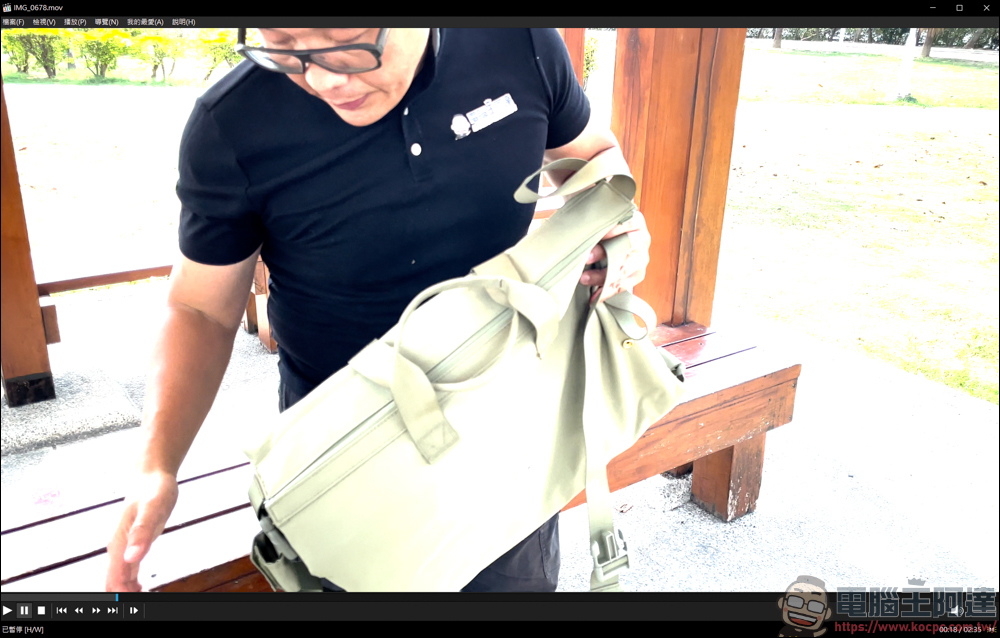
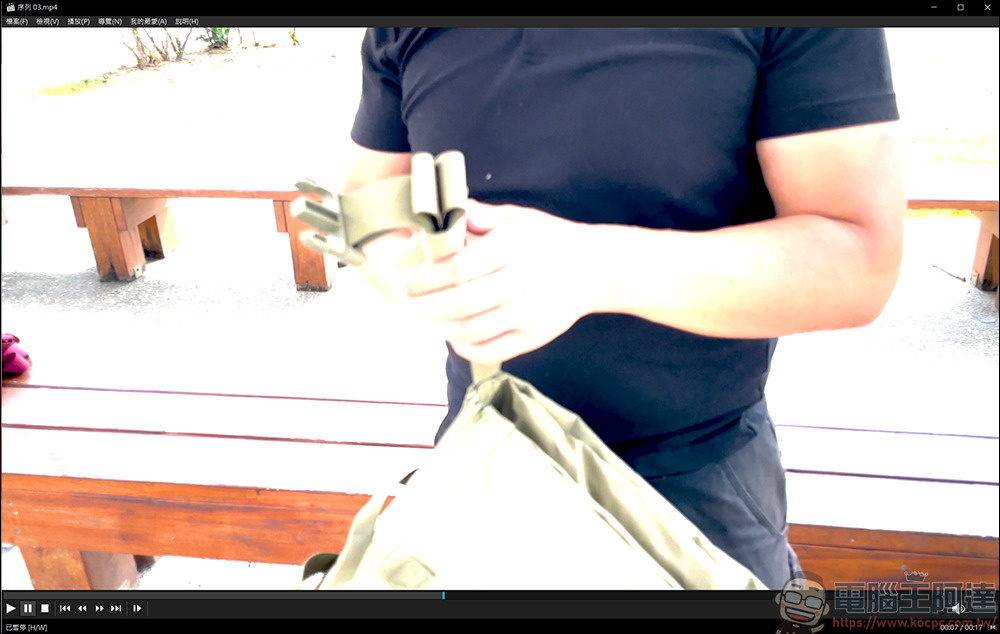
Here you can first see that when the HDR function is not turned on on my screen, the HDR videos viewed on the player are all overexposed:
Since my screen supports HDR function, I just need to turn on the HDR function in the display settings:
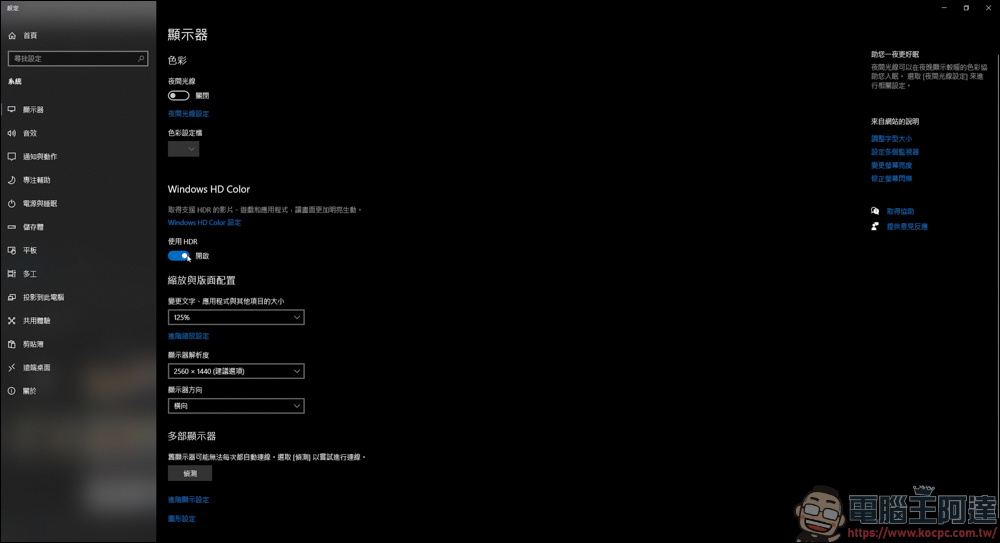
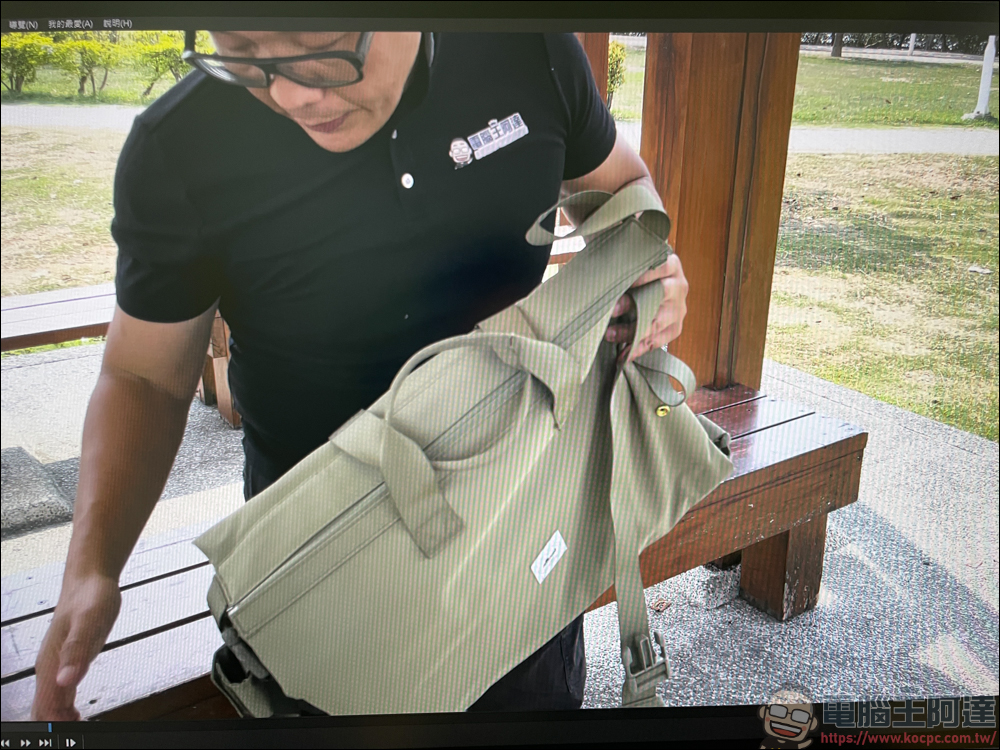
It will be normal to play HDR videos like this:
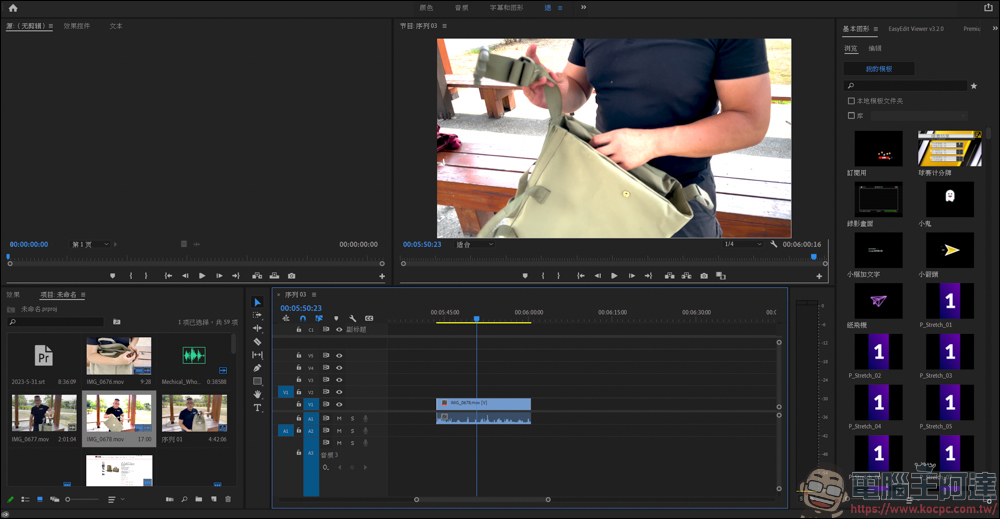
Now the latest version of Premiere can support HDR videos, and the picture can be displayed normally, but overexposure still exists because HLG has exceeded the color space range of Rec.709 (the project setting is Rec.709):
But when you export the video, you will find that the entire video is overexposed:
Solution
Sometimes you may just make a mistake and forget to turn off the HDR function when shooting. Sometimes it may be that the material you receive is a mix of HDR + SDR, but in the end you do not want to output it into an HDR video format. Mixing and editing the two videos is also very troublesome.
At this time, you have to use the function of interpreting the material to convert the HDR video into Rec.709 color. The method is also very simple. Right-click the HDR video → Modify → Interpret the material:

After entering, you will see the column covered by the color space at the bottom. The current color interpretation of the video is REC.2100 HLG, which is the HDR format:
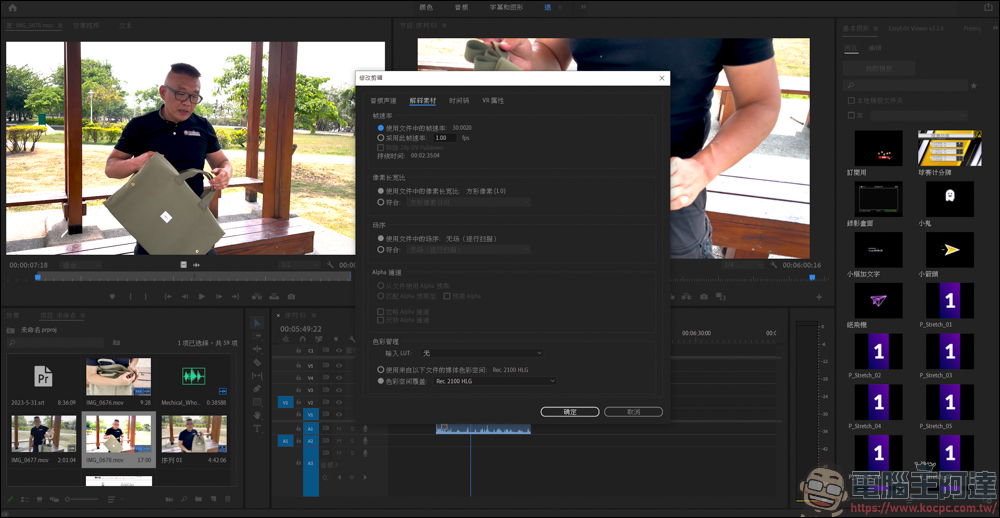
Then click on it, change the option to Rec.709 color, and press OK:
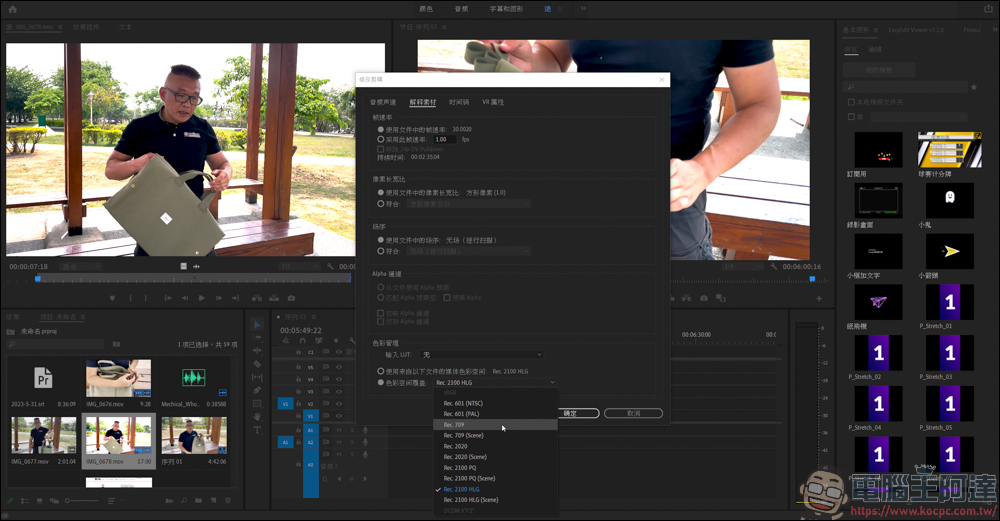
After the change is completed, you can see on the screen that the video has been changed to comply with the Rec.709 color space.
If you also have mixed editing of HDR+SDR videos, or accidentally shot HDR videos, and don’t know how to quickly restore the color space, then this method should be very practical for you!

Source: KOCPC Chinese