


Whether you are a student or an office worker, whether you are chatting or writing papers or reports, text input is an inseparable part of your daily life when using a computer. In this case, inputting text should be as simple and efficient as possible to reduce your working time. There are a lot of built-in tools and functions in Windows. Now follow us to learn it, control it and make full use of it to reduce the pain of typing and let you embark on the road of rebirth.
You must learn super practical Windows text input skills
Find copied content in your clipboard history
Among all text input techniques, this is probably the one I use most frequently. Due to work needs, I not only need to frequently copy text content, but also copy and paste screenshots and pictures. Windows’ built-in clipboard history tool will record your last 30 or so copy actions. When you need to paste the same content repeatedly, you don’t have to copy it again. Just press “Windows + V“Press the key combination to call up the history panel, search forward, select and paste.
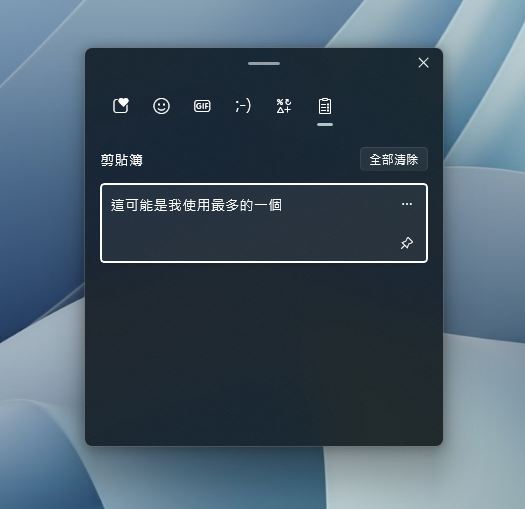
If you want to delete a certain record in the record or pin a single record so that it will not be overwritten, you can click the “…” next to it and select remove or pin from the action options. This is especially convenient when you have to repeatedly enter lengthy proper nouns (such as when writing papers and reports); if you want to clear all records, you can click “Clear All” above all records to clear the clipboard.
Let “Auto Correction” work
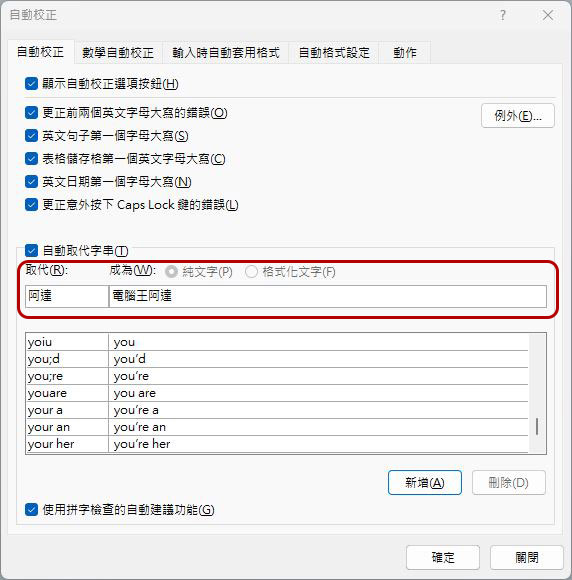
Do you type the same words or phrases often? Rather than trying to keep it in your clipboard history, simply set AutoCorrection to replace specific words you type. How you do this depends on the program you use to enter. For example, Word allows you to set custom replacement strings in auto-correction, so you don’t have to type the complete phrase every time you need to mention it. For example, every time I type “Ada”, it can be automatically replaced with “Computer King Ada”, which can help you save a lot of time.
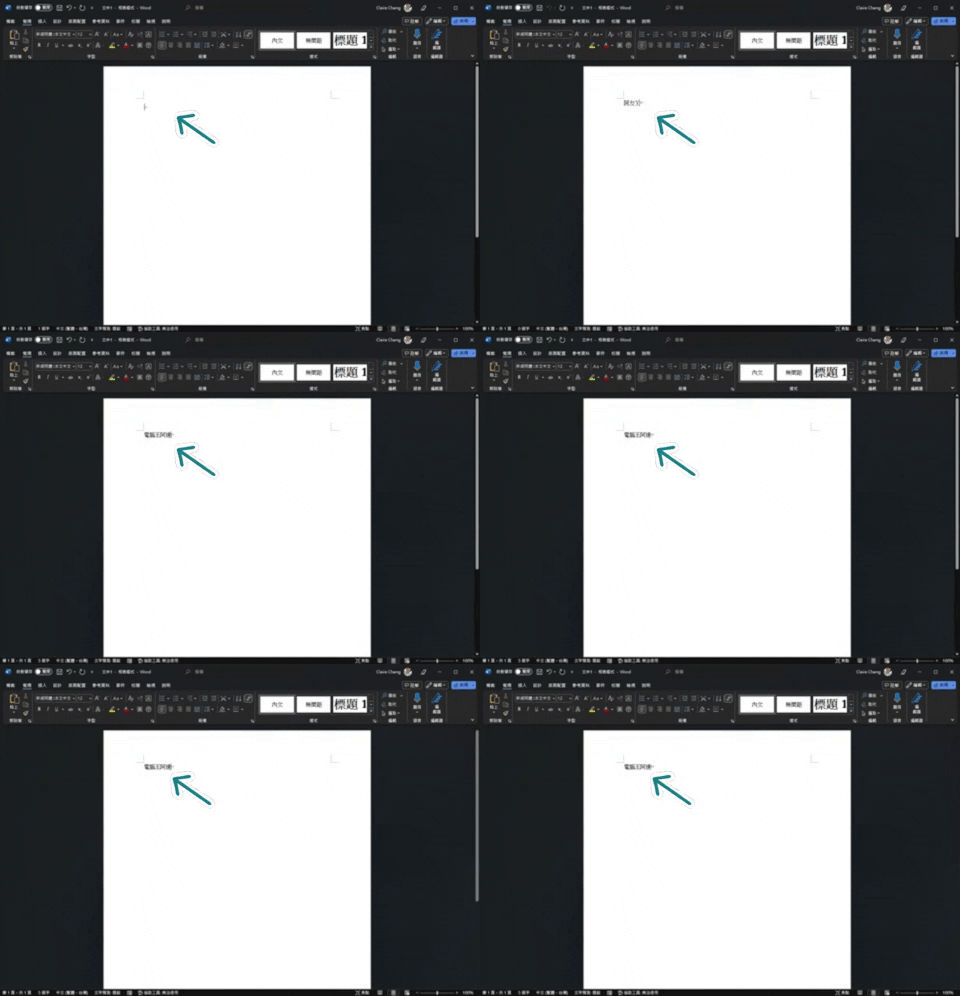
How to set up automatic correction to replace strings:
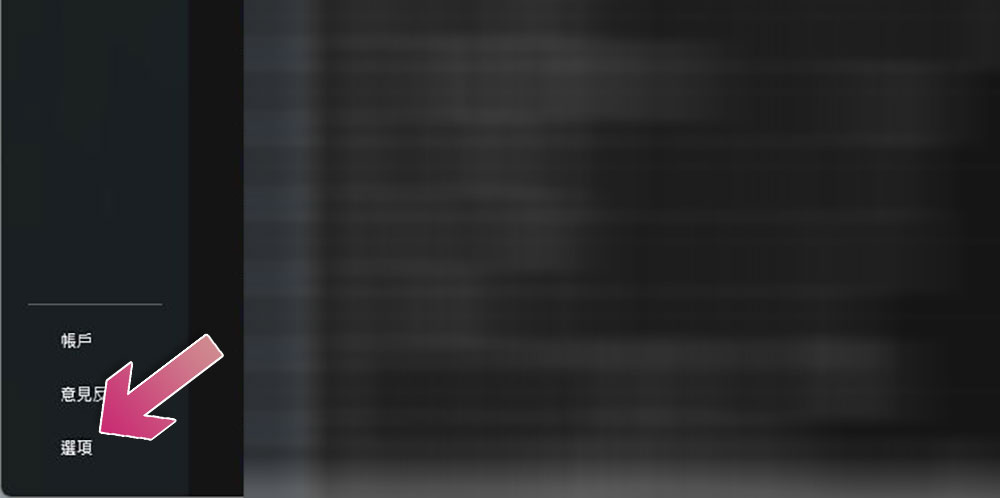
- Open Word and click “Options” in the lower left corner. If you are already in the document, you need to click “File” in the top work item and then click “Options”.
- Click “Correction” in the left sidebar of the options window, then click “Auto-Correction Options”.
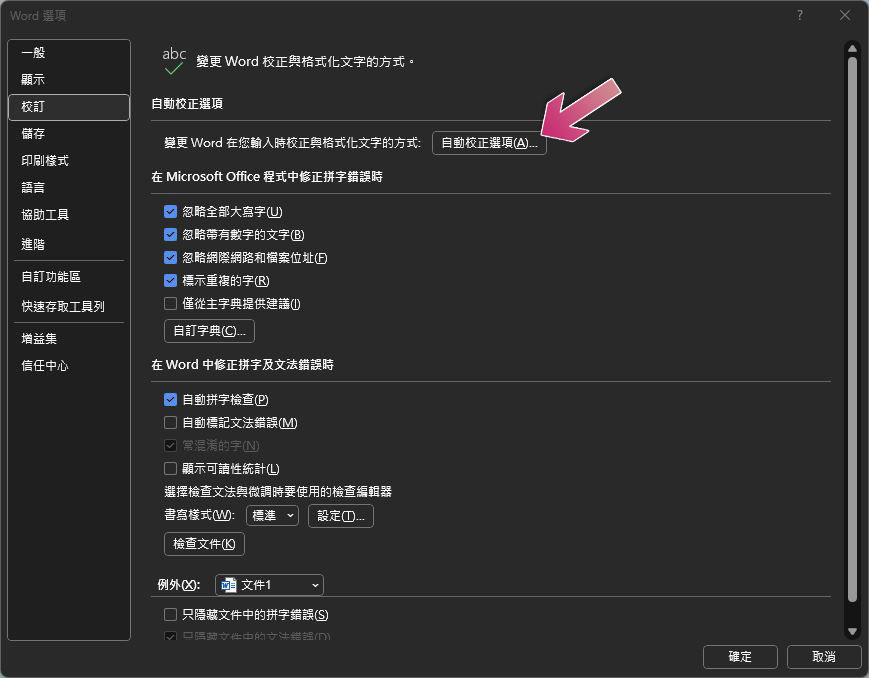
- Enter the custom abbreviation in the replacement field, enter the full name of the abbreviation in the subsequent field, then click “Add” to add the entry to the library, and finally click OK.
Save time with the Emoji and Symbols panel
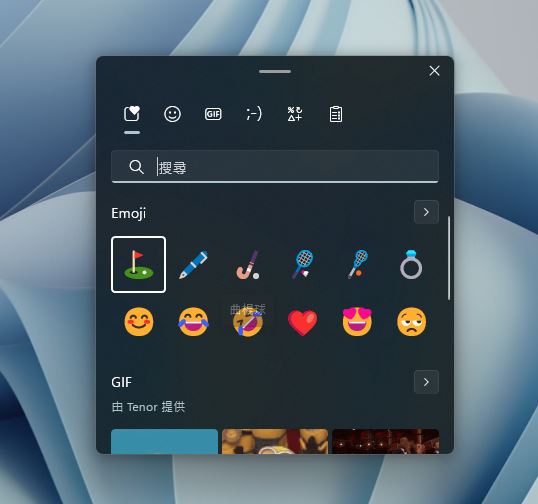
Wondering how to enter specific symbols? Want to enrich your conversations with skull emoji? There’s no need to call up Word’s special character menu or look for a table of special symbols on a web page to copy. Just press “Windows + . “Keyboard shortcut to call up the symbol panel and click Insert. If you need specific content, you can also enter search keywords, or switch the tab above to view other symbol content, including lively emoticons, GIF animations, kaomoji, and punctuation marks.
Paste as plain text
How many times have you made a mess of your entire document by simply copying and pasting? This is because the text in the web page or other documents has been copied along with the formatting, usually causing your form grid and document content to run along with it. In most cases, you can useCtrl + Shift + V” Paste only plain text to keep your layout clean and eliminate the need to clear formatting. This shortcut works in most popular apps like Chrome, Slack, and more. Even for unsupported applications like Word, it is troublesome to click the icon every time. You can also use PowerToys to get shortcuts across Windows applications:
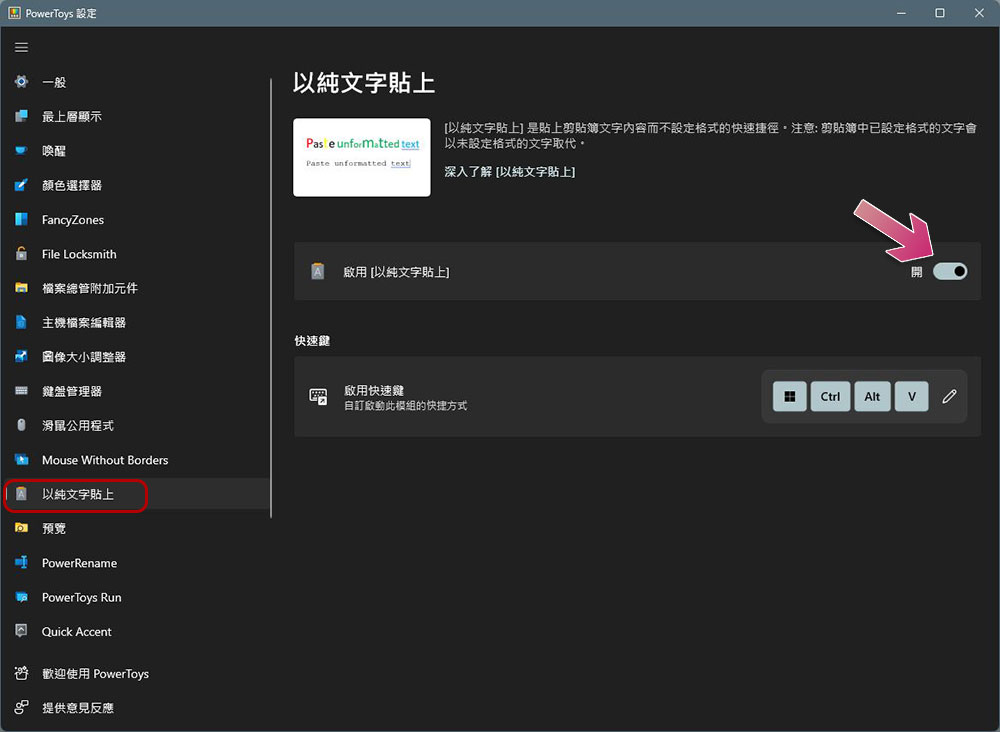
- Install and open PowerToys (Click here to download and install), click to switch to “Paste as plain text” from the left sidebar.
- In the right window, turn on the switch behind this function.
- The default key combination for plain text paste is “Windows + Ctrl + Alt + V”, and you can also define it yourself.
Jump to words and paragraphs
Do you often use the arrow keys to move the cursor between the text you are editing? If it’s just a simple previous line, then of course it’s the same, but what if the place you want to jump to is far away? Moving line by line is too time-consuming. If you want to jump to the previous paragraph at a time, just press “Ctrl + ↑ / ↓” to move between paragraphs. Although this is just a small tip, it can save you a lot of time in the long run.
Find text lightning fast
I have seen many people try to manually scan all the text in a document with their eyeballs to find specific content, which is time-consuming and laborious. If you already know exactly what you’re looking for contains a specific word, justPress “Ctrl + F” to bring up the search window, then use “Ctrl + G” or “F3” and “Sfift + F3” to move between search results, don’t strain your eyes so much.
Select (highlight) text faster
Highlighting text makes bulk manipulation of text easier. You may already know that you can hold down the Shift key and press the arrow keys to highlight text in an editable field. But you know that pressing “Ctrl + Shift + ← /→“Can I select an entire word at once?” Press and hold “Ctrl + Shift + ↑ / ↓” It also allows you to select an entire row at once!
However, perhaps few people know the best way to select any text with the mouse: double-click and triple-click. Double-click the left mouse button to quickly and cleanly select an entire word. To highlight more text, hold down Shift and press another word, and everything before that word will be added to your selection. With three clicks of the left mouse button, you can highlight an entire paragraph in one second and use “Ctrl + A“Keyboard shortcut completes the selection move.
There are many hidden gadgets in Windows. In addition, the author highly recommends that you install and use PoweToys (Click here to download and install), there are many experimental gadgets available, which make text editing and text input no longer a grinding chore. It can at least lighten your burden a little bit, I hope!
Source: KOCPC Chinese