


The LINE community is easy to use. Many people have set up communities with specific themes to communicate and connect with friends with common interests. Many people have also made new friends in real life through the LINE community. Recently, the launch of the new LINE community “analysis” function allows administrators to better understand the activity of the community, making it easier to manage and operate the LINE community.

LINE’s new community “analysis” function is launched, allowing administrators to better understand the activity of the community!
From now on, in addition to the general chat room management functions, LINE community administrators can now use the new “Analysis” function to conduct in-depth observations of the communities they operate, so that they can manage and grow the community more efficiently. At the same time, in order to allow administrators to have a clearer understanding of the activity of the community, we also provide the function for administrators to view member and message data in a “specific time period” according to different needs.
LINE officials stated that the purpose is to hope that administrators can use the “analysis” function to bring more complete operation and management information to the community, and to provide users who use the LINE community with the most ideal communication space.
How to use Analysis?
Community administrators have permission to view chat room analytics data and can use this feature to view more in-depth data. The usage of LINE community “analysis” is as follows:
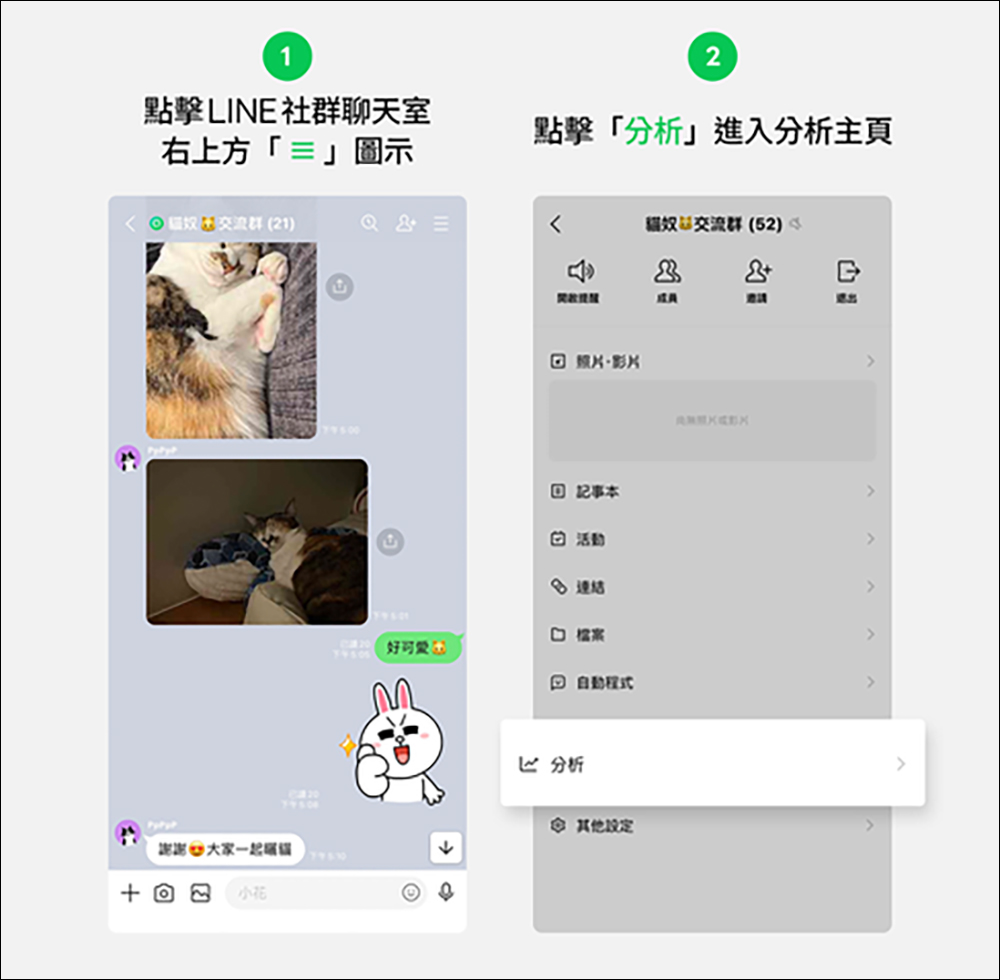
- Click the “≡” icon in the upper right corner of the LINE social chat room
- Click “Analysis” below to enter the analysis homepage
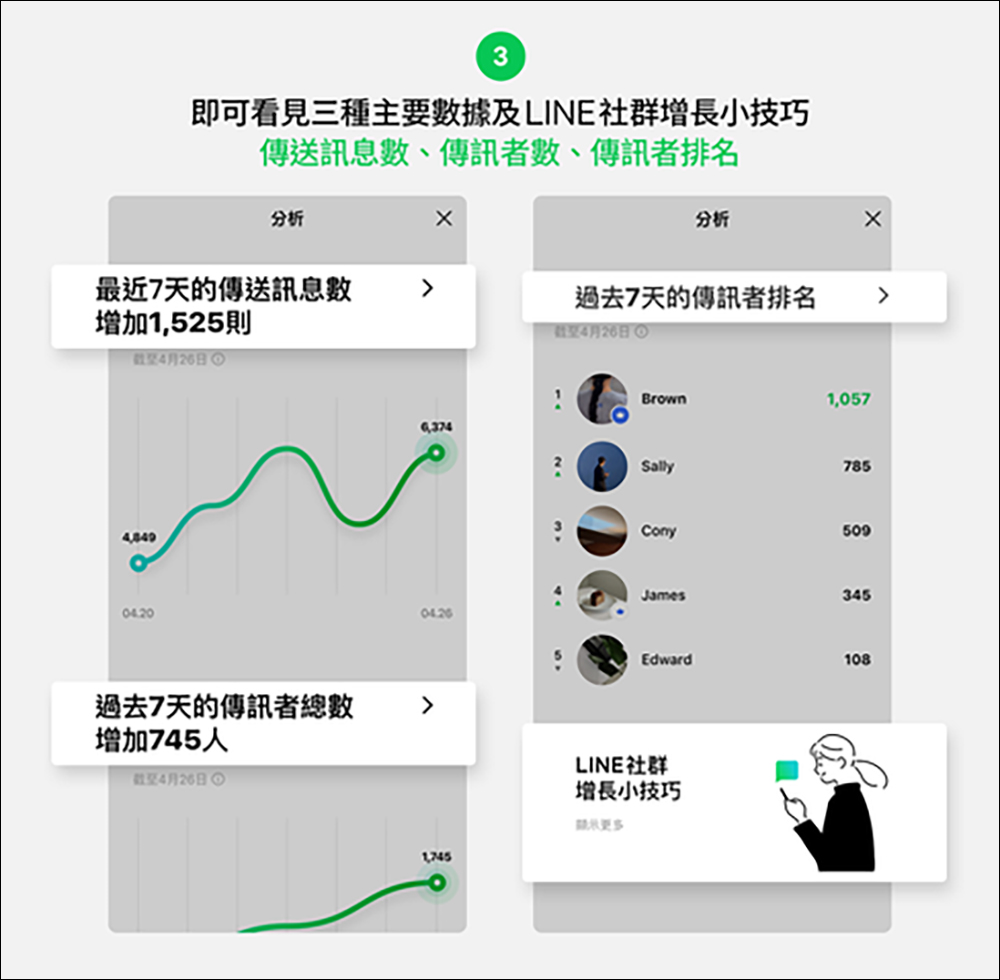
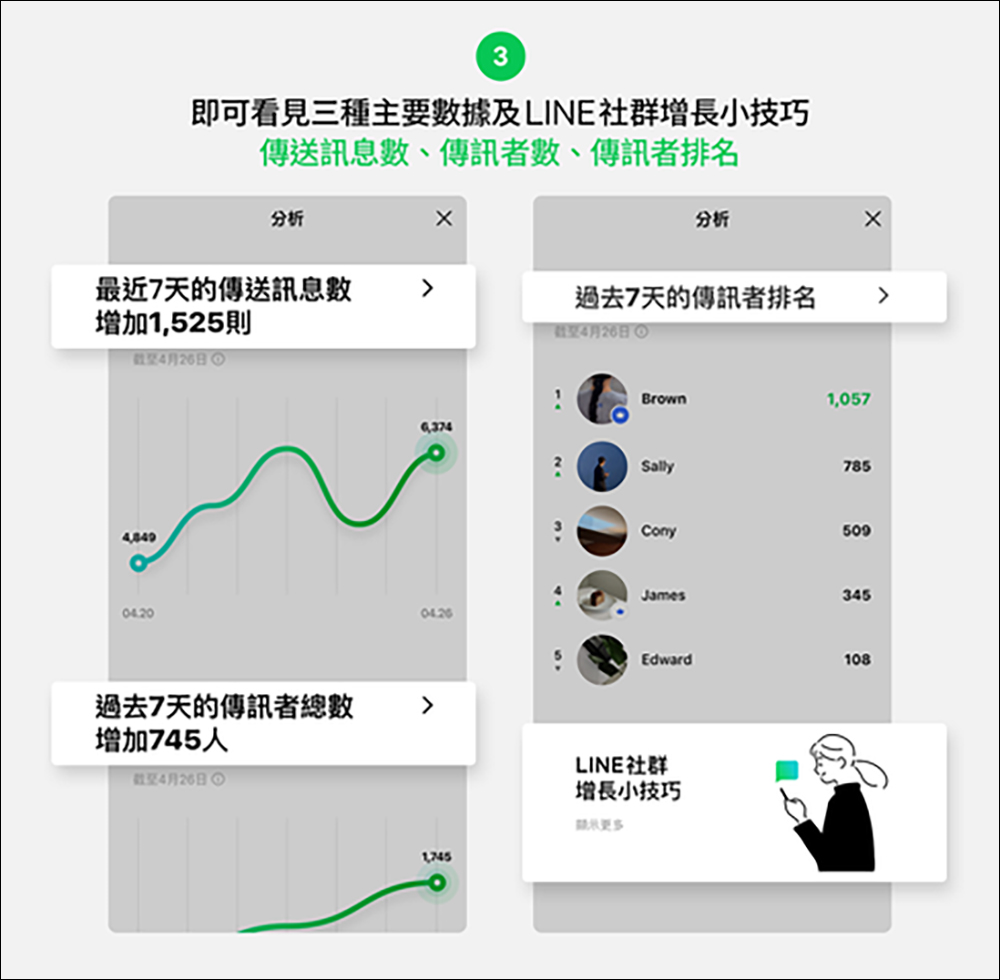
After entering the “Analysis Homepage”, you can see three main data, which are:
-
- The number of messages sent in the past 7 days (the date range can be adjusted on the detailed page)
- The number of message senders in the past 7 days (the date range can be adjusted on the detailed page)
- Ranking of messengers
LINE community analysis function description
When using the “Analyze” function, please refer to the following:
- Must be an administrator or co-administrator of the social chat room to use
- You can select the data interval you want to view, and six time intervals are provided as choices.
- Supports mobile version, does not support computer version and watch version
- The compilation of background statistical data takes time and is not real-time data.
- Currently, the LINE community “analysis” function is only available for Android devices with the latest version of LINE (for iOS devices, please wait for a while until you can update to LINE version 13.7.0)
How to use “Analysis” to further view more community data?
- Click the “≡” icon in the upper right corner of the LINE social chat room
- Click “Analysis” to enter the analysis homepage
- Click the “>” icon on the right of “Number of messages sent”/”Total number of messengers”
- After entering, you can select the following analysis intervals according to your needs, which are: 7 days/14 days/30 days/90 days/180 days/360 days.
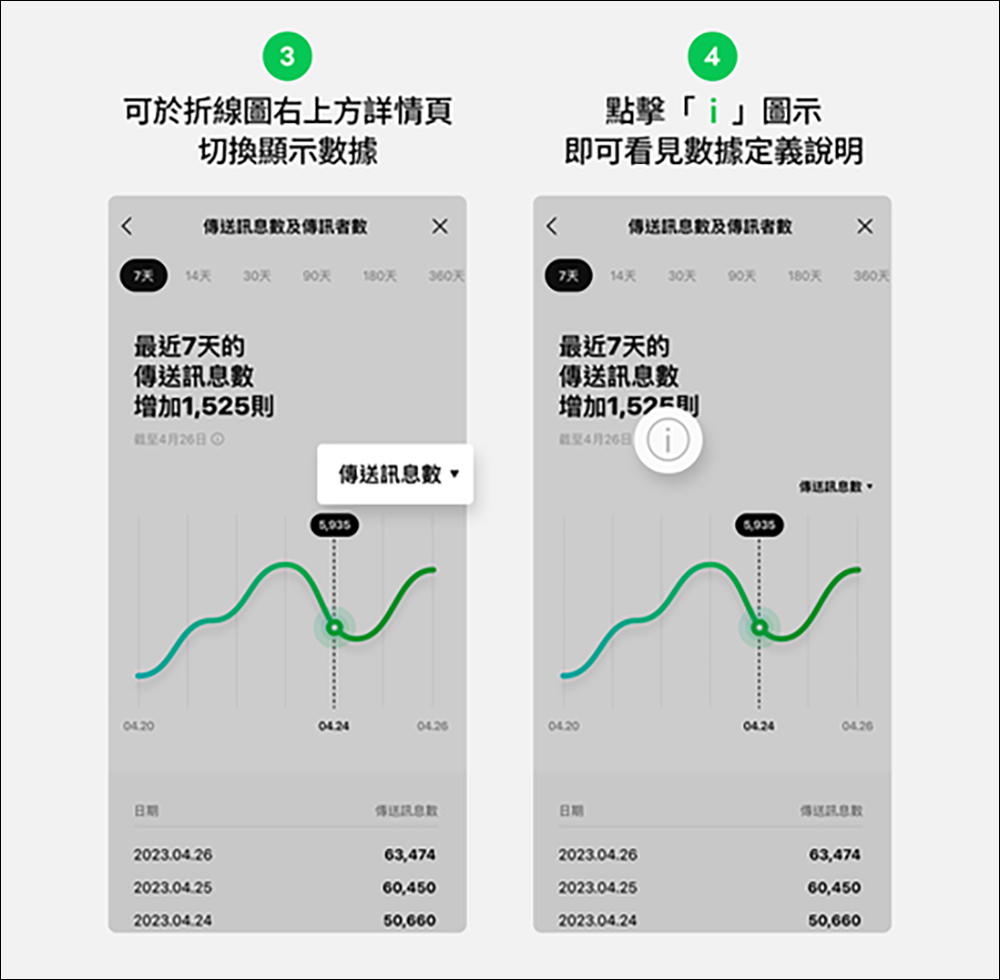
- You can directly switch the display data on the details page in the upper right corner of the line chart, for example, switch from the number of messages to the number of senders.
- Click the “i” icon to see the data definition description. This content can give you a deeper understanding of the meaning and calculation methods behind the data, and provide you with the direction for subsequent community management.
Courier ranking! The most active member of the community is him/her
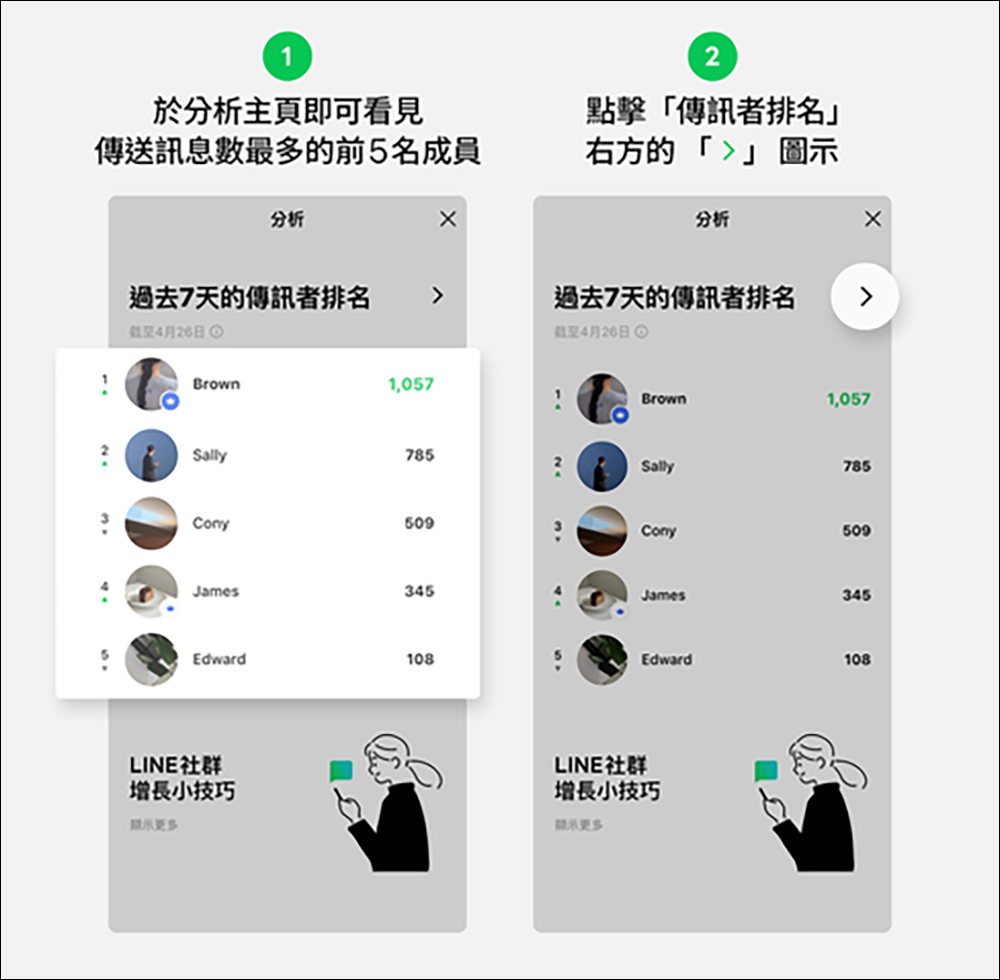
- Click the “Analysis” icon to enter the analysis homepage
- You can see the top 5 members who sent the most messages
- Click the “>” icon to the right of “Communicator Ranking”
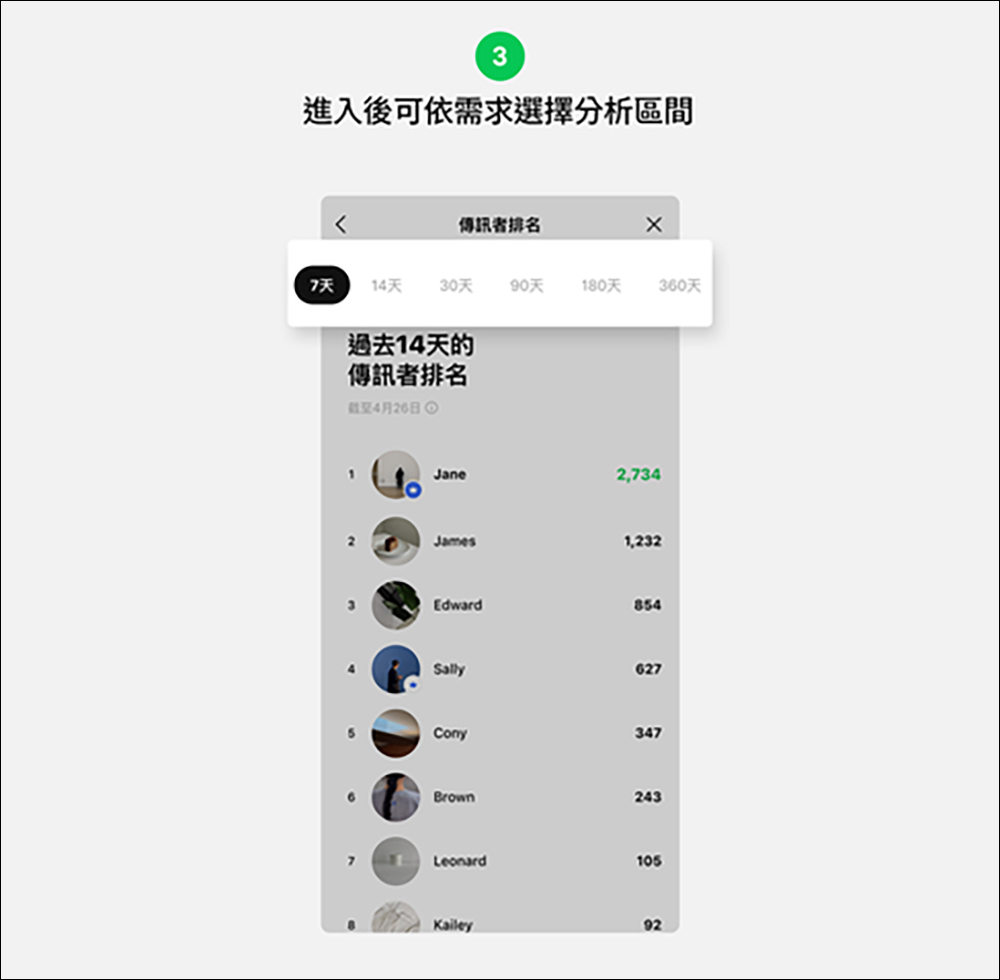
- After entering, you can select the following analysis intervals according to your needs: 7 days/14 days/30 days/90 days/180 days/360 days
LINE community growth tips
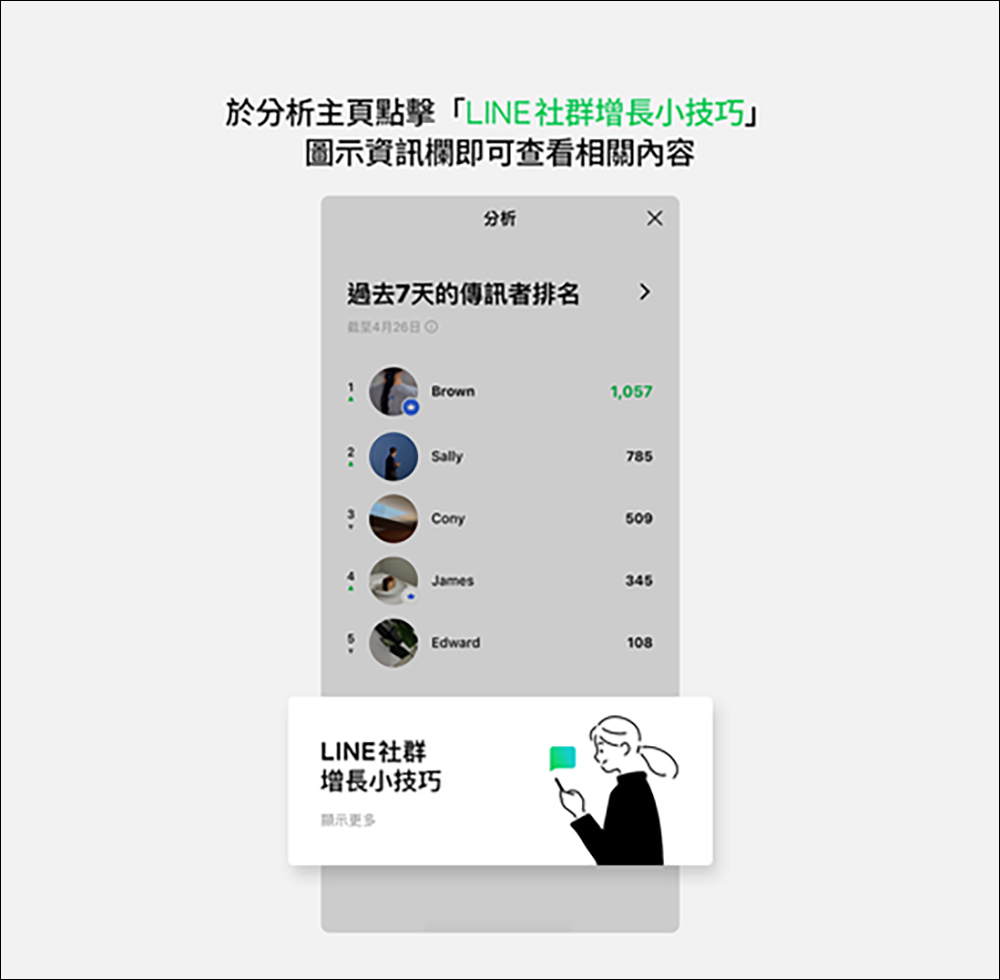
- Click the “Analyze” icon below
- Click on the “LINE Community Growth Tips” icon information bar
- Permission to view analytical data in “Other Chat Room Functions” upon request
- Administrators can go to: Other Settings > Management Permissions > Other Chat Room Functions > View Analysis to manage whether to open the analysis function to co-administrators. You can set that only “Administrator” or “Administrator and co-administrators” have permissions
After reading this, I believe that managers of the majority of LINE communities can use the “Analysis” function to manage and operate the community more easily!
Further reading:
Japanese netizens tried AI drawing and found that uncles are more difficult to draw than beautiful women

Source: KOCPC Chinese