


There must be some apps on everyone’s iPhone that they don’t want to be discovered by others, or parents who lend their phones to others to play with their children will also want to restrict their use and hide certain apps from them. This article will recommend an “AALocker” that can do this function, allowing you to easily hide iPhone apps with one click. Now the lifetime version is offering a limited-time free promotion, so those who need it should hurry up and get it.
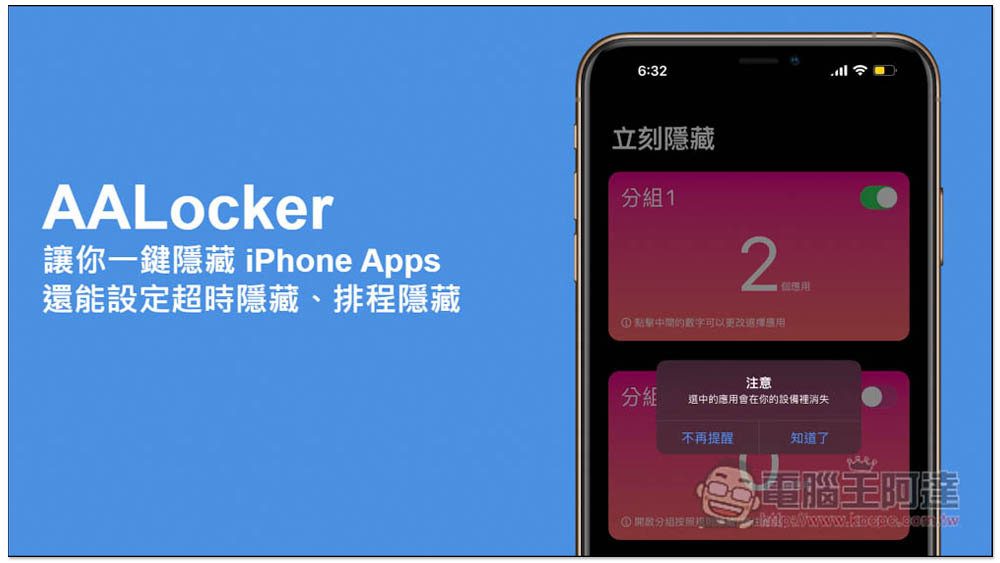
AALocker allows you to hide iPhone Apps with one click, and can also set timeout hiding and schedule hiding (lifetime version is free)
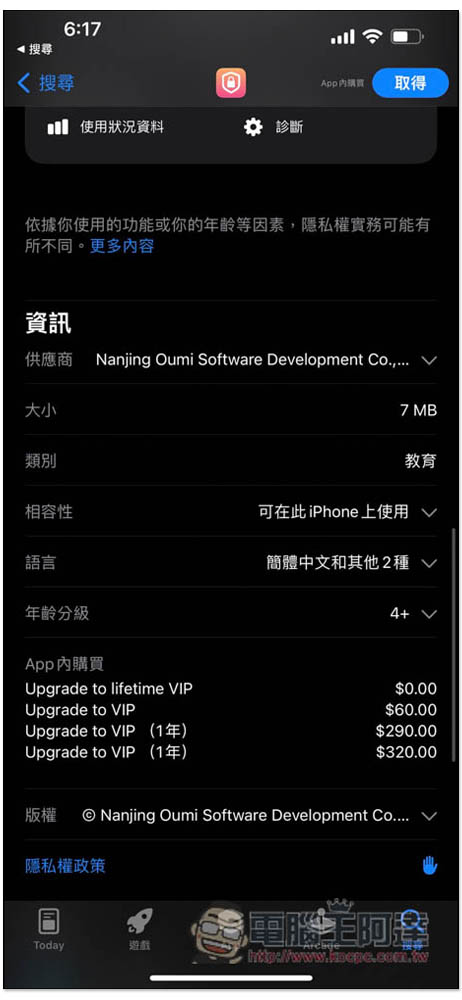
The hidden function of AALocker is actually implemented in conjunction with the iPhone screen time. Therefore, it is not a crack and can be used with confidence. However, it is a Chinese developer. People who are worried about security are advised to skip it. In addition, the lifetime version limited free promotion has been going on for a few days, and we are not sure when it will stop. It is recommended to get the lifetime version discount first after downloading:
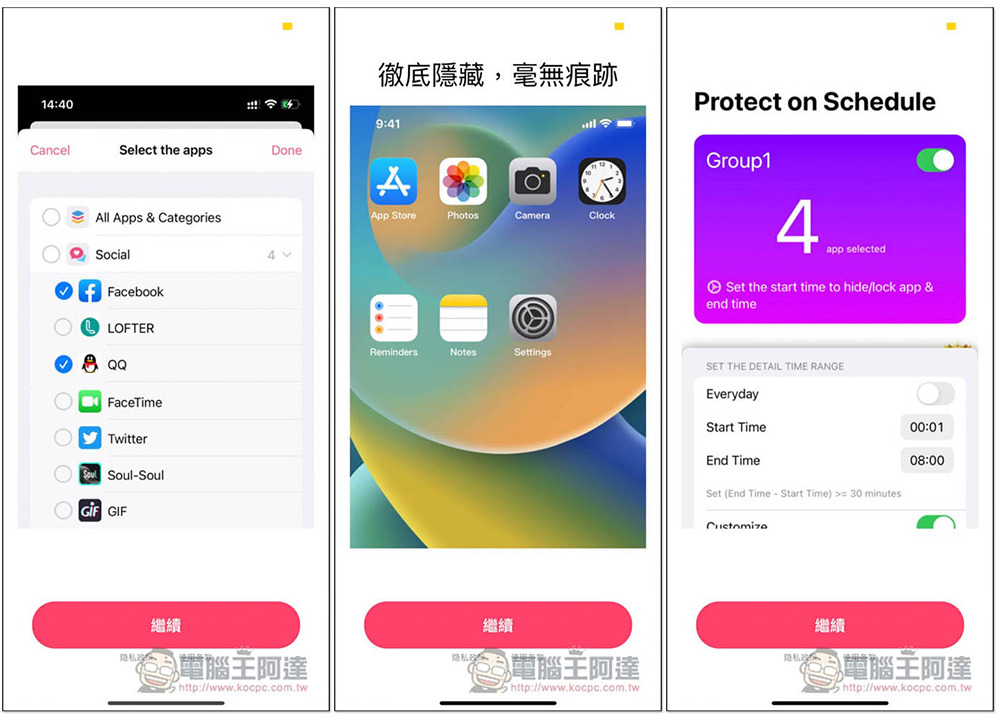
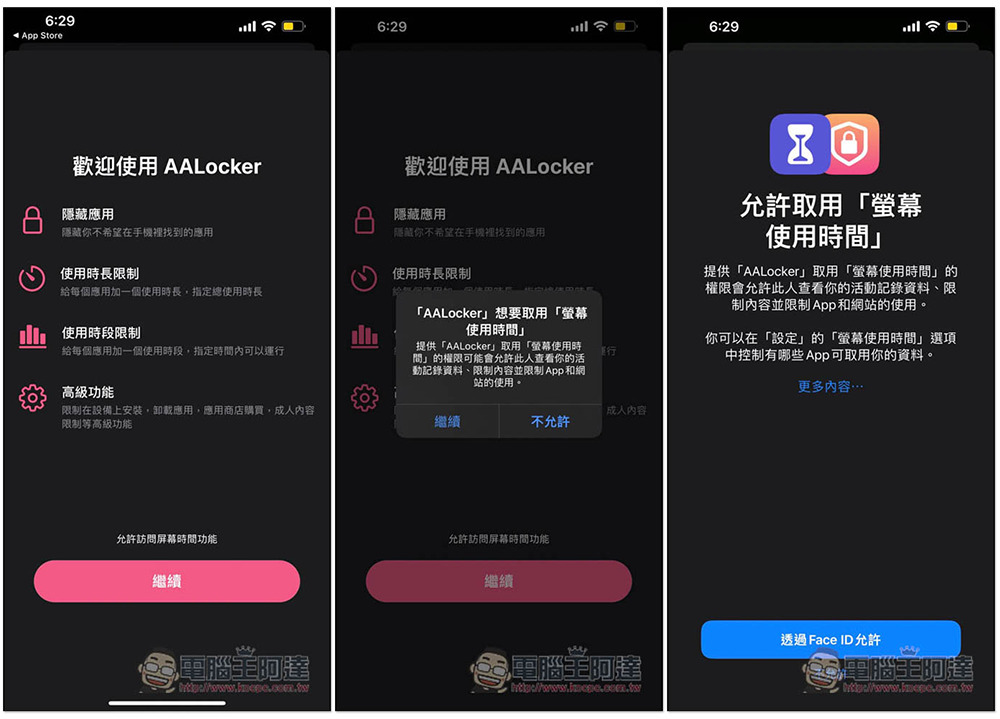
There is a simplified Chinese interface. When you open it for the first time, some features will be introduced:
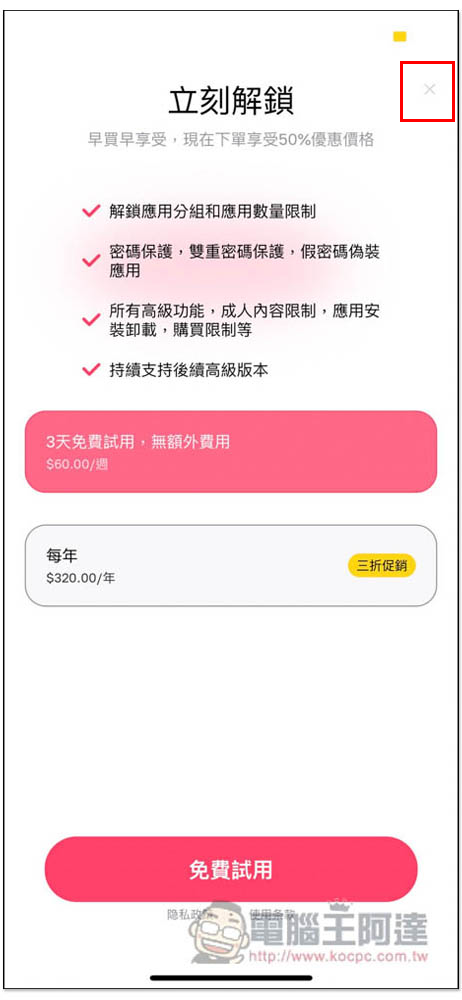
Remember to press the X in the upper right corner to close this screen. Do not click the red or white button in the middle:
You will need to allow access to “Screen Time”. Remember to click Allow in this section so that its functions can work properly:
Then please go to the settings menu and click “Upgrade Now” at the top. You will see the words “Unlock now for lifetime use $0.00” and the limited exemption. If you see that you need to pay, it means that the limited exemption has ended:
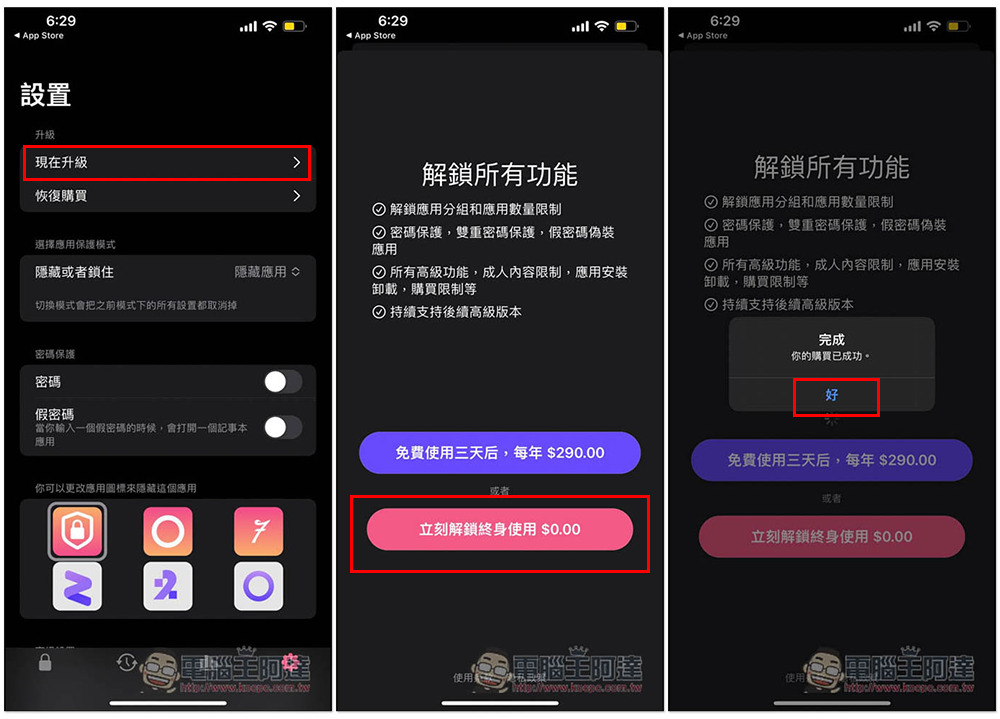
After the limited-free purchase is successful, the original upgrade option disappears and you can use it for free for life:
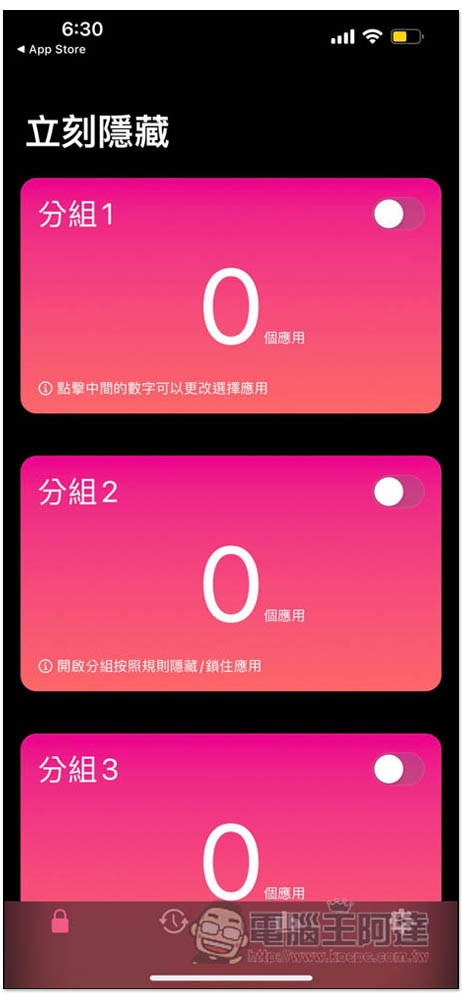
The method of use is also very simple. If you want to hide it immediately and manually enable and hide the app, go to the first “Hide Now” menu. There are multiple groups provided. It depends on which one you want to use. I will use the first “Group 1” as a demonstration:
I want to hide the CATCHPLAY+ and Critical Strike apps:
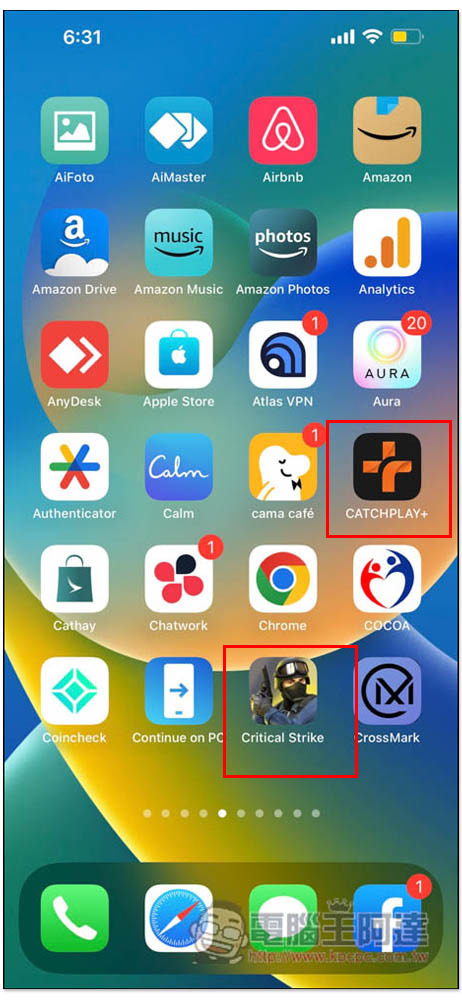
After entering the group menu, you can find the Apps you want to hide. It is easier to search for keywords. After checking all the apps you want to hide, press the upper right corner to confirm:
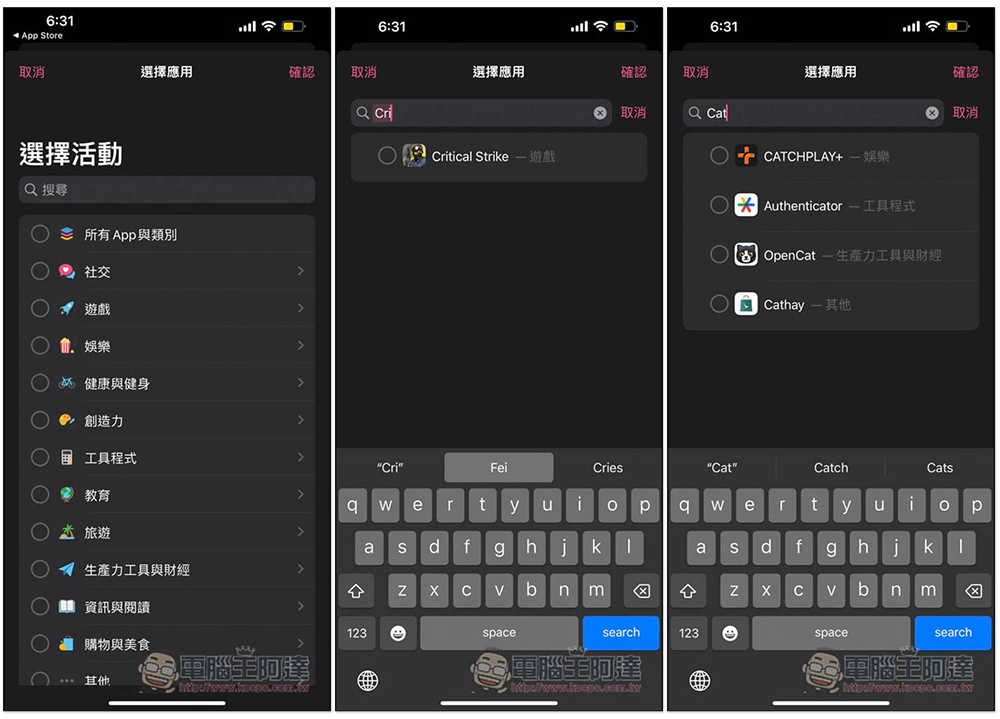
These apps will be added to this group, and then turn on the switch in the upper right corner. “Note, the selected app will disappear from your device” will pop up. Press OK. Let me also remind you that disappearing does not mean removal. It is still in your iPhone, but it is temporarily unavailable. You need to turn off the switch when you want to use it:
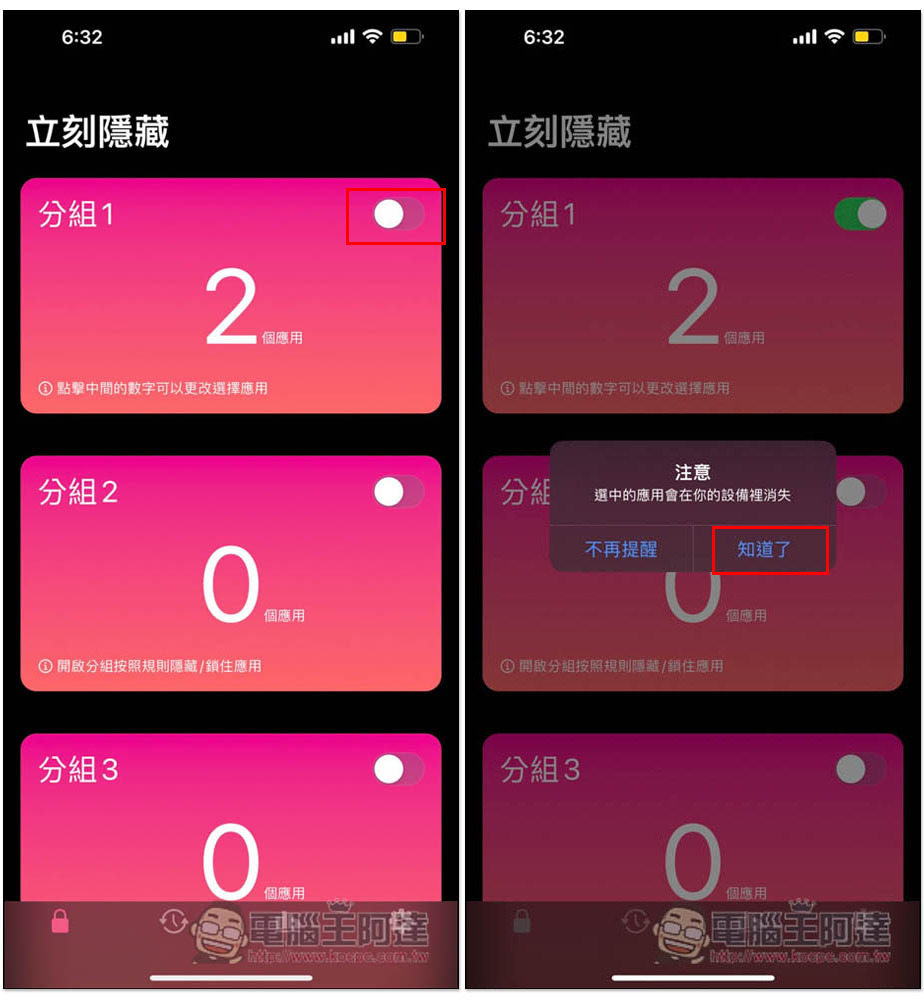
I returned to the main screen page just now, and sure enough, both CATCHPLAY+ and Critical Strike Apps disappeared:
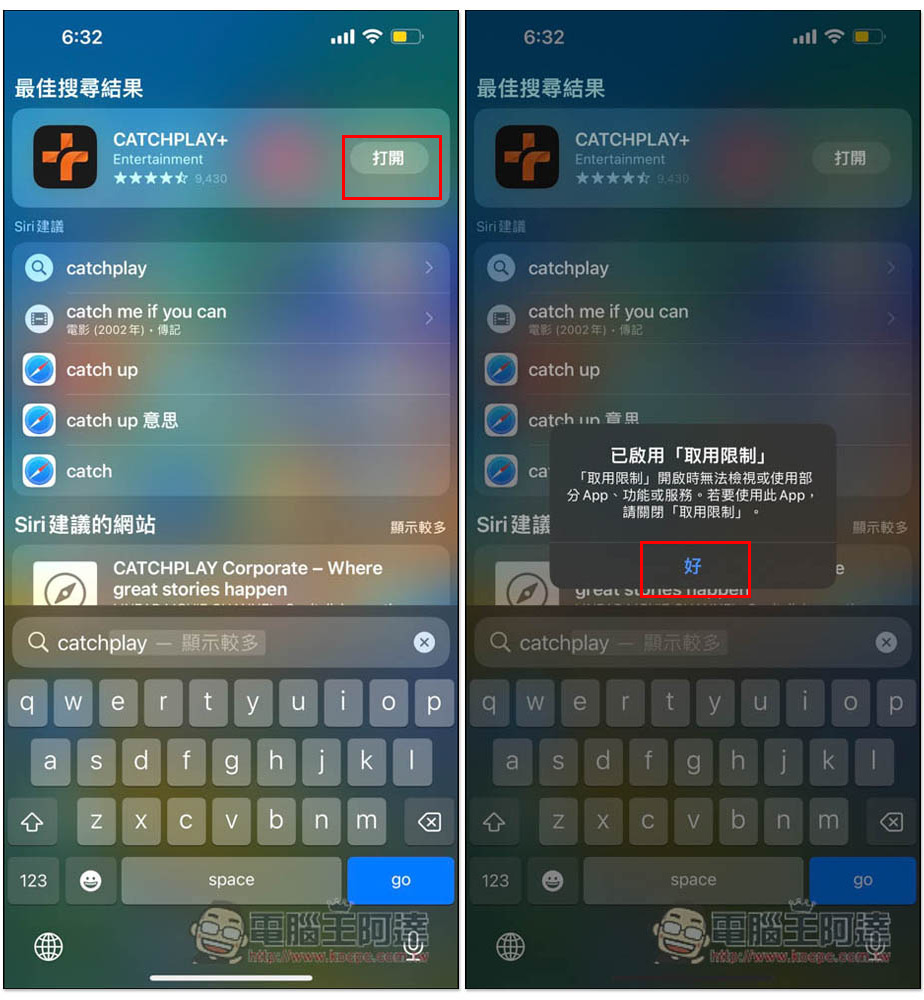
I tried using Spotlight to search, and I could find the option to open the App Store, but after clicking it, it showed that access restrictions were enabled and I couldn’t use it:
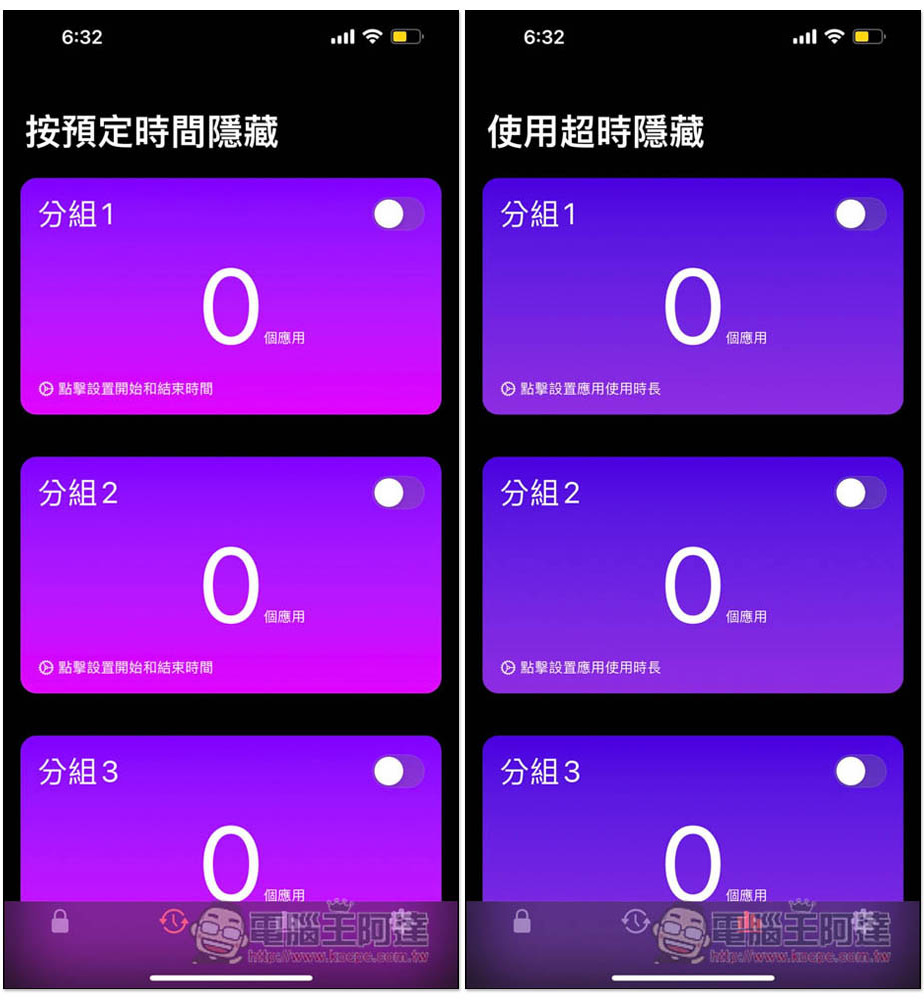
For parents who often need to lend their children their mobile phones to play with, they can use “scheduling requirements” or “auto-hide over time”:
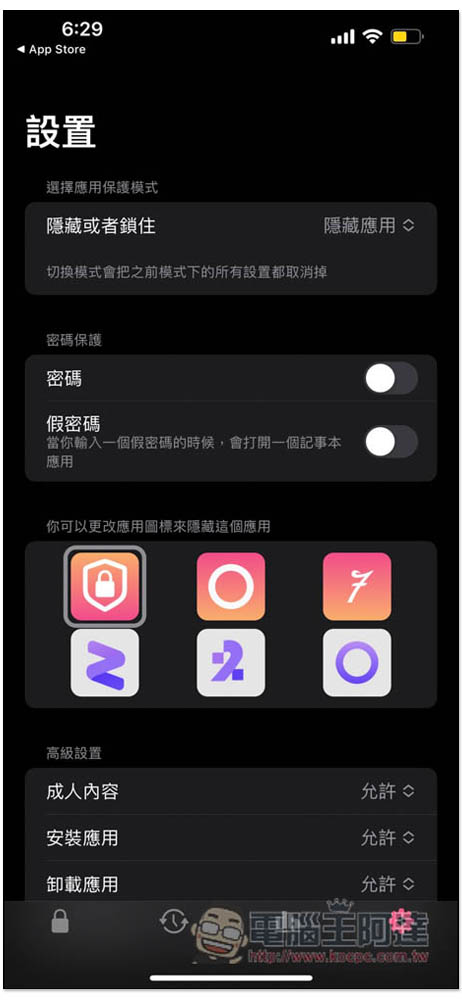
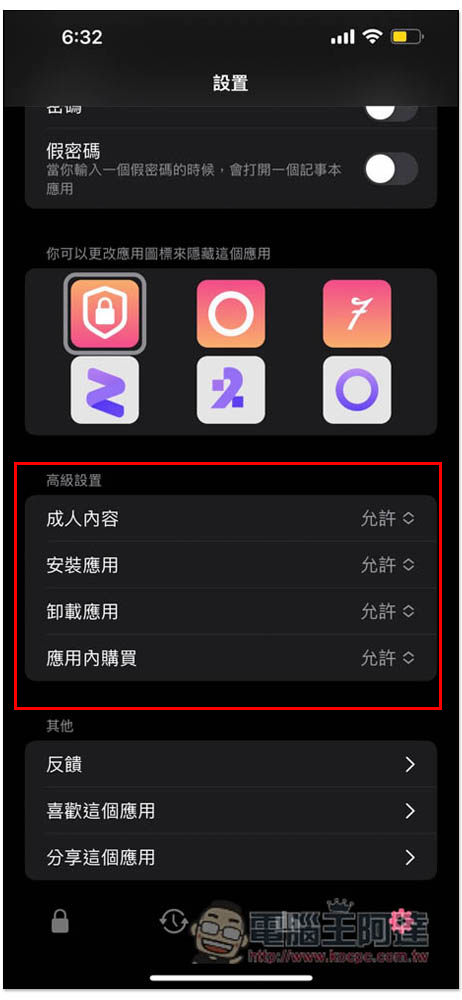
There are also some nice settings in the settings menu, like you can specify whether to allow adult content, install apps, remove apps, and in-app purchases:
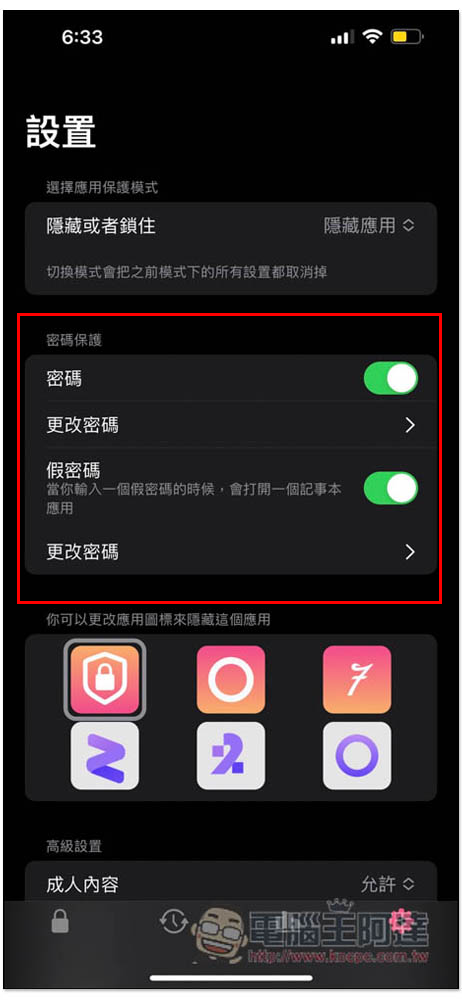
There is also password protection. Not only can you set a password to enter the App, but you can also specify a fake password to open the Notepad application, so that when someone asks you to open the App, you can pretend to be the Notepad App:
Source: KOCPC Chinese