


according to Research on Dscount, Android users interact with their smartphones more than 2,600 times a day on average. When mobile phones have become a daily necessity in the modern era, every click or swipe encounters delays and freezes that make people anxious. This issue can be particularly infuriating for Android phones. Given the variety of phones on the market, from budget-focused models to cutting-edge flagships, some are just more prone to slowdowns than others.
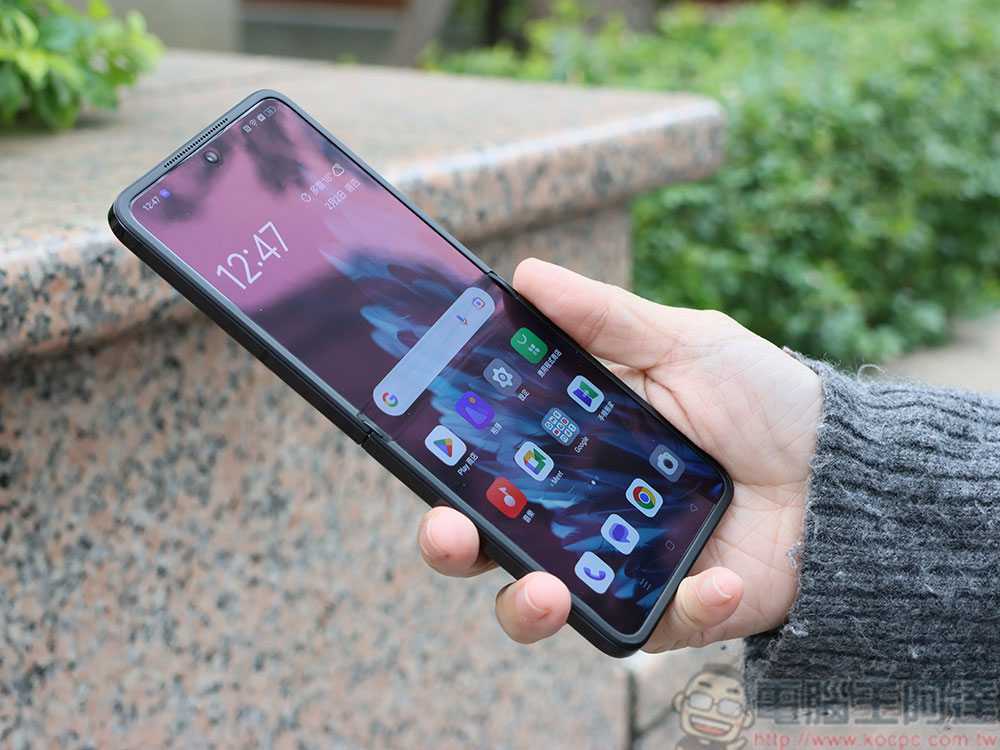
8 tips to make your Android phone run faster, try them before spending money on a new phone
Before you get so angry that you split your Android phone in half, there are a number of worth-trying fixes for sluggish performance. Android is a complex operating system with many variables that can affect performance, so whether your phone’s storage is filling up or apps are becoming overbearing, we’ve got 8 tips to help your Andorid get the speed boost it needs.
Delete photos, videos, and other files
Even the highest-end Android phones can become sluggish when their storage fills up. The operating system requires some flexible space to operate optimally, and Google recommends that users keep at least 10% of their storage space free for optimal performance. If you’re running out of space, deleting some large files will help. You should back up any important files before deleting them. You can transfer them to your computer or a USB storage device; if you want to be able to access them in the future, you can choose to transfer them to the cloud. But if you don’t care about old photos or anything like that, you can certainly skip this step.

If you want to delete files, please make good use of the built-in folder application (Files) on your phone. It will mark your file types and identify which files are large and provide deletion options. Newer Android phones also have a trash can inside, which works much like the Recycle Bin on Windows or the Trash Can on macOS, so you have to empty the trash after deleting files to actually delete them permanently.
Delete unused apps
Since certain apps can sometimes cause your system to slow down, it may help to speed things up if your phone has plenty of capacity, but if you don’t use these apps often, you should avoid installing them. Thinking back on it, do you really need to install a restaurant app to get coupons? Is that dating app you abandoned after setting up your profile still necessary on your phone?

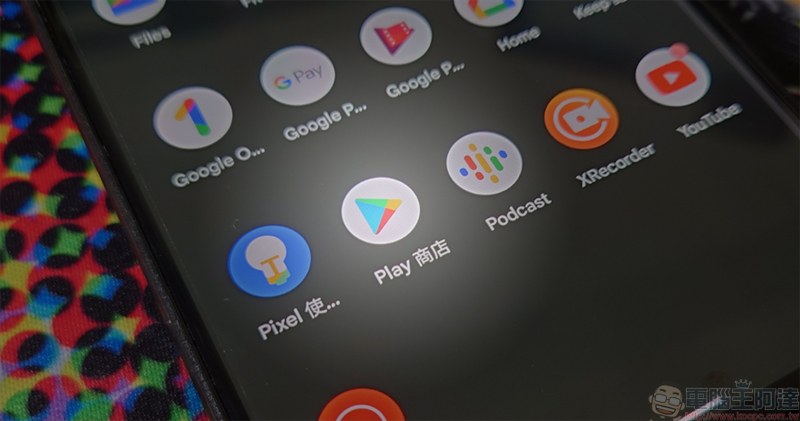
Your first choice for deletion will probably be any app from a third party that comes pre-installed on your phone. Many phones come preloaded with games, extra messaging, social media apps, and more. These are only available because the developers paid to put them directly on your phone out of the box, and most can be removed. Some may still be useful or necessary, so only delete items you know are junk or won’t be used at all, such as mobile games you don’t play. Next, you can turn your attention to any apps you never use. If an app you installed from the Play Store has been sitting idle on your phone for a long time, it’s time to delete it.
Check for app abuse
Although there are a large number of apps available for download in the Play Store, some of them are scams, junk, or poorly programmed and take up a lot of resources. Rogue apps can cause damage to your system, severely affecting the performance of your Android phone. Problematic apps can take up resources and keep running in the background, sucking precious resources from your RAM and battery. If your phone is slowing down and you’re the type who downloads tons of apps without double-checking their credibility, it’s time to rule out certain apps that might be the culprit.
One tip for identifying out-of-control apps is to look at your battery settings, Android will show you the percentage of battery consumed by each app. If one app shows a significantly higher percentage than the others, especially if it’s an app you don’t use much, that’s a sign that it may be underperforming. Next, you can boot your phone into safe mode, which will boot Android with only stock apps. If your phone suddenly feels incredibly fast while running in safe mode, then your problem is caused by an installed app. To activate Safe Mode, turn off your phone completely, then press and hold the Power and Volume Down keys simultaneously until your phone boots into Safe Mode and the words “Safe Mode” appear at the bottom of the screen.
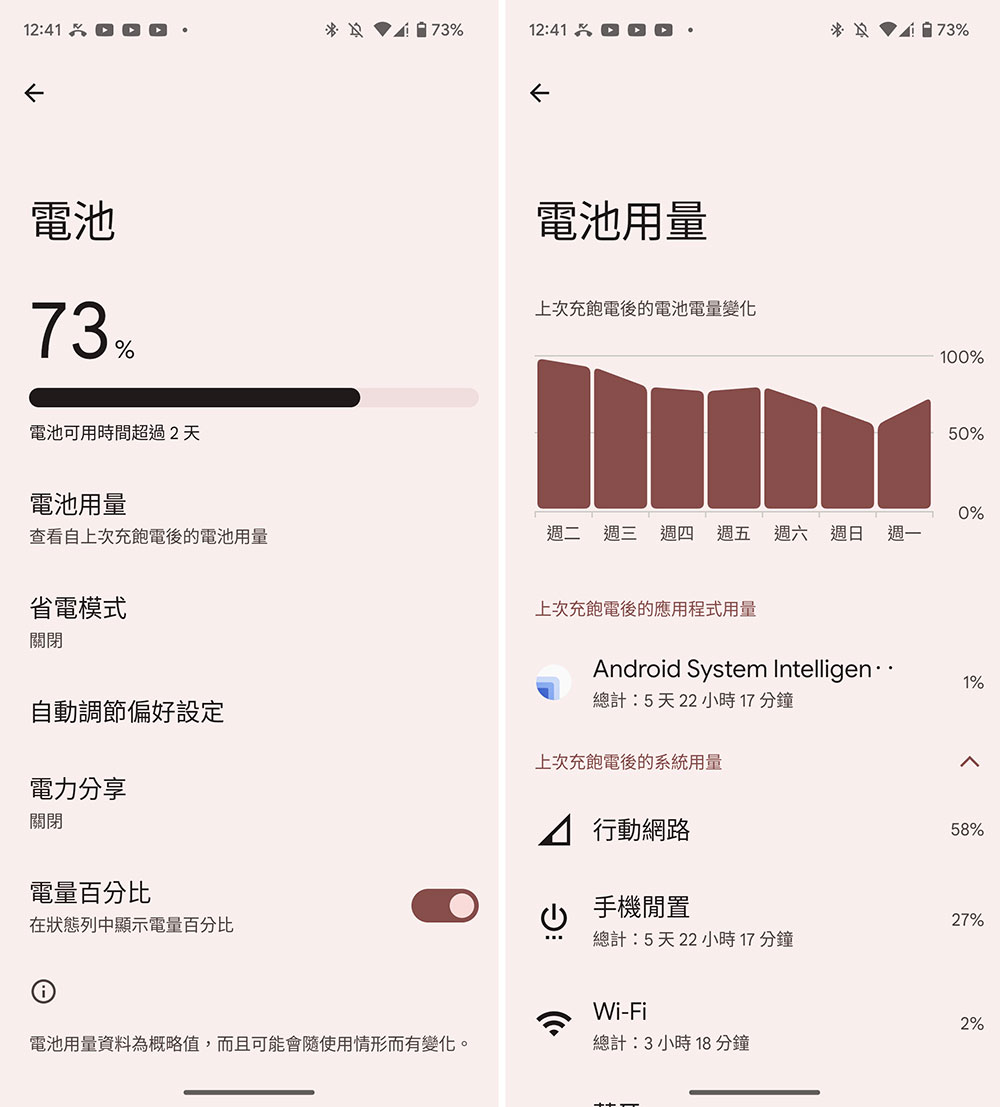
If the problem is indeed an app, then it’s time to narrow it down and try to uninstall the recently installed apps one by one, and see if your phone’s speed improves after each uninstall.
Limit battery usage for infrequently used apps
Some apps keep running in the background and occupy your RAM, which can slow down your Android phone and consume extra battery. Although unused apps can be deleted, some apps are based on work or communication needs and you may use them occasionally, so they must be kept. In addition, some apps preloaded on the phone cannot be uninstalled. In this case, you have to make sure that the phone limits the resource usage by putting these apps to sleep, which may help speed up the device.
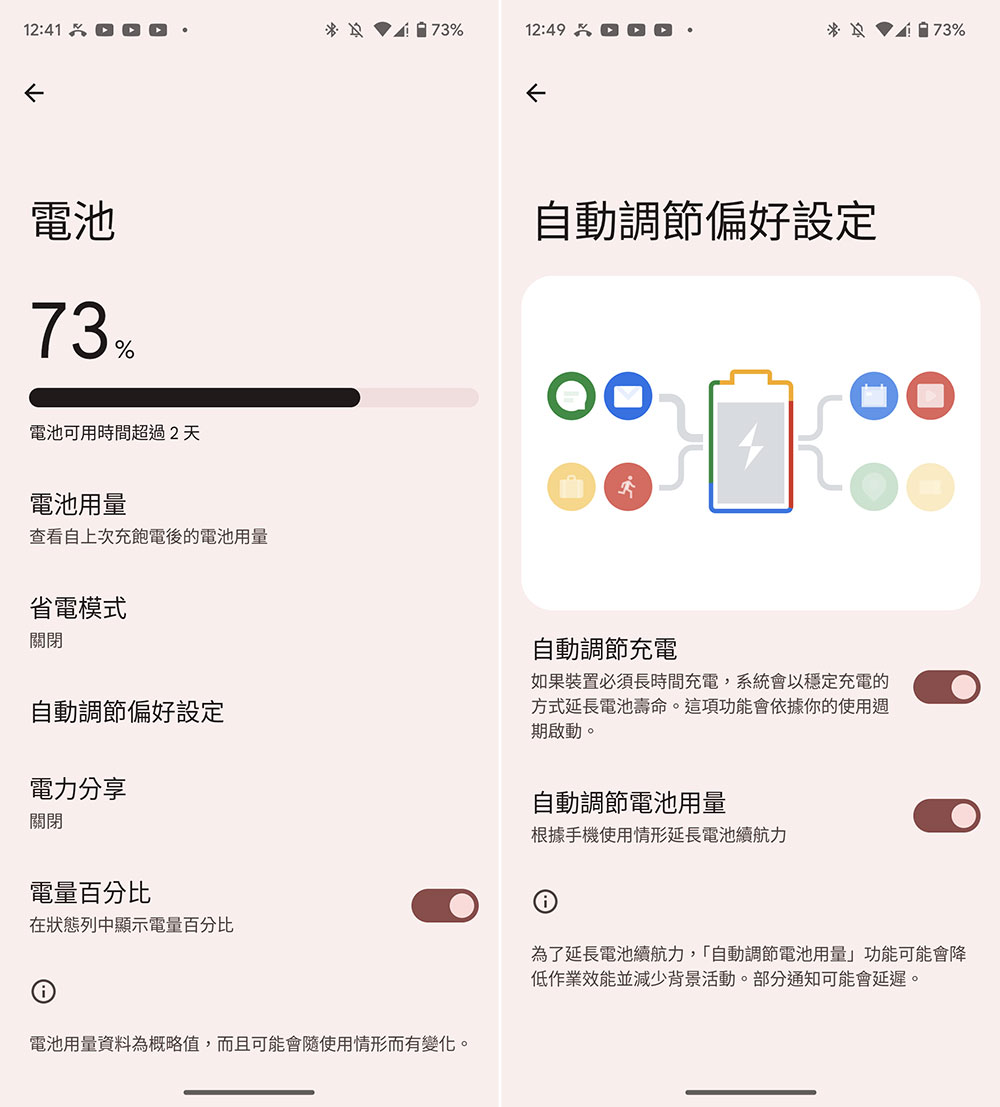
Before continuing, be aware that hibernating apps can be a double-edged sword. In fact, some users mistakenly believe that the apps that slow down their Android phones are apps that are launched from scratch by Android and put into hibernation, which takes longer than apps that are already awake in the background when launched. To strike the right balance, make sure your battery settings are actively reducing power-hungry apps while manually setting exemptions for the apps you most need to launch regularly. On Pixel phones, you can see a card indicating problematic apps in Settings >> Battery. If so, tap the card and select Restrictions. In addition, you can also turn on the “Automatically adjust battery usage” item in “Settings >> Battery >> Auto-Adjust Preferences”.
Clear app cache
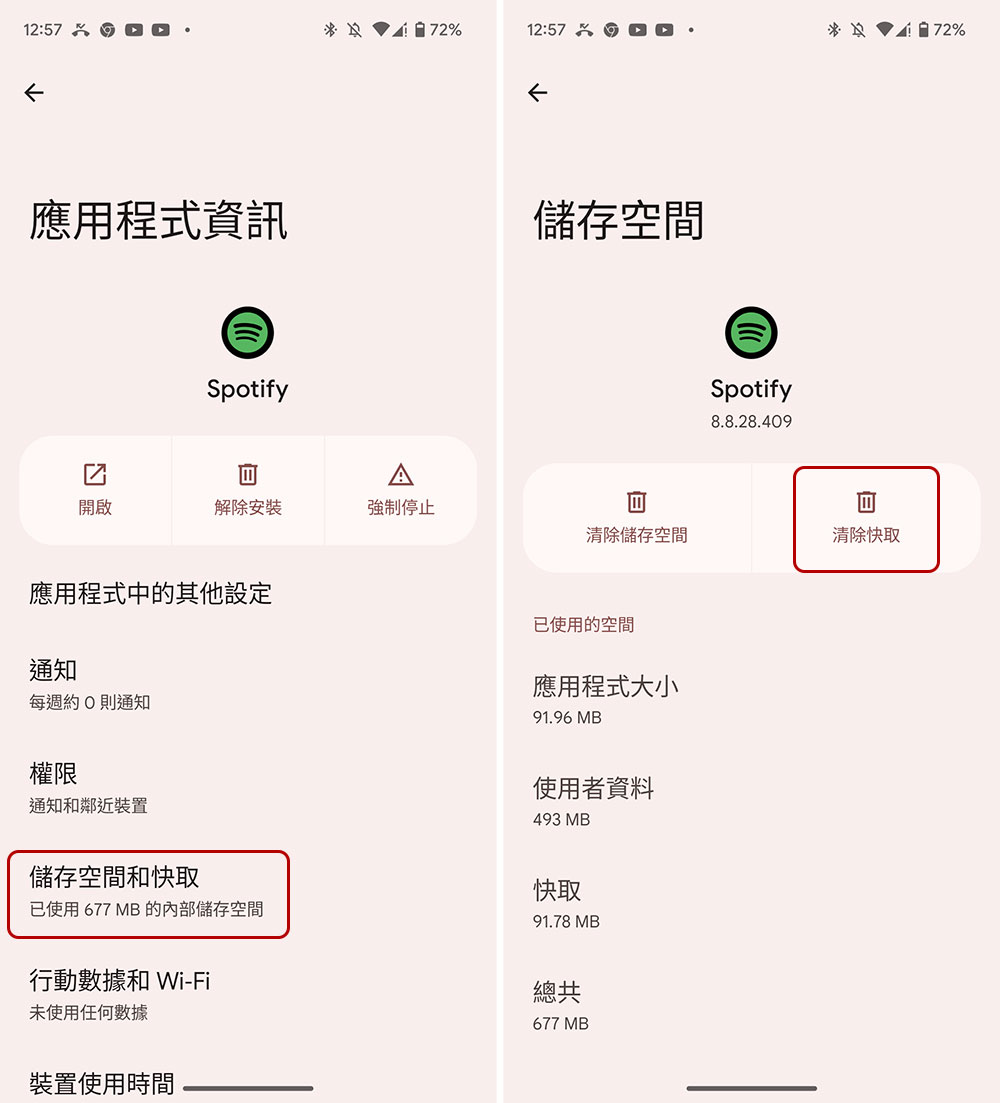
Every Android application creates a temporary, unnecessary file called a “cache” for quick access and efficient operation. For example, Spotify stores thumbnails of album art for music you’ve recently listened to. Generally speaking, this means the more you use an app, the faster it gets over time. However, several problems arise when the cache file becomes too large. First, the app will actually run worse. Secondly, a bloated application cache takes up extra storage space and reduces the overall performance of the phone.

To delete an app’s cache, you can long-press the app icon from the home screen or app drawer and tap “i”, or find it in the list in Settings >> Apps. Either way, you’ll end up on the single application’s information page, where you click on “Storage and Cache” and then click on the “Clear Cache” option. Some applications tend to create larger caches than others. For example, browsers like Chrome or Edge, but also apps focused on video streaming like YouTube and TikTok.
Change animation speed
Sometimes, speed on Android is a matter of personal feel, and animation speed can play a big role in how smooth your phone feels. Android manufacturers spend a lot of time designing animations, such as going back to the home screen, launching an app, or scrolling down a notification. But for some people, the preset speed of these animations (i.e. the time it takes from the beginning of the animation to the end) is too slow, and at the same time, some phones have difficulty rendering the animations. This can be one of the many reasons that ruins the Android experience.
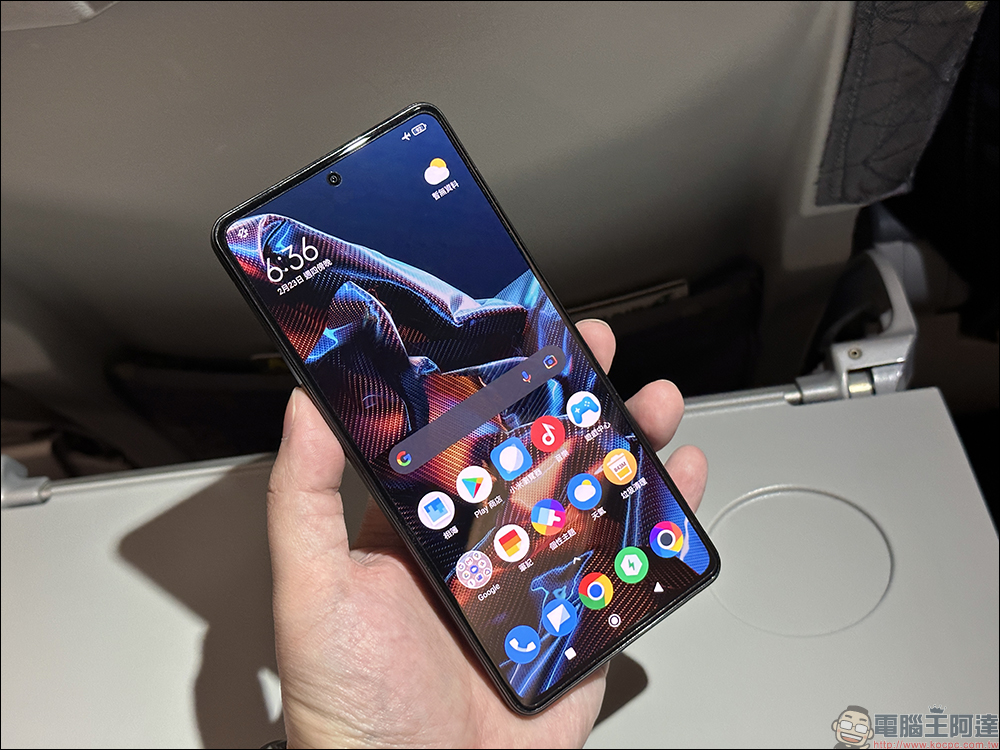
Android allows you to manually change animation speed. Slowing down animation speed will speed up system animations, which essentially means your phone will load faster and have fewer animations to process. The first step is to enable Developer Options, which is where the animation speed settings are hidden. To do this, go to the Settings >> About phone section, then find the Android version field and quickly tap it. You will see a reminder notification at the bottom of the screen counting down the remaining clicks. Keep clicking until you receive another reminder notification confirming that Developer Options has been unlocked. On most phones, you’ll need to tap the Android version number about seven times, and you may also be prompted for a PIN, unlock pattern, or password.

After completion, navigate back to the main settings homepage, then enter “System >> Developer Options”, find the three items “Window Animation Ratio”, “Transition Animation Ratio” and “Animation Video Length Ratio” in the Drawing category, and change their settings to “.5x”. Or you can try to adjust it to the value that suits you best.

Reboot
Have you tried turning your phone completely off and on again? Rebooting is the most basic fix, but it’s very effective at speeding up a sluggish Android phone. This is because Android builds up a lot of temporary files while it’s running, and the longer the time between reboots, the more they pile up, potentially resulting in poor performance over the course of a few weeks. Restarting stops all running apps and refreshes memory, which can instantly improve performance, especially on phones without a lot of RAM.

Restore factory settings
A factory reset will delete all your apps and stored files, including photos and videos, returning your phone to a brand-new, out-of-the-box condition. I don’t recommend trying a factory reset unless nothing else works, but if you’ve tried everything else and your Android phone is still running slow, it might be time to do so. If you need to perform a reset but don’t want to lose your precious files, you can back up your files via a USB cable or by plugging a USB-C OTG directly into your phone’s charging port. In addition, Google, Dropbox and other cloud service companies also provide cloud backup services as an option.
If your Android phone is still sluggish after a complete reset, you’re probably experiencing a hardware issue rather than a software one. If the mobile phone is still very new, it is recommended to send it to the original factory for repair. If it is already very old, it is time to replace it.
Source: KOCPC Chinese