


Many people, like me, probably use ChatGPT every day to deal with large and small matters in work and life, such as translating foreign articles, quickly obtaining summaries, creative inspiration, various problems, etc. However, when using ChatGPT, you have to switch windows all the time. To be honest, it is inconvenient to use. Recently, I discovered this very good “UseChatGPT.AI: ChatGPT Copilot on Chrome” extension. After installation, you only need to press the keyboard shortcut to open it on the side of the current web page. The ChatGPT chat window allows us to directly inquire with ChatGPT, which is very convenient, and each conversation message has a one-click copy function. You can also choose the model to use, including GPT-4, and has many built-in practical commands, such as: summary, rewriting, translation, shortening content, checking pinyin and grammar, etc., completely free.
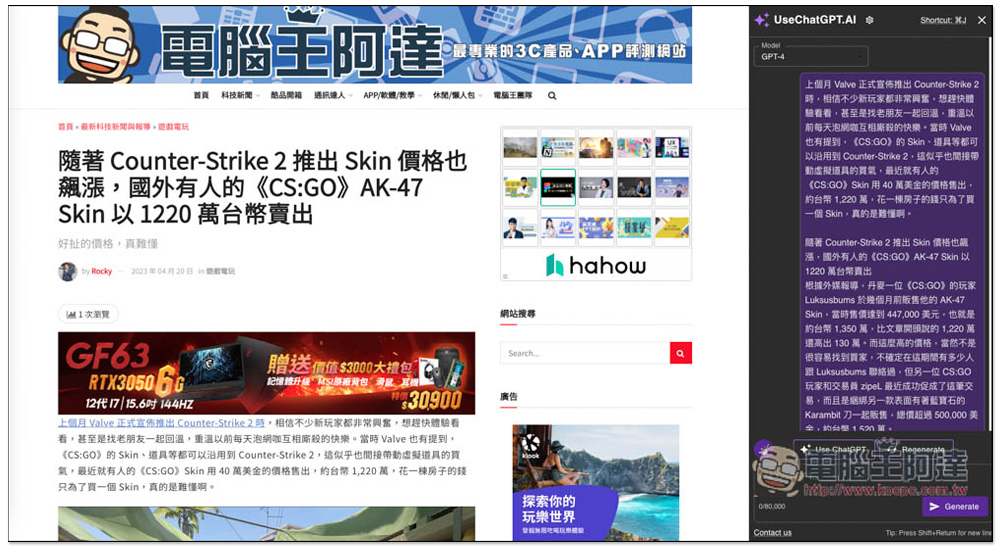
UseChatGPT.AI is the fastest way to use ChatGPT. You can chat on the side of the webpage by pressing the shortcut keys. It supports GPT-4, practical commands, and one-click copying.
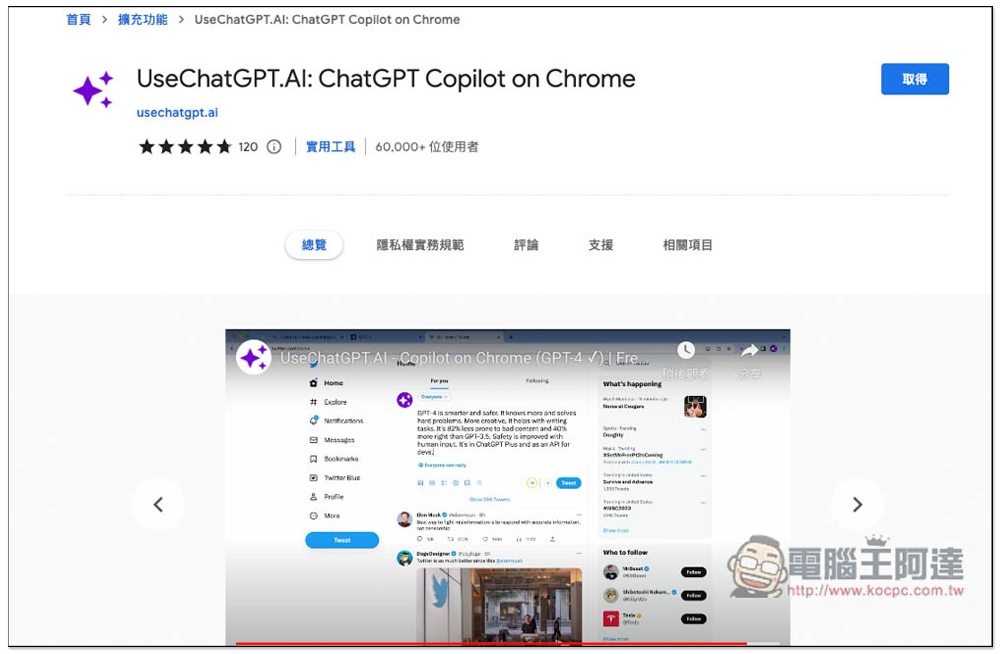
After entering the “UseChatGPT.AI: ChatGPT Copilot on Chrome” Chrome extension store, click “Get” in the upper right corner. I use the Microsoft Edge browser, and the usage is the same:
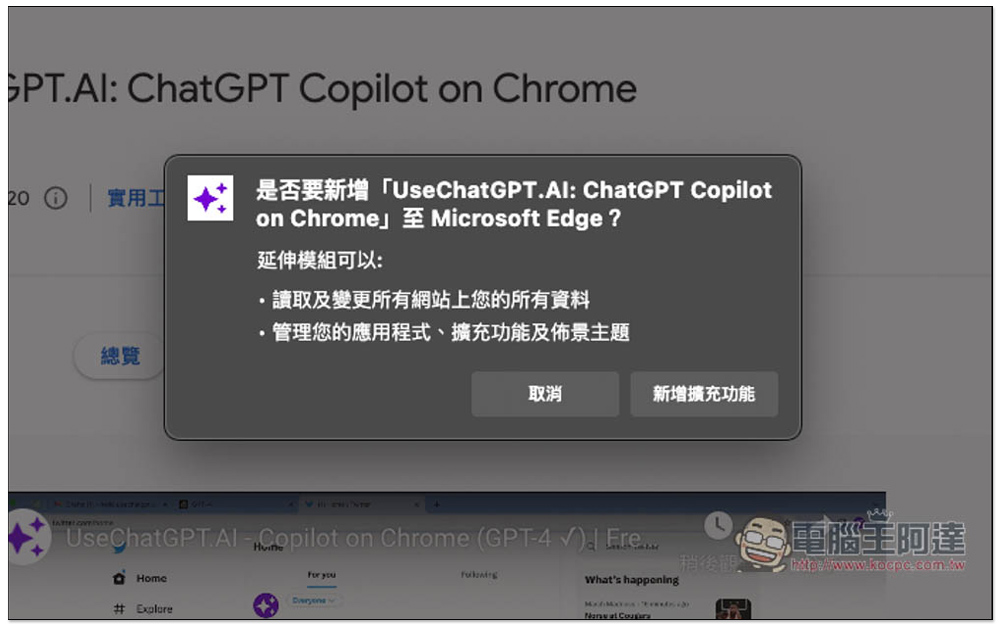
This message will pop up, click “Add extension”:
After installation, press the shortcut key CMD + J or Alt + J, and you will see the ChatGPT chat room on the right. You need to log in to your ChatGPT to use it. Click Log in to ChatGPT:

After logging in, you can start using:

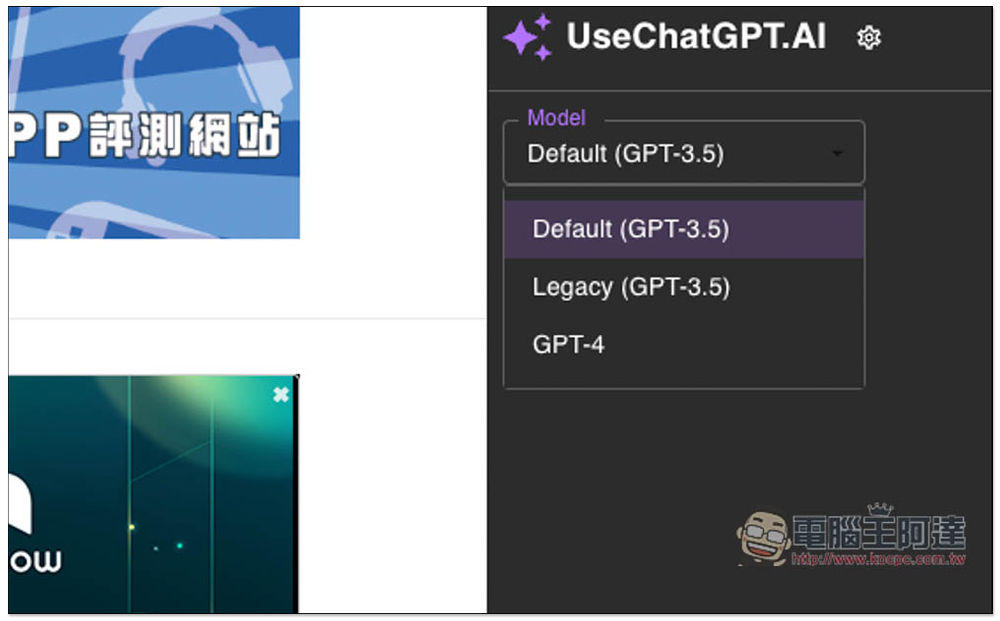
In the upper left corner of the chat room, you can switch the model you want to use. The default is Default (GPT-3.5). If you are a ChatGPT Plus user like me, you can choose GPT-4:
In addition, there are many functions that can be adjusted in the settings menu. The AI output Language is set to Auto by default. It is recommended to set Traditional Chinese first, otherwise you may occasionally get answers in Simplified Chinese. You can also set the shortcut keys yourself, if you are not used to them:
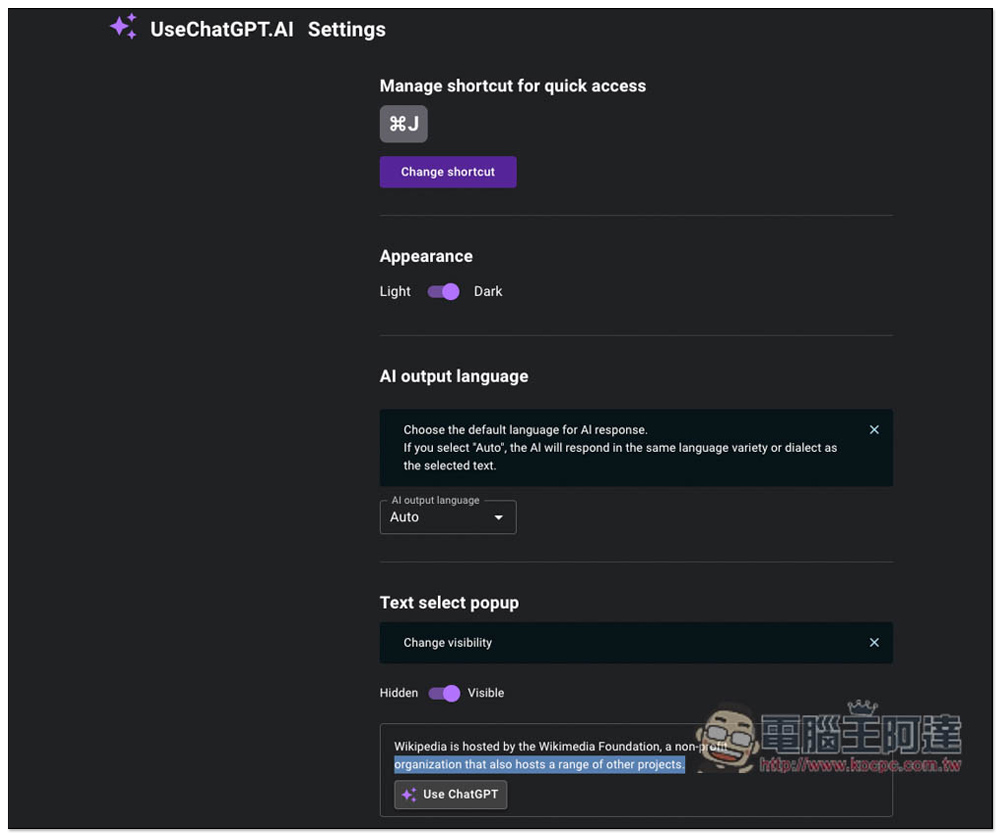
The bottom one is worth taking a closer look at. Here are all built-in prompt commands, including improving writing, correcting spelling and grammar, shortening content, making content longer, changing tone (professional, casual, confident, friendly, etc.), summary, list, translation (English, Korean, Chinese, etc.), each of which is very practical, and you can even add your own commands:
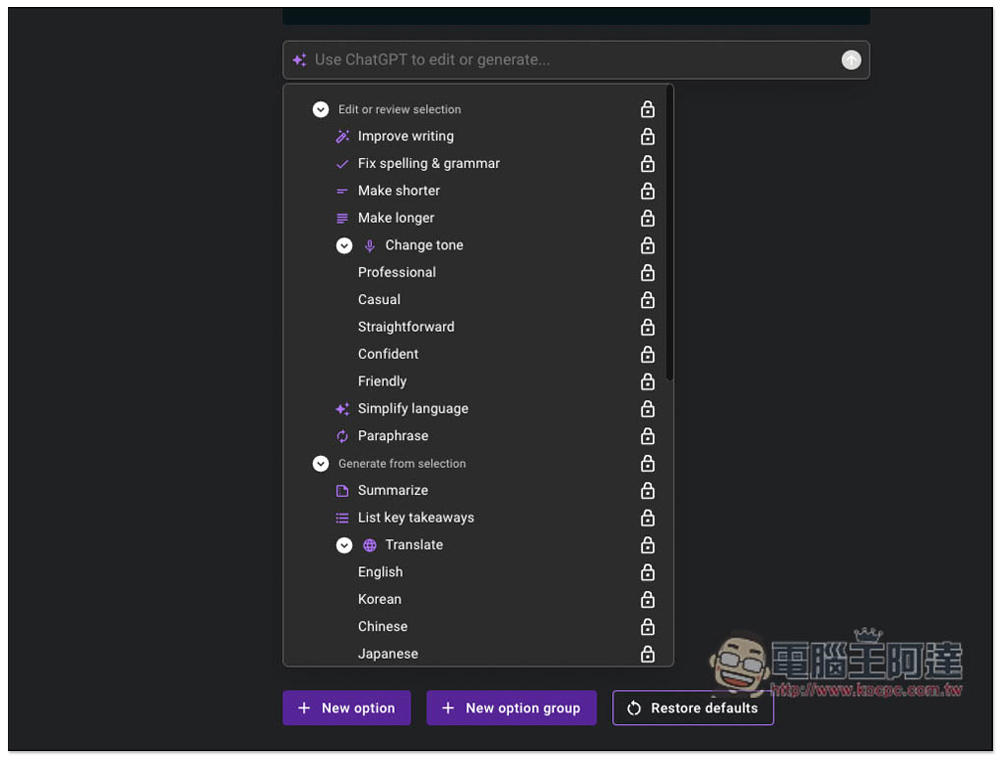
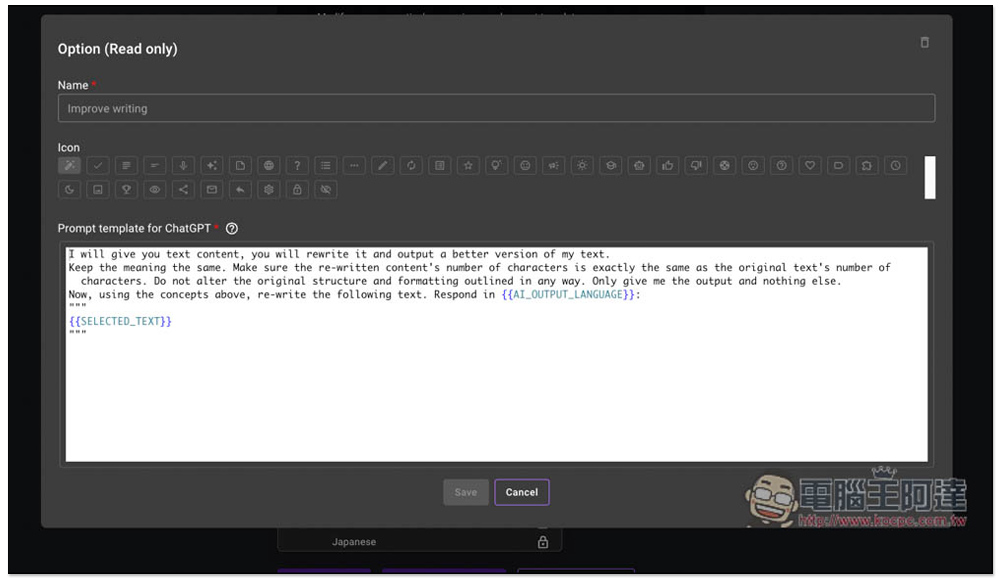
Click on any command to browse the content inside. For those who don’t know how to get the most accurate answer from ChatGPT, I highly recommend researching it:
The command part will not appear until the first message is sent, which is the “Use ChatGPT” in the picture below. This design is rather strange, because after selecting the built-in command, it will take the last message, which is the content of ChatGPT’s reply, not the one I posted at the beginning:
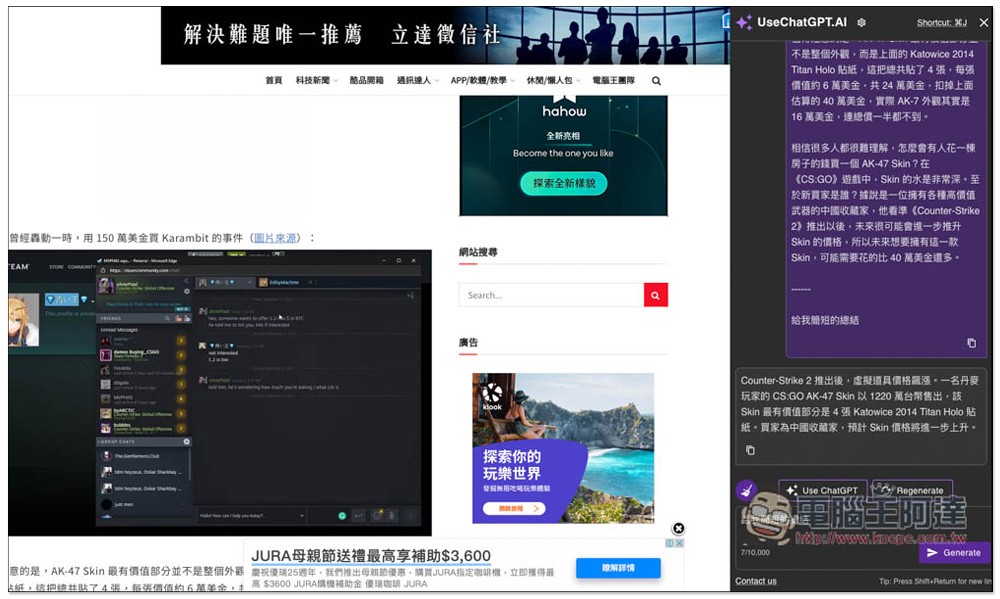
So if you want to use built-in commands, remember to press Stop generating immediately when sending content so that ChatGPT will not reply you with anything, so that the built-in commands will use the content you input:
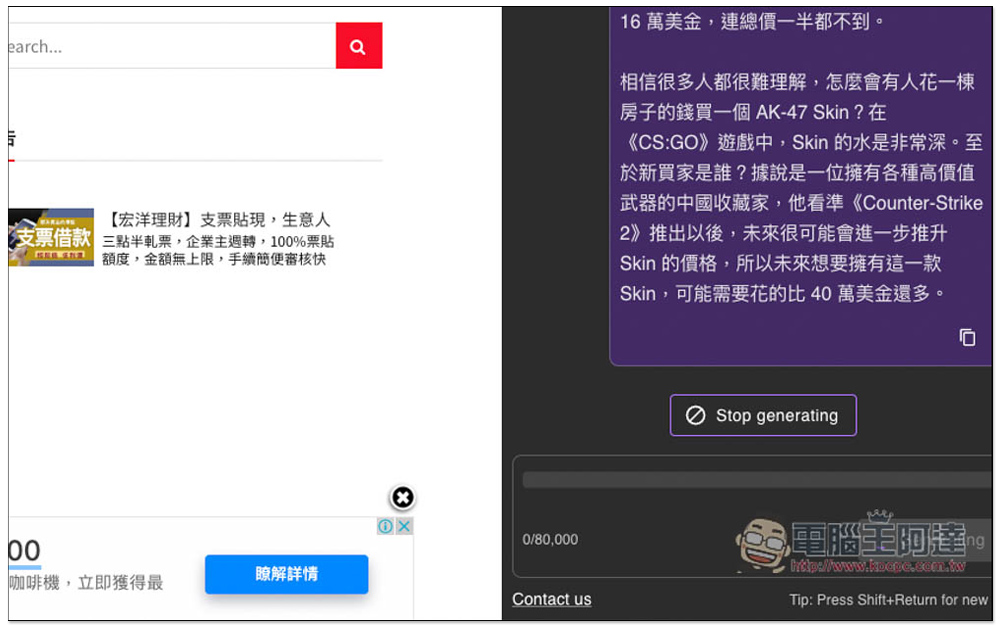
I used the built-in command to improve writing, and it re-edited what I wrote, using more precise words:

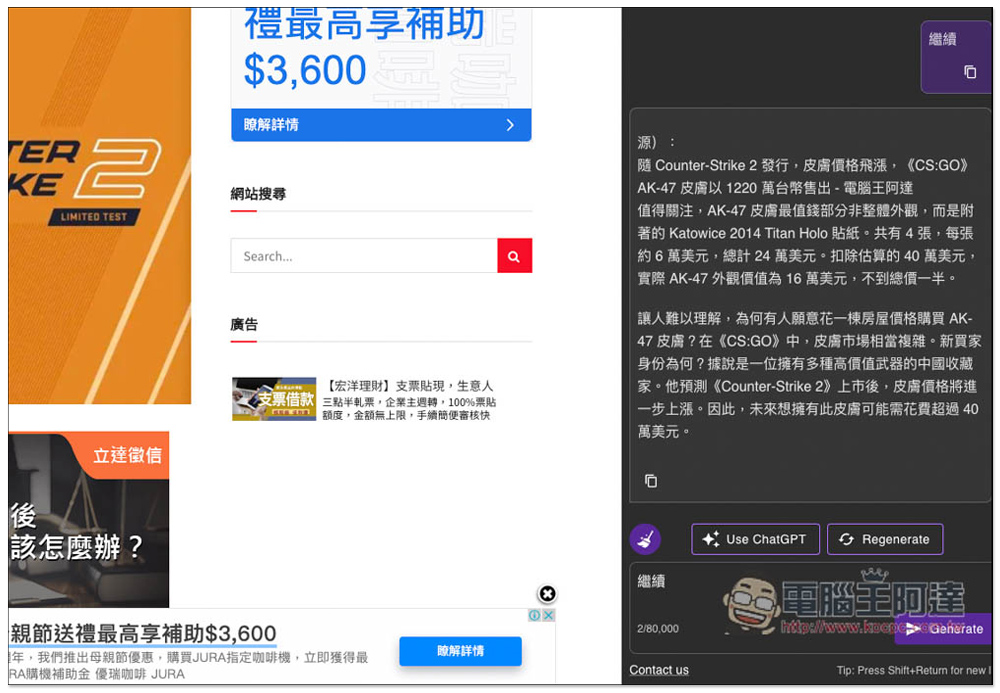
Just like the ChatGPT web version, if the content is too long, the reply will still stop halfway. In this case, you need to enter “Continue”:
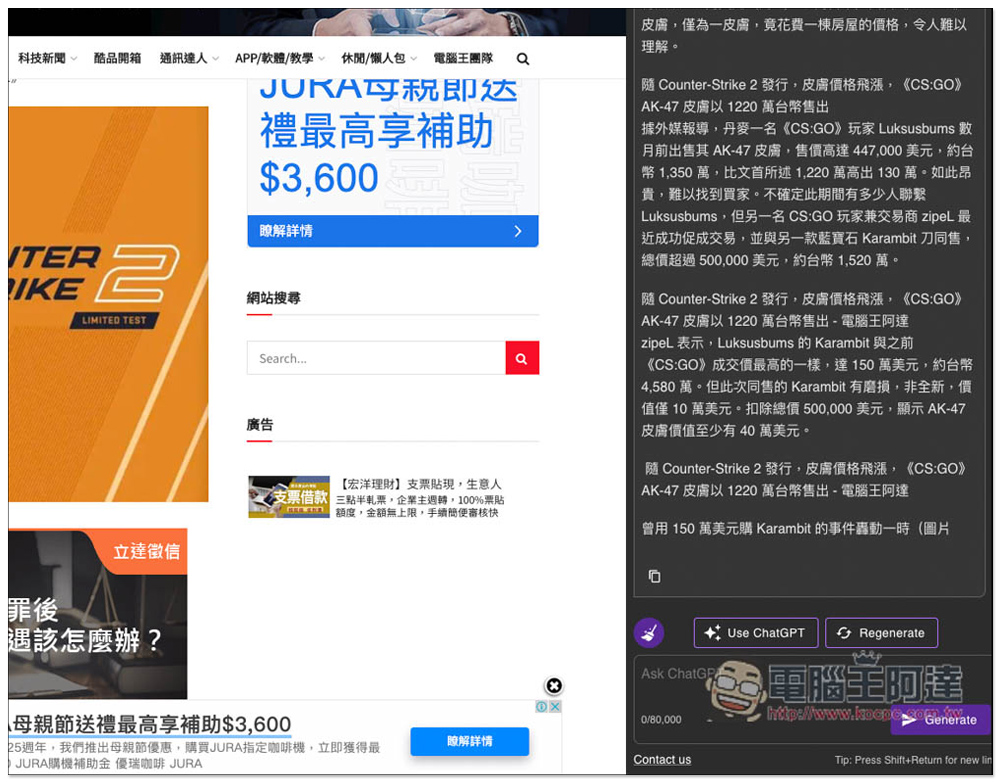
will continue to be generated. If you think the reply content is good, click the copy icon in the lower left corner and all the content will be copied to the clipboard with one click. This is very convenient:
Source: KOCPC Chinese