


Most of the YouTube video download tools currently on the Internet download the entire video, but sometimes you may only want to save an important segment or essence of the video, especially for some long videos. At this time, you can use CutterTube, a free online tool with built-in editing functions. You can specify the time range to be retained before downloading, allowing you to easily save key clips of the video. Of course, if you don’t adjust the time range, the entire video will be downloaded directly. Supports up to 4K and offers multiple format options.
remind: Please confirm whether the content on YouTube or other websites is legally authorized before use, such as: uploading works by yourself, creating and using CC authorized content or public domain materials. If it is a music or audio-visual work protected by copyright, downloading or converting it without the consent of the rights holder may involve copyright risks and may also violate the terms of service of the original platform.
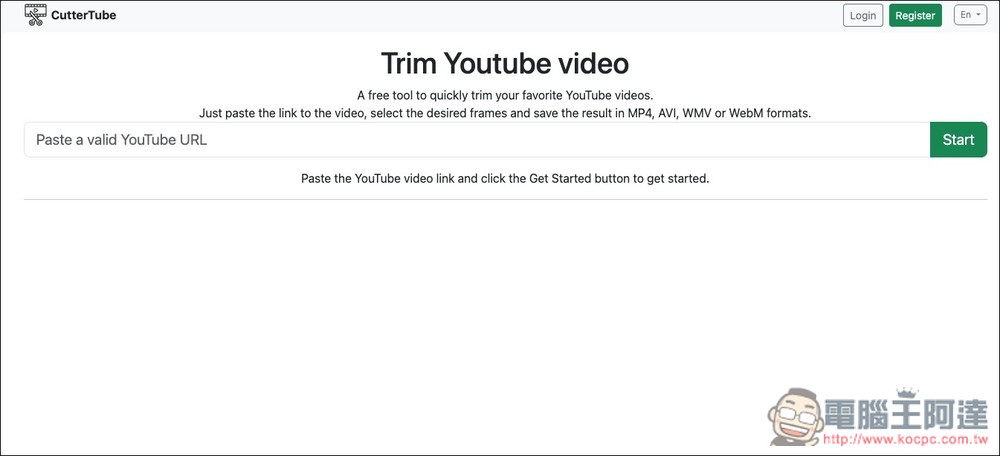
CutterTube is a YouTube video download tool with built-in editing functions that can specify the video clips to be downloaded.
CutterTube is a free tool that focuses on “cutting YouTube videos online” and is suitable for people who want to quickly capture specific clips from videos.
Most general download tools directly save the entire video, and then process it through other editing software if the user needs it. CutterTube saves this step. After users paste a YouTube link, they can set the start and end time they want to keep, then select the output format and resolution, and then export the required clips into a video file.
This is very simple for those who just want to save a certain step in an instructional video, a key paragraph in a speech, music, or a highlight of a live video.
The interface is also very intuitive. After opening the website, just paste the video URL, press start, and then adjust the clip range through the time field or slider. In terms of output formats, CutterTube supports common formats such as MP4, AVI, WMV, and WebM. You can also choose automatic resolution or specify 360p, 480p, 720p, 1080p, or even 4K.
There is no need to install any software and it can be used through a browser, which means that it can be used not only by computers but also by mobile phone users.
Featured highlights
- You can crop directly after pasting the YouTube video link
- Specify the start and end time of the video and only download the required segments
- Supports MP4, AVI, WMV, WebM and other output formats
- You can choose automatic resolution or manually specify image quality such as 360p, 480p, 720p, 1080p, etc.
- No need to install editing software, it can be operated through the browser
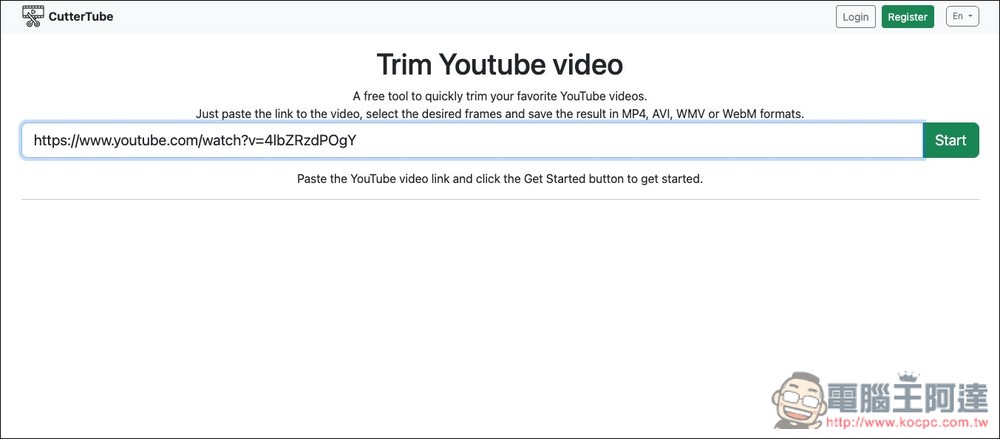
After clicking the link above to enter CutterTube, paste the YouTube link and click Start on the right to start:
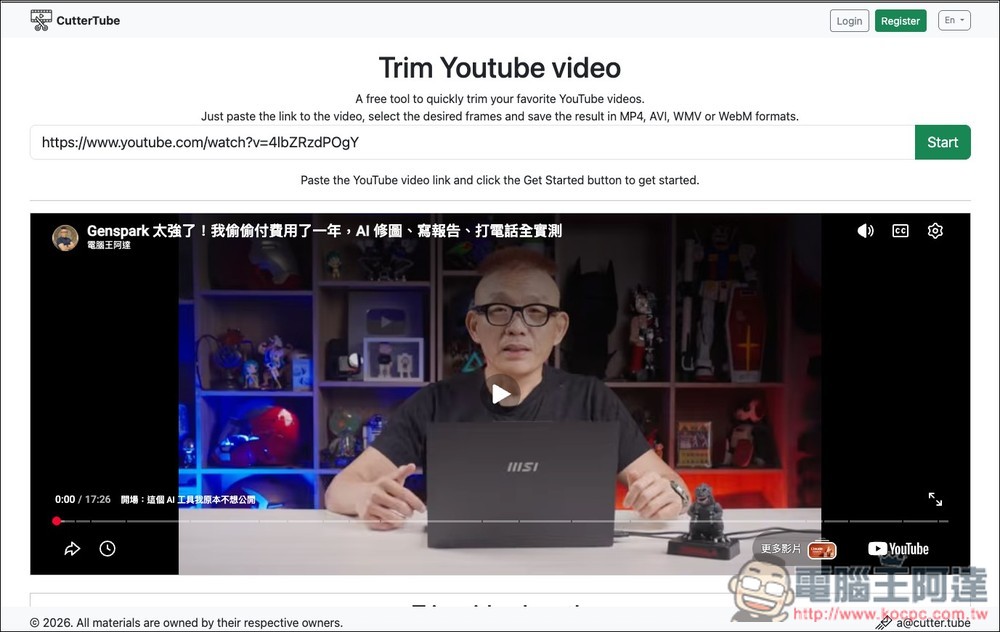
Then the video preview screen will appear below, please scroll down:
You will see a time bar with set start and end time points. Adjust the slider to the time interval you want to keep:
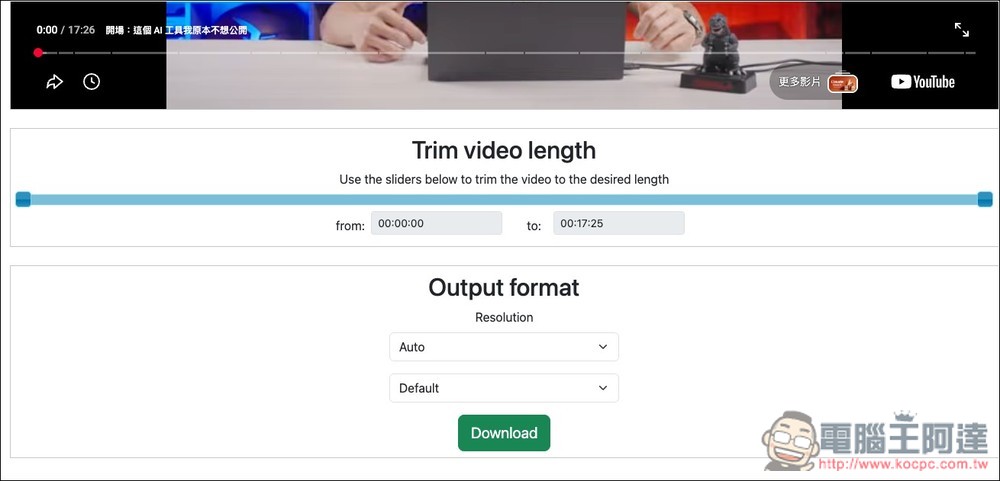
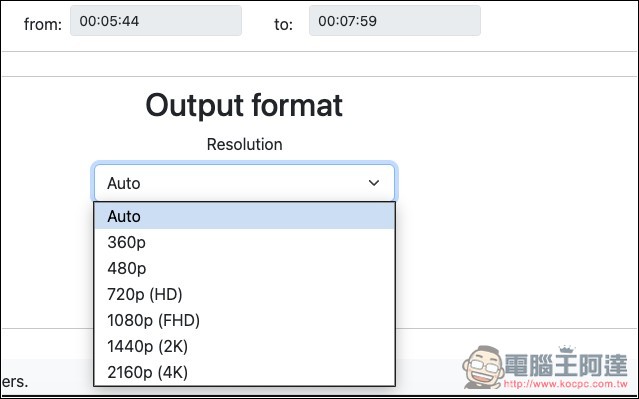
The resolution part is set to Auto by default, and it also supports 360p, 480p, 720p, 1080p, 2K and 4K. I have tested that it can actually download to 4K resolution:
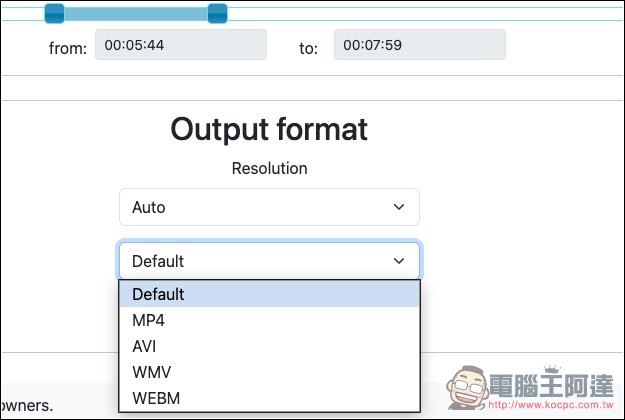
The format section defaults to Default, but you can also specify MP4, AVI, WMV or WEBM:
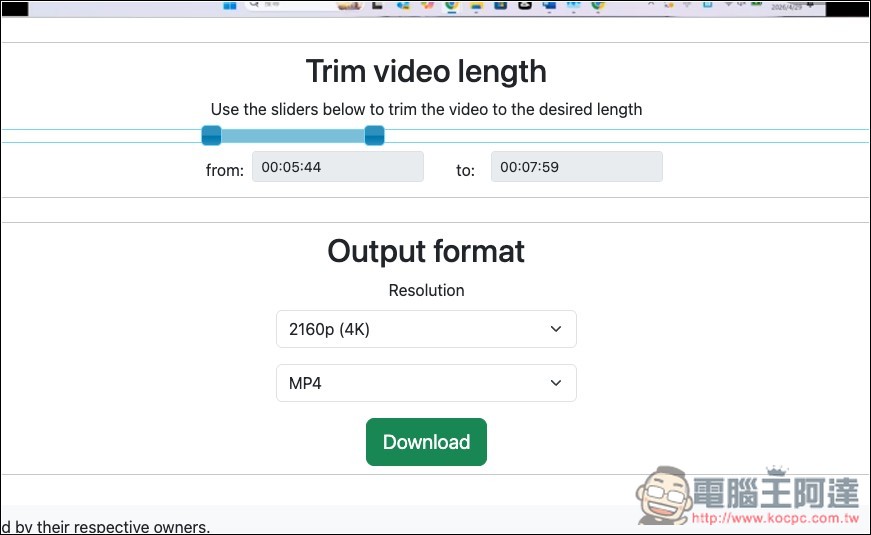
Once everything is set up, click Download below:
Wait for the progress bar to finish running, and the download will automatically start:
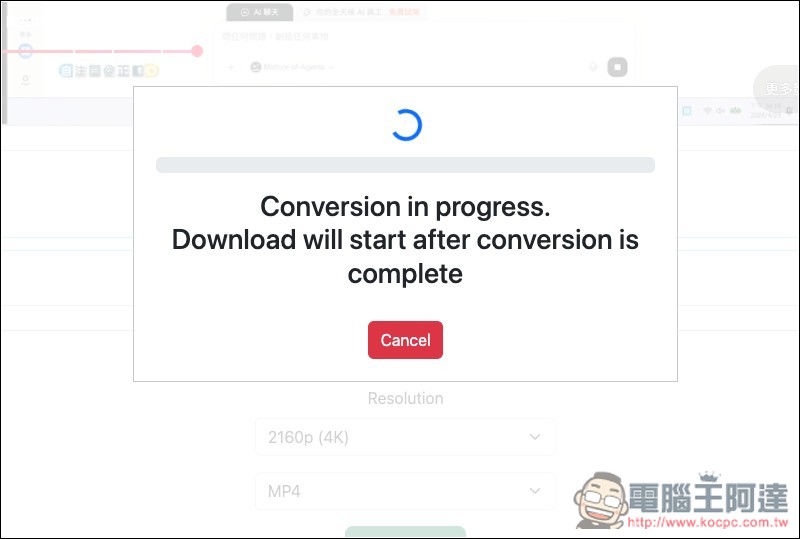
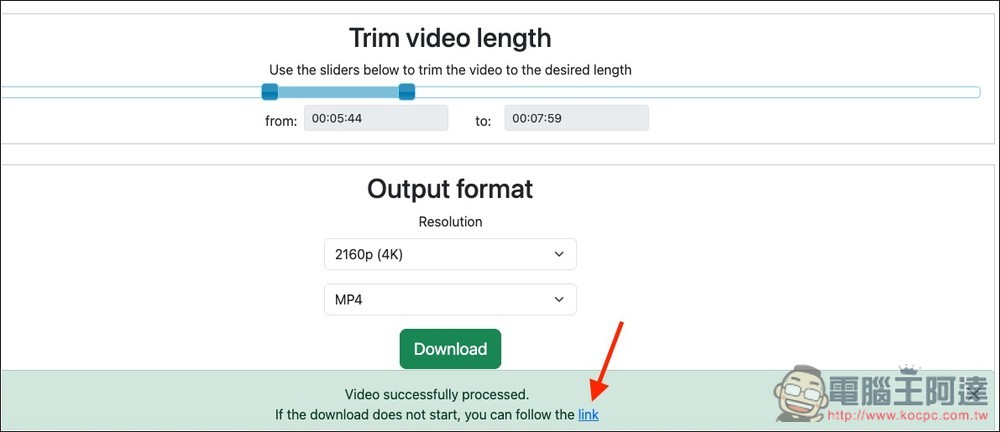
If it does not start automatically, there is also a backup link (link) below, click it and it will download. Also a reminder, after the download task is enabled, it may not start running immediately. Sometimes you need to wait for tens of seconds, just let it complete the download automatically:
Source: KOCPC Chinese