


To better understand their spending, many people use apps toBookkeepingHowever, having to manually enter bookkeeping items every time is really tiring. This article is going to recommend a super useful, free one I just discovered. AI The amazing tool “SpendSmart — AI Receipt Tool” was developed by a 14-year-old foreign student. You just need to take a photo of your receipt, and it will use the Gemini 2.0 Flash model to recognize and create accounting entries. During the process, you don’t need to enter any data at all; price, category, time, etc. are all automatically set up. More importantly, it also supports automatic currency conversion, meaning that if you take a photo of a receipt from traveling abroad, it will automatically convert the amount into Taiwan dollars. This is very convenient.
Moreover, this app is completely free and has no ads. The only minor drawback is that it’s currently only available on iOS and only in English.
SpendSmart: a free app that lets you track expenses by taking a photo, powered by the Gemini 2.0 Flash model.
Besides being available on iOS, this 14-year-old foreign student also shared SpendSmart’s complete code on GitHub The website is available for those who need it to check out. One more thing to note: there are other apps called SpendSmart on the App Store, so be careful not to download the wrong one. There’s no Android version yet — the SpendSmart on Google Play is a different app.
Additionally, SpendSmart uses the Gemini 2.0 Flash model to recognize items in photos, so an internet connection is required during the bookkeeping process.
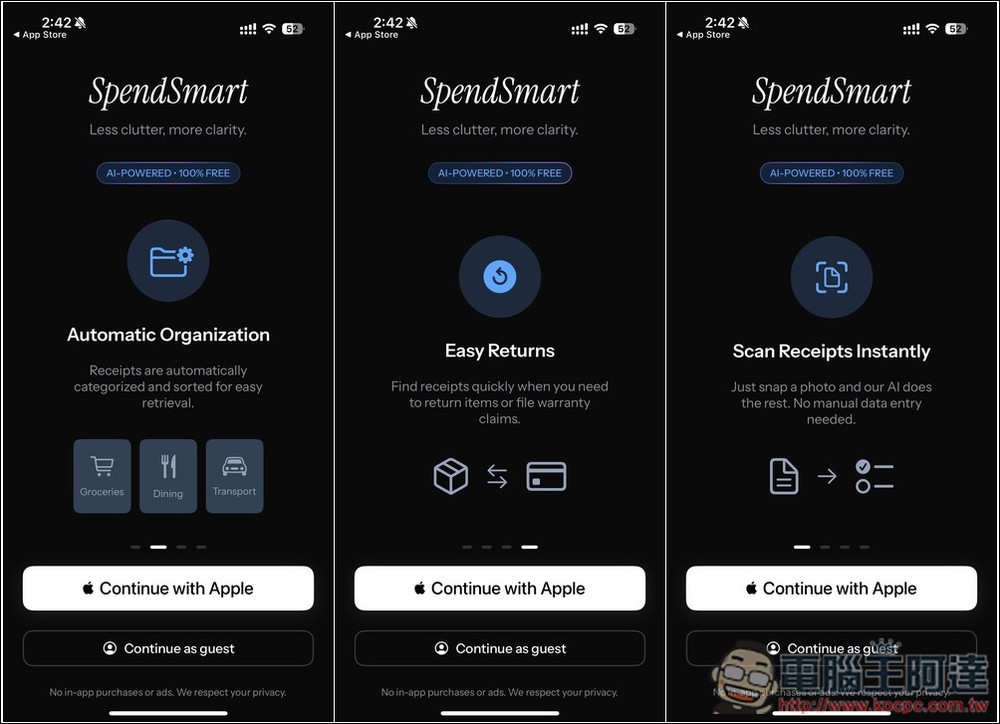
Upon first launch after installation, you’ll see a walkthrough of some key features, offering two modes: “Continue with Apple Account” or “Guest Mode.” The benefit of using your Apple Account is that your expense tracking data will sync to the cloud, while Guest Mode stores everything locally on your device.
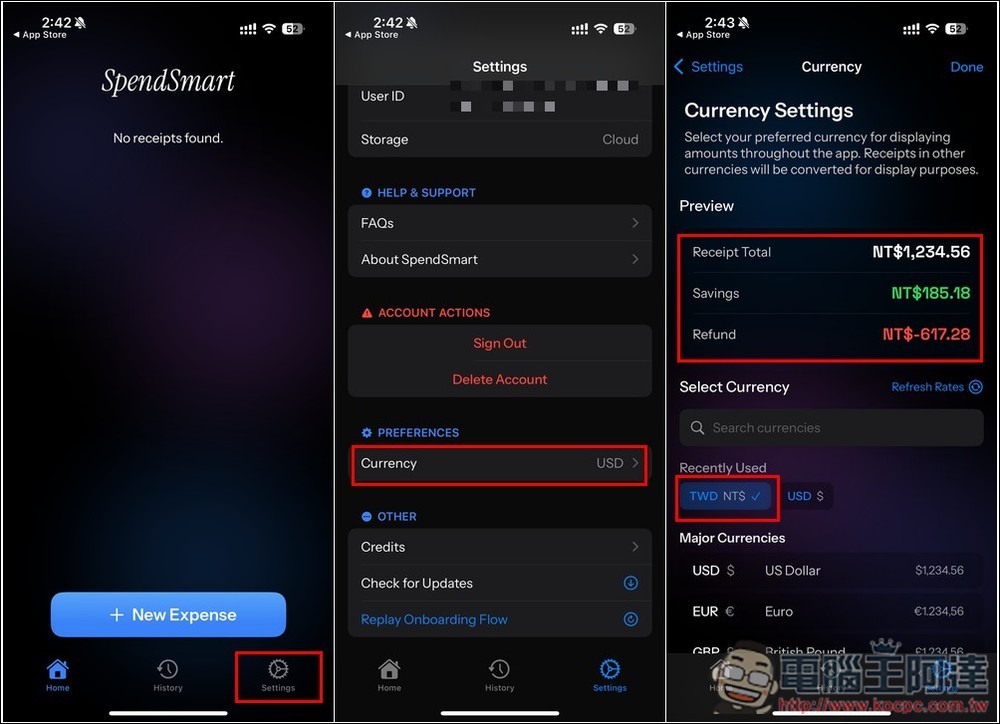
After entering the main screen, the default currency is USD. If you want to change it, go to the Setting in the bottom right corner, then select Currency, and change it to your desired currency. I changed mine to TWD, and the Preview above showing NT$ means success:
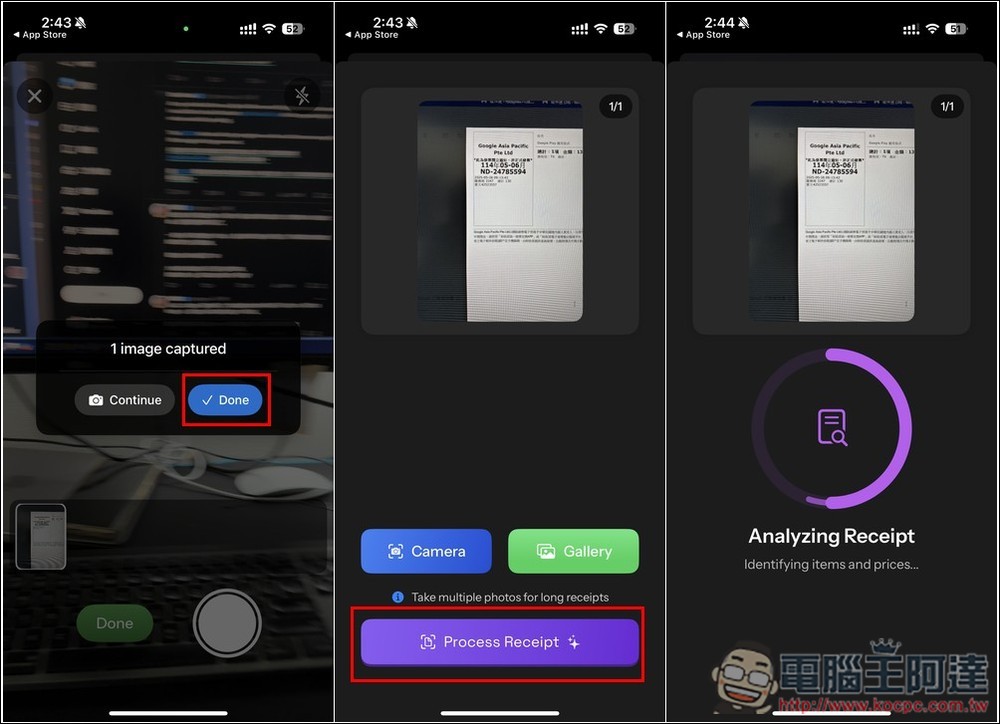
Then you can start tracking expenses. Tap New Expense to add a new expense, which offers two modes: taking a photo or importing from photos. When taking a photo, remember to make sure all the data on your invoice or receipt is within the camera frame:
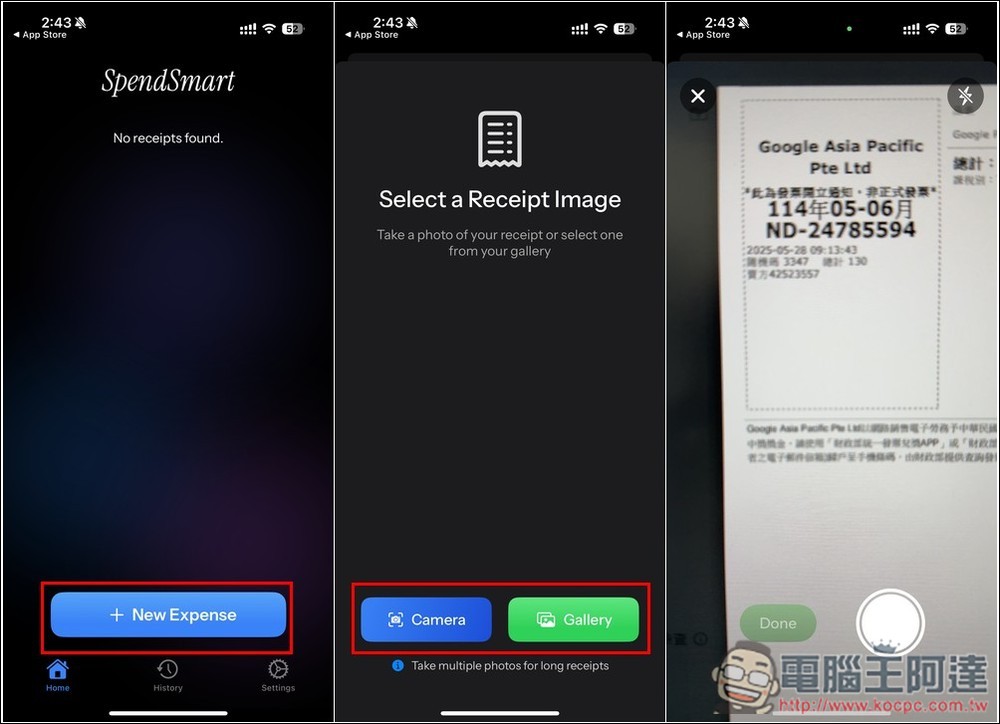
You can import multiple photos at once, and once done, the AI will start recognizing, analyzing, and creating bookkeeping entries:
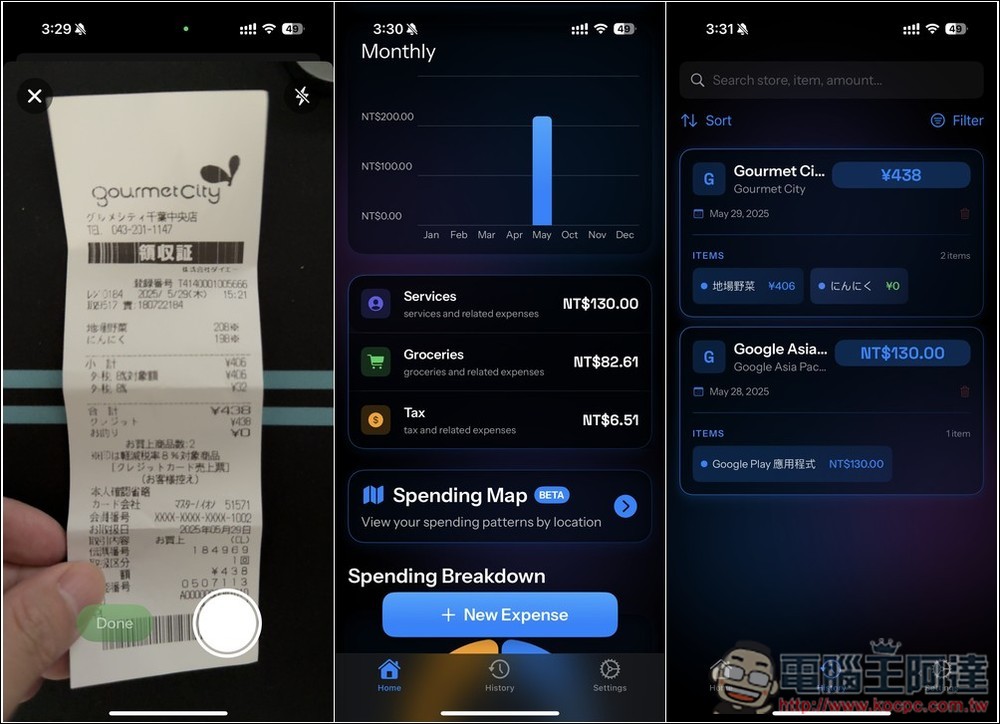
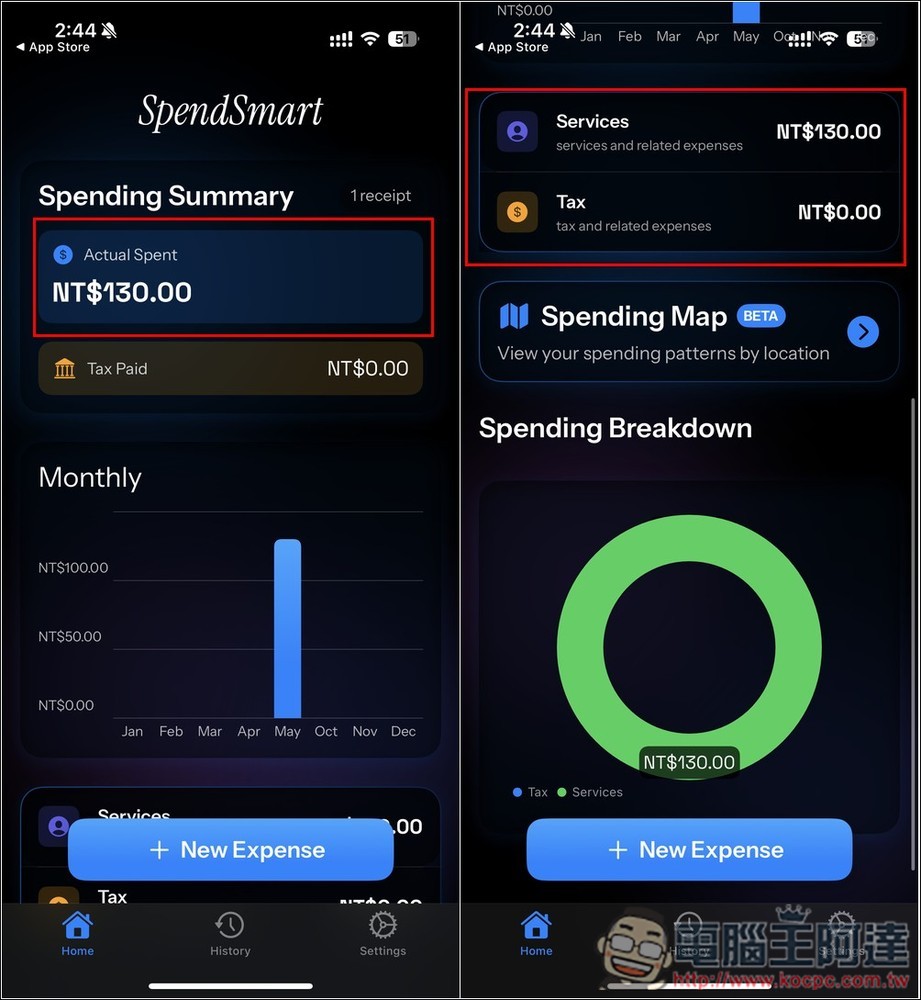
Once you’re back on the home page, you’ll see that the receipt data you just photographed has been created. The Spending Summary at the top shows your total spending, with taxes calculated separately. Scroll down for the expense categories; the Google Play expense I just photographed is filed under Services:
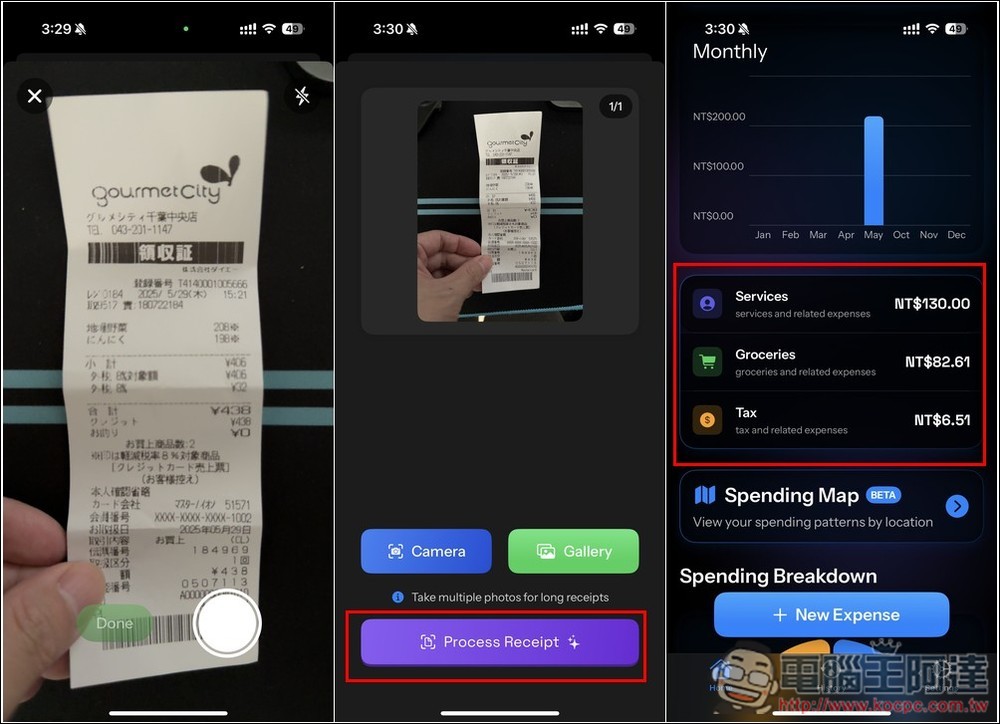
Next, I tried taking a photo of a foreign receipt. This is my spending at a Japanese supermarket. After taking the photo, the app automatically converts my 438 yen spending into Taiwan dollars, as shown on the right side of the image: Groceries and Tax.
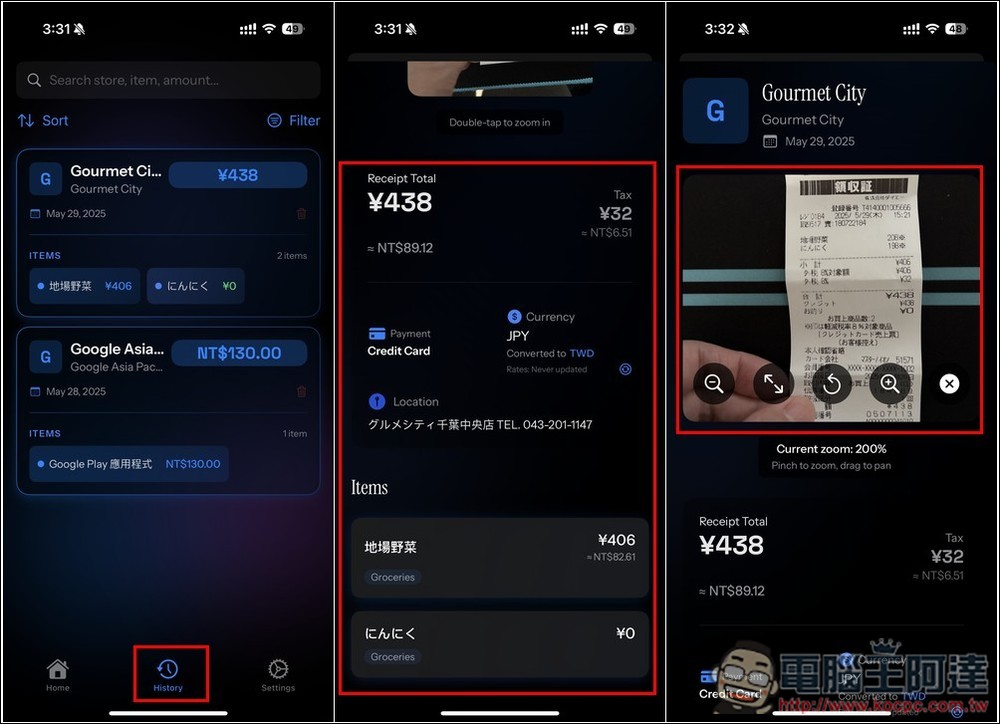
In the History menu, all past receipt photos are listed, and you can find more detailed information there, like the one from my Japanese supermarket trip. It also records how I paid, the currency, location, phone number, and the items purchased. However, since it’s AI recognition, errors are bound to happen. There’s one problematic entry here—the garlic should be 198 yen, but the AI didn’t recognize it and recorded it as 0. That said, the AI did add the amount to another vegetable item, so the total is still correct. This shows that even when the AI makes recognition errors, it still considers reasonableness. The photos can also be zoomed in for a closer look, so it doesn’t really matter if something isn’t recognized—as long as the total amount is correct, that’s what counts.
Source: KOCPC Chinese