


The CPU is the core of your Mac that runs all processes and handles various tasks. Therefore, the more instructions and tasks you run simultaneously on your Mac, the higher the CPU usage. While Macs are generally well-optimized and not prone to crashes, running under high CPU usage for extended periods of time can often lead to a variety of issues, including overheating, poor system performance, frequent app crashes, and reduced battery life. So, what exactly is stressing your Mac’s CPU? How to fix high CPU usage on Mac?

How to clean up CPU usage and fix high CPU activity on Mac?
What stresses your Mac’s CPU?
A Mac’s CPU can be stressed in a few different situations. Below I’ve listed the most likely common causes, which are usually caused by the interaction of one or more of the following causes:
- Open multiple unused apps at the same time
- An application requires more CPU performance
- Too many processes running in the background
- Setting too many random programs to open on your Mac
- It’s been a while since you’ve rebooted your Mac
- Corrupted or maliciously infected files on Mac
- Browser extensions and paging
- System update is running in the background

How to check CPU usage using Activity Monitor?
macOS comes with a built-in utility called Activity Monitor that can help you identify and troubleshoot problematic apps and processes on your Mac. Activity Monitor lets you easily see how much CPU, RAM, power, hard drive capacity, and network resource usage an application or process is consuming. There are several ways to turn on Activity Monitor:
- Find it from Launchpad
- Open Finder, click “Go” at the top, then select “Tools” and find it from the items displayed in Finder
- Press “cmommand + spacebar” and search for “Activity Monitor” directly in Spotlight

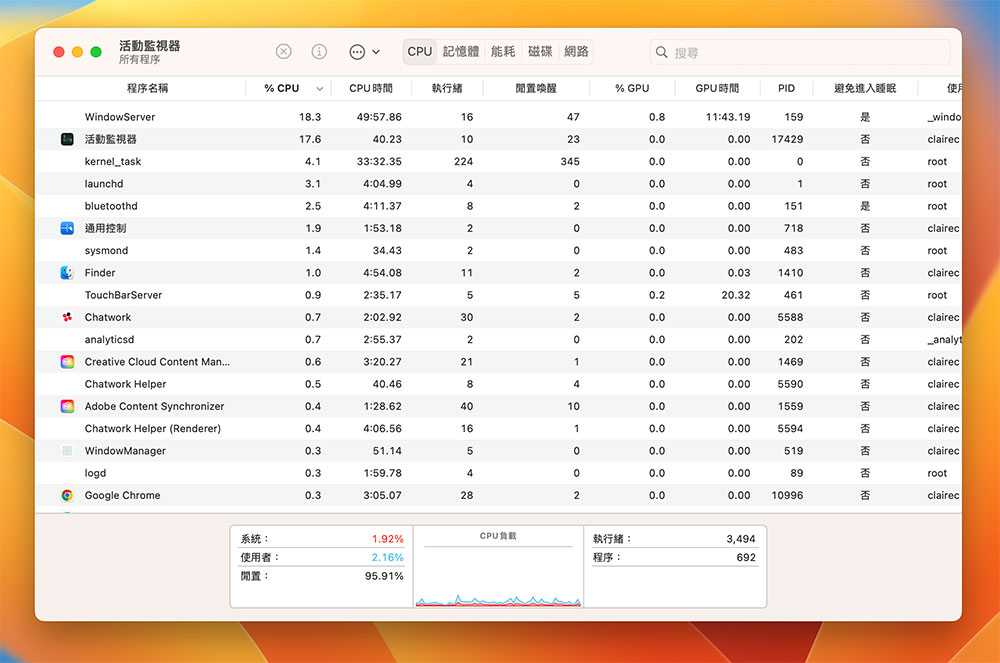
After opening Activity Monitor, click on the CPU tab. Here you will see a breakdown of how the various applications and processes running on your Mac are using the CPU, with overall CPU usage information displayed at the bottom of the window. You can view the percentage of CPU used in the %CPU field in the inventory.
How to check CPU usage using Terminal?
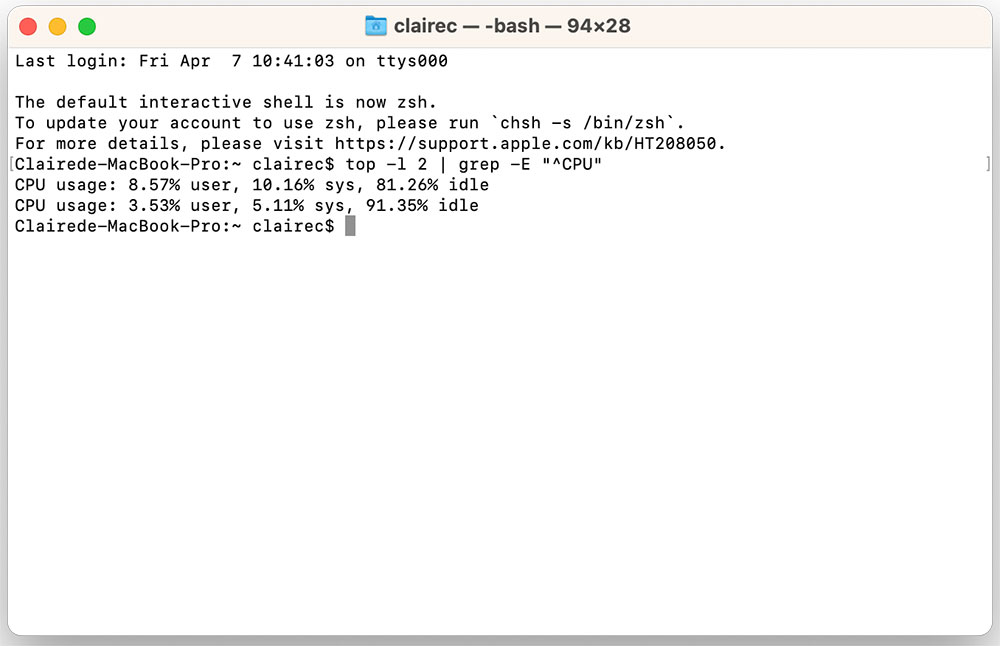
You can also use some simple terminal commands to check CPU usage. The disadvantage is that you can only see the CPU usage, but you don’t know which process consumes the most CPU resources. The author lists the steps below:
- Open Mac’s built-in Terminal tool.
- You can post “top -l 2 | grep -E “^CPU”” and press Enter
- Next you can see the CPU usage.
How to clean up CPU usage on Mac?
Once you’ve determined what’s causing your Mac’s CPU load, you can perform the following actions to fix it and get it back to normal operation:
- Stop unwanted apps and processes from running on your Mac
- Check and disable unnecessary startup items
- Uninstall unused apps
- Reboot your Mac
- Complete the macOS update installation process
- Check for malware and remove it, which may be in the form of applications or document files
The measures mentioned above can all help clean up your Mac’s CPU usage, but if you don’t want to spend time doing it manually, or you are really not familiar with Mac, you can use tools like CleanMyMac (There is a free version) such application tools to simplify the operation process.

More ways to fix heavy CPU usage on your Mac
Although performing the above steps should clear up the CPU usage on your Mac and improve overall performance, if the problem persists, here are a few things you can try to resolve it.
Close more CPU-intensive applications
It’s no surprise that some apps consume a lot of CPU, either due to the functionality they provide or because they haven’t been updated or optimized for the latest version of the macOS operating system. But regardless, it’s important to look for this type of application. Likewise, you can open Activity Monitor and switch to the CPU tab. If you see an application using too much CPU, select it and click Stop (X symbol) at the top, then click Stop in the pop-up that appears.
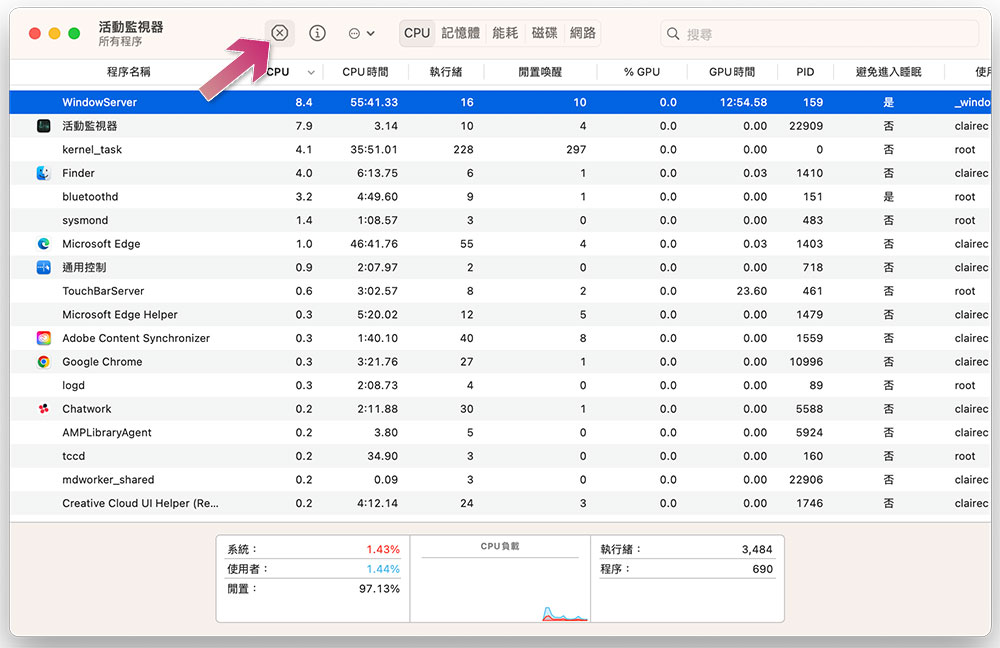
If you find that the application has not stopped after doing the above, you can perform the same operation again, but select “Force Stop” in the last step.
Check your Mac’s hardware
To check the CPU usage of your Mac hardware, you should do it from Apple Diagnostics.
Intel version for Mac
- Shut down your Mac, then turn it on.
- Press the power button while holding down the “D” key on the keyboard.
- Release your finger when the progress bar appears, then follow the prompts.
Silicon version for Mac
- Shut down your Mac, then turn it on while continuing to hold the power button.
- Release the power button when the startup options screen appears.
- Press Command + D and follow the prompts.
The Apple Diagnostics will identify any obvious hardware issues, and if the problem persists in recovery mode, you must seek out an Apple Store or repair service provider for more in-depth diagnosis of the hardware problem.
Clear cache and cache
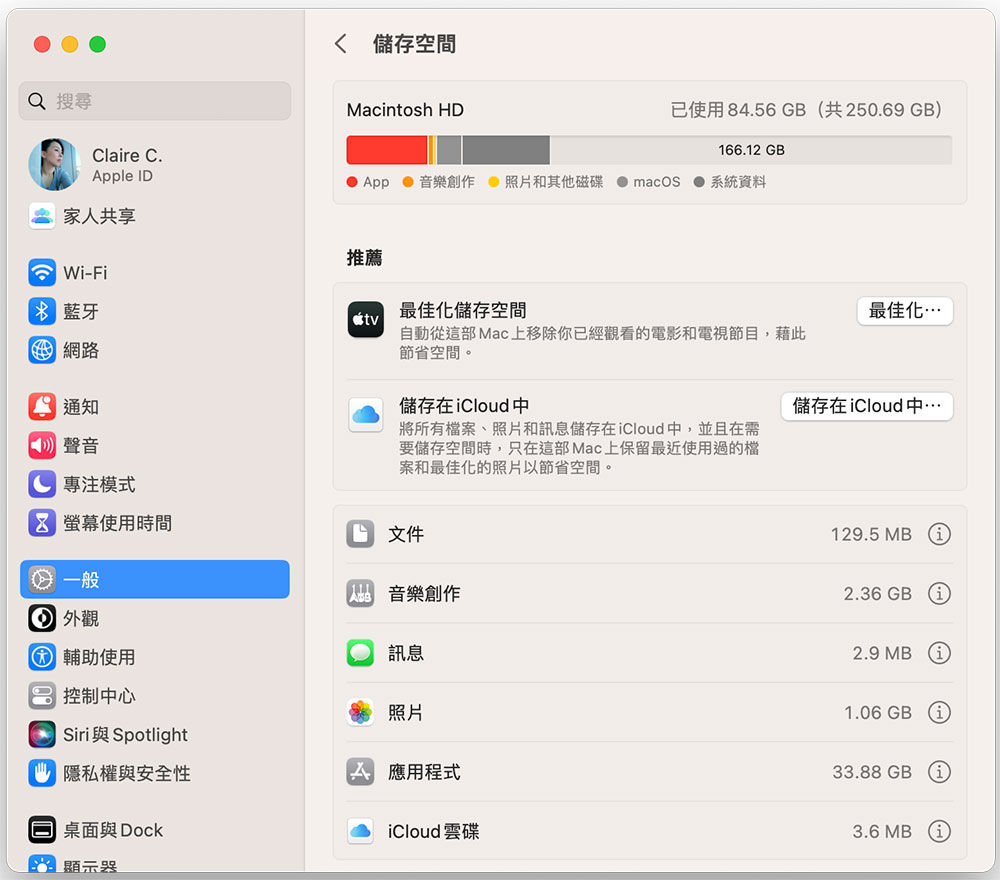
Clearing cache and temporary files can be an effective way to reduce CPU usage on your Mac. In the first step, you can go to “Settings >> General >> Storage Space” to view the analysis content currently stored on the computer, then clean up unnecessary content such as the trash can, and check the downloaded files in the files to remove unnecessary content.
Next, it’s time to clean up the cache:
- Close all apps and windows on your Mac.
- Open Finder, click “Go” in the function options at the top of the screen, and select “Go to Folder” from there.

- In the window that appears, enter the path “~/Library/Caches” and click the first option that appears.

- In the Caches window, directly Command+A to select all, or select the unnecessary parts, then right-click and select “Discard to Trash”. (If you have other windows or applications open on your Mac at this time, you may see one or several folders left, so ignore them at this time.)

- Finally, empty the trash can and the cache is deleted!
Reboot
As the author often said in the past: “Restarting cures all diseases.” Sometimes, a simple restarting can solve most problems encountered on Mac. During the reboot process, all applications and processes running on the system will be closed and the memory will be wiped clean again.
Update the macOS operating system
Although macOS updates are generally stable, sometimes unexpected things can happen. For example, if you haven’t updated your system in a while and you’ve recently started experiencing issues, updating to a newer version of macOS may help.
Source: KOCPC Chinese