


Google Keep is currently one of the best note-taking apps across systems. It is very convenient for simply writing notes or marking pictures. It is pre-installed on most Android phones and tablets, and can also be downloaded and installed on iOS. It is almost a tool that can be used immediately after booting. If you have already used Keep and are already familiar with the basic functions, today I will tell you more advanced application techniques and let Keep show its potential in new ways!

6 useful advanced tips for the Google Keep note-taking app
Import notes into Google Docs
When you are interviewing, listening to lectures, or when creative inspiration suddenly comes, you will jot down the key points in Keep. When you want to write these concise and concise contents into formal long-form content, please do not copy and paste or frequently switch between the two applications. You can directly import it into Google Docs, and the transition will be seamless throughout the process. There is no need to worry about punctuation or bullets needing to be replaced or run away. Below I will provide two ways to do this, which method to use depends on which application you start with.
Import and keep notes in Google Docs
This method only works on the computer version of Google Docs. If you’re using a mobile device, please try another method.
- Open Google Docs in your browser and open a new file.
- Click the Keep icon on the right sidebar.
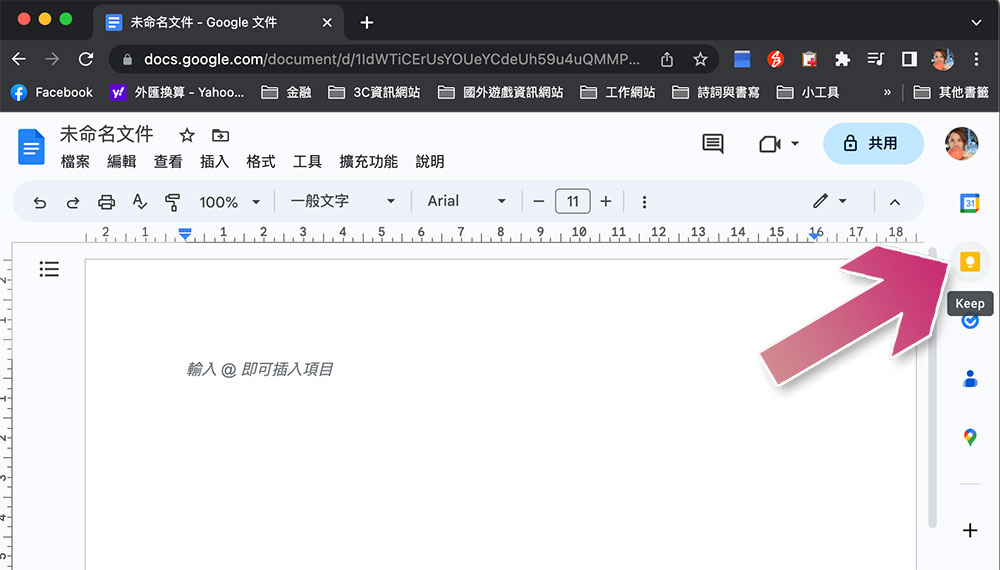
- You can view all created Keep notes from the sidebar, find the items you want to add to the file, and drag them directly to the Google Docs page.
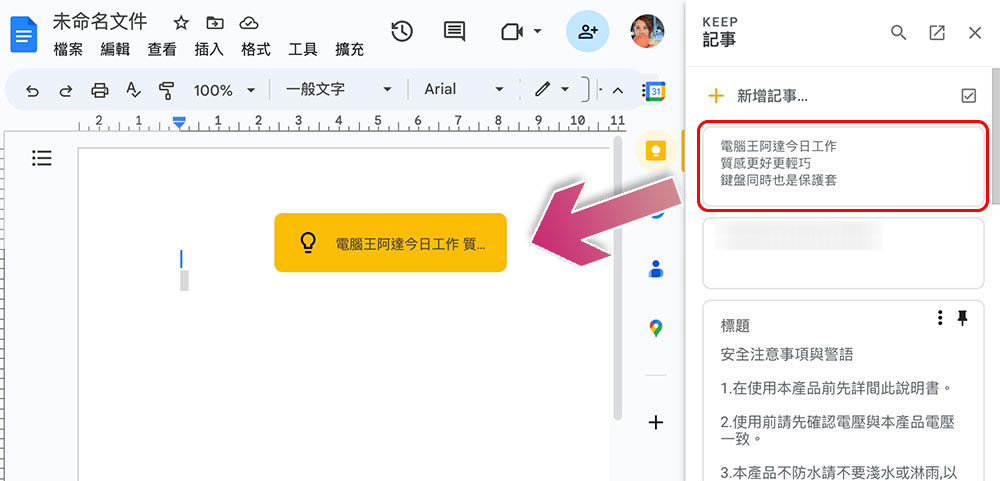
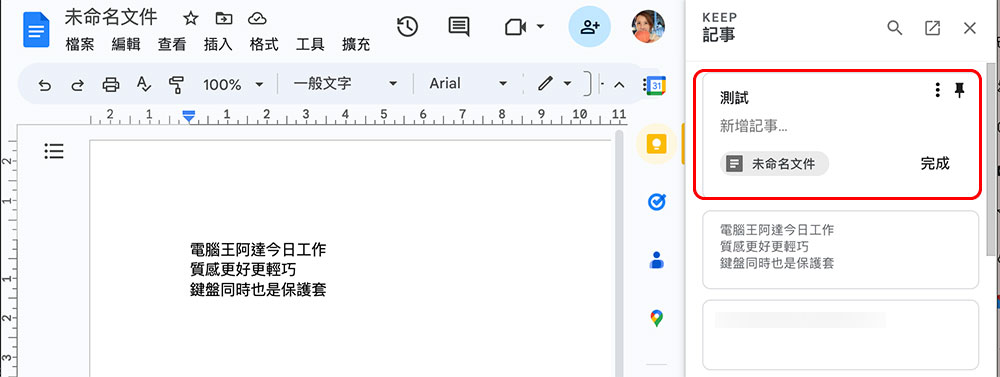
- You can also create Keep notes in Google Docs. Just click “Add Note” at the top of the right sidebar. The new note created in this way will contain a link to the current document. You can click the link directly from the Keep app to go to the document. This is especially helpful when attaching comments to documents.
Copy Keep notes to Google Docs
This is the best way to do it if you are operating from a mobile device.
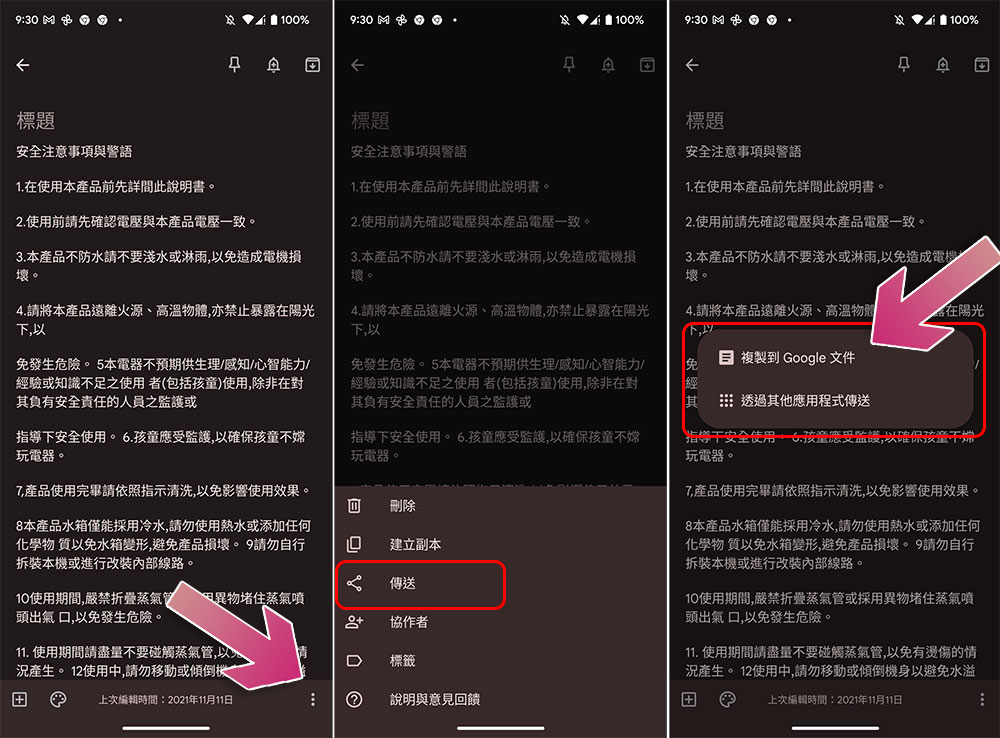
- Open any note you want to copy in the Google Keep app and tap the three-dot menu in the lower right corner of the screen.
- Click “Send” from the menu list.
- Next click “Copy to Google Docs”.
Change the default time for Google Keep reminders
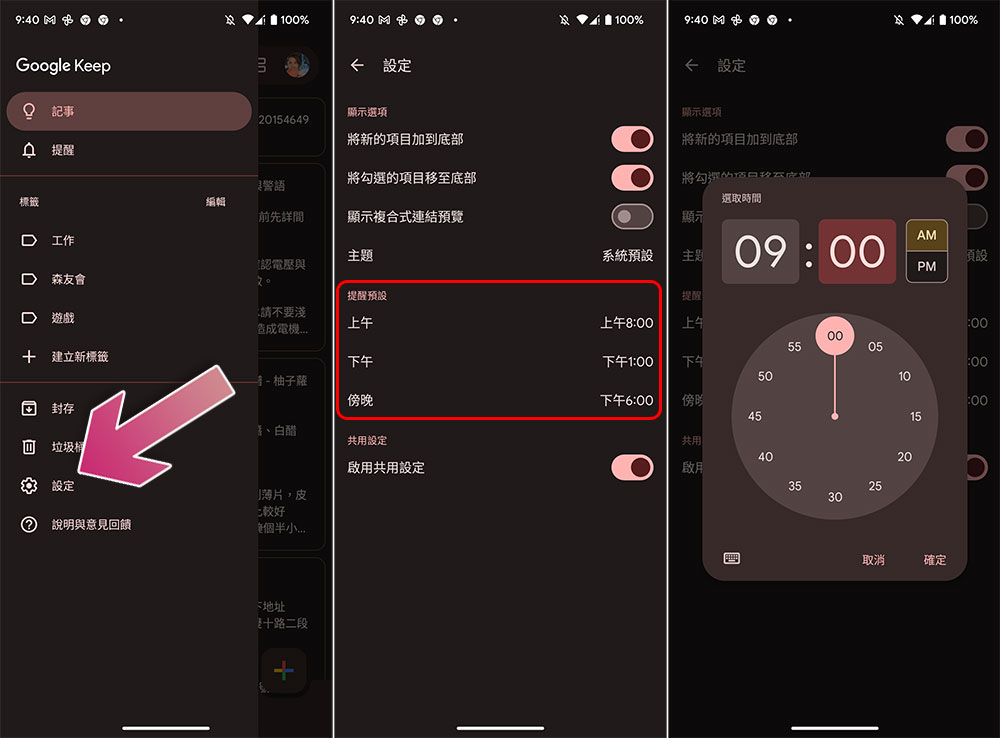
When creating a reminder in Google Keep, you can choose three time periods to set reminders: morning, afternoon, or evening (or night). Of course, you can also choose a custom time option. If you want to set Keep’s default reminder time according to your daily work and life schedule and simplify the reminder time process, you need to learn this trick to change the default time.
- After opening the Keep app, click the three-line menu in the upper left corner to bring up the navigation tray, and select “Settings” from it.
- Next, you can see the preset times for morning, afternoon, and evening on the screen. You only need to click individually to adjust the time.
Create and add tags to Keep files
Tags are a way to organize, search and compare. Your Keep notes can be filtered and searched based on tags, or you can add multiple tags to your notes. Although there are many ways to add and create tags, the method provided to you this time is the most convenient.
Create tags and add them to Keep notes
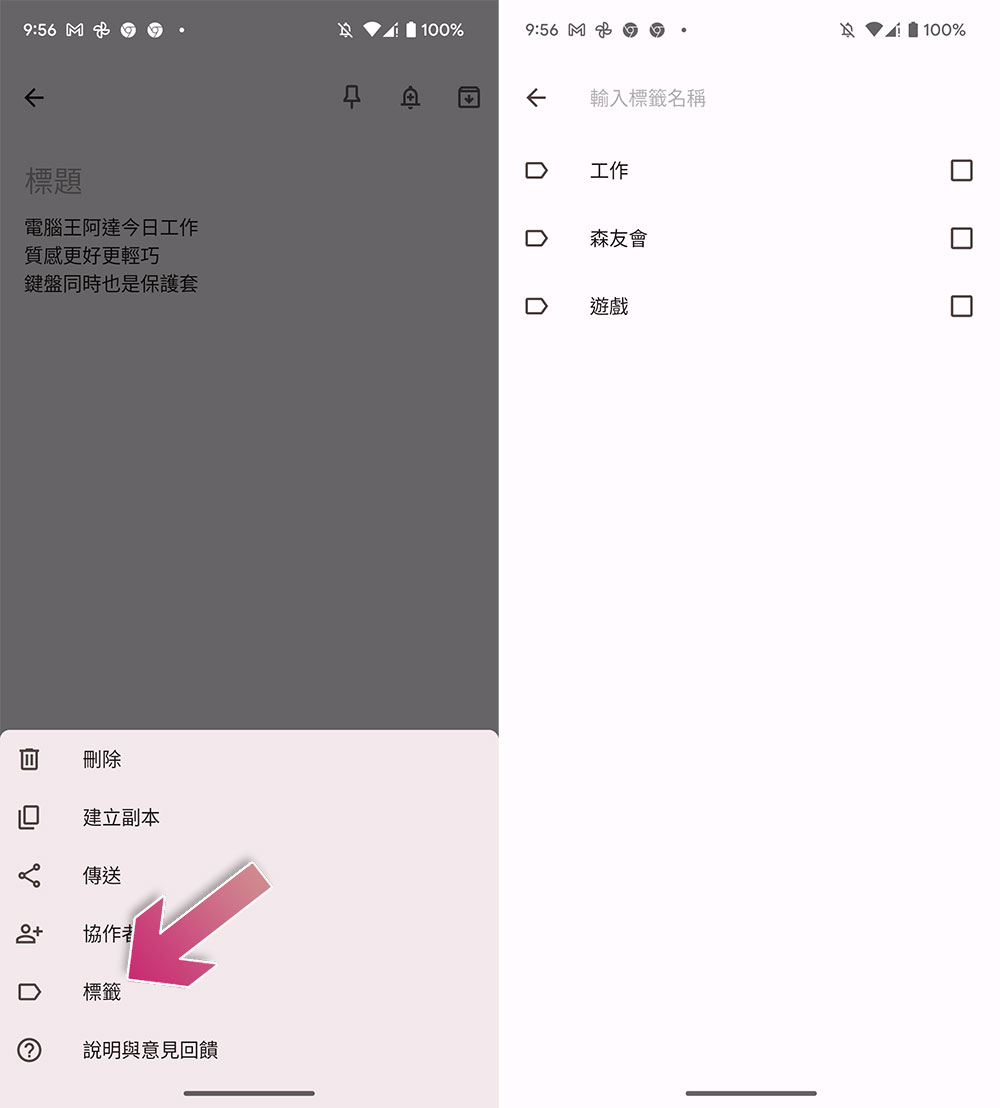
- Open any note, click the three-dot menu in the lower right corner of the screen, and select “Tag” from it.
- Click the checkbox of an existing tag to add it, or enter a new tag name in the “Enter tag name” field at the top to create one.
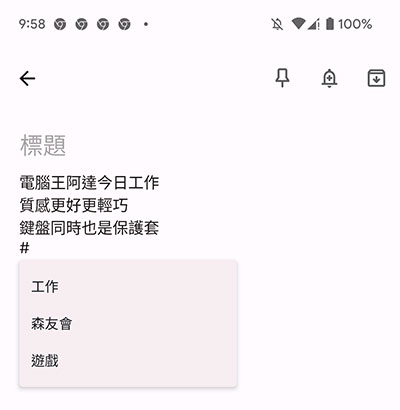
- In addition, you can also enter “#” directly into the note to select an existing tag from the list, or enter the desired tag name.
How to filter notes by tags?
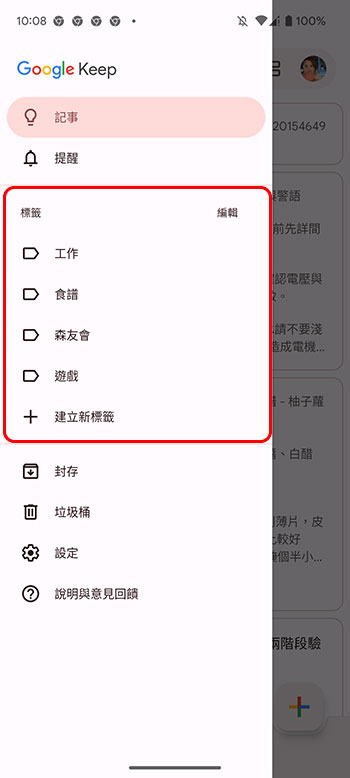
- After opening the Keep app, click the three-line menu in the upper left corner to open the navigation tray.
- Just click on the tag you want to filter out.
Install the Google Keep Chrome extension to quickly add images or web pages (PC web version only)
There are many useful Google Chrome extensions, and Keep is one of the best extensions, which allows you to add any web page or image to a Google Keep note with just a few clicks.
- First, install the Google Keep extension in your Chrome browser (Click here)。
- Next, right-click anywhere on the photo or web page you selected.
- Select Google Keep Chrome Extension from the menu, and no matter which one you choose, Keep will include the URL to that page.
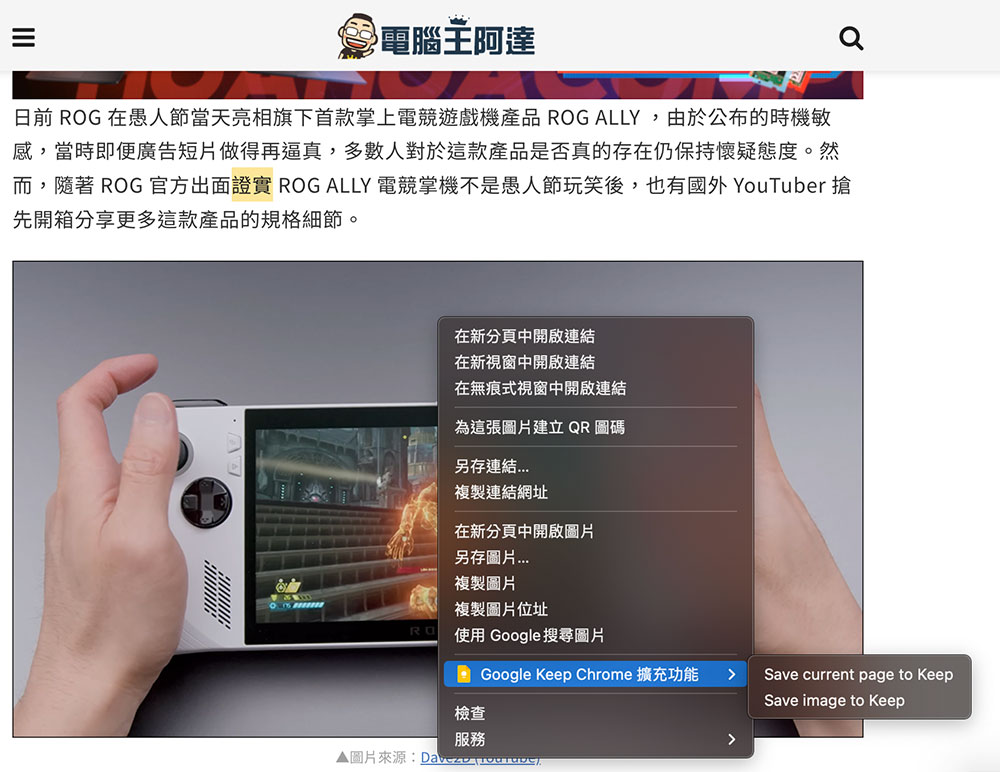
- The image will be saved to Keep, and you can annotate or tag it from the pop-up window.

Create and manage your Keep notes with Android gadgets
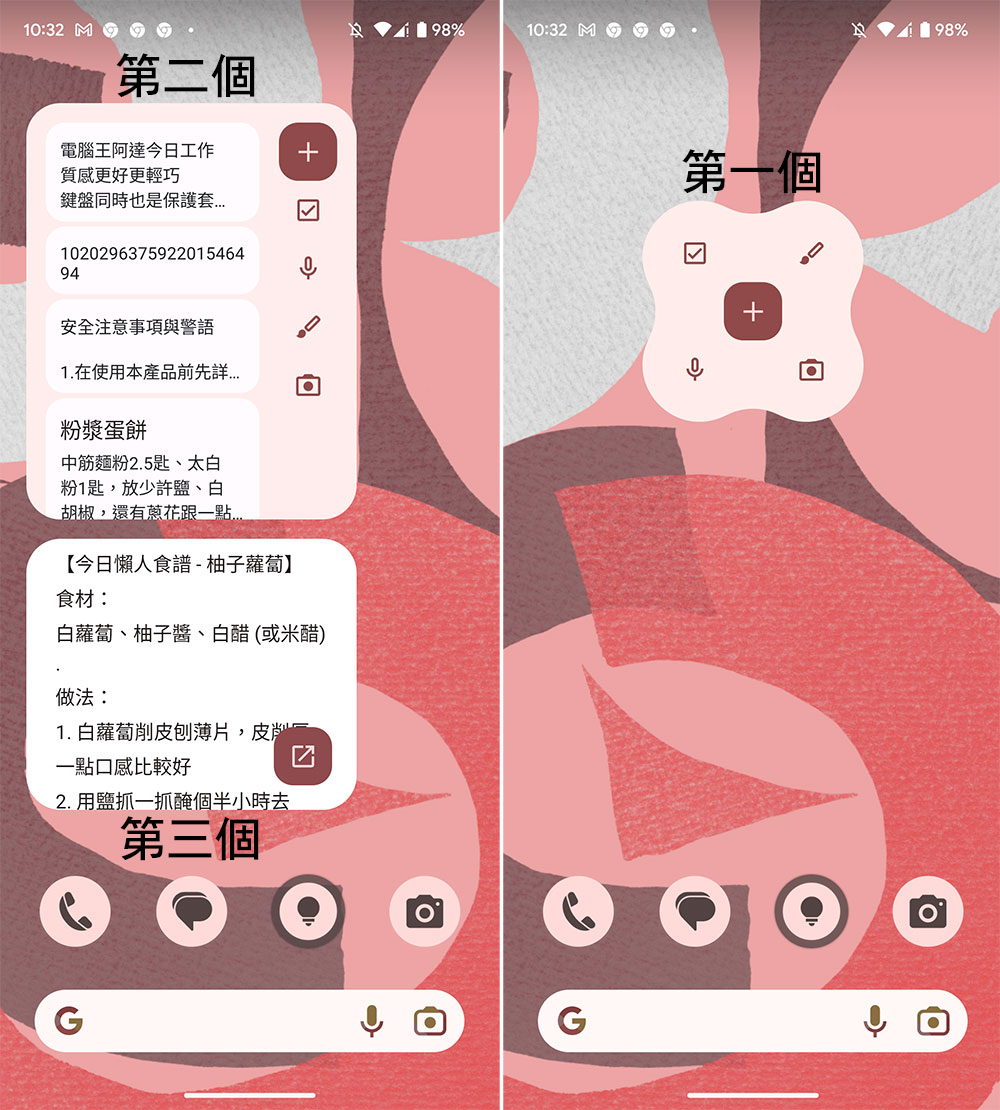
Google Keep provides three convenient widget options for the home screen of Android phones (refer to the image below). The first one lets you create a note by clicking on the icon, the second one lets you scroll through all the notes without opening the app, and the third one is dedicated to reading and executing a single note (the screenshot below contains the three widget styles, please refer to the marked text). Simply press and hold your phone’s home screen to go to the Gadgets menu, then search for “Keep.”
Grab text from images in Google Keep
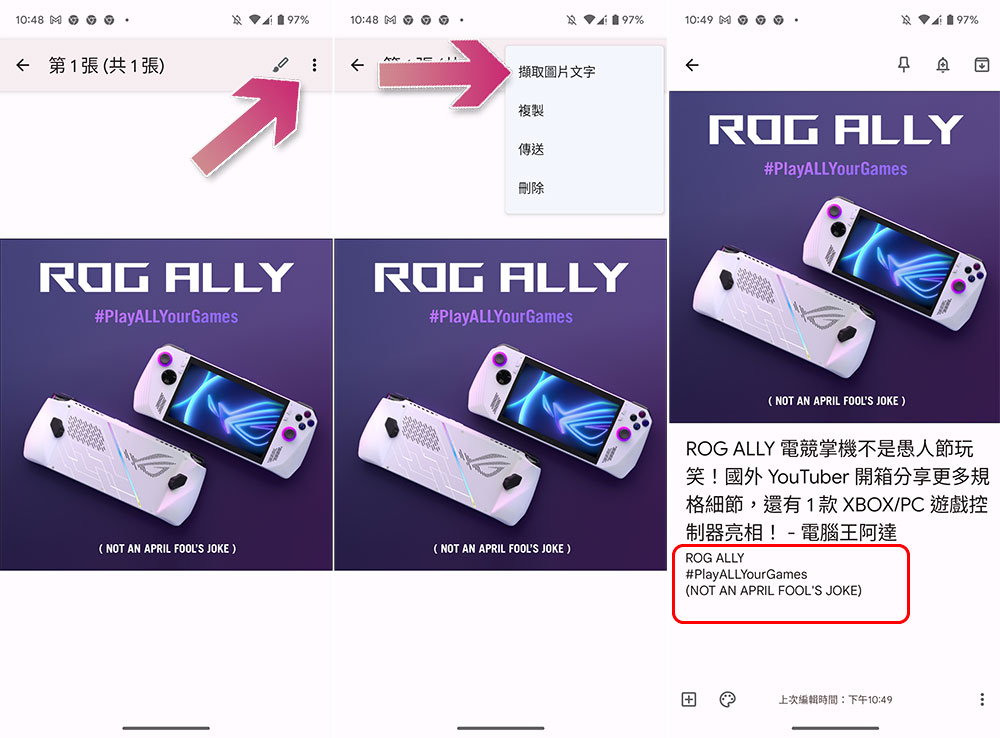
You can quickly copy text from images stored in Keep notes. The text will be copied below the image. You can edit it as needed for subsequent use.
- Open the note with the image in Keep.
- Click on the image to expand it, then click on the three-dot menu in the upper right corner and select “Capture Image Text”.
- The text on the image will be listed directly in the notes field below the photo.
Google Keep is very suitable for taking notes anytime and anywhere. Learning the above 6 tips will not only allow you to use it more professionally, but also help with the overall management and subsequent compilation of long formal documents, greatly reducing the time required to organize the content of notes.
Source: KOCPC Chinese