


In recent versions of Android, security and privacy have been one of the biggest focuses, although others can still know the location of your Android device without doing anything malicious. Today’s tutorial will take you through several location sharing features and how to set or disable them completely, giving you control over who can view your phone’s location.
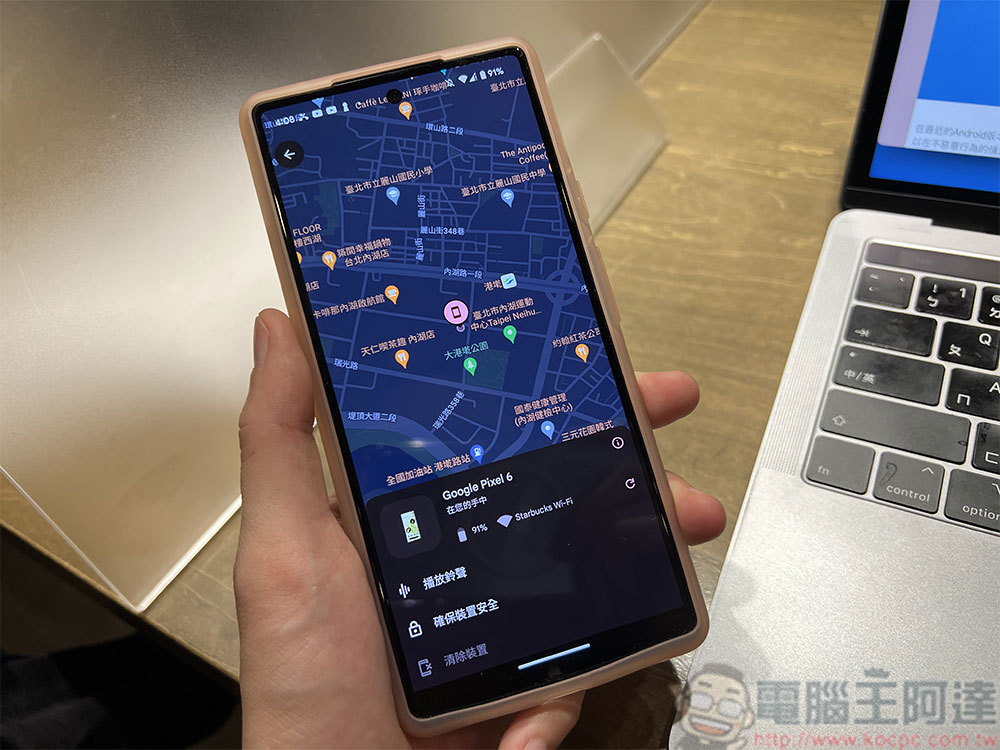
How to take control of Android location sharing so everyone knows where you are
The location of your Android phone should be ranked as one of the most private aspects, because most of the time the phone is with you, and getting the device location is equivalent to knowing your personal location, and anyone with this information can track you for whatever reason. Because location is a privacy issue, Android includes features that let you control who and which apps can see and when they can see your location. In Android 12, we’re starting to see a prompt pop up when you open a new app asking if you want to share your precise or approximate location. Of course, although the approximate location blurs out your location, it seems a little safer, especially if a weather-type application only needs one town or county to display the required information, which is helpful.
Of course, location is still there, so it might be useful to dig a little deeper into which apps might be sharing your location without you knowing the money. It’s an old topic, but I’m going to go a little deeper this time.
Turn off your location completely
As mentioned before, new tools have been put into the hands of all users over the past few years, allowing you to gain more control over your location. One of them is the ability to completely turn off location services, effectively preventing every app from seeing the user’s location and making it impossible for any app trying to track the user’s location. Of course, this method does have its drawbacks. If you lose your phone, you may not have the opportunity to use location services and find device applications to find it and access it remotely, and there certainly won’t be a usable GPS signal.
Android can do this via the Quick Settings toggle:
- First you must set “Positioning” in the “Quick Settings” panel. Click the edit icon (pencil) to set the positioning to the panel. You can also drag it up and down to sort.
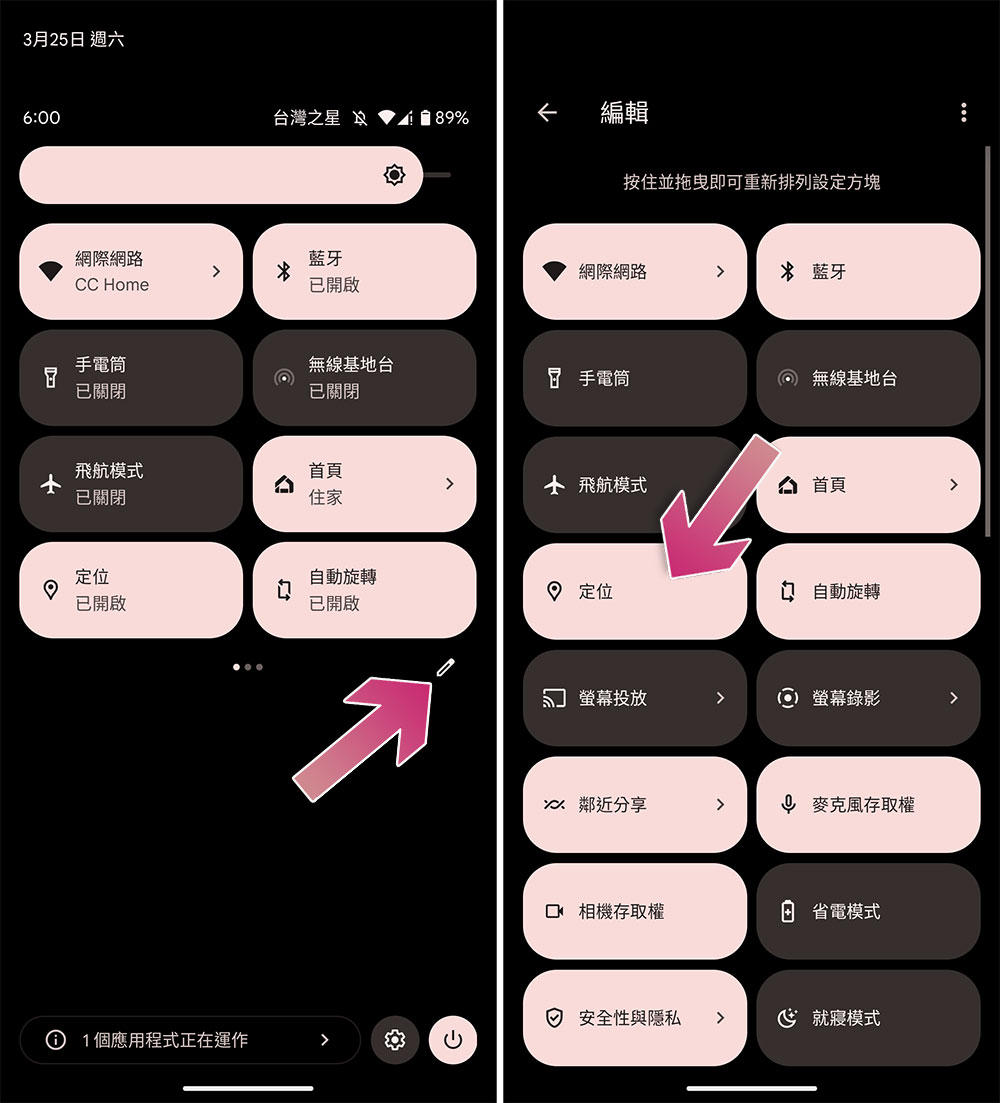
- In the future, you can completely turn off the positioning function immediately by sliding down the control panel.
Choose which apps can access your location
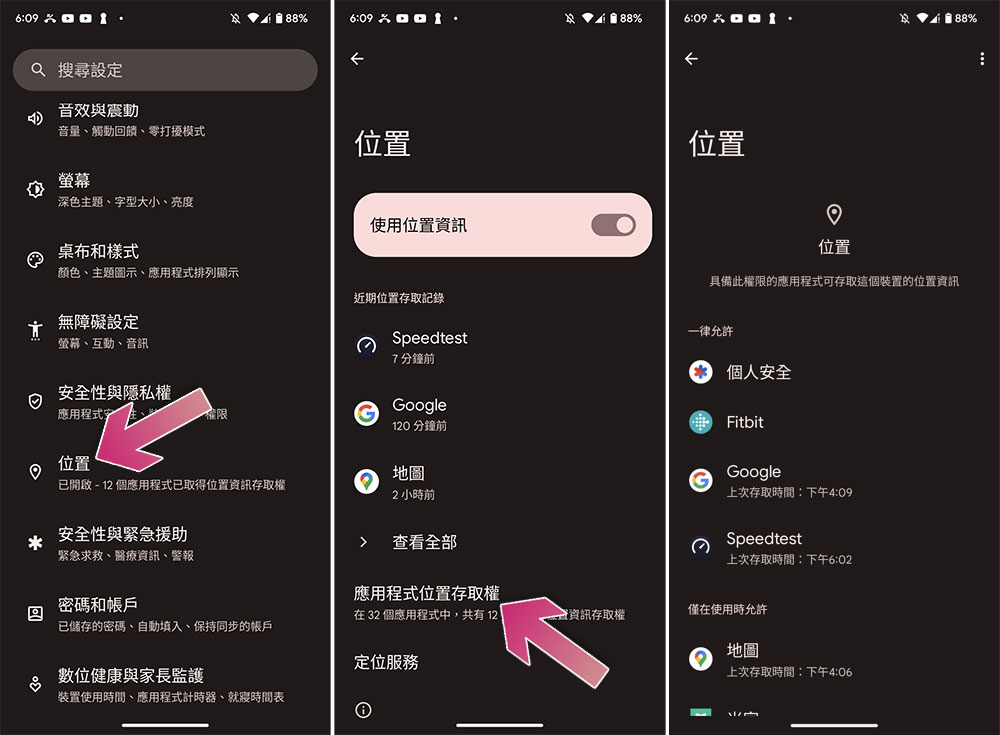
In the Settings app of your Android device, you can check which apps have permission to access your location in the “Location” item, and you can precisely control which apps have access. This is a more granular way of organizing, rather than turning off location features all at once.
Check third-party apps on your phone
We know that Android system apps can access your location, but they often allow users to do more than just view your location. Third-party apps like Twitter, Snapchat, Instagram, and Facebook all try to find opportunities to prioritize showing your location to others, so check to make sure they don’t allow sharing of your location.
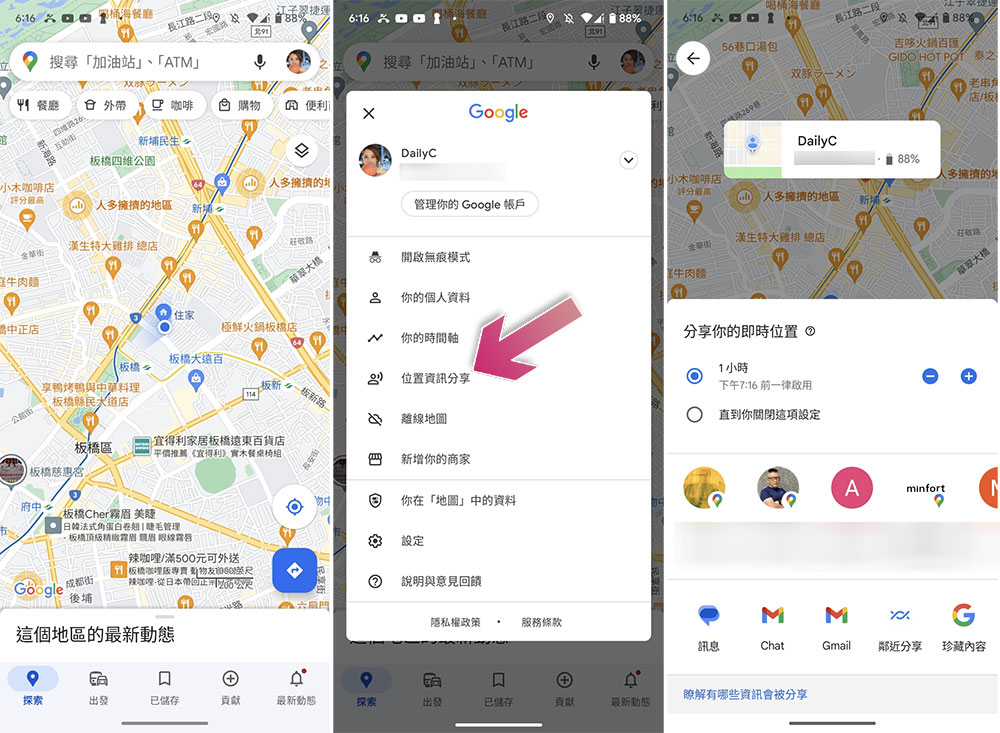
Google Maps is a very obvious application that can share your Android phone’s location for others to see. While the feature that allows you to share with others is great, be sure to go in and check who can actually see it. Friends and family are usually allowed, but if you share your location with colleagues or others, be sure to set it to temporary sharing. Just go to Google Maps and click on your profile picture when setting up a shared location, click on “Location Information Sharing”, and set a time limit for sharing. Do not set it until it is closed, lest you forget to close it and always let people know where you are.
Check your Google Account login activity
If someone has access to your Google Account, they can access your location and other highly sensitive information, and they can also access your device through Find Device. Of course, the positioned mobile phone will display a notification that the location has been read, but regardless of this, it makes people feel uncomfortable. If you see a notification that your device location has been retrieved from Find a Device, go to myaccount.google.security, change your password from there, which will also log you out everywhere; once you’re done, make sure you’ve set up 2-Step Verification with the correct password.
Source: KOCPC Chinese