


Although we have introduced many useful cross-platform wireless transmission methods in the past, they either require the installation of software or the setting of many steps, such as LocalSend、Snapdrop for Android, and no need to install any software, it can be achieved through settings Android、iPhone It is a wireless transfer method to the computer, so it is still a little inconvenient compared to Apple’s AirDrop. Recently, I discovered a free app called “AndDrop” that can truly transfer files from Android to Mac through AirDrop, and can transfer files to Windows over the air without any settings at all. It is definitely the easiest way to wirelessly transfer files from Android to Mac.
However, please note that currently this App only supports one-way transmission, that is, Android to Mac or Windows, but not the other way around.
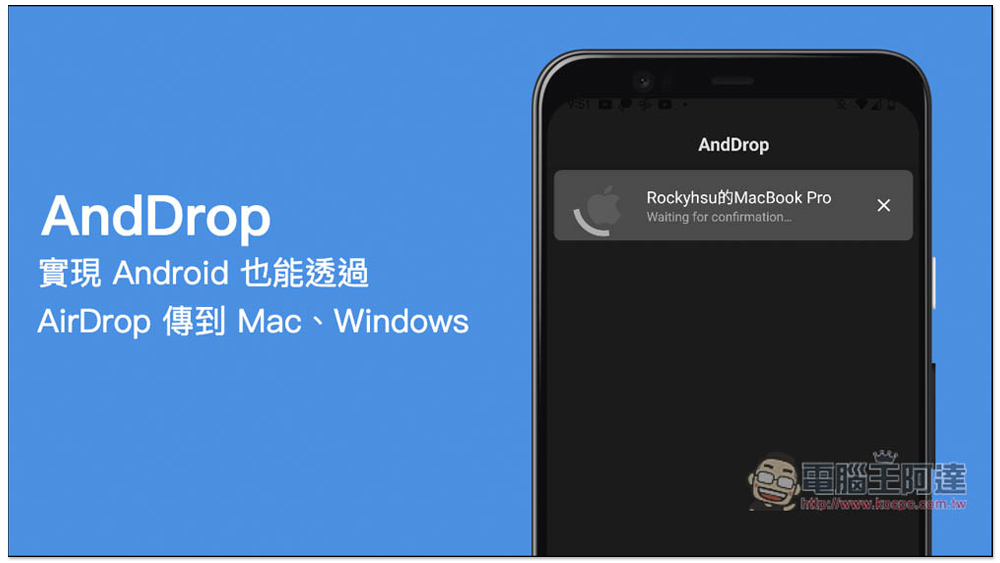
AndDrop realizes that Android can also be transferred to Mac through AirDrop and air-transfer files to Windows.
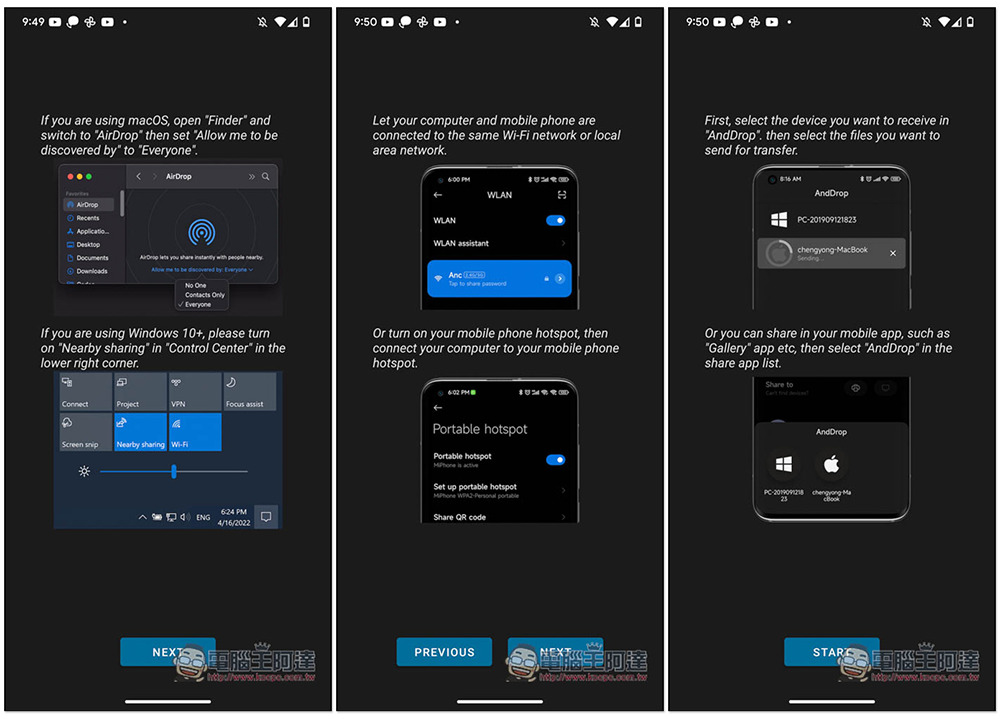
After the AndDrop App is installed and opened, there will be a simple usage introduction. macOS uses its own AirDrop to transfer files. For Windows, you need to turn on the proximity sharing function. I am currently using a Mac, so the following is an example of transferring files from Android to Mac. The operations are roughly the same. In addition, this device also needs to be on the same network to transmit, so remember that both devices need to be connected to the same wireless network, which is still a little worse than AirDrop:
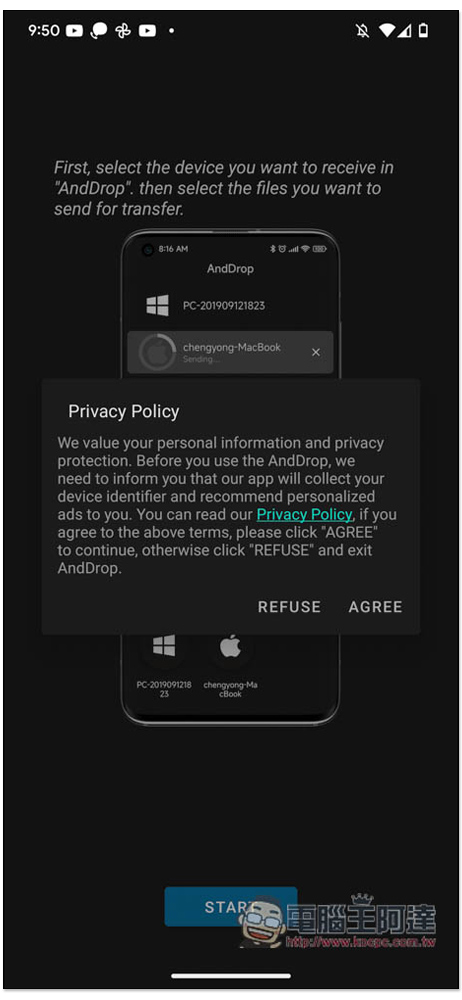
Then you must agree to the privacy policy and press AGREE:
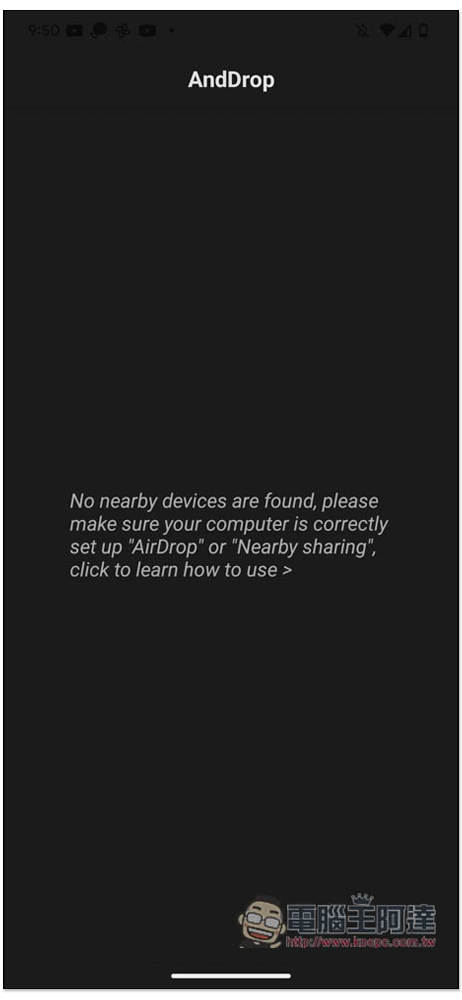
After entering the homepage, I haven’t changed Mac’s AirDrop to Everyone, so no devices are displayed:
At this time, I opened Mac’s Finder -> AirDrop and changed the “AirDrop allows you to quickly share content with people nearby” setting below “Allow the following people to find me” to “Everyone”:
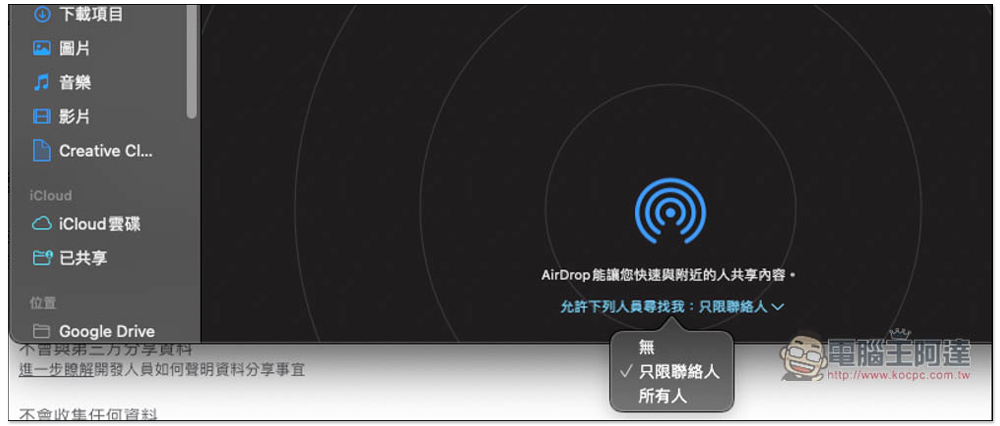
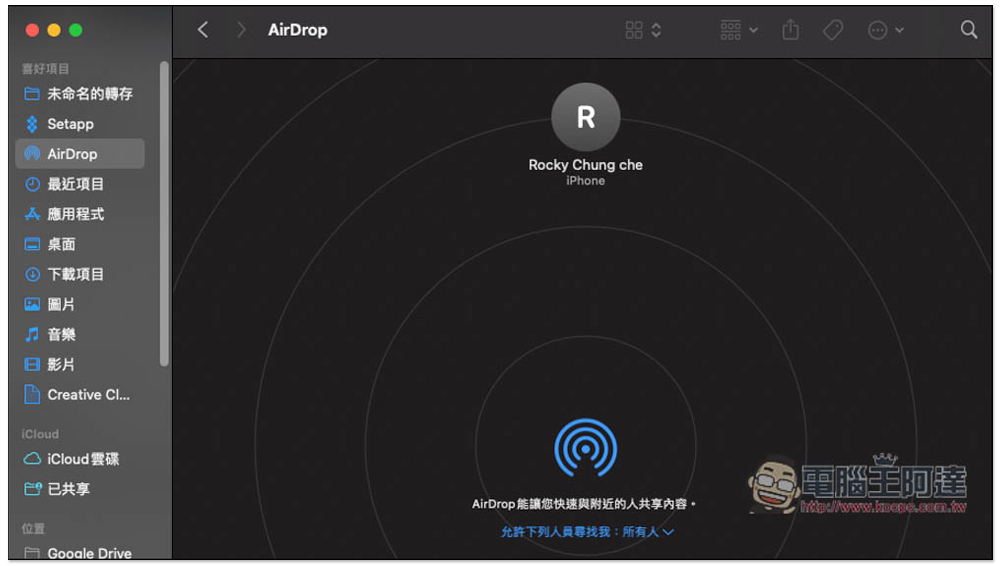
After the modification, Mac’s AirDrop will not display Android devices, which means it is impossible to transfer Mac to Android:
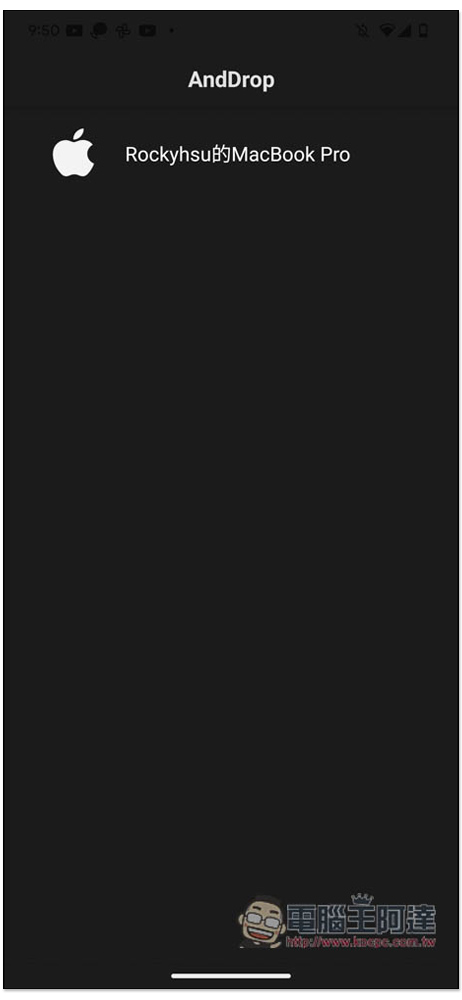
But the Android AndDrop homepage will show the Mac device, please click on it:
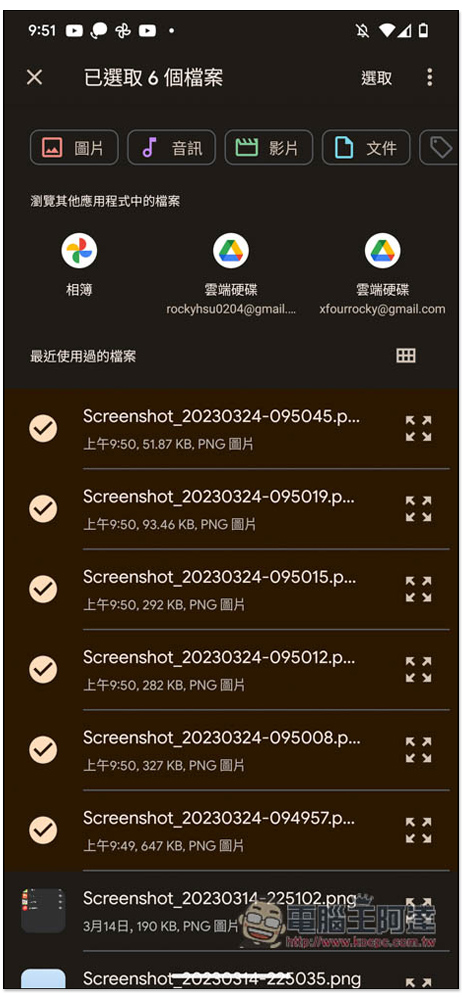
You can then select the files you want to transfer. You can select multiple files at one time. It also supports other application files, such as Google Drive and Google Photos:
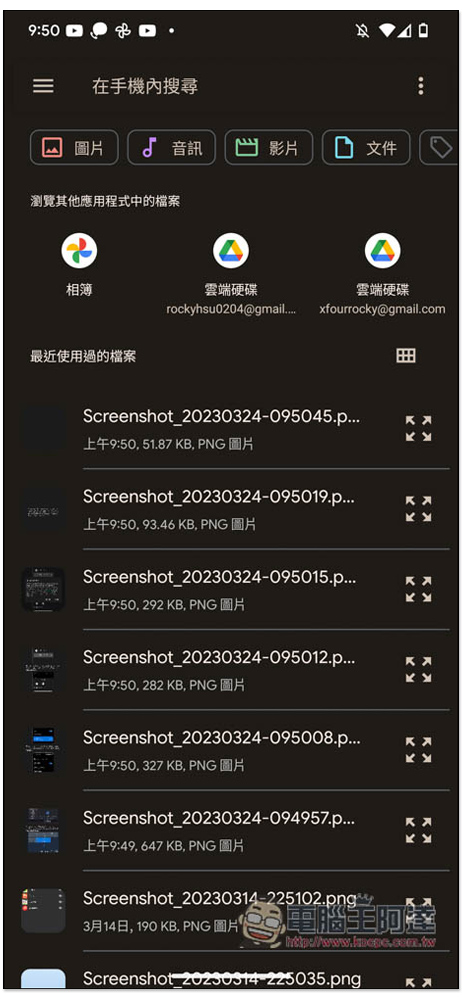
Long press to check the files you want to transfer, then press the upper right corner to select:
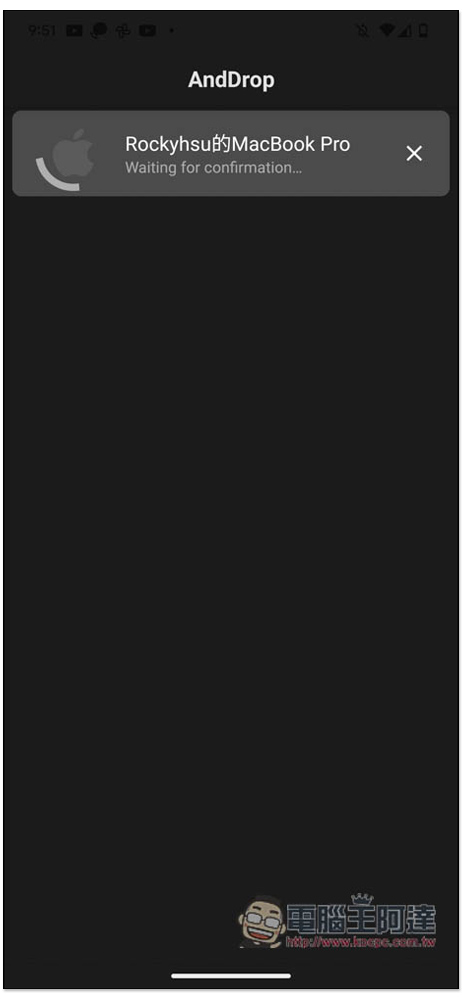
At this time, confirmation from the Mac side is required:
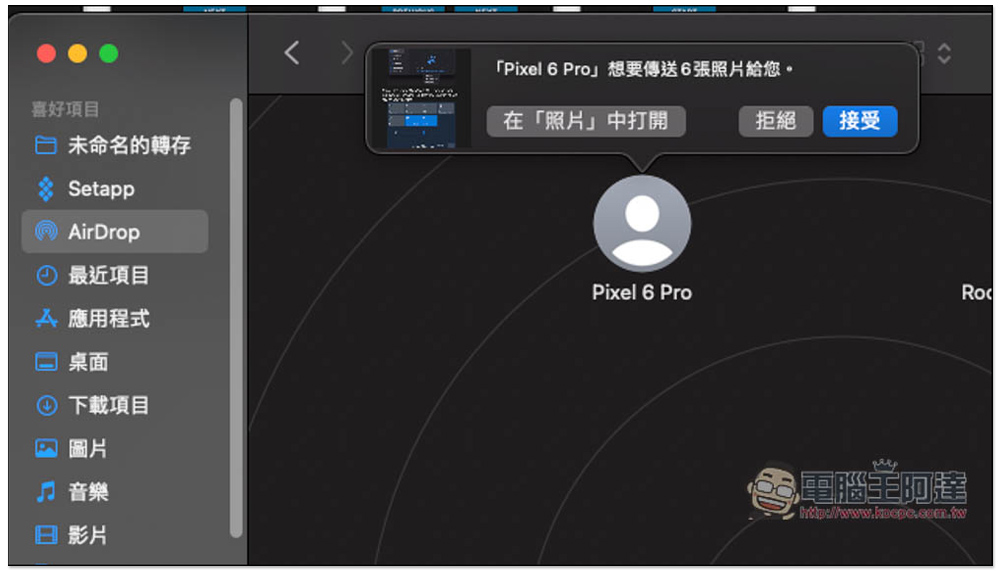
AirDrop on Mac will pop up this message. My Android phone is a Pixel 6 Pro. The device name is correct. Press Accept:
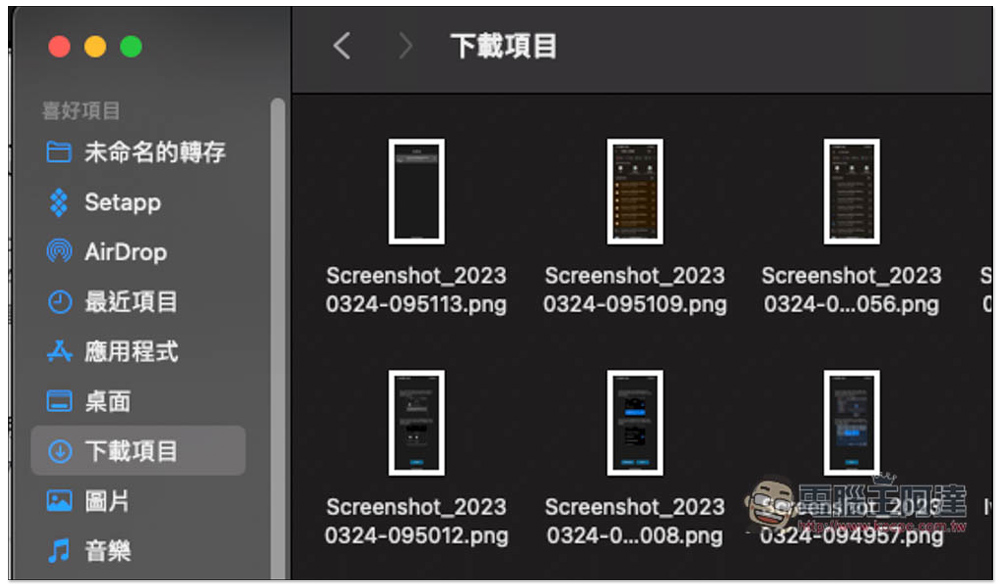
The downloaded items will be saved, and the transfer speed is as fast as real AirDrop, which is super convenient:
Therefore, if Android users often need to transfer files to Mac or Windows, this app is highly recommended. We hope that it will support both directions in the future, making it more convenient to use.
Source: KOCPC Chinese