


The integration of various services such as Gmail on smartphones has become an indispensable tool for people to send and receive emails instantly in their lives and work. However, there are several problems that may often cause Gmail to malfunction, especially on the Android operating system. The smooth experience of an app depends on the coordinated operation of multiple elements. Fortunately, it is not difficult to deal with these small problems, and they can even be used as solutions to fix potential problems with other apps on your phone. This time we have listed 12 of the most common problems and solutions for you, let’s take a look!
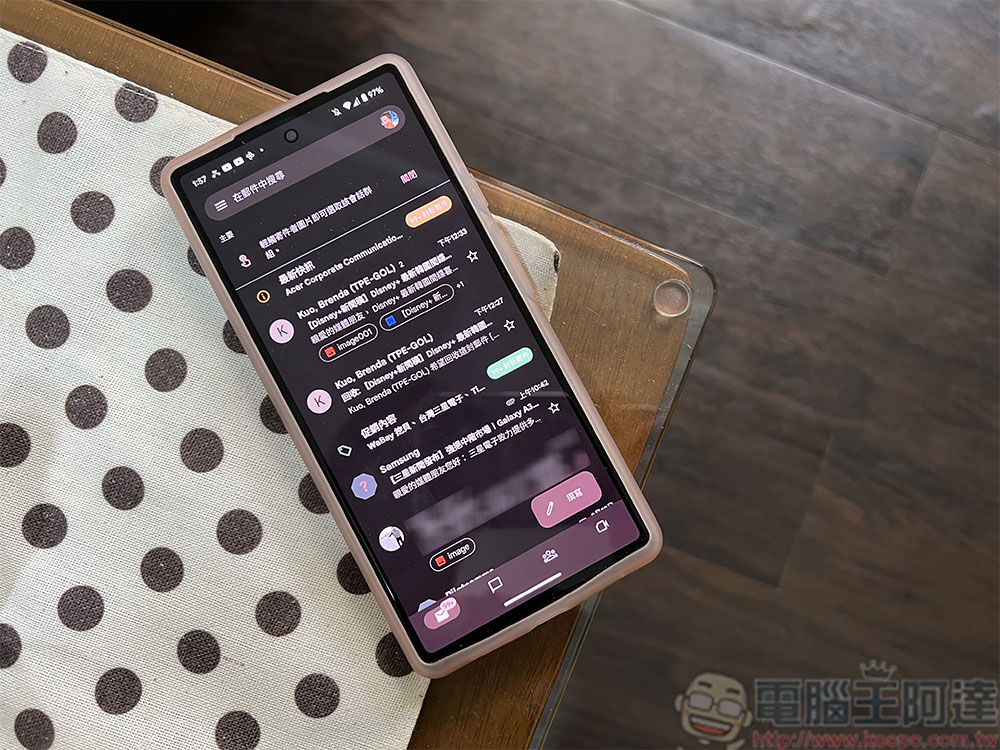
12 common Gmail problems on Android and their solutions
1. Gmail is unresponsive or crashes repeatedly
Whenever you face issues with the Gmail app on your Android device, first make sure that the Google email service is working, although this rarely happens, you can start with Google Workshop Status DashboardInformation provided on the website to understand whether all Google services, including Gmail, are currently functioning properly. One of the most common problems you encounter with Gmail on Android is the app crashing repeatedly. This can happen suddenly and without any warning, but luckily there are simple things you can do to fix it. Four ways to fix Gmail app crashing repeatedly:
- Update application
- Clear Gmail’s cache
- Reboot
- Last resort >> Restore original factory settings
2. Unable to add a new Google account
A Google account is the basis for using all Google application services and a necessary condition for every application including Gmail. When you use a Gmail account to set up a new phone, you may encounter the problem of being unable to add an account. While there are many reasons why users can’t add new accounts, most potential fixes are relatively simple:
- Network connection issues:
An unstable network may cause the application to freeze or even crash. First, check whether the phone is connected to a stable network. - Google Play cache issues:
Long press the Google Play Store app icon, click “App Information” to go to the inner page, select “Storage and Cache”, and finally click “Clear Cache”. - Google Play version issues:
Please check for updates to make sure the Google Play Store app is up to date.
Although most phones are equipped with optimal security settings out of the box, if none of the above works, please check the security and firewall settings of the phone. However, this situation is very rare. If there is no solution in the end, you may still contact the original manufacturer for further instructions and assistance.
3. Gmail cannot sync
Gmail Sync is a feature in the app that allows users to keep the same email content across multiple devices. Gmail Sync is also responsible for allowing users to view their entire email history across all devices and has become a must-have feature for all email apps. Another common issue that users may encounter while using the Gmail app is the sudden inability to sync their emails.
When sync is stopped, users may have difficulty processing new mail on one or more devices, may be unable to send mail, and may see an “Account not synced” message. If this happens, it is recommended that you check for updates and then restart the device to see if it can be resolved. If it doesn’t work, it means that the problem may be a lack of enough storage space. You can clear up space by deleting unused applications and unused files, and checking other applications and clearing their caches, especially media-intensive applications such as Spotify and YouTube. If sync issues persist, you can try resetting your password, as security issues may be the culprit that disrupts your phone’s sync cycle.
4. Gmail won’t load
In some cases, users may use the web version of Gmail in the browser instead of the Gmail application. If it cannot be loaded on the browser, it is recommended that the user first confirm that the browser supports Gmail. Most Android browsers currently support Gmail, so there is basically no problem with this. The cache on the browser may be a more common problem, especially for users who use smartphone browsers a lot. On most browsers, the browser cache can be cleared directly from the application, and Google Chrome users can clear cache and cached data from the History options.
After clearing their browser cache, Gmail web users should restart their phones and check to see if Gmail still fails to load. If so, users should check to see if there are any extensions that are causing the issue. Some extensions may block certain sites or content types, including Gmail. Depending on the number of extensions used, it may be a matter of trial and error to resolve the issue. One thing to note, however, is that some browsers may have built-in features that block certain types of content, such as pop-ups or scripts, so you should switch to a different browser to see if similar problems continue to occur.
5. Mail stuck in outbox
When you send an email, sometimes the letters are in the outbox instead of Sent Items, and the letters are not sent. If this occurs, users should first try sending the email again before starting troubleshooting. If sent emails continue to land in the inbox, users are advised to check their network connection first, as a faulty, unstable network connection is usually the most common reason why emails end up in the inbox. The next step is to check the sync settings of Gmail and then the sync settings of your smartphone to resolve its sync ability issues. If the settings look normal, you should check the battery optimization content in your phone’s settings, as enabling battery saver mode may hinder the Gmail app’s ability to send email. If all else fails, make sure you have the latest version of the Gmail app installed on your phone.
6. Unable to send or receive emails
Sometimes the Gmail app for Android may look normal, but users struggle to send and receive emails, which happens to be the app’s primary function. There are many reasons for this problem, but network connectivity and older versions of apps are likely culprits and happen to be the easiest fixes. Therefore, users should check their network connection and ensure that they have the latest version of the Gmail app for Android installed before continuing to troubleshoot other areas. If this does not resolve the issue, users should close and reopen their app to see if the issue continues.
If problems sending and receiving email continue, users should take steps to clear their cache and application data and try to use it again. Users can check their phone’s battery optimization settings to see if it’s preventing Gmail from interacting with their smartphone. If all else fails, you can try verifying your server settings through their Google Account to make sure they match those provided by your email provider.
7. Don’t show notifications
Another common issue faced by Gmail users on Android is notifications not showing up. To resolve this issue, the first thing a user must determine is whether the issue is specific to Gmail or a setting on the phone. Therefore, users should first check their phone’s settings to determine if their push notification settings have been turned off accidentally or unknowingly. If other apps are showing notifications but not Gmail, the user should check their Gmail notification settings through their Android app, as Gmail for Android has various specifications for the types of notifications users can restrict or allow.
If it is determined that both notification settings are set to “On” and Gmail notifications are still not showing, the user should try clearing their cache and application data, and then check whether battery saver or “Do Not Disturb” mode is turned on. Enabling these two features will suspend Gmail notifications and other related features of the application.
8. Unable to download attachments
Gmail allows attachments up to 25MB in total per message, and any attachments larger than that will be converted into a Google Drive link that the recipient can download from. Larger attachments tend to cause more problems for users, as network connections play an important role in the ability to download attachments efficiently, so users who are unable to download attachments should first confirm the strength of their network connection before trying other methods to resolve the issue.
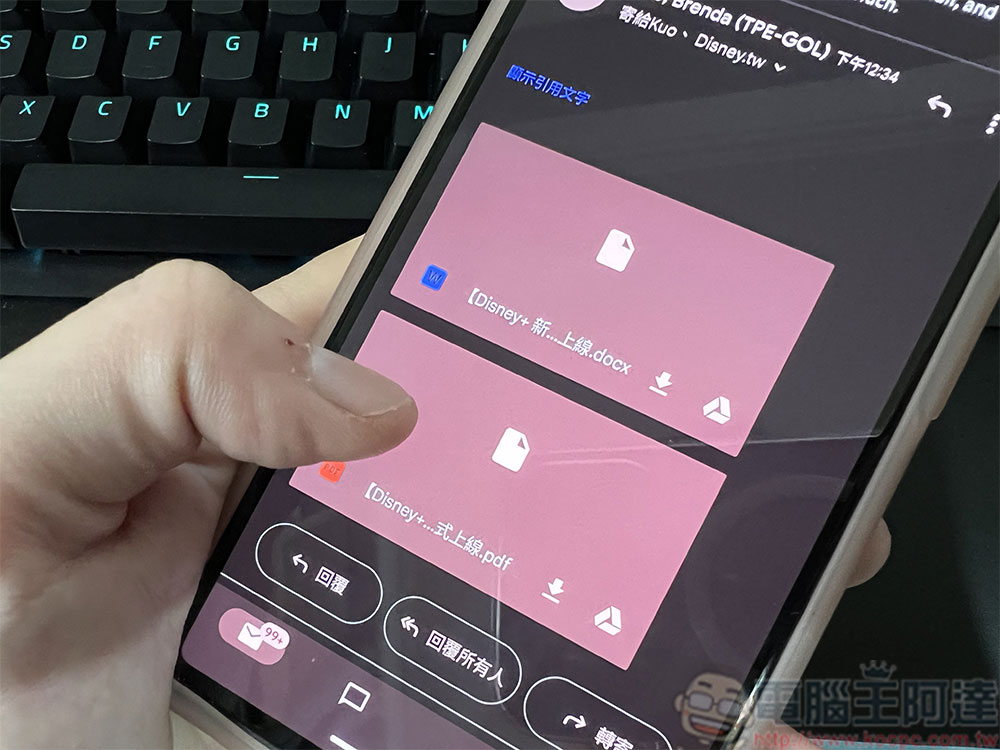
It’s no secret that Gmail lacks support for all file types. For security reasons, some file types (such as .gz and .xml) are blocked because the application cannot verify that the attachment is safe for download; other file types (such as .exe and .cmd) cannot be included as attachments at all. However, if a user knows that the file type is safe to download but is not downloading at all, they can try forwarding it to another email application to see if the attachment downloads successfully. However, if an email attachment does appear to be unsafe, users are advised not to download it and instead report the message as spam or phishing.
9. Delivery delay
Sometimes, an email takes an unusually long time to be sent, or it hangs completely in the “sent” state without any action. Again, a lack of stable network connection is often the primary cause of these types of issues, and users should verify that the connection to Wi-Fi or mobile data is stable before proceeding. In most cases, Wi-Fi should take precedence over mobile data to ensure the smoothest experience possible. If your network connection is fine and the Gmail app continues to get stuck sending, you should try sending from Gmail on the web, a computer, or another Gmail account to see if there’s a potential issue with the account that sent the original email. If this is the case, users should contact Google Accounts support.
The last thing users can try to resolve stuck while sending is to check the attachment. Depending on the attachment’s relevance to the email, users may try removing the attachment entirely and sending it as a separate email or Google Drive link. The size of the attachment combined with the strength of the network connection often causes this problem, so users can also try compressing the files in the email to see if that helps.
10. “Account not synchronized” error
Users may suddenly encounter an “account not synced” error, which is a common issue that is slightly different from general sync issues and is unique to mobile devices. Anyone encountering this error should first check storage to ensure there is enough space on the device for the application to run. All Google accounts allow 15GB of cloud storage, which can be used to store any unused files taking up space on your phone. If there is enough space, users should check their network connection before trying to sync the device manually by swiping down from the top of the screen.
If the error persists, users should troubleshoot their sync settings and ensure all necessary sync features are turned on. If after doing all this, the “Accounts not synced” error still persists, you should try restarting your phone. Restarting your device clears system memory from top to bottom, so if one app happens to be unknowingly interfering with another, a reboot can put all apps back on an equal playing field, eliminating the interference entirely.
11. Gmail is slow
In some cases, there may not be a specific issue affecting the user’s experience, the app may just be slower than usual. As mentioned before, restarting your device can sometimes be the cure-all, especially for issues related to app speed and frame rate. If the Gmail app continues to be slow after restarting, users should check to make sure Gmail is allocated the appropriate storage space to run efficiently. Since automatic syncing is a must-have feature for email apps, space can be quite an issue. While deleting unused apps is the most common way to free up space on your phone, users can also increase capacity using a microSD card, which can add up to 2TB of space (depending on the phone’s support).
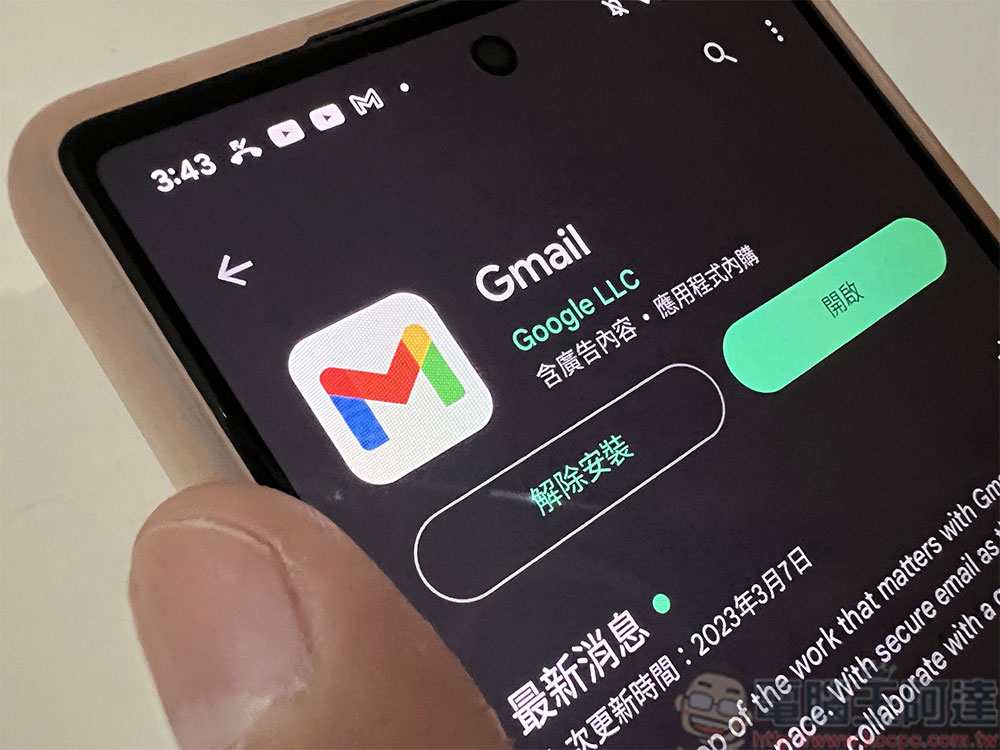
If you don’t think storage is causing the Gmail app to be slow, you should check to see if the Gmail app is up to date. While many Play Store users have auto-updates enabled, various factors such as space and network connectivity may prevent them from downloading. Google typically rolls out Gmail updates more than once a month, and Android users can check their system’s compatibility with all mobile apps in the Google Play app.
12. Gmail has stopped
Sometimes, due to issues such as insufficient storage space or memory, the Gmail application may suddenly crash without warning, and the application will pop up a prompt telling the user that “Gmail has stopped.” If users encounter this problem, they should first restart their phone to see if the restart successfully eliminates any software glitches that may be causing the problem. People who receive the error can also try to troubleshoot the network connection. Turning “airplane mode” on and off can act as a “reset” for the phone’s network connection, which effectively eliminates any radio signals sent or received by the phone.
If the issue persists, users can try other troubleshooting tips, such as checking phone space, clearing the app’s cache, and deleting errant apps that may be interfering with email apps including Gmail. If all other options have been exhausted, users can also try reinstalling Gmail. Reinstalling the Android app will not only restore the app to its original installation settings, but also remove app data, cache, and user data.
Source: KOCPC Chinese