


With Google I/O 2025 arriving,Google Its AI features have seen a massive upgrade, not just new models, such as: more powerful Gemini 2.5 Pro and Flash、Imagen 4、Veo 3 Also, Google AI Studio has added two new features: “Native speech generation” (natural speech generation) and “Live audio-to-audio dialog” (conversation with Gemini). The former converts the text you provide into natural speech. Compared to the ones we previously introduced, which all used Microsoft TTS, it sounds far more natural. It also supports a podcast mode with multiple characters conversing, similar to… NotebookLM The Audio Overview, except here you can fully control the conversation content, and it’s free to use.
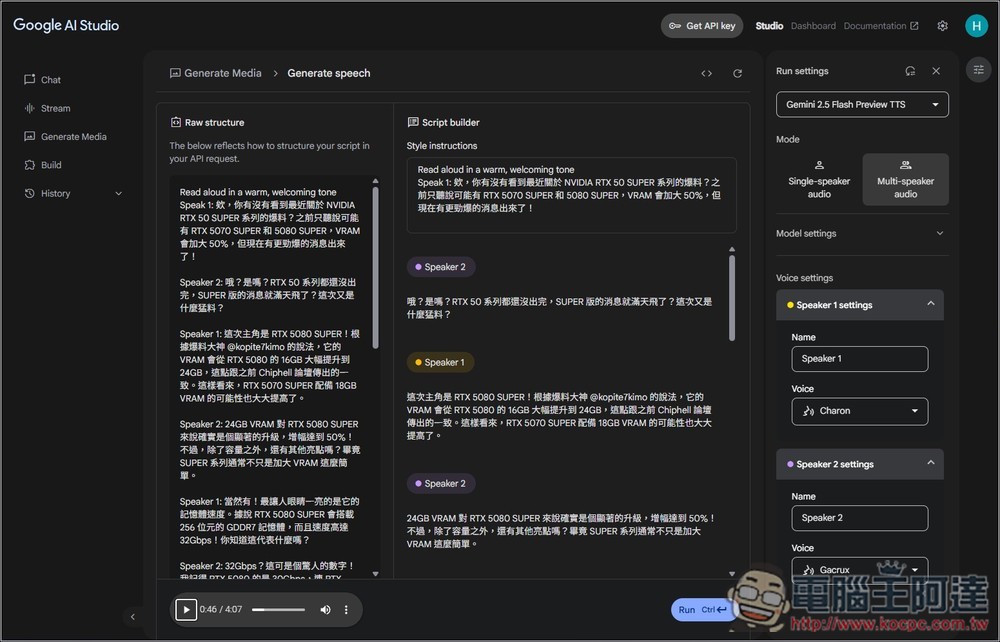
How do I use Google AI Studio’s text-to-speech feature?
To use the features of Google AI Studio, you first need a Google account — if you have one, you can use it for free.
Although the interface is only in English for now, it’s pretty simple. I’ll walk you through it step by step below. The model currently used by Native speech generation is “Gemini 2.5 Flash Preview TTS,” which is still in preview, so be sure to check the output after generating—errors can happen. For instance, one of my test cases had an issue with repeated generation.
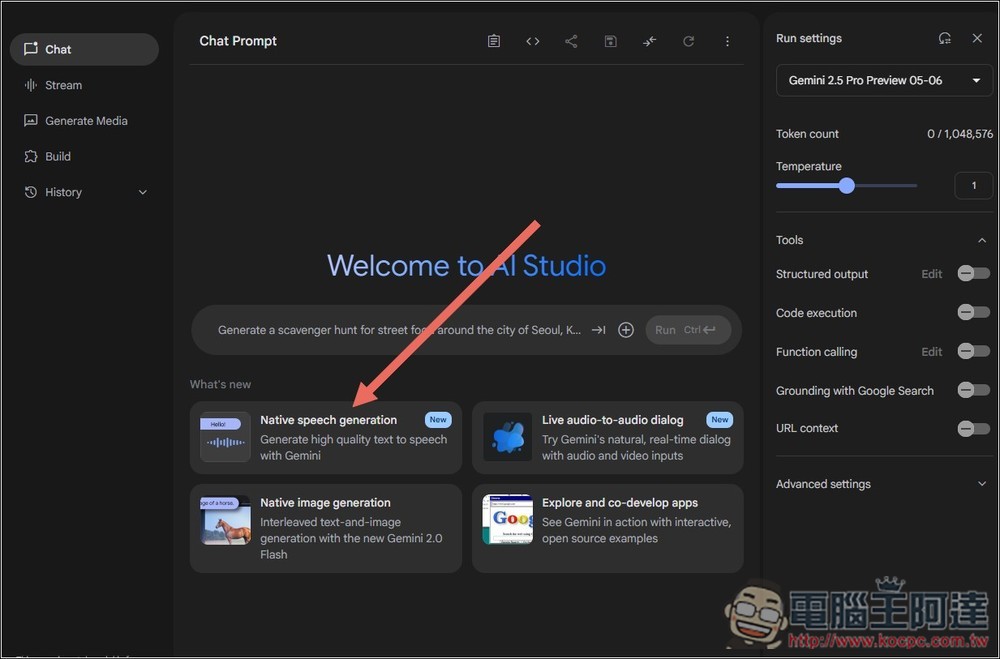
After clicking the link above to enter Google AI Studio, you’ll see the newly launched Native speech generation at the bottom of the homepage:
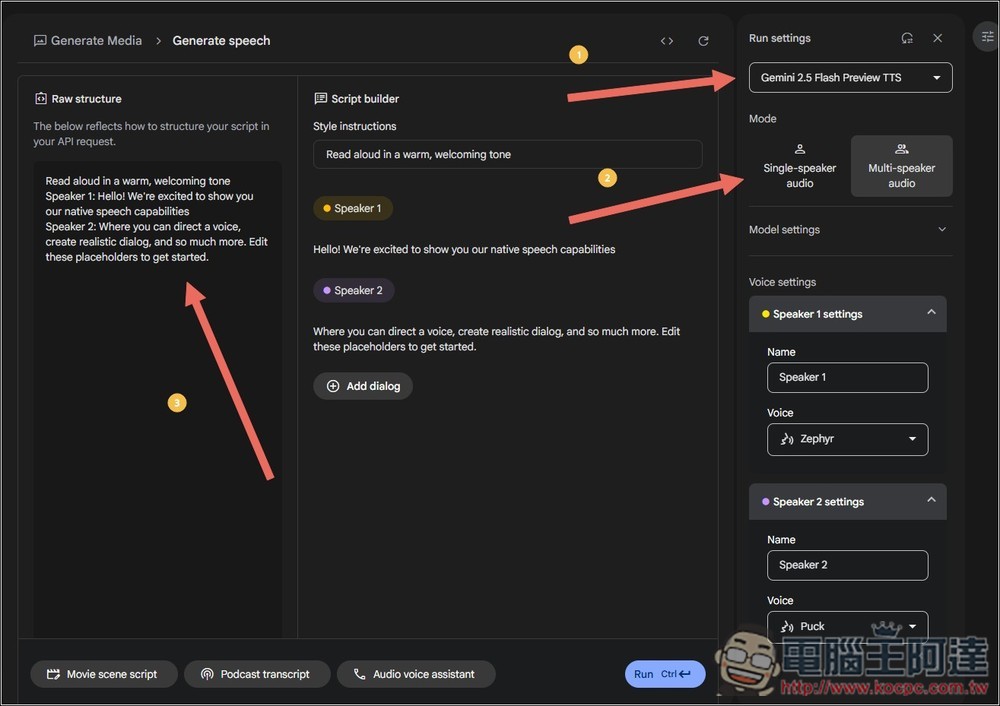
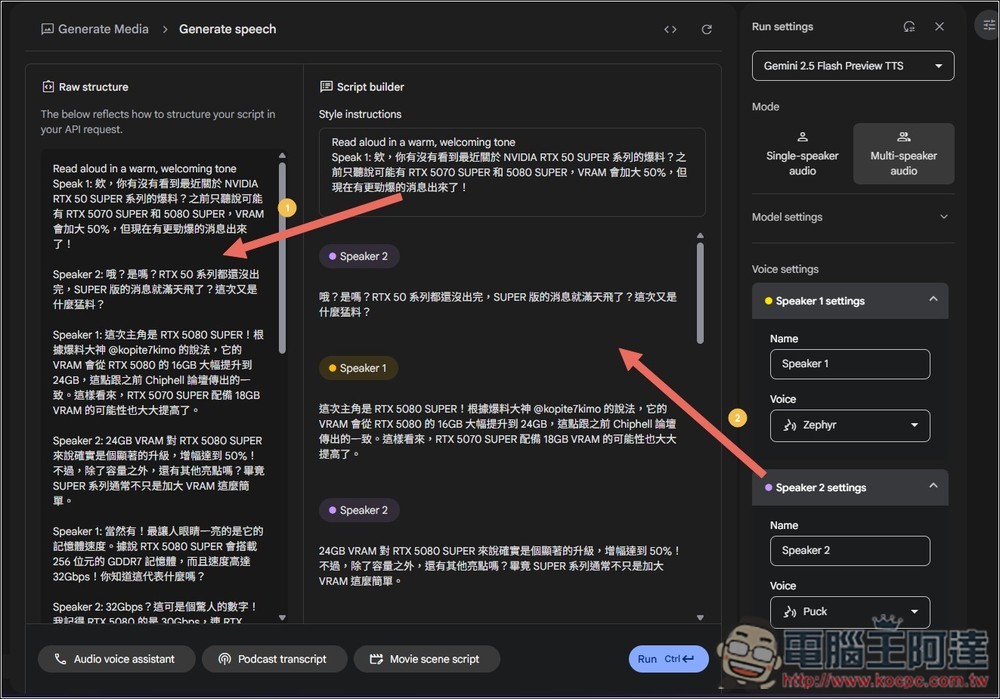
After entering the Native speech generation interface, the first thing in Run Settings on the right is the model, which currently only has Gemini 2.5 Flash Preview TTS. Below that, Mode is the mode option; by default it’s multi-speaker conversation audio. If you only want one voice, switch to Single-speaker audio. On the left, Raw structure is where you input content. Speaker 1 represents the first speaker, and Speaker 2 represents the second; you can also change the names in the Name field under Voice Settings on the right. For the content you’ve entered, you can refer to the Script builder in the middle, and the AI will generate based on that:
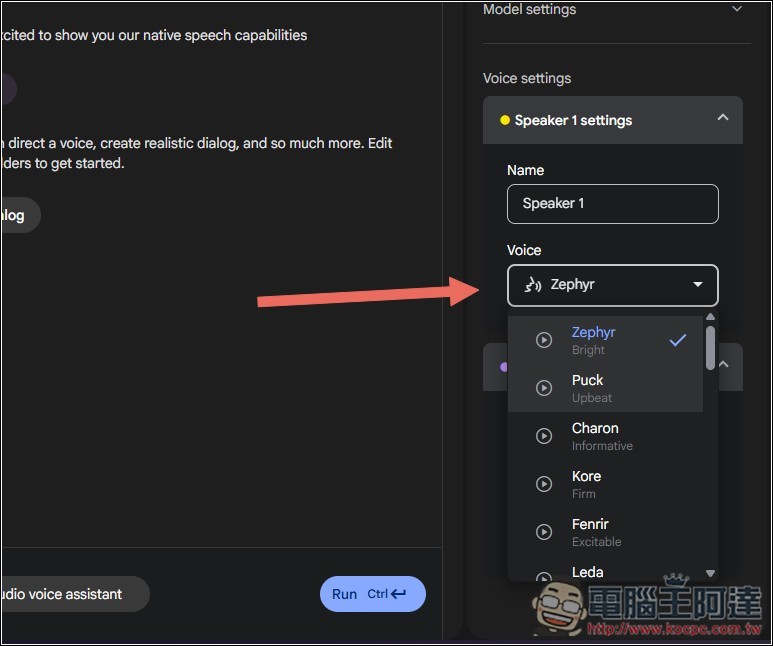
The Voice feature can change the voice. Barring any surprises, every single one supports Traditional Chinese, so feel free to try them all:
I’ll first test the single-person voice generation mode. Fill the content into the input box on the left. If you have no ideas, you can also press the prompt at the bottom to let the AI generate it for you, but currently it only supports English content.
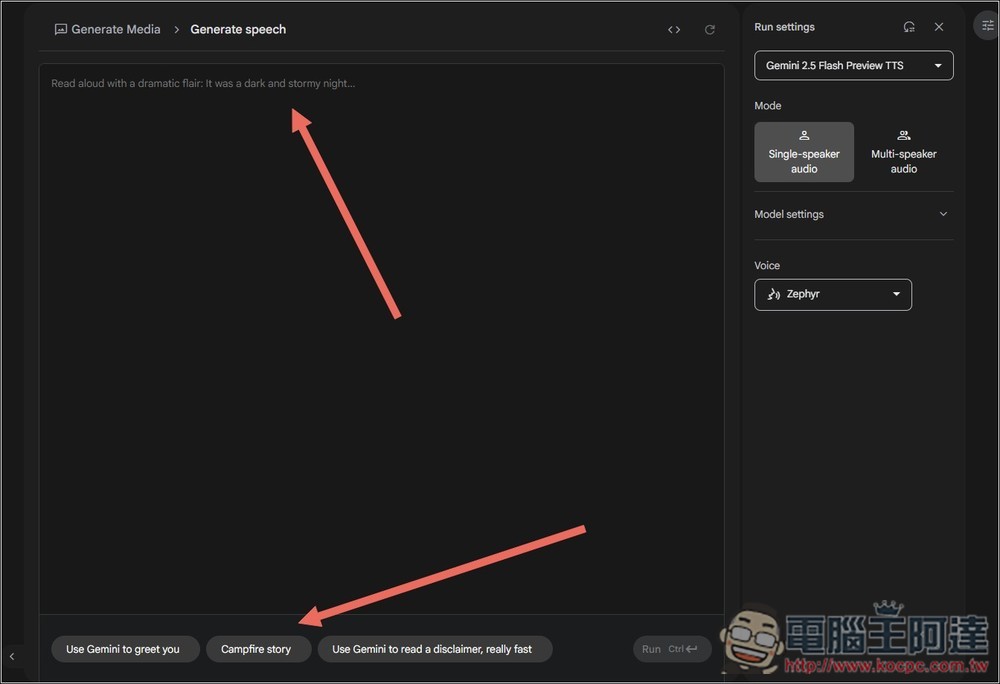
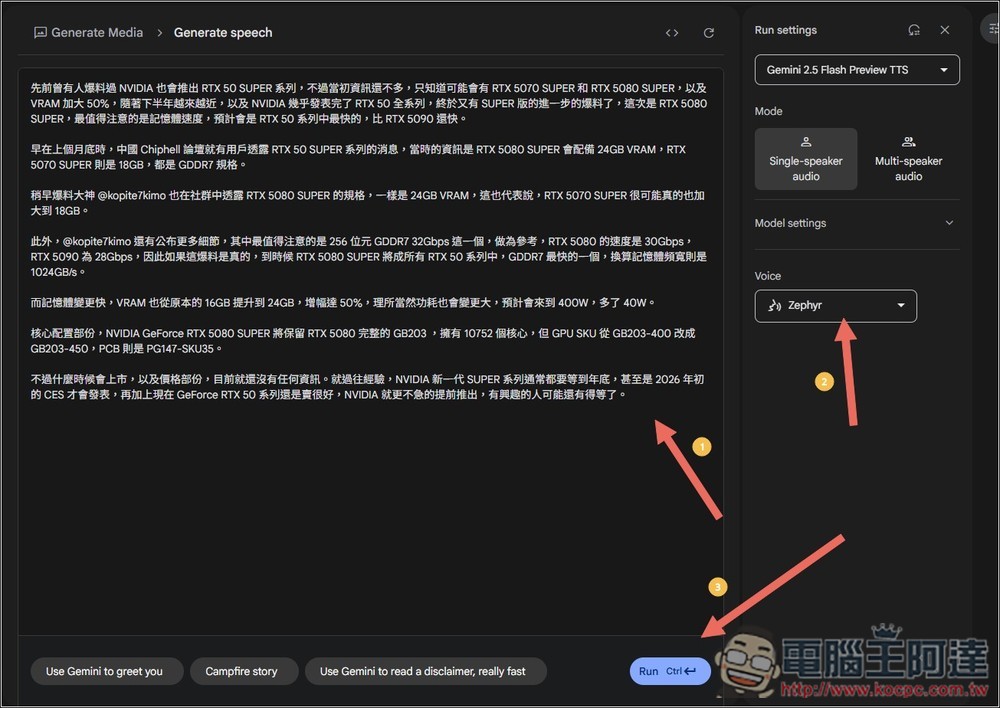
I am testing our other article “RTX 5080 SUPER Specs Latest Leak: Equipped with the Fastest GDDR7, Memory Also Increased”. After selecting the voice, click Run below to start generating:
Once generated, the audio will play automatically. If you’re satisfied, open the menu on the right… and you’ll find the download button.
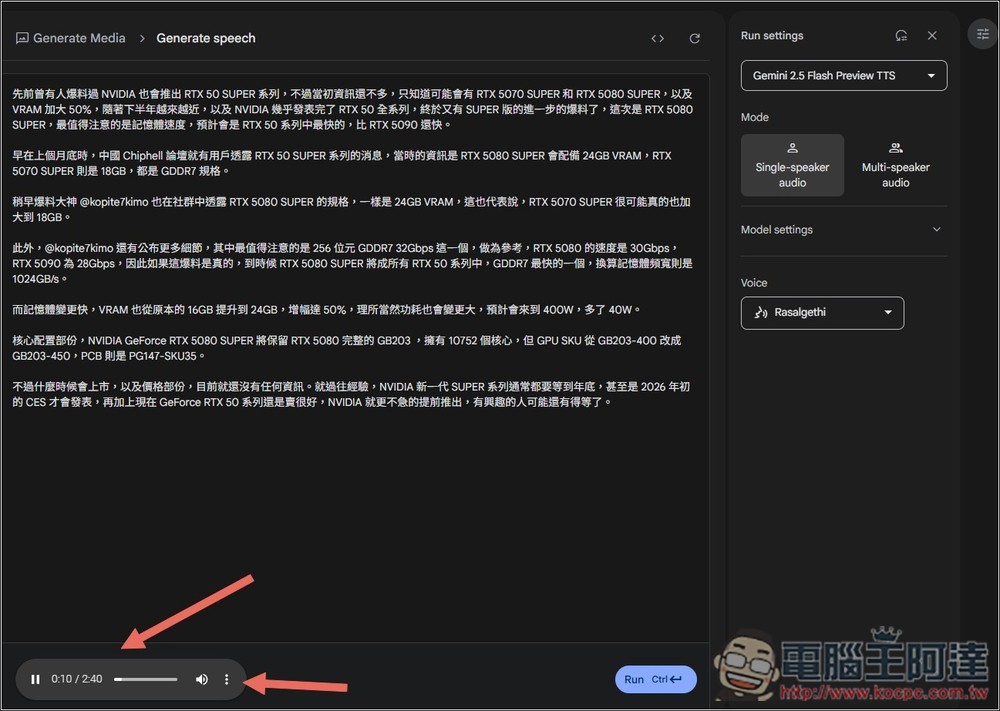
This is the generated result, and below there will also be a two-person dialogue test:
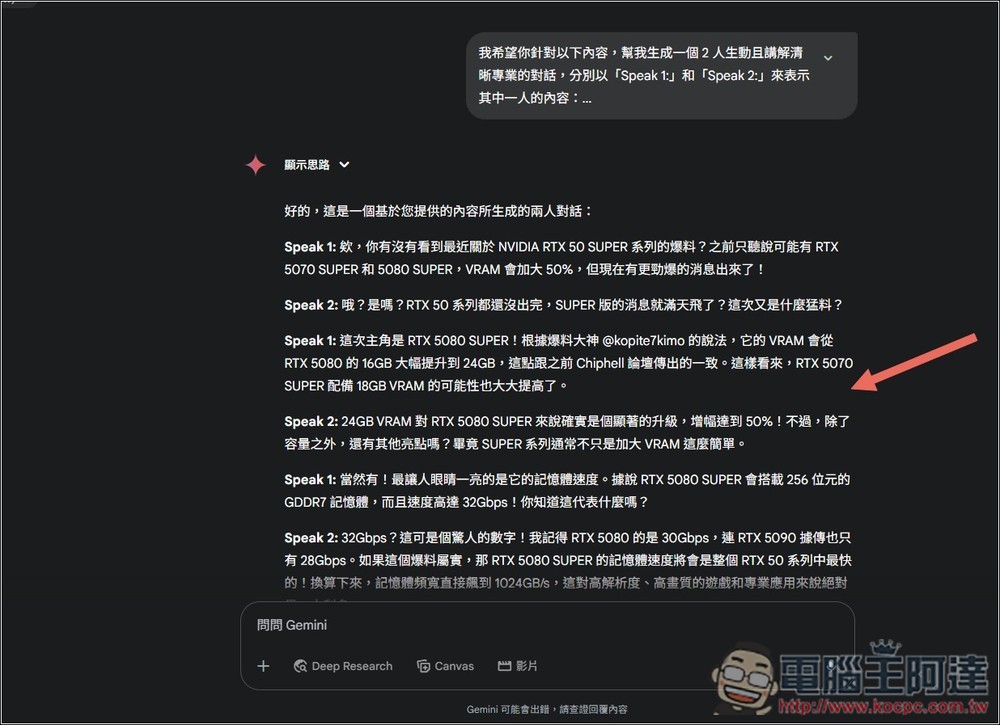
For the multi-person dialogue part, if you don’t have ideas for the content, you can use other AI tools to generate it, such as ChatGPT, Gemini, and the like. Just feed the content to the AI and enter a similar prompt, such as: I want you to generate a vivid, clear, and professional dialogue between two people based on the following content, using “Speaker 1:” and “Speaker 2:” to indicate what each person says:
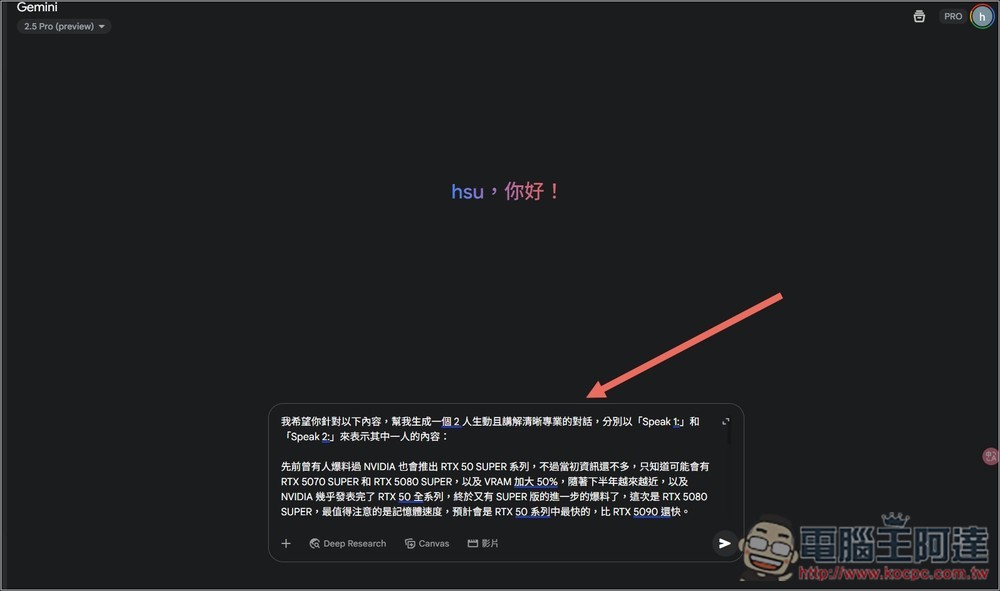
Then you’ll have an initial conversation; if it’s good, you can use it directly, or manually modify it if you’re not satisfied:
Then paste the content into Google AI Studio, and make sure every piece of dialogue shown in between is correct:
Once generated, if you’re satisfied after listening, you can download it.
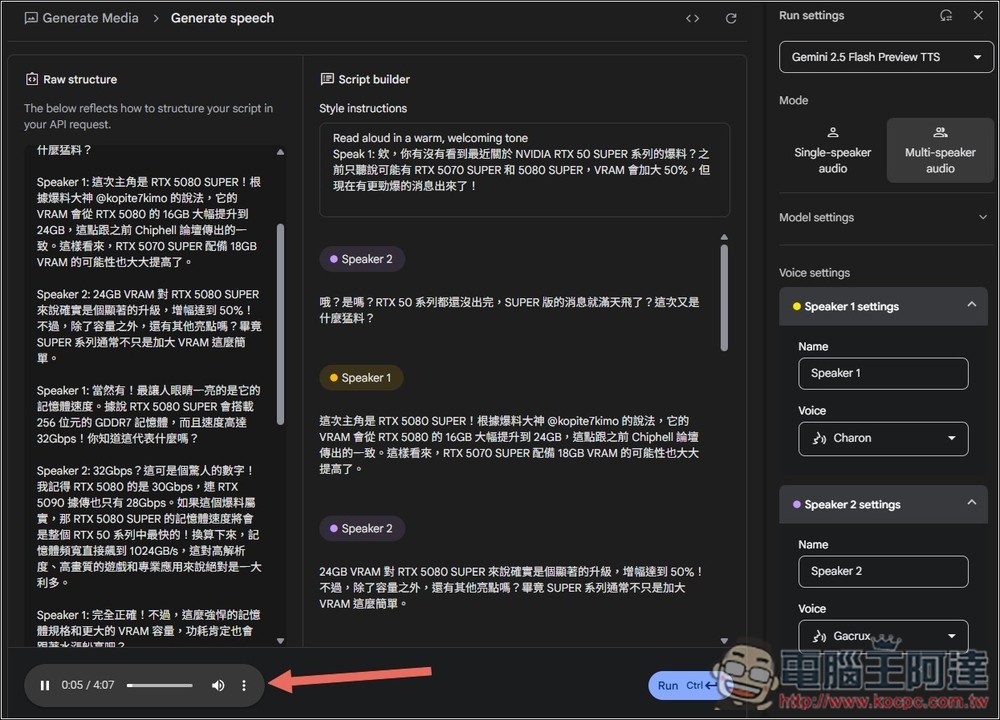
This is the result, and overall it’s quite good, but there’s a repeated sentence at the beginning. So after generating, be sure to check it. If there are any errors, you can edit it yourself, or try generating again:
Google hasn’t stated whether Google AI Studio’s Native speech generation has any usage limits, and I didn’t see the number of Tokens consumed either, so it’s possible you can keep using it for free right now. Even if there are limits, they typically reset daily, so you can just try again the next day.
Source: KOCPC Chinese