


One of the most important reasons why smartphones are so popular is their versatility. Whether you need a camera or a phone call, you can do it all with one phone, and even meet all your entertainment needs. This is due to the continuous improvement of mobile phone hardware and software by various manufacturers. With the advancement of technology, smartphones have become more sophisticated and complex at every level. Automatic rotation of the mobile phone screen should be the most commonly used function, but what if it suddenly fails? This tutorial will tell you how to try the troubleshooting method yourself before sending it for repair.
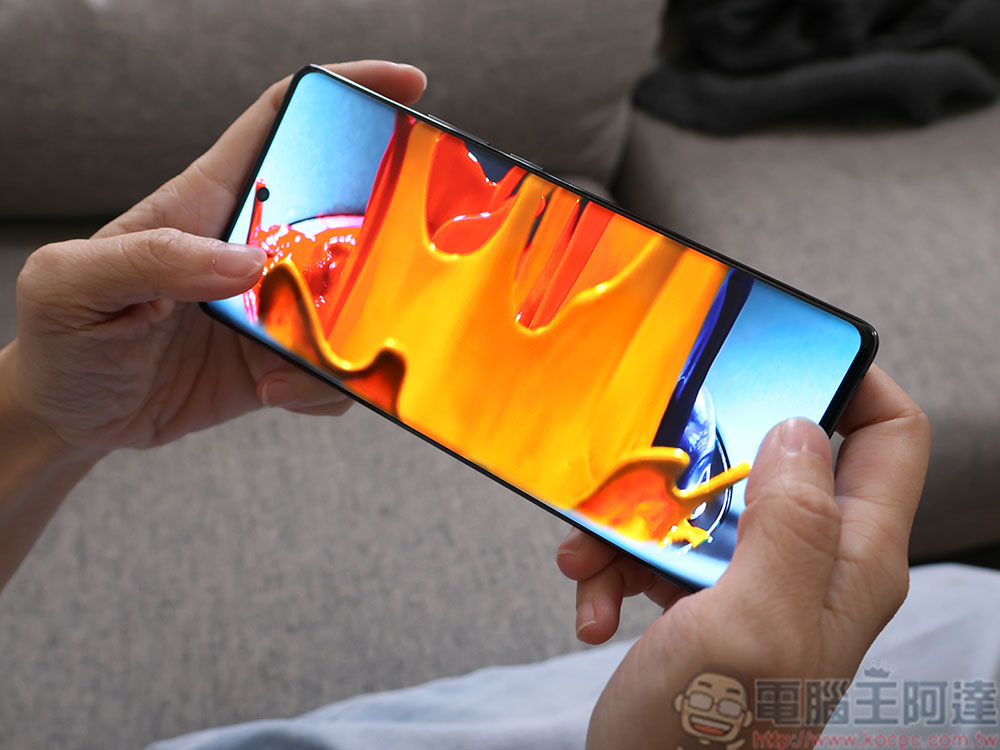
Android phone screen cannot rotate automatically? You can try these fixes
From the sensors that provide critical communications functions, such as Wi-Fi and cellular networking, to other components such as GPS, Bluetooth, and ambient light, a smartphone is essentially a complex system of hardware and software, all of which need to work together to provide functionality and value to the end user. In the smartphone experience advertised by all manufacturers, the accelerometer is one of the most underestimated components. It senses changes in the orientation of the device, and then the software interprets the identification data to decide whether to rotate the screen according to the usage. However, sometimes it is inevitable that the automatic rotation function on the phone will suddenly fail. This can be very annoying when you need to use it. Fortunately, you can take some measures to eliminate it.
The most basic thing to confirm before exclusion: turn on screen auto-rotation
Let’s start with the most basic steps, be sure to make sure that auto-rotate is enabled before you rotate your phone. You can turn it on by sliding down the status bar and finding the auto-rotate option. After turning it on, you can try to rotate the screen again. Some accelerometers may be more or less sensitive, and you can trigger it by moving a little harder while spinning.
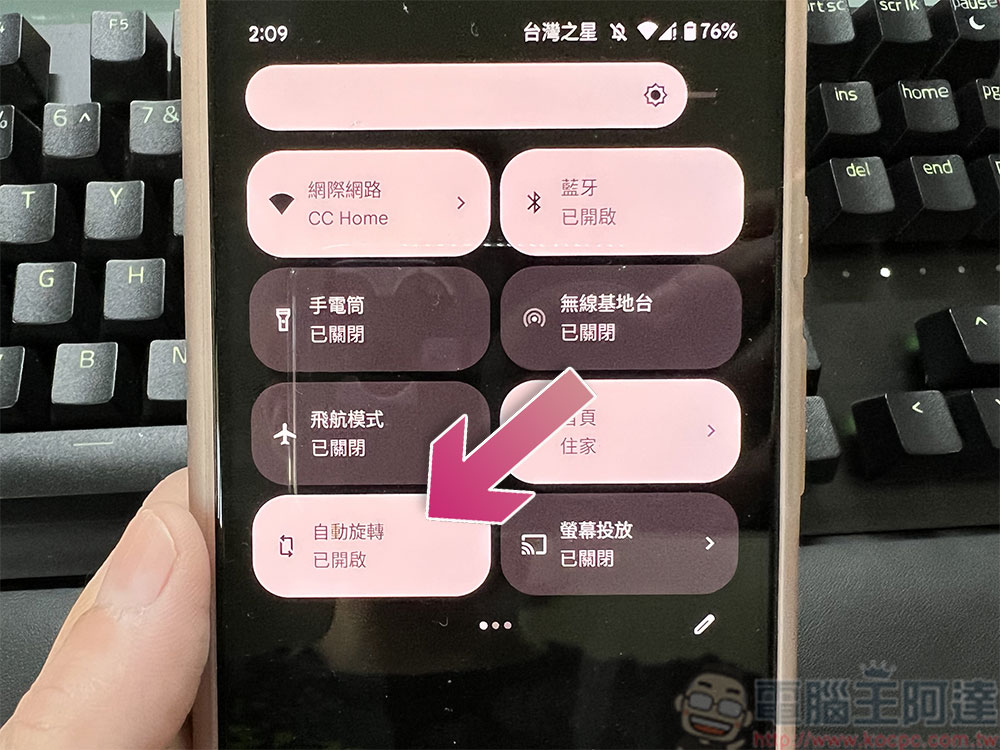
If it has been started and the automatic rotation still cannot be triggered by rotating the phone with large movements, there may be other problems. One possibility is that your phone screen may prevent the screen from rotating due to sensing touch. In this case, make sure you do not touch the screen itself when rotating the device. If this is not the problem, you can try the other methods below.
Clear recently used apps and restart your phone
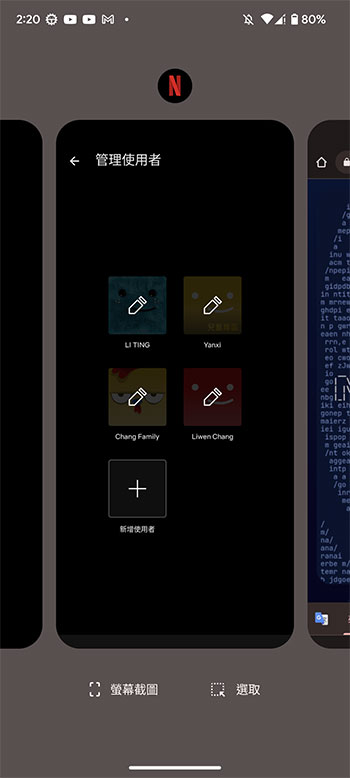
Android gives users a lot of control over their devices, but there are still some apps that don’t work in landscape mode, and Instagram is one such example. If you’ve recently used an app that’s not compatible with landscape mode, you may experience interference while the auto-rotate feature is still running in the background on your phone. To solve this problem, swipe up from the bottom of the screen (usually the rightmost button if you use the classic three-button), open the “Recent Apps” screen and clear the recently used apps (swipe up to close the app).
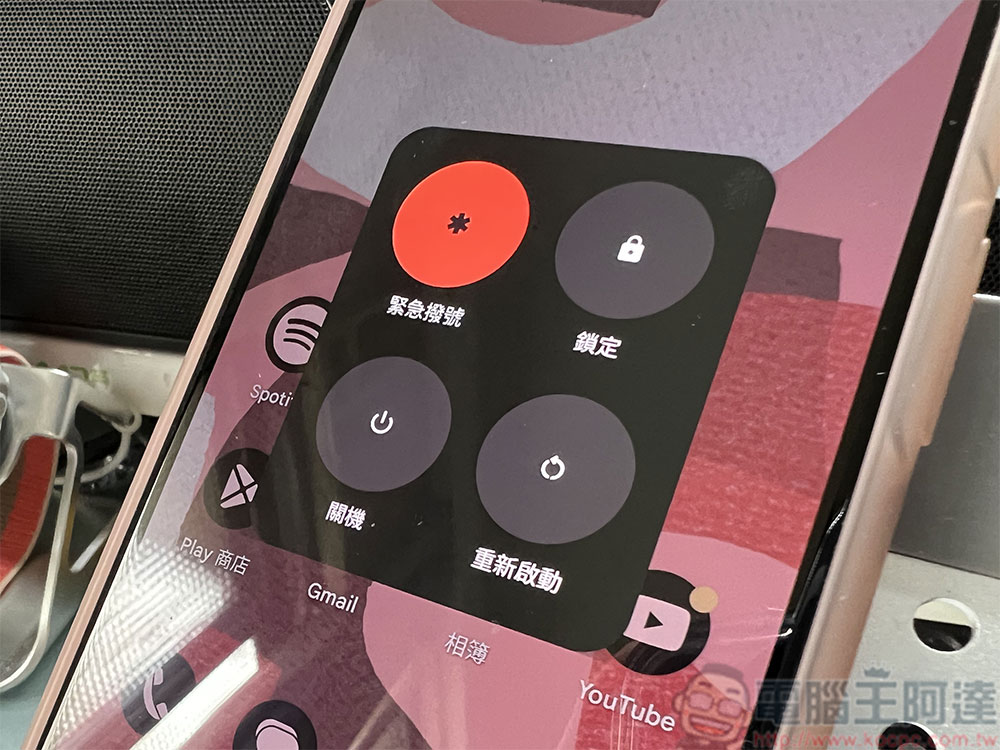
If clearing recent apps doesn’t resolve the auto-rotation issue, you should try restarting your device. To restart your Android device, press and hold the power button until you see the power menu appear, then click Restart. Alternatively, you can press and hold the power button for 12 seconds (or until the screen goes black) to force a restart. After your device restarts, double-check that auto-rotation is enabled and test it with apps known to be compatible with auto-rotation. If it still doesn’t work, there may be a hardware or software problem that requires more drastic action.
Update your device and check other apps
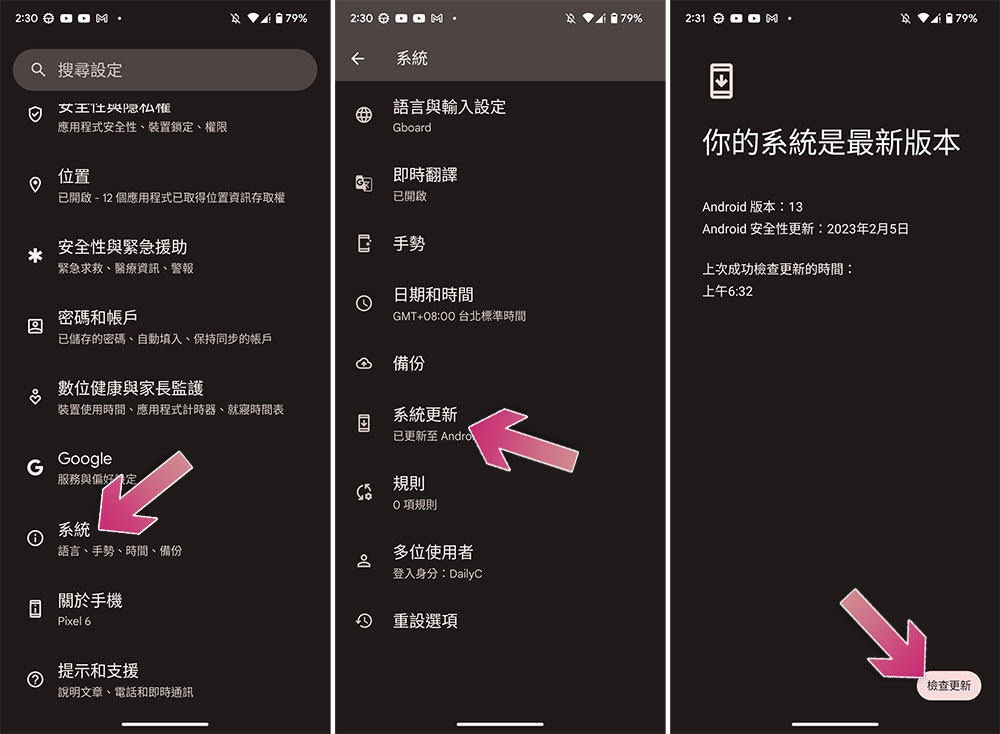
Before taking any further action, in addition to the most basic turning on auto-rotate, you also need to make sure that the application you are using supports landscape mode. It’s not difficult to determine. After enabling automatic rotation, you can open an application that is sure to support landscape mode, such as YouTube, Google Photos, etc., to confirm whether rotation can be performed. If the above-mentioned applications cannot be automatically rotated, there may be a software error or hardware problem. You can try updating the device operating system to check whether the software error can be resolved.
Uninstall recent apps
If you’ve recently started experiencing problems with auto-rotate, it may be caused by changes you’ve made to your device settings or a recently installed app. It’s a good idea to check uninstalling any recently installed apps to see if that resolves the issue. To uninstall recently used apps, follow these steps:
- Open the Play Store and click on your profile picture in the upper right corner to open the menu.
- Click “Manage apps and devices” in the menu.
- Switch to the “Management” tab.
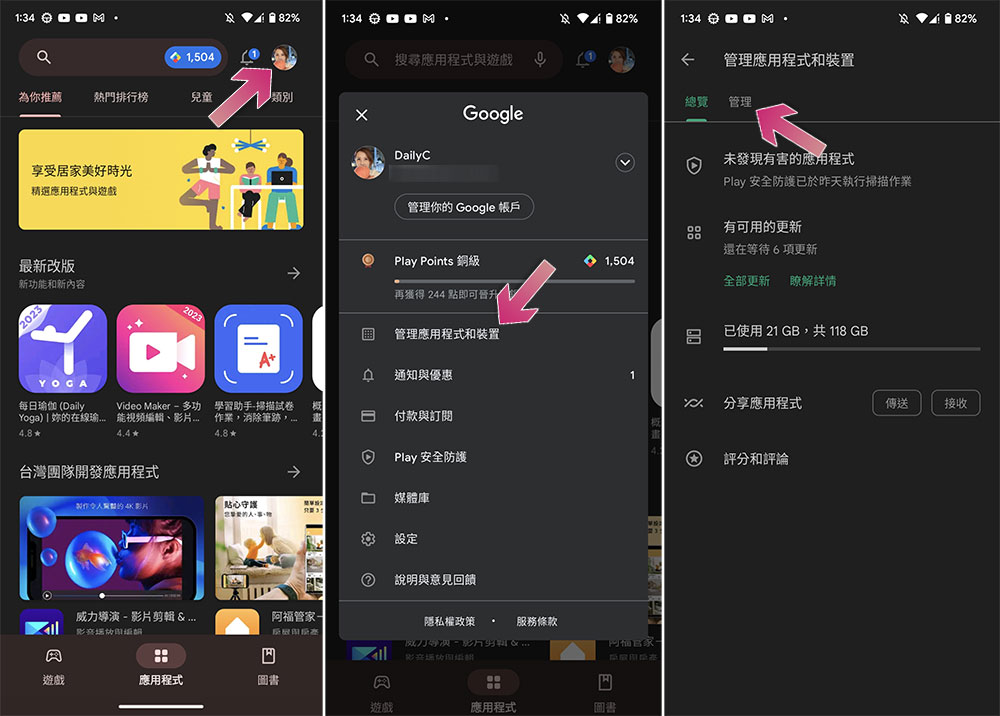
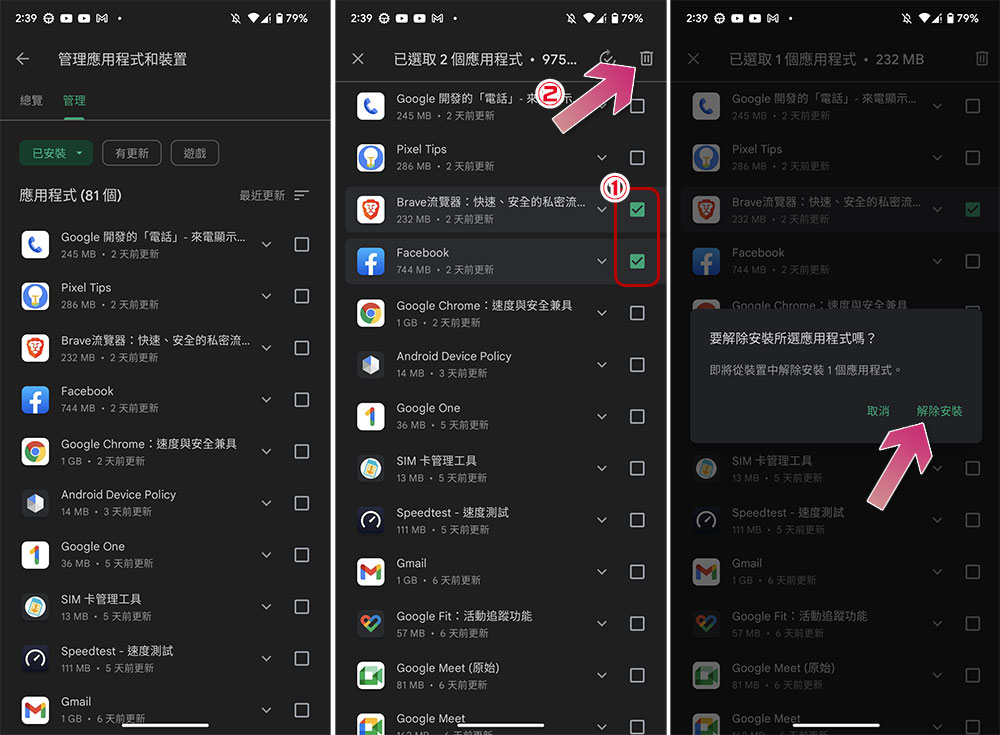
- The default is to sort by most recent update time, browse the list and see any apps that were installed before the auto-rotation issue occurred.
- Check the checkbox to the right of the app and click the trash can icon in the upper right corner to uninstall it.
- Click “Uninstall” in the confirmation message window.
Send mobile phone for repair
If you have tried all the above methods but nothing works, it is almost certain that the accelerometer on the phone has a hardware failure or damage. Please send the phone to a reputable repair center or brand repair station for processing.
Source: KOCPC Chinese