


Long gone are the days when viewers were limited by TV schedules and rentals. Streaming video has made home entertainment much more convenient than in the past, and now consumers can watch whatever they like anytime, anywhere. Netflix is a streaming platform that many people love to use. Although its functions are constantly improving to meet the needs of consumers, it is not perfect. You may encounter some problems when using it. Although the problems are not major, they are annoying. This time we list 9 common problems and their solutions. We hope it will be helpful to you.
9 Most Annoying Netflix Problems and Solutions
Remove video from continue watching
Netflix’s homepage is dynamic and personalized to each user, and while some recommendations are for the general public, such as the most popular movies, other recommendations are displayed based on the user’s personal tastes. One of the recommended content tracks what you have watched so far. You don’t need to search again next time you open Netflix. Click to continue playing from the last viewing progress. Over time, your continue viewing list can become unreliable. For example, you might just turn on a show and then turn it off when you find it boring. This will also be included in your continue viewing list, so that the content you really want to continue watching is buried. If you want to solve this problem, you can use the following method to remove the videos that you do not want to be included in the continue viewing list:
- Web version
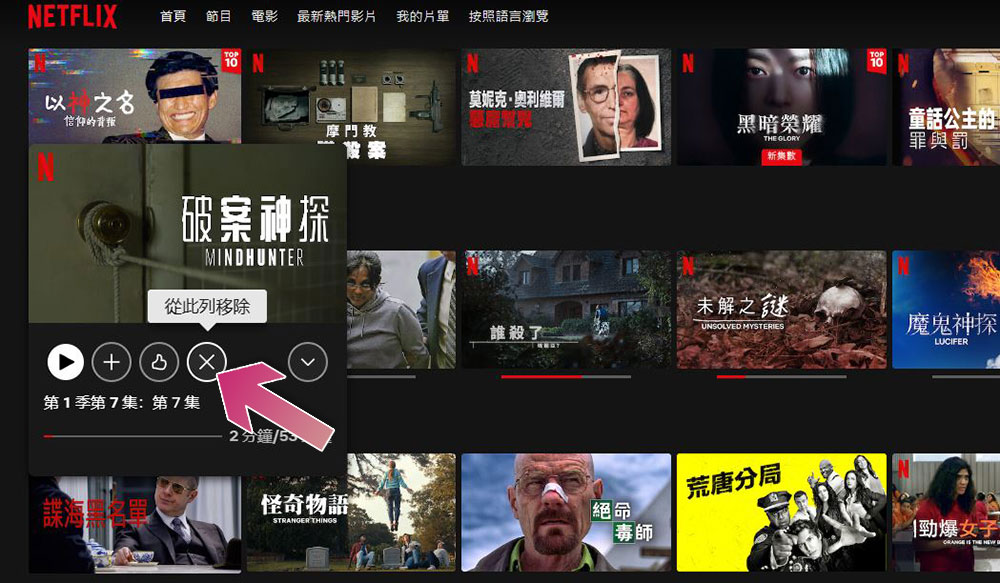
Hover your mouse cursor over the video you want to remove and click “Remove from this list.”
- mobile application
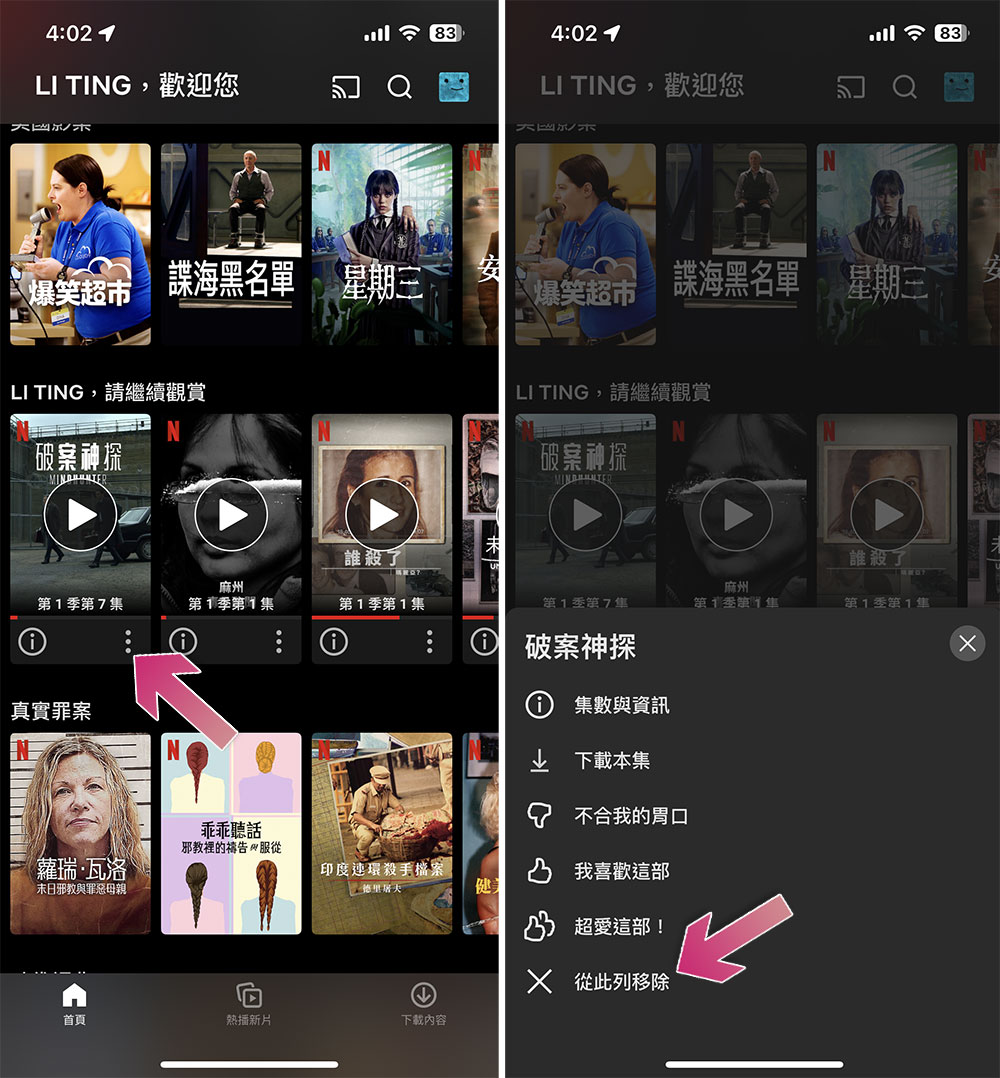
Click the three-dot menu below the video cover and select “Remove from this list.”
- Smart TV
You must enter the video information page, scroll down the options (that is, the list of episodes under the title), and select “Remove from Continued Watching”.

Trailer plays automatically
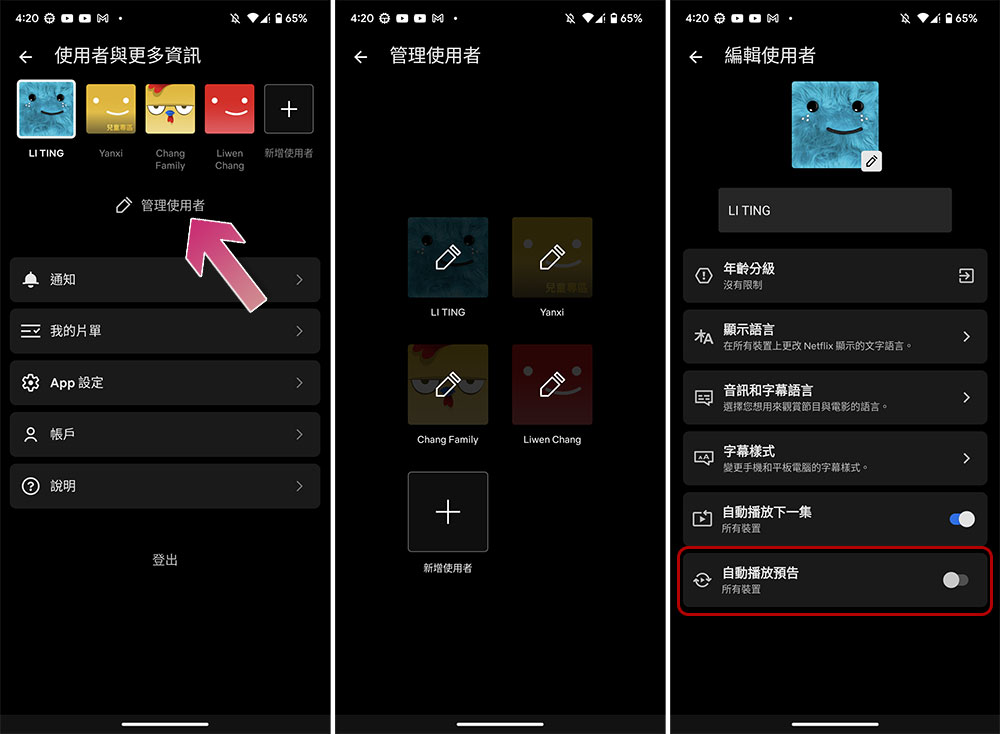
When you browse the movie you want to watch on Netflix, you only need to pause for 1 second and the trailer will play by itself. However, you may just want to read the program description quietly. Only continuing to scroll can stop it from playing. In fact, you can disable auto-playing trailers directly from the settings, and it is once and for all, and the one setting applies to all devices of a single account:
- Web, TV version
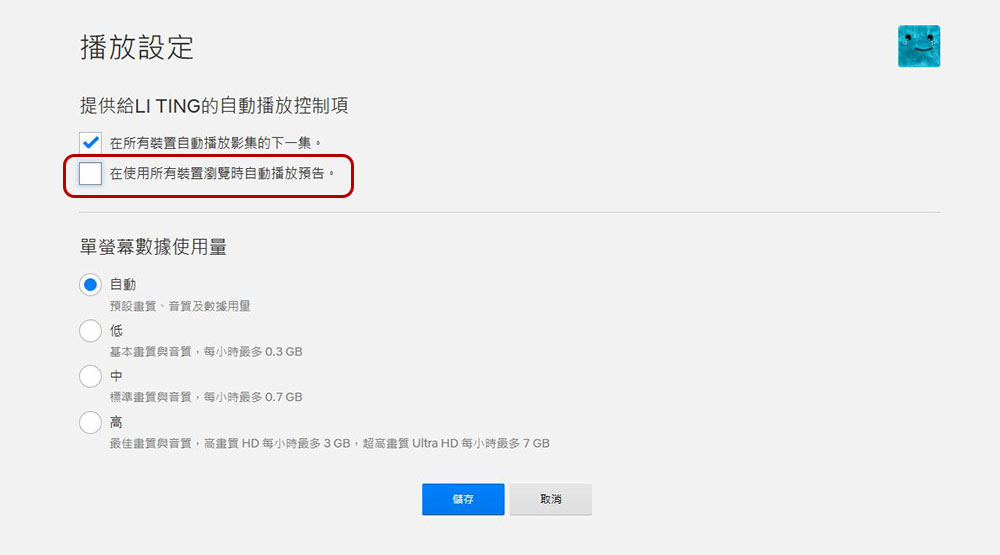
After opening Netflix in the browser, click the profile button in the upper right corner, enter “Accounts”, then scroll down to the “User and Parental Controls” item, click the down arrow behind the account you want to set, then click the change button behind “Playback Settings” and uncheck “Automatically play trailers when browsing on all devices”.
- mobile application
Click on the avatar in the upper right corner, then click “Manage Users”, then select the account you want to edit, scroll to the bottom and turn off “Auto-Play Trailer”.
Automatically play next episode
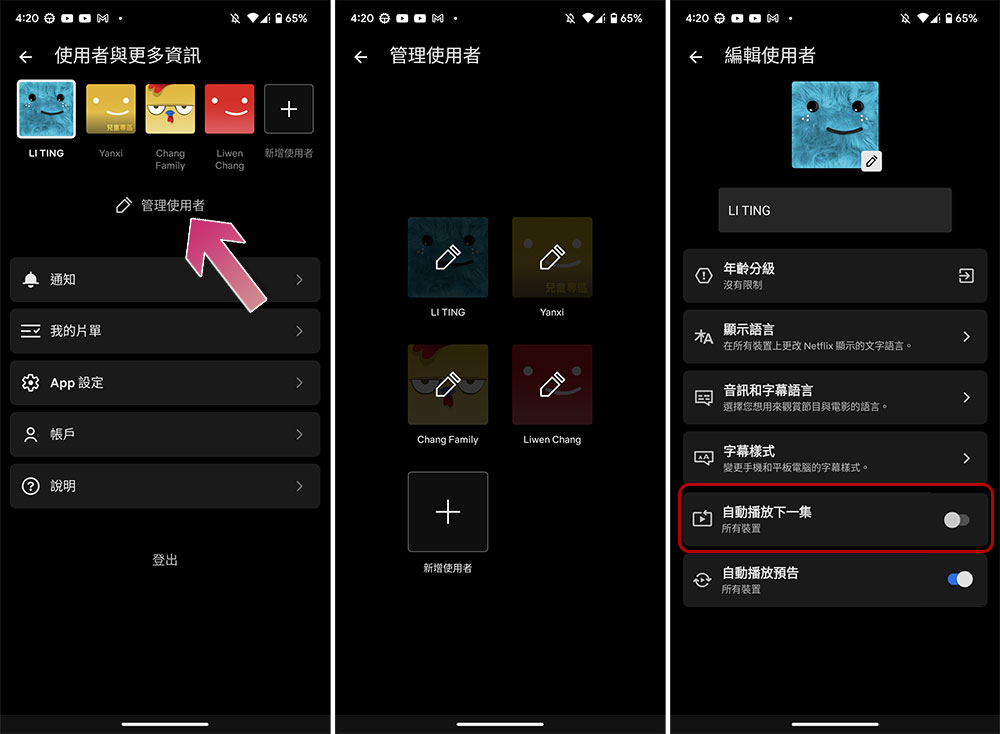
To balance the user experience, Netflix will automatically play the next episode after the current show ends. After a few episodes, Netflix will perform a health check and ask you if you are still watching. It’s a way to make sure you’re still engaged before the next one starts, which helps most of the time, but sometimes you might just want to watch an episode or it won’t continue after you fall asleep. The setting method is very simple. The steps are the same as the above to turn off the automatic playback of trailers. Just change the target and turn off the “Autoplay next episode” switch.
- Web, TV version
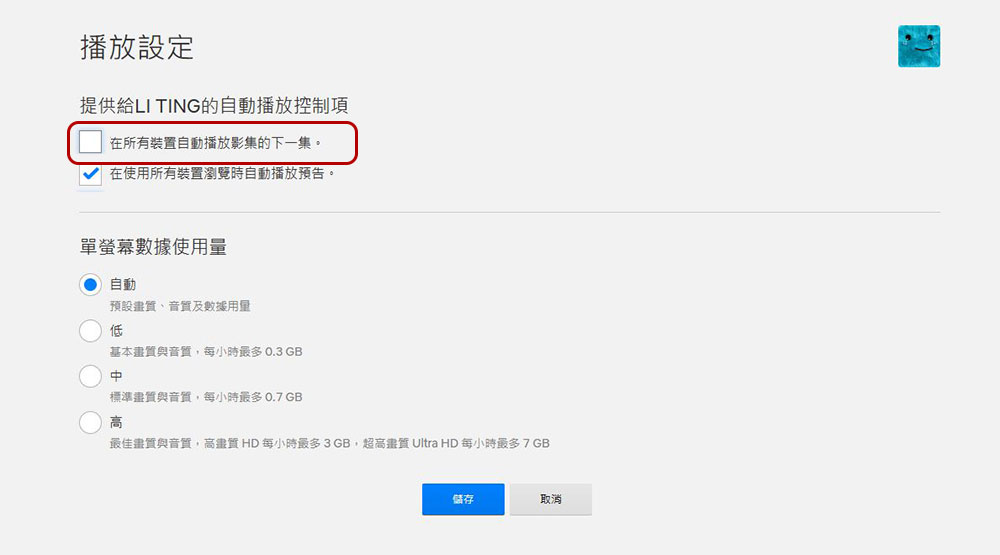
After opening Netflix in the browser, click the profile button in the upper right corner, enter “Accounts”, then scroll down to the “User and Parental Controls” item, click the down arrow behind the account you want to set, then click the change button behind “Playback Settings” and uncheck “Autoplay next episode on all devices”.
- mobile application
Click on the avatar in the upper right corner, then click “Manage Users”, then select the account you want to edit, scroll to the bottom and turn off “Autoplay next episode”.
Buffering all the time
Buffering is less of an annoyance in modern times than it once was, but it can still be a bummer when it occurs during movie viewing, especially when it suddenly freezes during the most important moments and can last for several seconds at a time. If you notice that Netflix buffering is unusually frequent and long, the first thing to check is your home internet connection. If there is a network failure, Netflix cannot do anything; if you are away from home, it may be caused by unstable local mobile network signals. The best and fastest solution is to close Netflix and open it again. If that doesn’t work, you can try restarting your phone, computer or TV. Finally, if none of the previous solutions work, please restart the router. If the buffering problem still does not improve after this step, there may be a problem with your network connection, and you need to contact your network service provider.

Content cannot be downloaded
Netflix offers the ability to pre-download the movies you want to watch to avoid buffering or lack of internet connection, but sometimes you may find that a specific movie isn’t downloadable and you won’t immediately know why. Note that you can’t download everything on Netflix, and if you find that you can download some titles but not others, it’s likely that the download option simply isn’t available for that particular title due to licensing restrictions.
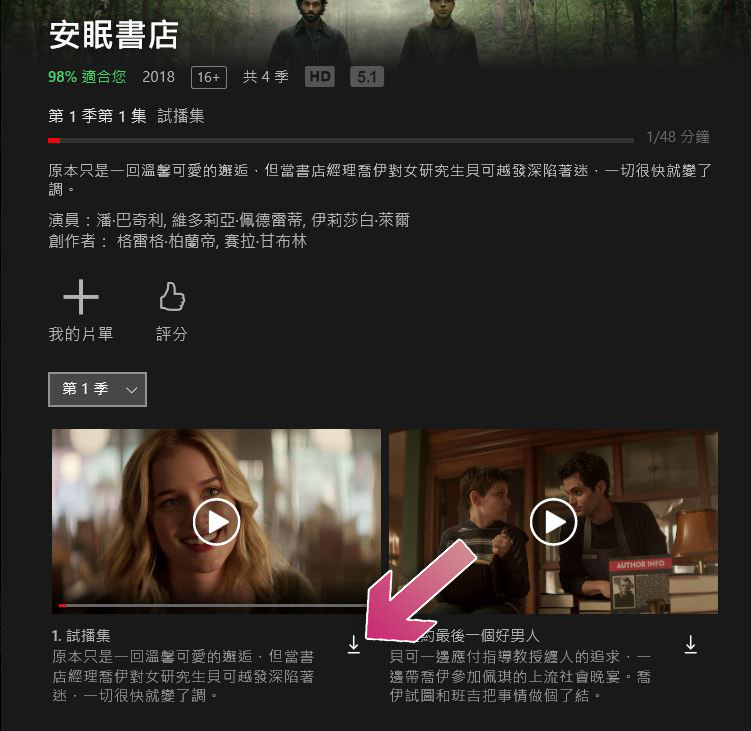
Additionally, there are some common situations that can block downloads. The option to download content for offline viewing is not available on Netflix’s ad-supported subscription options and must be upgraded before downloading. If you’re watching on a computer, your computer must be running Windows 10 or 11 and must use the Netflix app in the Microsoft Store to support downloading. Downloading on Mac or through a web browser is not currently supported, so make sure you are using a supported system, a supported version of the Netflix app, restart your device and try again.
Video freezes but audio continues playing
Every once in a while, you’ll find that the video you’re watching gets stuck on a certain frame, while the audio continues to play in the background, turning the whole thing into a podcast. According to Netflix, this weird glitch indicates that some data was mistakenly stored on the device and needs to be cleared. Specifically, the hallway is blocked by clutter, making it impossible for the movie to move through the obstruction and keep up with the audio. The process for doing this varies from device to device, but they all do the same thing: force a reboot to clear out loose data.

On some devices, a simple reboot is enough to clear; on others, you’ll have to delete the app and reinstall it. You can Netflix Help CenterFind instructions for your specific device.
Video quality is distorted or deteriorated
There are many potential causes of poor or cluttered images, but most are easy to fix. The first thing to do is wait. This is one of the rarer problems that can actually be fixed by ignoring it until it goes away on its own. That’s because if Netflix is strapped for resources, it will start streaming a show at a lower quality, trying to keep it high, then bump it up to full quality when the situation clears up. If waiting doesn’t fix the problem, you’re going to have to do some troubleshooting, and again, these steps will vary depending on how you’re watching, but they mostly boil down to the same thing: make sure you have a strong internet connection, and reboot your device and router if necessary.
Errors 1011 and 1012
These two error messages appear very frequently, as high as Create a dedicated page for it in the Netflix Help Center, you may encounter both of these error messages if you watch a lot of Netflix on your mobile device, whether it’s a phone or tablet. These two error messages are usually caused by network issues that prevent the application from accessing the Netflix service. It’s the equivalent of opening your front door only to find that the stairs have been removed and all you can do is stand there and look where you’re supposed to go. Both errors are also accompanied by an automated message stating “There was a problem connecting to Netflix, please try again later,” which doesn’t really help you.
Whether you encounter error 1011 or 1012, the steps to resolve them are the same. The first thing is to check the network connection. If the connection is good, please do the following one at a time: restart the app, restart the mobile device, delete and reinstall Netflix, and restart the router.
Netflix cannot play in high quality
If you are unable to play high-definition videos, the first thing to check is your subscription plan. Netflix’s basic plan does not support high-definition streaming videos, but other plans do. You also need a device that can deliver high-definition video, whether it’s a TV, computer monitor, tablet, or mobile phone that supports high-definition video. If you’re using a TV or computer, make sure the ports and cables you use are designed for high-definition quality, as not all ports and cables are. Finally, streaming high-definition content requires more bandwidth, so you need a strong network connection.
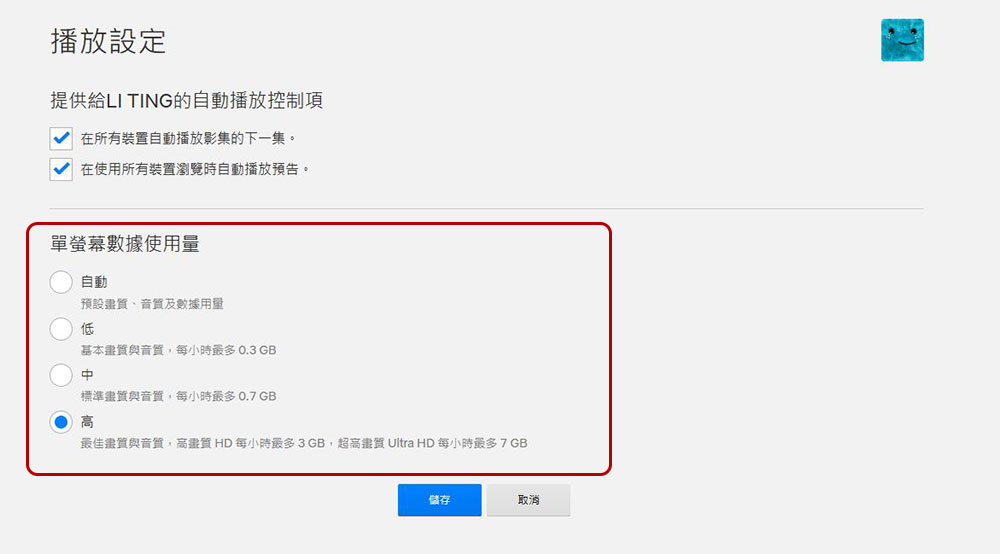
If all of these are in place but you’re still experiencing issues, the problem may be in your settings. If you’re using a phone, tablet, or computer, make sure the settings allow high quality. Click the profile button in the upper right corner of Netflix, enter “Accounts”, then scroll down to the “User and Parental Controls” item, click the down arrow behind the account you want to set, then click the change button behind “Playback Settings” to adjust the single-screen data usage to medium or high. But keep in mind that additional data usage may result in additional costs for non-all-you-can-eat users.
Your browser may also limit video quality because browsers like Chrome and Firefox use software to protect content owners and limit playback to 720p; for high quality, use Microsoft Edge or the official Netflix app instead.
Source: KOCPC Chinese