


Are you having trouble launching the Xbox app on your Windows 10 or Windows 11 computer? This is actually a very common problem, and sometimes it’s not necessarily something that went wrong, and it’s not that difficult to fix. There are several commonly used methods to quickly fix the problem that the Xbob application cannot be opened. The following will explain them one by one for you. Try them one by one!

8 Ways to Fix Windows Not Opening Xbox App
Reboot
Rebooting is as much a household staple as a little nurse’s ointment and can fix most of the common glitches you encounter. When you encounter the Xbox app startup problem for the first time, please restart the phone; after restarting, try launching the Xbox app to check whether it returns to normal.
Correct your computer’s date and time
Some applications require the correct date and time on your computer system. If your computer uses an incorrect time or time zone setting, this may be the reason why the Xbox application cannot open. In this case, please allow the computer to automatically adjust the date and time:
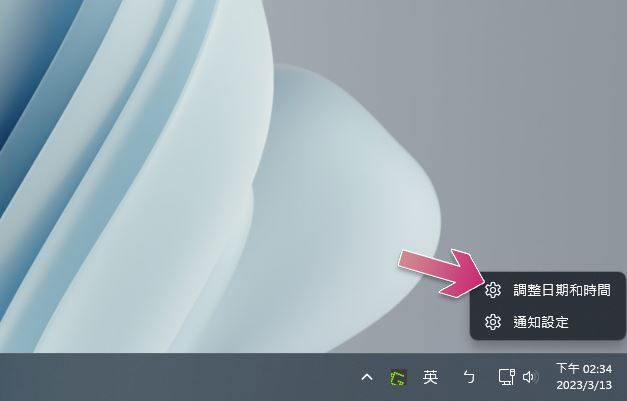
- Right-click the time display field in the lower right corner of the screen and select “Adjust date and time”.
- Turn on the switches for “Automatically set time” and “Automatically set time zone”.
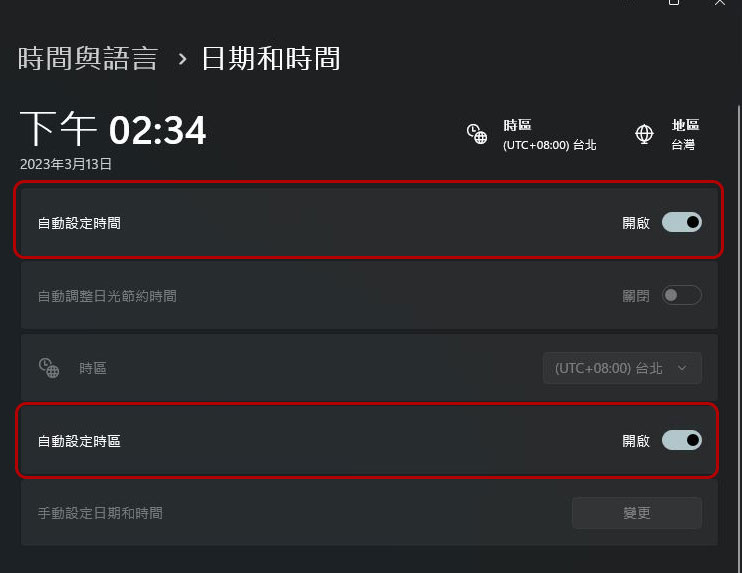
- The computer will then automatically apply the correct time and date. Now try opening the Xbox app again.
Temporarily turn off anti-virus software
One possible reason why the Xbox app won’t launch is because your antivirus software has detected the app as a potential threat and is blocking your access. If you are sure that there is no problem with the application and have not modified it, please temporarily disable the anti-virus software and see if the application can be opened. How to disable antivirus depends on which service you are using, but with most antiviruses you can find a button on the home screen to turn off protection, but don’t forget to turn it back on later. If you are using Microsoft Defender Antivirus, you can use the following methods to temporarily turn it off:
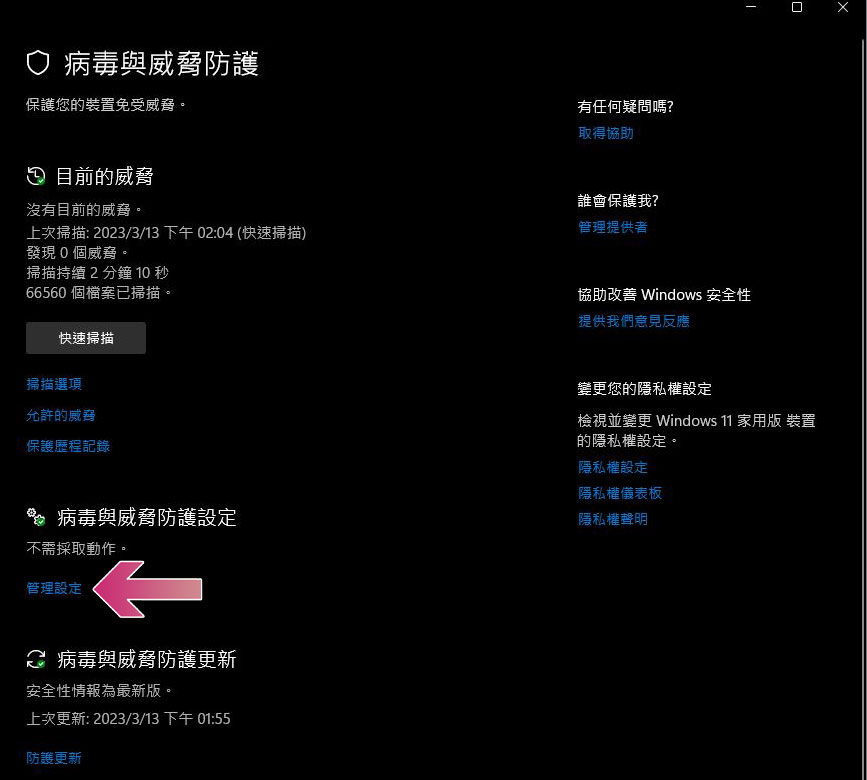
- Open “Windows Security” and click “Manage Settings” under “Virus & Threat Protection Settings”.
- Turn off the “Instant Protection” switch.
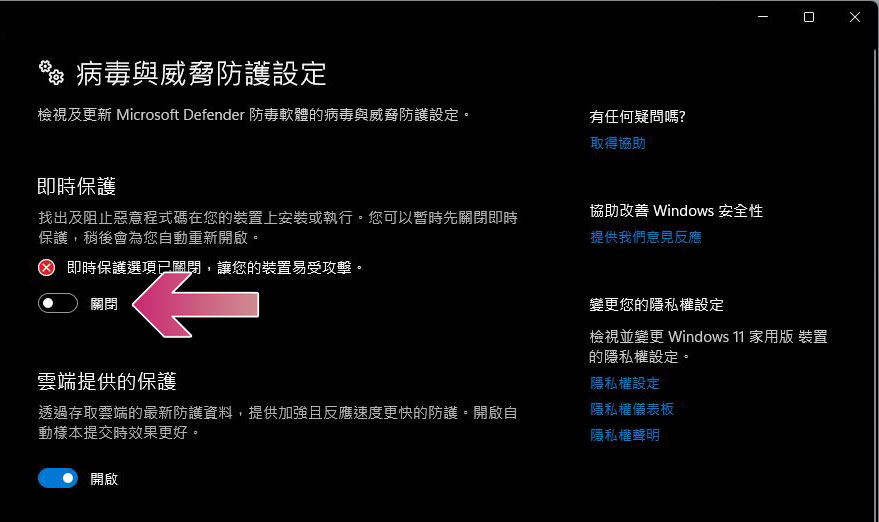
- After closing, try restarting the Xbox app. When you no longer need to use your Xbox, remember to turn instant protection back on to protect yourself.
Restart the Xbox service (it’s a service, not an application)
Xbox runs various services in the background of your computer to provide you with gaming features, and a malfunction in one or more of these services may prevent you from launching the Xbox app. You can easily find these services on your computer and restart them, which may resolve some issues with them:
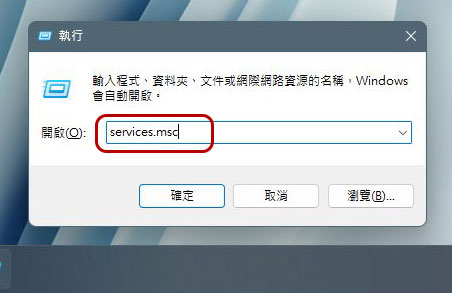
- Press the key combination Win+R to call up the “Execute” window, enter “services.msc” and press Enter.
- In the window that appears, find all the Xbox services, right-click each one and select Restart.
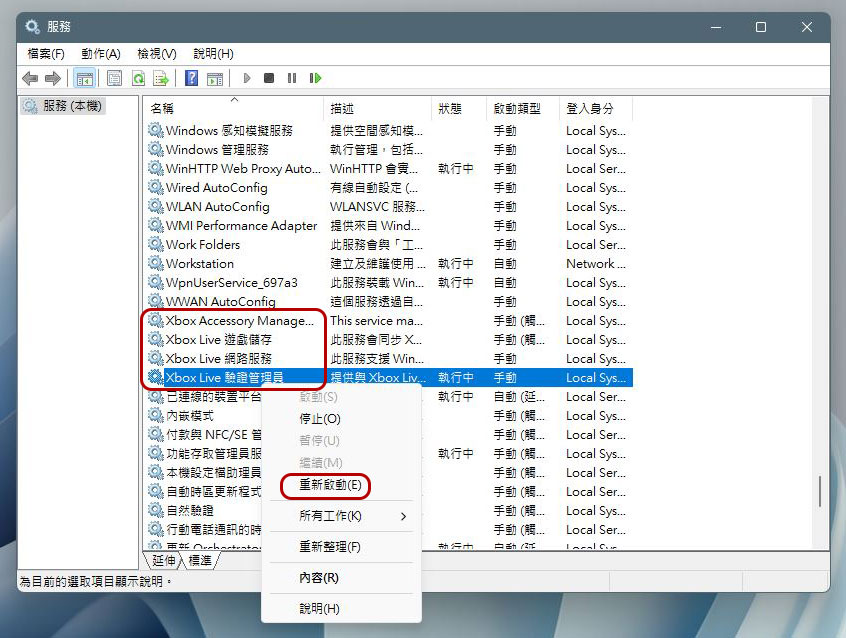
- After restarting all services, try opening the Xbox app again.
Troubleshooting using the Microsoft Store APP
Windows 10 and Windows 11 include a variety of troubleshooting tools to help you solve computer hardware and software problems. When it comes to app-related issues (such as the Xbox app not opening), you can use the troubleshooter in the Microsoft Store app to automatically find and fix the problem. If you are using Windows 11, you can follow the steps below:
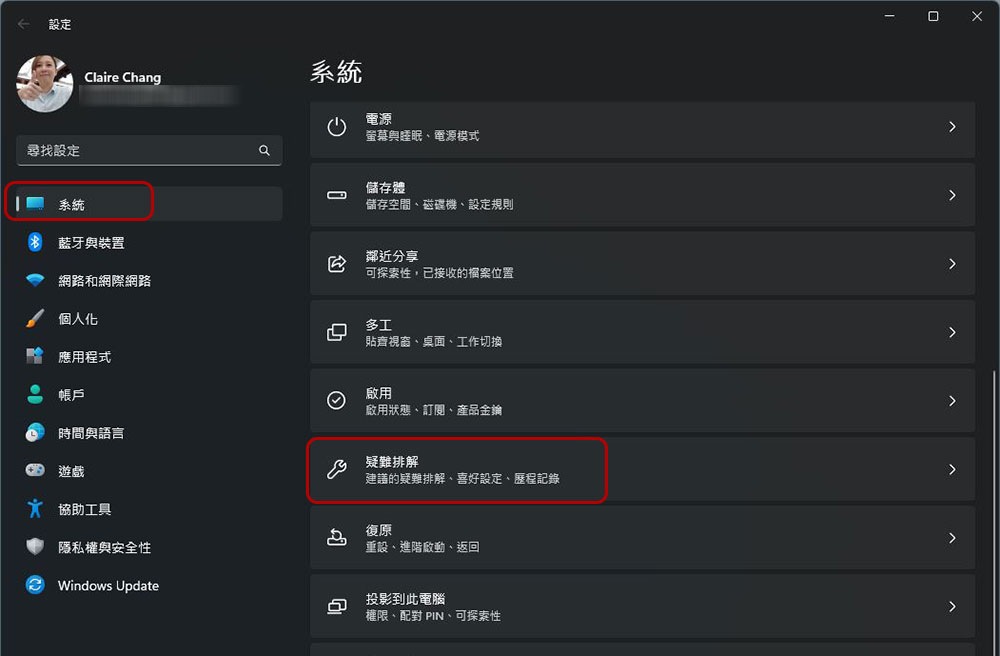
- Open “Settings” and click “Troubleshooting” in the “System” tab.
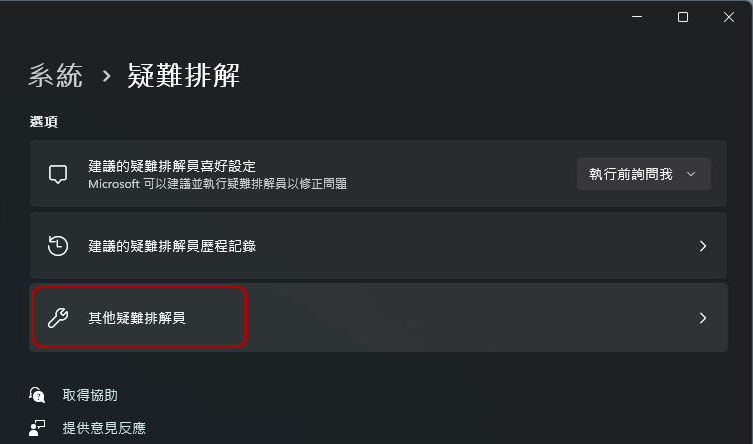
- Next click “Other Troubleshooters”.
- Click “Go” next to “Microsoft Store Apps” to allow the tool to check and scan for problems with the app.
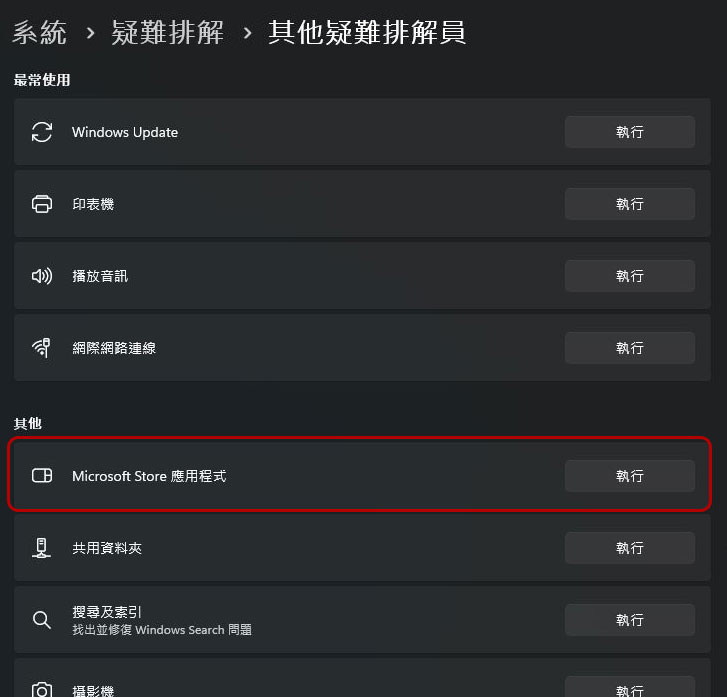
- After the scan is complete, the troubleshooter will provide you with a fix. Once applied, try restarting the Xbox app.
Repair your Xbox app
One of the reasons why your Xbox app won’t open could be because there’s some kind of bug in the app itself. In this case, please use the repair options in your computer to troubleshoot and make it work normally again.
- Open “Settings”, go to the “Applications” tab and click “Installed Applications”.
- After finding “Xbox”, click on the three-dot menu at the back and select “Advanced Options”.
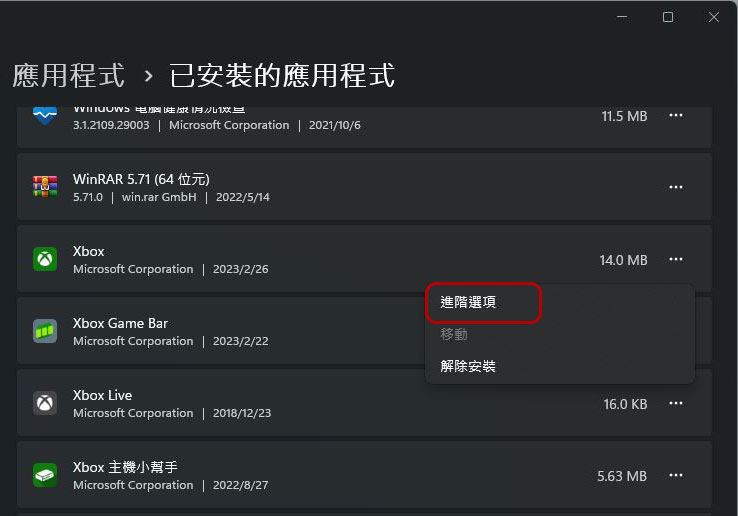
- Click the “Repair” button under the “Reset” item.
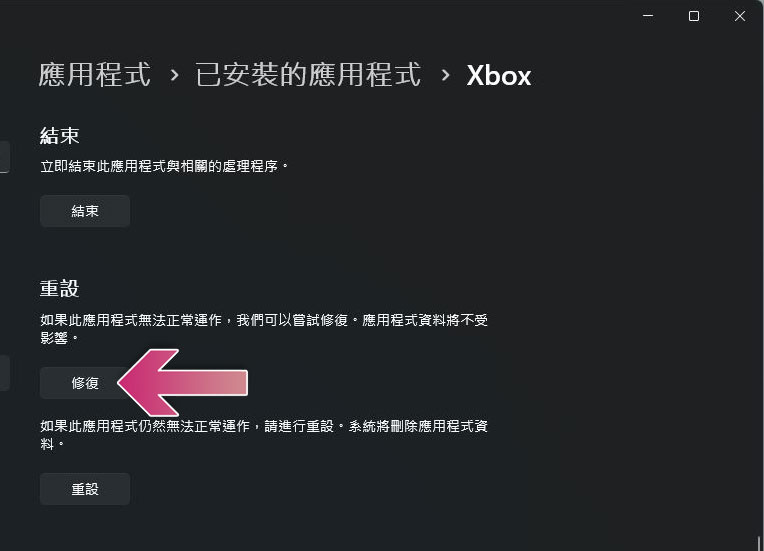
- After repairing the application, restart it. If the problem persists, in the Reset section, double-click Reset to factory reset the app. This will clear the app’s data and may resolve your issue.
Update the Xbox app
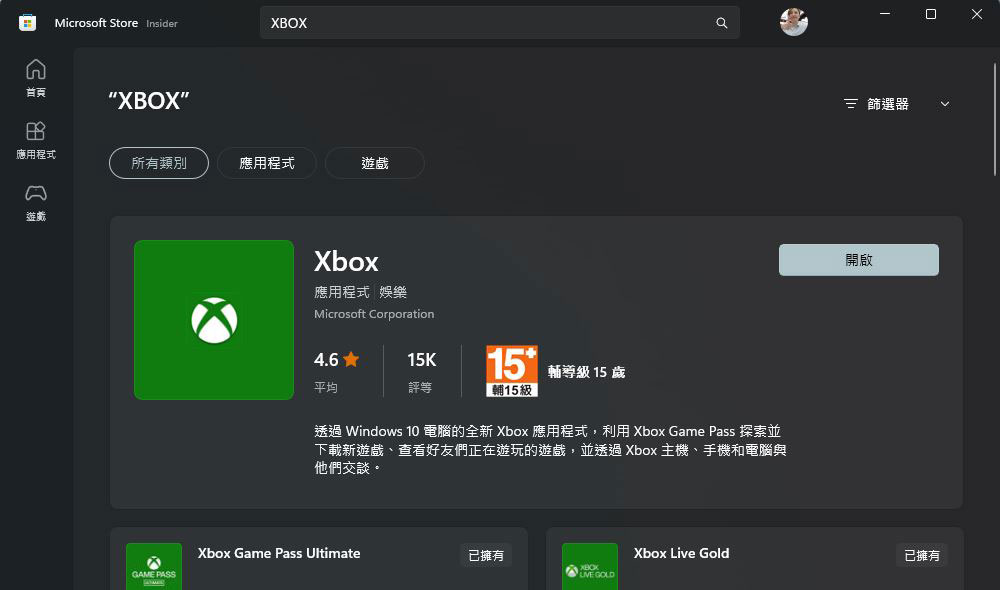
Outdated app versions often cause problems and don’t run as smoothly as the latest versions. Your Xbox won’t turn on most likely because the version is out of date and causing various problems. In this case, please update your application to the latest version to not only get more new features, but also to fix some known issues. The update method is as simple as pressing a button. Open the Microsoft Store, search for “Xbox” in it, click to enter the internal page of the app, and you will see the “Update” button above. Restart the app after the update is complete and your problem may have gone away.
Update Windows
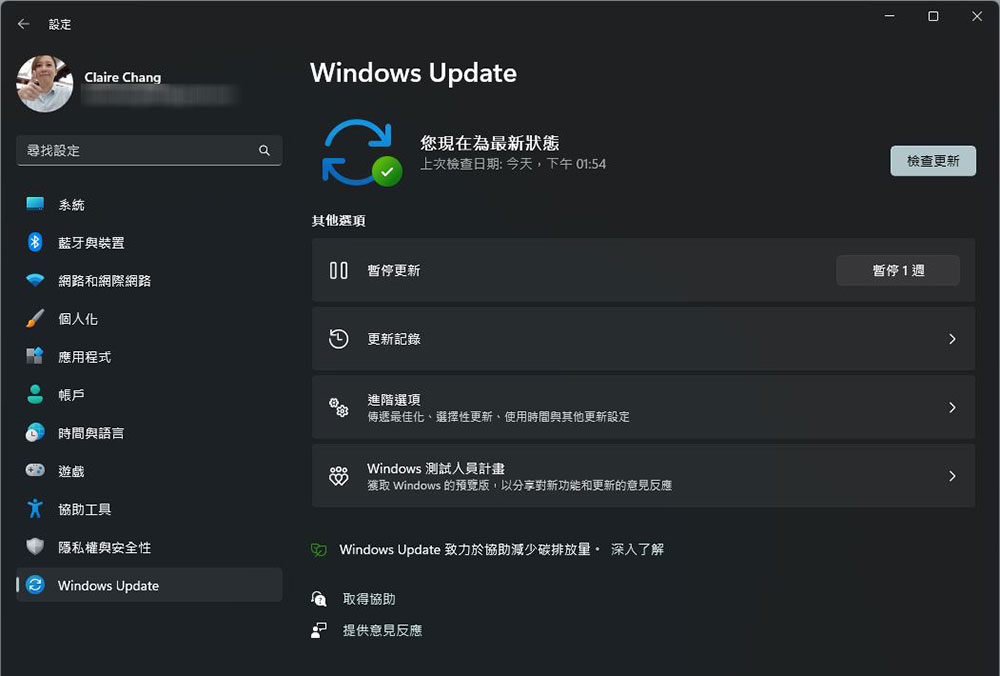
The application and the operating system that provides the application are complementary to each other. Without an appropriate stage, no matter how powerful the dancer is, he will not be able to dance. Like your app, the operating system can be the reason why the Xbox app won’t launch. Since you cannot repair system files manually, you can fix the problem by running Windows Update. Open “Windows Update” and scan for update files that need to be downloaded and installed. After completing the system update, restart Xbox.
Source: KOCPC Chinese