


Although there are many translation tools nowadays, even in the browser itself, people who have used ChatGPT should have this feeling. The translated content looks more like human translation rather than machine translation. I believe that many people now rely on ChatGPT to translate foreign articles. If this is you, the OpenAI Translator recommended in this article is very suitable for you. It is a translation extension function based on the ChatGPT API. It can save you the trouble of copying and pasting and opening two windows. It displays the ChatGPT translation results directly at the top of the web page. It is also very fast and supports 55 languages. I will quickly introduce it to you below.
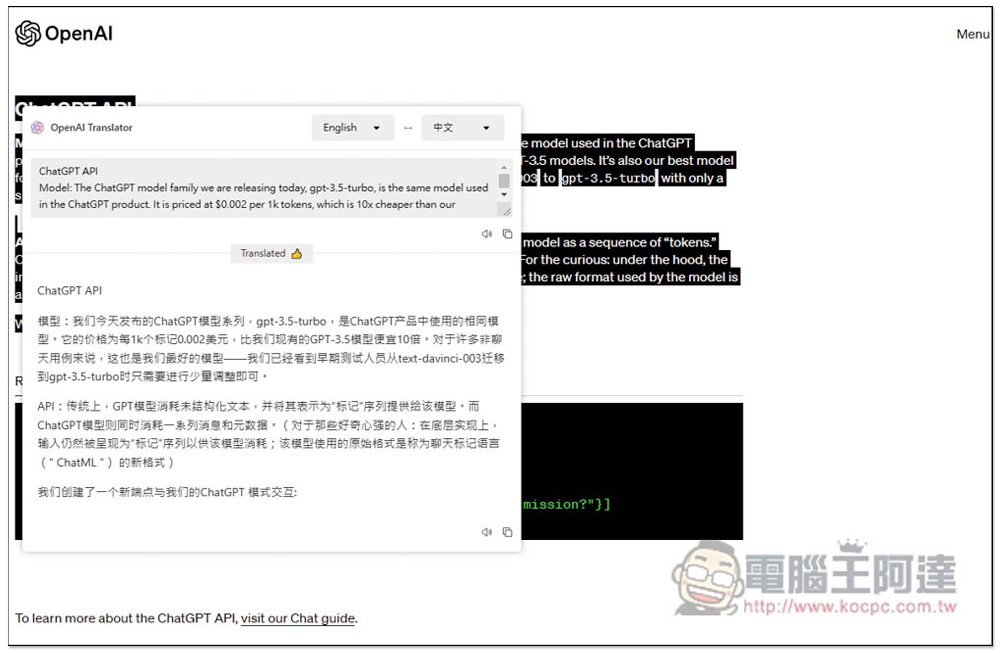
OpenAI Translator is based on the translation extension function of ChatGPT API, which can be used in Chrome and Edge.
According to the developer’s instructions, OpenAI Translator has been submitted to the Chrome Store and is still waiting for the review results. Those who want to try it first can download the installation file from the GitHub project and install it manually. Those who are worried are advised to wait for the Chrome Store to be put on the shelves before installing it. It can be used on Chrome and Microsoft Edge browsers.
2023/03/10 OpenAI Translator is currently available in the Chrome store. There is no need to manually download and install it from GitHub. Please click the link below. Those who install from the Chrome store can skip the GitHub installation tutorial below:
Also a reminder, this extension requires the use of the OpenAI API. I will teach you how to obtain it below. After registering, each account will get a credit of 18 US dollars, which can translate a lot of content and is basically enough for you. Moreover, the 18 US dollars also has a one-month limit, so you don’t have to save it. Maybe you haven’t used it up before the time limit is up.
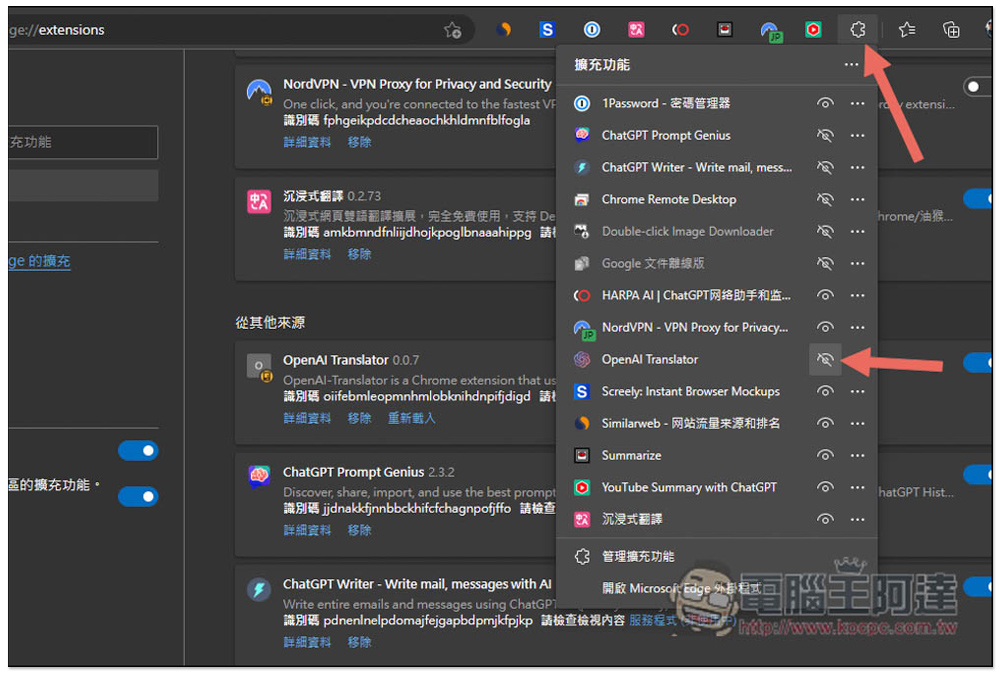
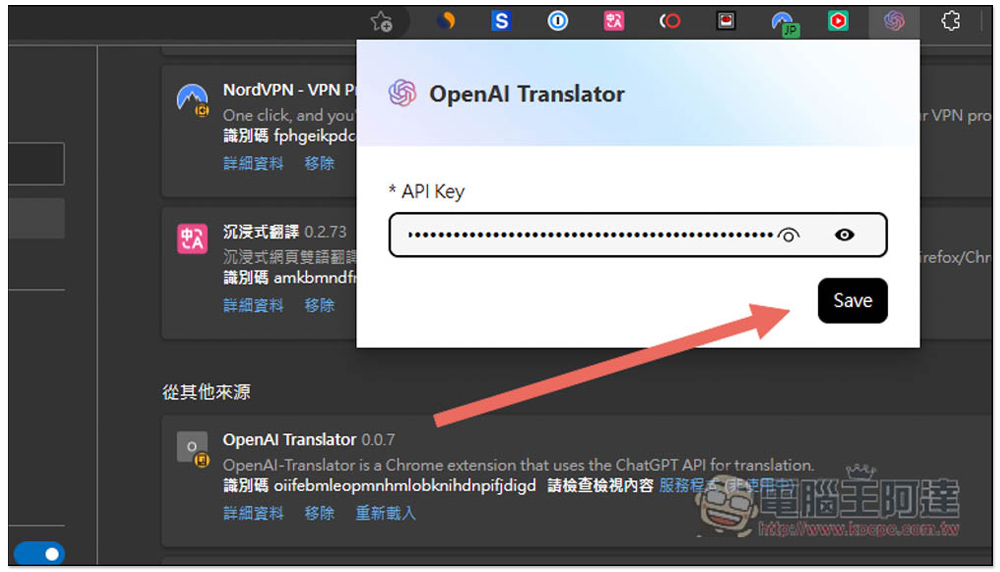
In this way, the default extension icon will be hidden after the installation is completed. It is recommended to open it first, and then hide it after the API is set:
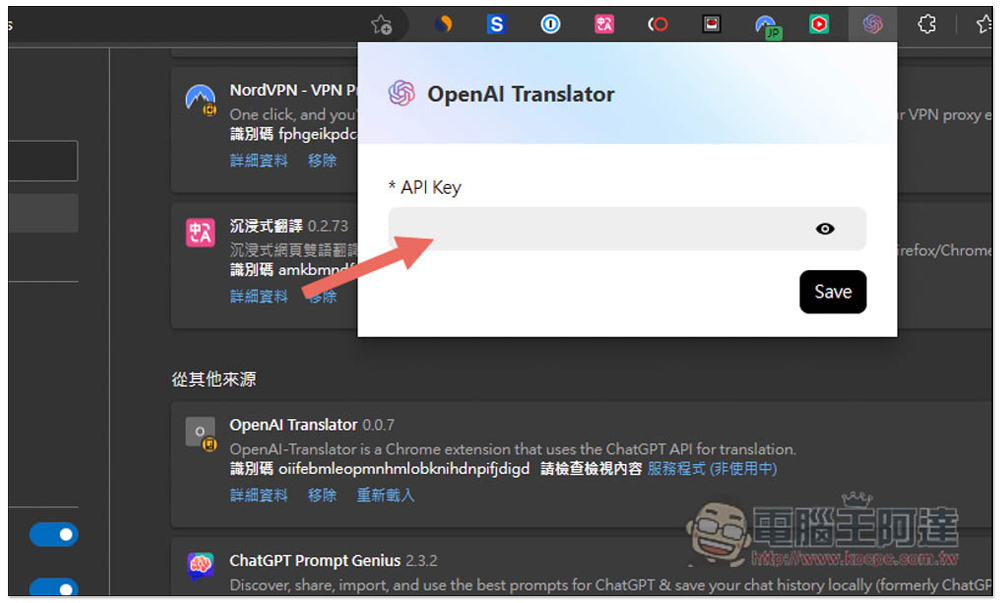
Clicking the icon will display the input API Key:
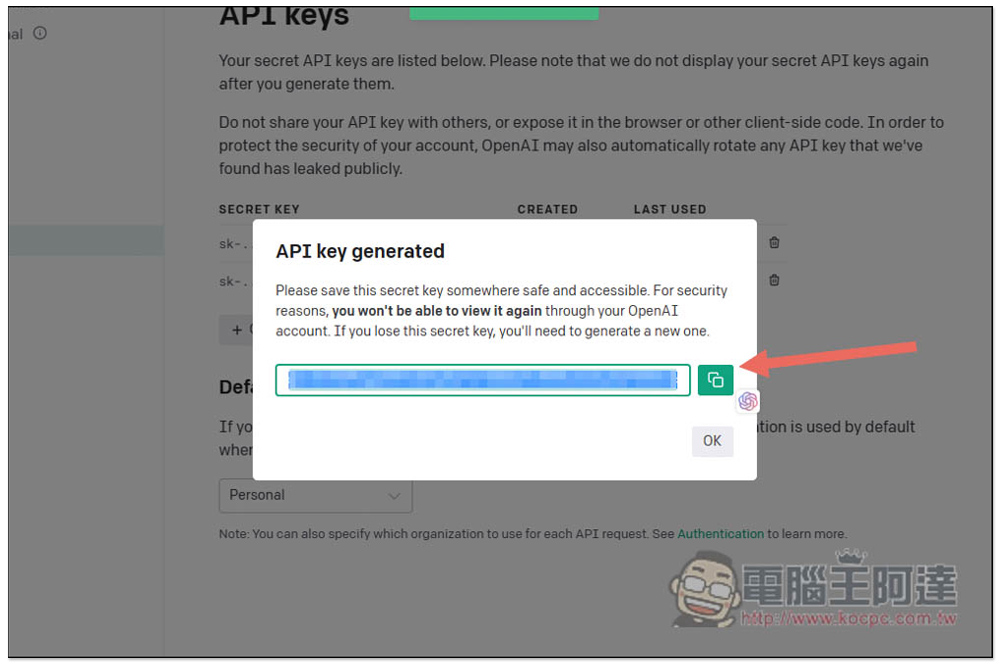
At this timePlease click me to enter the API keys page of the OpenAI account backend, click Create new secret key:
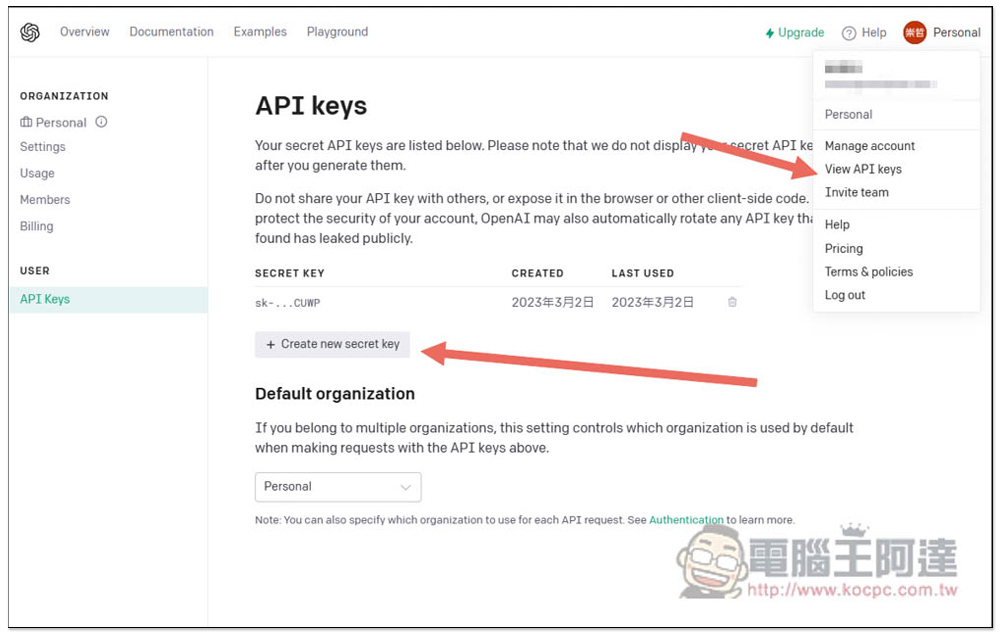
A set of APK keys will be created, press the green button on the right to copy:
After pasting it in OpenAI Translator, click Save to save it, so it can be used:
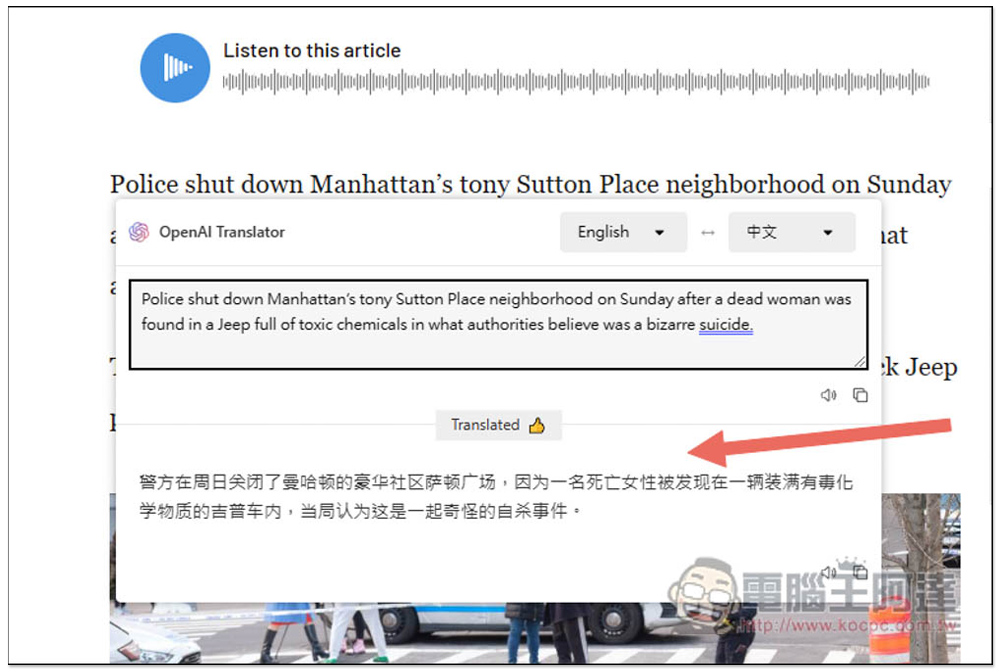
The method of use is very simple. After selecting all the text paragraphs you want to translate, an icon will be displayed above. Please click on it:

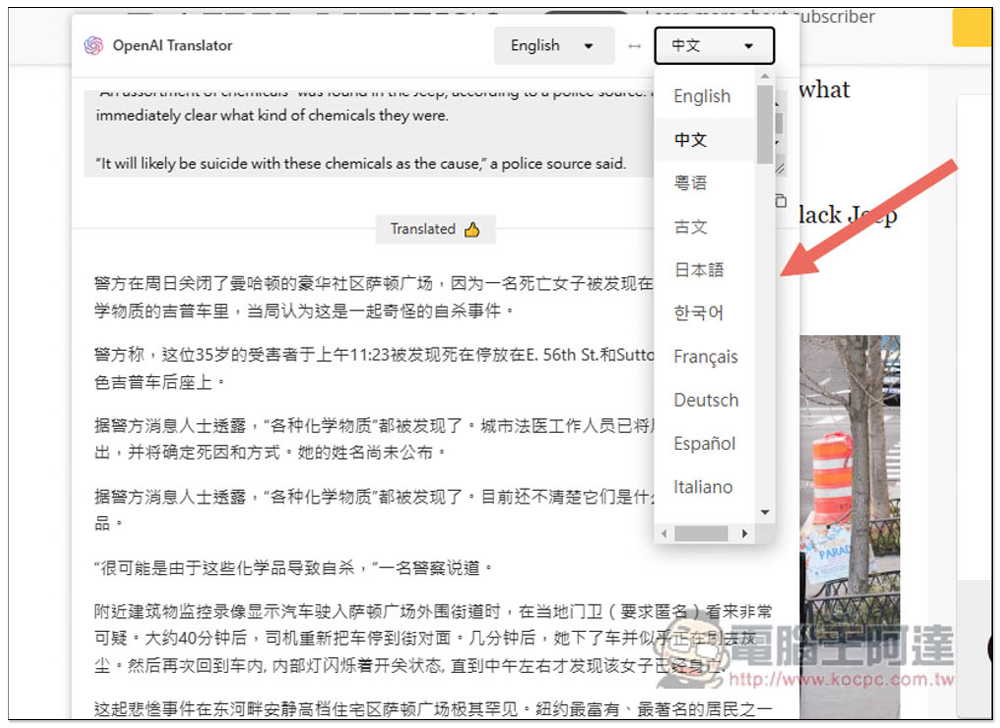
A window will pop up and translation will begin. Unfortunately, the Chinese part currently supports Traditional Chinese:
It’s no problem to translate the entire article, just select all the text:
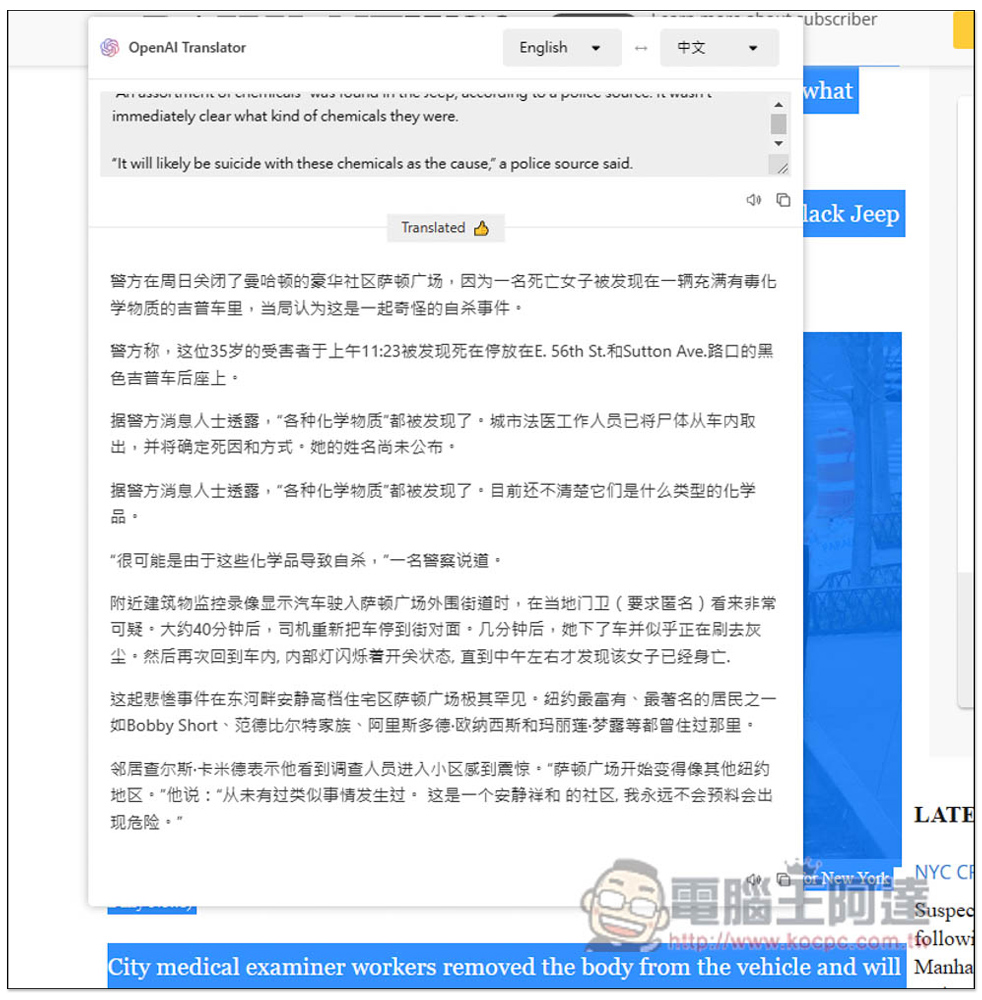
Supports mutual translation between 55 languages. Open the menu to switch:
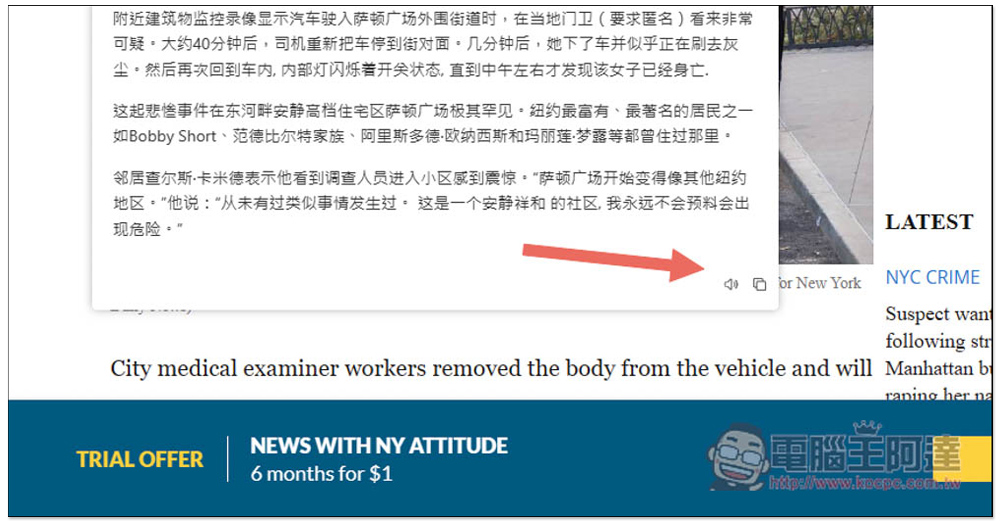
There are also voice playback and one-click copy functions on the lower right:
For those who can’t stand Simplified Chinese but really like this translation expansion function, you can write to the original author and ask if Traditional Chinese can be added.
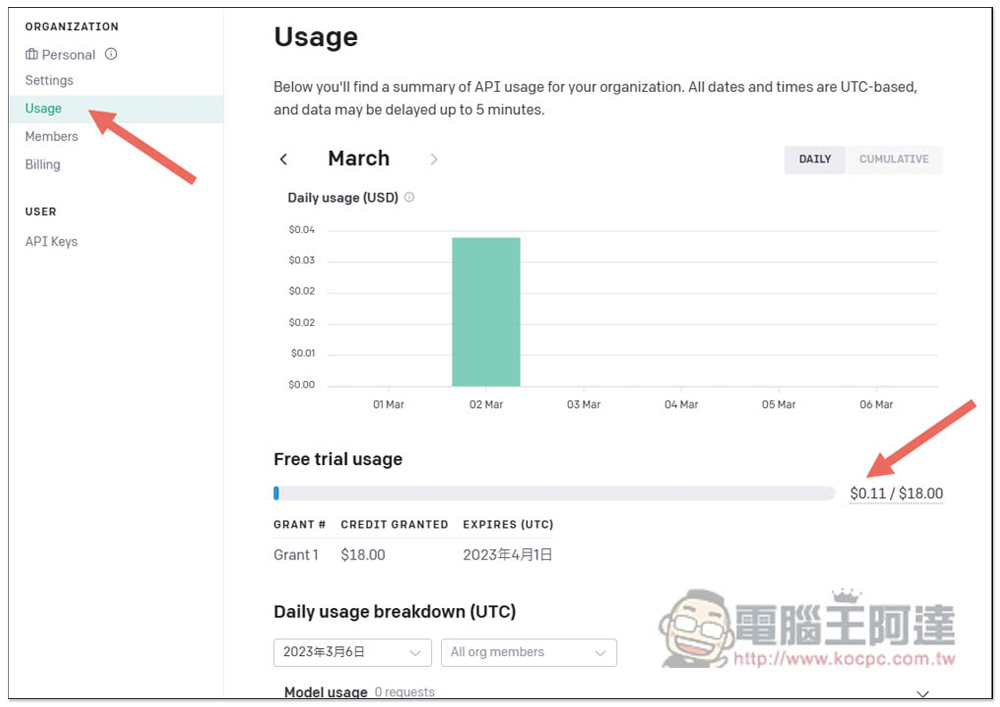
On the Usage page of the OpenAI account background, you can check the current amount and period used. I just translated an entire article, and the cost is less than 0.01 US dollars. 18 US dollars is really enough:
Source: KOCPC Chinese