


It goes without saying that ChatGPT is powerful and easy to use. Nowadays, many people use it to help with work and academic matters, especially paperwork. And someone must be thinking, isn’t there any way to directly fill in ChatGPT’s replies into a Word file? Of course, there is. A while ago, the well-known foreign open source Office software “OnlyOffice” announced that it officially supports the ChatGPT plug-in function. Those who need it can give it a try. Let’s teach you how to install and use it.
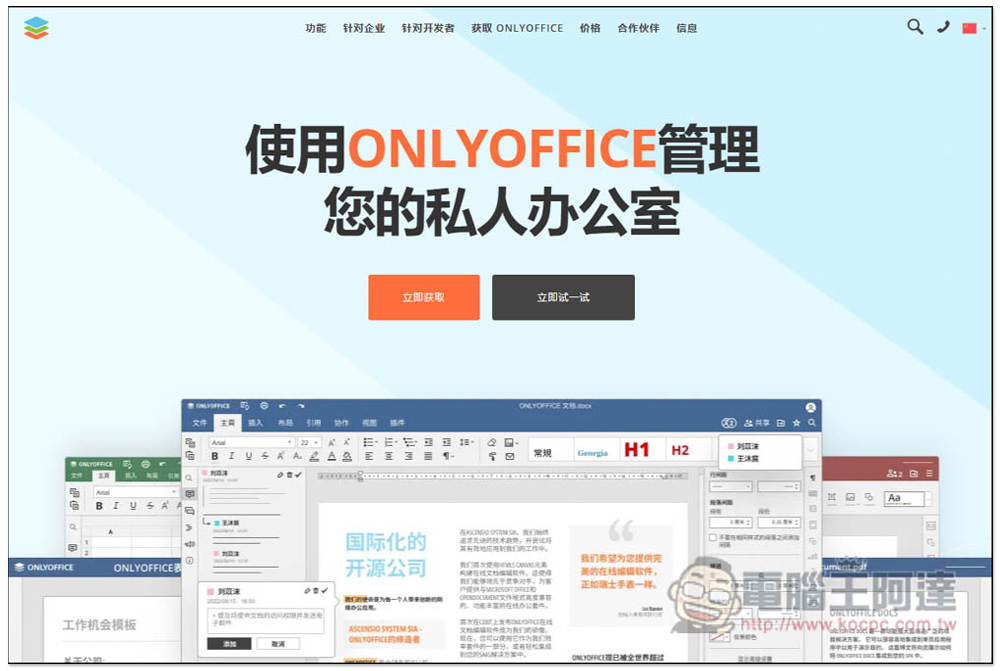
The first open source Office software to support ChatGPT is here! This article teaches you how to use
OnlyOffice is an open source Office software that supports many platforms, including web version, desktop version, and mobile version. I will take the Windows desktop version as an example below. The web version is more troublesome and requires registration to use, but the desktop version does not. The mobile version does not support the ChatGPT plug-in function.
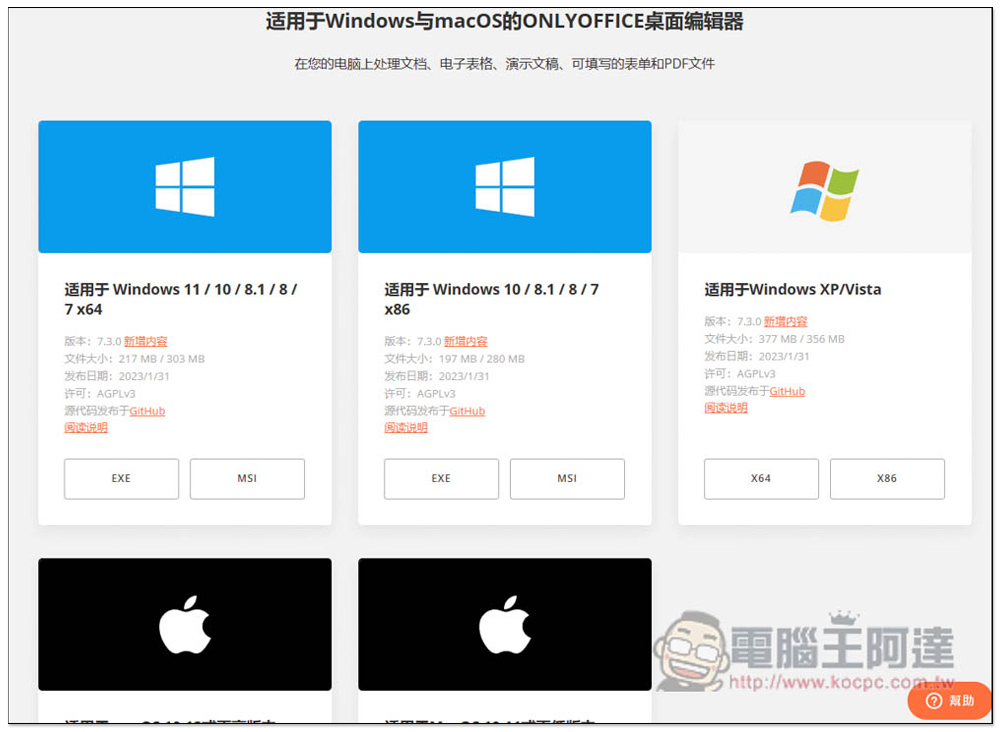
After entering the OnlyOffice official website download page, select your operating system. In the Windows section, x64 is on the left and x86 is on the right. Don’t choose the wrong one. Those who are interested in learning about the features of this current version can click “New Content” on the right side of the version. There is a Chinese description:
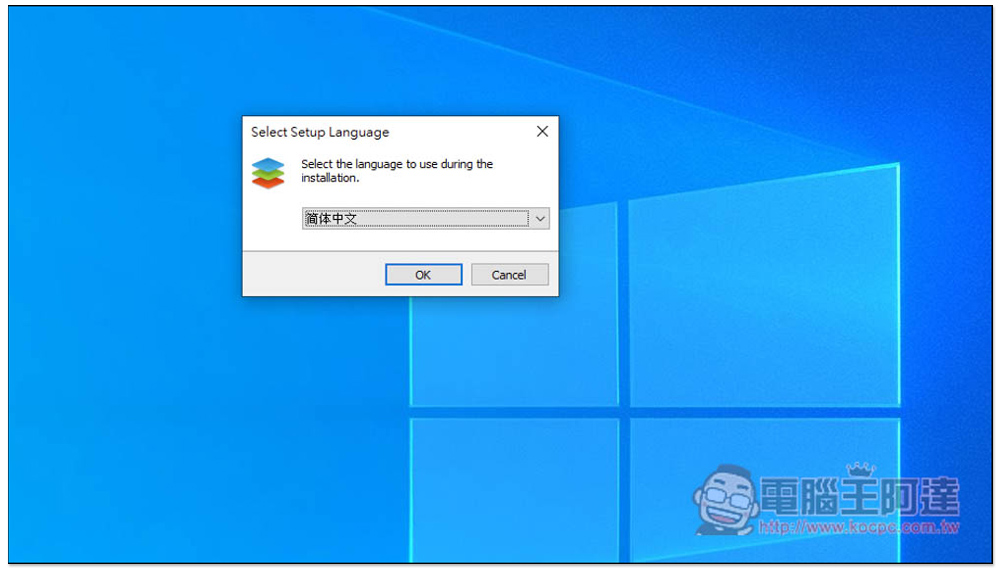
This product has a Simplified Chinese interface, but not Traditional Chinese yet. If you don’t have any special needs during the installation process, just keep pressing Next:
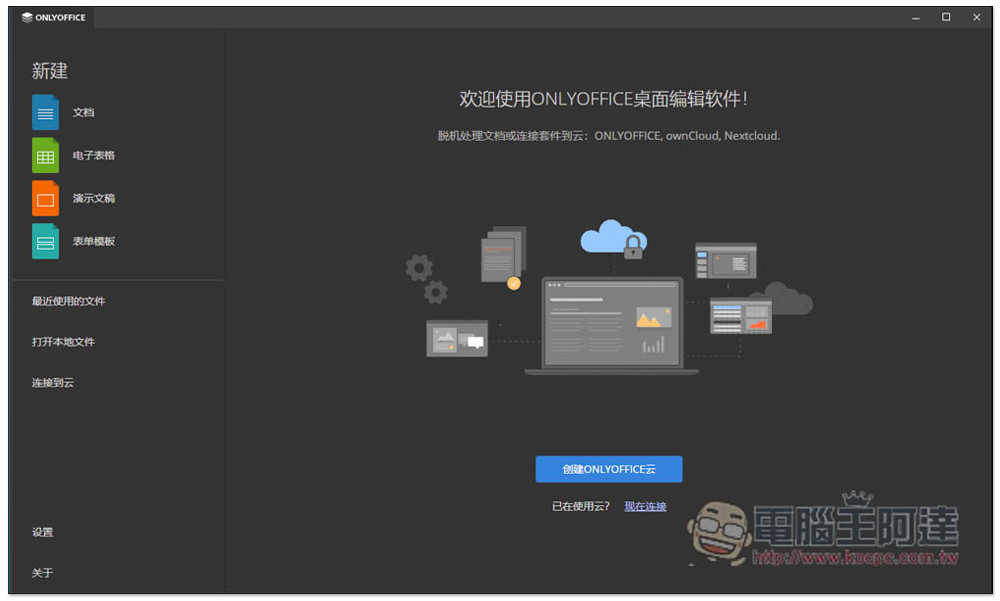
The picture below is the Windows desktop interface of OnlyOffice. Overall, it is quite good and very concise. At this time, please create a file first and click the file on the left:
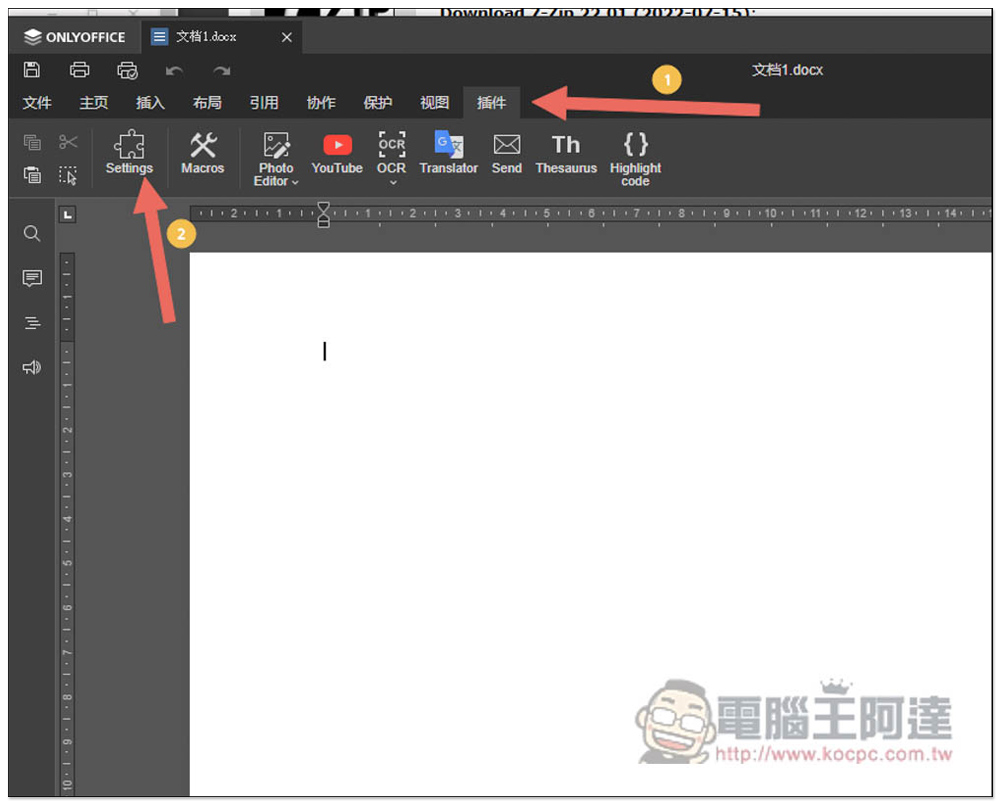
Click on the plug-in in the toolbar above, and you will see that there is currently no ChatGPT plug-in, which needs to be installed manually. Click Settings on the left to find the function of adding plug-ins. However, the ChatGPT plug-in file needs to be downloaded from OnyOffice’s GitHub:
Click me to go to the OnlyOffice download page, click the green Code on the right, and then press the “Download ZIP” option:

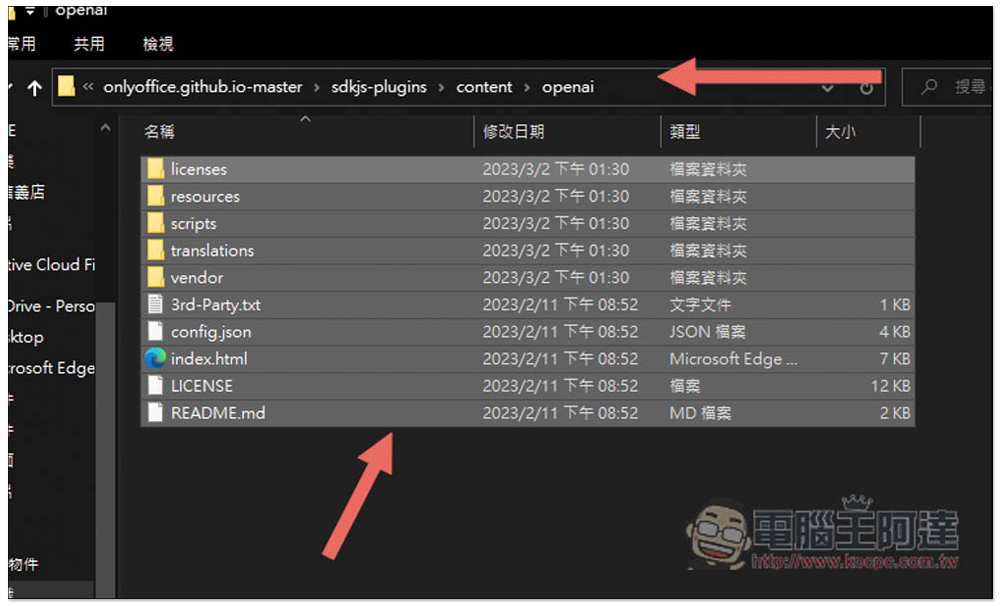
After downloading, unzip it, then go to the path “onlyoffice.github.io-master\onlyoffice.github.io-master\sdkjs-plugins\content\openai” and select all the files:
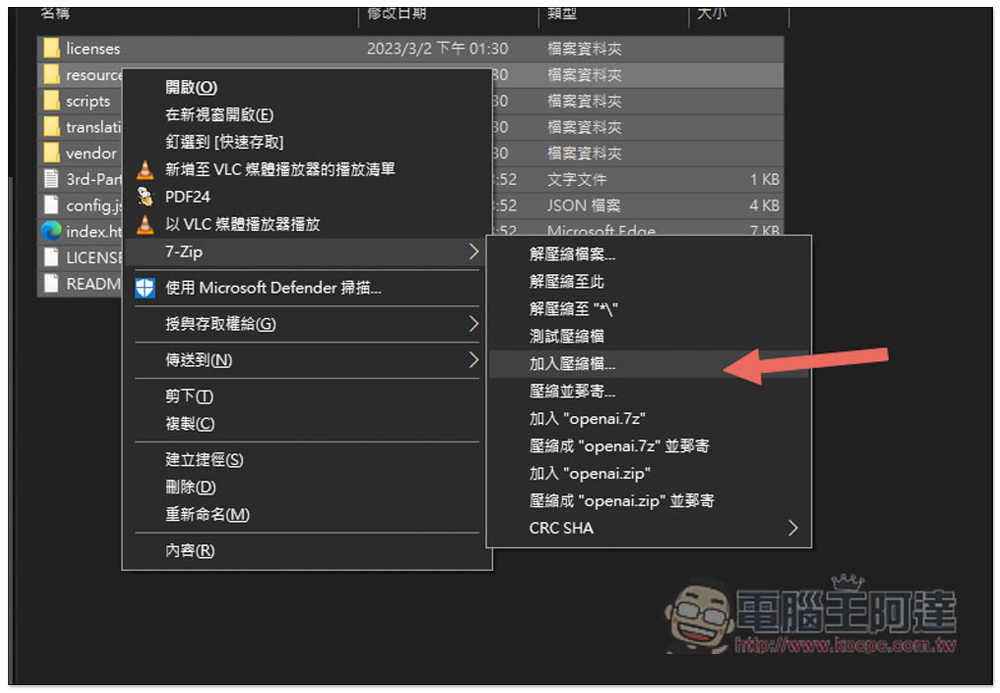
Open the right-click menu and see which compression tool you are using. I use 7-Zip. Click “Add compressed file”:
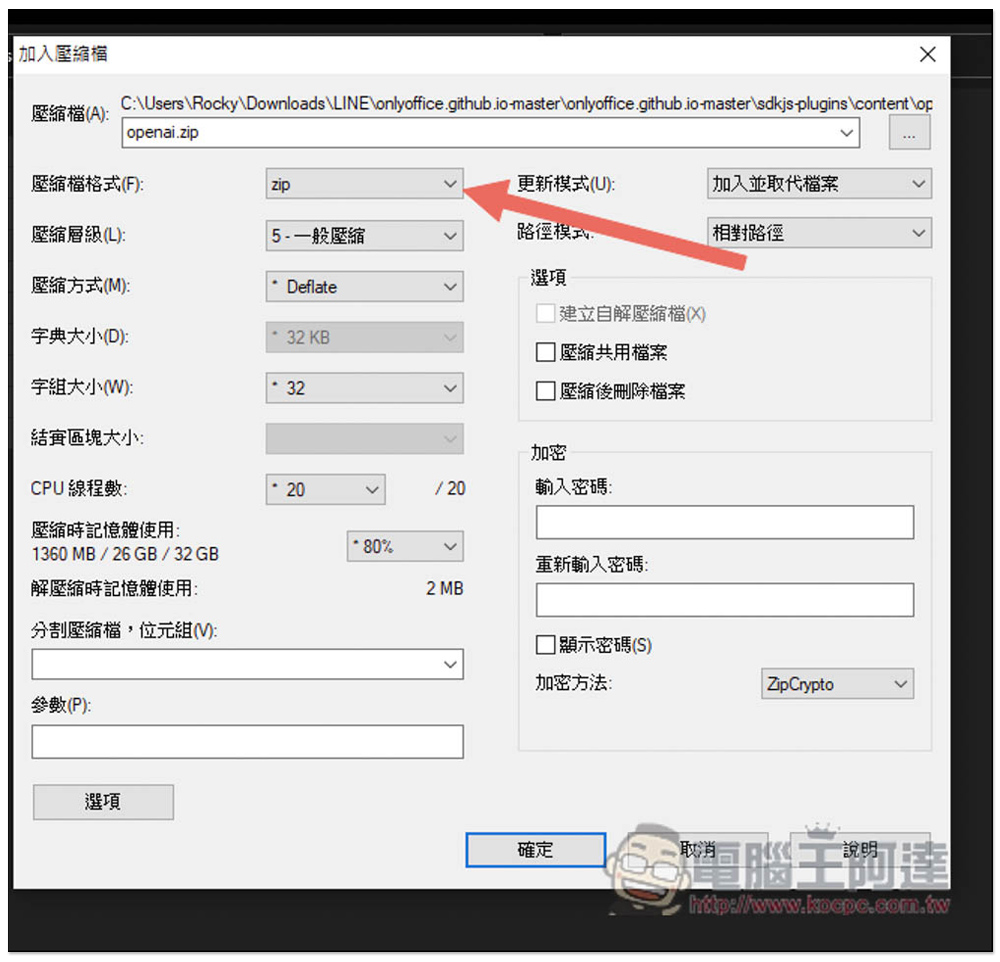
Confirm that the compression format is Zip, and if there is no problem, press OK:
Change the .zip file extension to .plugin. If you can’t see the file extension, you can open the file in the upper left corner of File Explorer -> View -> uncheck “Hide file extensions for known file types” and you will see:
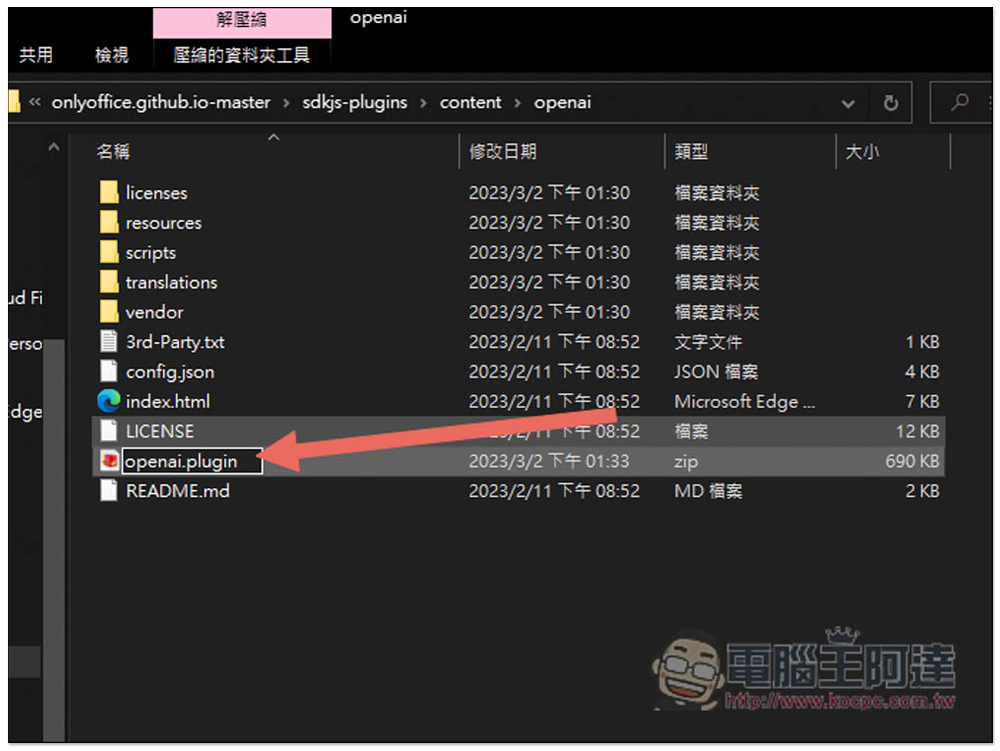
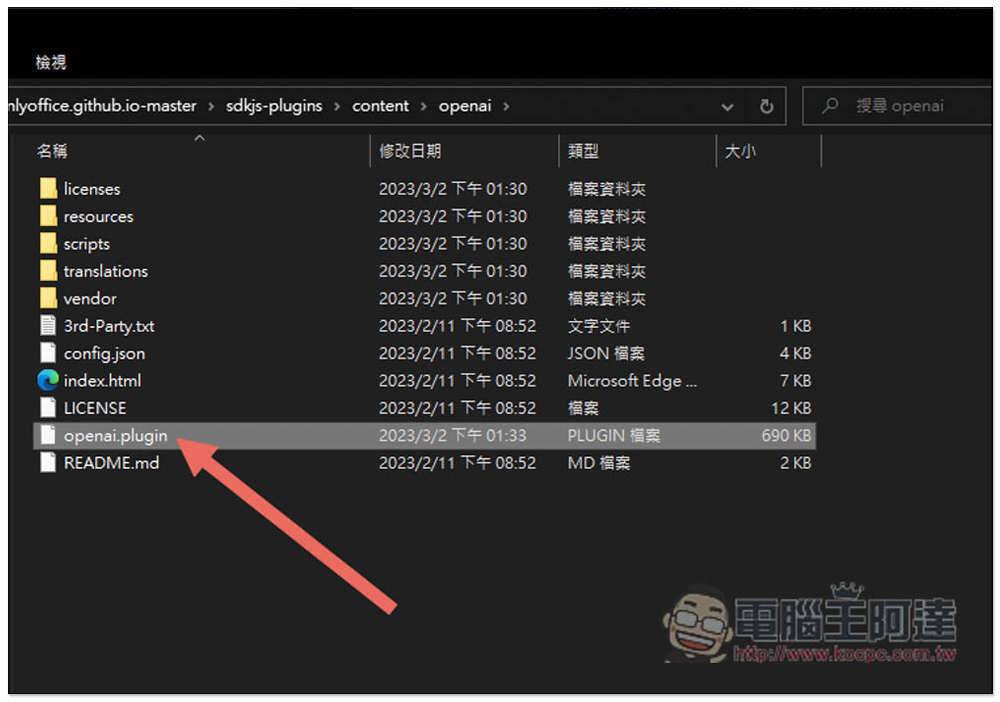
The file name will change to this:
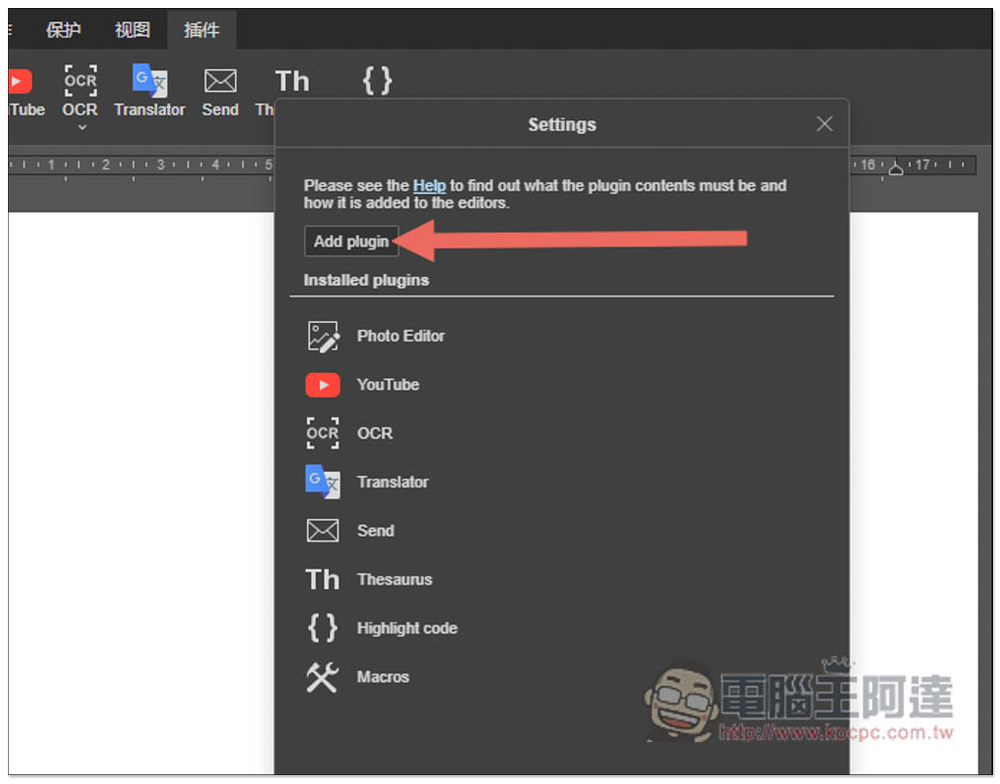
Press Add plugin after returning to OnlyOffice:
Go to the path just now. What’s strange is that I clearly typed the file extension correctly, but it still doesn’t appear on the list. If you are in the same situation as me, it doesn’t matter. Change the lower right corner to display all files:
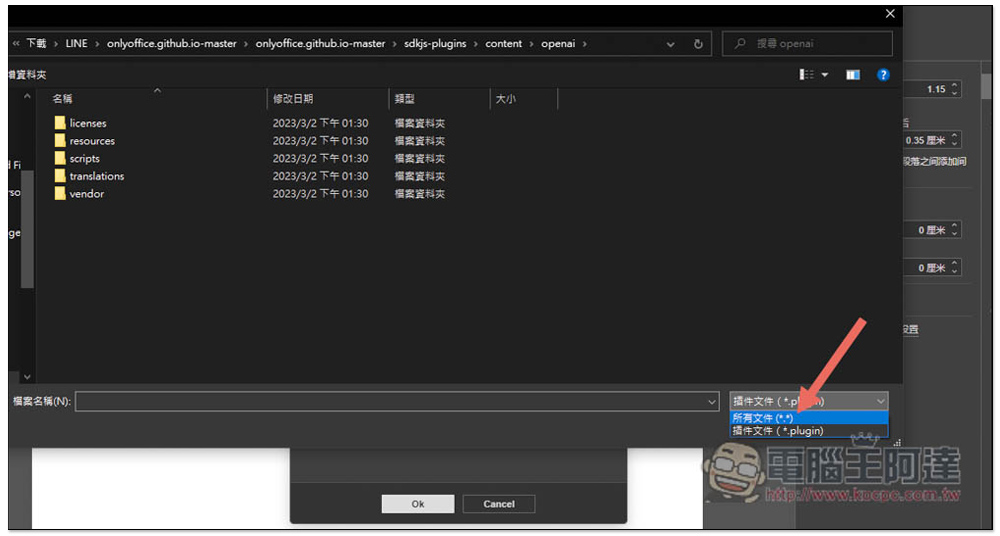
You will see the openai.plugin file, open it:
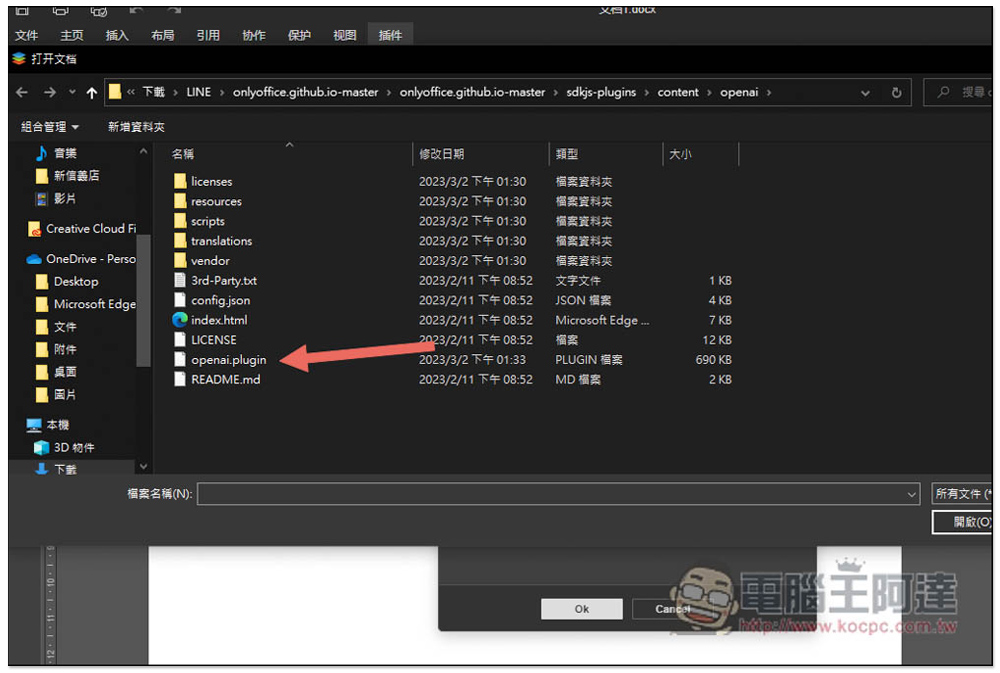
You will see ChatGPT at the bottom! The ChatGPT icon will also appear in the toolbar:
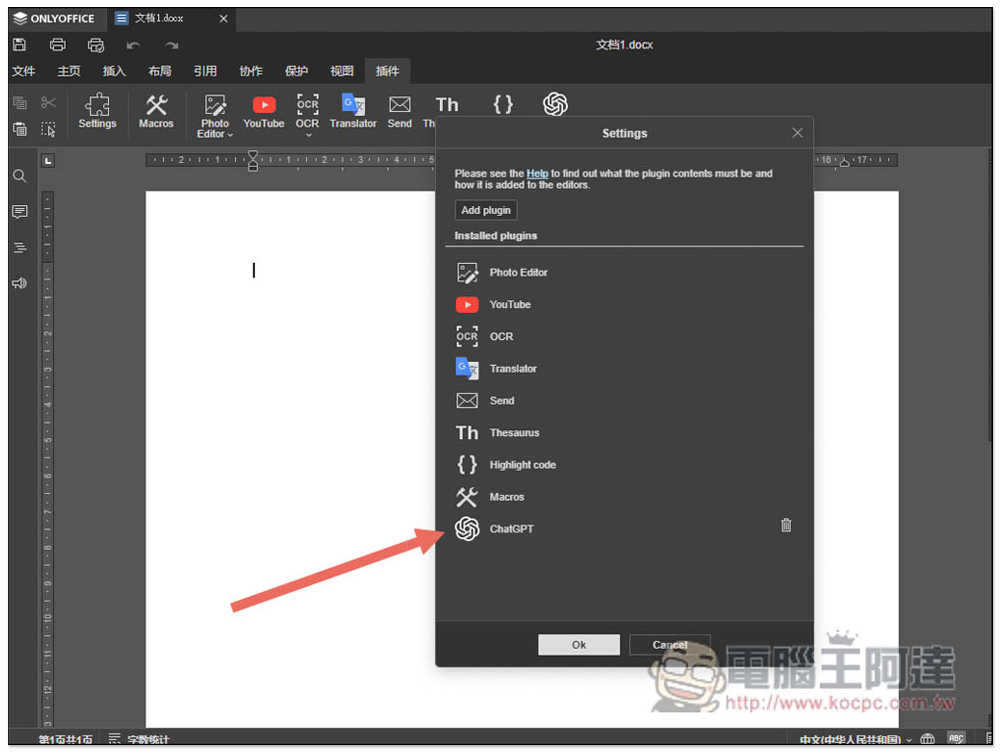
Just click this icon when you want to use it:
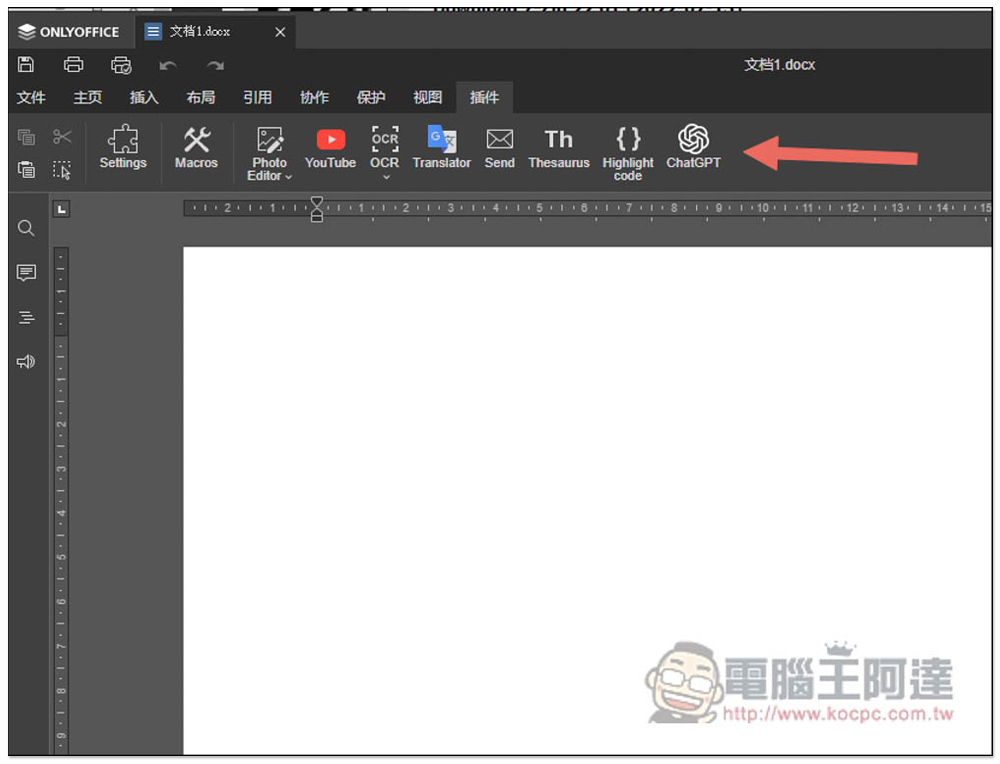
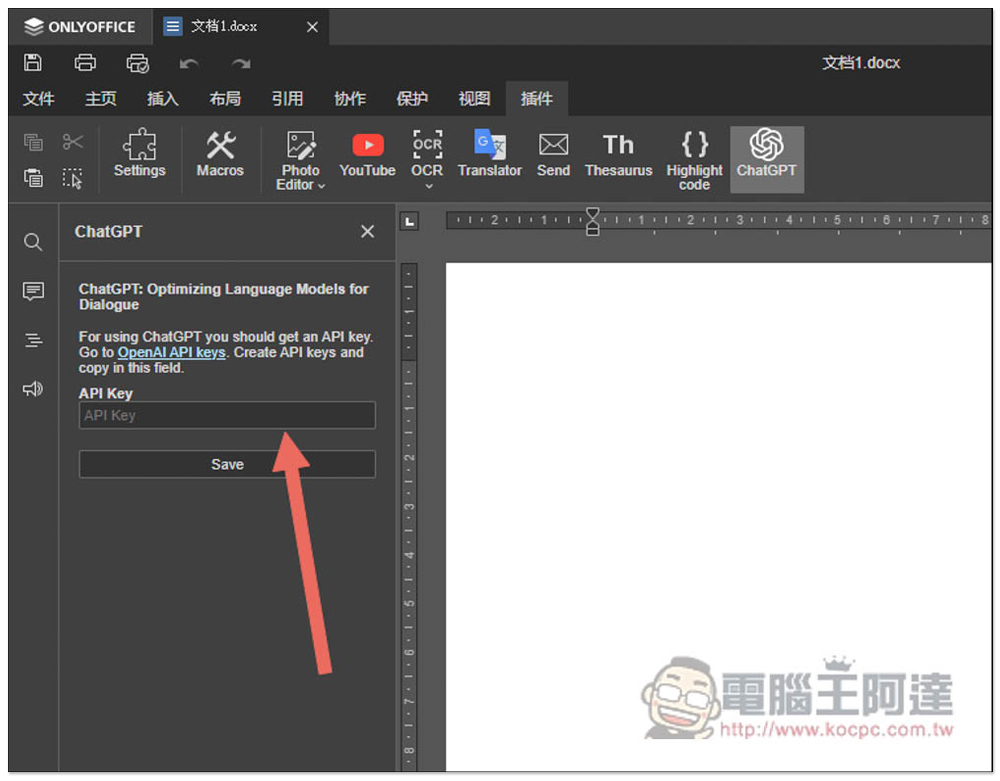
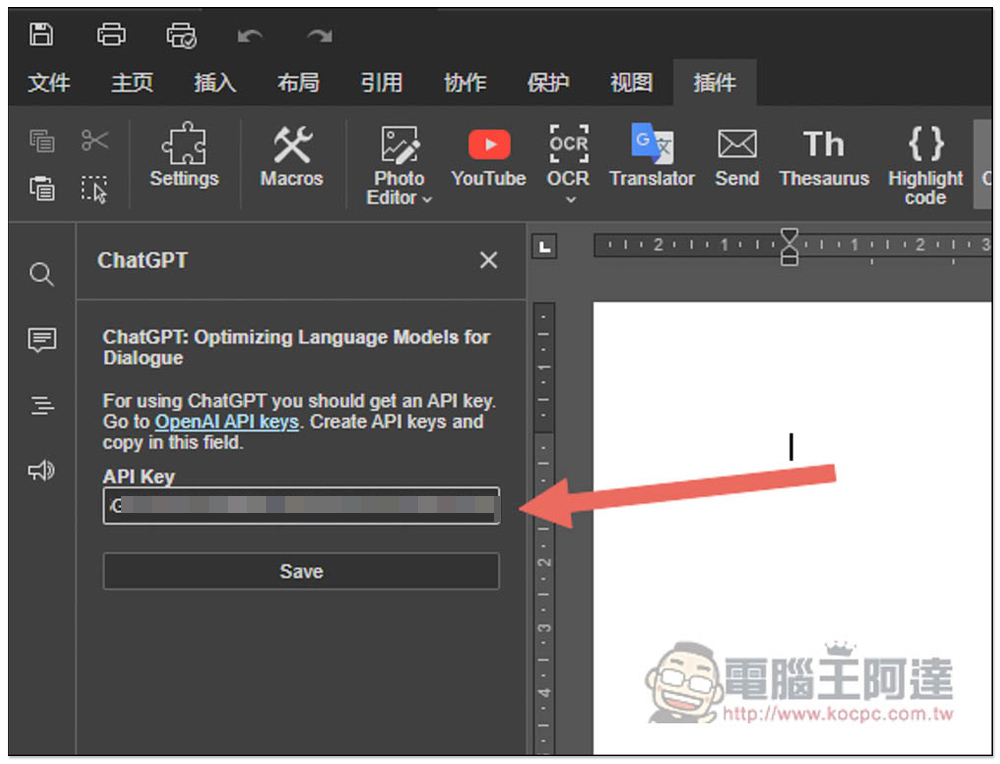
You need to enter your API Key before use, click “OpenAI API keys” in the instructions above:
The OpenAI website will open. After logging in to your account, logically speaking, you should not have created API keys. If you have, just copy them directly. If not, please click Create new secret key:

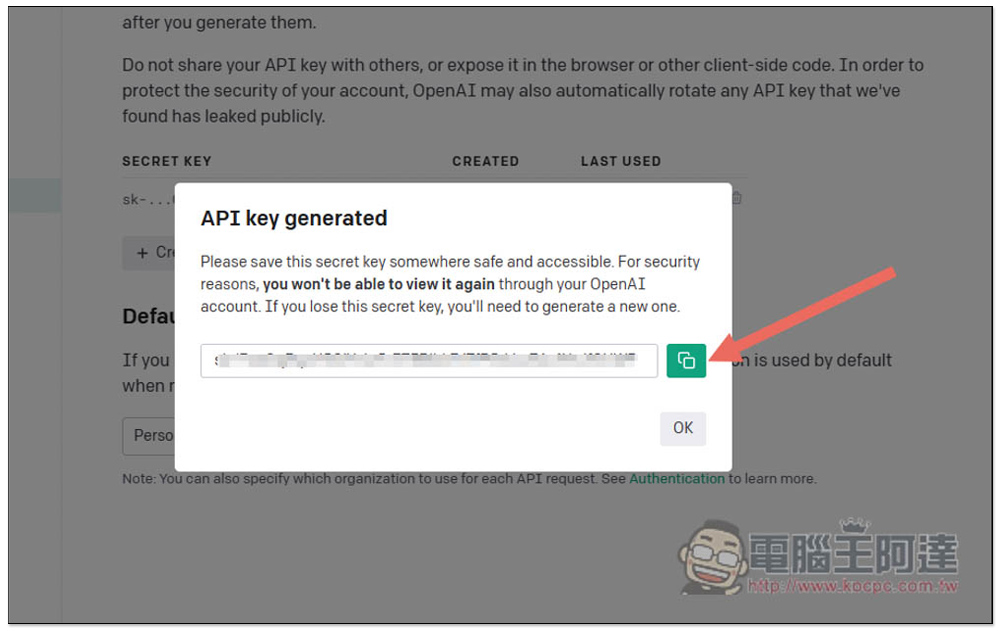
This window will then pop up. Click the green icon on the right to copy the obtained API key:
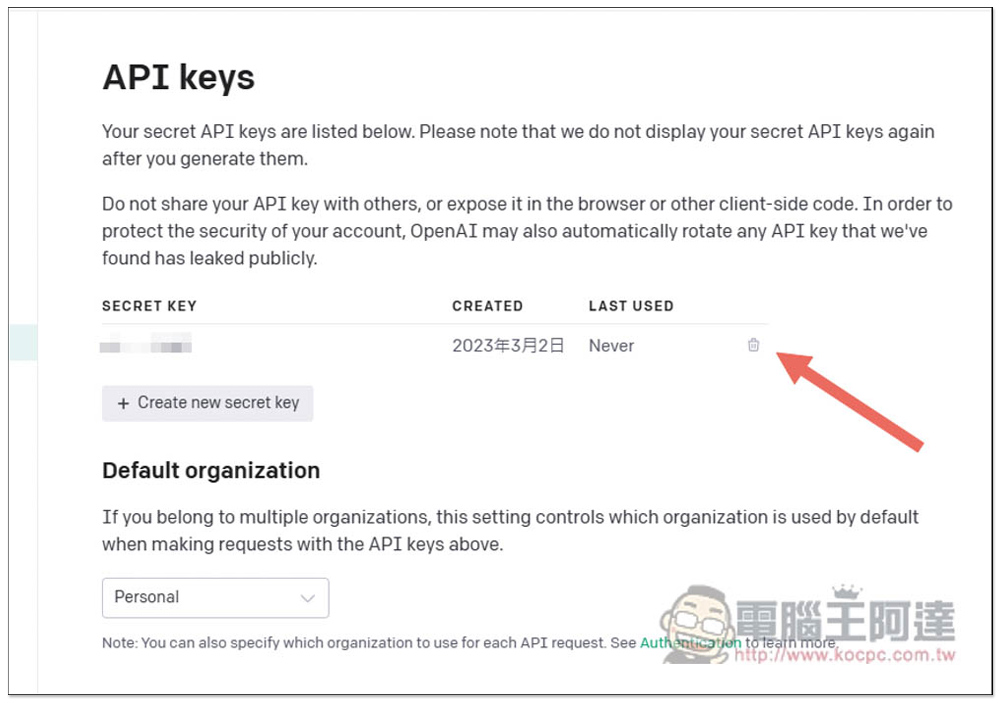
The created API keys will also be stored for your later use. Also a reminder, API keys are charged by tokens, but each member will receive a credit of 18 US dollars when registering, which can basically be used many times. At the end of the article, we will also tell you how to check how much credit has been used:
After pasting the API key, click Save below:
This is how you can get started:
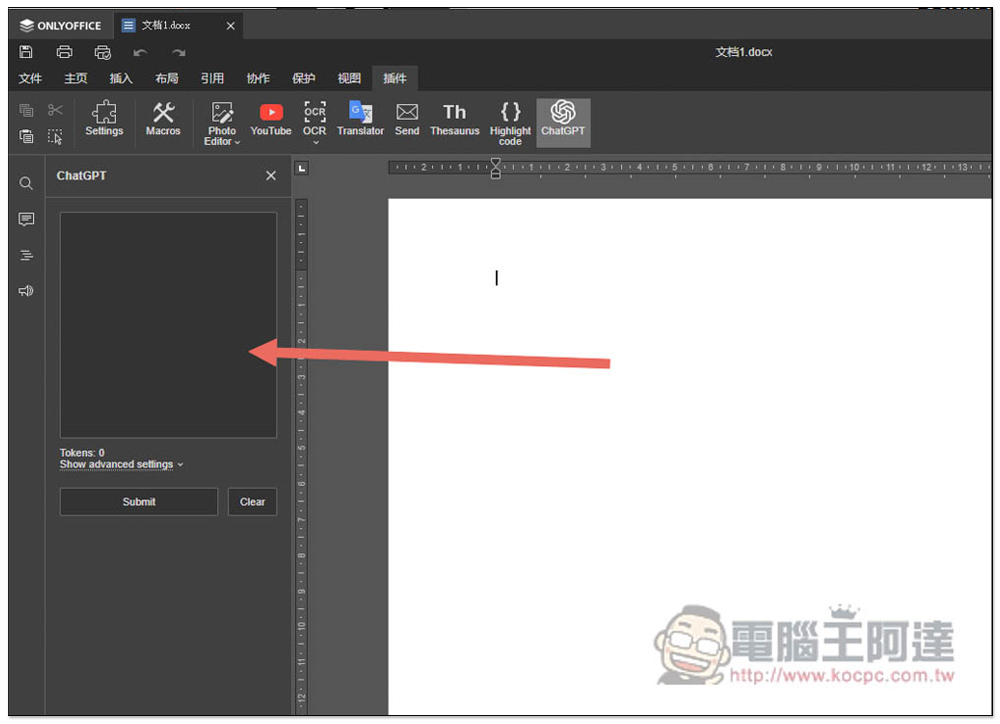
Enter what you want ChatGPT to give you and press Submit:
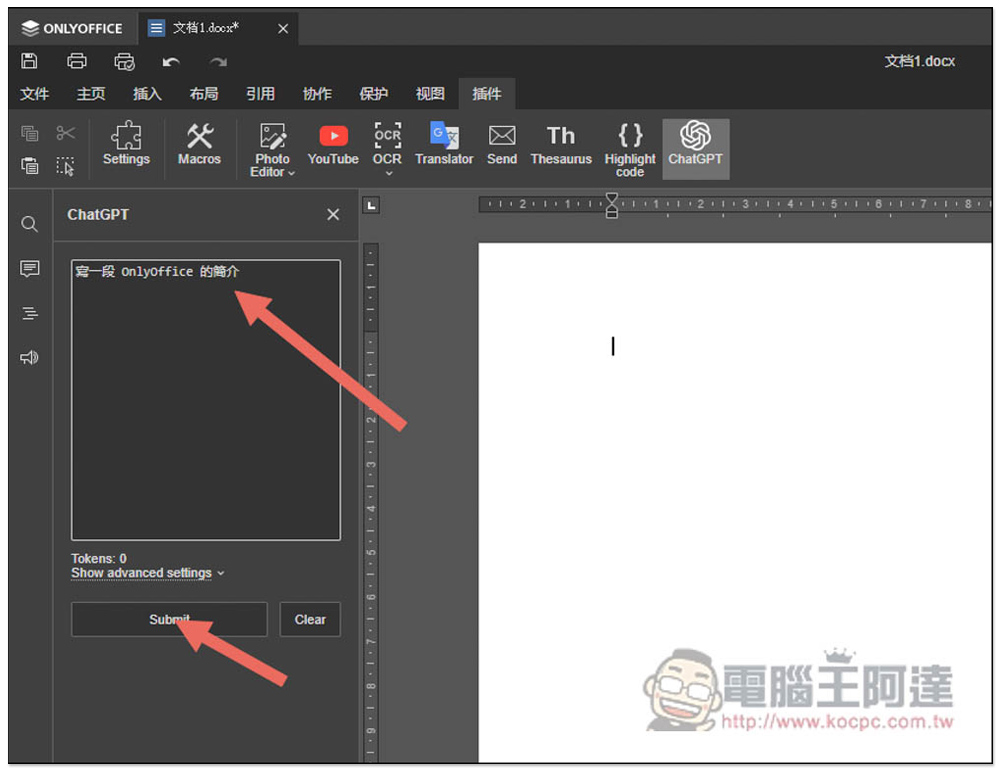
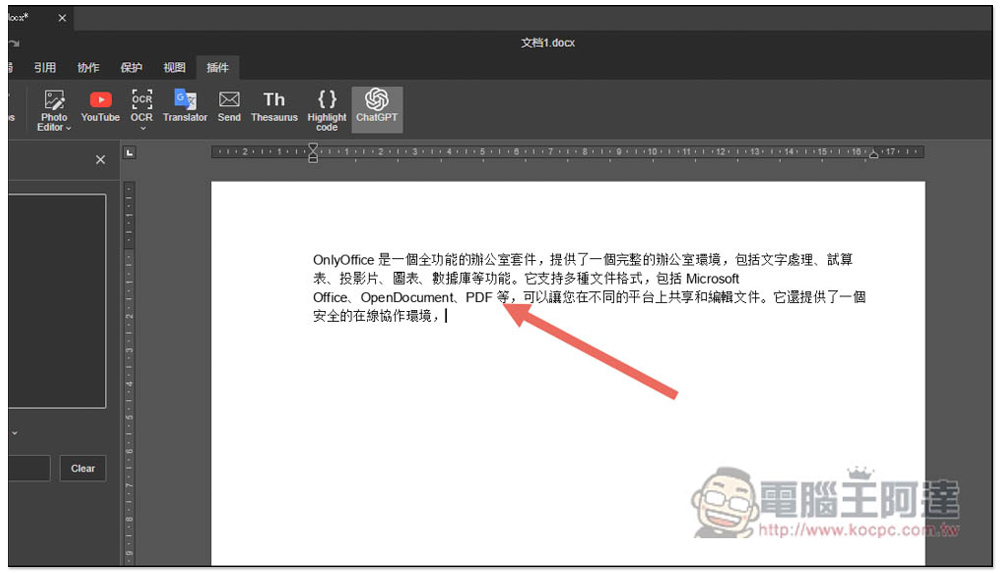
The content will be automatically replied to the Word file on the right. The speed is not bad, but when I test Chinese, if I reach the fourth line, I often end up with incomplete answers, that is, reaching the halfway point, and it is useless to continue typing, so it is currently more suitable for short answers. Pay more attention to this point:
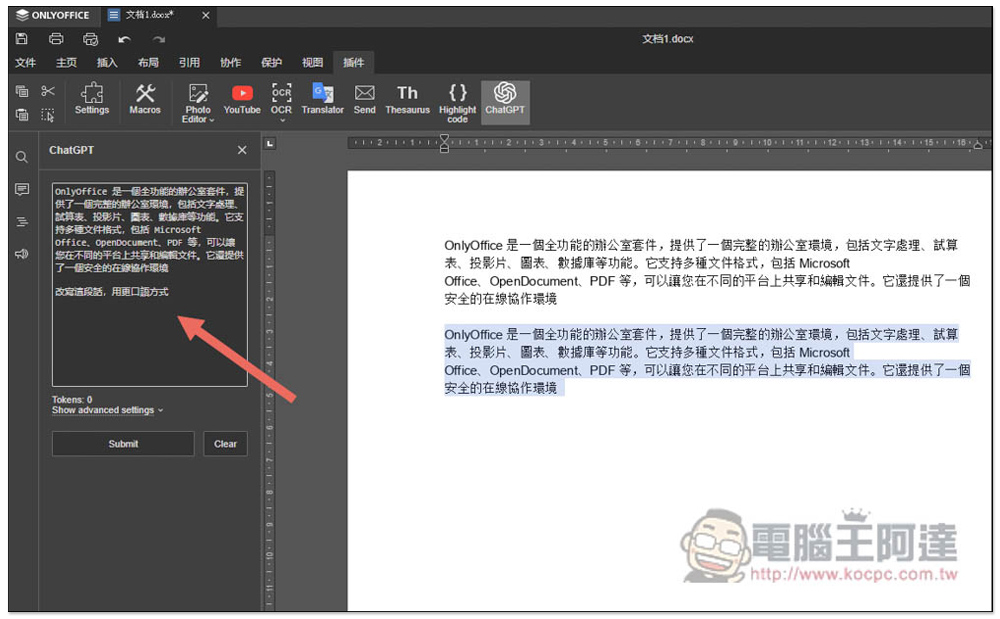
In addition to asking questions, you can also ask it to help you rewrite the content. For example, I asked you to rewrite this paragraph in a more colloquial way:
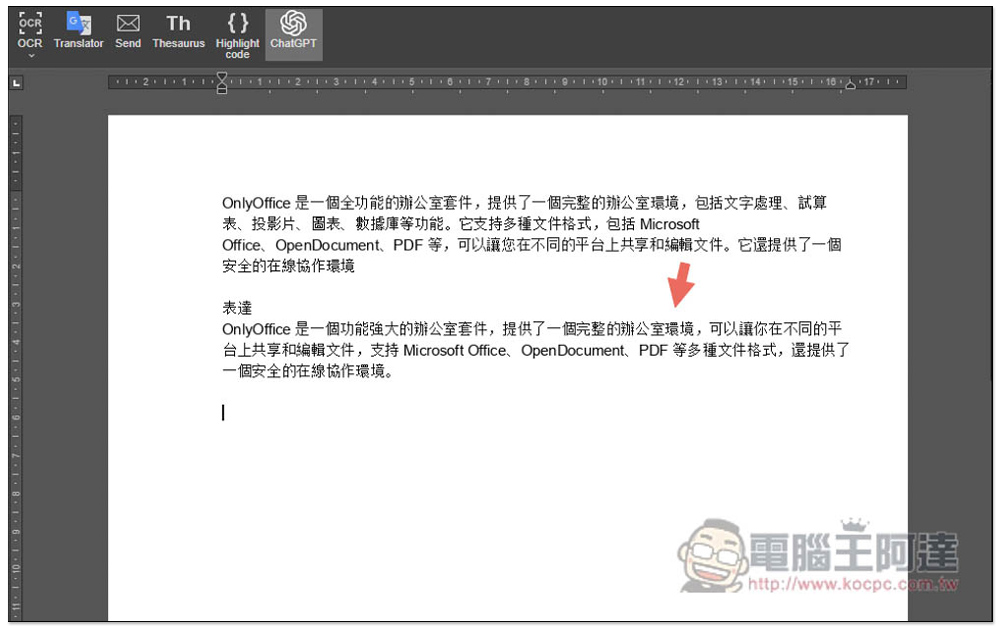
The entire text looks more like it was written by a human being:
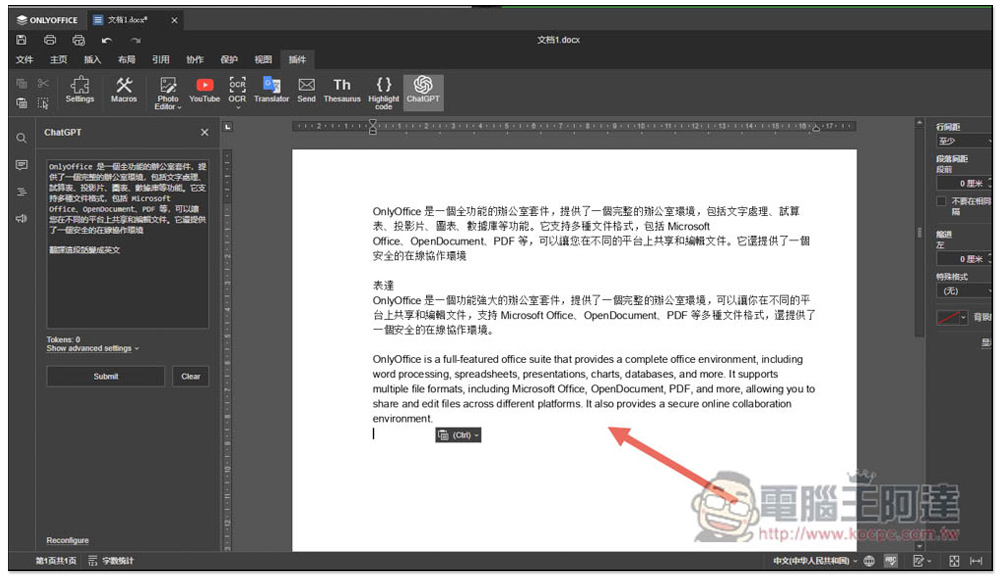
You can also ask it to help translate English. Remember to post the text into the input field on the left. If you select all on the right, the AI will directly overwrite this text after answering:

The translation quality is also quite good:
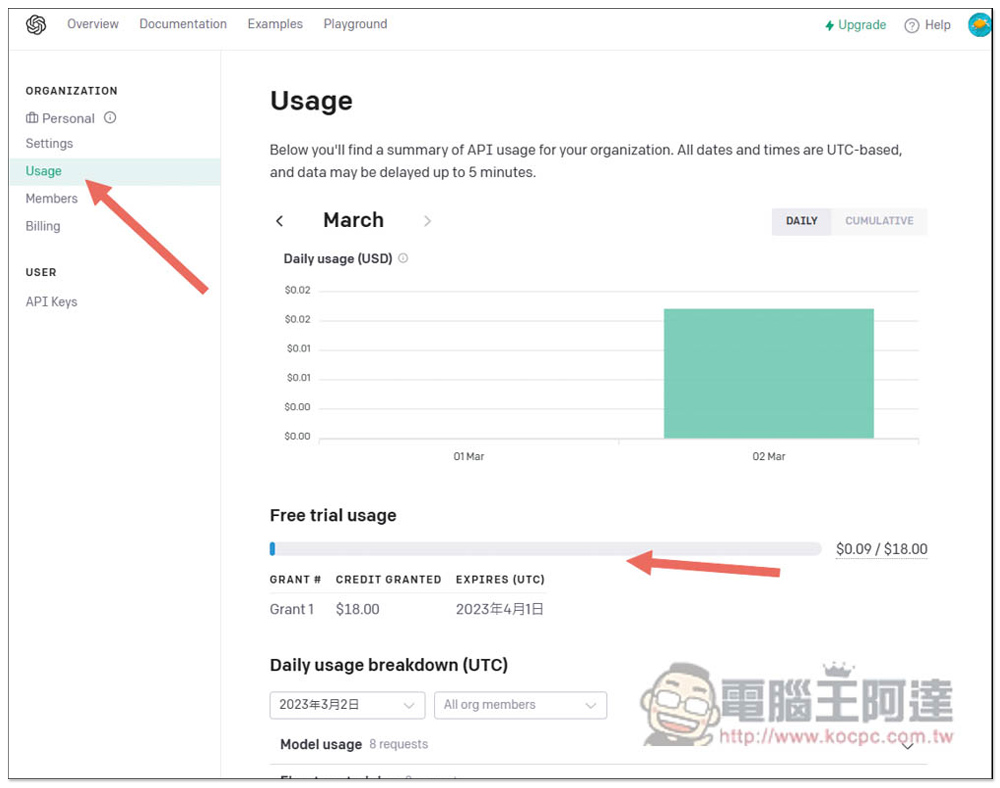
As for the free 18 US dollars of tokens mentioned earlier, you can find out how much has been used in the “Usage” of the account background on the OpenAI official website. Like the three paragraphs of text I just demonstrated above, it only cost 0.09 US dollars, so the 18 US dollars can indeed be used many times:
Also a reminder, although OnlyOffice calls this a ChatGPT plug-in function, it is actually different from the ChatGPT we use on the Internet. The API key obtained here is not ChatGPT, but other models. The ChatGPT API has only been officially launched recently.For details, please click here to go to the OpenAI official website to see more, so other OpenAI models are currently used. For a detailed list, click “Show avanced settings” under OnlyOffice ChatGPT to see which model is currently used. There are currently 7 options:
- text-davinci-003
- text-davinci-001
- curie-instruct-beta
- text-ada-001
- text-curie-001
- text-davinci-002
- text-babbage-001
Therefore, the content of the answer here may be different from what you get in ChatGPT.
Source: KOCPC Chinese