


A great feature of Apple Watch (including Apple Watch Ultra) is that you can light up the screen and view statistics when you raise your hand, but when a message or notification comes in, the screen will also automatically light up to show the content. This is very convenient most of the time, but sometimes you don’t want the people next to you to read your private notifications, personal schedules and other information at the same time. Quickly follow the author’s settings to classify and hide certain notifications so that they will not be fully displayed or not displayed at all.
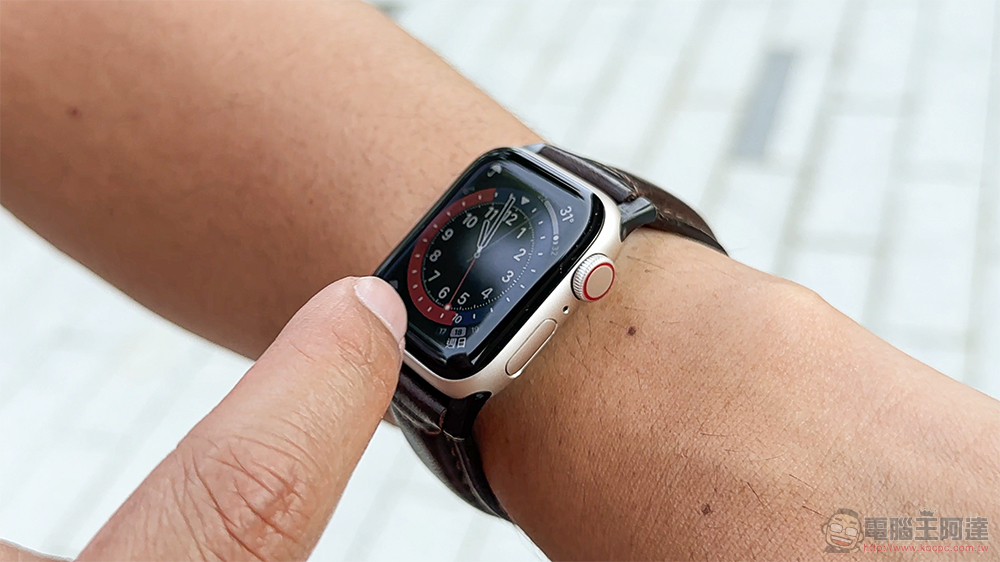
How do I maintain the privacy of personal notifications on Apple Watch?
If you want to set whether notifications on Apple Watch are displayed or not, you can do it from your iPhone or watch. Below we will tell you where the two methods are and how to operate them.
Set up your Apple Watch to hide sensitive notifications with your iPhone
- Open the Watch app on your iPhone.
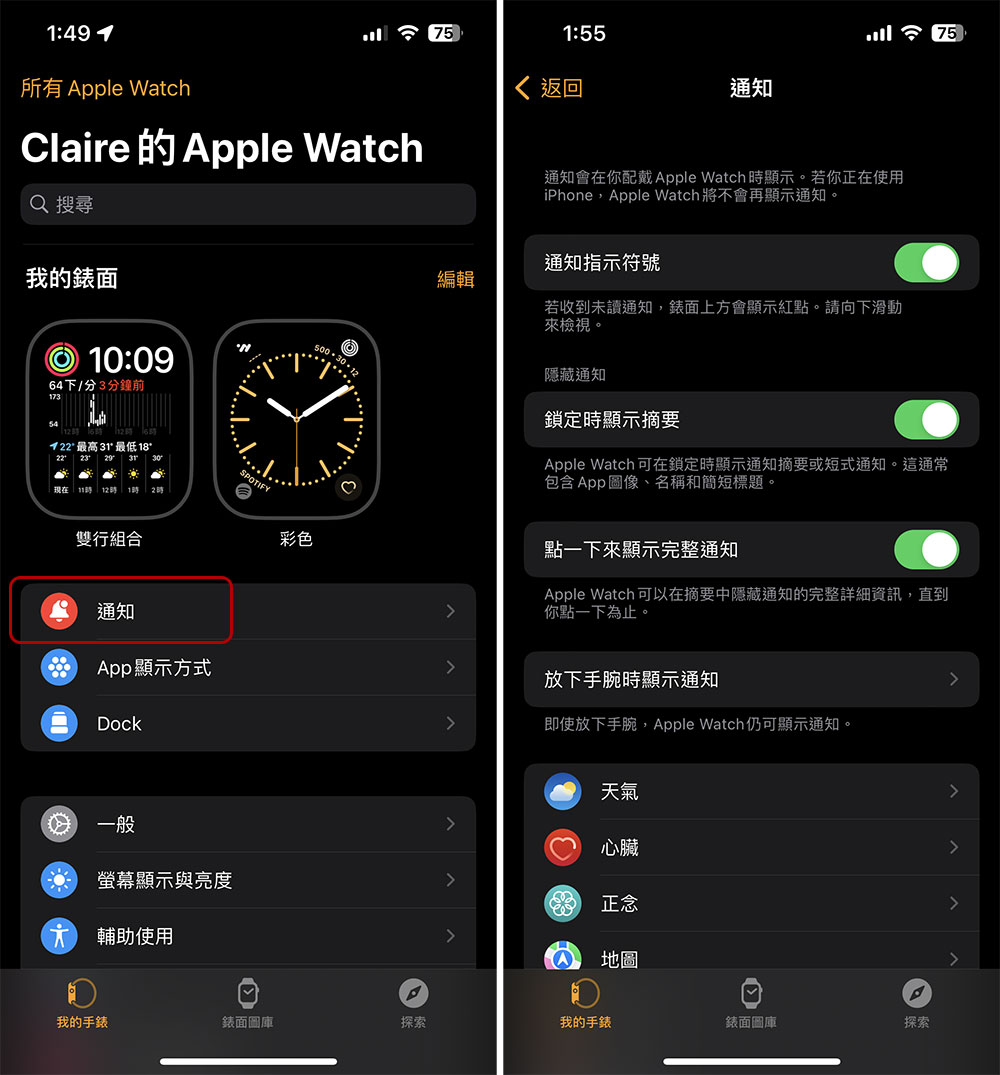
- Click “Notifications” in the “My Watch” tab
- There are three settings on the first level of the inner page that you should pay special attention to:
- notification indicator
closureAfter this function, when there are unread notifications, you will only see a red dot directly above the surface, and you can swipe down to view it. - Show summary when locked
closureAfter this function, only a brief summary such as the application icon, name and short title will be displayed when receiving a notification. You need to manually click to display more information. - Click to show full notification
turn onAfter this function, the complete content of the notification will be hidden and will not be visible until you manually click on it.
- notification indicator
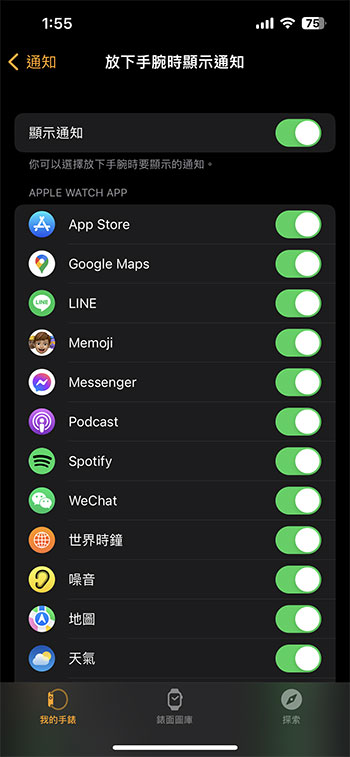
- Another function, “Show notifications when you lower your wrist,” as the name suggests, refers to whether notifications are allowed to be displayed even when your wrist is not raised. After clicking into the inner page, you can set whether to enable it and make individual settings for a single application.
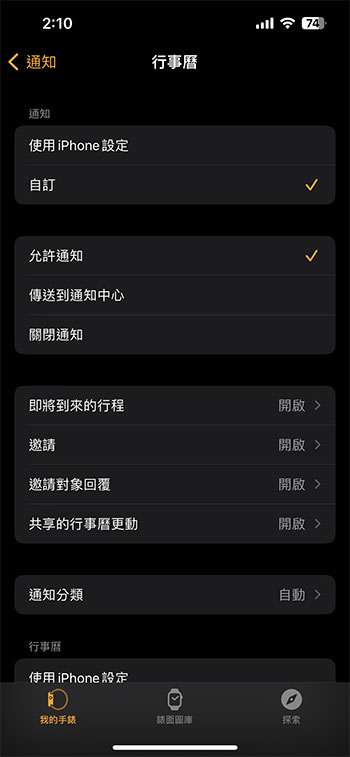
- From the notifications page, you can also scroll down through the list of apps displayed on your watch and adjust settings for specific apps one by one. Most apps default to “Use iPhone Settings,” but you can also customize it for individual apps.
- In customization you can allow, turn off or send them to the notification center, and in the case of email you can also choose which account to set them for (if you have multiple accounts).
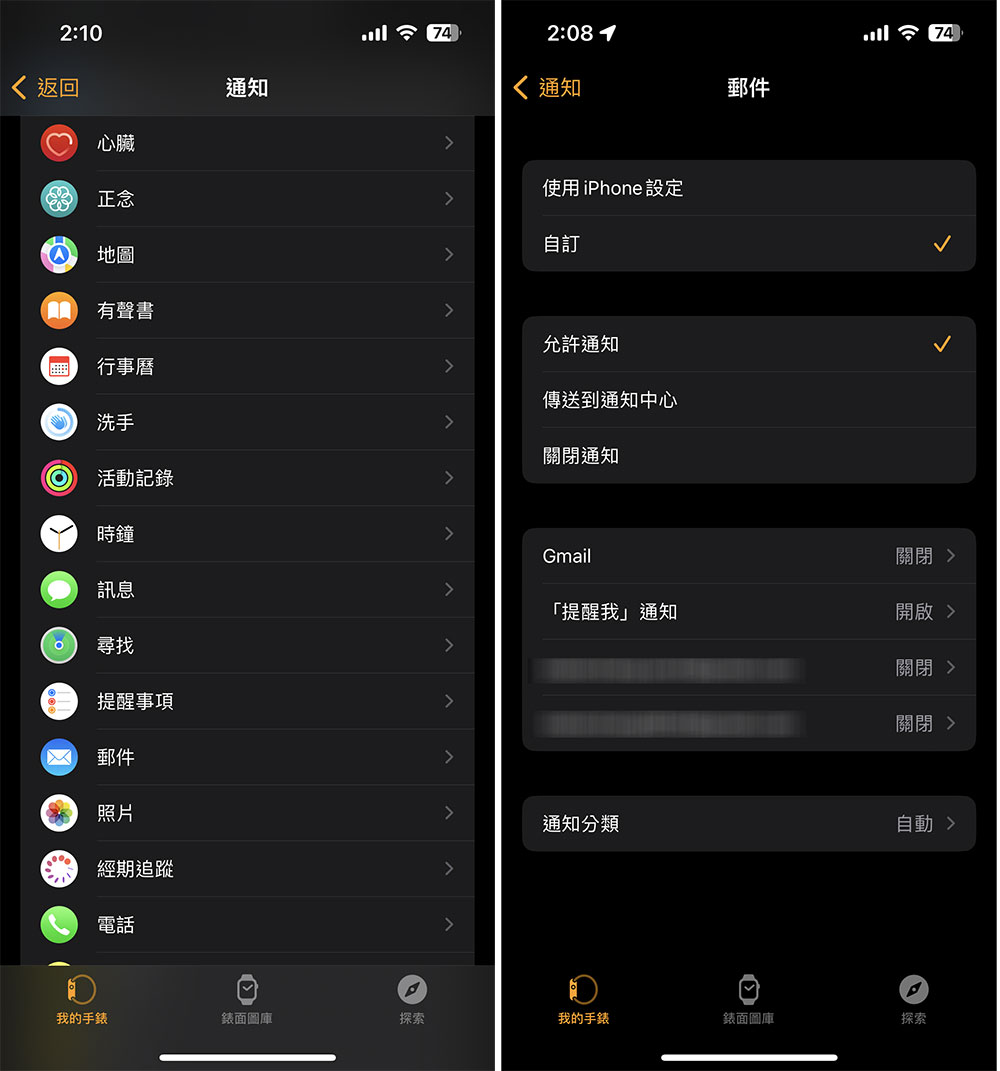
- Depending on the app, some apps’ Customization will also allow you to select only specific notifications that will be shown. For example, in Calendar you can choose to see only upcoming events, invitations, invitees, and/or changes to shared calendars.
Set up from Apple Watch
- Open the Settings app on your Apple Watch.
- Click on the “Notifications” item.
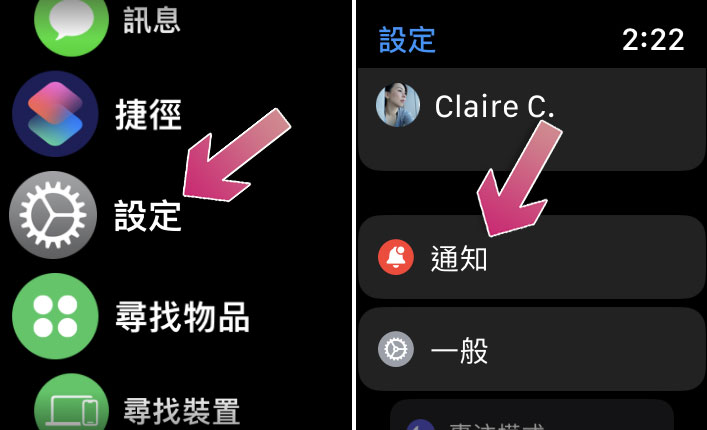
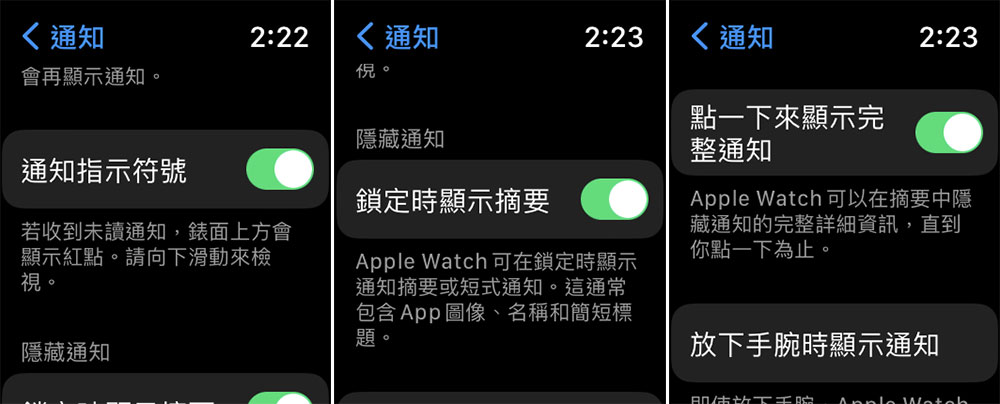
- The inner page has three settings that are the same as those on mobile phones:
- notification indicator
closureAfter this function, when there are unread notifications, you will only see a red dot directly above the surface, and you can swipe down to view it. - Show summary when locked
closureAfter this function, only a brief summary such as the application icon, name and short title will be displayed when receiving a notification. You need to manually click to display more information. - Click to show full notification
turn onAfter this function, the complete content of the notification will be hidden and will not be visible until you manually click on it.
- notification indicator
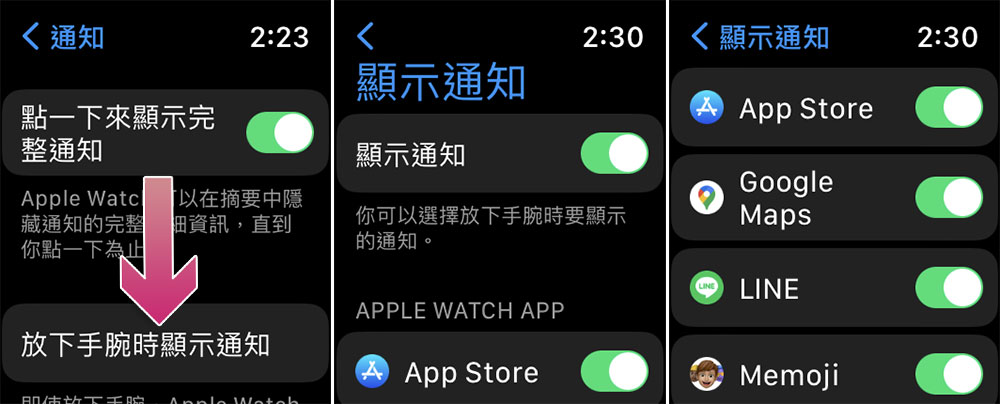
- On the watch, you can also set whether notifications are shown when you lower your wrist, either entirely or on a per-app basis.
Source: KOCPC Chinese