


Whether it is daily chatting with friends or work communication with clients, LINE has become one of the communication channels through which we connect with people in our lives. But do you know how to back up LINE chat history? In fact, LINE chat history backup is very simple, and based on the backup needs of different situations, this time I will share with you two must-learn backup techniques, so that everyone can retain important content with more peace of mind.

Backing up chat history in LINE is easy! 2 must-learn backup skills
We have introduced many to you before LINE backup tips, but if you want to back up the chat history of a designated LINE friend, how should you do it? Depending on the chat history you want to back up, this time we will introduce to you two LINE chat history backup techniques that you may not have noticed, so that you can save the complete conversation content in different ways with greater peace of mind.

Long screenshot function|Recommended for short dialogue backup
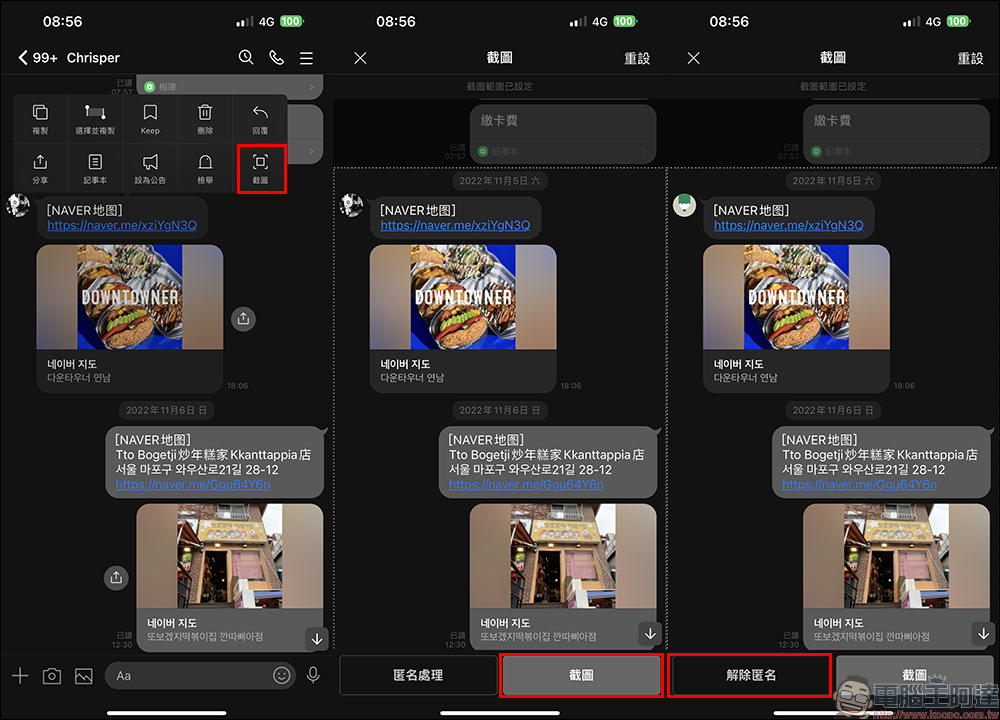
First of all, the first trick is the screenshot function that is commonly used by many people. If you want to back up specific conversation content in a LINE chat room, in addition to using the built-in screenshot function of your phone, it is also recommended that you directly use the built-in screenshot function of LINE itself.
In the chat room, start from the chat conversation you want to screenshot. Long press the conversation to expand the function menu and click the “Screenshot” button. Then you can slide down the page to select the screenshot content. The screenshot function will use a dotted frame to indicate the selection range of the screenshot. After selecting the long screenshot range, you can click the “Screenshot” button to take a screenshot. If you want to hide the subject’s personal information, just click the “Anonymous Processing” button to hide the subject’s nickname and photo information.
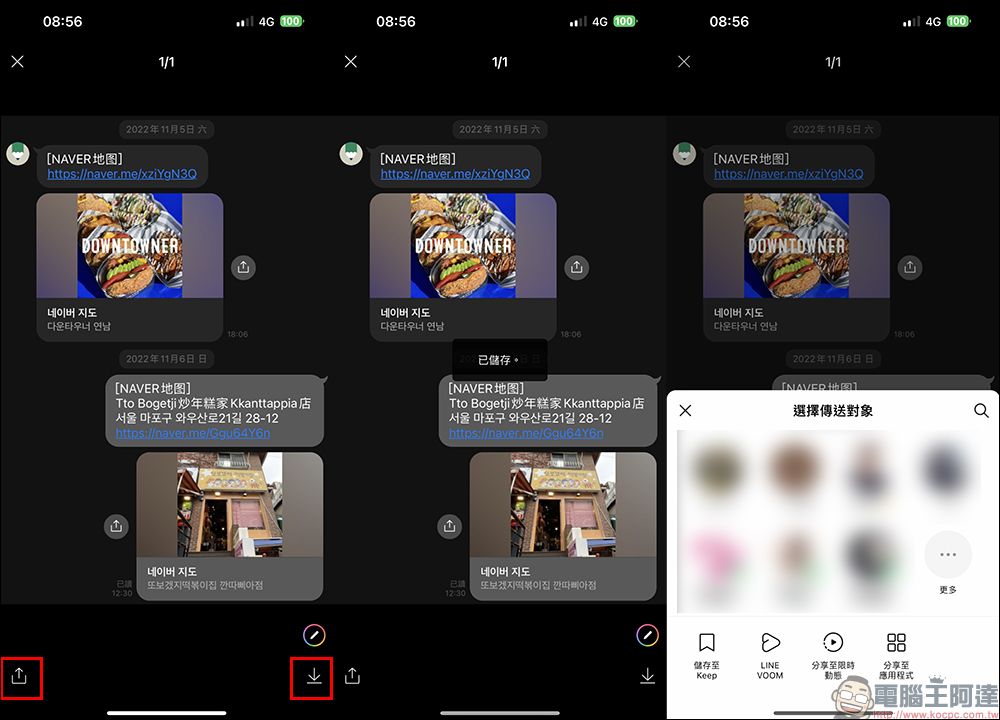
After the long screenshot is completed, click the “Download” button to save the screenshot file to your phone’s photo album. If you don’t want to save the screenshot directly on your phone, you can directly click the “Share” button to share it to other LINE chat rooms, or share it to LINE Keep or other applications. Another advantage of backing up chat history by taking screenshots is that it can be easily backed up when the original chat room has image content. Even if the long screenshot cannot back up the complete image file, it can at least back up the preview thumbnail displayed on the current screen of the chat room.
Transfer chat history|Recommended for those who want to back up complete chat history
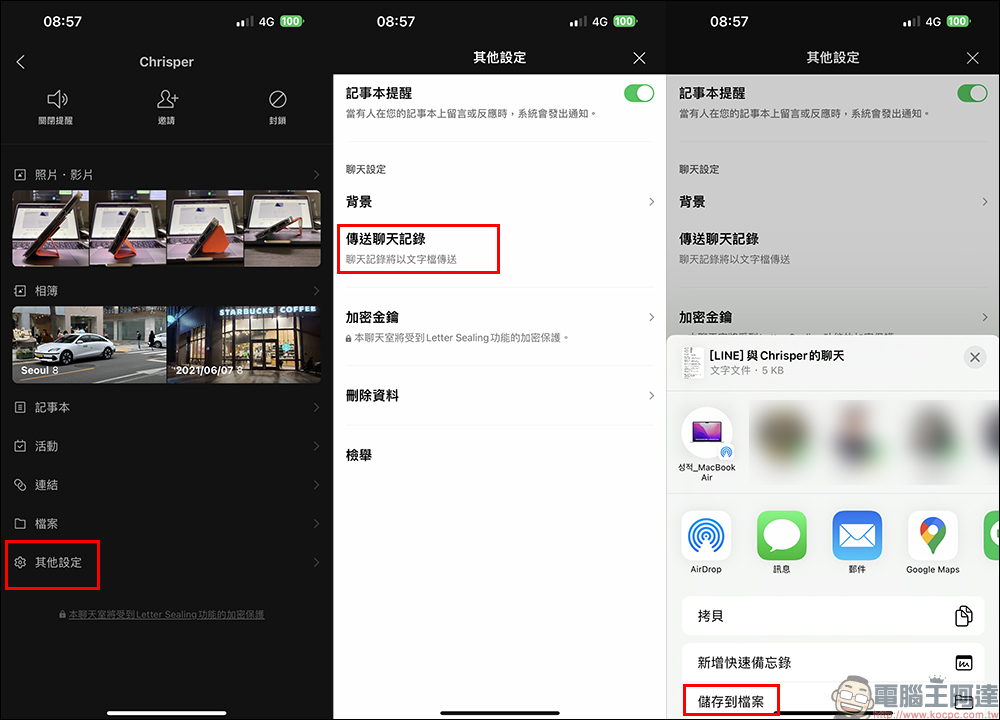
If you want to export the entire chat content of a specific LINE friend, you can use the “Send Chat History” function for backup. This is LINE’s chat history manual export function for a single chat room. If you want to save LINE conversation messages with a friend or group, you can use this function to download all the chat records of the chat room, and these chat records will be sent as text files.
After clicking the “≡” function menu in the upper right corner of the chat room, select “Other Settings” to find the “Send Chat History” function. At this point, the user can select “Send Chat History”
The text file of the chat history can be “sent to other chat rooms” or “saved” in other ways.
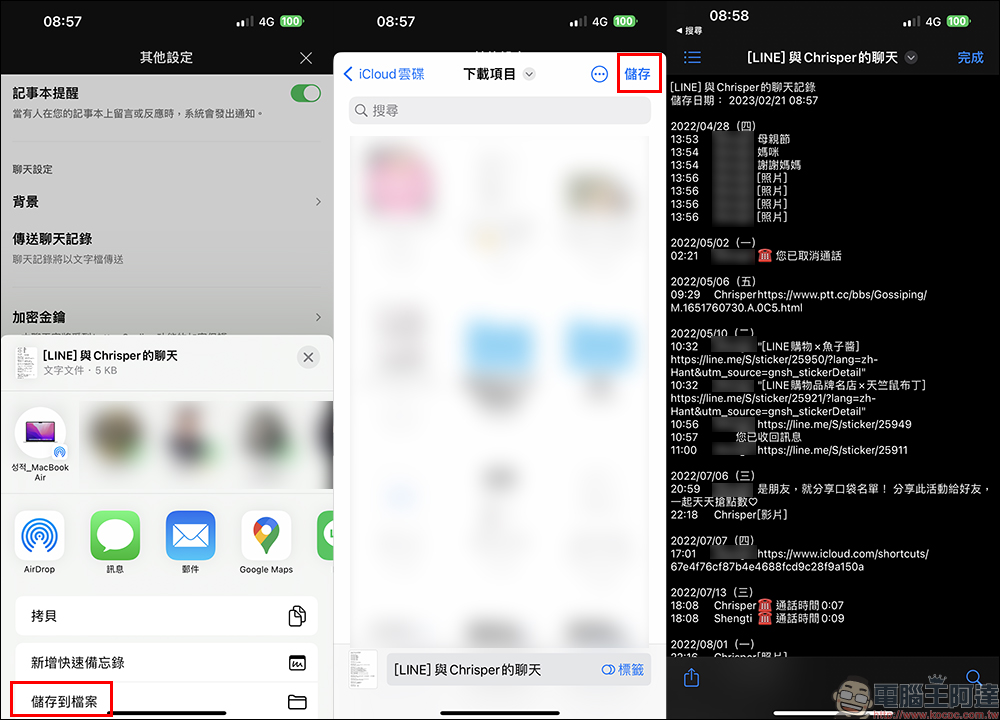
Here, the author uses the iPhone version of LINE as a demonstration and selects the “Save to File” method to save the LINE chat history text file to the iCloud hard drive.
After completing the storage according to the steps, the complete chat history content of the person will be saved as a text file. The user can view the complete chat conversation time and text content. However, this method cannot directly back up the photos and video files of the chat room!
Further reading:
LINE PC version 7.15 version update: new social data synchronization function, caller ID interface optimization, function menu interface update
Source: KOCPC Chinese