


Apple’s iPad is a very popular device that fills the gap between iPhone and Mac. Its larger screen makes it an excellent partner for users to watch videos and take notes anytime and anywhere. Like other devices, the iPad sometimes encounters touch screen issues, including the screen not functioning properly, being unresponsive, or failing to touch. So what are some common problems or solutions that you can try? Let’s keep looking.
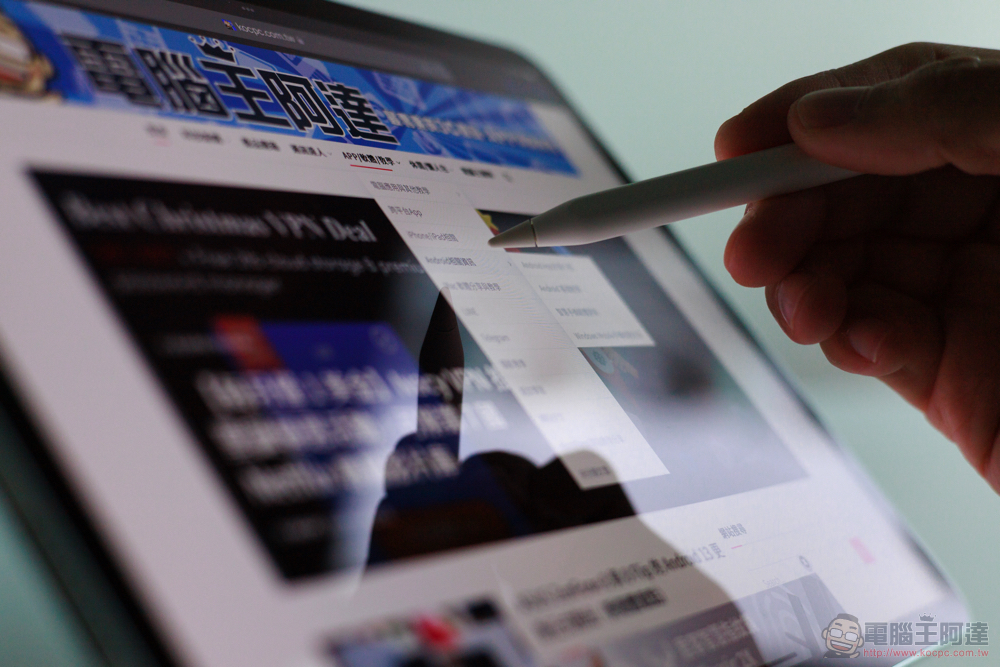
iPad touch screen not working? 10 Frequently Asked Questions and Troubleshooting
If you encounter touch problems on your iPad, please don’t panic and think the worst, because it may be just a minor problem. Following this tutorial, the author will introduce the most common touch problems faced by iPad users and provide tryable solutions for each problem.
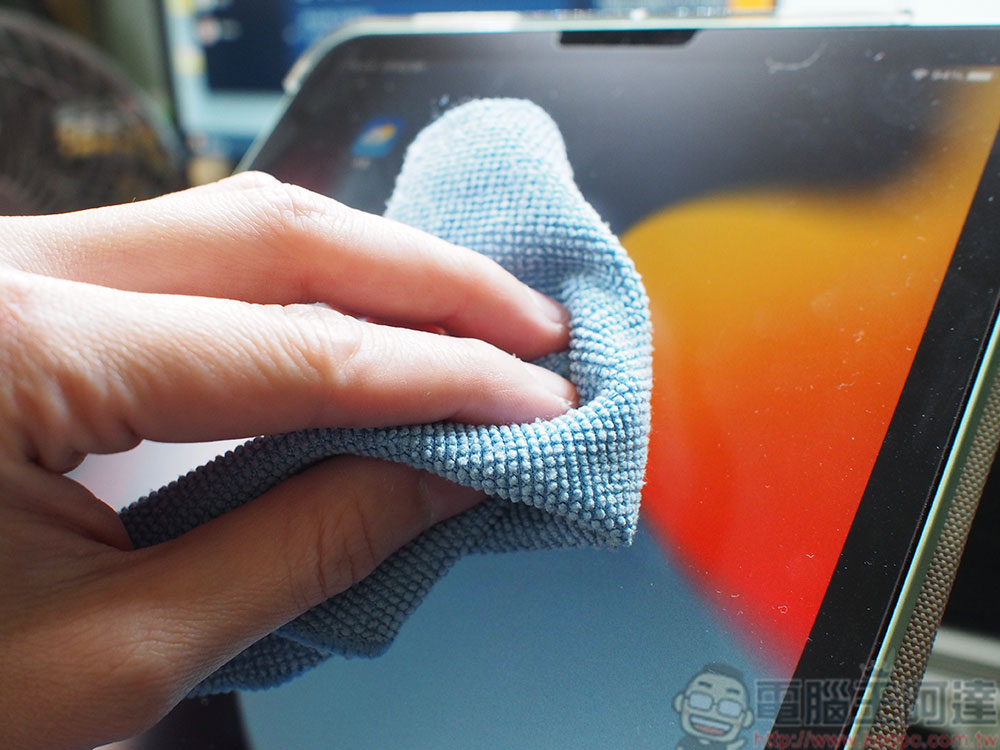
clear screen
The easiest way is to clean your iPad screen. If there are too many oil stains, dust particles, etc. on the screen, it will affect the poor touch control and affect the normal viewing of the screen. You can wipe and clean the screen with a clean soft microfiber cloth. The important thing is to use a good quality and clean soft cloth to avoid further scratches on the screen during the wiping process.
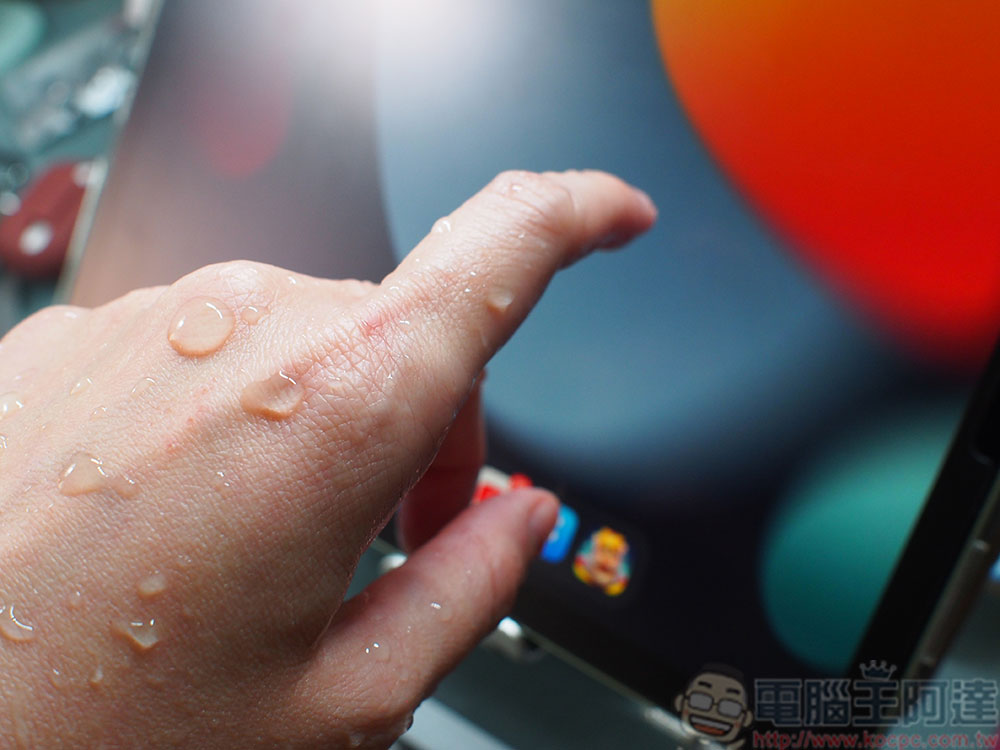
Don’t use iPad with wet hands or wearing gloves
Most touch screens generally cannot be operated with wet hands. If you’re wearing gloves because of cold weather, work requirements, or other reasons, be sure to take them off because most gloves don’t support the iPad touch screen well. If you still want to use your iPad with gloves, you can buy special gloves designed for touch screens, or there are commercially available touch patches that can be attached to the fingertips of gloves.
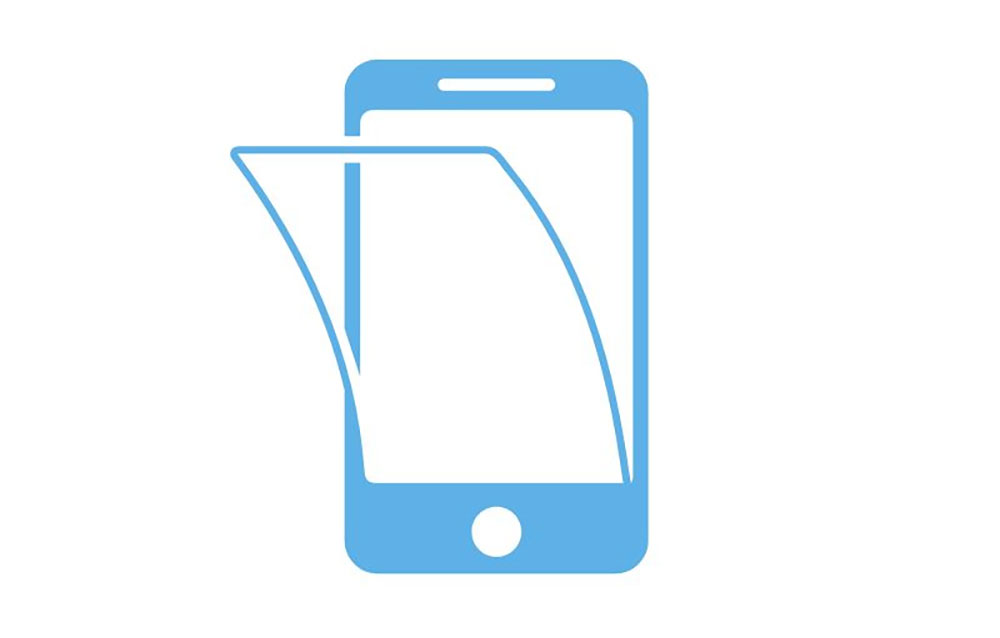
Remove screen protector
Sometimes the screen protector will affect the operation of the touch screen. In particular, a cracked or broken screen protector may cause some areas of the iPad touch screen to not function properly. Please try again after removing the protector. If everything returns to normal, you can install a new protector for it.
Remove the screen protective case
To protect the device, most people use an iPad case that comes with a screen cover, but sometimes this is the main reason why the iPad touch screen doesn’t work properly. Some screen protectors will extend to wrap around the iPad screen frame, but some cases are designed to inadvertently touch the screen directly, causing the screen to become unresponsive. You can confirm this by checking to see if the screen protector is in direct contact with the iPad’s touch screen. If so, carefully cut off the portion of the cover that touches the screen, or purchase a new, high-quality case.
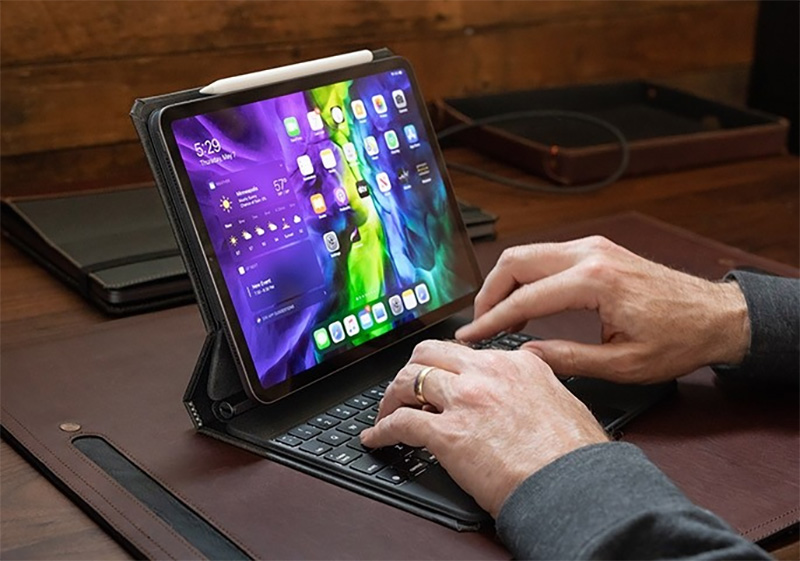
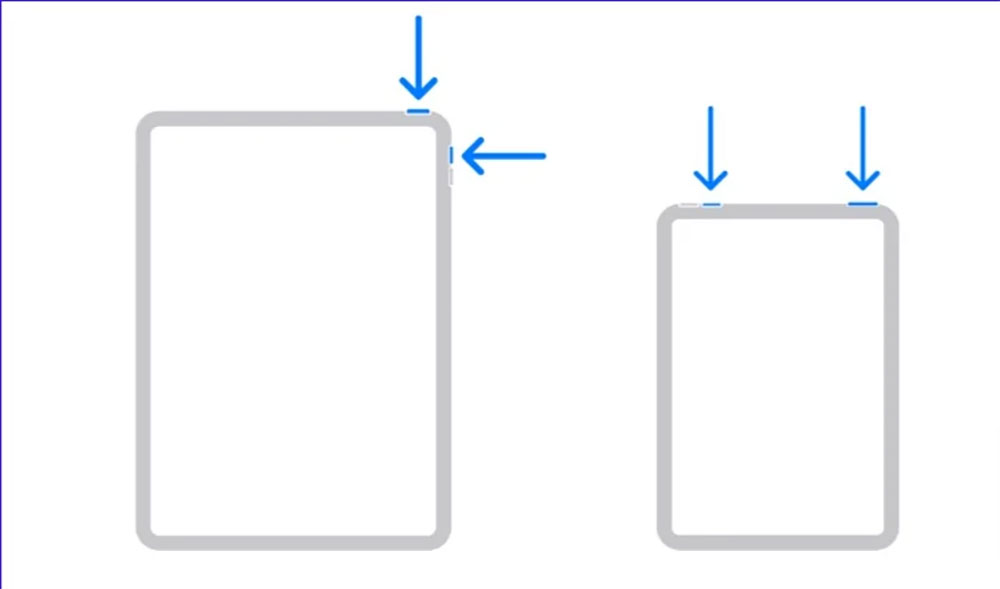
Reboot
Restarting is a good solution for most device problems, and it can also be applied to iPad to fix screen not working properly. The method of restarting may vary depending on the model, as you can restart it through the physical buttons on the iPad.
Update your iPad’s operating system
Sometimes screen failure may be due to a problem in the current operating system version. To solve this problem, please update your iPad to the latest version:
- Open the “Settings” app and enter “General”.
- Click “Software Update” to check if there are any updates that have not been downloaded and installed.
- If an update is available, please download and install it. This entire process may take a while, depending on the size of the update file and the speed of your Internet connection.

Reset iPad
When you have tried all the troubleshooting methods and the problem is still not resolved, the last resort you can take is to reset the iPad to its original factory settings. Before resetting, don’t forget to make a backup first:
Back up with iCloud – for partial screen failure
- Enter the “Settings” app and click on your profile picture.
- Click “iCloud” and click “iCloud Backup” from the inner page.

- Then click “Backup Now”. Depending on the amount of data on the iPad, the entire backup process will take a few minutes. We will perform the reset operation after the backup is completed.

Backing up with iTunes – Windows PC, full screen touch doesn’t work
- Use the cable to connect your iPad to your computer.
- Open iTunes on your computer, click the iPad icon above, and click “Summary” on your device.
- Click “Backup Now”.
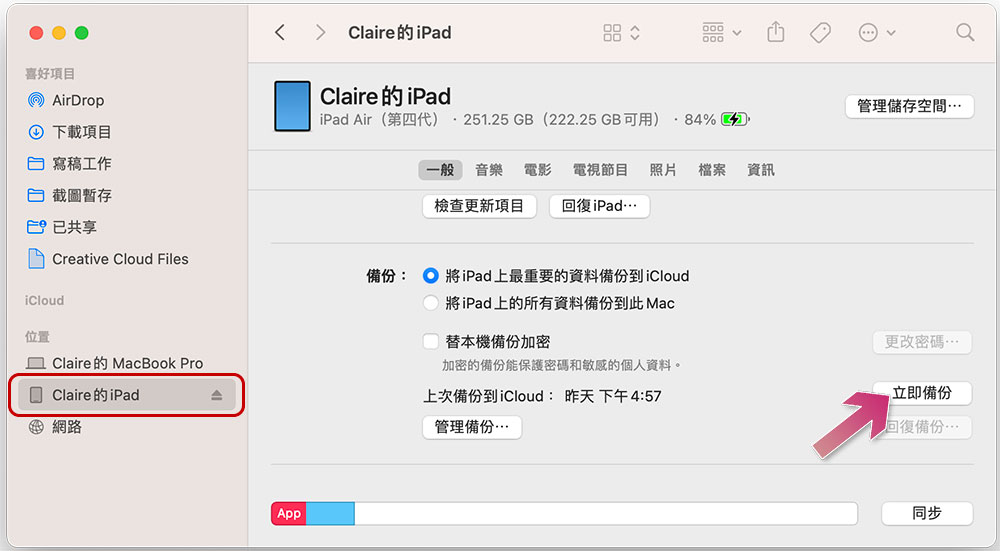
Backup with Finder – Mac computer, full screen touch doesn’t work
- Use the cable to connect your iPad to your computer.
- Click on your iPad in the left sidebar of Finder, then click “Back Up Now.”
Next, we have to reset the original factory settings!
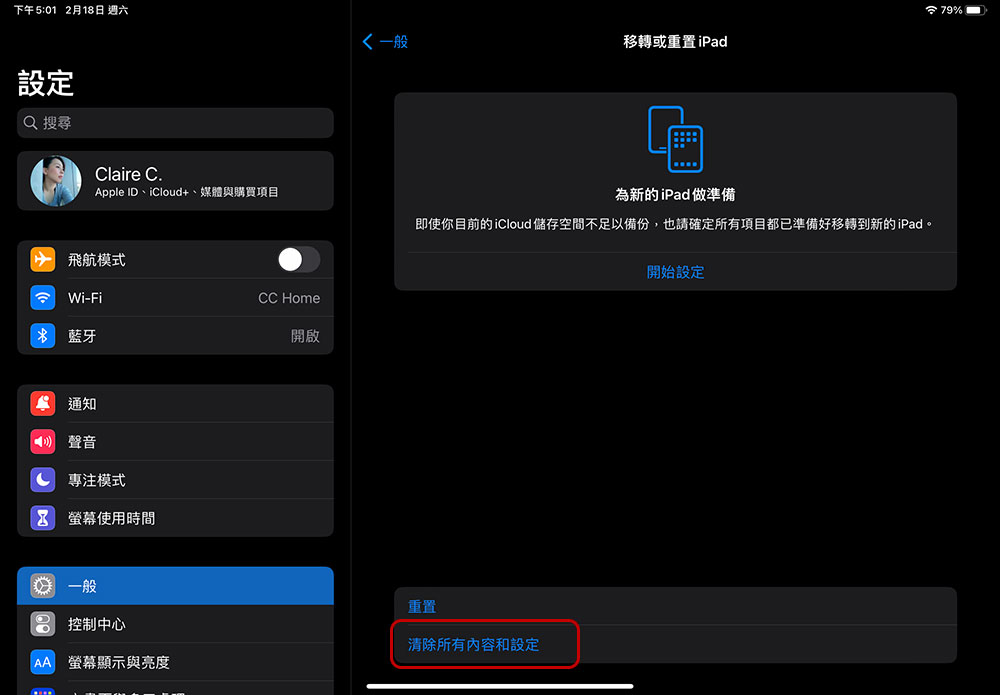
Reset from Settings – for iPad with partially broken screen
- Open the “Settings” app, go to “General”, scroll to the bottom and click “Move or Reset iPad”.
- Select “Clear all content and settings” and follow the instructions to complete the steps.
- Wait for the reset process to complete and you’ll be prompted to set up your iPad as a new device or restore it from a previous backup.
Reset using computer – iPad screen completely lost
- On Mac (macOS 10.15 or above)
Click iPad in the Finder sidebar, click “General” at the top of the window, and then click “Reply iPad…” from there.
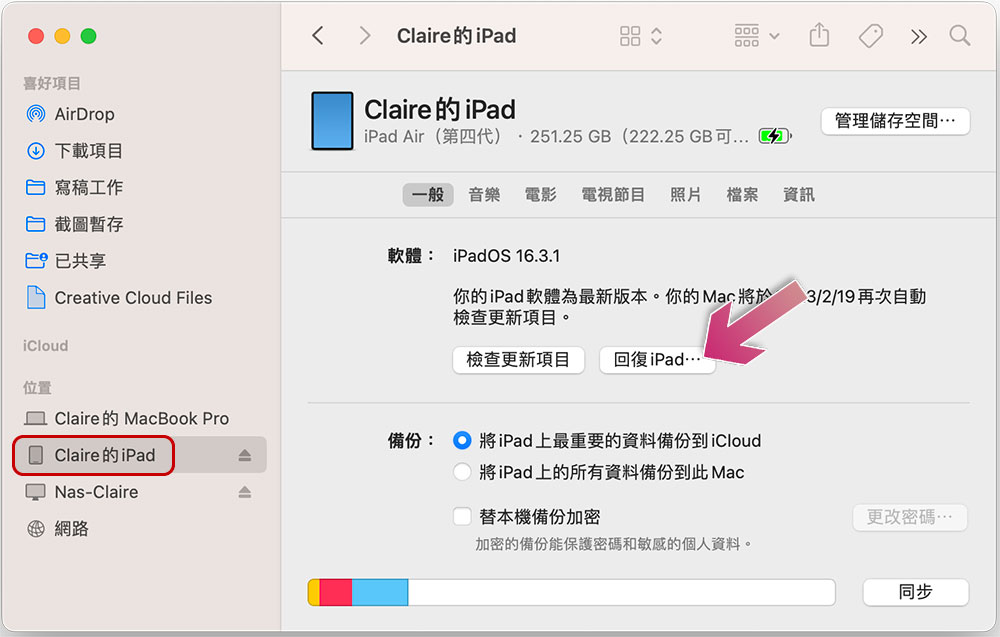
Because we have just backed up – so here we can choose “Don’t back up”.

- On a Mac (pre-macOS 10.14) or Windows PC
Make sure you have the latest version of iTunes, open iTunes, click the iPad button near the top left of the iTunes window, click Summary, and then click Reply iPad.
Remove all peripherals connected to iPad
In rare cases, the failure of external accessories connected to the iPad may also cause the iPad touch screen to fail. You can try to remove all accessories and check whether the touch function returns to normal.
Avoid use in extreme temperatures
Most electronics, including iPads, cannot operate in extremely cold or hot environments. If the temperature rises above a certain level, your tablet may display a warning. If this is the case, wait until the iPad’s temperature has dropped to normal levels and cooled down before using it again.

In the end there was really no other option: Contact Apple Support
If your iPad still doesn’t return to normal after resetting, it may be a hardware issue. The fastest way to diagnose iPad hardware problems is toMake an appointment online, and then take your iPad directly to an Apple physical store or authorized repair center for resolution.
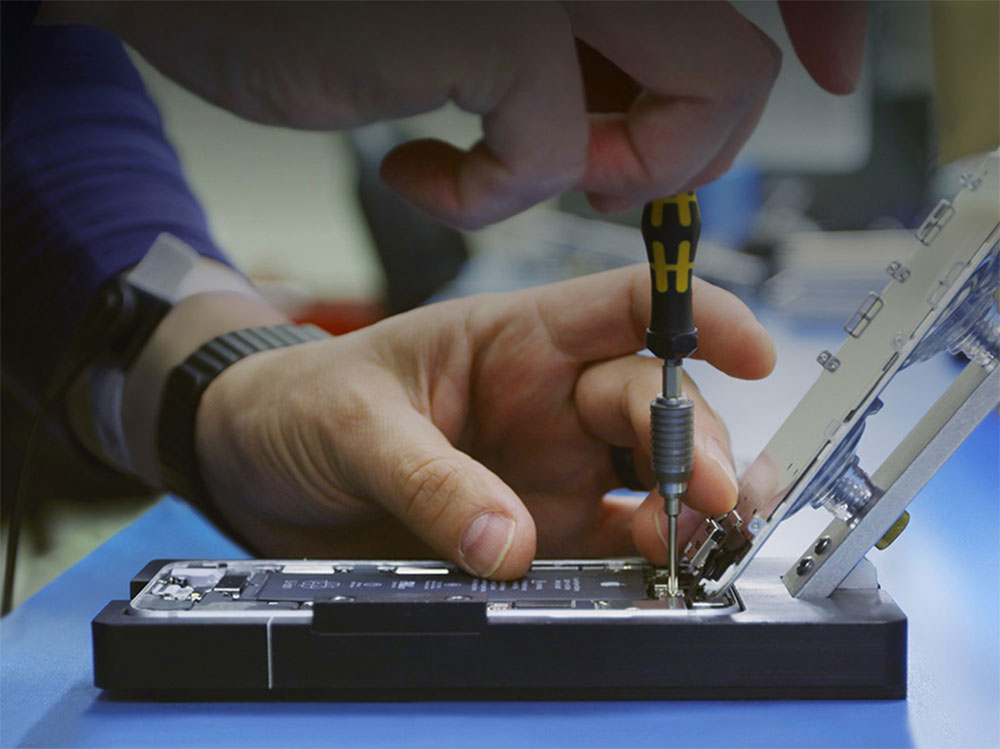
Although Apple’s products are top-notch, electronic products are bound to encounter some problems. Before sending them in for repair, you can check them yourself according to our guide to eliminate any obstacles that can be dealt with first.
Source: KOCPC Chinese