


The MacBook series laptops launched by Apple are stylish and portable, and are loved by many people. However, without power, no matter how useful or beautiful they are, they are just decorations. Have you ever noticed that your MacBook seems to be consuming unusual amounts of power? Did you charge it fully last night, but when you woke up early in the morning, it was all out of battery? If you have any of these electrical issues, try our 10 self-checks and fixes before spending money on battery replacement.
Why is my MacBook draining battery so quickly? Try these 10 methods
Reboot
Restarting is a common solution for almost all electronic and electrical products, so the first thing you can try is to restart your MacBook. This will help solve temporary problems encountered in macOS, such as power consumption problems caused by bad operating system components, third-party application crashes, etc.

Apps that kill thirsty
If battery drain issues persist, it may be caused by an application you are running. macOS is generally very good at managing power consumption, especially on modern Silicon models, but that doesn’t mean you can’t do something to further reduce power consumption. The easiest way to find problem apps is to click the “Battery” icon in the function bar in the upper right corner of the screen. Apps that use a lot of power will be listed here (but they will only appear when there is a surge in power consumption).

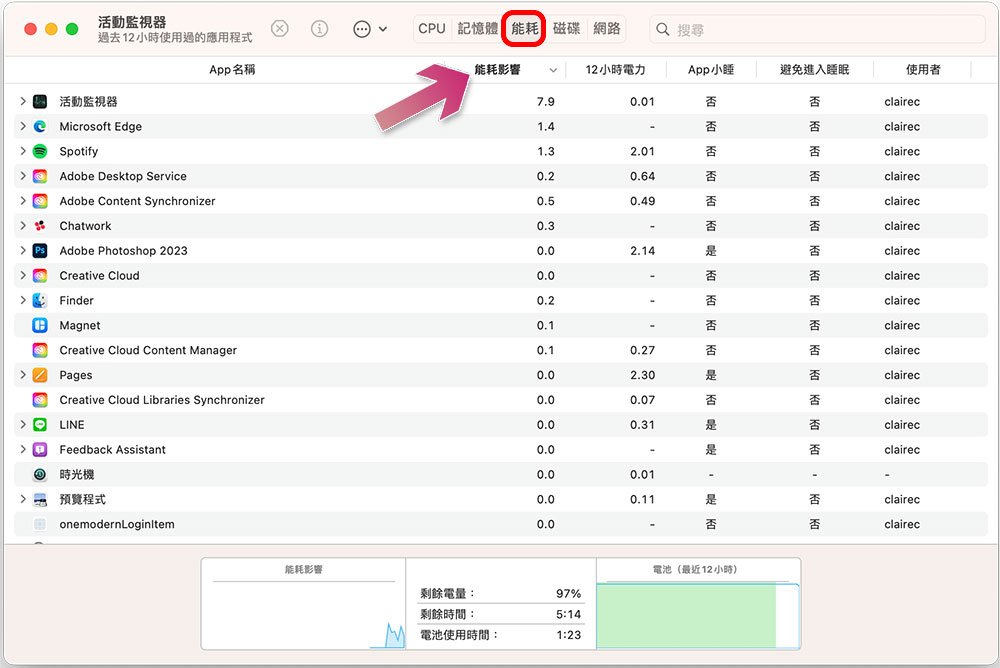
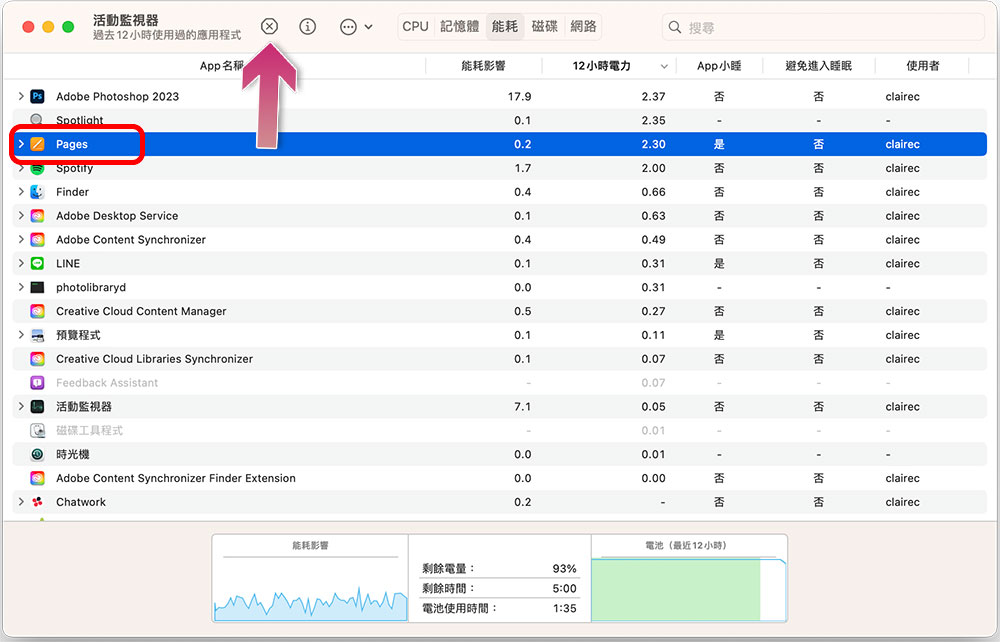
If you want to better understand how much power each process consumes, you can use the built-in tool of macOS to apply “Activity Monitor”. Click the “Energy Consumption” tab and then click the “Energy Consumption Impact” title to sort the applications according to power consumption to see who is the culprit causing large power consumption. You can also click on the “12 Hours of Battery” heading to see which apps used the most battery over the past 12 hours.
You can first select the battery-consuming application and then click the “X” button on the toolbar above the window to force stop the process. From the Activity Monitor, you can see the power consumption of your commonly used applications. If it is too serious and is not absolutely necessary, you may wish to consider other alternatives.
If your biggest goal for your laptop is to save power, then avoid some power-consuming activities when the power charger is not connected, such as editing, converting files, and playing games that require high performance, especially on Intel models. In addition, some network applications also consume power due to their high system performance requirements.
Turn down screen brightness
The monitor is one of the items that consumes the largest amount of power on a laptop. Please use F1 and F2 on the keyboard to adjust the screen brightness, and set it to a brightness that does not cause visual fatigue and does not affect use according to the ambient lighting conditions. It’s best not to work in bright sunlight or an overly bright environment, as you’ll need to brighten the screen significantly to see the display clearly. There are also apps like Vivid and BetterDisplay that can increase the brightness, but also consume a lot of battery.

Please note that when watching HDR content on the 14-inch and 16-inch MacBook Pro launched in 2021, the screen brightness will increase to 1600 nits in one fell swoop, so avoiding watching HDR content when the power cord is not connected can help save power.
Enable low power mode
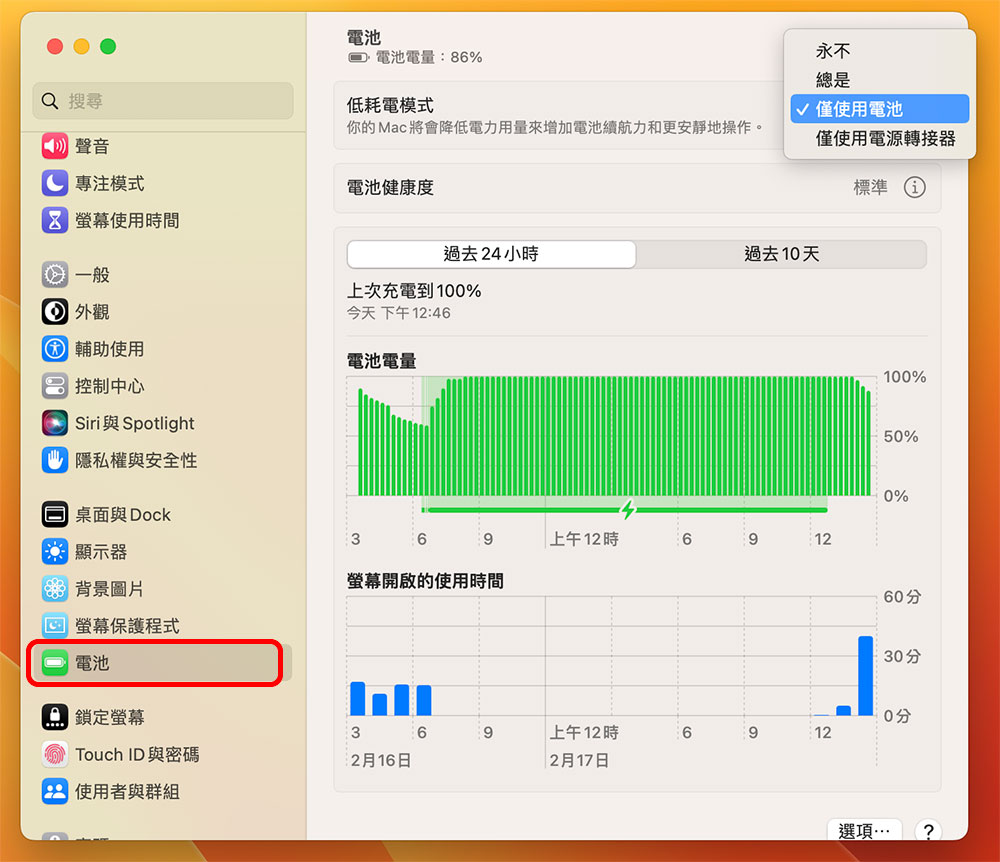
Low power consumption mode can be enabled in the battery settings, and you can choose to enable it when using the battery alone. This means that the MacBook will reduce performance when you use the built-in battery for power in exchange for longer battery life. At the same time, the notebook will run cooler and the fan will be quieter.
Remove unnecessary accessories
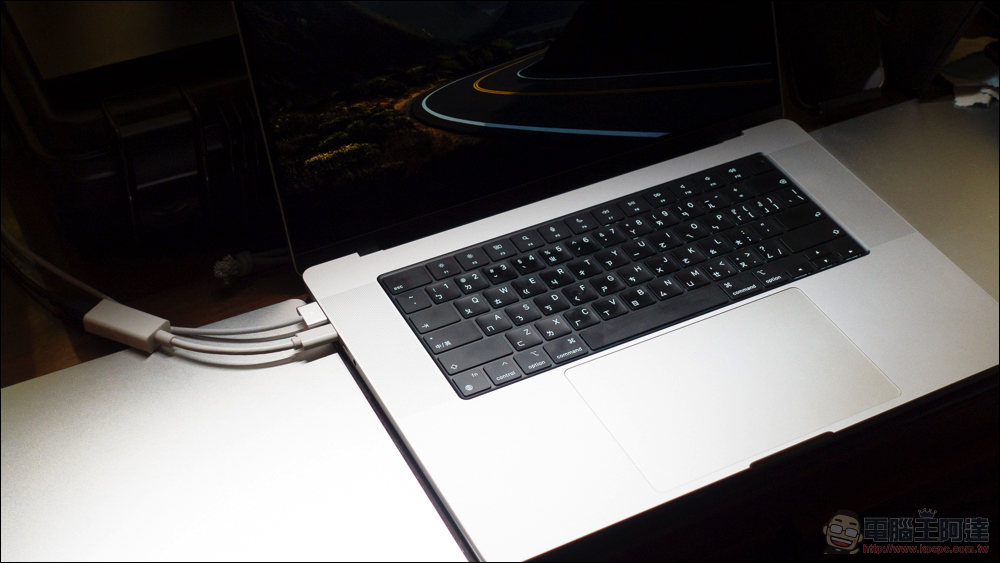
Removing any accessories that are not currently in use and draw power from your MacBook to operate can effectively extend battery life. If you connect your phone to your MacBook via a cable, it will automatically charge from your laptop to your phone, which can be convenient in some situations, but if you just want to transfer a file or use iPhone lenses, make sure you remove the device when you’re done. This applies to any external accessories that can be powered by MacBook, including external hard drives, microphones, web cameras, gaming controllers with rechargeable batteries, etc.
Find apps that prevent you from going to sleep
If you think your MacBook should stop draining power when it goes to sleep, you can check to see if any processes are set to prevent it from joining the sleep queue. Please open “Activity Monitor” and click to enter the “CPU” tab, right-click anywhere on the title bar, and then check the “Prevent going to sleep” filter.
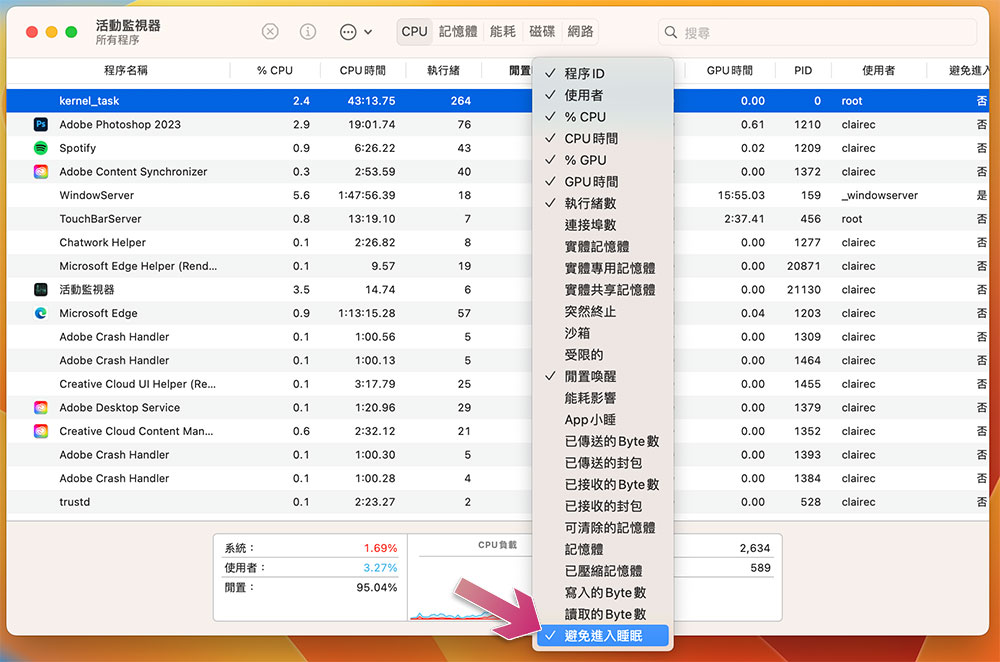
Next, scroll to the right in the Activity Monitor window and click the “Avoid going to sleep” heading to sort. You can see that “Yes” will be displayed for all processes that should be put to sleep or not. You can also drag the sleep avoidance field forward for easier review.
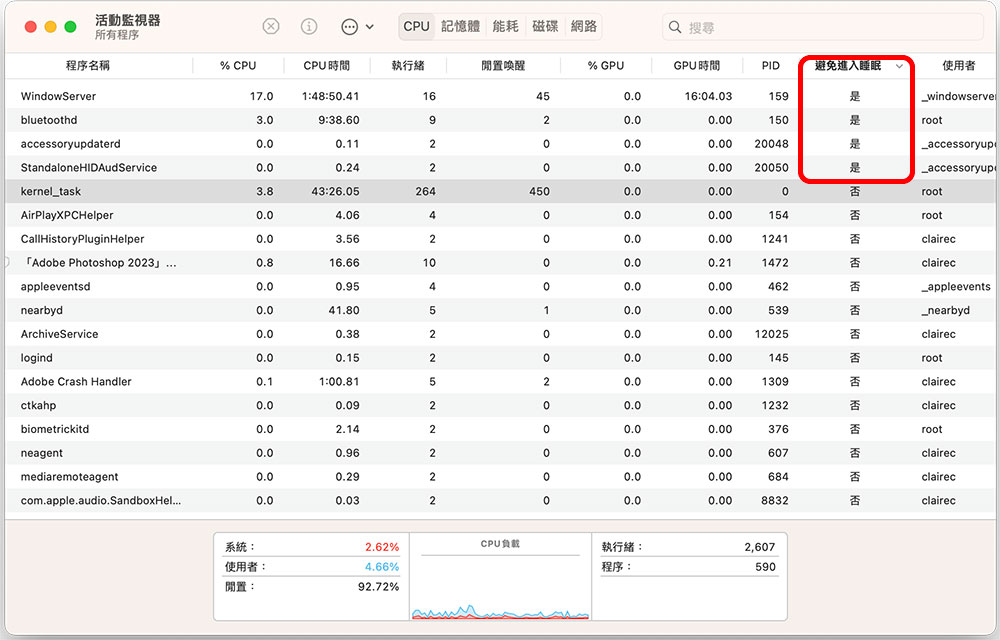
You should be on the lookout for any third-party processes that are blocking sleep, and don’t worry about the ones that are part of macOS. For example, in the picture above we’re looking at Windows Server. Determine whether these processes should be executed without sleep. Some media players are also the culprit.
Check for wake requests while your Mac sleeps
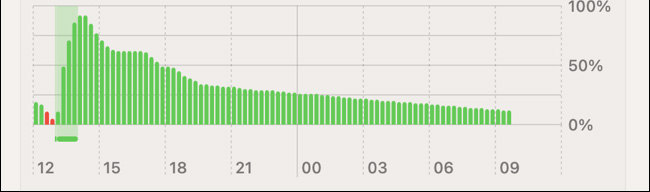
“Settings >> Battery” in macOS includes a battery overview function that allows you to understand the battery consumption of your MacBook battery. Under normal use, the battery will gradually drain, but it should maintain a relatively stable curve during sleep. If your Mac is draining power while it’s sleeping, you’ll see a different kind of graph like this one, which continues to drain power even though the laptop isn’t being used between 7pm and 9am.
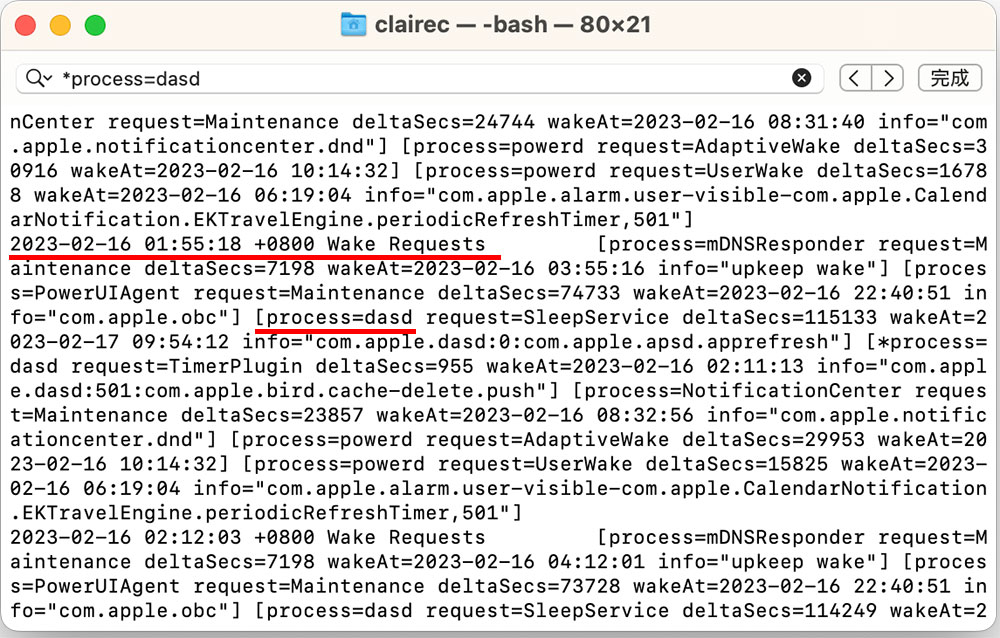
In addition to identifying apps that are blocking sleep, you’ll want to check which apps are specifically waking up your Mac. Open the macOS built-in tool application “Terminal”, enter (or copy and paste) the following sequence of commands, and then press Enter:
pmset -g log |grep “Wake Request”
Now, you will see a log list of laptops that keep waking up, including how many times wake requests were initiated. Note that the scripts in the logs that begin with the “process=dasd” header will tell you exactly which processes made the wakeup request at what time. Here you can check whether there are abnormal processes or third-party applications in the logs.
Change the “Efficient Nap” function setting (Intel model only)
Productivity Nap is a feature that allows your Mac to connect to the Internet while sleeping, automatically receiving new emails, updating calendars, and iCloud content at regular intervals. This operation will be performed automatically in all Apple Silicon models, but for Intel models you must manually go to “Settings >> Battery”, scroll to the bottom of the page and click “Options” to set it. It is recommended to change it to when using the power adapter, or never automatically check.

Reset SMC (Intel models only)
The System Management Controller, or SMC for short, can be found on Intel chips and is responsible for managing the power of your MacBook. If you are using an Intel model, you can reset the SMC on your Mac to solve the problem of excessive power consumption or the laptop failing to enter sleep mode correctly.
【For Apple’s official instructions for resetting the SMC, click here】
Check battery health
You can check the health of your laptop’s built-in battery in “Settings >> Battery”. You can see the “Battery Health” item at the top of the menu. Click the “i” behind it to view more information.

You can also view your MacBook’s total charge cycles in System Information. Click the Apple icon in the upper left corner of the screen, then press and hold “Option” on the keyboard. You can see an additional “System Information” item at the top. Click to enter the system information window.

Find “Power” in the “Hardware” category on the left sidebar of the next window, and then you can see “Number of Cycles” in the health status information. This is the total charging cycle of your battery so far. Barring external factors such as battery failure, most modern MacBooks built after 2010 should be able to get to 1,000 charge cycles before needing to consider replacing the battery.

On a side note…
If you find that your MacBook is experiencing more battery drain after a major macOS upgrade, this is normal, such as upgrading from macOS 12 to macOS 13. After the update, the operating system will have many more internal processing tasks and indexing in the background process, which may cause increased power consumption, increased temperature, and even a whirring fan. In addition to introducing new features, system updates may also cause some system problems that cause power consumption. You can check whether other netizens have reported similar problems on Apple’s official support community or other support forums. If so, you need to wait for Apple to release a fix (usually the greater the impact of the problem, the faster the fix will be rolled out).
Source: KOCPC Chinese